Easy Emotion Bubble
 Onion365studio
Easy Emotion Bubble – Documentation
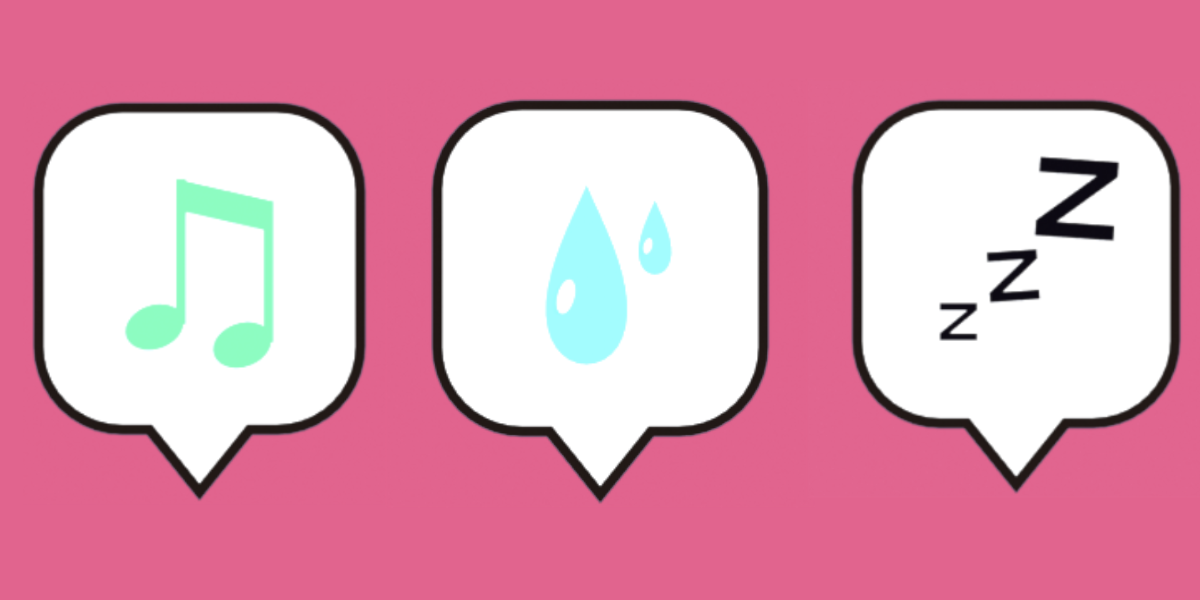
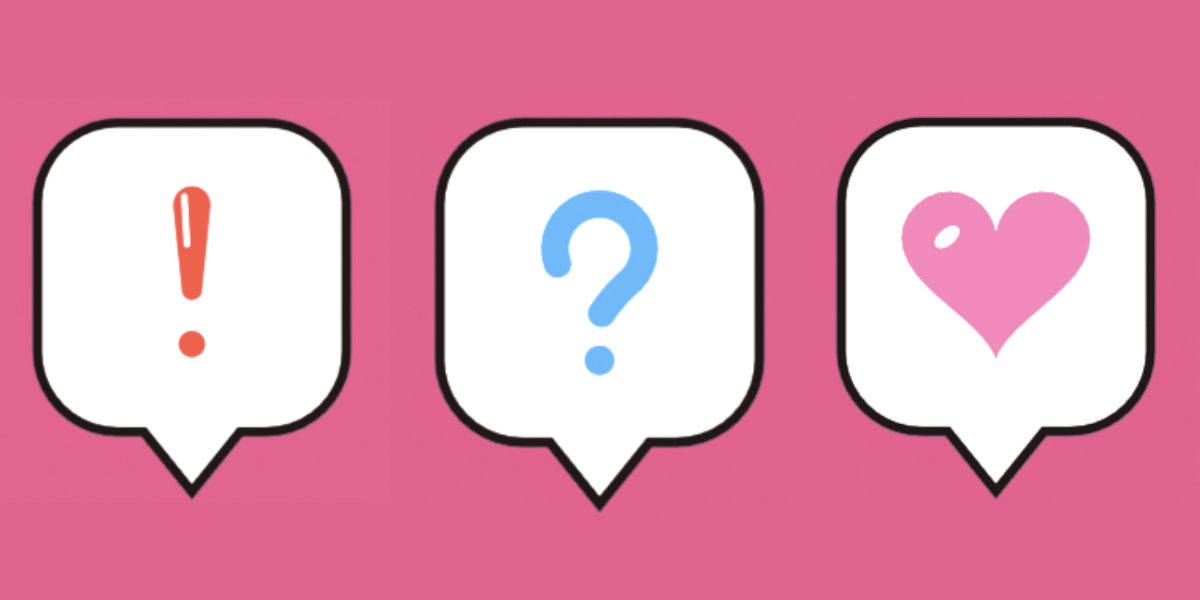
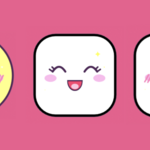
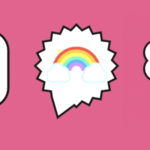
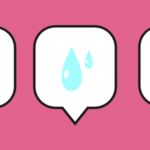
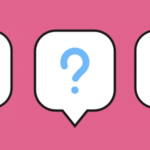
Easy Emotion Bubble generates animated emotion bubbles (speech bubbles with an animated icon inside) in 2D or 3D. You can export them as a GLB with separate animation clips and a transparent PNG sequence, ready for games, UI and sprites.
- Blender version: 5.2.0 or newer
- Location: 3D Viewport → Sidebar (N) → Emotion Bubble tab
1. Installation
- Download
Easy_Emotion_Bubble.zip. Do not unzip it. - In Blender: Edit → Preferences → Get Extensions.
- Open the dropdown arrow in the top-right corner and choose Install from Disk…, then select the zip.
- Make sure the add-on is enabled. The Emotion Bubble tab now appears in the 3D Viewport sidebar (press N).
2. Quick Start
- Place the 3D cursor where you want the bubble.
- Pick an icon in the Emotion box (for example Heart).
- Click Generate. The bubble is created at the 3D cursor with its animation baked, and the timeline is set to the animation length.
- With the bubble selected, change any setting. The bubble updates live.
- Click Export GLB + Image, choose a folder and a file name, and you’re done.
Top buttons
| Button | What it does |
|---|---|
| Generate | Creates a new bubble at the 3D cursor using the current panel settings. |
| Reset All Settings (arrow icon) | Puts every setting in the panel back to its default. |
| Delete All Bubbles (trash icon) | Removes every bubble made by this add-on in the scene. |
How live editing works
- Each bubble is one parent object named
EmotionBubble_, stored in the collection Emotion Bubbles. - Each bubble remembers its own settings. Selecting a bubble loads its settings back into the panel.
- When a bubble is selected (or was the last one edited), every change in the panel rebuilds it right away, including switching the emotion.
- Generating several bubbles in one scene works fine.
3. Bubble Settings
Dimension
| Option | Description |
|---|---|
| 2D | Flat sprite-style bubble made of stacked flat layers. |
| 3D | Solid bubble with thickness, bevelled edges and an icon that stands out of the surface. |
3D-only settings (greyed out in 2D)
| Setting | Default | Description |
|---|---|---|
| Thickness | 0.28 | Depth of the bubble body, relative to the radius. |
| Icon Height | 0.09 | How far the icon stands out of the bubble. |
| Double Sided | Off | Puts the icon on the back too, so it can be seen from both sides. |
| Bevel | 0.7 | Edge rounding (0 = sharp, 1 = fully rounded). |
| Segments | 3 | Smoothness of the rounded edges (1–8). More segments means a heavier mesh. |
| Round Corners | 0.5 | Rounds the sharp corners of the outline itself: tail tip, burst spikes, icon parts. |
| Self Glow | 0.3 | 1 = flat and unlit like 2D. Lower values let the lights of your engine or render shade the bubble. |
Shape
| Shape | Notes |
|---|---|
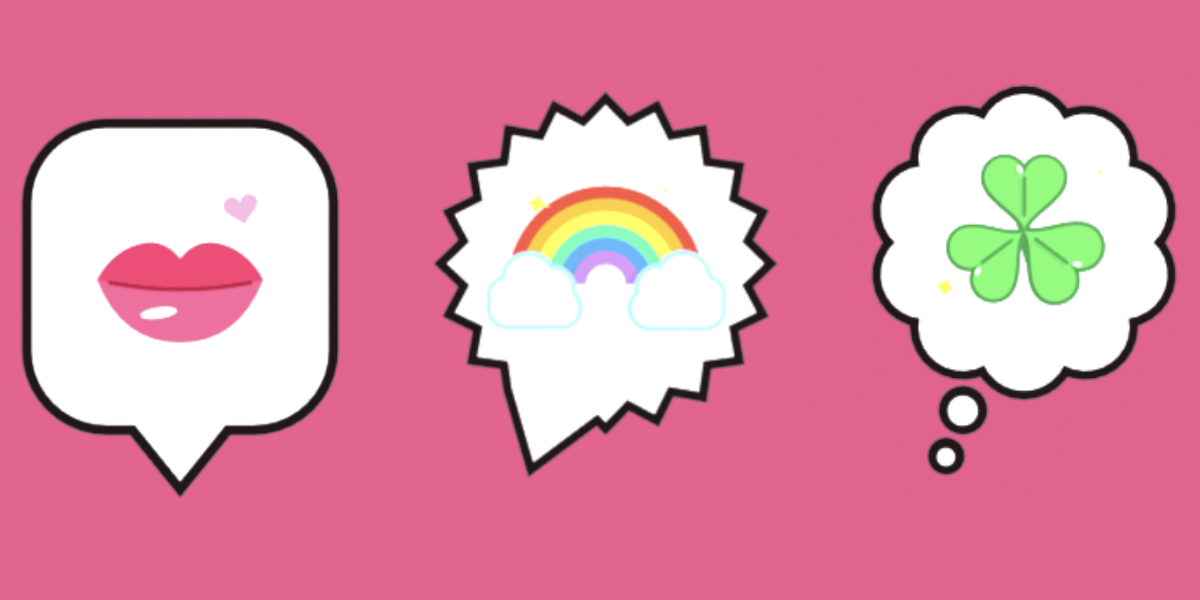
| Round | Classic oval speech bubble. |
| Rounded Box | Chat-style rounded rectangle. Corner controls the roundness (1 = pill). |
| Soft Square | Between a square and a circle. |
| Cloud | Scalloped thought cloud. Bumps sets the count (5–20). The tail becomes two small circles. |
| Burst | Spiky shout bubble. Spikes sets the count (5–20). |
Size, Tail and Color
| Setting | Default | Range / Description |
|---|---|---|
| Radius | 0.5 m | 0.01–50 m |
| Aspect | 1.0 | Width / height, 0.6–1.8 |
| Icon Scale | 0.72 | 0.3–0.95 |
| Icon Rotation | 0° | Tilts the icon inside the bubble, −180° to 180°. Works with every emotion and the Custom Model. |
| Tail | Left | Left / Center / Right / None |
| Tail Length | 0.38 | 0.1–1.0 |
| Outline | 0.07 | Outline thickness relative to the radius, 0–0.3 |
| Bubble / Outline color | White / dark brown | The two color swatches under Color. |
4. Emotions
The Emotion box offers 65 animated icons, plus Face and Custom Model. Every icon has its own idle animation.
| Category | Icons |
|---|---|
| Comic marks | Exclamation, Question, Exclamation + Question, Dots, Anger, Anger (Arcs), Scribble, Splash Drops, Dizzy Spiral, Puff (steam), Blush ///, Gloom Lines, Sweat Drop, Sleep Zzz |
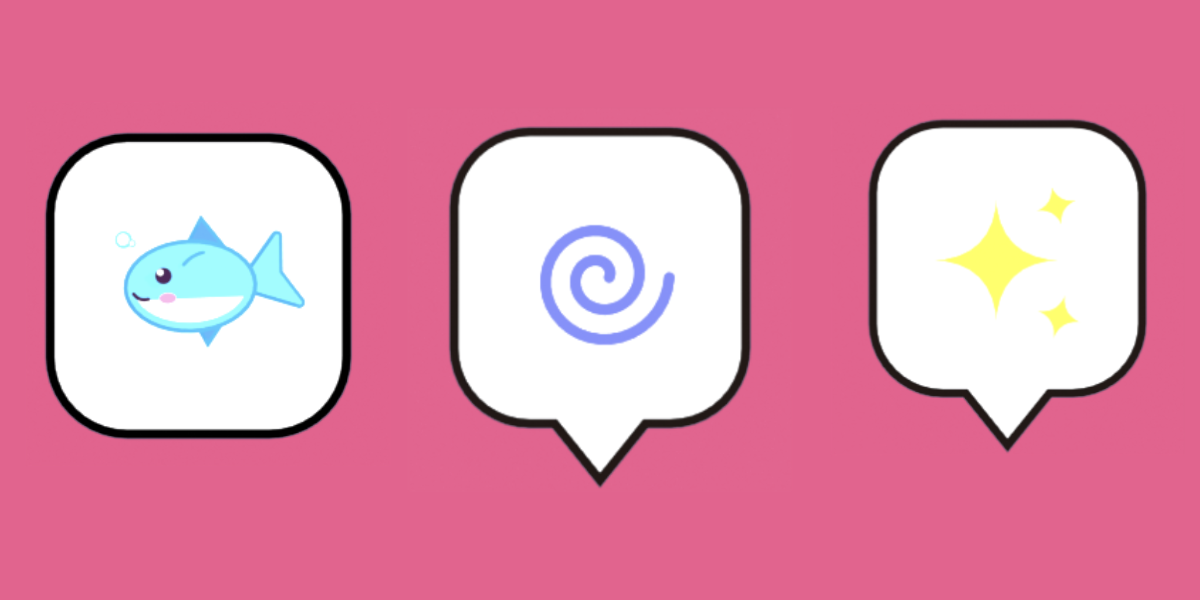
| Feelings | Heart, Broken Heart, Kiss, Sparkle, Sakura, Music Note, Idea Bulb, Fire, Snowflake, Ghost, Rain Cloud |
| Status / UI | Check, Cross, Hourglass, Alarm Clock, Bell, Letter, Lock, Key, Gear & Wrench, Magnifier, Level Up, Heal +, Shield, Crossed Swords |
| Rewards | Coin $, Star, Gift Box, Party Popper, Treasure Chest, Crown, Gem, Trophy, Thumbs Up, Clover, Rainbow |
| Items & health | Bomb, Thermometer, Pill, Potion, Poison |
| Food & nature | Rice Ball, Strawberry, Fish, Carrot, Coffee Cup, Sprout, Sun, Moon |
| Eyes | Eyes (glancing left and right, blinking) |
Icon Colors
Every icon has its own color slots (for example Potion has a Liquid color: red = HP, blue = MP). Use the arrow button to reset the colors of the current emotion. Icon Colors are disabled for the Custom Model, which keeps your own materials.
Scribble: Seed / Random
Scribble uses a random layout. The Seed field and the Random button are only active for this icon. The same seed always gives the same scribble.
5. Face
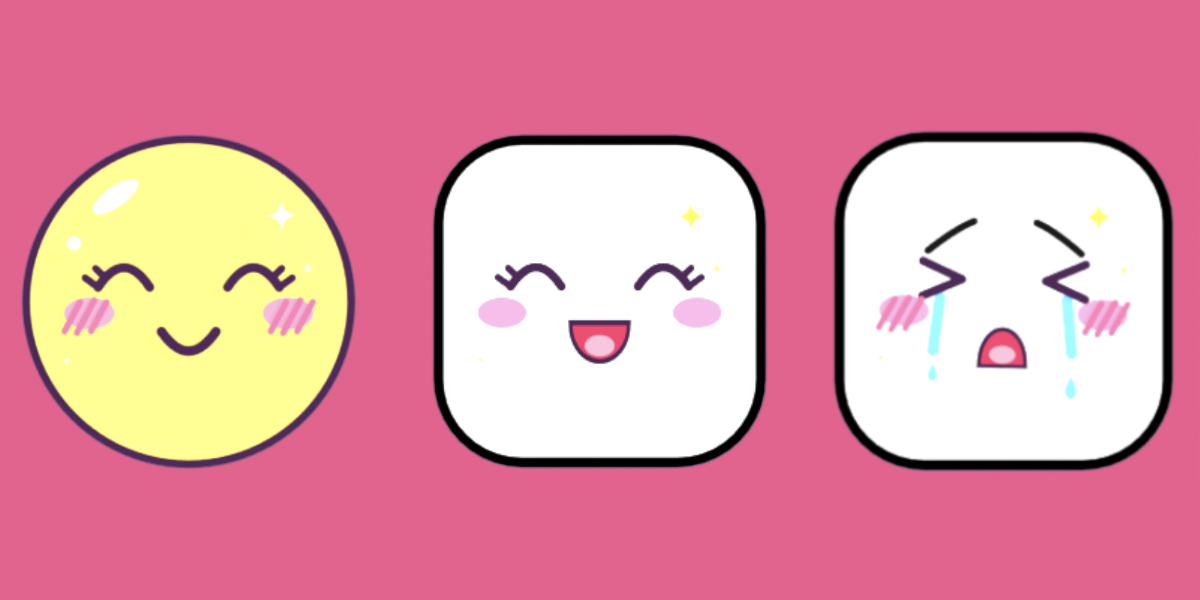
Choose Face to get an emoji-style face. There are 14 moods.
- Kawaii (10): Cute Smile, Happy Laugh, Round Eyes, Worried, Cute Angry, Sweet Cat, Crying, Surprised, Smug, Sleepy
- Classic (4): Default, Angry, Smile, Aggrieved
| Toggle | Description |
|---|---|
| Gloss | Glossy highlight (kawaii moods). |
| Sparkles | Little twinkling stars (kawaii moods, not Sleepy). |
| Eyebrows | Shows or hides the eyebrows. On Cute Smile and Happy Laugh these are the small lashes above the closed eyes. |
| Blush Lines | Manga blush marks (///) on both cheeks. Works with every mood. |
Cute Look offers one-click presets for kawaii moods: Cream, Pink, Blue, Orange. Each one sets a pastel bubble, a dark plum outline, a round shape and no tail.
6. Custom Model
Use your own model as the icon.
- Choose Custom Model in the Emotion box.
- Pick your object in Model, or select it in the viewport and click the arrow button next to the field (Use Active Object).
- Click Generate.
| Setting | Description |
|---|---|
| Include Children | Also copies child objects, so several parts parented to one object come along. |
| Model Scale | 1 = the longest side of the model is as big as the built-in icons. |
| Depth | Squashes the model along its depth (Y). Lower values make it stand out less. |
| Rotation | Extra rotation to turn the model towards the camera. |
| Idle | Pulse, Bounce, Wobble, Shake, Turntable or None. |
Good to know
- Supported: Mesh, Curve, Surface, Text and Metaball objects, and an Empty that groups them.
- Modifiers are applied to the copy. Your original object is never changed.
- The front of the model is the −Y side (Blender’s front view).
- Your own materials are kept. Image textures also show in the PNG export.
- Objects that belong to an emotion bubble cannot be used as a model.
7. Animation
| Mode | Result |
|---|---|
| Pop In + Idle + Pop Out | Full one-shot animation. |
| Pop In + Idle | Pops in and stays. |
| Idle Loop Only | Seamless loop without the pop (good for sprite loops). |
| Rotate In Place | Seamless loop where the whole bubble and icon turn around their own middle while the idle keeps playing. |
| Setting | Default | Description |
|---|---|---|
| Pop In | 8 frames | Length of the pop-in (2–60). |
| Idle | 36 frames | Length of one idle loop (6–480). |
| Pop Out | 6 frames | Length of the pop-out (2–60). |
| Idle Strength | 1.0 | Scales the idle motion (0–2). |
| Overshoot | 1.0 | Pop-in bounciness (0–2). |
| Float | 0.08 | Up/down floating, relative to the radius. |
Rotate In Place options
| Option | Description |
|---|---|
| Axis: Turntable | Turns around the vertical axis like a coin. In 3D, enable Double Sided to see the icon on the back too. |
| Axis: Flat | Turns in the picture plane like a wheel. |
| Turns | Whole turns per idle loop (1–8). The loop stays seamless. |
| Reverse | Turns the other way. |
| Pause at Front | Every turn pauses briefly facing the front, so the icon can be read. |
The panel always shows the total frame count and the duration in seconds at your scene frame rate.
8. Export GLB + Image
Click Export GLB + Image. A file window opens where you choose the folder and the file name. Nothing has to be selected. The export uses the selected bubble, otherwise the one you edited last, otherwise it builds one from the current panel settings.
Output
bubble_heart.glb
bubble_heart/
    bubble_heart_0001.png
    bubble_heart_0002.png
    ...
Image options
| Option | Default | Description |
|---|---|---|
| Size (px) | 256 | Square frame size (32–4096). |
| Padding | 1.5 | Camera margin around the bubble. Raise it if the pop overshoot gets cut off. |
| Yaw | 15° | 3D only. 0 = front, 180 = back view (use with Double Sided). |
| Pitch | 10° | 3D only. Look from above (+) or below (−). |
PNG sequence: transparent RGBA, rendered with an orthographic camera and the Workbench engine, so it is fast and needs no lights or world setup. Your scene’s render settings are restored afterwards.
GLB animation clips: the GLB contains separate clips, so a game engine can play them on demand:
| Clip | Contents |
|---|---|
em_pop_in |
The pop-in. |
em_idle |
One seamless idle loop. |
em_pop_out |
The pop-out. |
Depending on the animation mode, some clips are not written: Idle Loop Only and Rotate In Place export only em_idle, and Pop In + Idle has no em_pop_out.
Typical game use: play em_pop_in, then loop em_idle, then play em_pop_out when the bubble should disappear.
Easy Emotion Bubble – FAQ
Installation and setup
Which Blender versions are supported?
Blender 5.2.0 and newer.
I can’t find the panel.
Open the 3D Viewport and press N to show the sidebar, then click the Emotion Bubble tab. If the tab is missing, check that the add-on is enabled in Preferences.
Creating bubbles
Nothing changes when I move the sliders.
Live editing only works on an existing bubble. Click Generate first, or select a bubble. The panel edits the selected bubble, or the one you edited last.
Where does the bubble appear?
At the 3D cursor. Move the cursor first if you want it somewhere else.
I changed the panel and my hand edits on the bubble disappeared.
When you change a setting, the bubble is rebuilt from the panel settings, so manual changes to its parts are replaced. Finish your settings first, then edit. If you want to keep a manually edited bubble, duplicate it and detach the copy from the add-on workflow before changing anything else.
Can I have several bubbles in one scene?
Yes. Each bubble remembers its own settings, and selecting a bubble loads its settings into the panel.
What is the difference between 2D and 3D?
2D is a flat, sprite-style bubble made of stacked layers, perfect for UI and sprite sheets. 3D is a solid bubble with thickness, bevel and a raised icon, suited for in-world markers above characters.
Why are some controls greyed out?
Controls that don’t apply to the current choice are disabled instead of hidden. For example, the 3D settings are greyed out in 2D, Corner only works on Rounded Box, Cute Look and Gloss only work on kawaii Face moods, and Seed / Random only works on Scribble.
How do I see the back of a spinning 3D bubble?
Turn on Double Sided. Then the icon also appears on the back. For image export, set Yaw to 180 for the back view.
How do I reset everything?
Click the arrow icon next to Generate (Reset All Settings). To remove bubbles, use the trash icon (Delete All Bubbles).
Custom Model
I get “The model has no geometry to copy”.
The object is an empty with no geometry, or it is not a supported type. Use a Mesh, Curve, Surface, Text or Metaball object, or an Empty that has such objects as children (with Include Children on).
My model faces the wrong way.
The front of the model must be the −Y side. Use the custom Rotation to turn it towards the camera.
Will my original object be changed?
No. A copy is made, modifiers are applied to the copy, and your original stays untouched.
Export
What files do I get?
One .glb file and a folder with the same name containing a transparent PNG sequence (name_0001.png, name_0002.png, …).
Do I need to select the bubble before exporting?
No. It uses the selected bubble, otherwise the last edited one, otherwise a temporary bubble built from the panel settings.
Does the export change my scene?
No. The temporary camera and render settings are restored after the export, and temporary bubbles are removed.
What are the clips in the GLB?
em_pop_in, em_idle and em_pop_out. Idle Loop Only and Rotate In Place only contain em_idle.
The PNG frames are cut off at the edges.
Increase Padding in the export window. Strong Overshoot makes the bubble briefly bigger than its resting size.
Why is the PNG so plain? Can I use Eevee or Cycles?
The built-in export uses Workbench on purpose: it is fast and gives a clean transparent result. The bubbles are normal Blender objects, so you can also render them yourself with any engine.
I see two tiny triangles in the GLB. Is that a bug?
No. They are microscopic helper triangles placed at opposite corners of the animation’s bounding box. They help GLB viewers frame the whole range of motion instead of zooming in on the bubble while it is still tiny. You can’t see them.
Can I use the exported bubbles in commercial projects?
Yes. Per the included license, you may use the assets in personal, educational and commercial projects (games, animations, renders) and modify them for use within your projects.
What am I not allowed to do?
You may not resell, redistribute or share the original asset files, or modified versions of them, as standalone assets, and you may not claim ownership of them. Attribution is not required but is appreciated.
Have questions about this product?
Login to message
| Blender Extension Compatible | Yes |
| Dev Fund Contributor | |
| Published | about 16 hours ago |
| Blender Version | 5.2 - 5.3 |
| Extension Type | Add-on |
| Render Engine Used | Cycles, Eevee |
| License | GPL |
Discover more products like this
animation glb 3d cute emoji emotion bubble Game asset kawaii emotion 2d PNG sequence speech bubble