Easy Face Weight
 Onion365studio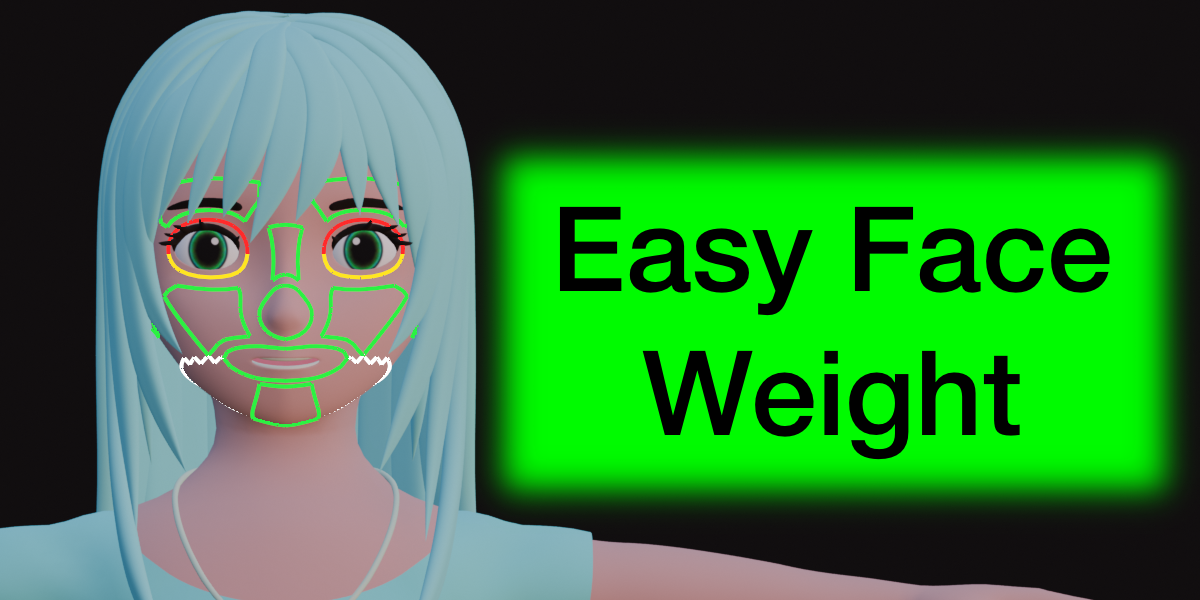
Documentation
Installation
- Open Edit > Preferences > Add-ons, choose Install from Disk, select the downloaded zip and enable Easy Face Weight.
- The panel is in the 3D Viewport, Sidebar (N) > Easy Face.
- Requires Blender 5.2 or newer.
Before You Start
- Select the armature and the face mesh together.
- Face bones are found by name, so your armature must use the standard bone names. The easiest way is to use the face armature that Load Face Bones brings in.
- Mirror X needs a mesh that is symmetric around its local X axis.
Load Face Bones
- Brings the face armature and the Heat bones armature (eyes, tongue, teeth) into your scene.
- Reports how many face bones and heat bones were found.
- Covered parts: head, eyelids (upper and lower, each side), eyebrows (3 per side), nose, cheeks, lips (8 bones), ears, chin and jaw.
Color Lines
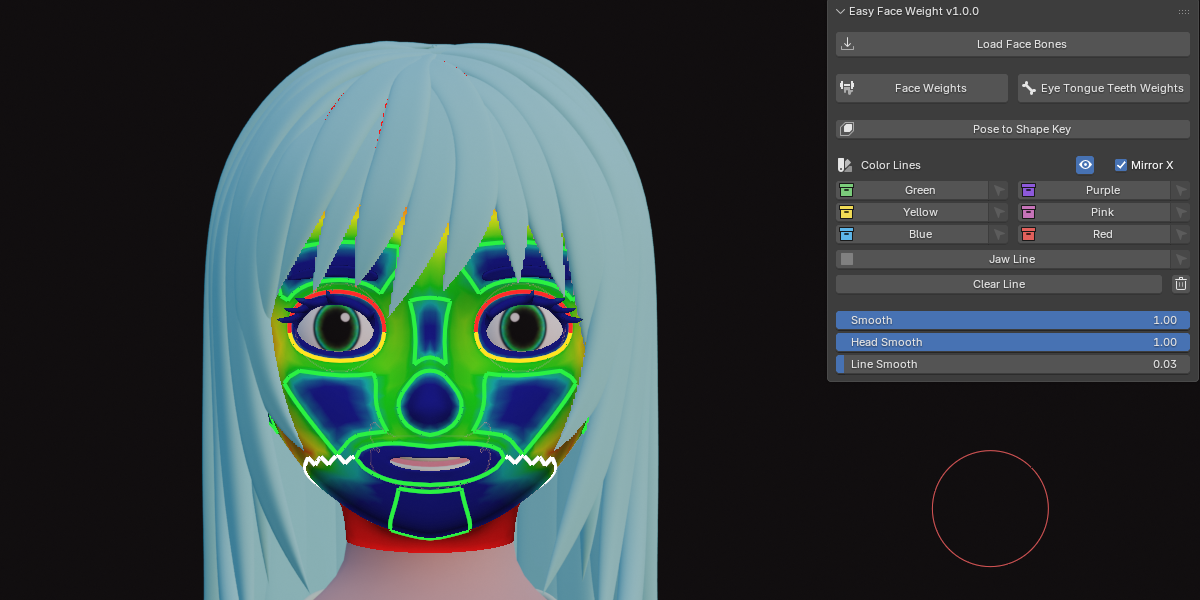
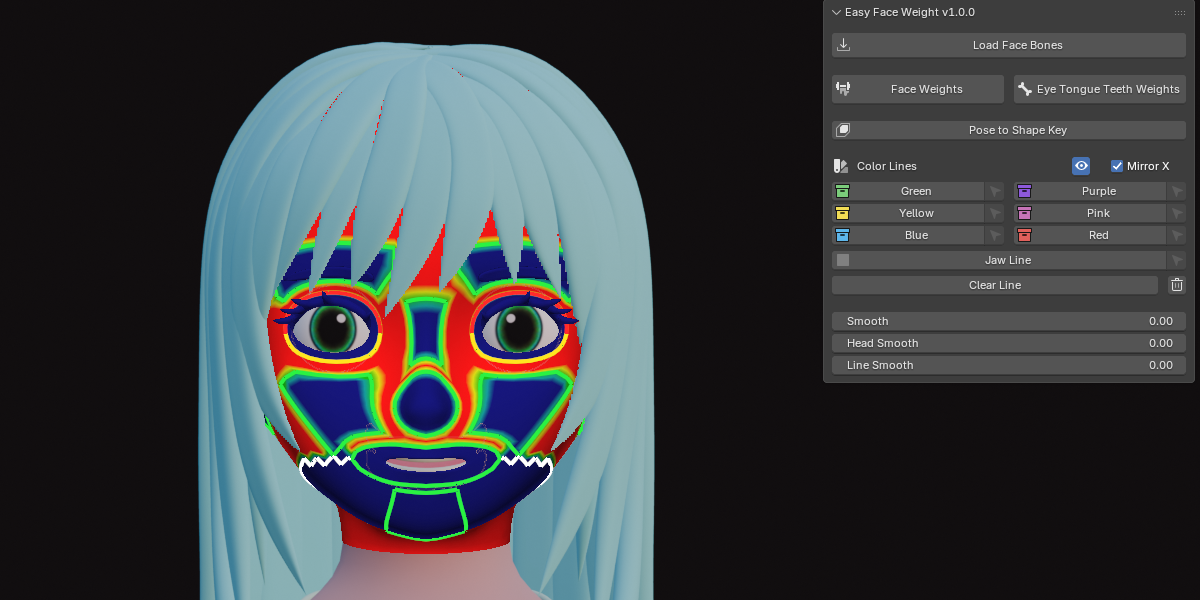
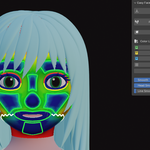
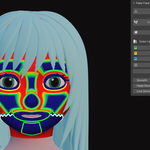
- Color lines tell the add-on where the face area ends and how it is divided between the bones. Sharp edges and seams also count as loop edges.
- There are six colors (Green, Yellow, Blue, Purple, Pink, Red) and a white Jaw Line.
- In Face or Vertex select mode, select an area and click a color. The border edges of the area get that color.
- In Edge select mode, the selected edges get the color.
- Colors split the region between the bones, so use a different color for each neighbouring part, for example one color for the upper half of an eye ring and another for the lower half.
- Turn on Mirror X to mark or clear the matching edges on the other side at the same time.
- The small select button next to each color selects every edge of that color (Edit Mode).
- Clear Line removes the marks inside the current selection. The trash button removes every color line from the mesh.
- The eye icon shows or hides the lines in the viewport.
Jaw Line
- The white Jaw Line is the lower border of the jaw area.
- Together with the other lines and loops it closes the area that holds the jaw bone.
- Jaw weights never go below it, the line itself is jaw 1.0, and the head gets no weight on it.
Face Weights
- Writes the weights for all face bones found on the armature.
- Each part has weight 1.0 inside its loop and never goes past the loop line.
- On the loop line the part and the head each get 0.5, and outside the loop the head gets 1.0.
- The jaw is decided automatically. It stays below the upper lip and stops at the lowest point of the jaw / chin bone, or at the Jaw Line when one is marked.
- Teeth, tongue and eyes are not painted here.
- Existing vertex groups on the face mesh are deleted first, and an Armature modifier is added if the mesh has none for this armature.
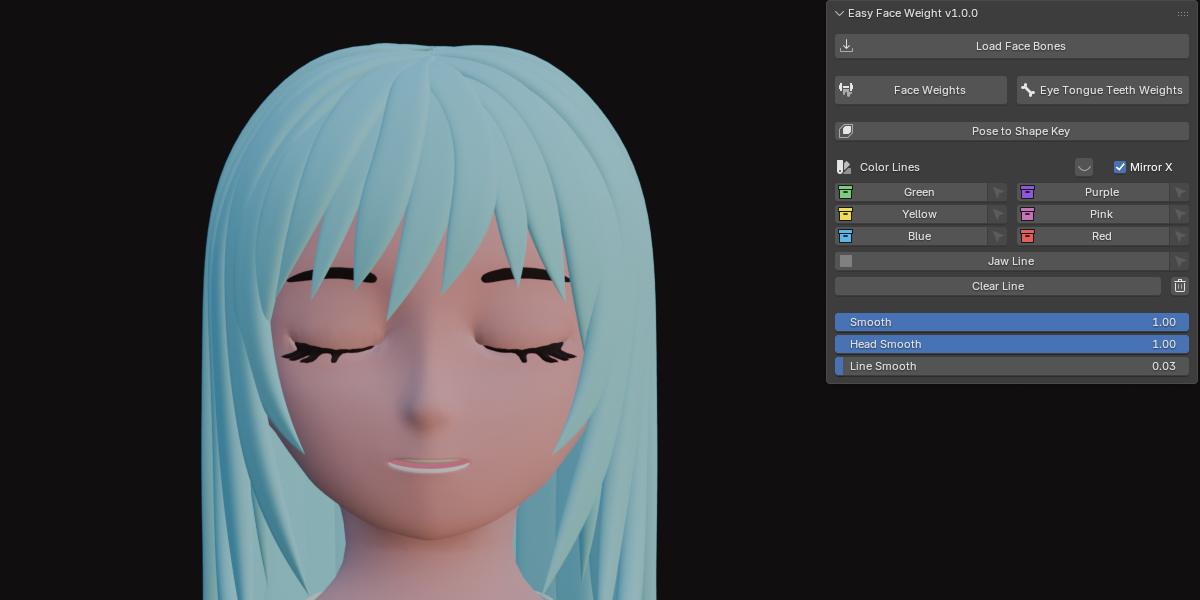
- A gentle smoothing is applied to each part automatically after the weights are made.
- The progress bar on the button shows the percentage while it works.
Eye Tongue Teeth Weights
- Select the meshes for teeth, tongue and eyes, then click the button.
- Uses the Heat bones: teeth.T, teeth.B, tongue 01 to 04, eye.R and eye.L.
- Each bone takes the piece of mesh nearest to it. A piece with one bone gets 1.0, and the tongue chain is split between its bones by heat diffusion.
- Meshes that have color lines (the face) are skipped.
- All vertex groups on these meshes are replaced.
Smoothing Sliders
- Smooth All, Head Smooth and Line Smooth work live while you drag.
- Smooth All smooths inside the loops and also softens the jaw / head step along the Jaw Line.
- Head Smooth fades the part bones out and the head in across a few rows just outside the loops.
- Line Smooth blends the weights around the lines of all loops, and a higher value gives a wider band.
- 0 means off. The sliders go back to 0 after Face Weights, after undo and after loading a file.
- The sliders are only active when the armature and the mesh are selected.
Pose to Shape Key
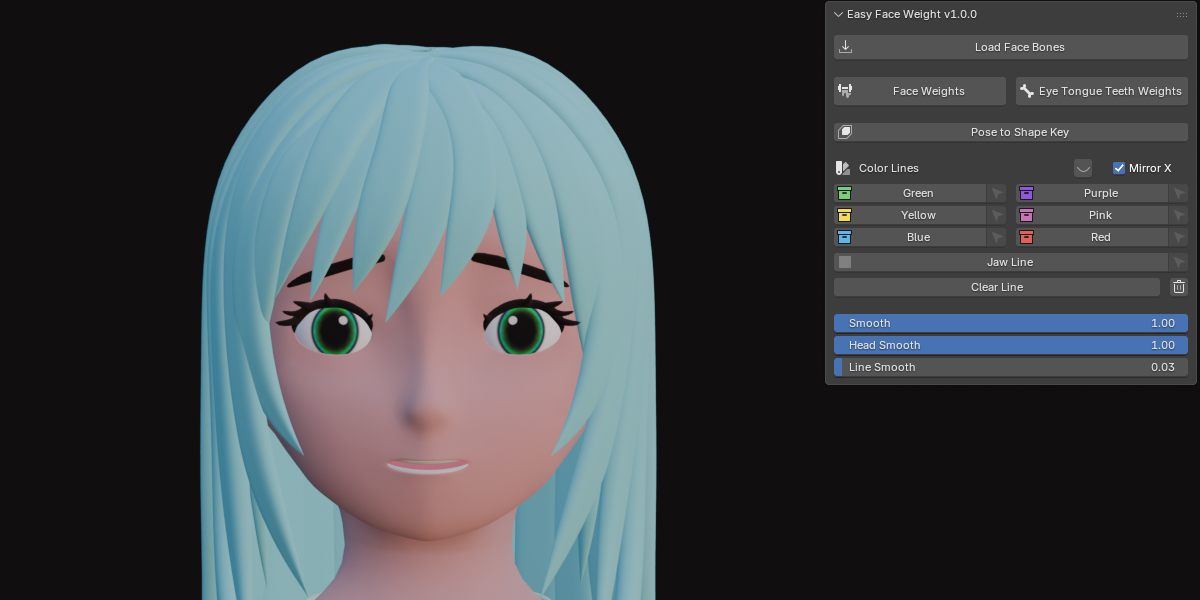
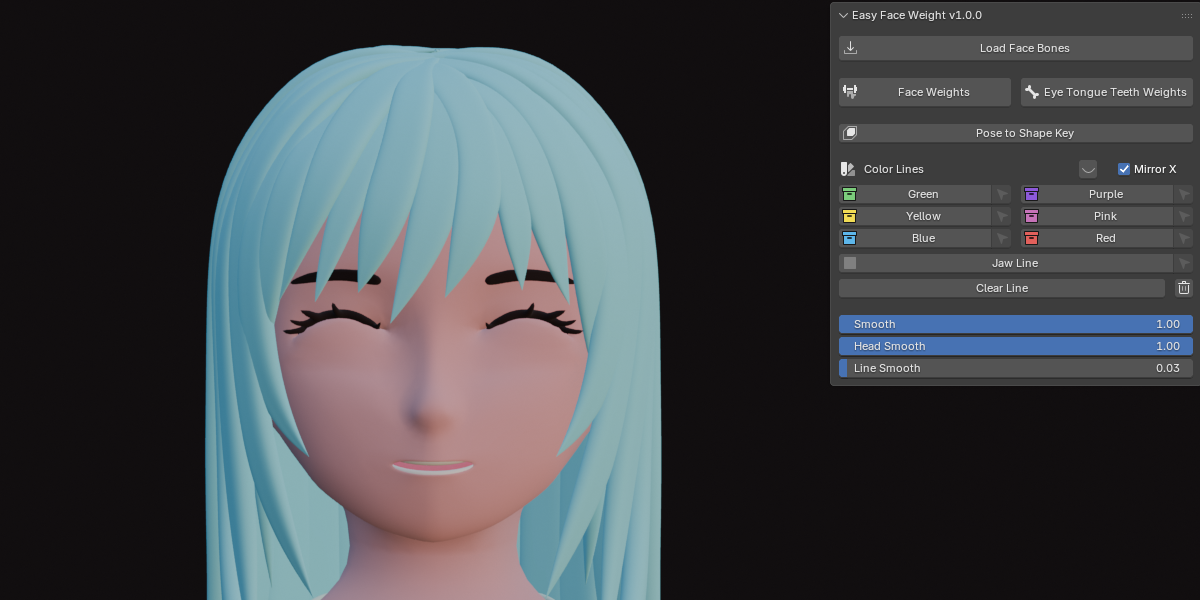
- Pose the face bones (for example, close the eyelids), then click Pose to Shape Key.
- The new shape key is named Easy Face Shape Key 1, then 2, 3 and so on with no limit. It starts at value 0.
- A Basis key is added first if the mesh has no shape keys yet.
- The pose is reset after each shape key, so the next pose starts clean. Ctrl+Z brings it back.
- The mesh must be visible and have an Armature modifier for this armature.
- If the pose does not move the mesh, you get a warning and no shape key is made.
FAQ
Which Blender version do I need?
Blender 5.2 or newer.
Does it work with my own face rig?
Yes, if your bones use the same names as the included face armature, because bones are found by name. Click Load Face Bones to see the standard names, or rename your bones to match.
Will it delete my existing weights?
On the face mesh, yes. Face Weights deletes all existing vertex groups on that mesh before writing the new ones. Eye Tongue Teeth Weights replaces all vertex groups on the meshes you select. Save a copy of your file first if you want to keep hand-painted weights.
Why do I get “Select the armature and the mesh first”?
Select both the armature and the face mesh, then click the button again.
Why do I get “No face bones found by name”?
The armature does not have bones with the standard names. Use Load Face Bones, or rename your bones.
The loop is not detected. What is wrong?
The sharp edges, seams and color lines must close into a loop around the face area. If there is a gap, the add-on cannot find a separate region. Close the gap and try again.
Mirror X says no mirror edges were found.
The mesh is not symmetric around its local X = 0 plane. Fix the symmetry, or turn Mirror X off and mark both sides yourself.
Why are my eyebrows or lashes painted correctly even though they are separate pieces?
Floating pieces such as eyebrows and lashes are treated together with the skin under them, so both are painted when either is inside the loop.
Does it paint the teeth, tongue and eyes?
Not with Face Weights. Use the separate Eye Tongue Teeth Weights button for them.
Why did my smoothing sliders jump back to 0?
They reset after Face Weights, undo and loading a file, so the smoothing never stacks on top of itself.
Why can’t I make a shape key?
Check three things: the mesh needs an Armature modifier for this armature, the mesh must be visible, and the pose must actually move the mesh.
Can I use it on a character that is not human?
It is built around a human-style face bone layout. It works if your rig uses the same bone names, and the color lines let you adapt the regions to your mesh.
Have questions about this product?
Login to message
| Blender Extension Compatible | Yes |
| Dev Fund Contributor | |
| Published | about 4 hours ago |
| Blender Version | 5.2 |
| Extension Type | Add-on |
| Render Engine Used | Cycles, Eevee |
| License | GPL |
Discover more products like this
rigging Face Rigging weight painting vertex groups pose to shape key facial rig auto weights shape keys Character rigging anime face weight Facial Animation anime rigging