 Armin

Installation
- Keep the downloaded ZIP zipped
- In Blender, open Edit > Preferences > Get Extensions
- Open the menu in the upper-right corner, choose Install from Disk and pick the ZIP
- In the 3D Viewport press N and open the Easy Flame tab
Add Flame
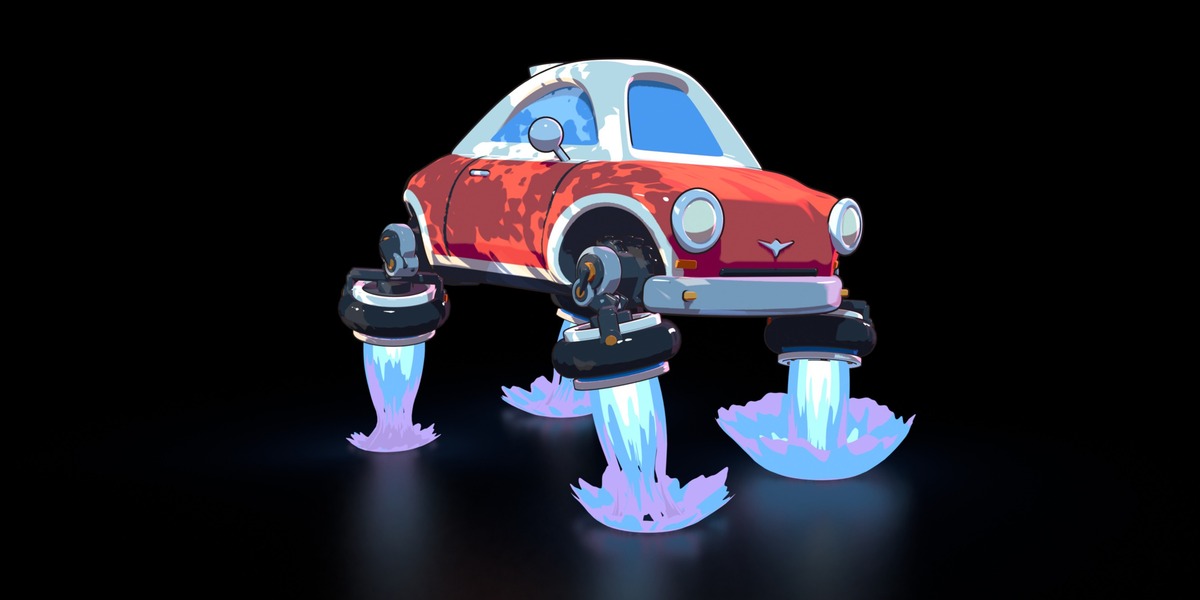
Click the big tile to choose a flame, then press Add Flame and move the mouse over your model. A preview of the nozzle follows the surface. Click to place it.
Before you click you can use these keys:
- S: size, set with the mouse
- G: move it over the surface. G then X, Y or Z moves it along that axis
- R: turn it, useful for the Square, Diamond and Slot shapes. R then X, Y or Z tilts the direction of the fire
- Shift + click: place it and go on to the next one
- Esc: step back
Once a model has a flame, the buttons under the tile are Add Nozzle (one more fire exit for the same flame), the small duplicate icon (a new, separate flame on the same model) and Remove. When a model has more than one flame, a menu above them picks which one the panel edits.
Working with a placed flame
The panel shows the flame of the model you select. You can also click the fire itself: its nozzle gets selected and Blender's own G, S and R work on it. Scale Z makes that one nozzle's fire longer.
The nozzles are parented to the model you clicked, so the fire follows it when it moves.
Nozzle
- Shape: Circle, Square, Diamond or Slot
- Size and Length
- Power: how strong the fire burns. Hover over it and press I to animate an engine starting or stopping
- Bulge: how much the fire swells after the nozzle
- Start: Cut begins flat at the nozzle, Round begins with a rounded base
Ground Bounce
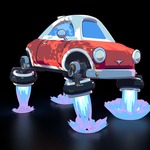
Press Pick Ground and click the surface the fire should bounce off. It can be any object: a floor, a wall or a block. Spread sets how far the fire runs over the surface and Curl Up how high it rises at the end. The X next to the ground's name turns the bounce off.
Motion
Flicker, Sway and Speed set the movement. Smooth moves on every frame, On Twos and On Threes hold each pose for two or three frames. Seed gives a flame its own motion, so two flames don't move together.
Colour
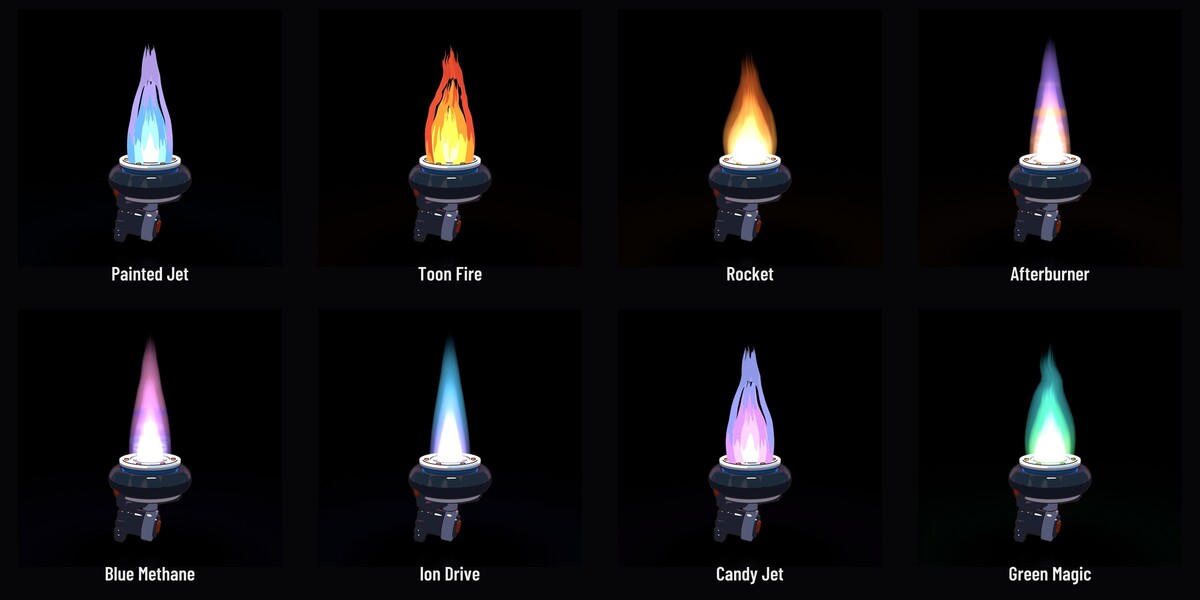
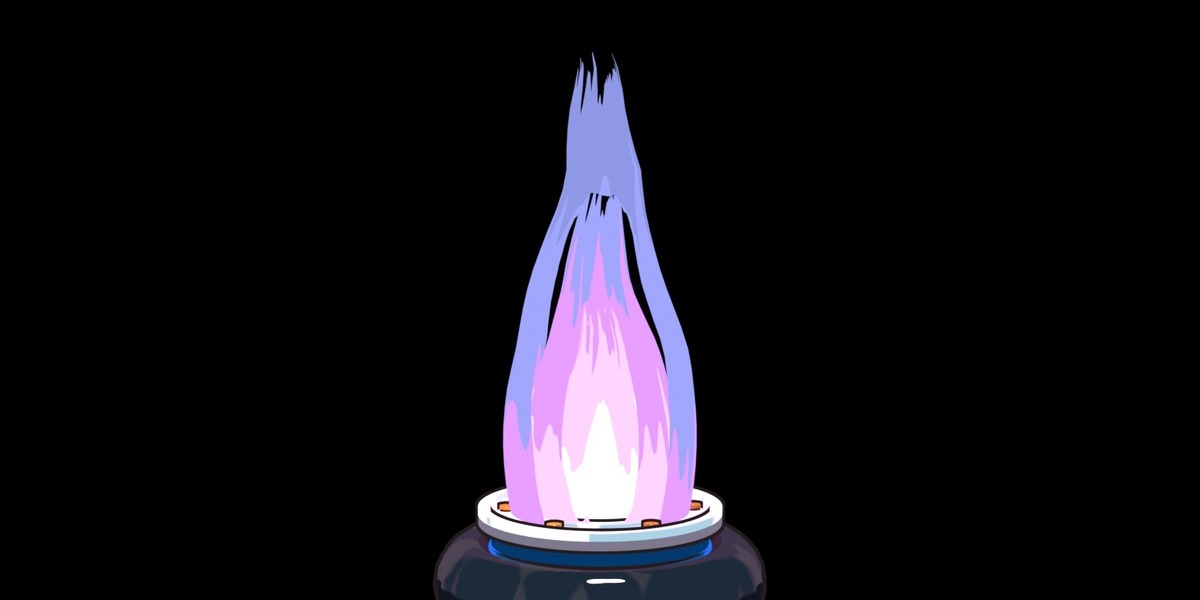
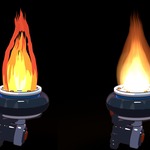
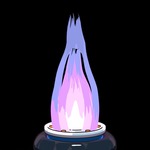
The eight buttons are colour sets: Blue, Fire, Gold, Pink, Violet, Green, Ice and Red. Below them are the four colours of the flame: Hot, Core, Flame and Tip. Glow sets how bright it is.
Light up the scene adds a light at every nozzle, in the flame's colour, that follows its Power.
Look
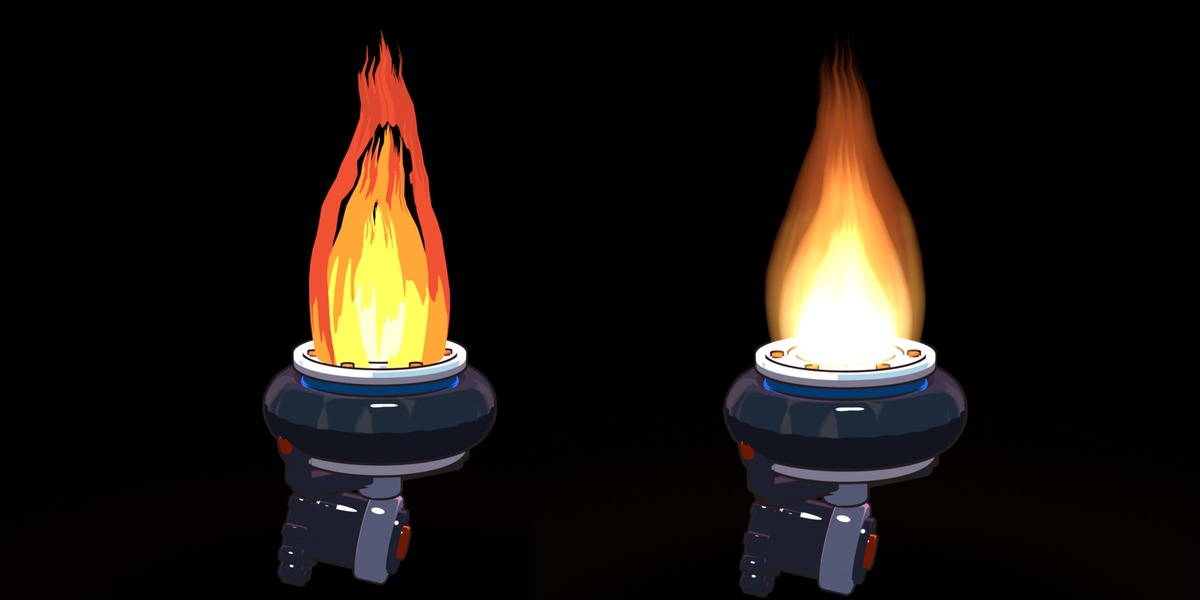
Painted Layers draws the flame as flat bands of colour. Soft Glow blends them into a soft, bright fire. The sliders: Painted, Streaks, Diamonds, Ragged Tip, Softness, Opacity and Tip Fade.
Reset
The small arrow at the top right of each box puts that box back to the flame's own values. The arrow in the panel's header does it for the whole flame. Size, nozzles and the ground stay as they are.
How does it work? at the bottom folds out a short reminder of the steps.
Have questions about this product?
Login to message
| Blender Extension Compatible | Yes |
| Published | about 1 hour ago |
| Blender Version | 5.3 |
| Extension Type | Add-on |
| Render Engine Used | Cycles, Eevee |
| License | GPL |