Easy House
 Onion365studio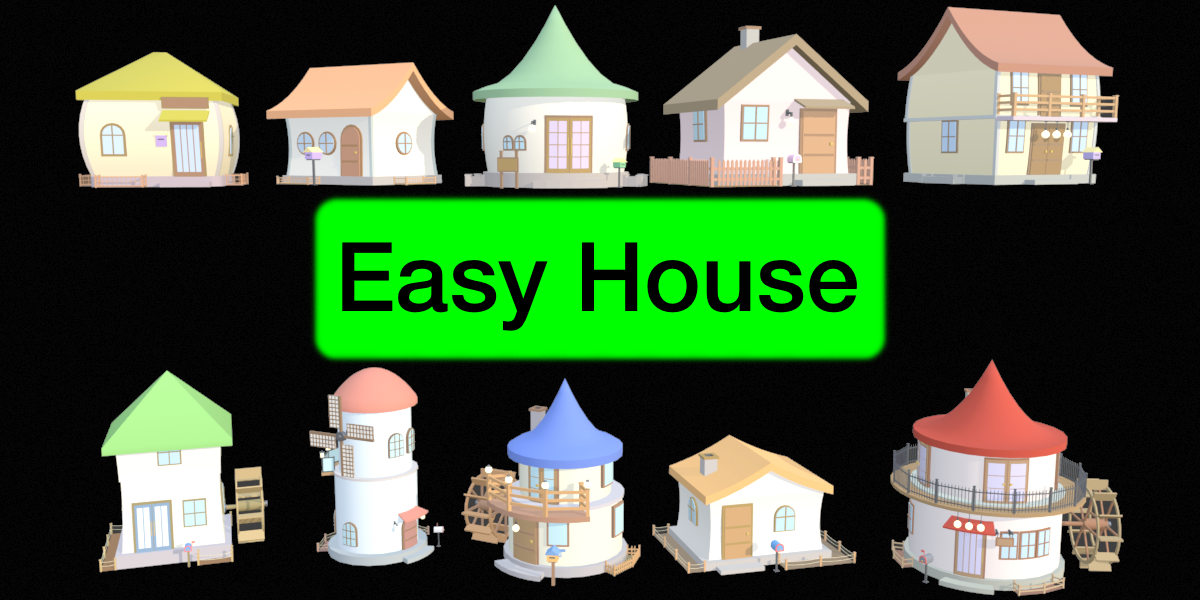
Documentation
Overview
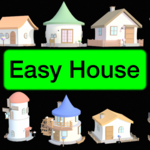
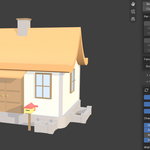
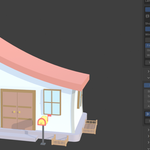
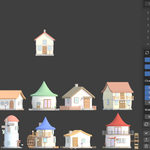
- Easy House builds low-poly, cozy farm-town style houses from a live, parametric panel. Every change rebuilds the house instantly.
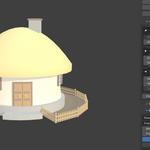
- Works with Box (rectangular) and Cylinder (round) houses.
- Each house is a set of separate parts (body, roof, door, windows, garden, fence, balcony and more) grouped under one “House” empty, with its own colors and materials.
- Export to GLB with UVs and spin animation, ready for game engines such as Godot.
Requirements
- Blender 5.2 or newer.
- Blender’s built-in glTF 2.0 exporter enabled (it is on by default), needed for Export GLB.
Installation
- Download the file from your Blender Market account.
- In Blender, open Edit > Preferences > Add-ons.
- Click the drop-down arrow at the top right and choose Install from Disk, then select the downloaded file.
- Enable “Easy House” in the list.
- The panel appears in 3D Viewport > Sidebar (N) > House.
Getting Started
- Press N in the 3D Viewport and open the House tab.
- Click Create House. A house appears at the 3D cursor.
- Pick a preset or drag any slider. The house updates live.
- Click any part of a house to select it. The panel always follows the selected house, and every house keeps its own settings.
- With no house selected, or with a finished house, the panel is greyed out.
- The reset arrow next to Create House resets the selected house. Each section also has its own reset arrow in its header.
Presets
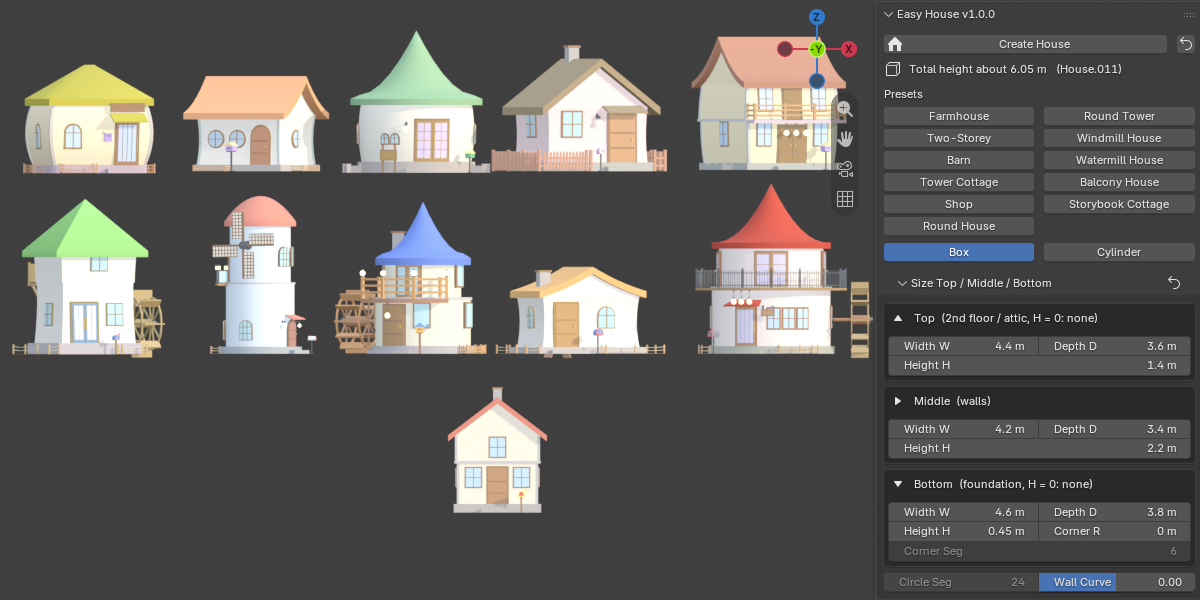
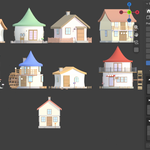
- Farmhouse, Two-Storey, Barn, Tower Cottage, Shop, Round House, Round Tower, Windmill House, Watermill House, Balcony House and Storybook Cottage.
- A preset replaces the size, roof, door, window, beam, balcony, door lamp, windmill and water wheel settings. Your colors, flower beds and mailbox settings are kept.
Size
- Three blocks: Top (upper floor or attic), Middle (walls) and Bottom (foundation), each with width, depth and height.
- Top H = 0 removes the upper floor. Bottom H = 0 removes the foundation.
- Foundation corner radius and corner segments round the base of box houses.
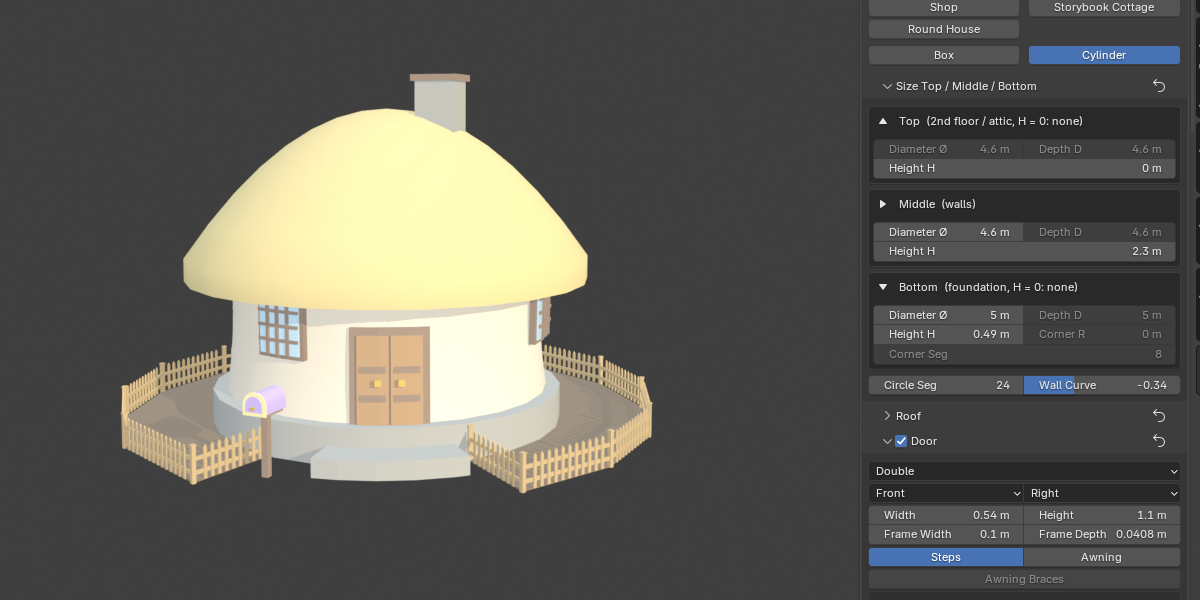
- Plan Shape switches between Box and Cylinder. On a cylinder, width is the diameter and Circle Segments sets how smooth it is.
- Wall Curve makes the walls bulge outward or pinch in. Doors and windows keep their shape and sit on the curved wall. Beams, posts and the balcony follow the wall.
Roof
- Box roofs: Gable, Hip, Gambrel, Shed and Pyramid. Cylinder roofs: Cone, Dome and Flare.
- Height, overhang and thickness. The roof is a real slab, with eaves hanging along the slope and gable walls built up to its underside.
- Roof Curve gives a storybook swoop with curled eaves (all box roofs and the cone roof).
- Rotate Ridge 90° turns the gable to face the front (box houses).
- Chimney: on/off, left/right, front/back and size. It follows the roof slope and has an open flue.
Doors
- Styles: Plain, Arch, Double, Shop Glass Door and Shop Double Glass Door.
- Choose the wall and the position (left, center, right), door width and height, steps, and an awning with optional braces.
- Shop doors: glass style (Full, Upper, Grid, Bars), glass color, and a sign (wall mounted, hanging or standing) with iron or wood posts and one or two posts.
- Mailbox: Arched Post, Cottage Post or Wall Mounted. Set the side, size, flag and post material, and pick a color preset or set the body and trim colors yourself.
Windows
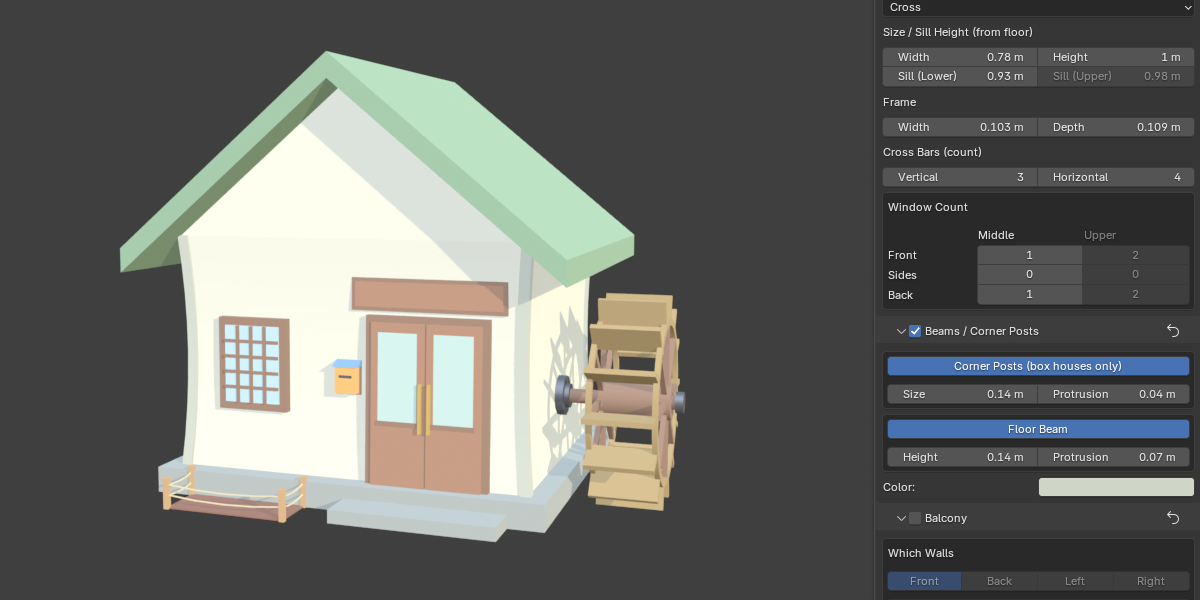
- Styles: Square, Cross, Arch and Round.
- Width, height, and sill height for the lower and upper floor.
- Window count per wall (Front, Sides, Back), set separately for the Middle and Upper floors.
- Windows automatically make room for the door, signs, mailbox, balcony door and lamps, and shrink to fit when space is tight.
Beams / Corner Posts
- The checkbox in the section header turns the whole feature on or off.
- Corner posts (box houses) with adjustable size and protrusion.
- Floor beam at the Top / Middle joint (a ring beam on cylinder houses) with adjustable height and protrusion.
- Own color, independent of the Wood color.
Balcony
- Needs an upper floor (Top H above 0).
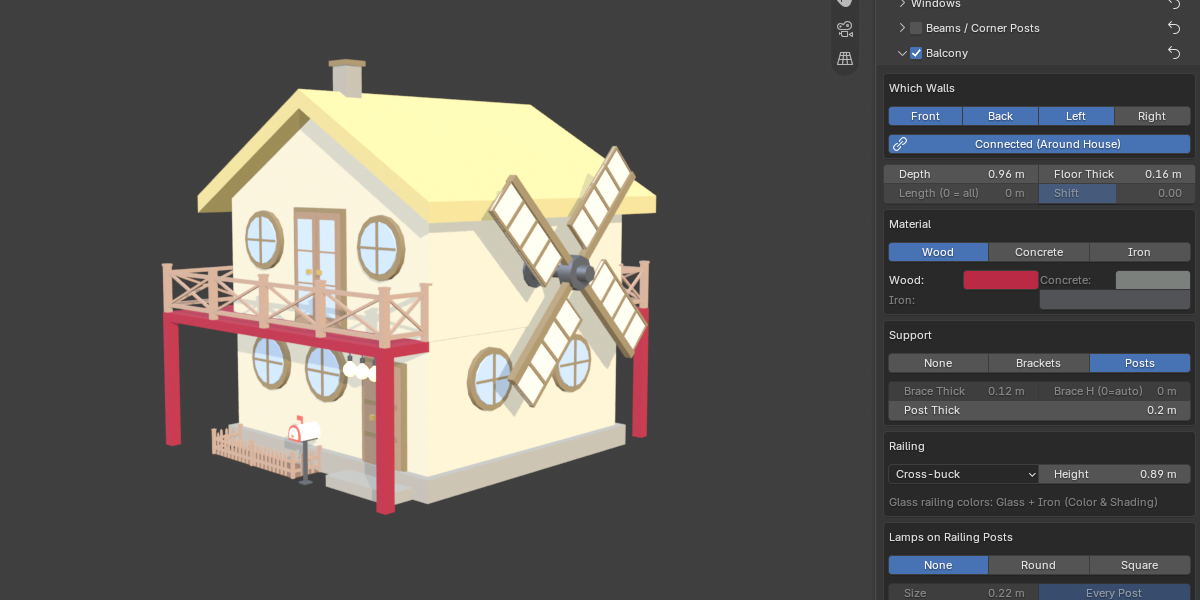
- Choose the walls: Front, Back, Left and Right. Connected joins the balconies into one continuous balcony with one continuous railing around the corners.
- Depth, floor thickness, length (0 = whole wall) and shift.
- Floor material: Wood, Concrete or Iron.
- Support: None, Brackets (thickness and height adjustable) or Posts (thickness adjustable).
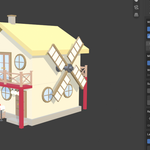
- Railing styles: Picket, Rail, Cross-buck, Lattice, Stone, Iron, Rope and Glass, with adjustable height.
- Lamps on the railing posts: Round or Square, with size, every post or corners only, and lamp color.
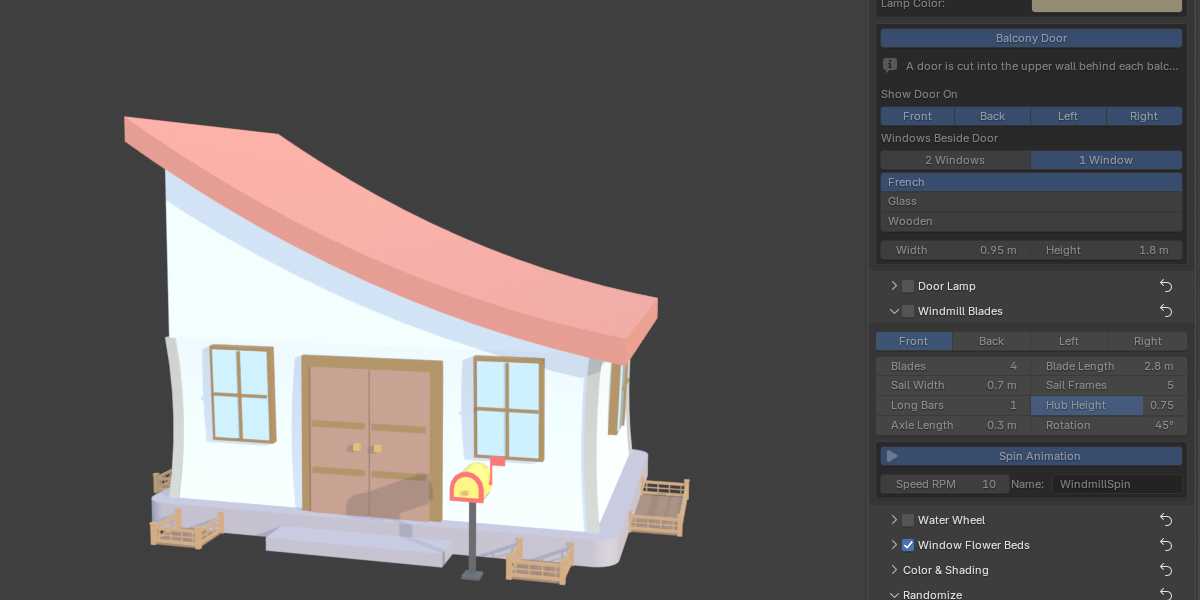
- Balcony door on the upper wall behind each balcony: French, Glass or Wooden. Width and height are adjustable, and each wall’s door can be shown or hidden. One or two windows sit beside the door.
Door Lamp
- With a balcony above the door, bare bulbs hang under the balcony over the door (count and cord length adjustable).
- Without a balcony over the door, a bulb lamp is mounted on the wall beside it (side and height adjustable).
- Bulb size and color are adjustable.
Windmill Blades
- Pick the wall. Blades (3 to 8), blade length, sail width, sail frames, long bars, hub height, axle length and rotation are adjustable.
- The blades are pushed out automatically so they clear the walls, roof and balcony.
- Spin Animation: on/off, speed in RPM (negative reverses) and the Action name.
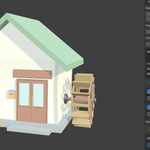
Water Wheel
- Pick the wall. Radius, width, paddles, paddle depth, spokes, bottom height and gap to the wall are adjustable.
- The wheel is only the wheel, with no water and no channel. It has the same spin animation controls as the windmill.
- A house can have the windmill or the water wheel, not both. Turning one on turns the other off.
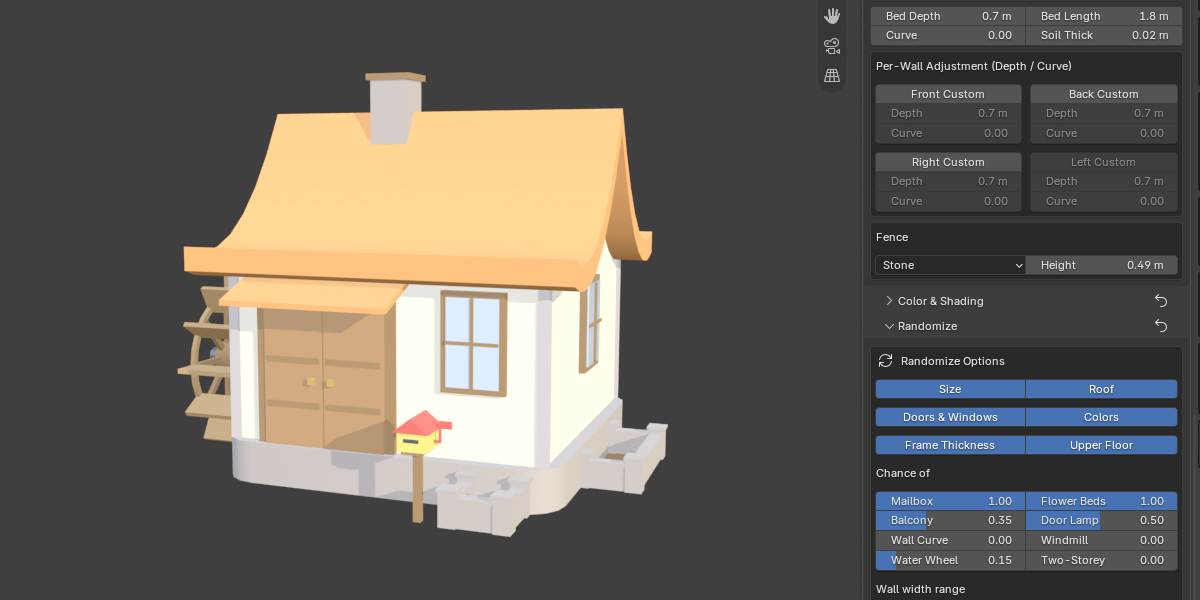
Window Flower Beds
- Choose the walls. Connected wraps the beds around the whole house and only breaks in front of the main door.
- Range: under the windows only, or along the whole wall.
- Bed depth, bed length, curve and soil thickness.
- Per-wall Custom depth and curve for Front, Back, Left and Right.
- Fence styles: Picket, Rail, Cross-buck, Lattice, Stone, Iron and Rope, with adjustable height.
Color & Shading
- One color swatch for each part: walls, foundation, wood, beams, roof, door, glass, shop glass, mailbox, iron, fence, soil, rope, sail, water wheel, balcony floor, concrete and lamp. Colors update live.
- Colors that belong to a switched-off feature are greyed out.
- Shading: Flat for crisp low-poly faces, or Smooth with a Smooth Angle (edges sharper than the angle stay hard).
Randomize
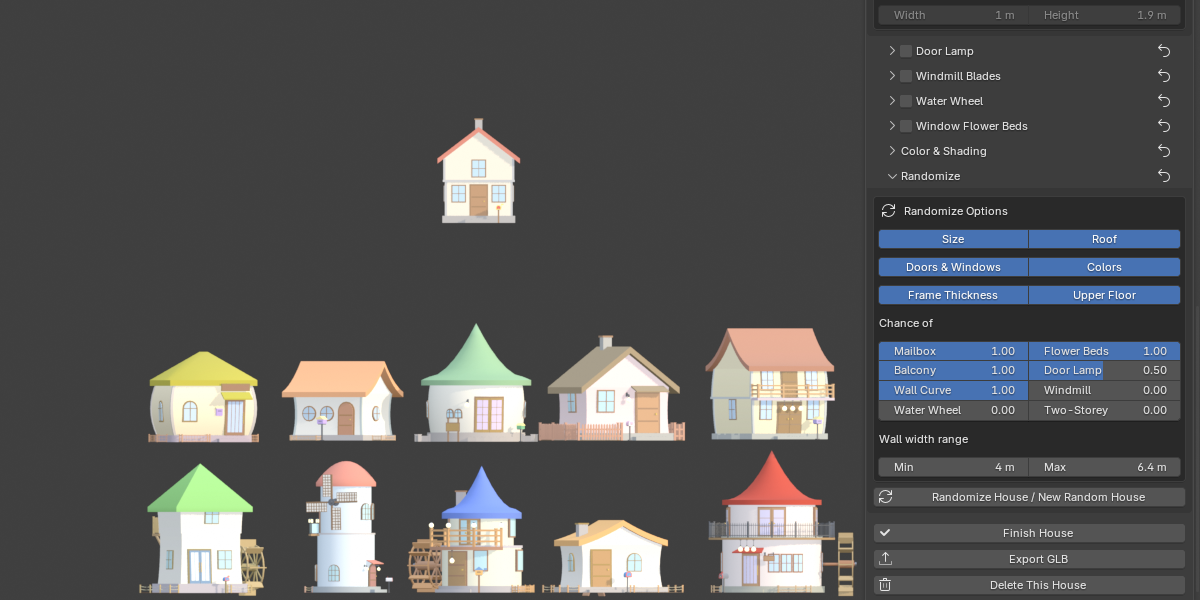
- Choose what to randomize: Size, Roof, Doors & Windows, Colors.
- Chance sliders: Mailbox, Flower Beds, Balcony, Door Lamp, Wall Curve and Two-Storey, plus a wall width range (Min / Max).
- Randomize modifies the selected house, or creates a new one at the 3D cursor when no house is selected.
- A Door Lamp or Wall Curve chance of 0 leaves that feature untouched.
House Actions
- Finish House joins all parts into one mesh and keeps the shape, UVs, materials and animation. The panel can no longer adjust that house afterwards.
- A finished house with windmill blades or a water wheel also gets an armature with a “House” bone and a “Windmill” or “Waterwheel” bone, so the part can still spin.
- Export GLB exports the selected house at the world origin with UVs and the spin animation. After export, the add-on reads the file back and checks that one turn lasts exactly 60 / RPM seconds, correcting it if needed.
- Delete This House removes the house, all its parts and its materials.
UVs and Materials
- UVs are unwrapped automatically and UV seams are marked automatically (visible in Edit Mode).
- Every house gets its own simple materials (Principled BSDF), one per color slot.
FAQ
Which Blender versions are supported?
Easy House is built for Blender 5.2 or newer.
I installed the add-on but I cannot find it.
Make sure “Easy House” is enabled in Edit > Preferences > Add-ons. Then open the 3D Viewport, press N, and look for the House tab on the edge of the sidebar.
All the options are greyed out. Why?
The panel works on the selected house. Click any part of a house, or press Create House. Options are also greyed out when a house has been finished, because a finished house is locked.
Can I still edit a house after clicking Finish House?
No. Finish House joins everything into a single mesh and locks the panel for that house. Save a copy of your .blend file first if you might want to change it later, and press Ctrl+Z right away if you clicked it by mistake.
Do I have to click Finish House before exporting?
No. Export GLB works with both live and finished houses. Finish House is useful when you want a single mesh to keep working on in Blender.
Will the windmill and water wheel animate in my game engine?
Yes. The spin is exported in the GLB as an animation that loops at constant speed. The default names are WindmillSpin and WaterwheelSpin, and you can change the name in the panel. In Godot, play it with an AnimationPlayer.
Why can I not use the windmill and the water wheel on the same house?
A finished house has a single spinning part, so only one of the two can be on at a time. Turning one on turns the other off.
Do the houses come with textures?
No. Houses use simple colored materials that you change in the Color & Shading section. UVs are generated automatically, so you can apply your own textures.
Can I use the houses I make in commercial projects?
Yes. Houses you create with the add-on can be used in personal and commercial projects, including games.
How many polygons does a house have?
It depends on the options you switch on, since the add-on is fully parametric. Features such as curved walls, curved roofs, fences and flower beds add geometry. On cylinder houses you can lower Circle Segments to reduce it.
Why do the doors and windows not bend with Wall Curve?
This is by design. Doors and windows keep their exact shape and are placed flush on the curved wall, so frames and glass stay clean and straight.
Can I build a whole village?
Yes. Each house stores its own settings, so you can create as many houses as you like and give each one a different size, roof, colors and features. Randomize can also generate a new house for you at the 3D cursor.
How do I move or rotate a house?
Move or rotate the “House” empty at the top of the house’s hierarchy. All parts follow it. Use the Size sliders to change its dimensions.
Have questions about this product?
Login to message
| Blender Extension Compatible | Yes |
| Dev Fund Contributor | |
| Published | about 4 hours ago |
| Blender Version | 5.2 |
| Extension Type | Add-on |
| Render Engine Used | Cycles, Eevee |
| License | GPL |
Discover more products like this
village quick house House windmill water wheel low poly Game asset cartoon house House Generator farm anime house building