Easy Icon Capture
 Onion365studio
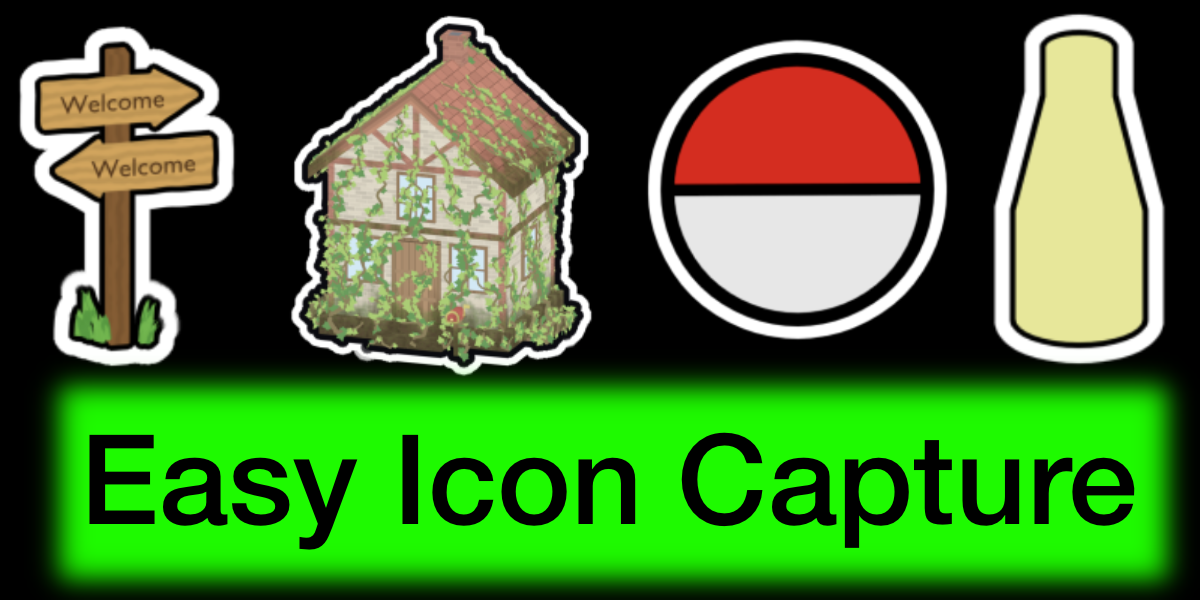
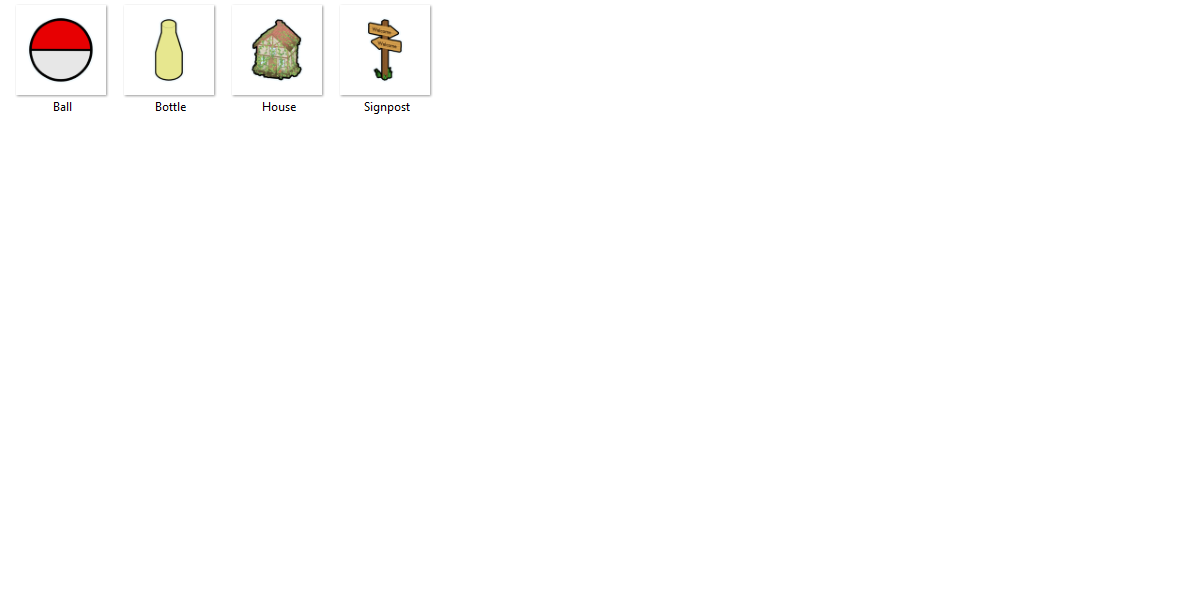
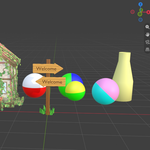
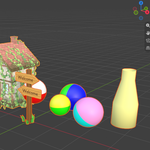
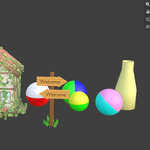
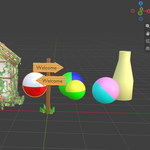
Documentation
Installation
- Download the .zip file from your Blender Market library (do not unzip it)
- In Blender, go to Edit > Preferences > Add-ons
- Open the dropdown arrow at the top right and choose Install from Disk...
- Select the .zip file and enable Easy Icon Capture
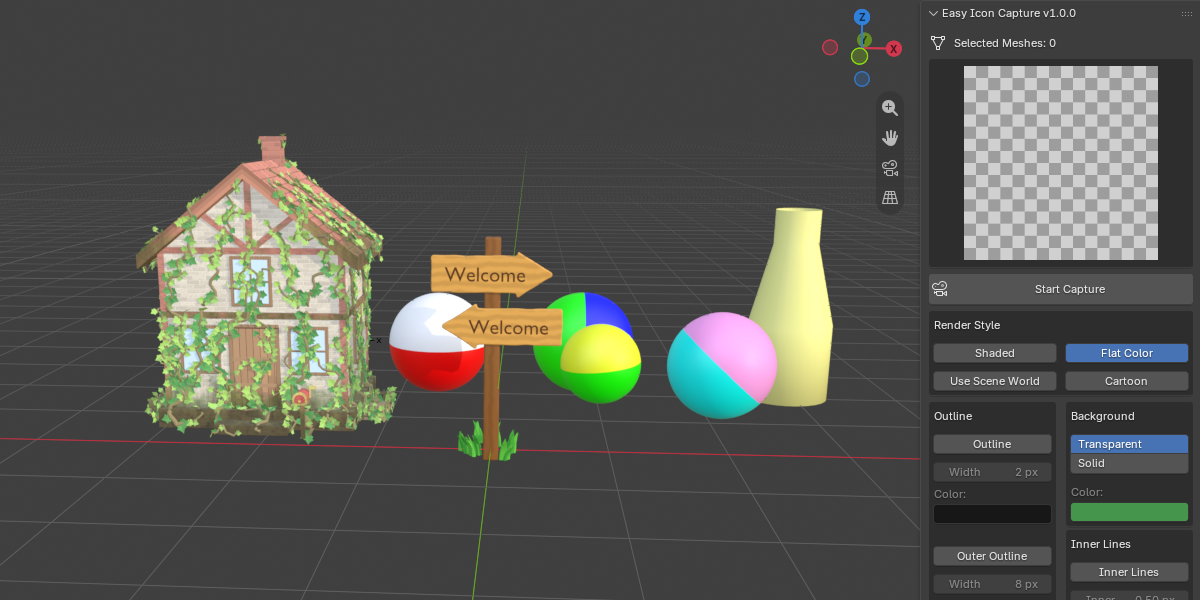
- Open the 3D Viewport, press N, and click the Icon Capture tab
Requires Blender 5.2 or newer.
Quick Start
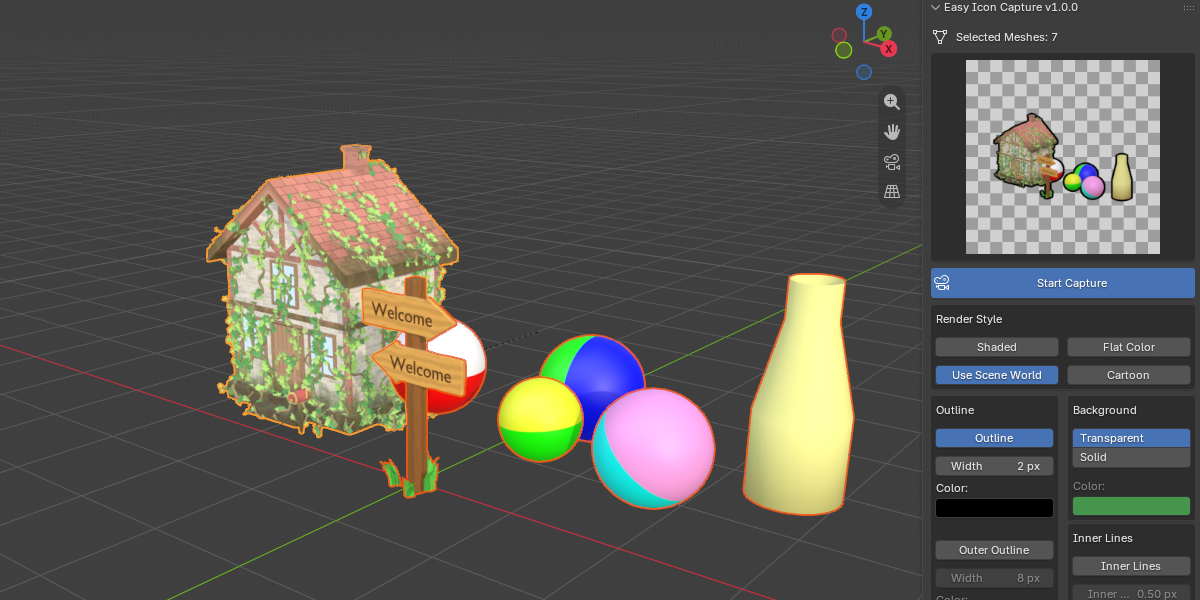
- Select one or more mesh objects
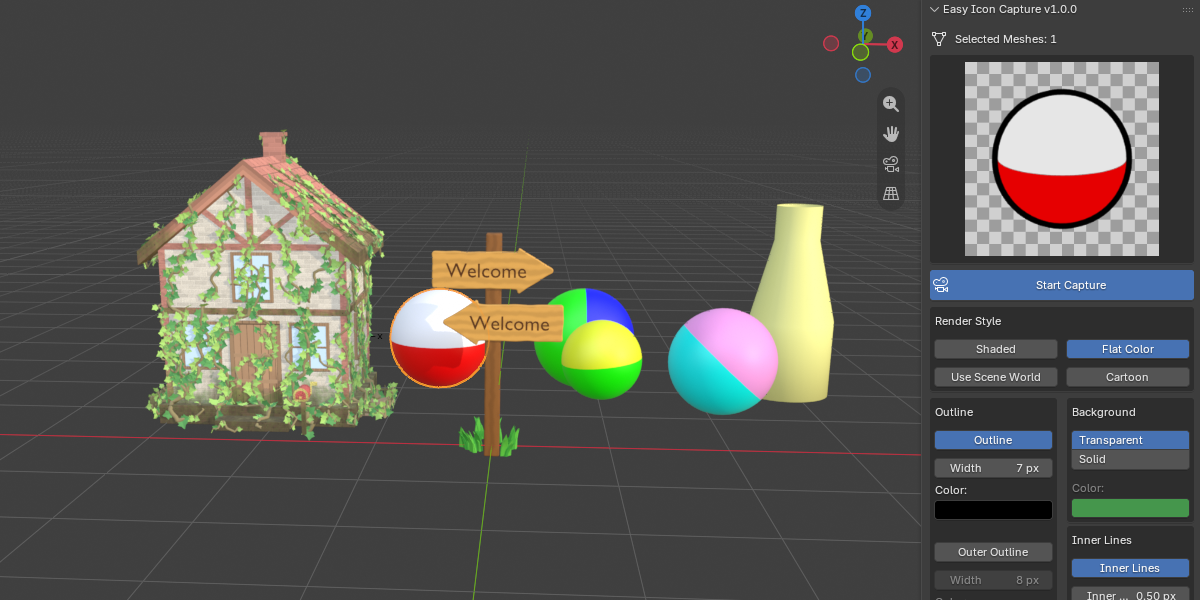
- Open N Panel > Icon Capture and press Start Capture
- Rotate the 3D viewport to the angle you want. The preview in the panel refreshes when you stop moving the view
- Choose a render style, outline, and background
- Click Generate Icon PNG, pick a resolution and a save location
Panel Reference
Selected Meshes
Shows how many mesh objects are currently selected. All of them are rendered together as one icon.
Preview
Live preview of the icon. The saved icon uses the same viewport angle, framing, and settings as the preview.
Start Capture
Turns the live preview on. Generate Icon PNG is only available while capture is on and at least one mesh is selected. Turn it off to stop the preview from refreshing.
Render Style
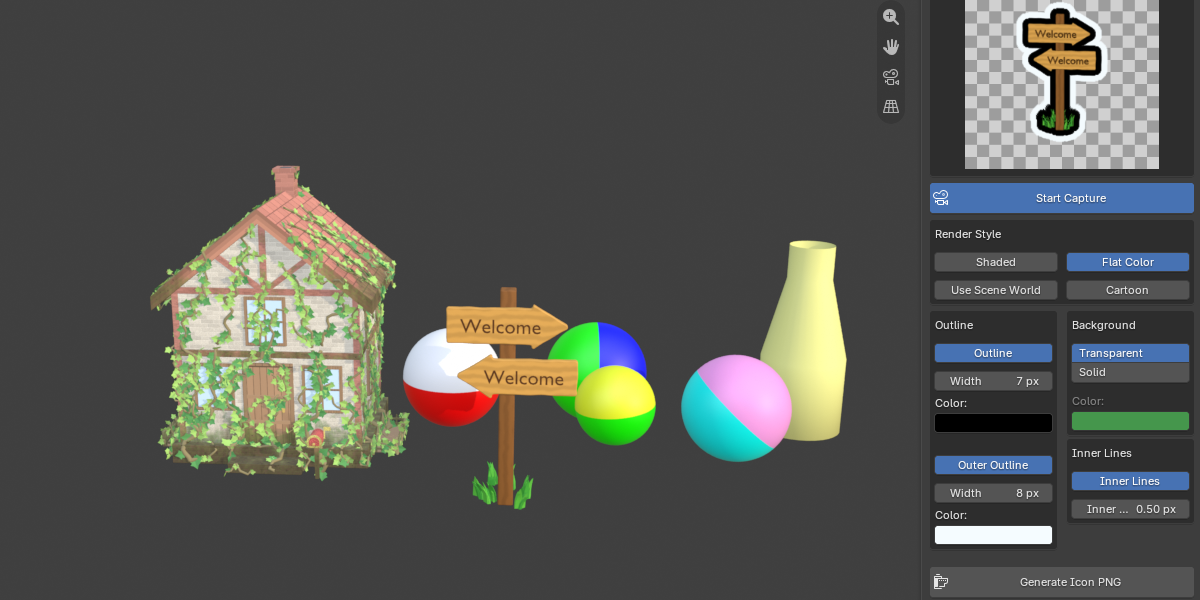
- Shaded: built-in key and fill lights with soft shading
- Flat Color: no lights, shadows, shading, or reflections. Every surface shows exactly its own color
- Use Scene World: lights the icon with your scene’s World (for example an HDRI). The background stays transparent. Greyed out when the scene has no World
- Cartoon: cel-shaded look with a few flat tone bands. Each material keeps its own color or texture
Outline
- Outline: enable or disable the outline
- Width: outline width in pixels, defined at 256 x 256 and scaled automatically for other resolutions
- Color: outline color
- Outer Outline: adds a second ring outside the outline (sticker / double-outline style), with its own width and color
Background
- Transparent: PNG with a transparent background (default)
- Solid: fills the background with the chosen color. Lower the color’s Alpha for a semi-transparent background
Inner Lines
Uses Freestyle to draw lines on inner creases and material borders, in the outline color. Use Inner Line Width to adjust the thickness.
Generate Icon PNG
Opens a save dialog. Choose a Resolution (64, 128, 256, 512, or 1024 px, square) and a file name. The file name defaults to the active object’s name, and the add-on remembers your last save folder. A progress bar shows while rendering, and you can press ESC to cancel. When finished, the icon is loaded into Blender and shown in any open Image Editor.
Tips
- Use Flat Color or Cartoon for clean, stylized icons, and Shaded or Use Scene World for realistic models
- For small icons (64 or 128 px), increase the outline width or enable Outer Outline so the silhouette stays readable
- Use the same render style, outline, and background for every item so your whole icon set looks consistent
- Use a solid background color per item tier (for example common, rare, epic) to color-code your inventory
- Join or select all parts of a weapon or tool (blade, guard, handle) to render them as a single icon
FAQ
Which Blender version do I need?
Blender 5.2 or newer.
The “Generate Icon PNG” button is greyed out. Why?
Press Start Capture first and make sure at least one mesh object is selected. Hover over the button to see which of the two is missing.
The preview is empty or not updating.
Check that Start Capture is on and a mesh is selected. After rotating the viewport, stop moving for a moment and the preview refreshes.
How do I change the angle of the icon?
Rotate the 3D viewport. The preview and the saved icon both use your current viewport angle.
Does it work with objects that are not meshes?
Only mesh objects are rendered. Convert curves, text, or other object types to mesh first.
Can I render several objects as one icon?
Yes. All selected meshes are rendered together.
Does it change my scene, lights, or materials?
No. Icons are rendered in a temporary scene that is removed afterward, so your own scene stays untouched.
“Use Scene World” is greyed out.
Your scene needs a World. Without one, use the other render styles, or add a World to the scene.
Are my materials and textures used?
Yes. Shaded, Use Scene World, and Cartoon keep your materials and textures. Flat Color shows each surface’s own color without any lighting.
Can I get a transparent background?
Yes, this is the default. Choose Solid in the Background section if you want a colored background instead.
What resolutions are available?
64, 128, 256, 512, and 1024 px (square). Outline widths scale automatically, so icons keep the same look at every size.
My outline looks too thin at small sizes.
Increase the outline Width or enable Outer Outline.
Can I cancel a render?
Yes, press ESC while the progress bar is running.
Where is my icon saved?
Wherever you choose in the save dialog. The add-on remembers the last folder you used. The saved icon is also loaded into Blender so you can check it in an Image Editor.
Can I use the icons in commercial projects?
Yes. The icons you create with the add-on are yours to use in personal and commercial projects.
Have questions about this product?
Login to message
| Blender Extension Compatible | Yes |
| Dev Fund Contributor | |
| Published | 2 days ago |
| Blender Version | 5.2 - 5.3 |
| Extension Type | Add-on |
| Render Engine Used | Cycles, Eevee |
| License | GPL |
Discover more products like this
item icon weapon icon game-dev outline game icon icon stylized Cartoon transparent-png icon generator freestyle inventory