za studio


BLENDER VIEWPORT ANIMATION TOOL
Easy Motion Trail
See the motion. Edit the motion. Stay in the viewport. Easy Motion Trail gives objects and pose bones an editable, real-time motion path that follows the evaluated animation you actually see.
REAL-TIME TRAILS OBJECTS + BONES IK + CONSTRAINTS VIEWPORT EDITING GRAPH EDITOR SYNC BLENDER 3.6+
OVERVIEW
Turn the visible path into a direct animation control.
Built for the animation data that matters.
Edit a motion trail directly in the 3D View while keeping the existing action intact—without automatically creating a new action or slot.
VERSION 1.2
More control. A tighter animation loop.
- Real-time synchronization between the Graph Editor and the viewport.
- Lock Selection to stay focused on one object or bone.
- Auto and Auto Clamped tangent fixing, plus improved real-time handle movement.
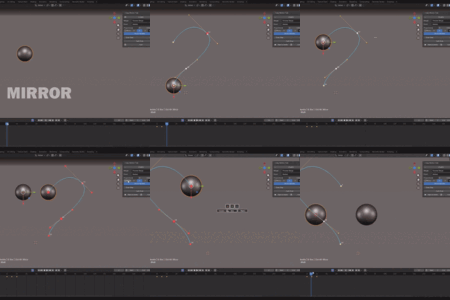
- Mirror from the UI or shortcut, using Object, Grid or Cursor as the pivot.
- Proportional editing with O, adjustable falloff and Connect for nearby motion-capture points.
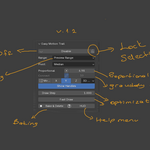
- Point-size and N-panel pass-through fixes, plus improved add-on preferences.
GET STARTED
Enable a trail in seconds.
INSTALLATION
In Blender, go to Edit > Preferences > Add-ons—or Extensions in newer Blender versions—then choose Install from Disk, select the Easy Motion Trail ZIP package and enable it.
BASIC USE
Select an animated object, or select a bone in Pose Mode, then press Alt + M. The add-on reads the existing animation and displays its motion trail. Use the Disable button in the N-panel to hide the trail again.
TRUE EVALUATED MOTION
One tool for objects, bones and complex rigs.
Object Motion Trail
For an object, the trail represents its animated world-space position. Move it with G and the trail updates live in the viewport.
Bone Motion Trail
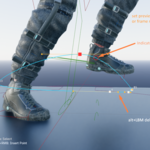
In Pose Mode, a bone's trail follows its true evaluated motion—including parent offsets, constraints and IK chains—so the path matches the animation visible in the viewport.
MOTION TRAIL IN ACTION
Edit motion where you can see it.

MOTION TRAIL WORKFLOW · 01
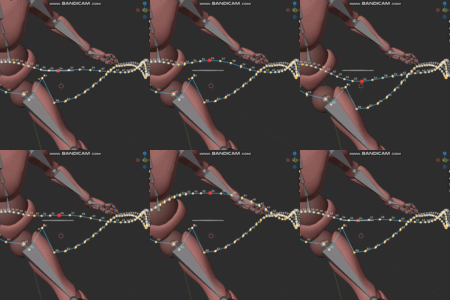
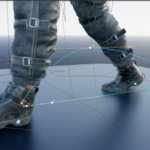
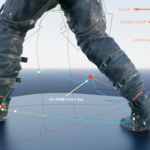
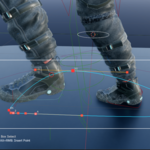
Work directly with a dense character path, including point connections, proportional influence, handle visibility and mirror controls—without leaving the viewport.

MOTION TRAIL WORKFLOW · 02
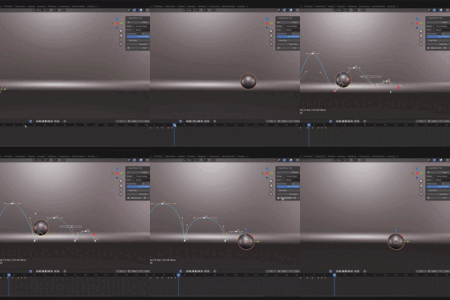
Start from an existing object animation, enable the trail and work with the trajectory directly in the 3D View.

MOTION TRAIL WORKFLOW · 03
Select points on the visible path and transform them naturally, so spacing, arcs and timing decisions remain visible while you edit.
DIRECT VIEWPORT EDITING
Use familiar transforms on animation paths.
- Select: Left Click selects a trail point. Press B for box selection.
- Move: Press G to move selected points with live trail updates.
- Rotate: Press R; press R again for Trackball rotation.
- Scale: Press S to scale selected points.
- Proportional: Press O to toggle falloff-based editing. Use Mirror controls from the UI or shortcut with Object, Grid or Cursor pivots.
KEYFRAMES + GRAPH EDITOR
Edit the path without losing frame accuracy.
- Insert a key: Use Alt + RMB between two trail points. The new key snaps to the nearest integer frame.
- Delete a key: Use Alt + RMB on an existing trail point, or press X.
- Graph Editor sync: v1.2 keeps viewport edits and Graph Editor feedback in a tighter real-time loop, including Auto and Auto Clamped tangent assistance.
TIMING, CLARITY AND STABILITY
Read the flow of motion while you work.
Playhead visualization
A circular marker identifies the current frame on the trail. The path fades before and after it, making timing, spacing and the direction of motion easier to read.
Heavy-rig performance
During transforms, Easy Motion Trail performs minimal cache updates for responsiveness. After the transform, it performs a safe deferred rebuild for accuracy—ideal for dense face rigs and complex characters.
IMPORTANT NOTES
A few things to know before you animate.
- Easy Motion Trail works from existing action data and does not create keys automatically.
- The add-on operates on the currently active action/slot. Bake NLA clips before using it.
- After deleting an object and restoring it with Ctrl + Z, disable and enable the trail again.
- For extremely complex constraints or very dense data, use Custom Range and allow a short cache rebuild.
Stability preset for heavy files: Disable Add-on → Custom Range → Disable Handles → Draw Step: 3 → Fast Draw: 4 → Enable Add-on.
EASY MOTION TRAIL
Make the path part of your animation workflow.
Stay in the viewport, read motion clearly and make precise changes to the animation already in your scene.