Easy Ring Bone
 Onion365studio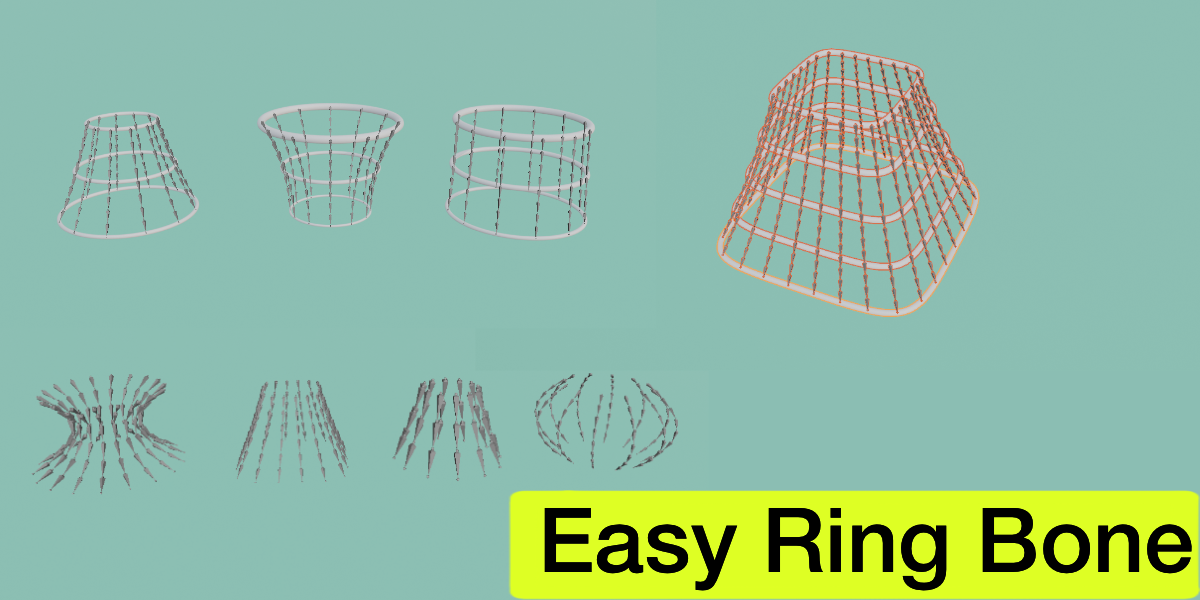

Easy Ring Bone: Documentation & FAQ
1. Installation
Download the .zip file from your Superhive library. Do not unzip it.
In Blender, go to Edit > Preferences > Add-ons. Click the drop-down menu in the top-right corner and select Install from Disk...
Select the .zip file and check the box to enable Easy Ring Bone.
In the 3D Viewport, press N to open the Sidebar and switch to the Ring Bones tab.
Download the .zip file from your Superhive library. Do not unzip it.
In Blender, go to Edit > Preferences > Add-ons. Click the drop-down menu in the top-right corner and select Install from Disk...
Select the .zip file and check the box to enable Easy Ring Bone.
In the 3D Viewport, press N to open the Sidebar and switch to the Ring Bones tab.
2. How It Works
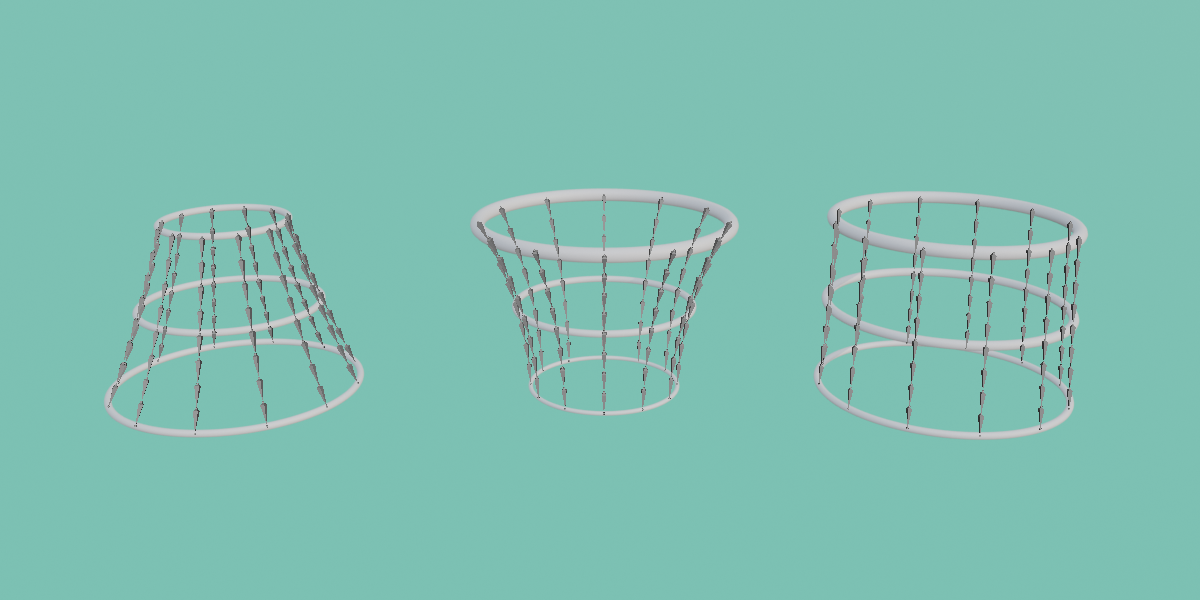
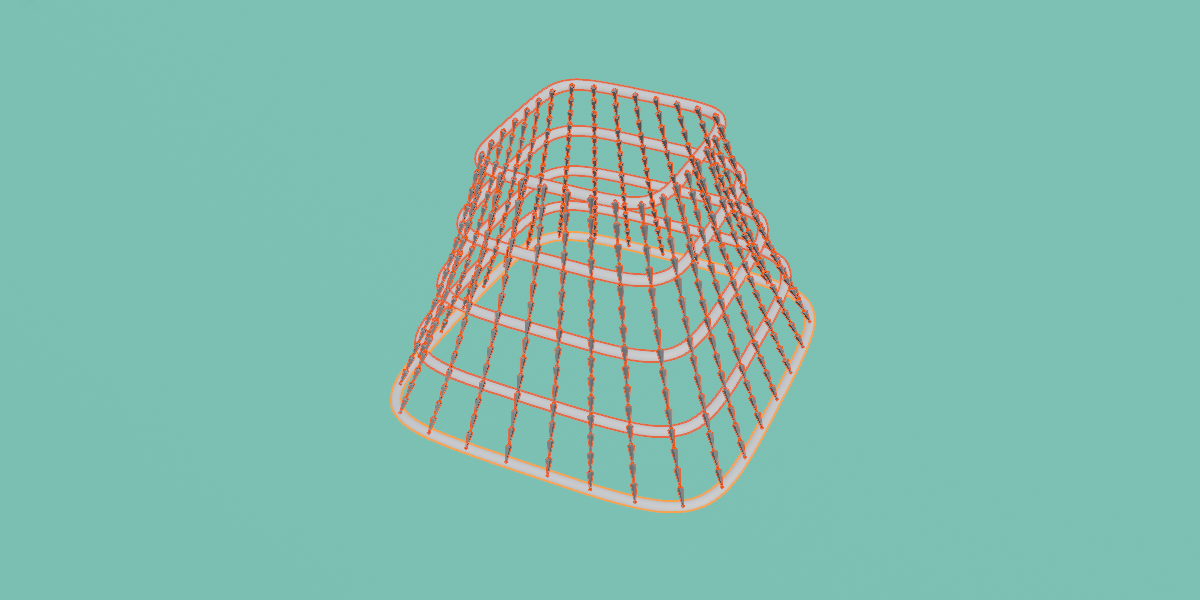
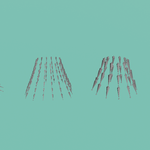
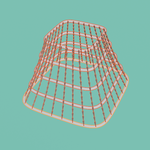
Easy Ring Bone generates hierarchical bone chains from guide rings (closed Bezier curves). The add-on places mathematically even sample points around each ring and connects corresponding points vertically from top to bottom into parented bone chains.
Note: The add-on does not automatically analyze or fit your mesh. You visually adjust the guide rings using the UI sliders to match your model's silhouette.
3. Quick Start
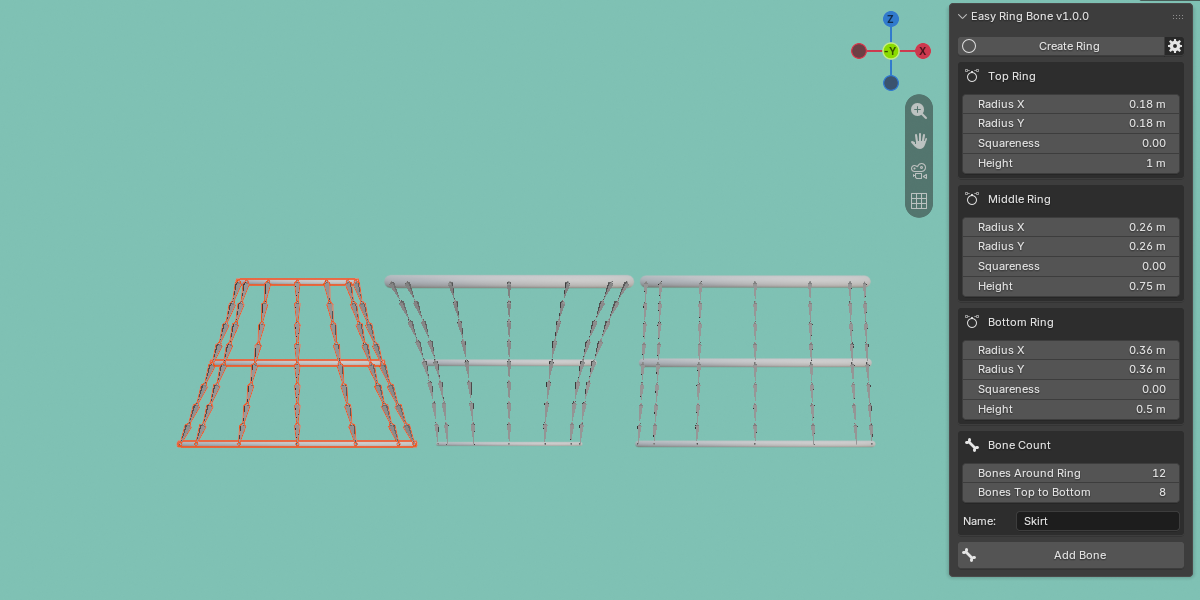
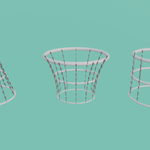
Click Create Ring. Three guide rings (Top, Middle, and Bottom) will appear at the origin, naturally tapered like a skirt.
Adjust Radius X, Radius Y, Squareness, and Height for each ring until they align with your mesh.
Under Bone Count, set Bones Around Ring and Bones Top to Bottom, then enter your desired Name.
Click Add Bone. A ready-to-use armature named _Armature will be generated instantly.
Click Create Ring. Three guide rings (Top, Middle, and Bottom) will appear at the origin, naturally tapered like a skirt.
Adjust Radius X, Radius Y, Squareness, and Height for each ring until they align with your mesh.
Under Bone Count, set Bones Around Ring and Bones Top to Bottom, then enter your desired Name.
Click Add Bone. A ready-to-use armature named _Armature will be generated instantly.
4. Interface Reference
Create Ring
Generates the initial ring curves in the scene. If rings already exist, clicking this re-applies the current panel values. Rings are named _Ring_Top, _Ring_Middle, _Ring_Bottom, etc.
Settings (Gear Icon next to Create Ring)
Ring Count (2–16): The total number of horizontal rings from top to bottom. Note: Changing this re-spaces the rings and resets their size and position.
Show Cylinder Tube: Displays rings as 3D tubes for higher visibility against dense geometry (visual only; does not affect bone generation).
Thickness: Controls the tube radius for the visual preview.
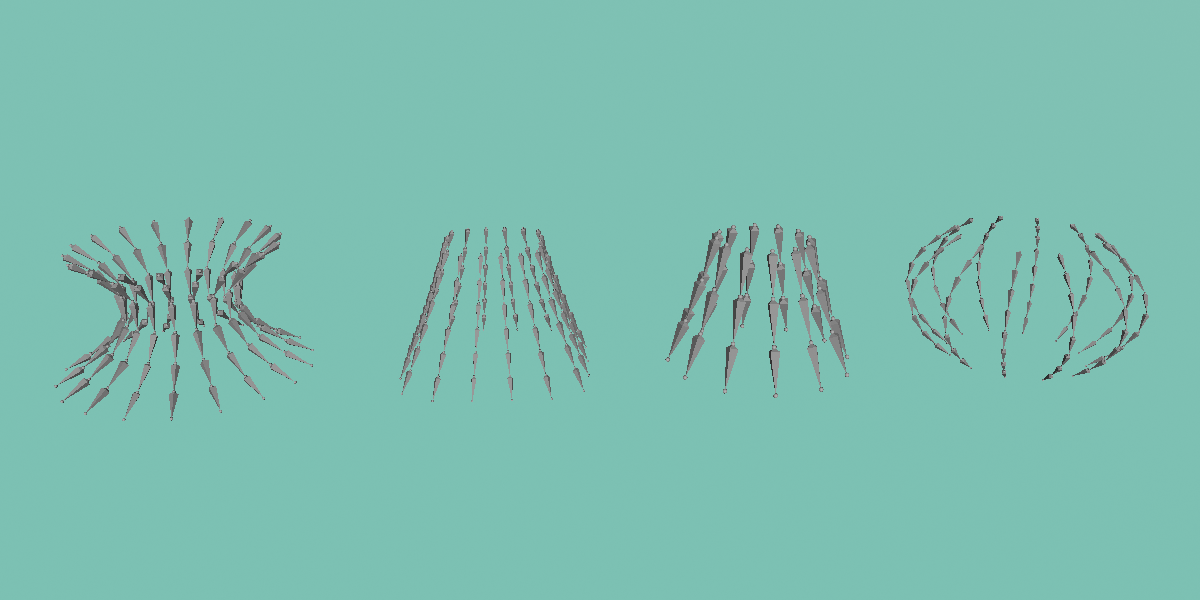
Smooth Through Rings: Curves the bone chains smoothly through all rings for organic shapes. When toggled off, chains form straight-line segments. (When Ring Count is set to 2, chains are always straight).
Delete Rings: Automatically removes all helper curves after bones are generated.
Ring Count (2–16): The total number of horizontal rings from top to bottom. Note: Changing this re-spaces the rings and resets their size and position.
Show Cylinder Tube: Displays rings as 3D tubes for higher visibility against dense geometry (visual only; does not affect bone generation).
Thickness: Controls the tube radius for the visual preview.
Smooth Through Rings: Curves the bone chains smoothly through all rings for organic shapes. When toggled off, chains form straight-line segments. (When Ring Count is set to 2, chains are always straight).
Delete Rings: Automatically removes all helper curves after bones are generated.
Ring Panels (Top / Middle / Bottom / Custom)
Radius X / Radius Y: Sets the ring dimensions in world units.
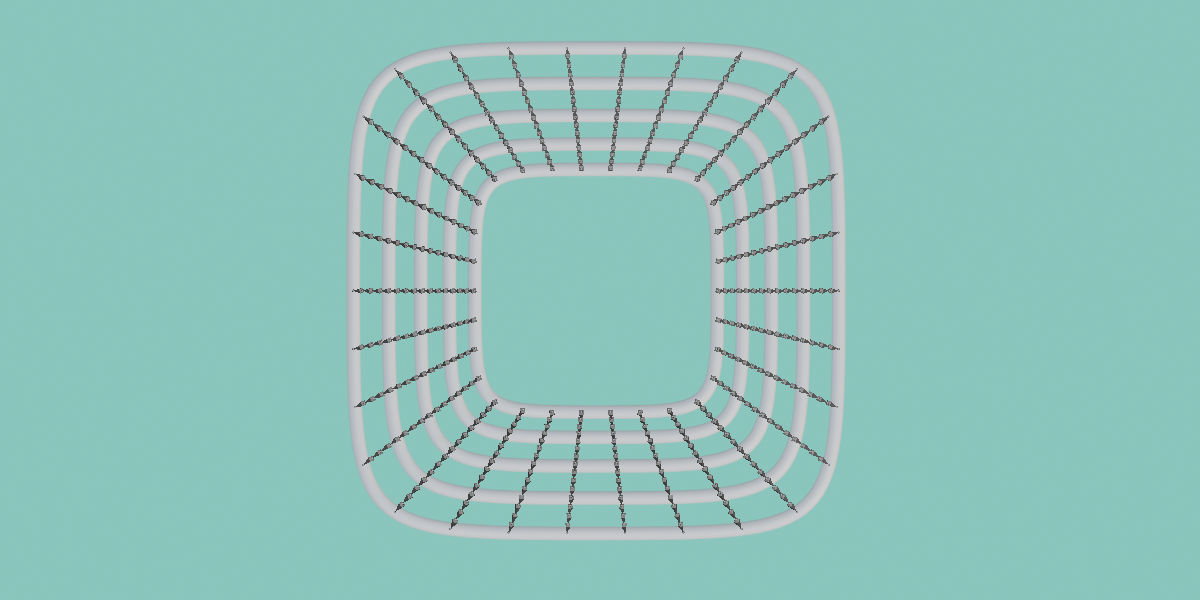
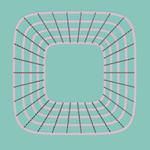
Squareness (0.0 to 1.0): Morphs the ring shape from a perfect circle (0.0) to a rounded square (1.0).
Height: Controls the vertical position ($Z$-axis offset) of the ring.
Radius X / Radius Y: Sets the ring dimensions in world units.
Squareness (0.0 to 1.0): Morphs the ring shape from a perfect circle (0.0) to a rounded square (1.0).
Height: Controls the vertical position ($Z$-axis offset) of the ring.
Bone Count & Naming
Bones Around Ring (3–256): Number of vertical bone chains generated around the perimeter.
Bones Top to Bottom (1–32): Number of bone segments per vertical chain.
Name: Custom prefix for the created armature, rings, and bones (e.g., entering Skirt yields Skirt_Armature).
Bones Around Ring (3–256): Number of vertical bone chains generated around the perimeter.
Bones Top to Bottom (1–32): Number of bone segments per vertical chain.
Name: Custom prefix for the created armature, rings, and bones (e.g., entering Skirt yields Skirt_Armature).
Add Bone
Generates the final armature. Total bone count equals $\text{Bones Around Ring} \times \text{Bones Top to Bottom}$. Blender's info bar will report the result (e.g., "Created 36 bones (12 chains x 3 bones)").
5. Generated Setup
Armature: Created as _Armature, set to Octahedral display and In Front viewport visibility by default.
Bone Structure: Named sequentially as __ (e.g., Skirt_01_01, Skirt_01_02, Skirt_02_01).
Hierarchy: Each vertical chain is a connected parent-child hierarchy starting from the top ring downward, with individual root bones at the top.
Distribution: Bones are evenly spaced by length along both the horizontal ring circumferences and the vertical chain lengths.
Armature: Created as _Armature, set to Octahedral display and In Front viewport visibility by default.
Bone Structure: Named sequentially as __ (e.g., Skirt_01_01, Skirt_01_02, Skirt_02_01).
Hierarchy: Each vertical chain is a connected parent-child hierarchy starting from the top ring downward, with individual root bones at the top.
Distribution: Bones are evenly spaced by length along both the horizontal ring circumferences and the vertical chain lengths.
6. Workflow Tips
Set Ring Count first: Always establish your desired number of rings before fine-tuning shape sliders, as changing Ring Count resets slider values.
Positioning: Rings generate at the World Origin ($0,0,0$). If your mesh is offset, translate the ring objects along X/Y in Object Mode and use the Height slider for Z-axis placement.
Non-Destructive Adjustments: Keep Delete Rings disabled while adjusting settings so you can tweak and re-generate freely. Enable it only when finalizing.
Optimal Ring Counts: Three rings are ideal for standard skirts. Add more rings for complex silhouettes (e.g., flared skirts, pinched waists, or layered coats).
Binding to Mesh: After generating, select your mesh, Shift-select the armature, press Ctrl+P, and choose With Automatic Weights (or paint weights manually).
Merging into Character Rigs: Select the generated garment armature, Shift-select your main character armature (making it active), and press Ctrl+J to join. In Edit Mode, parent the root bone of each chain to your character's hip/pelvis bone (Bone Properties > Relations > Parent).
Set Ring Count first: Always establish your desired number of rings before fine-tuning shape sliders, as changing Ring Count resets slider values.
Positioning: Rings generate at the World Origin ($0,0,0$). If your mesh is offset, translate the ring objects along X/Y in Object Mode and use the Height slider for Z-axis placement.
Non-Destructive Adjustments: Keep Delete Rings disabled while adjusting settings so you can tweak and re-generate freely. Enable it only when finalizing.
Optimal Ring Counts: Three rings are ideal for standard skirts. Add more rings for complex silhouettes (e.g., flared skirts, pinched waists, or layered coats).
Binding to Mesh: After generating, select your mesh, Shift-select the armature, press Ctrl+P, and choose With Automatic Weights (or paint weights manually).
Merging into Character Rigs: Select the generated garment armature, Shift-select your main character armature (making it active), and press Ctrl+J to join. In Edit Mode, parent the root bone of each chain to your character's hip/pelvis bone (Bone Properties > Relations > Parent).
7. Technical Limits
Rings: 2 to 16
Chains around Ring: 3 to 256
Bones per Chain: 1 to 32
-
Compatibility: Blender 5.2.2 or newer
Rings: 2 to 16
Chains around Ring: 3 to 256
Bones per Chain: 1 to 32
Compatibility: Blender 5.2.2 or newer
FAQ
Does it automatically skin my mesh or apply weights?
No. Easy Ring Bone generates the armature structure only. Bind your mesh using Blender’s Ctrl+P > With Automatic Weights or manual Weight Painting.
Does it include physics or jiggle bone setups?
No. It generates standard bone chains, which serve as a clean foundation for spring bone add-ons, Wiggle tools, or cloth simulation drivers.
Will it export to game engines (Unreal, Unity, Godot) or work with other add-ons?
Yes. The output is a completely standard Blender armature with standard parent-child bone hierarchies.
Which Blender versions are supported?
Blender 5.2.2 and newer.
Why is the "Add Bone" button greyed out?
The guide rings do not exist in your scene. Click Create Ring first. (This also occurs if rings were deleted manually or via the Delete Rings option).
I enabled "Delete Rings" and now I can't adjust my setup.
When Delete Rings is active, guide curves are purged immediately upon bone generation. Keep Delete Rings turned off while tweaking. If deleted, click Create Ring to start fresh.
Why did my ring adjustments reset when I changed "Ring Count"?
Changing the Ring Count rebuilds the guide hierarchy to re-space rings evenly. Always set your desired Ring Count before fine-tuning individual ring dimensions.
Can I manually edit the ring curves in Edit Mode?
Yes. Rings are standard Bezier curves. However, adjusting any slider in the panel afterwards will regenerate that curve and overwrite manual edits. Complete your slider adjustments first, then perform manual curve edits last.
My bone chains look twisted or unaligned.
Chains align based on the first control point of each ring curve. If a ring is rotated or its starting vertex is moved unevenly, chains may twist. Ensure ring rotation transforms are applied/zeroed.
I get a "Zero-length bone" error.
Two guide rings are occupying the exact same vertical position or overlapping. Adjust their Height sliders or radii so they are clearly separated.
Can I create multiple independent ring rigs in the same scene?
Yes. Simply specify a unique Name for each setup. Re-generating with an existing name will overwrite the previously generated armature with that name.
The guide rings are showing up in my render.
The tube preview gives the curves 3D thickness, making them renderable. Enable Delete Rings before final generation, or hide/delete the ring curve objects prior to rendering.
Can I use this for non-circular garments?
Yes. Adjust Radius X/Y for oval forms, increase Squareness for rectangular shapes (capes, cloaks), and add more rings for complex contours (lampshades, curtains, tentacles, jellyfish).
How do I append these bones to an existing character rig?
Join the generated armature to your character rig (Ctrl+J), then parent each chain's root bone to the pelvis or spine bone in Edit Mode.
Does this add-on require internet access or external software?
No. It operates 100% offline with zero external dependencies.
Is Undo (Ctrl+Z) supported?
Yes. Both Create Ring and Add Bone fully support Blender's native Undo system.
Have questions about this product?
Login to message
| Blender Extension Compatible | Yes |
| Dev Fund Contributor | |
| Published | about 23 hours ago |
| Blender Version | 5.2 |
| Extension Type | Add-on |
| Render Engine Used | Cycles, Eevee |
| License | GPL |
Discover more products like this
bones dress bone armature easy ring bone skirt auto bone Generate Bones bone chain skirt bone