Easy Smart Blend
 Blender Procedural





Documentation - Quick Start
1. Load Materials & Masks
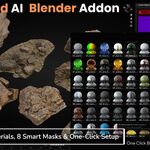
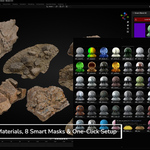
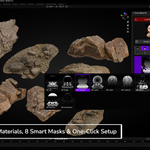
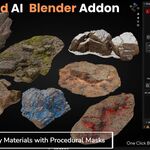
Click the Load Masks & Materials button at the top of the panel. All 140 procedural materials and 8 smart masks will import and display as thumbnails.
2. Select Your Base and Blend
• Choose your base material by clicking its thumbnail.
• In the Blend Material dropdown, pick the second material you want to mix.
3. Choose a Smart Mask
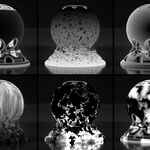
Select one of the eight masks—Ambient Occlusion, Edge Detection, Normal Direction, Leakage, Smudge, Ground-Height, Scratches or Curvature—from the mask grid. Use the sliders below to adjust Scale, Factor, Contrast, Gamma, and Offset in real time.
4. Assign with Smart Mask
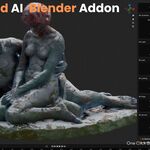
With your object selected in the 3D View, click Assign with Smart Mask. Smart Blend will blend the two materials using your chosen mask and settings, then apply the result as a live PBR shader.
$7$4.90
Have questions about this product?
Login to message
| Blender Extension Compatible | Yes |
| Sales | 100+ |
| Dev Fund Contributor | |
| Published | 10 months ago |
| Blender Version | 4.5 - 5.0 |
| Extension Type | Add-on |
| Render Engine Used | Cycles, Eevee |
| License | GPL |
Discover more products like this
Texture Generator 3D materials ai textures smart-masks blender blender addon shader tools procedural materials seamless textures material blending PBR #procedural shaders