Easy Texture Paint - One-Click UV, Paint Modes & AO Shadows
 blenderustad


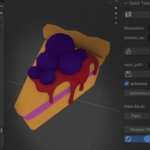
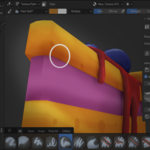
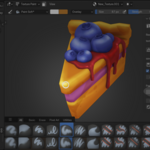
Easy Texture Paint
Official User Documentation
Version 1.6.5 • Blender 3.6+ • By Blender Ustad
1. Introduction
Easy Texture Paint is a Blender add-on built for artists who want to spend more time painting and less time configuring. It removes the repetitive setup steps that slow down the texture painting workflow — UV unwrapping, texture creation, material setup — and replaces them with a single button.
Whether you are painting stylized characters, game props, hard-surface models, or environment assets, Easy Texture Paint gives you a clean, fast path from raw mesh to a fully painted texture.
2. Installation
Requirements
Blender 3.6 or higher
Works on Windows, macOS, and Linux
Step-by-Step Installation
Download the easy_texture_paint_addon.zip file.
Open Blender and go to Edit > Preferences > Add-ons.
Click Install... (top right of the Add-ons window).
Navigate to your downloaded easy_texture_paint_addon.zip and click Install Add-on.
Enable the add-on by checking the checkbox next to Easy Texture Paint.
Open the 3D Viewport. Press N to open the sidebar and look for the Quick Texture tab.
3. Panel Overview
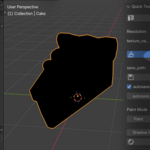
The Quick Texture panel lives in the Blender 3D Viewport sidebar. Press N to toggle the sidebar, then click the Quick Texture tab.
4. Step-by-Step Workflow
Step 1 — Select Your Mesh
Click on your mesh object in the 3D Viewport to make it the active object. The add-on works on mesh objects only.
Step 2 — Auto UV Unwrap
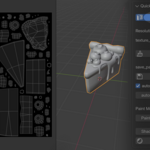
In the Quick Texture panel, click Quick Auto UV. This will automatically unwrap your mesh using Blender's Smart Project algorithm and pack the UV islands for optimal coverage. You do not need to enter Edit Mode manually.
Step 3 — Set Texture Options
Resolution: Choose from 512, 1024, 2048 (default), 4096, or 8192 pixels. Higher resolutions give more detail but use more memory.
Texture Name: Give your texture a meaningful name (e.g., character_body, weapon_diffuse). This will also be the saved filename.
Step 4 — Start Texturing
Click Start Texturing. The add-on will:
Create a new blank RGBA image at your chosen resolution
Create or use an existing material on the object
Add an Image Texture node connected to the Principled BSDF Color input
Set the new texture as the active paint canvas
Switch Blender into Texture Paint mode automatically
Start the autosave timer (if Autosave is enabled)
You are now ready to paint directly on your mesh in the 3D Viewport.
Step 5 — Choose a Paint Mode
From the Paint Mode selector in the panel, choose the mode that matches what you are painting:
Switch between modes at any time during your painting session. The brush blend mode updates instantly.
Step 6 — Add AO Shadows (Optional)
Once you have painted your base colors, you can add depth using the built-in Ambient Occlusion shadow tool.
Set Shadow Strength between 0.0 (no effect) and 1.0 (full strength). A value of 0.5 is recommended for natural-looking shadows.
Click Add Shadows (AO).
The add-on will temporarily switch to Cycles, bake an AO pass at your texture's resolution, multiply the result into your painted texture, and then clean up the temporary bake data automatically. Your render engine is restored after baking.
Step 7 — Save Your Texture
Your texture is saved as a PNG file to the folder specified in the Save Path field.
Manual Save: Click Save Texture Now to save immediately.
Autosave: If Autosave is enabled, the texture is saved automatically at your chosen interval (default: every 60 seconds).
Saved textures are stored as PNG files named after your texture (e.g., New_Texture.png) in the Pictures folder by default, or any folder you select.
5. Settings Reference
Resolution
Controls the pixel dimensions of the created texture (width x height). Choose based on the level of detail needed and available GPU memory:
Autosave Interval
The autosave timer checks every second and saves when the elapsed time since last save exceeds the interval. Minimum interval is 5 seconds. Default is 60 seconds. Set a shorter interval (e.g., 15 seconds) for critical sessions, or a longer one (e.g., 120 seconds) for lighter workflows.
Shadow Strength
Controls how strongly the baked AO is blended into your painted texture. At 0.0, the AO has no effect. At 1.0, the AO is blended at full intensity. A value around 0.4 to 0.6 typically produces the most natural result for stylized or semi-realistic work.
6. Tips & Best Practices
Always run Quick Auto UV before Start Texturing if your mesh has no UVs, otherwise the texture will not display correctly.
Use 2048 px resolution as your default starting point. You can always increase it for final renders.
Paint your base colors first using Paint or Color mode before adding shadows and shine.
Use Shadow mode to hand-paint additional shadow detail after running AO Shadows for full artistic control.
Use Shine mode sparingly on raised edges and highlight areas to simulate a worn or polished surface.
Keep Autosave on at all times. A 60-second interval is safe for most workflows.
Run AO Shadows as a finishing step, not at the beginning — it is best applied after base colors are established.
Set your Save Path to a dedicated project folder so textures don't get mixed with other files.
7. Troubleshooting
8. Support & Resources
If you found Easy Texture Paint useful, please leave a review on the marketplace. It helps other artists discover the add-on and supports future development. Thank you for your support!
Easy Texture Paint v1.6.5 • © 2026 Blender Ustad • MIT License
Have questions about this product?
Login to message
| Blender Extension Compatible | Yes |
| Sales | 20+ |
| Published | 8 months ago |
| Blender Version | 2.6x - 5.0 |
| Extension Type | Add-on |
| Render Engine Used | Cycles, Eevee |
| License | Mit |
