Easy Walk Run Idle
 Onion365studio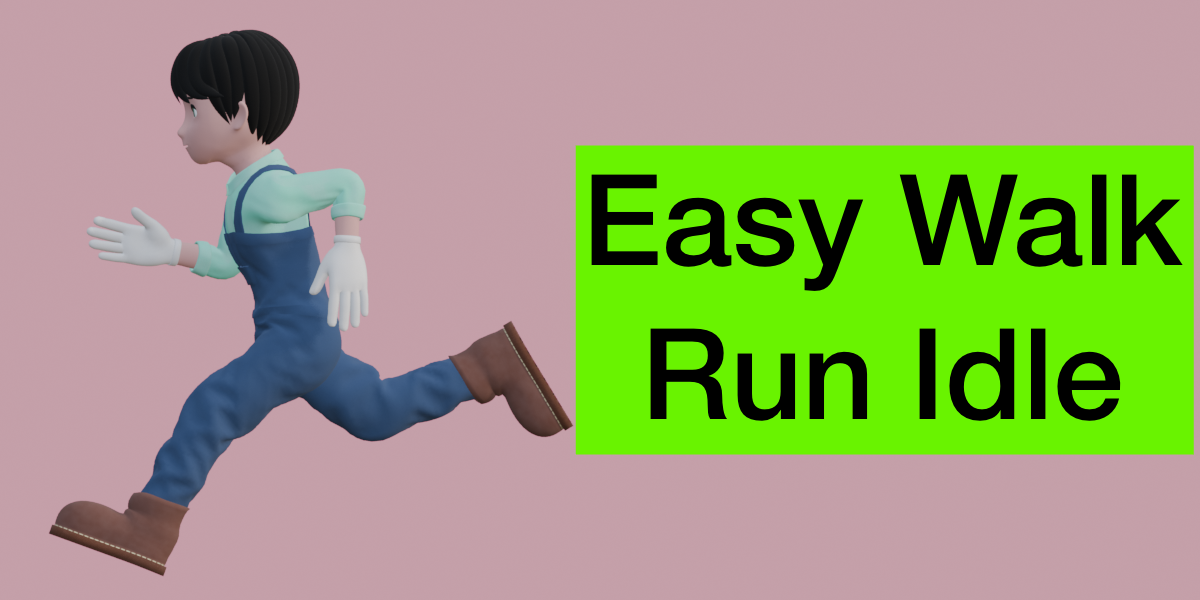
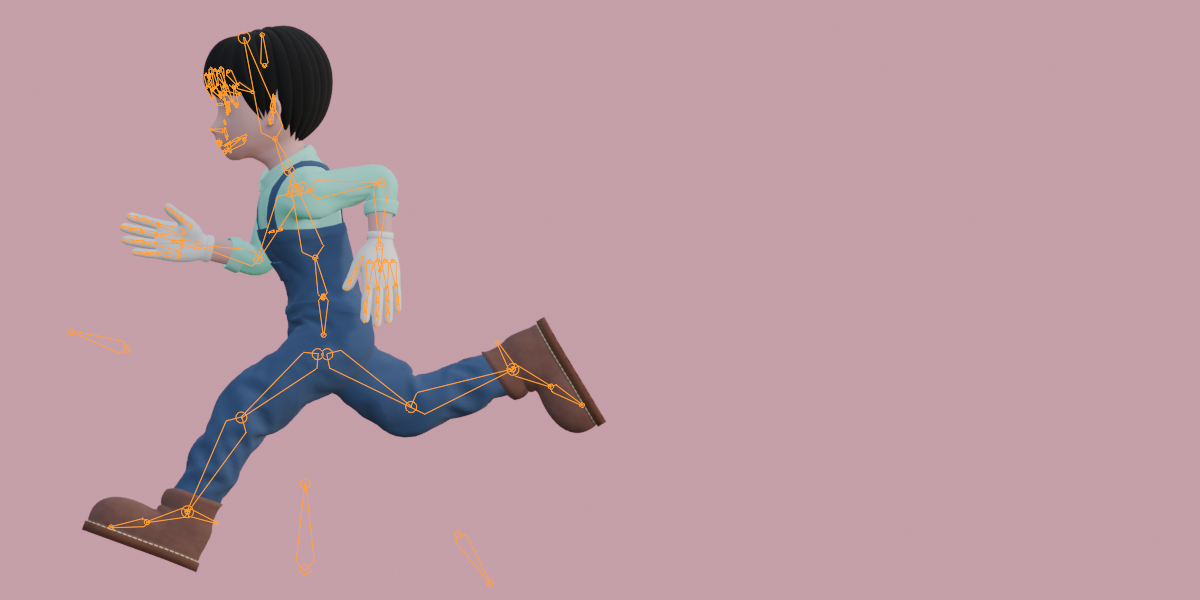
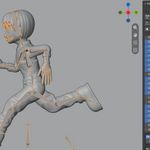
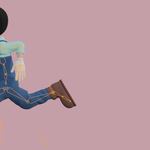
Easy Walk Run Idle: Documentation
Installation
- In Blender, open Edit > Preferences > Get Extensions.
- Open the dropdown arrow at the top right and choose Install from Disk.
- Select the downloaded .zip file and make sure the add-on is enabled.
- In the 3D Viewport, press N to open the sidebar and click the Easy WRI tab.
The panel is always visible. Until an armature is the active object, the controls are greyed out.
Quick Start
- Select your armature (Object Mode or Pose Mode; the add-on cannot generate while in Edit Mode).
- Open the Easy WRI tab.
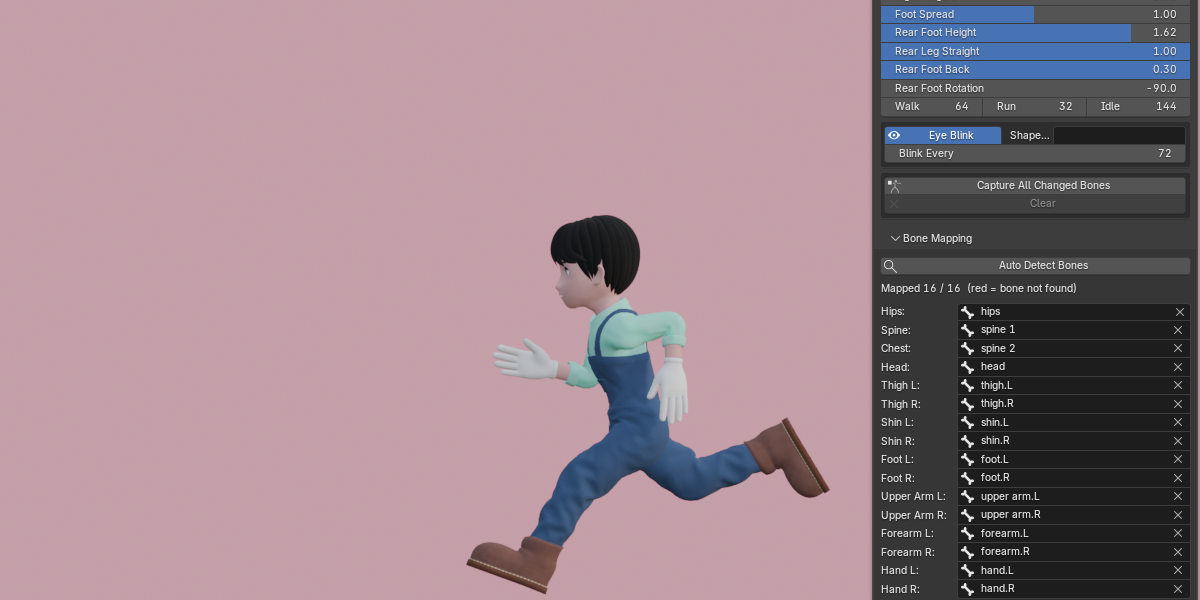
- Optionally open Bone Mapping at the bottom of the panel and check that the bones were detected (“Mapped 16 / 16” means everything was found).
- Click Walk, Run or Idle. A looping Action is created and assigned to the armature, and the scene frame range is set to the length of one cycle.
- Press Play and adjust the sliders. The animation updates live while you drag.
What Gets Created
- One Action named Walk, Run or Idle, with keyframes for the bones it controls.
- Every curve has a Cycles modifier, so the first and last frames join up and the animation loops directly.
- The Action is saved with a fake user, so it is kept when you save the file.
- Clicking the same button again replaces the previously generated Action of that name. If your armature already had an Action of your own, it is protected with a fake user and is not deleted.
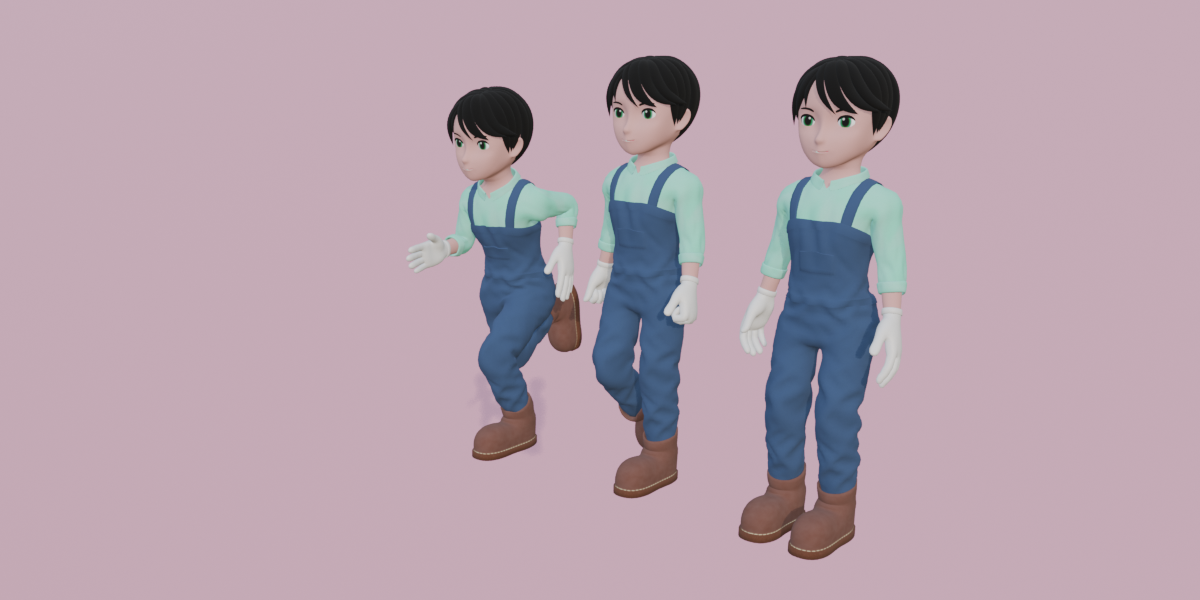
- Default cycle lengths are 64 frames for Walk, 32 for Run and 144 for Idle (one full cycle means one step with each foot).
- Settings are stored per armature, so different characters can have different values.
Panel Reference
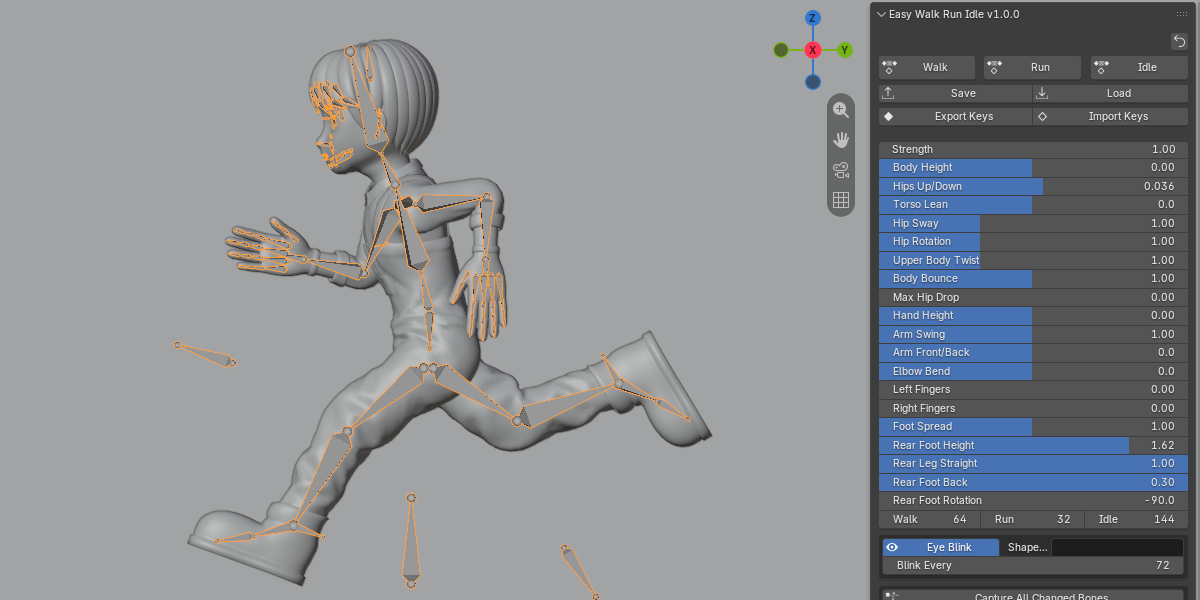
Top buttons
- Reset icon (small arrow, top right): resets every slider and option to its default and regenerates the current animation. Bone Mapping and captured offsets are kept. Can be undone with Ctrl+Z.
- Walk / Run / Idle: generate the animation for that style.
- Save / Load: store and restore your settings as a .json preset.
- Export Keys / Import Keys: export the current Action’s keyframes to .json, or import them onto another armature.
Sliders
Every slider has a tooltip in Blender. “Style default” means the built-in value for the current style (Walk, Run or Idle).
| Slider | Range | Default | What it does |
|---|---|---|---|
| Strength | 0.1 to 2 | 1 | Overall motion amplitude |
| Body Height | -1 to 1 | 0 | Height of the hips. Positive stands taller with straighter legs, negative crouches lower. With IK, the feet stay on the ground until the legs are nearly straight |
| Hips Up/Down | -0.5 to 0.5 | 0 | Moves the hips directly up or down as a fraction of leg length. Unlike Body Height it is not limited by IK reach, so pulling too high can lift the feet off the ground |
| Torso Lean | -30 to 30 degrees | 0 | Forward lean added on top of the style default (Run default 24 degrees, Walk default 3 degrees) |
| Hip Sway | 0 to 3 | 1 | Side-to-side hip shift. 0 means no sway |
| Hip Rotation | 0 to 3 | 1 | Twist of the hips around the vertical axis. Only the hips are affected |
| Upper Body Twist | 0 to 3 | 1 | Twist of spine, chest and shoulders, opposite to the hips. The head keeps facing forward |
| Body Bounce | 0 to 2 | 1 | Vertical bounce of the body. 0 means the hip height barely changes |
| Max Hip Drop | 0 to 0.8 | 0 | Limits how far the hips can sink, as a fraction of leg length. 0 means unlimited. Recommended 0.25 to 0.35. The steps get shorter instead. IK legs only |
| Hand Height | -1 to 1 | 0 | Raises (positive) or lowers (negative) the hands |
| Arm Swing | 0 to 2 | 1 | Forward and backward swing of the arms |
| Arm Front/Back | -45 to 45 degrees | 0 | Shifts the whole arm swing forward (positive) or backward (negative) |
| Elbow Bend | -60 to 60 degrees | 0 | Extra elbow angle on top of the style default. Negative straightens the arm, down to 0 degrees |
| Left Fingers / Right Fingers | 0 to 1 | 0 | Finger curl. 0 leaves the fingers untouched, 1 is a fist |
| Foot Spread | 0.5 to 1.5 | 1 | Front-to-back distance between the feet (stride). Larger means longer steps |
| Rear Foot Height | 0 to 2 | 1 | How high the rear foot kicks up behind the body |
| Rear Leg Straight | 0 to 1 | 0.5 | How long the rear leg stays straight and rises behind the body. 0 folds the knee immediately |
| Rear Foot Back | -0.3 to 0.3 | 0 | How far back the rear foot pushes, as a fraction of stride. The front foot landing point stays |
| Rear Foot Rotation | -90 to 90 degrees | 0 | Extra rotation of the rear foot in the air, strongest at the peak and 0 on the ground. Negative points the toes down. IK legs only |
| Walk / Run / Idle frames | 8 to 120 / 8 to 120 / 24 to 480 | 64 / 32 / 144 | Length of one full cycle. Fewer frames means faster motion |
If Max Hip Drop is active and had to shorten the steps, the panel shows how much the stride was scaled down.
Bone Mapping and Bone Names
Bones are detected automatically from their names. Matching ignores case, numbers, dots, underscores, dashes and prefixes, so names like Thigh.L, thigh_L, DEF-thigh.L and mixamorig:LeftUpLeg all work.
Keywords the add-on looks for
- Hips: hip, pelvis
- Spine and Chest: spine, chest (several spine bones such as Spine, Spine1, Spine2 are supported)
- Head: head
- Thigh: thigh, upperleg, upleg, femur
- Shin: shin, calf, lowerleg, lowleg, tibia (a plain “leg” is also treated as the shin)
- Foot: foot
- Upper arm: upperarm, uparm (a plain “arm” is also accepted)
- Forearm: forearm, lowerarm, lowarm
- Hand: hand
- Fingers: index, middle, ring, pinky (also “pink” or “little”), found under the forearm
Left and right. Use “Left” / “Right”, or a standalone L / R in the name (.L, _R, L_, LThigh). If a bone has no side in its name, the side is worked out from its position.
Ignored bones. Names containing any of these words are skipped, so helper and control bones are not picked by mistake: ik, pole, target, twist, roll, helper, toe, end, top, tweak, mch, org, ctrl, control. Twist bones that sit directly on a limb are still driven together with that limb.
If several bones match, the one with the shorter name that sits higher in the hierarchy is used.
Fixing a wrong or missing bone. Open the Bone Mapping sub-panel (collapsed by default). Each of the 16 slots has a bone picker, and slots that point to a bone that does not exist are shown in red. Press Auto Detect Bones to run the name search again. This overrides bones picked by hand, and if nothing is detected the old mapping is kept.
Limbs that are split into several bones (thigh plus thigh twist, upper arm in two parts, spines with several bones) are handled automatically. Only the mapped bone is driven, the rest of the segment follows, and the length is calculated for the whole segment.
Capture All Changed Bones
Use this to add your own pose adjustments on top of the generated animation.
- Generate Walk, Run or Idle.
- Move the timeline to a frame you want to adjust.
- Switch to Pose Mode and move or rotate any bones. Do not insert keyframes.
- Click Capture All Changed Bones.
Every bone you changed (rotation or location) is stored as an offset. From then on the offsets are layered back on top of the animation each time it is regenerated, whether by dragging a slider or clicking Walk, Run or Idle, and they are no longer overwritten. A capture is strongest at the frame you made it and fades smoothly back to the generated motion within about 4 frames either side.
The panel shows how many bones are captured for the current style. Captured offsets are stored per style, so Walk and Run keep separate sets. Clear removes the captured offsets of the current style and makes the animation purely generated again.
Eye Blink
If a mesh linked to the armature has a shape key for closed eyes, blinks are added to the same Action whenever you generate Walk, Run or Idle.
- Eye Blink checkbox: turns blinking on or off (on by default).
-
Shape Key: the name of the shape key. The default is “close eyes”. Case, spaces and underscores are ignored, so
Close_EyesandCloseEyesalso match. - Blink Every: average number of frames between blinks (12 to 480, default 72, which is 3 seconds at 24 fps). The number of blinks per cycle is the cycle length divided by this value, rounded, at least 1, spread evenly.
When a matching shape key is found, a status line under the options shows which mesh and shape key are used. If there is no such shape key, nothing happens and the rest of the animation is generated as usual. The blink lives in a separate slot of the same Action.
Fingers
Left Fingers and Right Fingers curl the Index, Middle, Ring and Pinky fingers from open (0) to a fist (1). The fingers are found by name under the matching forearm, and the first three segments of each finger are animated. The thumb and the palm (metacarpal) bones are not touched. At 0 the fingers keep the rig’s original pose, so a T-pose hand stays open.
If a finger slider is above 0 but no finger bones are found under that forearm, the panel shows a warning: “No finger bones under Forearm L/R”.
Save / Load Settings
Save writes a .json preset file. In the file dialog you can also include:
- Bone Mapping: the bones picked in Bone Mapping
- Captured Offsets: the offsets stored by Capture All Changed Bones
Load reads a preset and lets you choose separately whether to load Settings, Bone Mapping and Captured Offsets. It then creates a new Action from the loaded settings and assigns it to the armature. Bones that do not exist on the current armature are skipped, so presets can be used on other characters.
Export / Import Keys
Export Keys saves all keyframes of the armature’s current Action to a .json file: bone curves, interpolation, handles and Cycles modifiers, and optionally the blink shape key curves.
Import Keys creates a new Action on the armature from such a file. Bones that cannot be found on the current armature are skipped. Imported keys are plain keyframes, so dragging sliders does not overwrite them. Clicking Walk, Run or Idle afterwards generates a separate new Action.
Tips
- Start with Strength, then adjust Body Height and Torso Lean. For runs, a larger Torso Lean looks more like a sprint.
- When you widen Foot Spread on a rig with IK legs, the hips sink to reach the feet. Set Max Hip Drop to about 0.3 to keep the pose natural.
- For a cartoon straight-leg back kick, raise Rear Foot Height and Rear Leg Straight together.
- For a calmer Idle, increase the Idle frame count. Breathing happens once every half cycle and the weight shift once per cycle.
- If you want hand edits to survive regeneration, use Capture All Changed Bones. If you want a plain Action that sliders never touch, use Export Keys then Import Keys.
FAQ
Which Blender versions are supported?
Blender 5.2.0 and newer.
Will it work with my rig?
Bones are detected by name (see Bone Mapping and Bone Names above), and anything that is not detected can be picked by hand in the Bone Mapping panel. Rigs with IK legs and arms are supported, and so are limbs split into several bones. If no bones can be detected at all, the add-on shows an error asking you to check that the bone names contain keywords such as Hips, Spine, Thigh, Shin, Foot, Arm or Forearm.
Do I need an IK rig?
No. FK rigs work too. Only Max Hip Drop and Rear Foot Rotation require IK legs.
The whole panel is greyed out.
Make sure an armature is the active object. The controls only become active when an armature is selected.
I get the message “Leave edit mode first”.
Switch to Object Mode or Pose Mode. Generating is not possible in Edit Mode.
Which direction should my character face?
The generator assumes the character faces -Y (the usual front-view direction in Blender) in the armature’s rest pose. Rigs that face another direction are not supported in this version.
A bone is wrong or missing.
Open Bone Mapping, pick the correct bone for that slot, and the animation updates. Slots shown in red point to a bone that does not exist on the current armature.
Will it delete my existing animation?
If the armature already has an Action of your own, it is kept (it gets a fake user). Only a previously generated Action with the same name (Walk, Run or Idle) is replaced when you generate again.
My manual changes disappeared when I moved a slider.
Generated animations are rebuilt whenever a slider changes. Use Capture All Changed Bones for edits that should survive, or export and re-import the keys to get a plain Action that sliders do not overwrite.
Can I change the speed of the cycle?
Yes. Change the Walk, Run or Idle frame count. Fewer frames per cycle means faster motion.
Does it change my scene’s frame range?
Yes. When you generate, the scene start and end frames are set to the length of one cycle.
The eyes do not blink.
Check that Eye Blink is enabled, that a mesh linked to the armature has a shape key named “close eyes” (or that you typed its name in the Shape Key field), and look for the status line under the blink options, which lists the detected mesh and shape key.
The fingers do not move.
Raise Left Fingers or Right Fingers above 0. If you see “No finger bones under Forearm”, the finger bones are not children of the forearm or their names do not contain Index, Middle, Ring or Pinky.
Can I reuse my settings on another character?
Yes. Use Save to create a preset and Load on the other armature. Bone Mapping only loads bones that exist on the new armature, and the rest keep their current mapping.
Can I undo a generation?
Yes. Generating and Reset All Settings both support Ctrl+Z.
Where do I get help?
Send a message through the product page.
Have questions about this product?
Login to message
| Blender Extension Compatible | Yes |
| Dev Fund Contributor | |
| Published | about 7 hours ago |
| Blender Version | 5.2 |
| Extension Type | Add-on |
| Render Engine Used | Cycles, Eevee |
| License | GPL |
Discover more products like this
IK walk animation armature action-animation Game animation rigging idle animation looping animation character animation godot-animation run animation animation