Easy Camera
 phamduyson



Easy Camera - Blender Addon Documentation
Introduction
Easy Camera is a powerful Blender addon designed to simplify cinematic camera movements and scene management. Whether you're an animator, filmmaker, or 3D artist, this addon helps you create smooth, professional-quality camera shots effortlessly. With intuitive controls and flexible features, Easy Camera enhances your workflow and makes complex animations simple.
Installation
Open Blender and go to Edit > Preferences.
Navigate to the Add-ons tab.
Click Install... and select the Easy Camera
.zipfile.Enable the addon by checking the box next to Easy Camera.
The addon panel will now appear in the 3D Viewport Sidebar (N panel).
Features Overview
Smooth Camera Path Creation – Draw custom motion paths and refine them easily.
Object Tracking – Keep the camera locked onto any object.
Freeform Camera Navigation – Manually control camera movements with precision.
Surface Following Mode – Glide the camera smoothly over terrain or objects.
Easy Keyframing – Set, adjust, and clear keyframes for precise control.
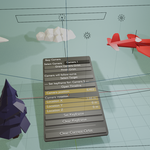
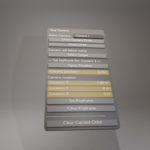
Camera Management Panel – Organize all cameras efficiently in one place.
How to Use Easy Camera
1. Creating a Camera Motion Path
Select a camera in the scene.
Use the Draw Orbit tool to sketch a rough motion path.
Refine the path using standard Blender transform tools (move, rotate, scale).
Click Finish Orbit to confirm the motion path.
2. Object Tracking Mode
After creating a motion path, select Select Target.
Choose an object in your scene for the camera to follow.
The camera will automatically orient itself towards the target’s geometry center.
3. Freeform Camera Navigation
Instead of selecting an object, choose Orbit Path as the target.
Move the camera along the orbit with Camera Position controls.
Adjust the camera’s rotation with Camera Rotation settings.
Use Camera Direction to set the camera’s focal point.
4. Surface Following Mode
Select a camera and draw an orbit path.
Ensure the path aligns with the surface you want the camera to follow.
The camera will smoothly track the contours of the selected surface.
5. Managing Cameras
All cameras created or modified with Easy Camera are automatically stored in a dedicated collection.
Use the addon’s Camera Manager Panel to quickly switch between different cameras.
To make a camera active at a specific frame, select it and press Ctrl + B.
Tips for Best Results
Adjust Focal Length for better framing of your shots.
Use Blender’s Graph Editor to fine-tune camera speed and easing.
If you need to restart, use Clear Current Orbit to reset paths.
Combine Easy Camera with Blender’s depth of field for cinematic effects.
Support & Updates
For support or updates, please visit the official addon page or contact the developer. Your feedback helps improve Easy Camera, ensuring the best user experience.
With Easy Camera, creating professional-quality camera movements in Blender has never been easier. Start animating today!
Discover more products like this
Control camera align-camera camera control 3D camera positions camera rig cinematic camera