Easy Warehouse (Sketchup Library Importer)
 DHA
DHA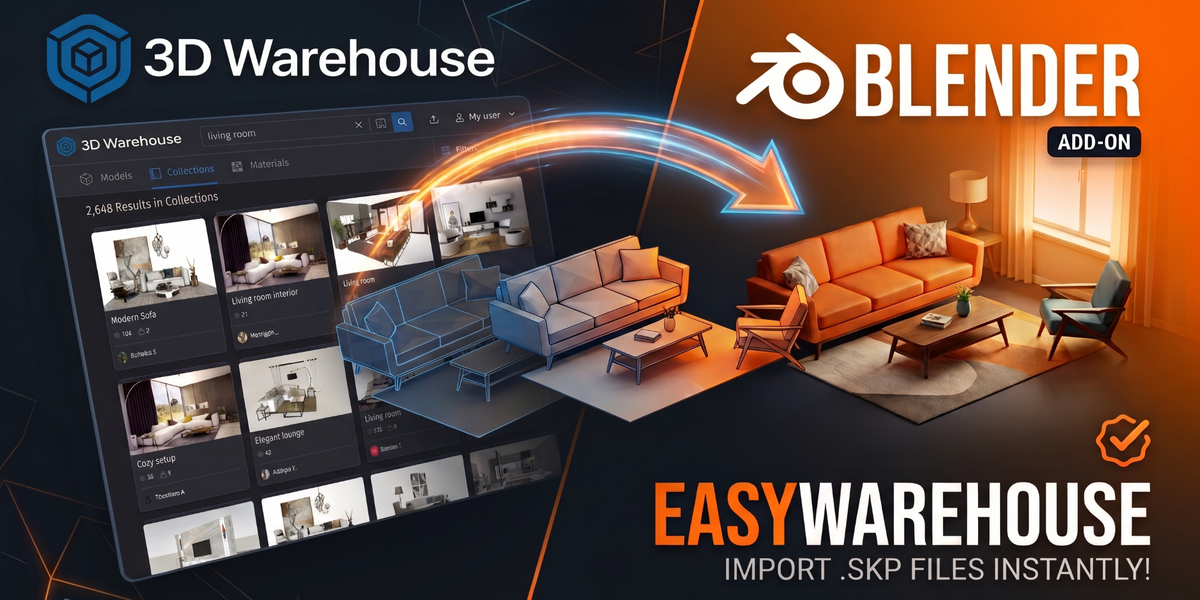
EasyWarehouse: Full Documentation
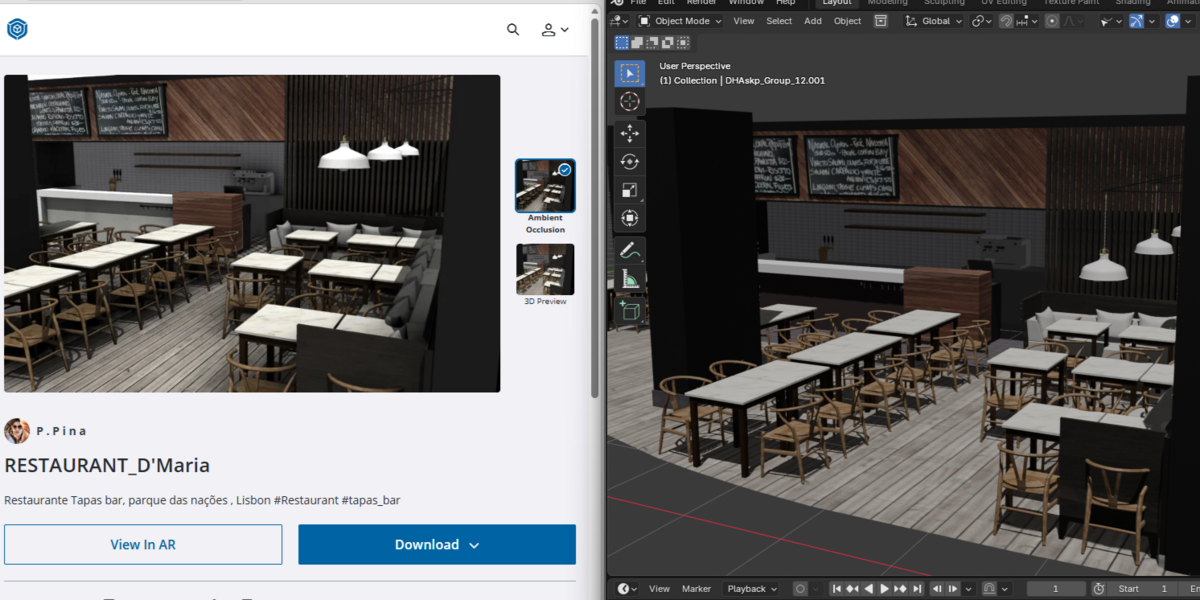
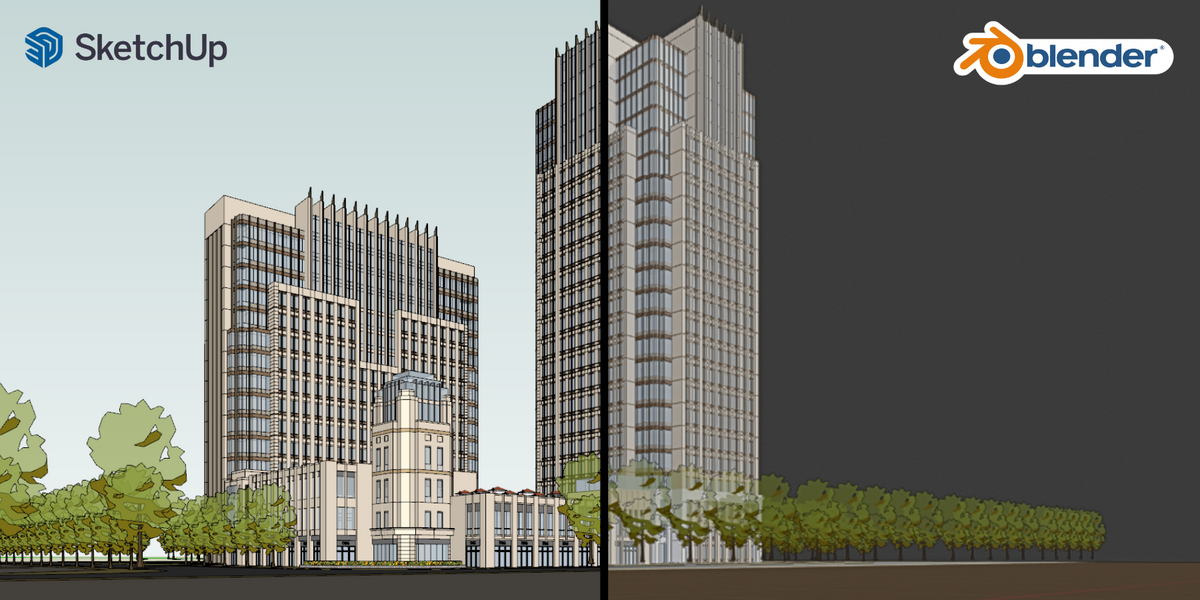
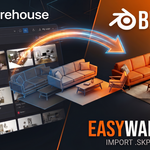
Welcome to the complete guide for EasyWarehouse Pro. Learn how to connect Blender directly to 3D Warehouse, automate your asset library, manage imported models, and navigate complex hierarchies using our SketchUp-like Group Navigator.
1. Installation & Quick Setup
- Requirements: Ensure you are using Blender 4.2+ on a Windows operating system.
- Installation: Go to
Edit > Preferences > Add-ons, click install, and select the downloaded ZIP file. Check the box to enable it. - Initial Setup: In the add-on preferences, locate the Asset Library Folder setting and define the path where you want all your downloaded models to be automatically saved and categorized.
2. The Embedded Browser & Downloading


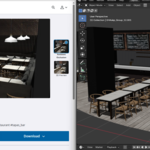
Access the built-in browser directly from the EasyWarehouse tab in your 3D Viewport N-Panel, or via the header button in the Asset Browser.
- Custom Download Modal (DHA Modal): When you click download on any model, a smart window appears allowing you to:
- Asset Name: Rename the model cleanly before it reaches your drive.
- Catalog: Assign it to an existing Blender catalog or instantly create a new one (e.g., "Furniture/Chairs").
- Import Mode: Choose between Auto, Accurate, Balanced, or Fast processing.
- Tags: Add comma-separated keywords for easy searching later.
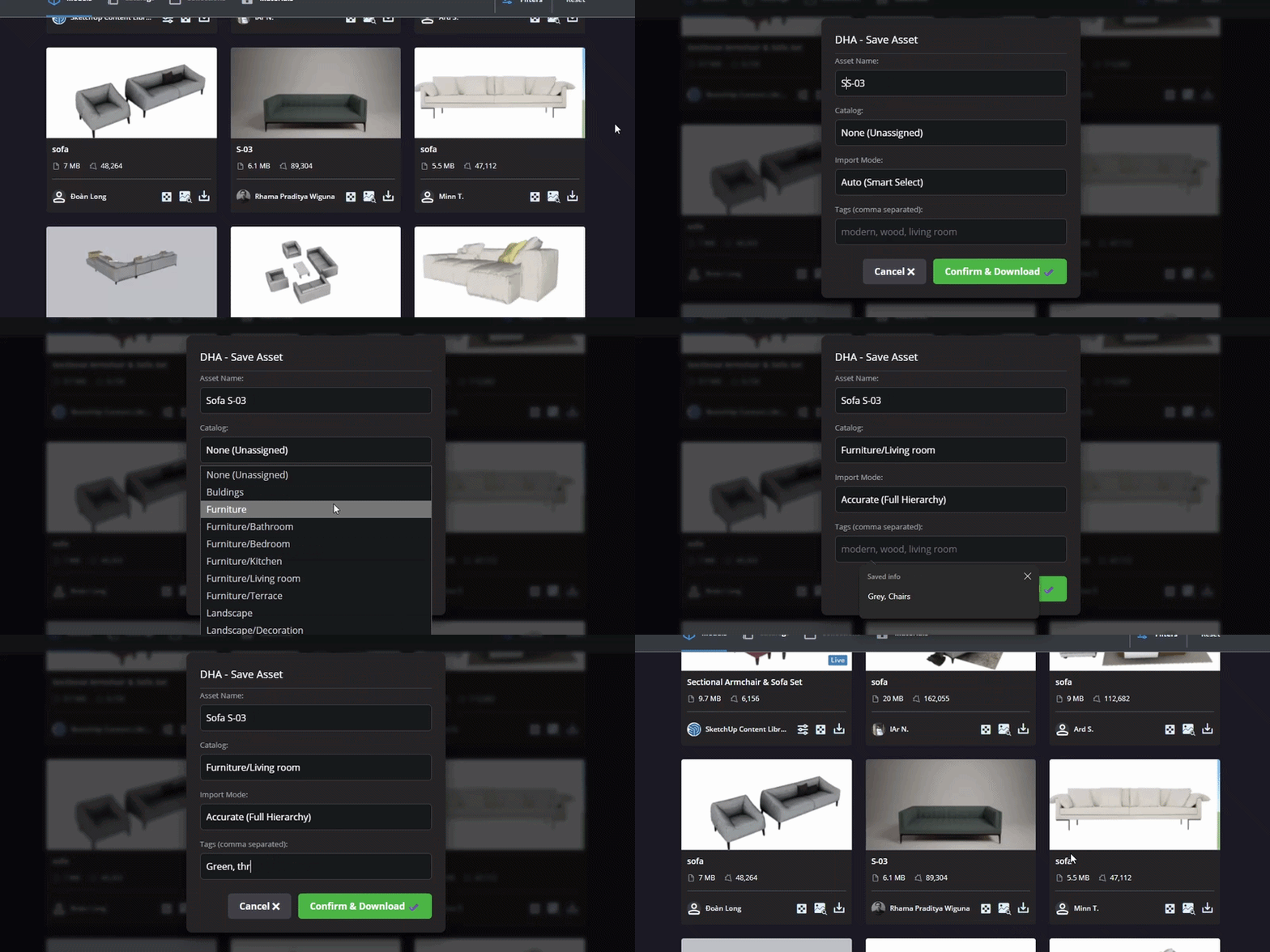
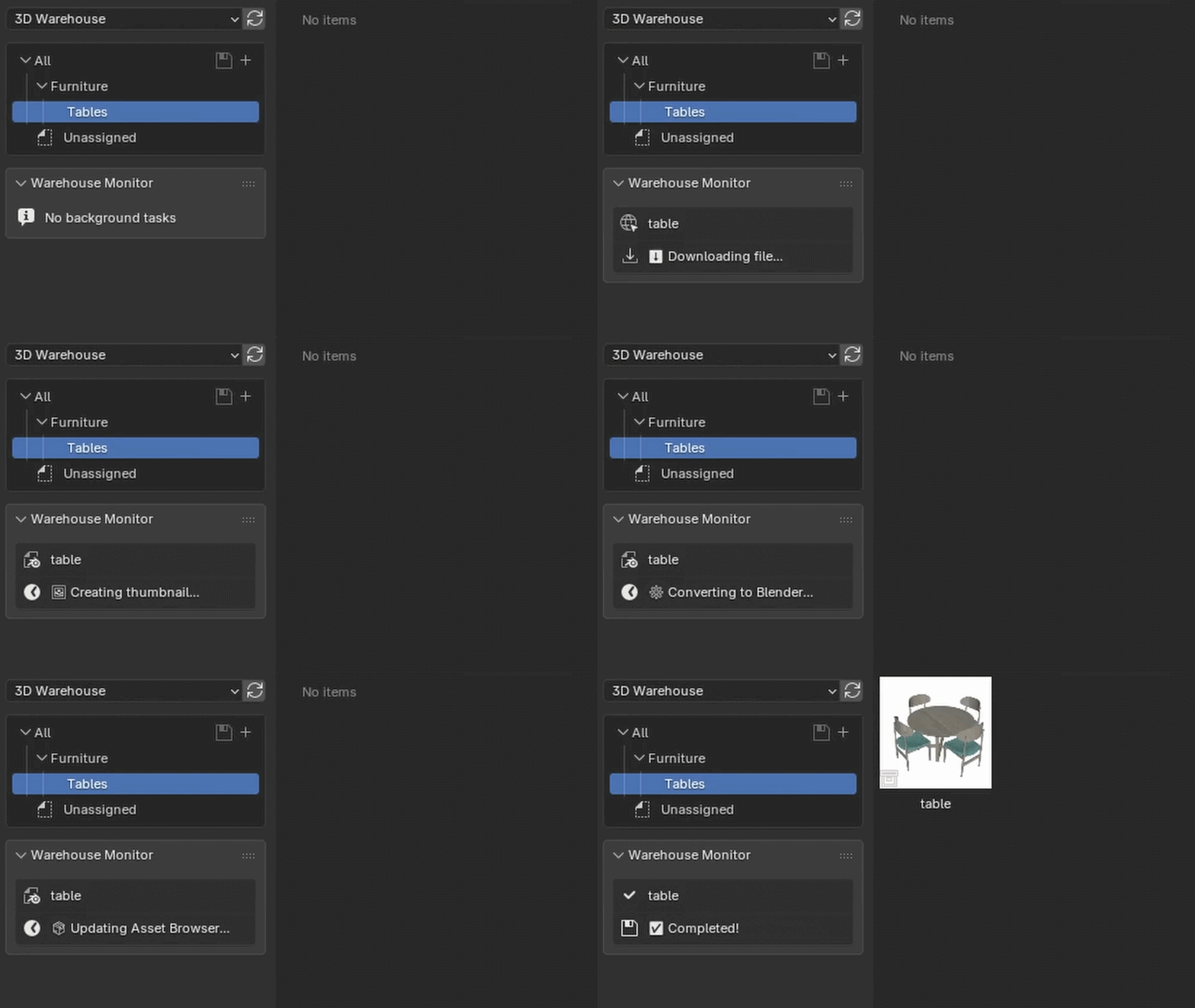
- Uninterrupted Workflow: Once you confirm, a toast notification appears. The file is sent to Blender to process in the background without freezing your UI.
3. Asset Library Management

You can access your downloaded models using either of two methods:
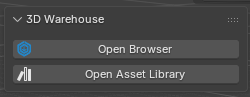

- One-Click Quick Access (Automatic): Click the Open Asset Library button in the N-Panel (
EasyWarehousetab) to instantly split your screen and focus directly on the library. You can close it anytime using the small (X) button. - Standard Asset Browser (Manual): Open any Blender Asset Browser area manually and choose 3D Warehouse from the library dropdown list at the top.
Creating and Managing Catalogs
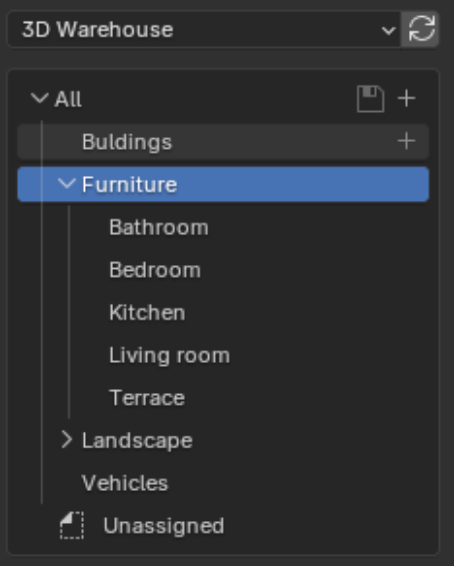
- Creating a New Catalog: You can create a new catalog at any time directly in Blender's Asset Browser by clicking the plus (+) icon on the catalogs tree panel and naming it.
- Newly created catalogs are automatically indexed by the add-on and will immediately appear in the assignment dialogs and download popups.
- Important Note: Make sure to save the catalog after adding it so it appears properly in download popups and menus. An asterisk (
*) displayed next to the catalog name indicates that it has unsaved changes.
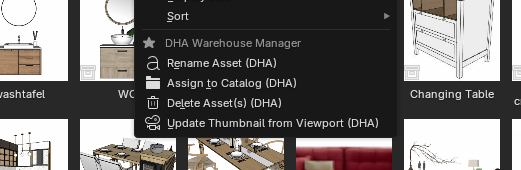
Right-click any DHA asset inside the library to access specialized management tools:
- Rename Asset: Safely renames the folder, the
.blendfile, and the internal collection simultaneously via a background worker. - Assign to Catalog: Move single or multiple selected assets to any existing catalog in one click.
- Update Thumbnail from Viewport: Don't like the default SketchUp cover? Frame the model in your 3D viewport and trigger this operator to capture and assign a clean, square thumbnail directly from your angle.
- Delete Asset: Permanently and cleanly deletes the asset folder and its files from your storage drive to keep your library clutter-free.
- Warehouse Monitor: Track background operations (downloading, SKP conversion, and thumbnail generation) directly in the Asset Browser sidebar via the Warehouse Monitor panel.
4. Direct SKP Import Settings
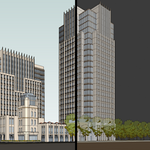
Easily import local SketchUp files via File > Import > SketchUp (.skp). Here is a quick breakdown of the available settings:
- Scale / Units: Choose Auto (matches Blender units), Raw Meters (1:1 scale), or Scale 0.0254 (inches to meters).
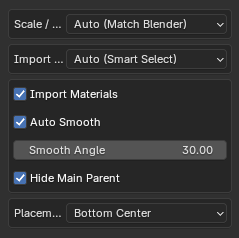
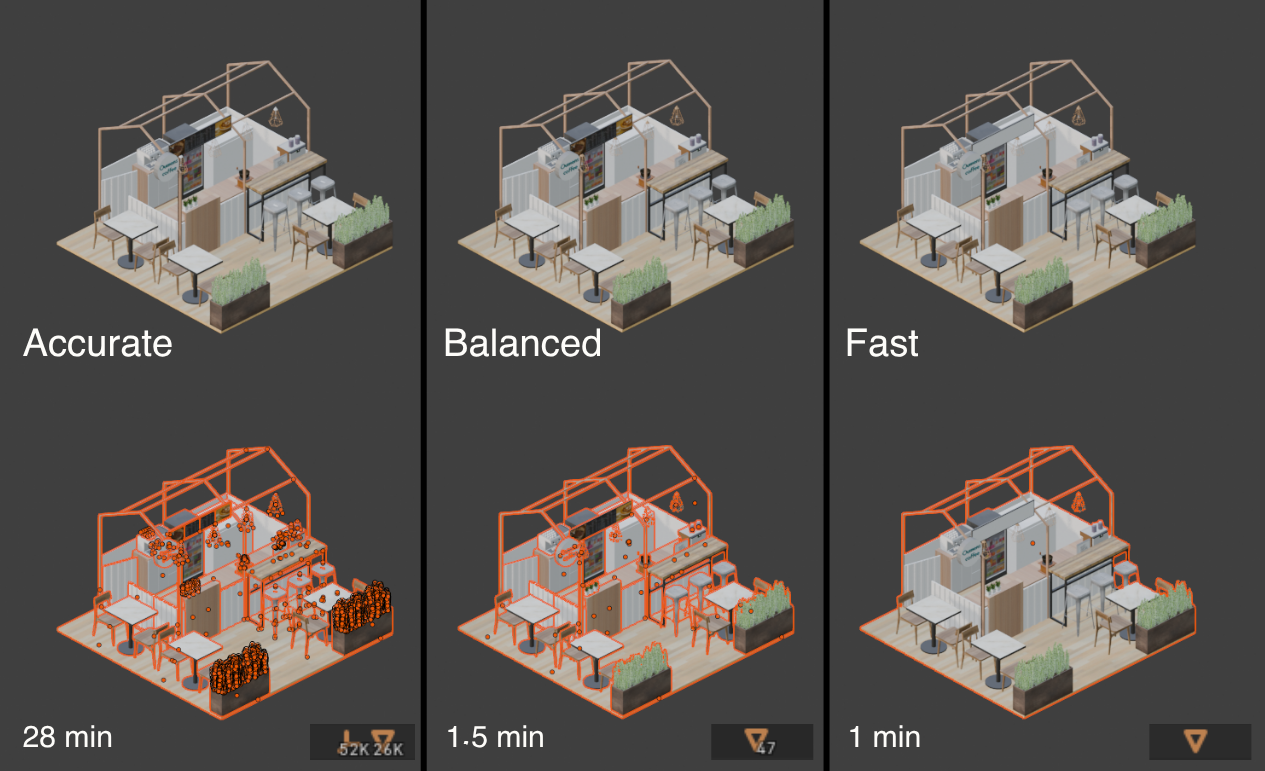
- Import Mode:
- Auto: Automatically selects the most efficient mode based on the model's total object count.
- Accurate: Preserves the entire component hierarchy and backfaces, making it ideal for smaller models (under 1,500 objects).
- Balanced: Flattens sub-groups but maintains accurate materials, optimized for mid-sized scenes (1,500 to 20,000 objects).
- Fast: Merges all geometry and skips backfaces to maximize speed for massive files (over 20,000 objects).
- Import Materials: Automatically unpacks embedded textures, builds shader nodes, and preserves front/back faces.
- Auto Smooth & Angle: Applies smooth shading to curved faces with custom sharp angle control (default: 30.0°).
- Hide Main Parent: Hides the root Empty container to keep your viewport and render clean.
- Placement / Origin:
- Bottom Center: Places base at world origin floor.
- Geometric Center: Centers model bounds at world origin.
- Original SKP Position: Keeps exact original SketchUp scene coordinates.
5. Group Navigator & Hierarchy Tools
EasyWarehouse brings SketchUp's intuitive grouping workflow directly into Blender's viewport.
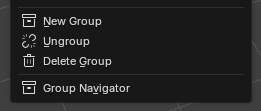
First, activate the Group Navigator via the Header, Visibility Menu, or Right-Click Context Menu.
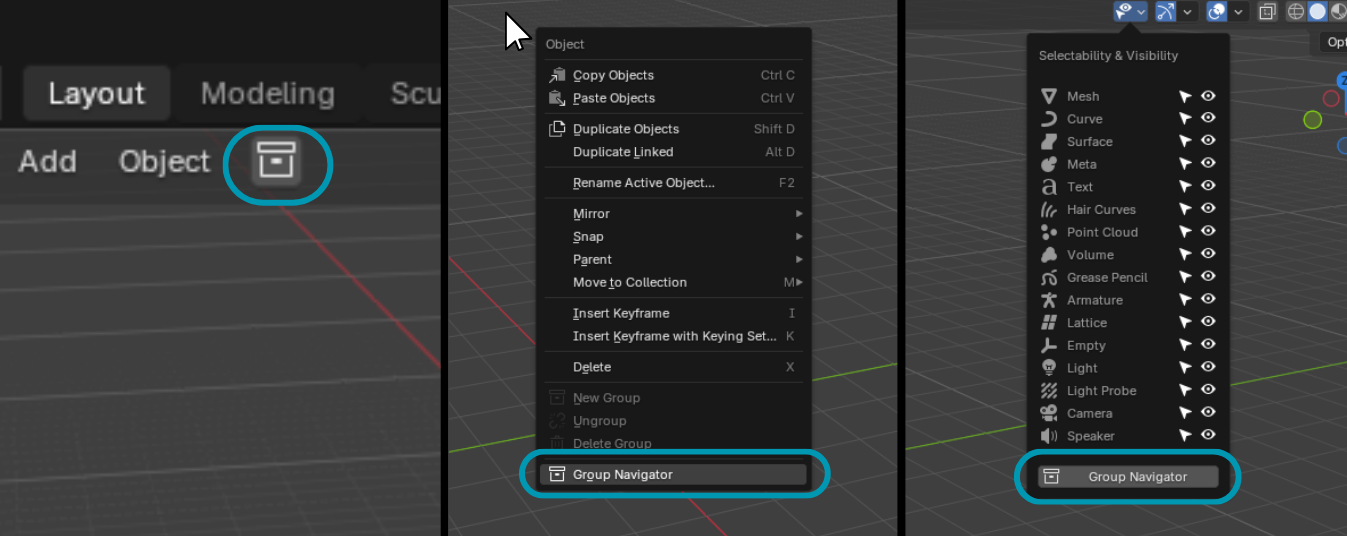

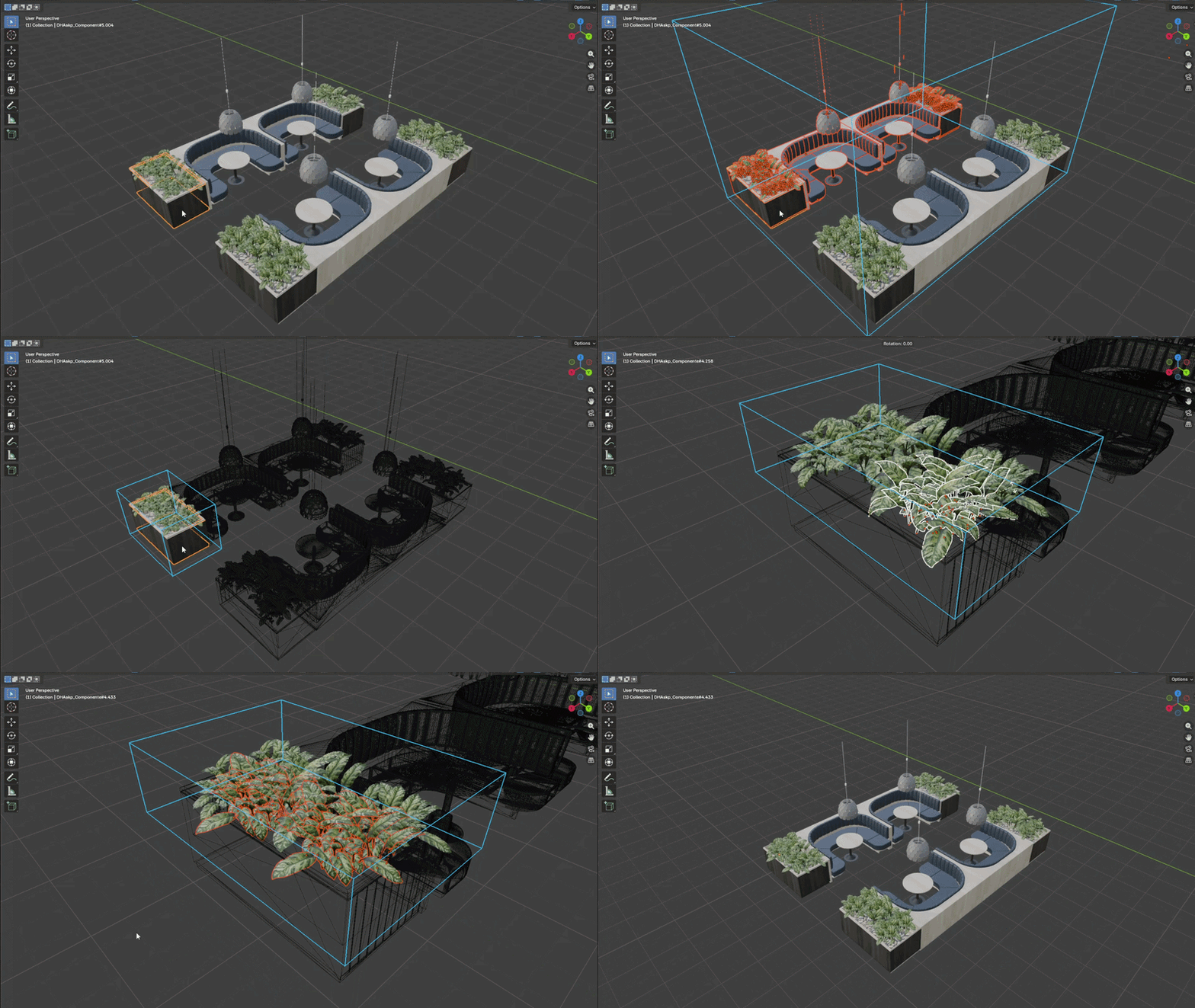
- Double-Click to Isolate: Ensure the Group Navigator is active (via the header icon). Double-click any imported group to dive inside. The rest of the scene fades to wireframe, and a blue bounding box highlights your active working area. Press
ESCto step back out. - New Group: Bundles selected objects under a hidden parent Empty at their center while preserving transforms.
- Ungroup: Removes the parent Empty and releases all child objects while retaining their transforms.
- Delete Group: Using the standard Blender delete can leave behind invisible parent empties. Use Delete Group from the context menu to cleanly wipe out the group and all its nested children.
6. Add-on Preferences
Customize your workflow by navigating to Edit > Preferences > Add-ons > EasyWarehouse. Here is a detailed breakdown of the available settings:
- Asset Library Folder :
Defines the root directory path where all converted
.blendasset folders and textures will be automatically saved and cataloged.
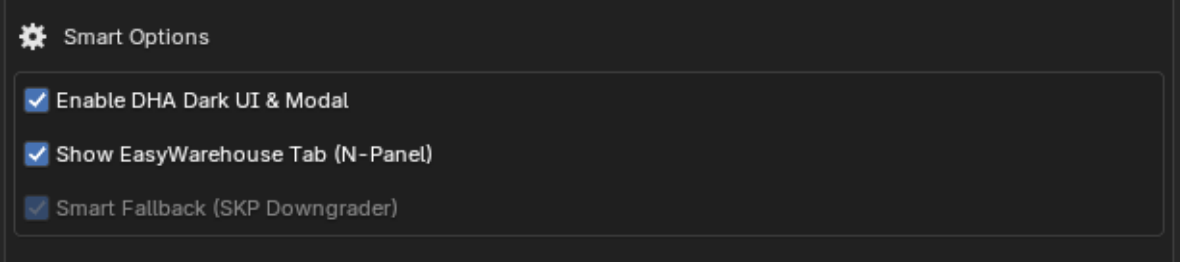
- Smart Options:
- Enable DHA Dark UI & Modal: Activates the dark theme and the custom download manager window for the 3D Warehouse embedded browser.
- Show EasyWarehouse Tab (N-Panel): Toggles the visibility of the add-on's quick-access tab in the 3D Viewport sidebar.
- Smart Fallback / SKP Downgrader : Automatically downgrades newer SketchUp files in the background if the native importer fails, ensuring compatibility with Blender 5.0 and below.
- Browser Import Settings:
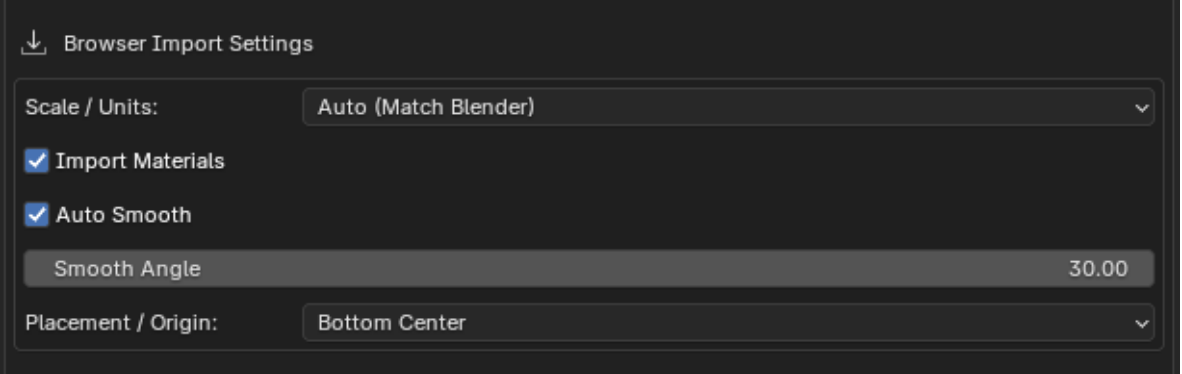
Sets the default behavior for models downloaded directly from the embedded browser:
- Scale / Units: Choose Auto (Match Blender), 1:1 (Raw Meters), or Scale 0.0254 (Inches to Meters).
- Import Materials & Auto Smooth: Toggles automatic texture extraction and applies smooth shading with a customizable angle (default: 30.0°).
- Placement / Origin: Defines the default landing position as Bottom Center, Geometric Center, or Original SKP Position.
- Group Navigator UI Placement:
- Header (Left): Shows the Group Navigator icon in the 3D Viewport header.
- Visibility & Context Menus : Adds the navigator tools to the viewport visibility dropdown and the object right-click context menu.

7. Lite vs. Pro Comparison
While the Lite version works as a direct one-time importer, the Pro version delivers a fully automated background pipeline and long-term asset management system.
| Feature | Lite Version | Pro Version |
|---|---|---|
| Asset Library Destination | Direct Import Only: Opens into the active scene as a one-time object; no library folder or asset file is created. | Permanent Asset Library: Converts to clean .blend files with automatic catalog assignment for future projects. |
| Background Processing | None: Blender temporarily freezes while downloading, unpacking textures, and importing the model. | Zero-Freeze Background Worker: All file conversions and texture extractions happen silently without interrupting work. |
| Browser & Smart Modal | Standard Web View: Default 3D Warehouse UI with direct downloads and no tagging or naming options. | DHA Dark UI & Modal: Custom dark theme with pre-download popup to rename, assign catalogs, and add tags. |
| Asset Management Tools | Not Supported: No asset library integration or file management capabilities. | Full Right-Click Menu: Rename blend files, move between catalogs, capture thumbnails from viewport, or deep delete. |
| Import Modes | Balanced Mode Only: Locked to single merged sub-group mode without performance flexibility. | All 4 Modes: Freedom to use Auto, Accurate (full hierarchy), Balanced, or Fast (massive scale). |
| Smart SKP Downgrader | Disabled: New SketchUp format files will fail if native parser compatibility is exceeded. | Smart Auto-Fallback: Runs a background engine to downgrade new versions for Blender 5.0 and below. |
| Group Navigator UI | Header Icon Only: Basic toggle located only in the 3D Viewport header. | Complete Integration: Accessible from Header, Viewport Visibility Menu, and Right-Click Context Menu. |
-
$0 $1
Direct 3D Warehouse browsing, scene SKP imports, and Group Navigator, without Asset Browser or download menus.
-
$9.49 $20.99
All cool features: automated background Asset Browser conversion, smart download modals, asset tools, and Group Navigator.
Have questions about this product?
Login to message
| Blender Extension Compatible | Yes |
| Published | 1 day ago |
| Blender Version | 4.2 - 5.2 |
| Extension Type | Add-on |
| Render Engine Used | Cycles, Eevee |
| License | GPL |
Discover more products like this
asset skp 3d-architecture-assets 3D interior assets. Link architecture Asset Manager Asset brower SketchUp warehouse importer warehouse asset