 KVD
KVD


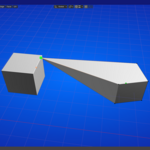
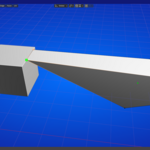
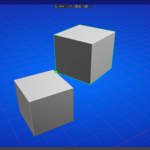
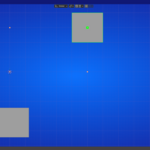
Edge Marker add-on:
The Ultimate Precision Tool for Blender🎯 "Place Anything, Anywhere, with Pinpoint Accuracy"
Stop Guessing. Start Placing.
Ever struggled to position something exactly halfway along an edge? Wished you could mark precise measurement points that actually stay with your model? Tired of switching back and forth between tools just to snap vertices to specific positions?
Edge Marker is the precision tool you've been waiting for.
What Makes Edge Marker Essential?
📍 Mark Any Point on Any Edge
Place visual markers or the 3D cursor at exact distances along edges—down to millimeter precision. No more eyeballing or complex workarounds.
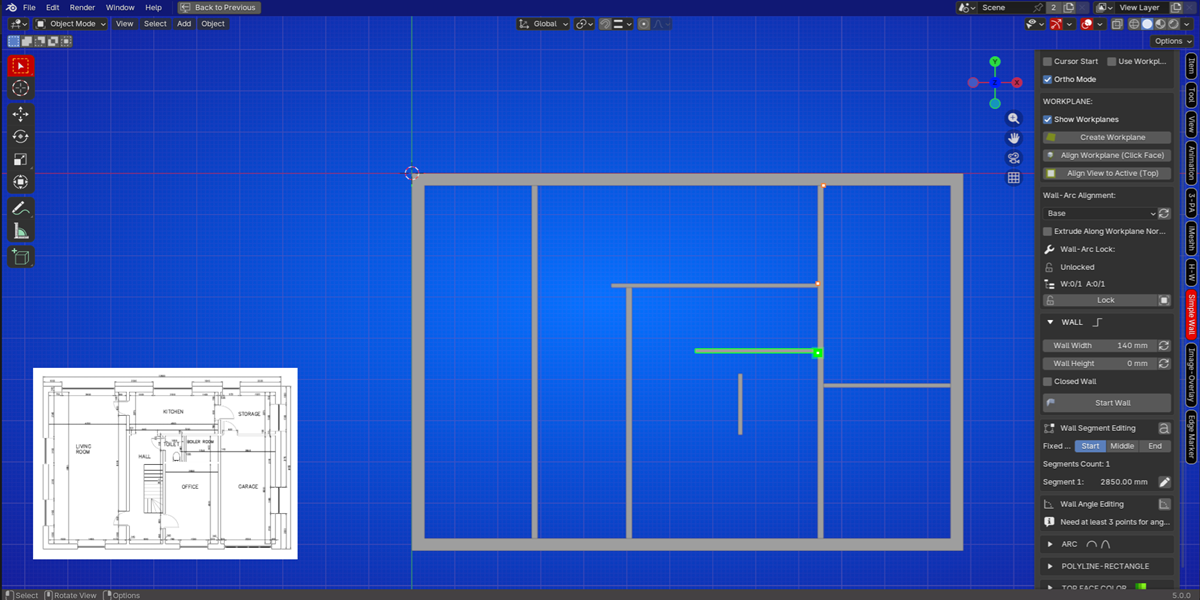
🎯 Smart Snapping System:
Set one marker as "active" and snap:
✅ Selected vertices to that exact position
✅ Entire objects to the marker
✅ The 3D cursor for perfect alignment
💾 Markers That Remember:
Unlike temporary guides, Edge Marker markers are saved with your Blender file. Close and reopen—your markers are right where you left them.
🔄 Cross-Object Workflow
Perfect For:
3D Modelers: Place edge loops, align vertices, mark cut points
Arch Viz: Position windows, doors, and details at exact measurements
Product Design: Mark drill holes, alignment points, reference positions
Hard Surface Artists: Create precise mechanical details with confidence
Retopology: Snap vertices to exact positions for clean topology
💎 Features at a Glance
✓ Place markers or cursor at precise distances along edges
✓ Visual markers saved with your Blender file
✓ Snap vertices to active marker in one click
✓ Snap objects to markers in Object Mode
✓ Move 3D cursor to any marker instantly
✓ Clear individual markers or entire objects
✓ Toggle visibility with one button
✓ Change marker size if needed
✓ Works across multiple objects
✓ Full undo/redo support
✓ Millimeter precision available
✓ Clean, organized interface
Core Features:
1. Placing Markers or Cursor on an Edge
Requirements:
- Be in Edit Mode with a mesh object selected
- Have exactly one edge selected
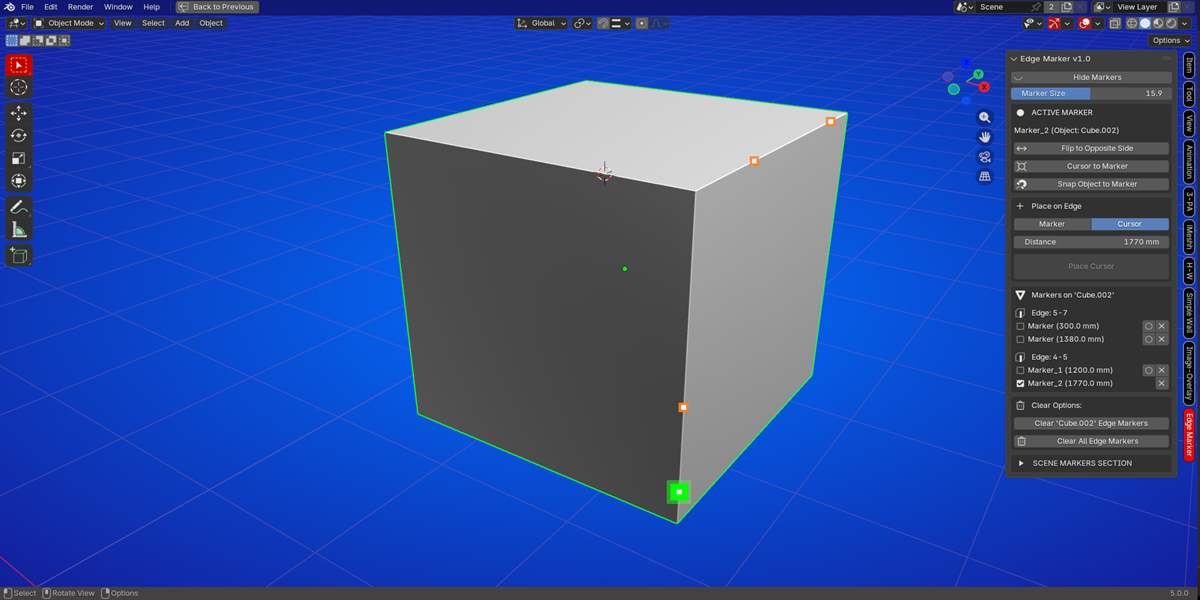
Steps:
- Select a single edge in Edit Mode
- In the Edge Marker panel, find the "Place on Edge" section
Choose what to place:
Cursor: Places the 3D cursor
Marker: Places a visible colored marker
Set the Distance from the first vertex of the edge
If placing a marker:
- Enter a Name for the marker (optional)
- Check "Set as active" if you want this to be the active marker for snapping
- Click "Place Edge Marker" or "Place Cursor"
2. Scene Markers (World Space)
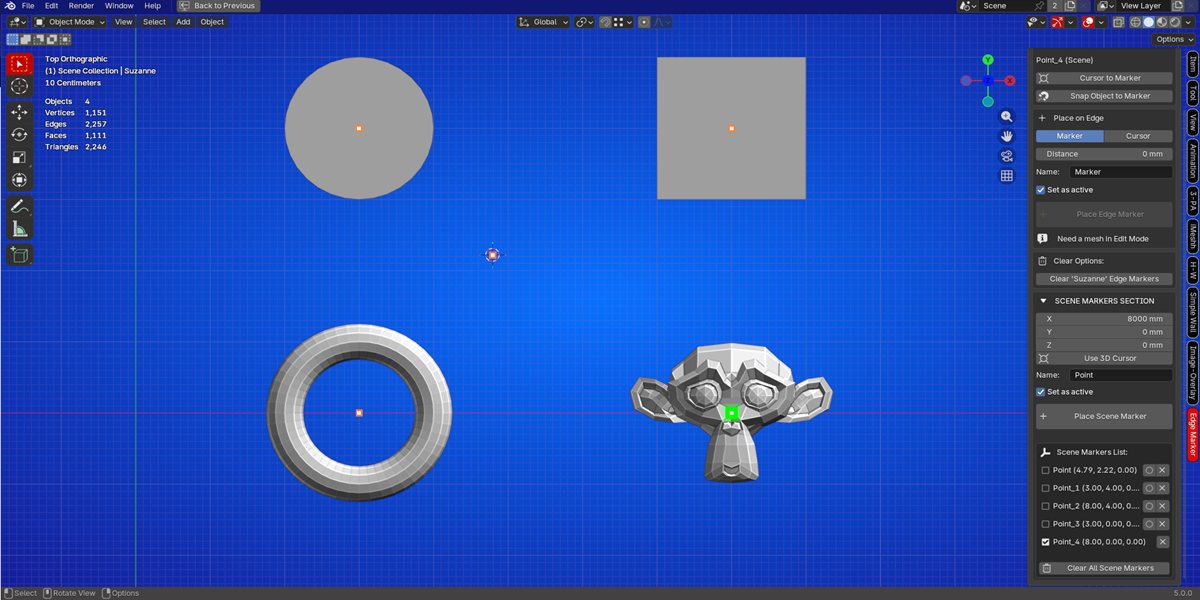
Place markers anywhere in world space, independent of objects:
- Expand the SCENE MARKERS SECTION in the panel
- Enter X, Y, Z coordinates manually or click Use 3D Cursor to use the current cursor position
- Enter a Name for the marker (optional)
- Check Set as active if desired
- Click Place Scene Marker
The distance units follow your scene settings (metric/imperial).
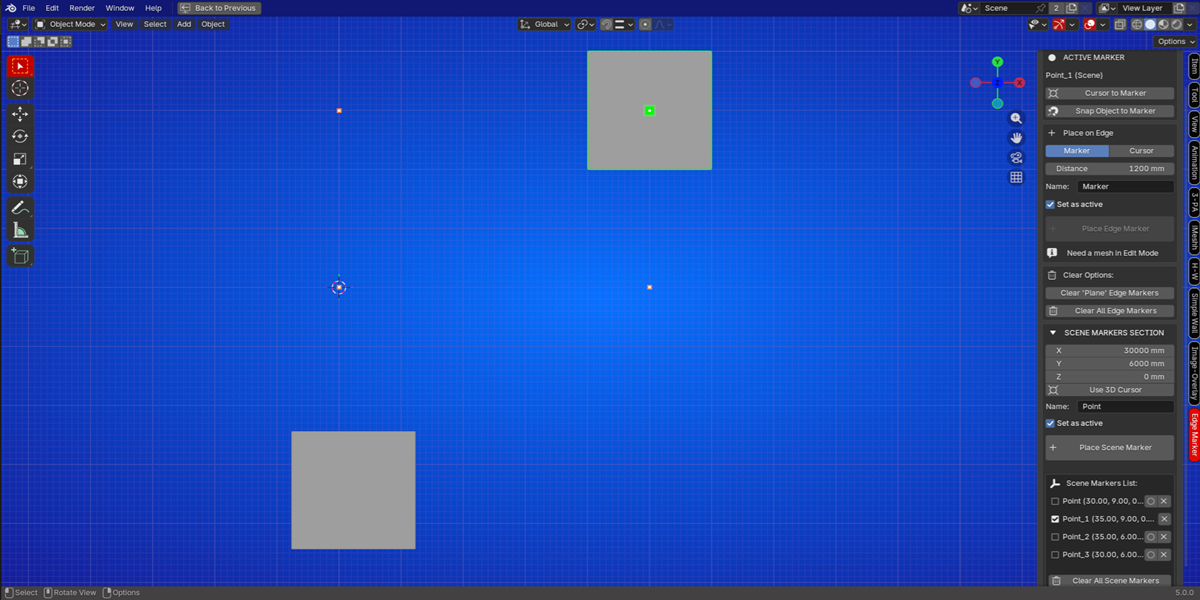
3. Managing Active Markers
The ACTIVE MARKER box at the top shows:
- Which marker is currently active
- Its source (object or scene)
Quick access buttons:
- Cursor to Marker: Moves 3D cursor to active marker
- Snap Selected Vertex (Edit Mode): Snaps selected vertices to active marker
- Snap Object to Marker (Object Mode): Moves active object to active marker
4. Snapping Operations
In Edit Mode (vertex snapping):
- Set a marker as active
- Select one or more vertices
- Click Snap Selected Vertex (in the Active Marker box)
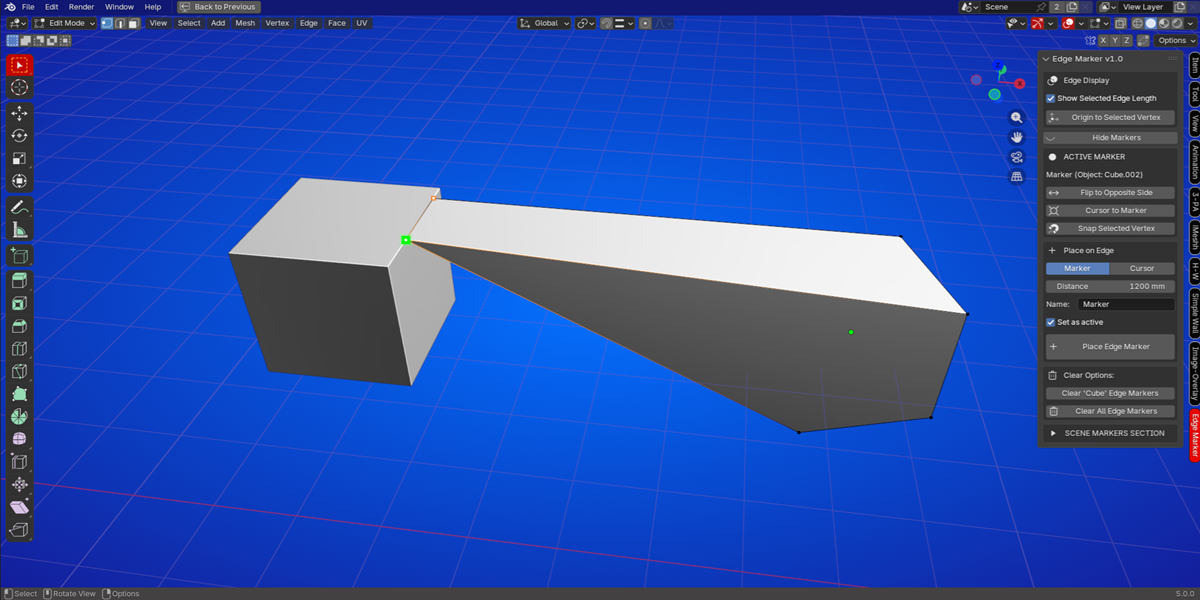
In Object Mode:
- Set a marker as active
- Select an object
- Click Snap Object to Marker (in the Active Marker box)
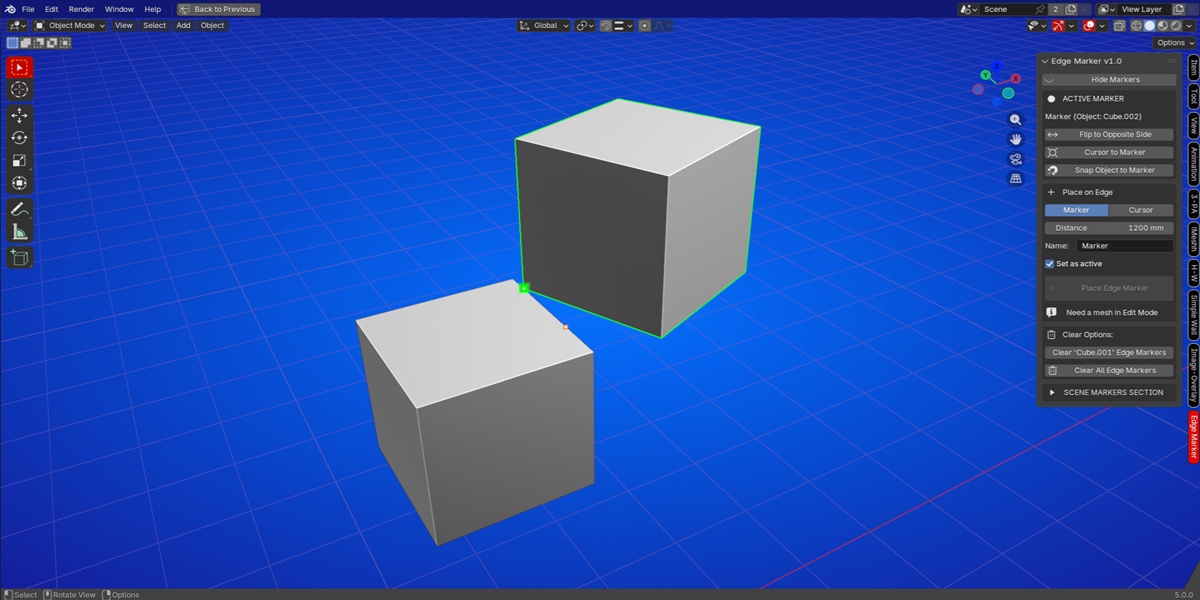
5. Cursor Operations
- Cursor to Marker: Moves 3D cursor to the active marker
- Place Cursor: Places cursor directly on an edge at specified distance
- Use 3D Cursor: Copies current cursor coordinates to scene marker input fields
Marker Display
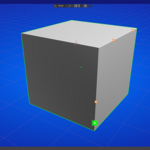
- Orange dots: Regular markers
- Green dots: Active marker
- White dots: All markers have a white center for better visibility
- Marker size can be changed in the panel for better visibility
Data Persistence:
Markers are automatically saved with your Blender file:
- Edge markers are stored in the mesh object's data
- Scene markers are stored in the scene data
No need to manually save - markers persist across file saves and loads.
Units and Measurements:
- Distance displays respect Blender's unit settings
- Supports Metric with millimeters display (e.g., "150.5 mm")
- Decimal precision can be adjusted in Blender's unit settings
Add Vertex at Edge Marker:
- Snap vertices directly to any edge marker with one click.
Transform your edge markers into powerful vertex placement tools. Simply place a marker along any edge, make it active, and instantly add a vertex at that exact position – perfectly aligned on the edge.
Add Vertex at Scene Marker:
- Create new geometry from world-space reference points.
Scene markers become instant vertex generators. Whether you're starting a new model or adding to an existing mesh, place vertices exactly where you need them – at any world coordinate.
Version Compatibility:
- Blender 4.2.0 or higher required
Changelog V1.0:
- Initial release
Changelog V1.1:
- Added possibility to add vertices to the edge markers
- Add vertices to the scene markers
