 KVD
KVD


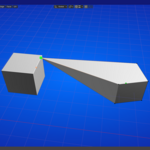
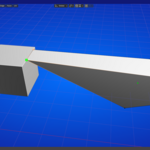
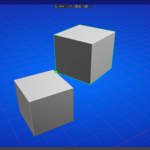
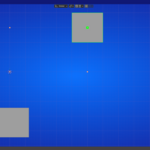
Please watch the video are read this guide below:
Interface Location:
- The add-on appears in the 3D Viewport's sidebar (press N to toggle) under the "Edge Marker" tab.
Core Features
1. Placing Markers or Cursor on an Edge
Requirements:
- Be in Edit Mode with a mesh object selected
- Have exactly one edge selected
Steps:
- Select a single edge in Edit Mode
- In the Edge Marker panel, find the "Place on Edge" section
Choose what to place:
Cursor: Places the 3D cursor
Marker: Places a visible colored marker
Set the Distance from the first vertex of the edge
If placing a marker:
- Enter a Name for the marker (optional)
- Check "Set as active" if you want this to be the active marker for snapping
- Click "Place Edge Marker" or "Place Cursor"
2. Scene Markers (World Space)
Place markers anywhere in world space, independent of objects:
- Expand the SCENE MARKERS SECTION in the panel
- Enter X, Y, Z coordinates manually or click Use 3D Cursor to use the current cursor position
- Enter a Name for the marker (optional)
- Check Set as active if desired
- Click Place Scene Marker
Tip: The distance units follow your scene settings (metric/imperial).
3. Managing Active Markers
The ACTIVE MARKER box at the top shows:
- Which marker is currently active
- Its source (object or scene)
Quick access buttons:
- Cursor to Marker: Moves 3D cursor to active marker
- Snap Selected Vertex (Edit Mode): Snaps selected vertices to active marker
- Snap Object to Marker (Object Mode): Moves active object to active marker
To set a marker as active:
- Click the radio button (○) next to any marker in the lists
4. Marker Visibility
- Hide Markers/Show Markers: Toggles all markers on/off in the viewport
5. Deleting Markers
Individual markers:
- Click the X button next to any marker in the lists
By selected edge:
- Select one or more edges in Edit Mode
- Click Clear Selected Edge
By object:
- Click Clear '[object name]' Edge Markers to remove all markers on the current object
Global options:
- Clear All Edge Markers: Removes all object-based markers (confirmation required)
- Clear All Scene Markers: Removes all scene markers (confirmation required)
6. Snapping Operations
In Edit Mode (vertex snapping):
- Set a marker as active
- Select one or more vertices
- Click Snap Selected Vertex (in the Active Marker box)
In Object Mode:
- Set a marker as active
- Select an object
- Click Snap Object to Marker (in the Active Marker box)
7. Cursor Operations
- Cursor to Marker: Moves 3D cursor to the active marker
- Place Cursor: Places cursor directly on an edge at specified distance
- Use 3D Cursor: Copies current cursor coordinates to scene marker input fields
Marker Display
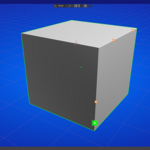
- Orange dots: Regular markers (8px)
- Green dots: Active marker (14px with 20px glow)
- White dots: All markers have a white center for better visibility
Data Persistence:
Markers are automatically saved with your Blender file:
- Edge markers are stored in the mesh object's data
- Scene markers are stored in the scene data
No need to manually save - markers persist across file saves and loads.
Units and Measurements:
- Distance displays respect Blender's unit settings
- Supports Metric with millimeters display (e.g., "150.5 mm")
- Decimal precision can be adjusted in Blender's unit settings
Customizing Panel Location
You can change which tab the panel appears in:
- Go to Edit > Preferences > Add-ons
- Find "Edge Marker" in the list
- Expand the add-on details
- Change the Tab Category field (default: "Edge Marker")
Troubleshooting
Markers not visible:
- Check if Hide Markers is active
- Ensure you're in a 3D Viewport
- Try toggling visibility off and on
Can't place edge marker:
- Must be in Edit Mode
- Must have exactly one edge selected
- Distance cannot exceed edge length
Markers disappeared after saving:
- Markers are stored in objects and scenes - if you deleted the object, markers are gone
- Check if you're in a different scene
Active marker not working for snapping:
- Ensure you've set a marker as active (green dot)
- Check if you're in the correct mode (Edit/Object)
Quick Summary of update v1.1
Add Vertex at Edge Marker – Perfect edge-aligned vertex placement
Add Vertex at Scene Marker – World-space vertex creation with smart mesh handling
Smart UI – Buttons adapt to your current mode and selection
One-click workflow – No complex menus or calculations
Have questions about this product?
Login to message
| Blender Extension Compatible | Yes |
| Sales | 10+ |
| Dev Fund Contributor | |
| Published | 6 months ago |
| Blender Version | 4.2 - 5.2 |
| Extension Type | Add-on |
| Render Engine Used | Blender-Internal, Cycles, Eevee |
| License | GPL |

Discover more products like this
quick-location modeling Object addon precision move architecture 3d-cursor snapping