 energy.jp
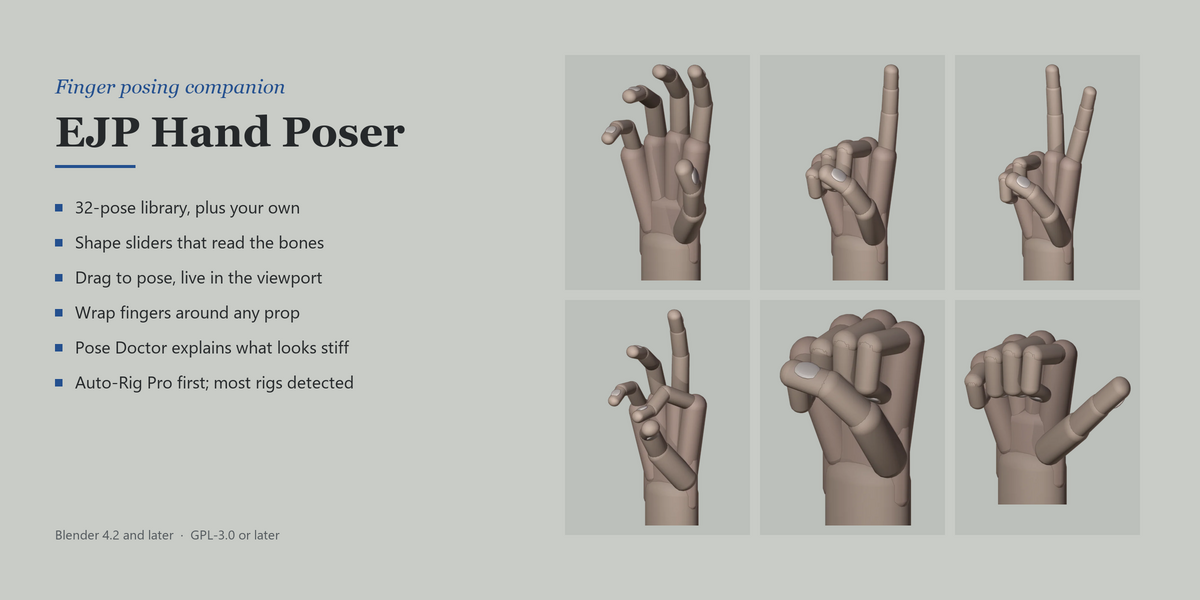
Install
- Download ejp_hand_poser_1.0.0.zip from your Superhive order. Don't unzip it.
- In Blender: Edit > Preferences > Get Extensions, open the arrow menu at the top right, choose Install from Disk... and pick the zip. (Dragging the zip into Blender works too.)
- Make sure EJP Hand Poser is ticked.
- In the 3D Viewport, press N and open the Hand tab.
Requires Blender 4.2 or later. To update, install the new zip the same way.
Quick start (2 minutes)
- Select your character's armature (or a mesh it deforms) and enter Pose Mode. No rig handy? With nothing selected, the panel offers Add Practice Hands, or open the included demo file.
- Click any finger bone. The panel switches to that hand (the Left / Right buttons show which).
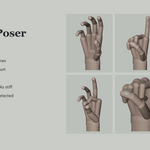
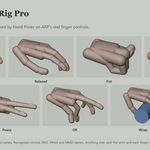
- Click a pose in the Pose Library.
- Shape it with the Shape sliders, then Key Hand. With Blender's auto-keying on, every change is keyed for you.
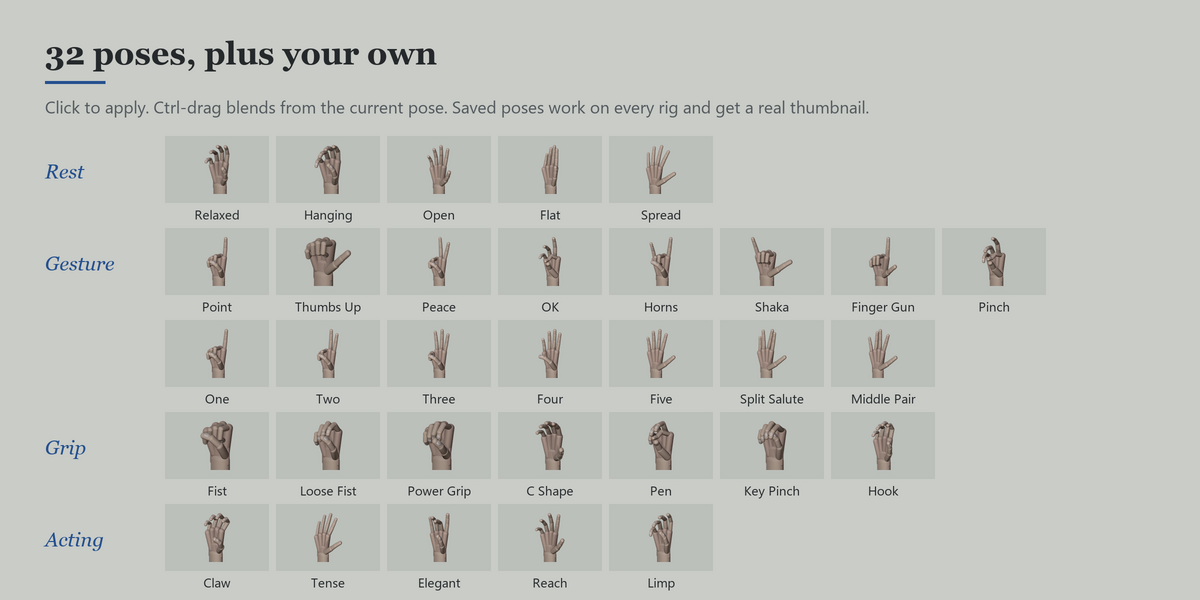
Pose Library
- Click: apply to the active hand, at the Mix amount.
- Ctrl+click: drag left/right to blend from the current pose into it (up to 125%), click to confirm, right-click to cancel.
- Shift+click: both hands. Alt+click: the other hand.
- T I M R P toggles limit the library and most tools to those fingers. Example: turn off T to keep your thumb, then apply Point to the rest.
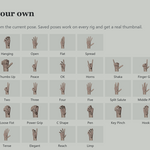
- Save Hand Pose stores the active hand (masked fingers) in your library, with a thumbnail rendered in the background a few seconds later. Rename and delete buttons sit under each saved pose; the folder icon opens the library folder (back it up). Choose another folder in the add-on's Preferences.
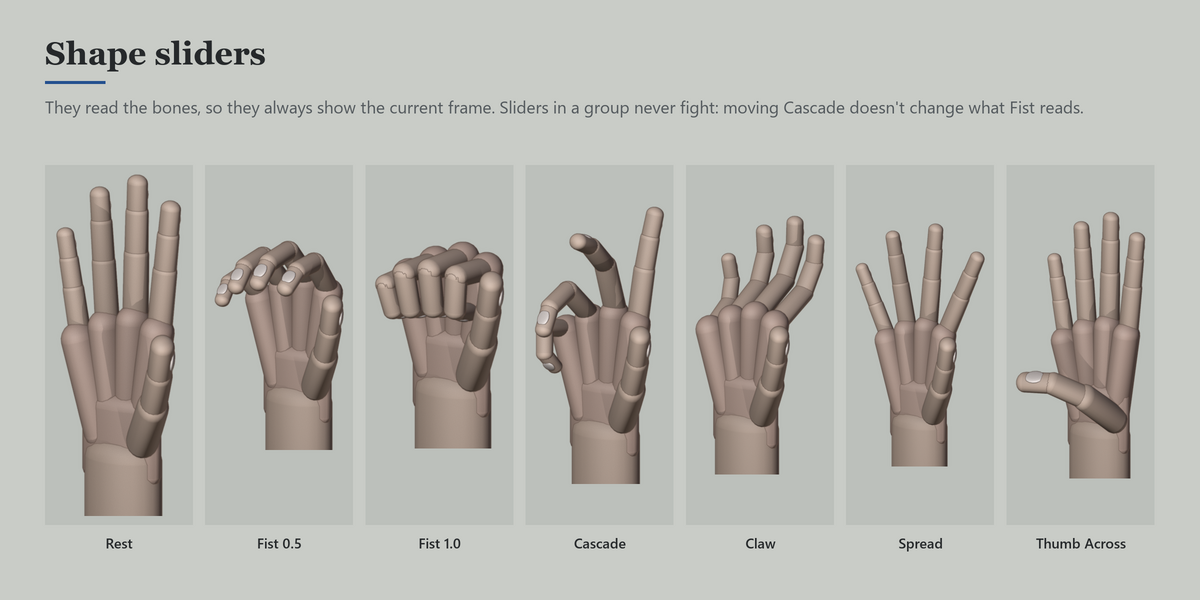
Shape sliders
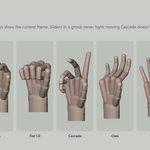
- Fist, Cascade, Claw, Spread, Lean, Cup, and the thumb's Curl, Across, Out and Oppose.
- The sliders read the bones, so they always match the current frame. Backspace over a slider resets it.
- Fingers panel: Curl and Spread per finger; the gear icon shows every joint, plus Claw and Roll.
Drag to Pose (Pose Mode, Shift+Alt+F)
Hover the viewport, press Shift+Alt+F and move the mouse.
- Left/right = curl, up/down = spread, mouse wheel = cascade.
- Works on the selected finger bones, otherwise the whole hand.
- T I M R P or 1-5 toggle fingers while you drag, A = all, C = claw instead of curl.
- Shift = slow and precise, Ctrl = snap.
- Click or Enter confirms; right-click or Esc cancels.
Shift+Alt+H opens a pie menu with eight common poses. Both shortcuts can be changed in Preferences > Keymap.
Contact: Wrap Around Prop and Touch Thumb
-
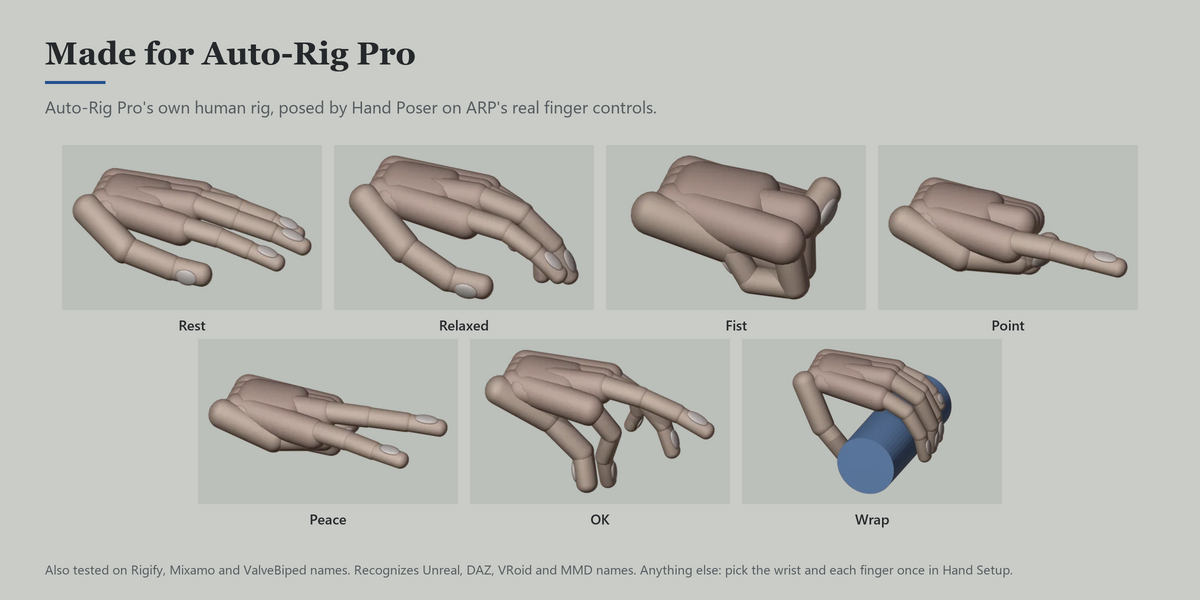
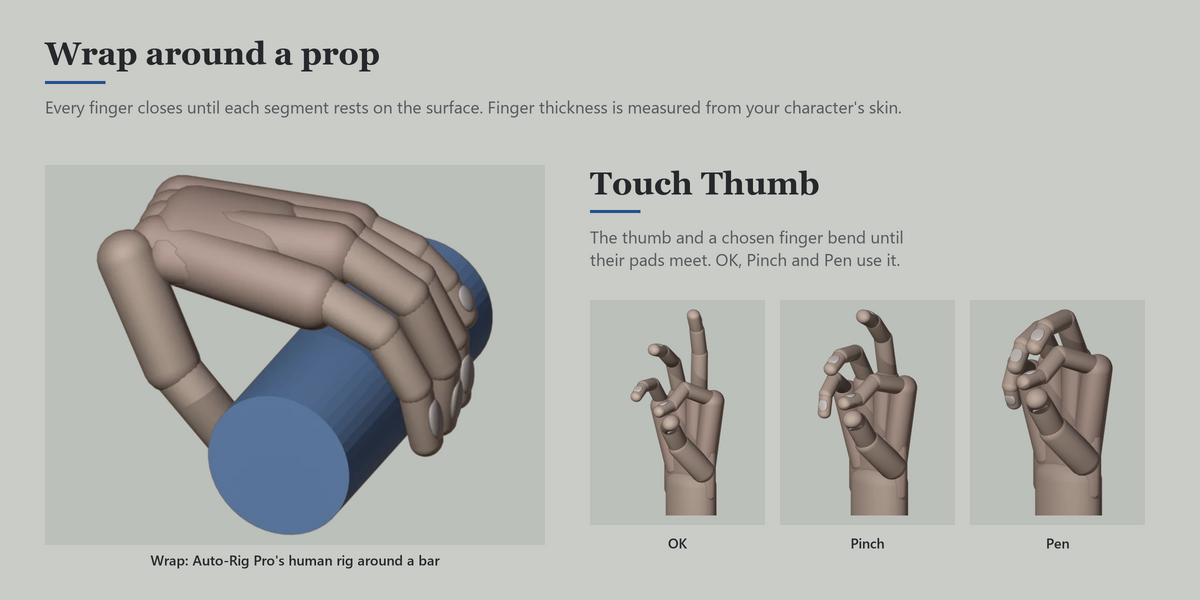
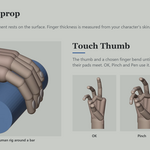
Wrap Around Prop: pick the prop mesh (or select it with the rig) and click. Every finger closes until each segment rests on the surface; the thumb closes last.
- Move Hand (on by default) first seats the palm on the prop, moving the IK hand control (c_hand_ik on Auto-Rig Pro). An FK arm can only turn the wrist, and the panel tells you so.
- Grip Angle (default 30°) runs the prop diagonally across the palm, the way people hold a pole or a handle. 0 = straight across.
- Squeeze adds a few degrees of pressure. Open First opens the hand and pre-shapes the thumb before closing.
- Finger Thickness scales the finger radius, which is measured from your character's skin. The panel warns you if a finger never reaches the prop, or if the palm starts inside it.
- Touch Thumb: bends the thumb and the chosen finger until their pads meet (pinch, OK sign, tripod).
Pose Doctor
Checks the active hand and lists what looks stiff, each with a Fix button. Naturalize applies every fix. Hand Posing Tips is a ten-line cheat sheet in its own panel.
Tools and toggles
- Add Variation: small whole-finger differences, new every click.
- Copy to Other Hand (mirrored) and Swap. Reset Hand returns to the rig's rest pose. Key Hand keys the finger controls; Select selects them (Shift adds).
- Both Hands: every change also goes to the other hand, mirrored, keeping their differences. Follow: the panel follows the active bone's hand. Limits: keep joints in a real hand's range.
- Auto-Rig Pro: if finger IK is on, the panel says so and offers Switch Fingers to FK (FK rotations don't show while IK is active).
Other rigs: Hand Setup
Detection reads bone names (side + finger + chain order). If it picks the wrong bones, open Hand Setup, tick Use Manual Setup, and pick the wrist and the first bone of each finger. Use the Rig's Bend Axes (in Preferences): on, Hand Poser rotates on the rig's own axis when it's within 30° of the natural one; turn it off for rigs with unusual bone rolls.
Have questions about this product?
Login to message
| Blender Extension Compatible | Yes |
| Published | 1 day ago |
| Blender Version | 4.2 - 5.3 |
| Extension Type | Add-on |
| License | GPL |
Discover more products like this
hands auto-rig pro rigging animation pose library character fingers 3d character hands posing