 Shahzaib A.

EssentiaLight
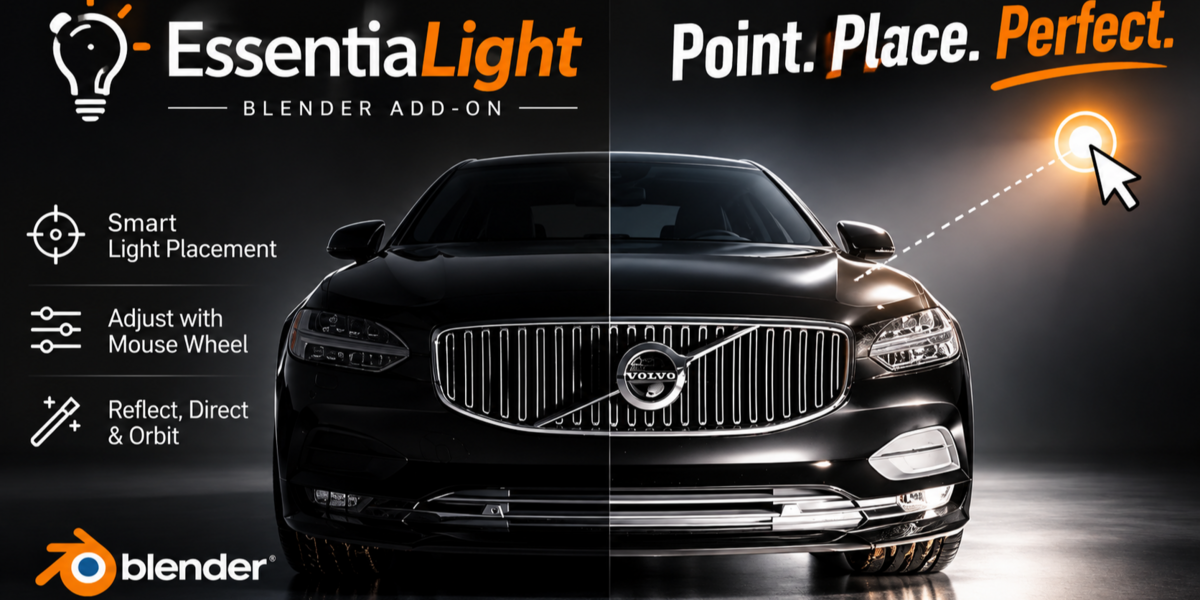
EssentiaLight makes lighting effortless. Simply point at any surface to place lights instantly
Skip G, R, and S. Hover over your scene, aim, scroll to tune, click to confirm. The light lands exactly where you pointed.
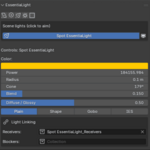
Place a highlight, set its power, size, distance and spread, all with the mouse wheel and without leaving the 3D Viewport.
Lighting, the faster way
|
The usual way Add a light, move it with G, rotate it with R, scale it with S, render a preview, then repeat until the highlight finally sits right. |
With EssentiaLight Hover over the surface, scroll to tune, click to confirm. Done! |
"Can't I already do this in Blender?"
|
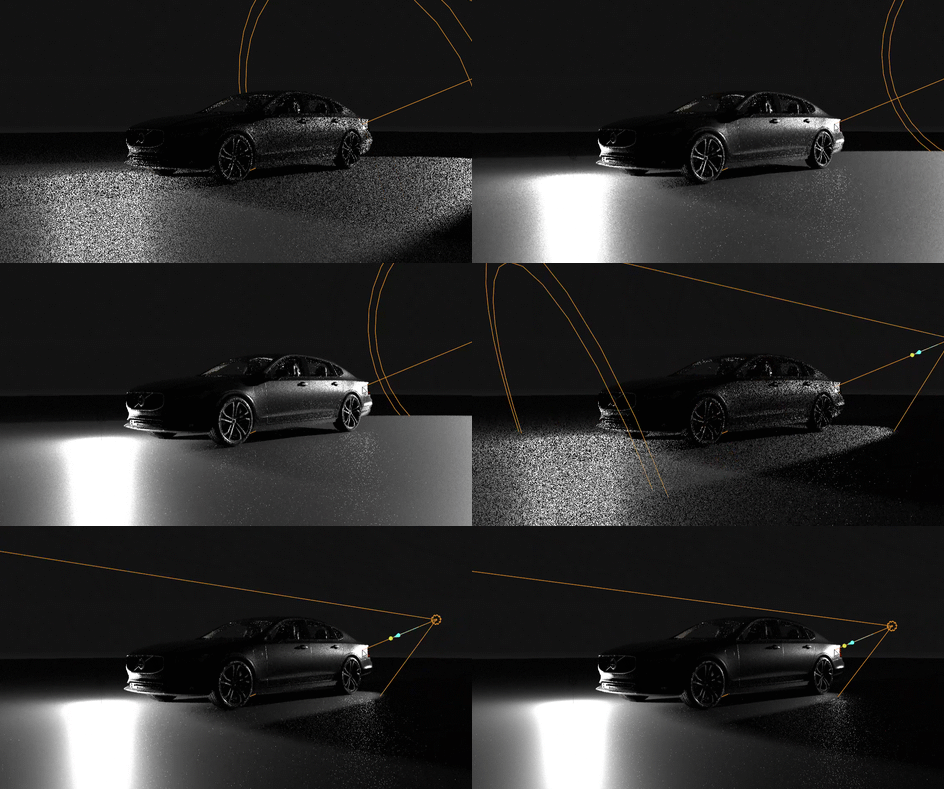
You can aim lights with Track To constraints, empties or manual rotation, but each one means setting up helpers and guessing the angle. EssentiaLight works the other way round: you tell it where the highlight should land, and it works out where the light has to be. ▸ No empties, constraints or helper objects to set up and clean up. ▸ Reflect mode places the light so the reflection hits the exact spot you point at. ▸ Distance changes keep your exposure steady with automatic power compensation. |
Get the look you're after
|
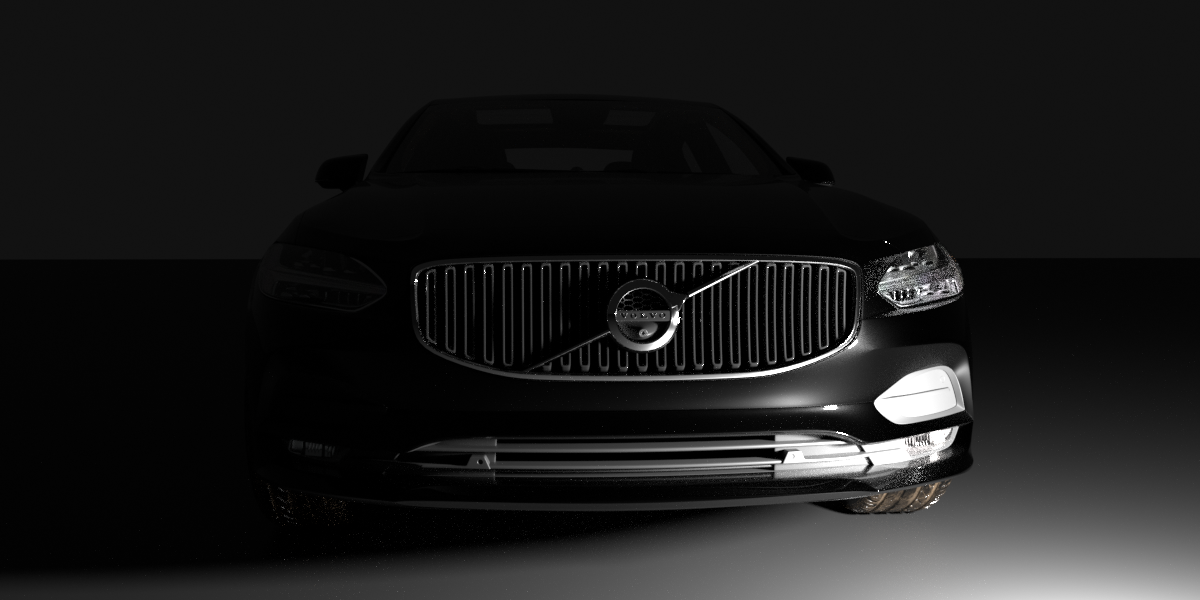
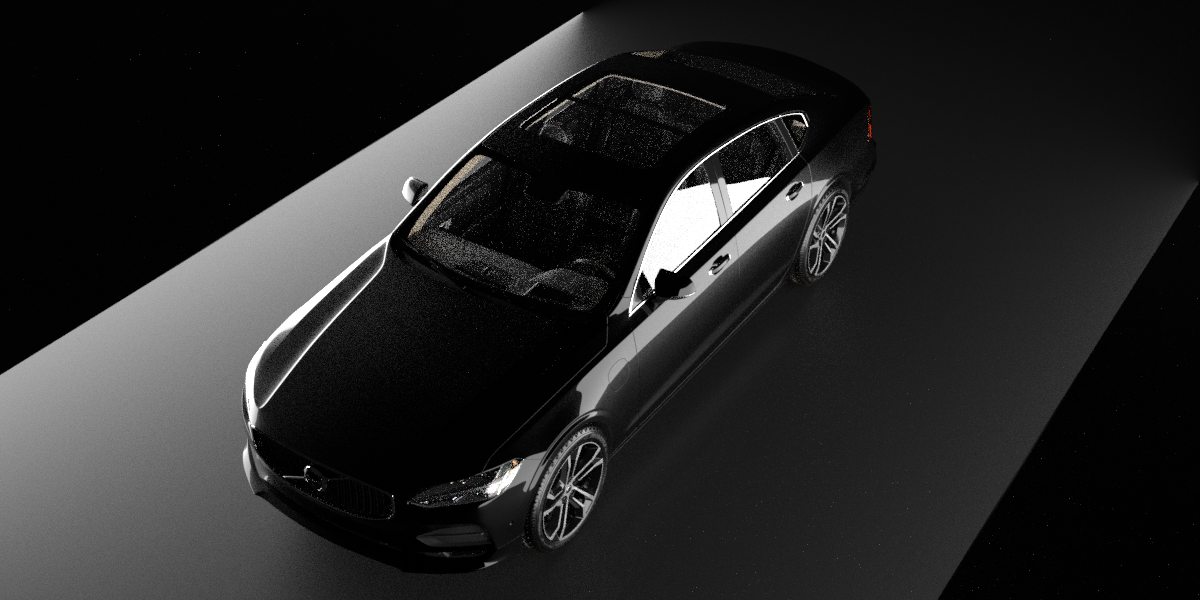
Product shots Put highlights exactly on the edge or curve you want, using Reflect mode and softbox shapes. |
Characters Sculpt shape and mood with flags, spread control and orbiting. |
|
Interiors Add window gobos and IES profiles for believable fixtures. |
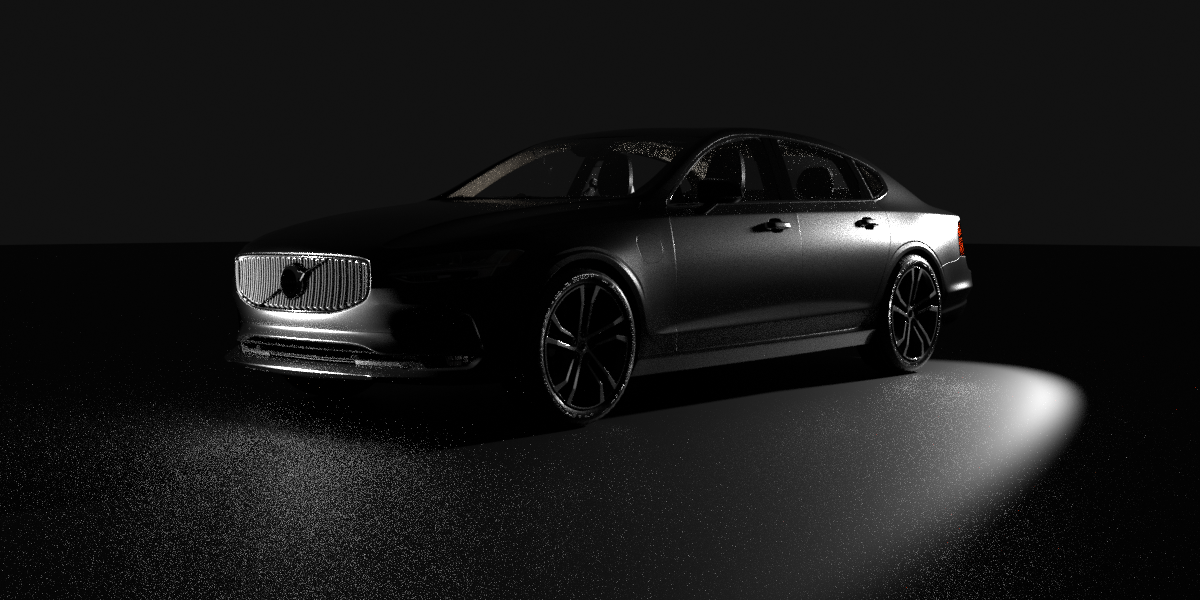
Moody studio scenes Isolate lights and read exposure with false color. |
Three ways to place a light
|
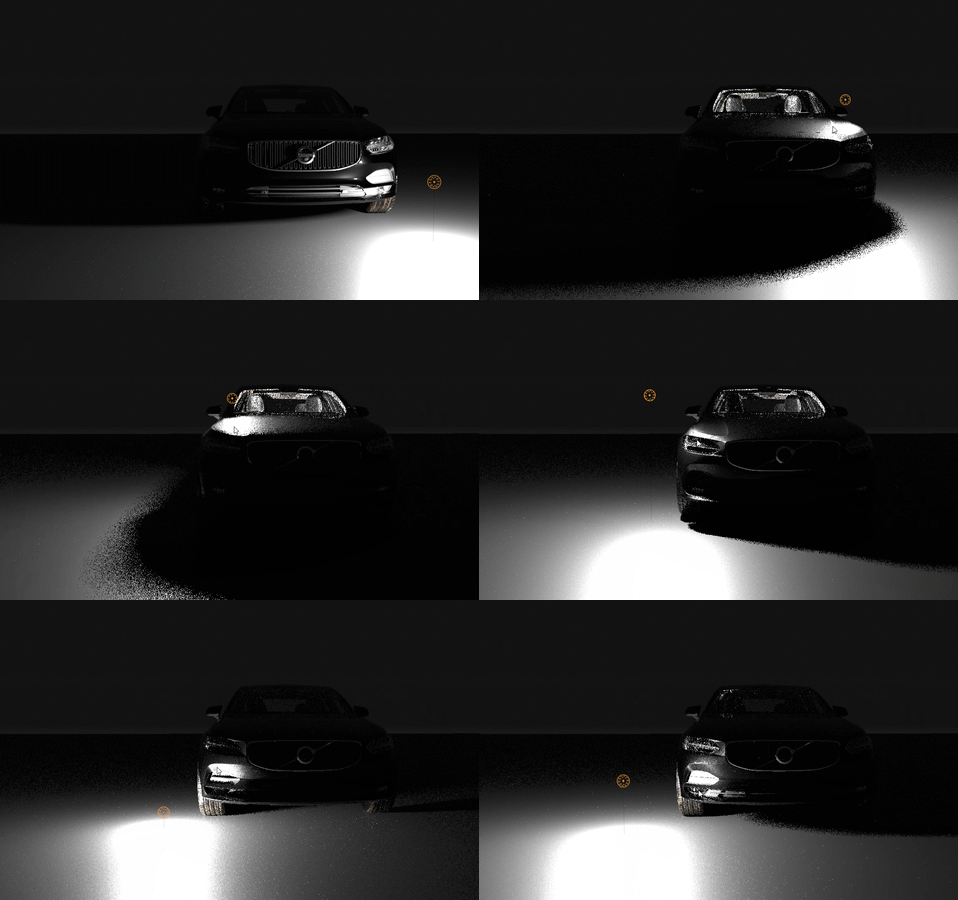
Reflect The light bounces off the surface you point at, so the highlight lands exactly where you aim. Ideal for glossy products and controlled reflections. |
|
Direct The light points straight along the surface normal, facing the surface head-on. Quick and predictable for key and fill lights. |
|
Orbit Swing the light around your target to explore angles until the shading looks right. |
Tune everything with the scroll wheel
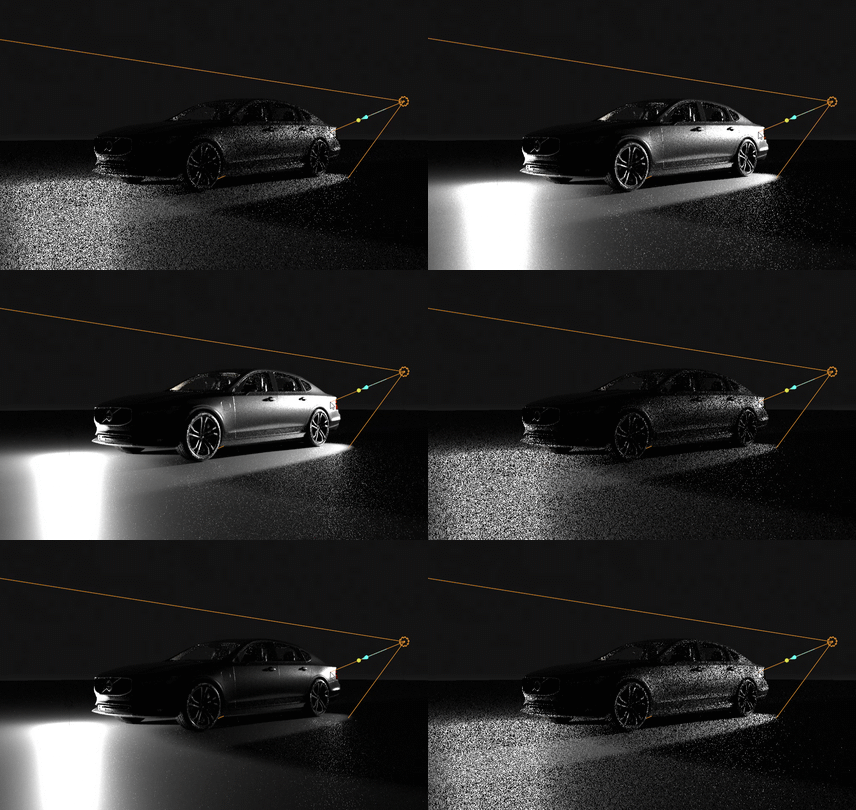
Adjust a light without opening a single panel:
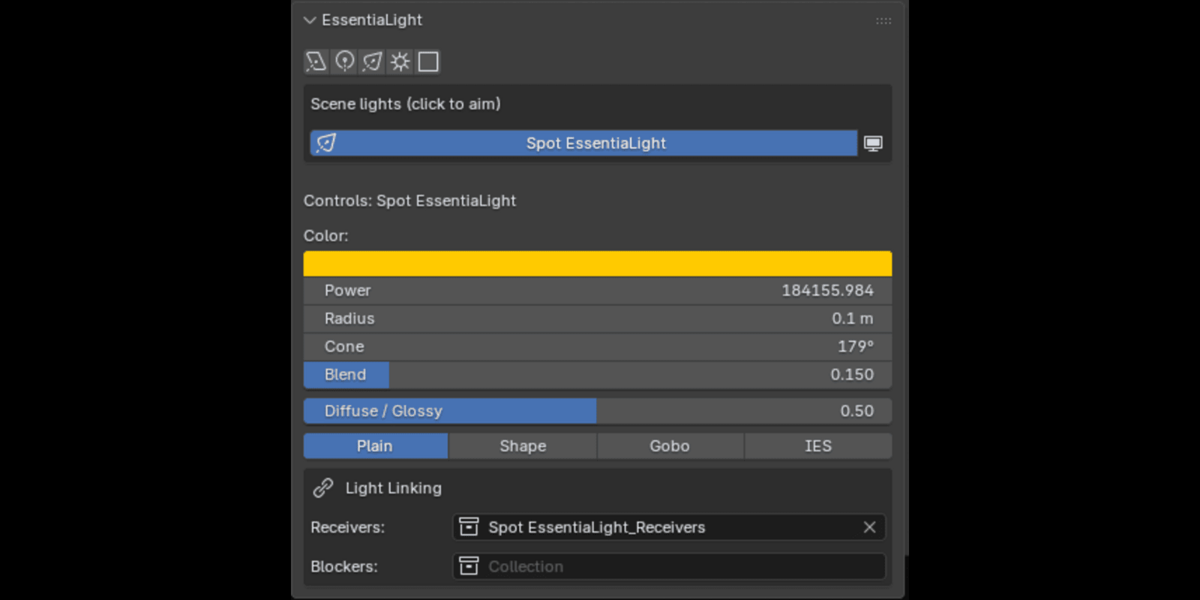
| Wheel | Power |
| Shift + Wheel | Size |
| Alt + Wheel | Distance, with automatic power compensation |
| Ctrl + Wheel | Spread or cone |
| Shift + Alt + L | Aim the active light |
Real studio lighting tools, built in
|
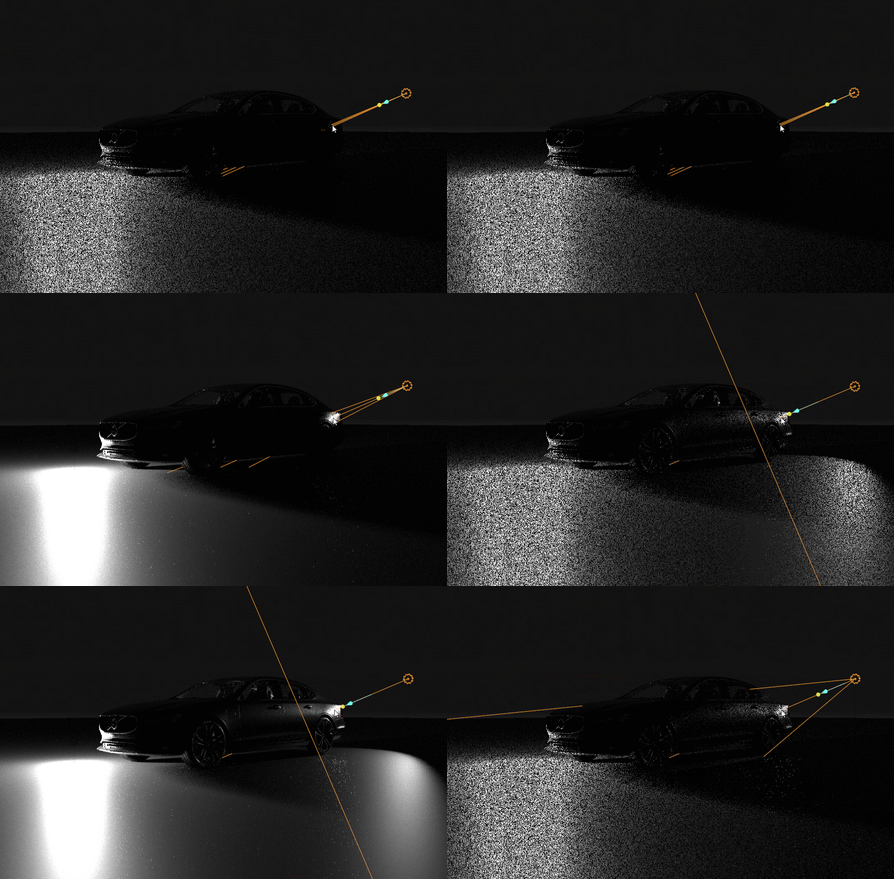
Black Flags Add negative fill that blocks light but stays invisible to the camera, for deeper contrast and cleaner edges. |
|
Softbox, Octabox, Ring & Gradient Shapes (Cycles) Procedural shapes for your area lights, so reflections look like real studio gear. |
|
Gobos (Cycles) Cast patterned shadows with blinds, window, dots and foliage. |
|
IES Profiles (Cycles) Use real-world photometric profiles on point and spot lights. |
Stay in control of every light
|
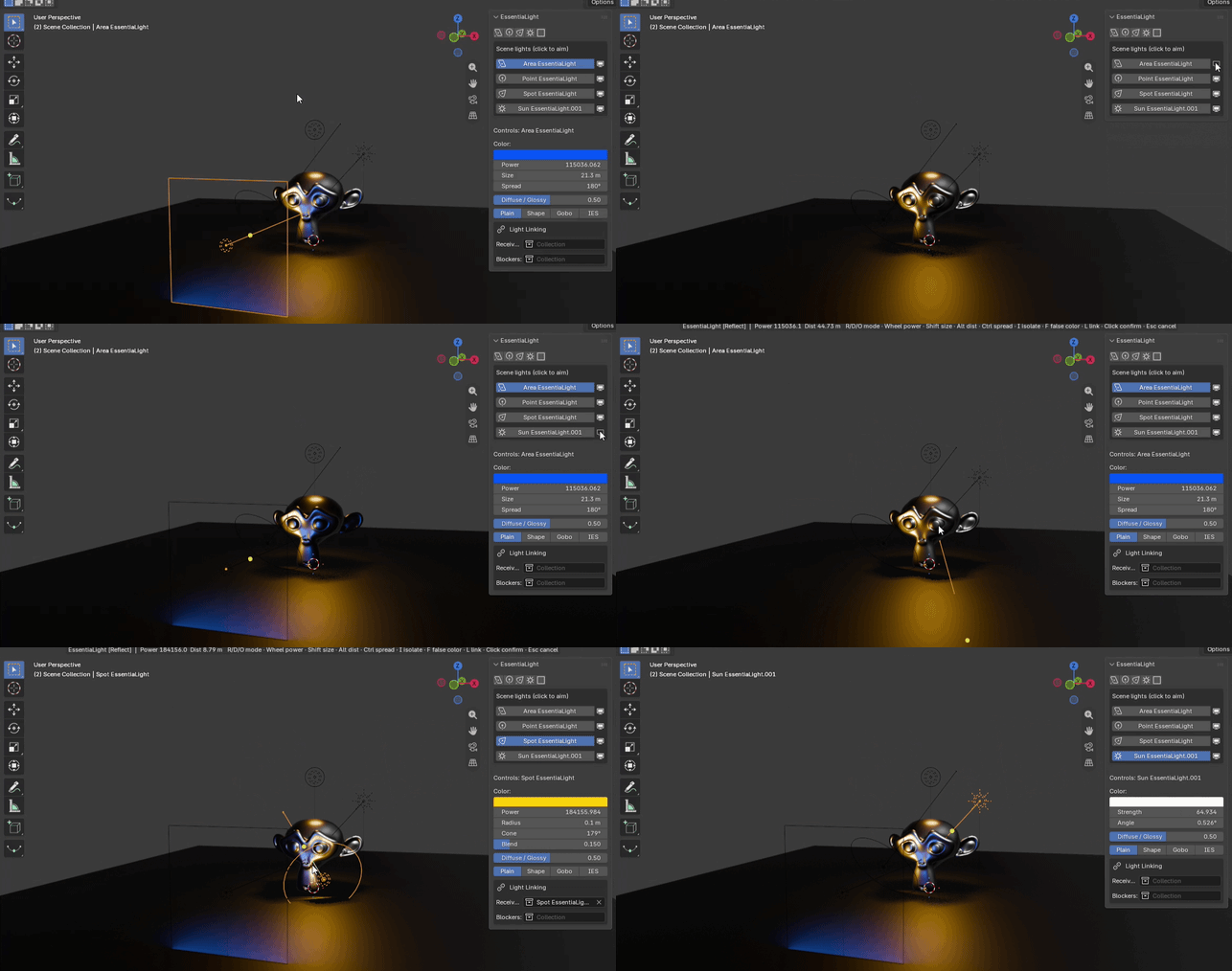
Isolate, False Color & Linking ▸ Isolate a single light to judge its contribution. ▸ Check exposure with the false color view. ▸ Control what each light affects with light linking and shadow linking. |
|
Smooth Placement Lights glide into position, and averaged surface normals keep them from jittering on bumpy meshes. |
|
Quick Access A quick-controls popup, a sidebar light list and a right-click menu keep every light one click away. |
Compatibility
|
Works with ▸ Blender 4.4 to 5.2 (installs as a Blender Extension) ▸ Cycles and Eevee: placement, scroll-wheel control and light management work in both. ▸ Cycles only: procedural light shapes, gobos and IES profiles. |
|
Support & updates ▸ Questions or bugs? Message me on Superhive and I reply within 24 hours. ▸ Full documentation is available on the Documentation tab of this page. |
▸ 3D Viewport → Sidebar (N) → EssentiaLight
▸ Add → Light
▸ Shift + Alt + L to aim the active light
Point at what you want lit. Scroll to shape it. Click to lock it in.