 Shahzaib A.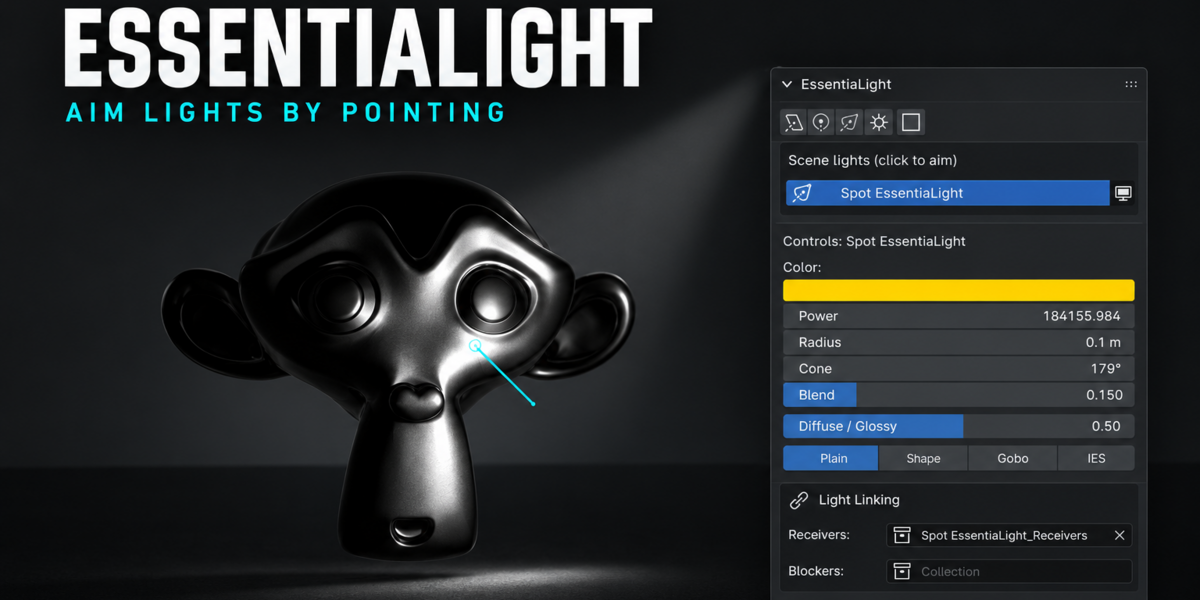

EssentiaLight
Point at a Surface and the Light Lands There
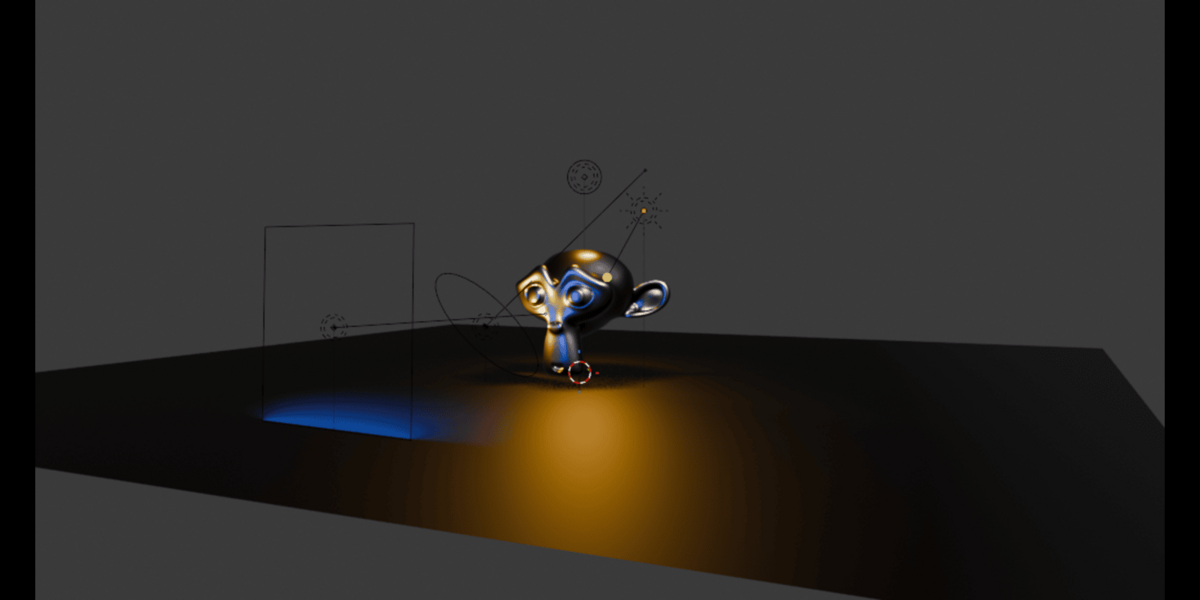
Stop nudging lights with G, R and S. With EssentiaLight you point at what you want lit and the light goes there.
Hover over your scene, pick a placement mode, and control power, size, distance and spread with the mouse wheel, all without leaving the 3D Viewport.
Point. Scroll. Click to confirm.
Your light goes exactly where you aim it.
Placement modes
|
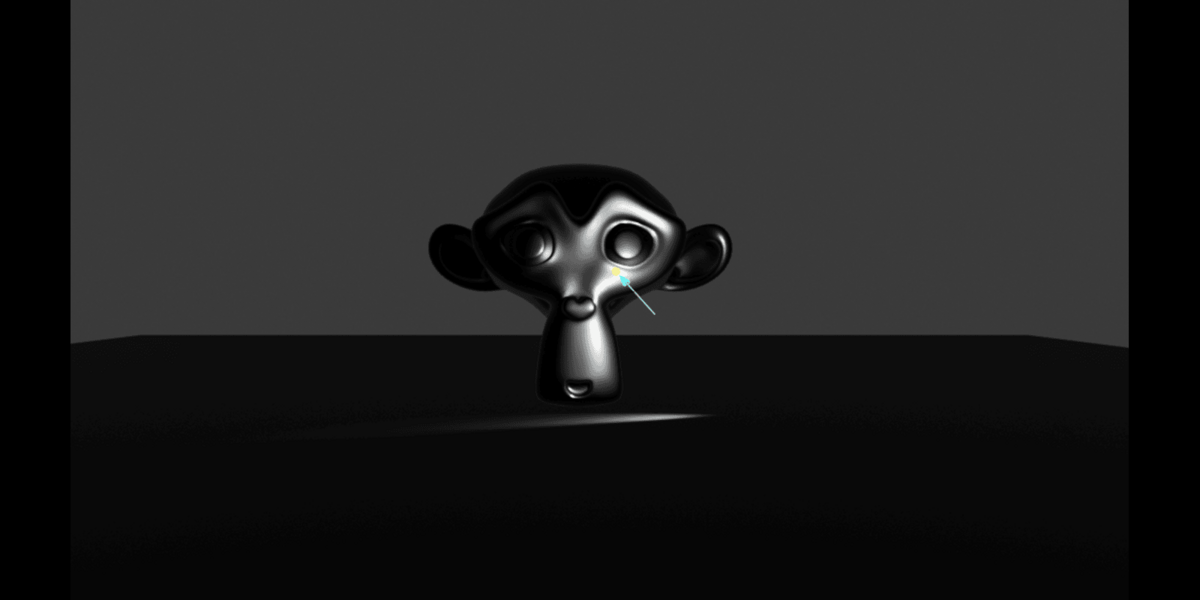
Reflect The light bounces off the surface you point at, so the highlight lands where you aim. |
|
Direct The light points straight along the surface normal. |
|
Orbit Swing the light around your target. |
Scroll-wheel control
|
Adjust everything without leaving the viewport ▸ Wheel — power. ▸ Shift + Wheel — size. ▸ Alt + Wheel — distance, with automatic power compensation. ▸ Ctrl + Wheel — spread or cone. |
Studio tools
|
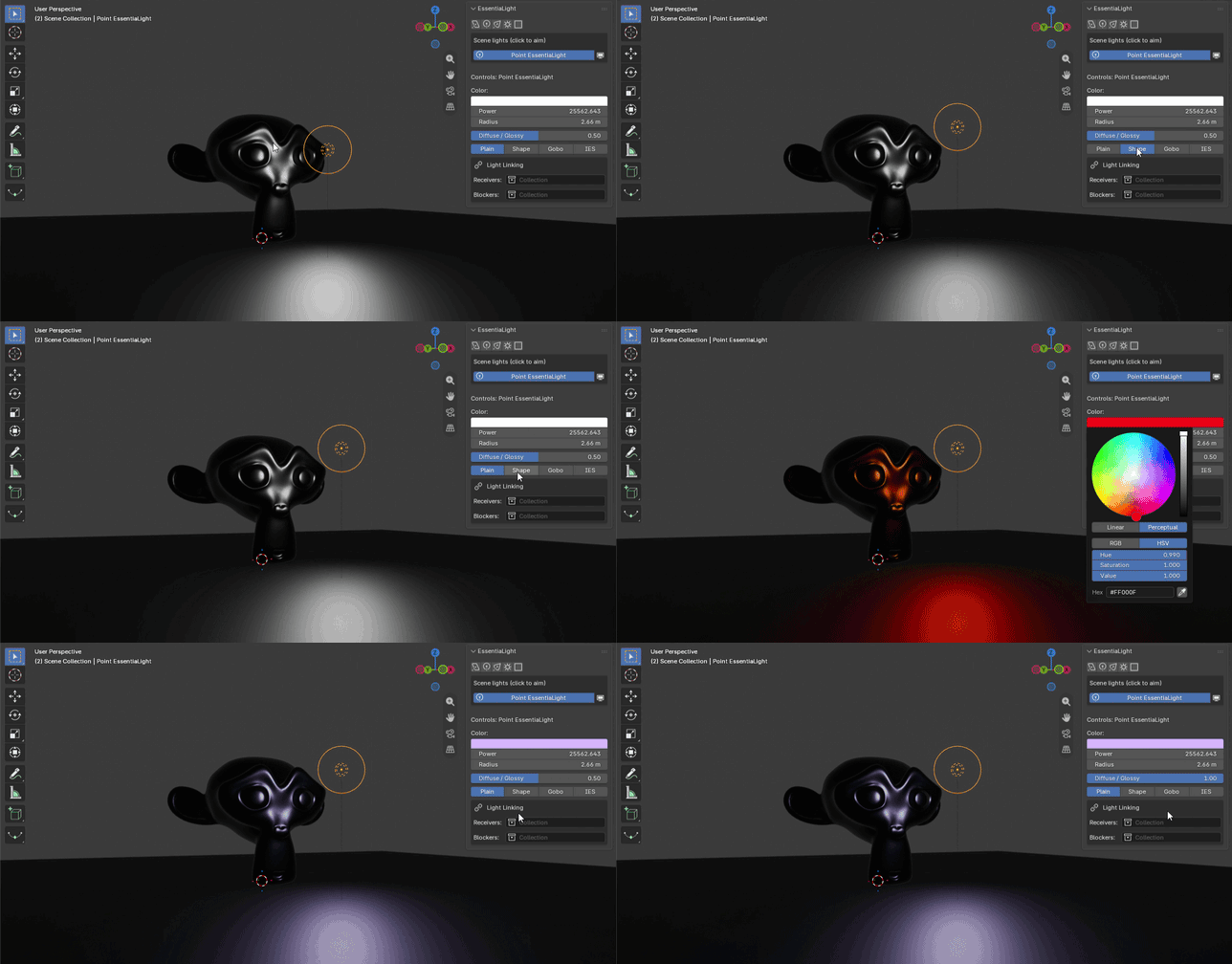
Black Flags Add negative fill that blocks light but stays invisible to the camera. |
|
Procedural Light Shapes Softbox, octabox, ring and gradient shapes for your area lights (Cycles). |
|
Gobos Cast patterned shadows with blinds, window, dots and foliage (Cycles). |
|
IES Profiles Use real-world photometric profiles on point and spot lights (Cycles). |
|
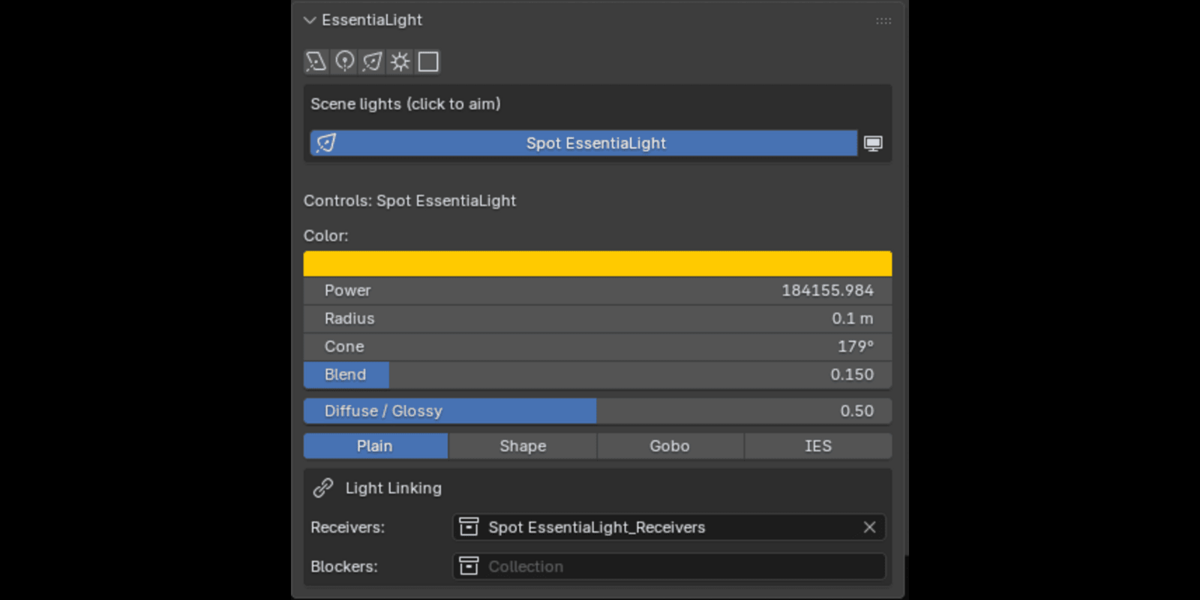
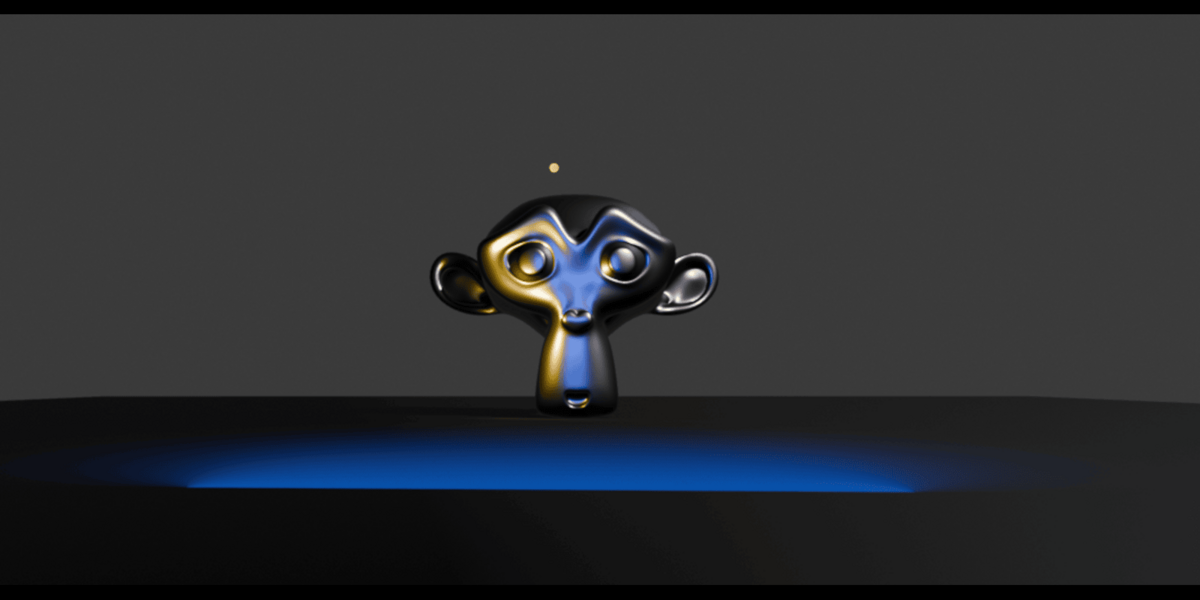
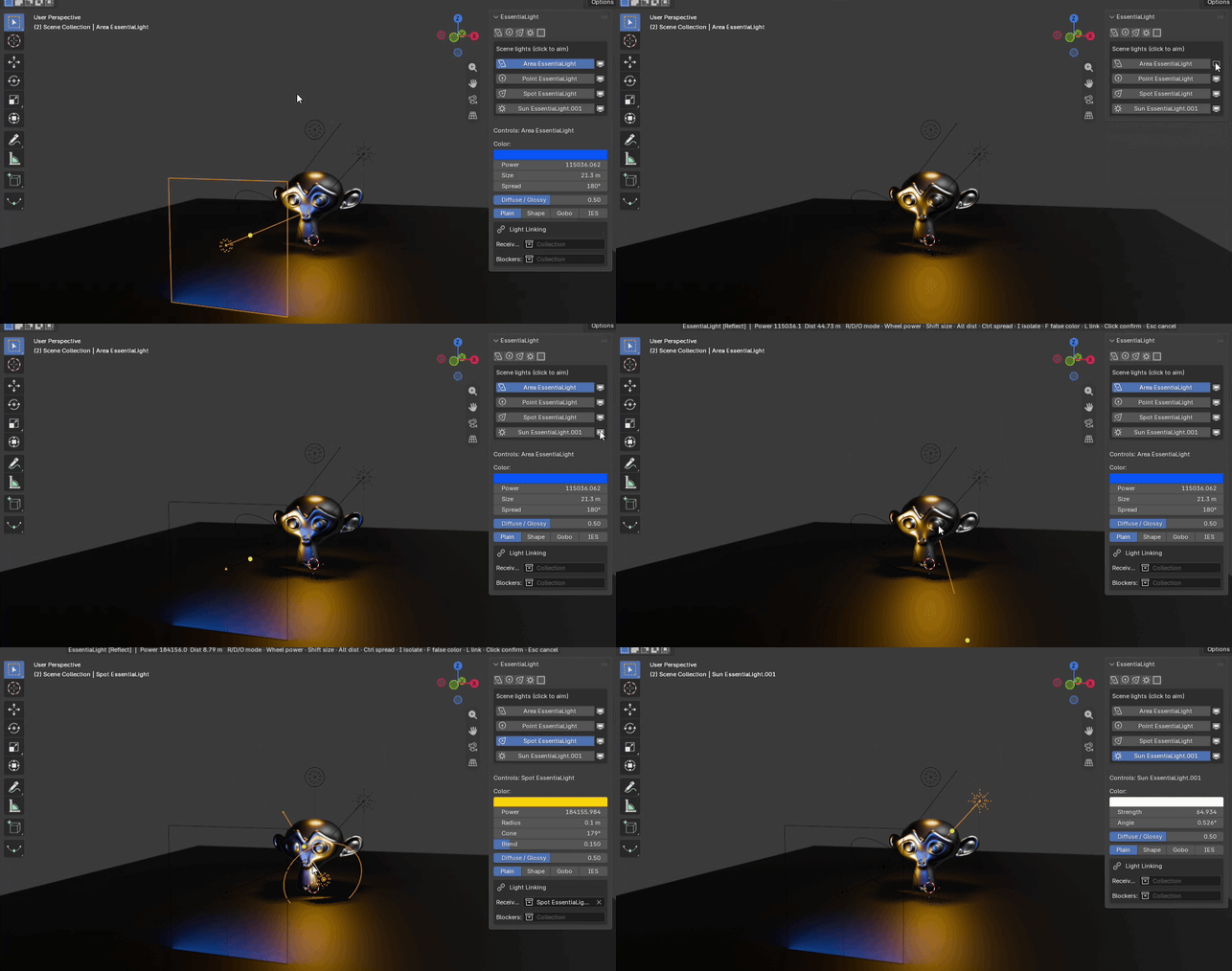
Isolate, False Color & Linking ▸ Isolate a single light to judge its contribution. ▸ Use the false color exposure view. ▸ Use light linking and shadow linking. |
|
Smooth Placement Lights glide into position, and averaged surface normals keep them from jittering on bumpy meshes. |
|
Quick Access A quick-controls popup, a sidebar light list and a right-click menu keep every light one click away. |
Built-in workflow tools
Reflect / Direct / OrbitScroll-wheel controlAuto power on distanceBlack flagsSoftbox shapesGobosIES profilesLight isolationFalse colorLight & shadow linkingSmooth placementQuick-controls popupSidebar light listRight-click menu
Requirements
|
Before you buy ▸ Blender 4.4 or newer ▸ Cycles for light shapes, gobos and IES profiles |
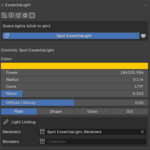
EssentiaLight is available in 3D Viewport → Sidebar (N) → EssentiaLight, under Add → Light, and with Shift+Alt+L to aim the active light.
Whether you're lighting a product shot, a character, an interior or a moody studio scene, EssentiaLight lets you place, shape and tune every light by simply pointing at what you want lit.