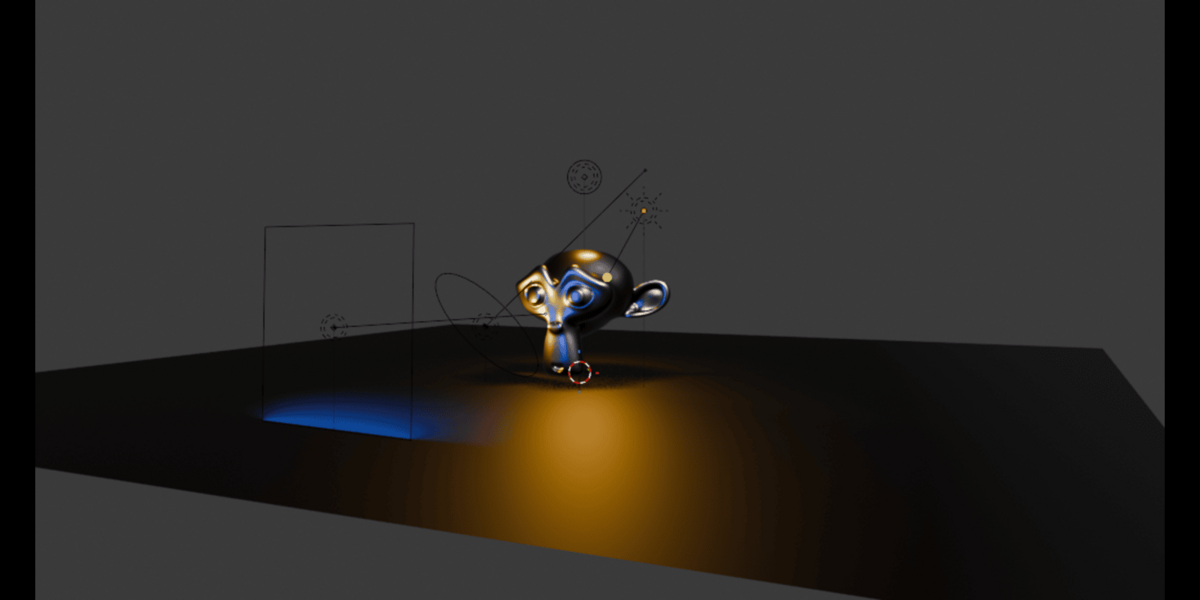
EssentiaLight - Aim Lights by Pointing at the Surface
 Shahzaib A.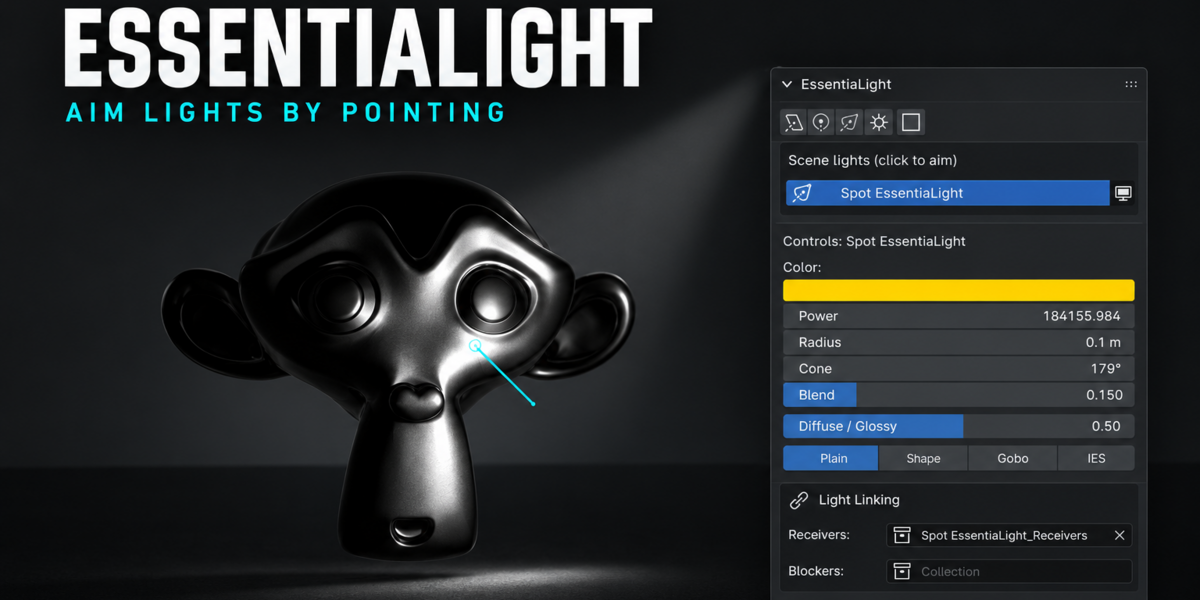

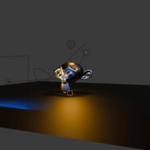
Install Drag the ZIP into the Blender 3D Viewport, or Edit > Preferences > Get Extensions > top-right menu > Install from Disk. Requires Blender 4.4 or later.
Getting started
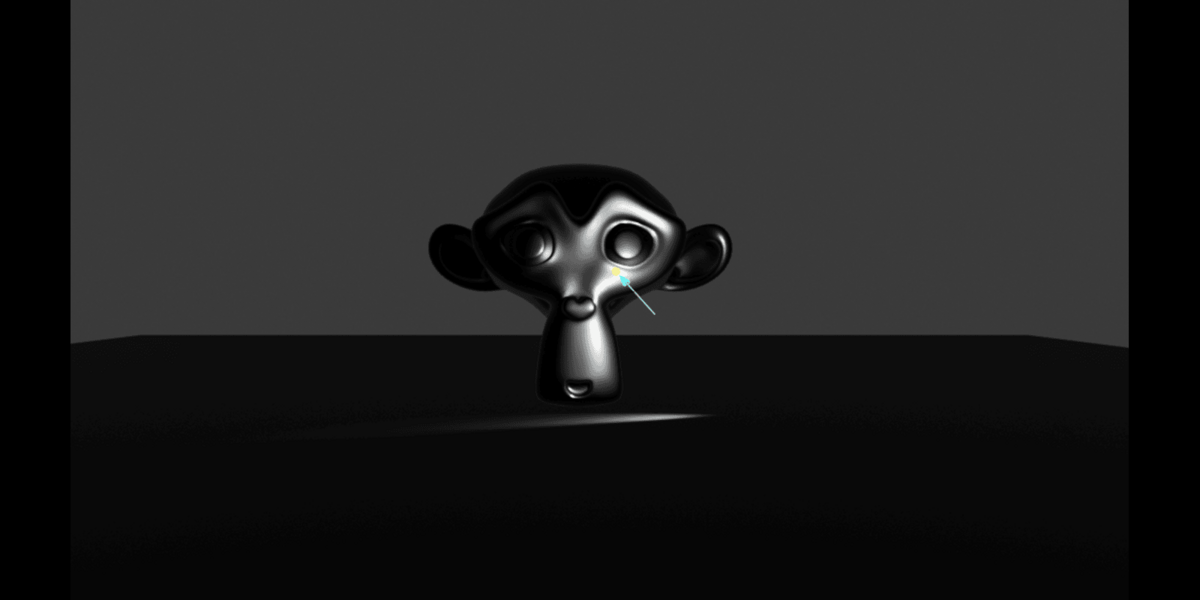
- Add a light: Add > Light > EssentiaLight, or the N-panel > EssentiaLight tab.
- Move the mouse over the scene. Click to confirm, Esc to cancel.
- To re-aim a light later: select it and press Shift+Alt+L, or click it in the sidebar list.
Aiming keys R/D/O modes, Wheel power, Shift+Wheel size, Alt+Wheel distance, Ctrl+Wheel spread/cone, I isolate, F false color, L light link, Shift+L shadow link, Click/Enter confirm, Esc cancel.
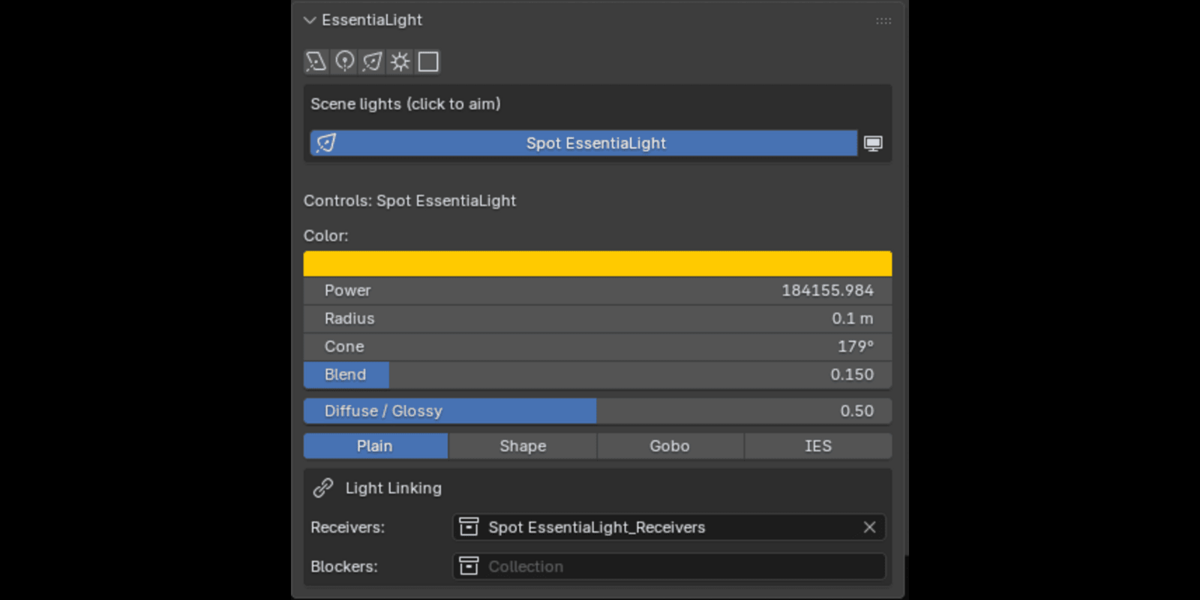
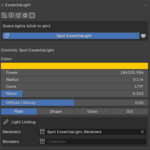
Controls popup Select any light or flag and press Shift+Alt+K, or right-click > EssentiaLight: Controls.
Light linking While aiming a light, hover an object and press L (excluded from the light) or Shift+L (stops casting shadows from the light). Press again to remove. Linked collections show under Light Linking in the controls. Needs Cycles, or Eevee in Blender 4.2+ rendered view.
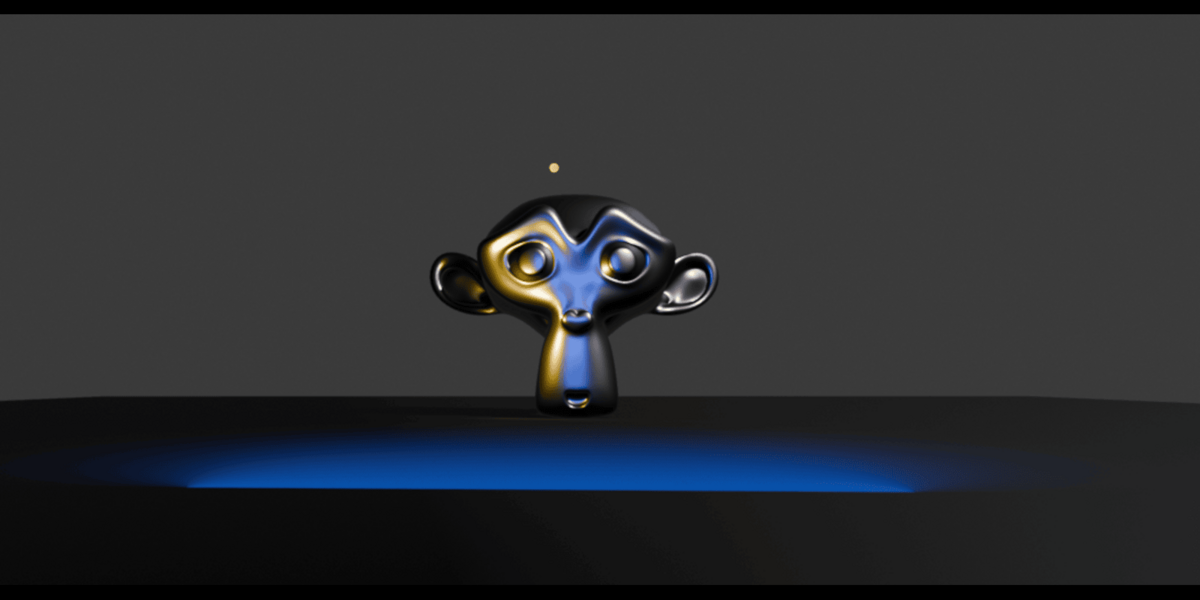
Shapes, gobos, IES Light data properties > EssentiaLight. These use light nodes, so they render in Cycles only.
Have questions about this product?
Login to message
| Blender Extension Compatible | Yes |
| Published | about 4 hours ago |
| Blender Version | 4.4 - 5.2 |
| Extension Type | Add-on |
| Render Engine Used | Cycles, Eevee |
| License | GPL |
Discover more products like this
3D Lighting Workflow lighting setup Blender Add-on cycles lighting light-linking gobo shadow-linking Studio Lighting Tools 3D rendering Lighting light-control Fast Light Aiming