Eye Designer
 Animation Store
Quick start
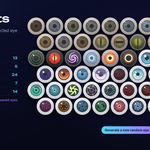
- Pick a preset. In the Presets panel, choose a category tab (All, Realistic, Animal, Anime, Creature, Kaleidoscope, Mine; a narrow sidebar shortens some to Real and Kaleido) and click a thumbnail. Use the arrows to browse; the box underneath describes the eye.
- Create the eye. Click New Eye. Turn on the eye toggle next to it to create a left + right pair that shares one material. The eye is added at the 3D cursor.
- Try other presets. With an eye selected, clicking a thumbnail applies it straight away (Apply on Click).
- Fine-tune. Open the panels below: Pupil, Iris & Colors, Real Iris, Pattern Layers, Stylize, Sclera, Glow, Highlights, Surface, Motion, Switch Animation and Orientation.
- Make it yours. Generate remixes the selected eye into a random new design from the selected category. Save stores the current eye as your own preset, with a thumbnail, in the Mine tab.
Tip: you can also add eyes from Add > Eye in the 3D Viewport. It lists every built-in preset with its thumbnail, plus New Eye and New Pair.
Creating and assigning eyes
- New Eye: adds a procedural eyeball at the 3D cursor with the selected preset. Set the Radius before you click.
- Pair: creates a left and a right eye that share one material, so any change affects both. Set the distance between them with Spacing.
- Apply to Selected: gives the selected mesh objects an Eye Designer material. Use it for your own eyeball model. The eyeball must be a separate object with its origin at its center.
- Make Unique: gives the active eye its own copy of the material, for heterochromia or a different vessel pattern on each eye. Its keyframes are copied too, so the two eyes can then be animated separately.
- Orientation: choose which axis the iris faces: ±X, ±Y or ±Z (the default is -Y, Blender's front view). Use Fine Rotation for small adjustments.
- Rebuild Shader (refresh icon): rebuilds the shared eye shader and keeps every material's settings.
The status strip at the top of the main panel shows which pattern layers are on, whether the eye glows, whether it has keyframes, and whether it's linked to the timeline.
Presets and Generator
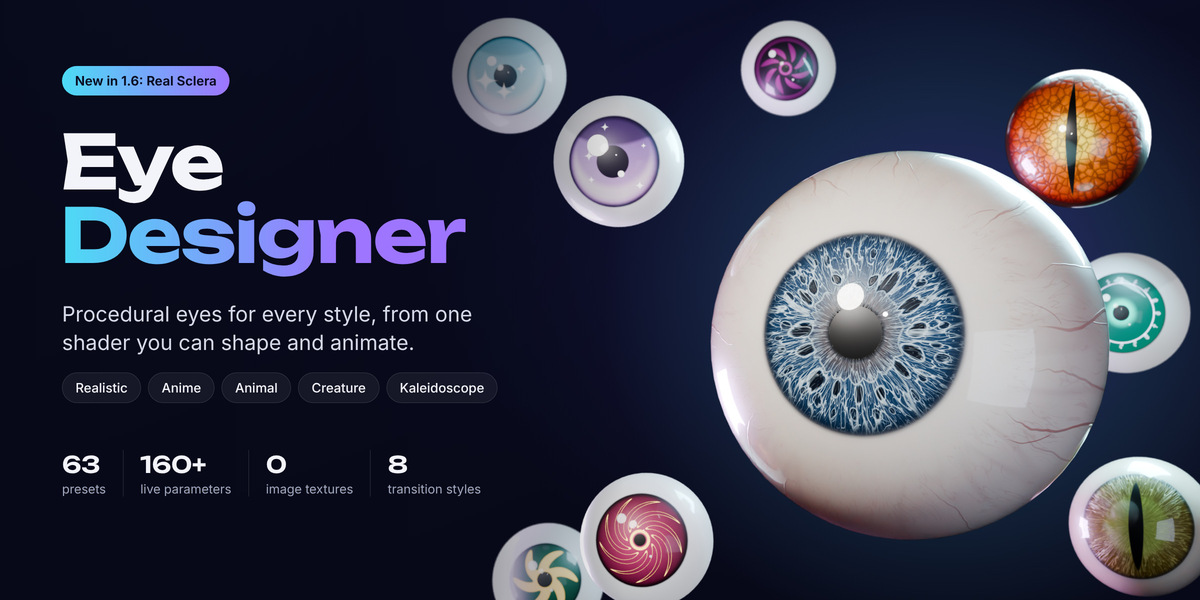
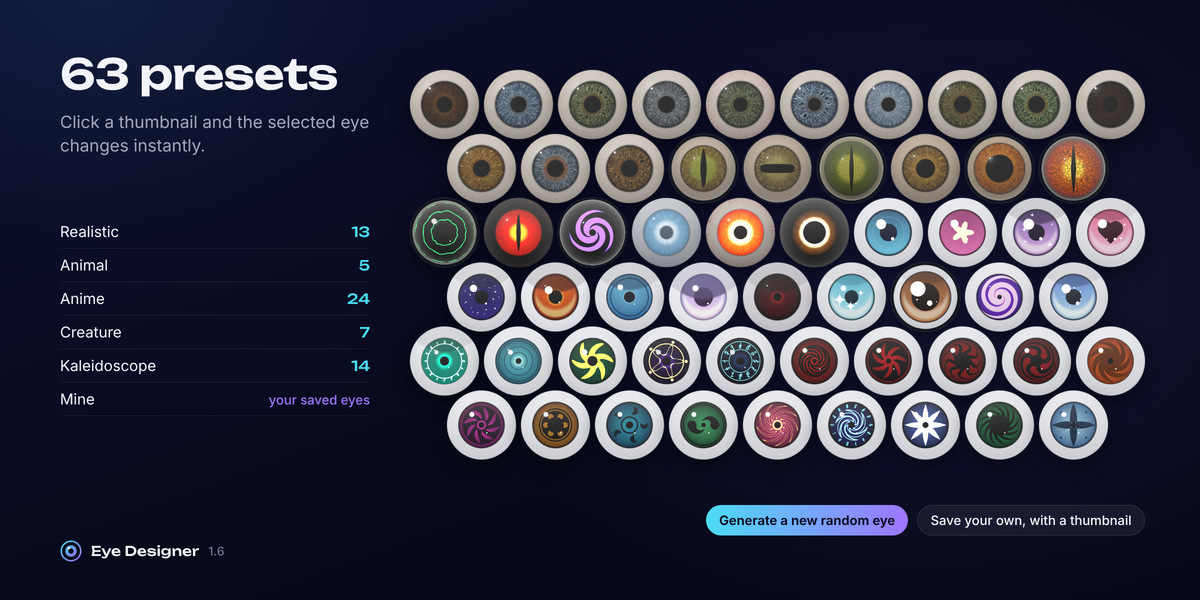
- Categories: Realistic (13), Animal (5), Anime (24), Creature (7), Kaleidoscope (14) and Mine for your own presets: 63 built-in presets in total.
- Apply on Click: when on, clicking a thumbnail applies it to the selected eye immediately. When off, use Apply Preset.
- Generate: remixes the selected eye into a random new design from the current category, recolored and varied. On realistic eyes it also varies the iris pattern, vessels, blotches and yellowing.
- Save: saves the active eye as a preset, with a rendered thumbnail. Saved presets appear in the Mine tab and in My Library, where you can apply or delete them. Open Presets Folder shows where they're stored.
Panel reference
Pupil
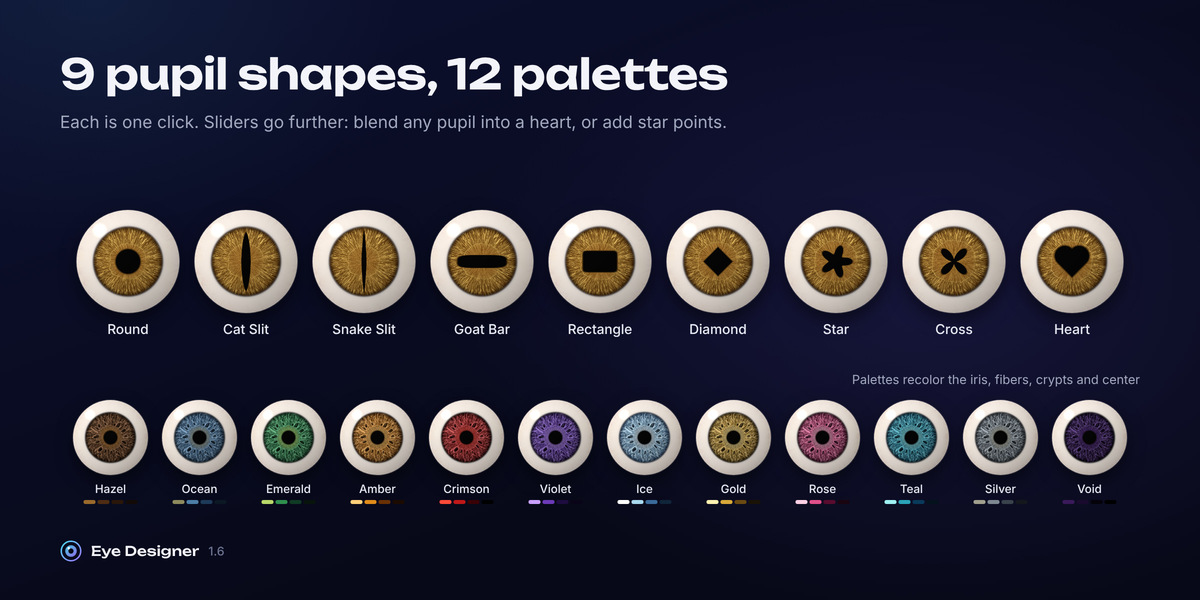
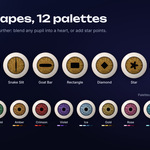
- Nine quick shapes: Round, Cat Slit, Snake Slit, Goat Bar, Rectangle, Diamond, Star, Cross and Heart (the buttons show short names such as Cat, Snake and Goat). Each button shows a preview, and the current shape is highlighted.
- Shape: Size, Width, Height, Squareness (1 = diamond, 2 = round, 6+ = rectangular), Rotation, Heart (blends any pupil into a heart) and Edge Softness.
- Star Points: the number of points, and Star Depth.
- Pupil Color.
Iris & Colors
- Four iris colors: Inner, Primary, Secondary and Edge.
- Palettes: twelve one-click color sets (Hazel, Ocean, Emerald, Amber, Crimson, Violet, Ice, Gold, Rose, Teal, Silver, Void). They also recolor the Real Iris fibers, crypts and center.
- Size & Gradient: Iris Size, Edge Softness, Inner Ring Size, Gradient Power, and Radial ↔ Vertical. Vertical gives the top-to-bottom gradient of anime eyes.
- Edge Ring: Edge Width and Edge Strength (the dark limbal ring).
- Tone: Saturation and Hue Shift.
Real Iris
Switch it on with the checkbox in the panel header. Real Iris blends the anatomical iris in; 0 keeps the stylized iris.
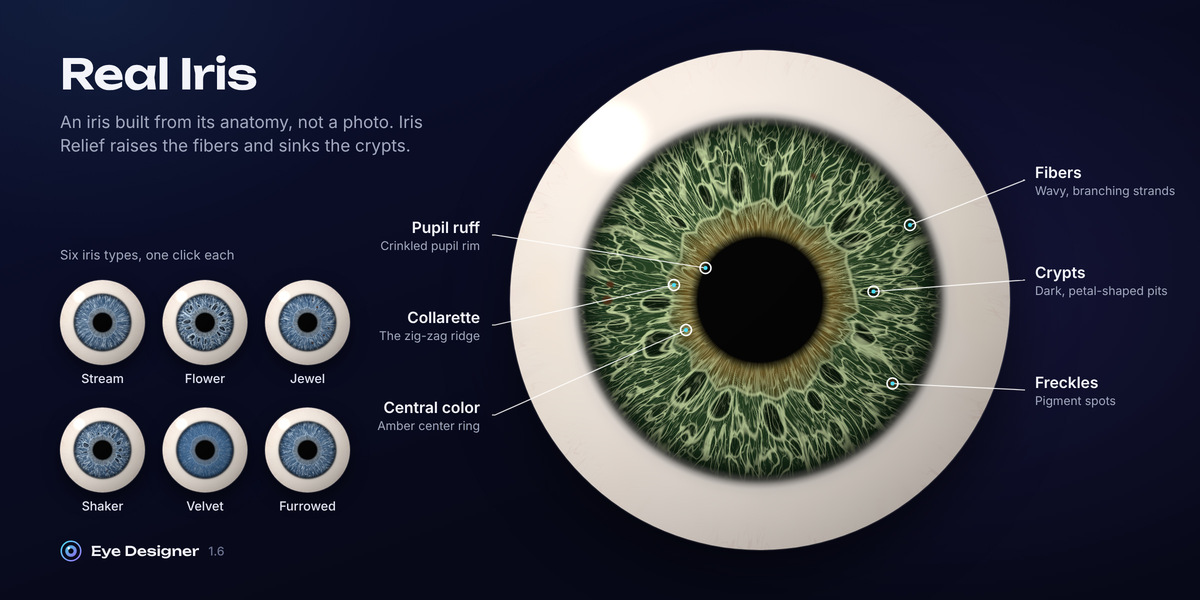
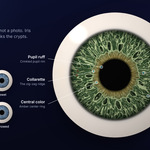
- Pattern types: Stream (long, even fibers, hardly any crypts), Flower (big petal-shaped crypts around the collarette), Jewel (fibers dotted with pigment freckles), Shaker (crypts and freckles), Velvet (dense, soft and dark, typical of brown eyes) and Furrowed (strong furrows near the edge). One click sets the structure and keeps your colors.
- Colors: Fibers, Depths, Center and Freckles.
- Center Tint: the amber or brown ring of central heterochromia. Seed gives a new pattern.
- Fibers: Fibers, Density, Thickness, Tangle, Waviness and Gap Depth.
- Collarette: brightness, Position, Zigzag and Points.
- Crypts: Count, Size, Density and Outer Ring.
- Furrows: amount and Count.
- Freckles: amount, Density and Size.
- Pupil Ruff: the dark, crinkled rim at the pupil edge.
Raise Iris Relief in the Surface panel for raised fibers and deep crypts.
Pattern Layers
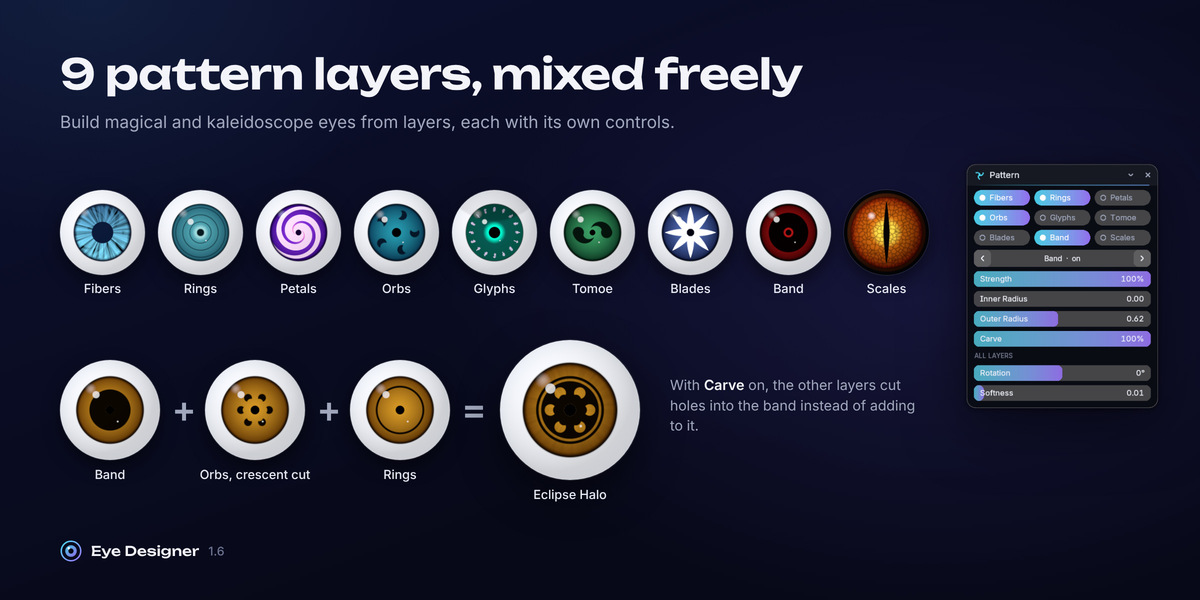
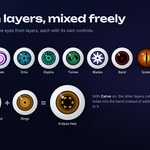
Nine layers you can combine freely. Click a layer button to switch it on or off; its strength is remembered. Active Layers Only lists just the layers in use, each in a fold-out section with an on/off box.
- Global: Pattern Color, Rotation and Softness.
- Fibers: Density, Length and Crypts.
- Rings: Count, Width, Start, Wobble and Phase.
- Petals: Count, Inner and Outer Radius, Sharpness, Twist, Fill and Line Width.
- Orbs: Count, Orbit Radius, Size, Crescent (turns each orb into a crescent moon) and Crescent Angle.
- Glyphs: procedural runes. Count, Orbit Radius, Size, Line Width and Seed (a new set of runes).
- Tomoe: Count, Orbit Radius, Size, Curl and Tail Length. Count is continuous, so animating it slides the marks apart while a new one grows in.
- Blades: spokes, pinwheel arms, sickles and shuriken points. Count, Inner and Outer Radius, Width, Bend (sweeps into a spiral), Hook (curls the tips), Taper, Widest Point, Fill (0 draws outlines) and Line Width.
- Band: a solid ring or disc around the pupil, with Inner and Outer Radius. Turn on Carve and the other layers cut holes into the band instead of adding to it.
- Scales: Density, Line Width and Shading.
Stylize
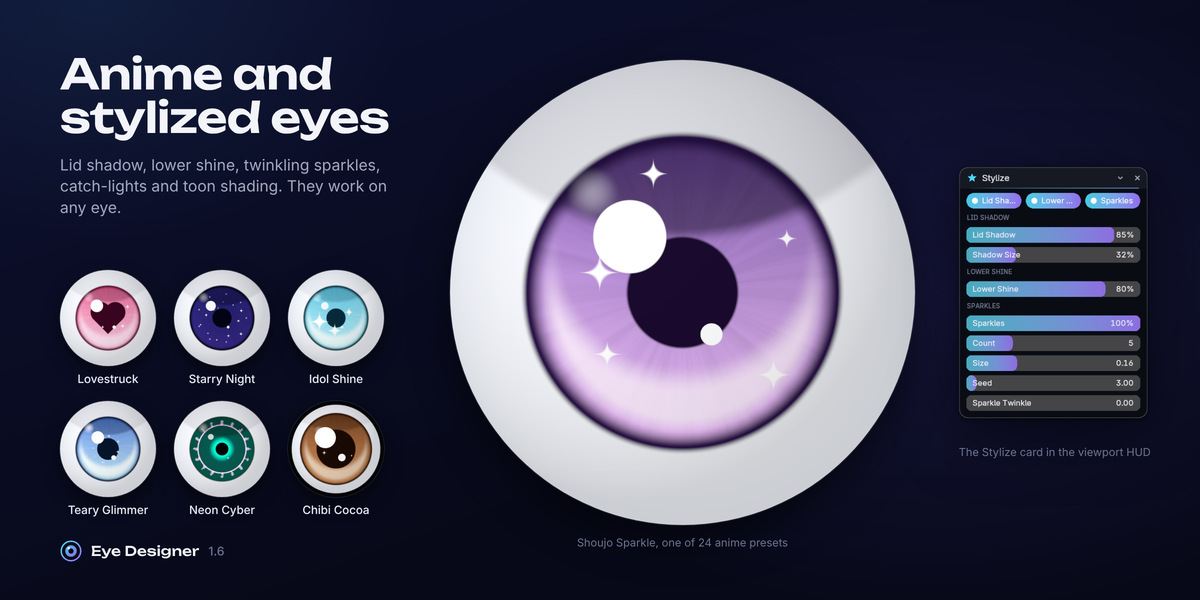
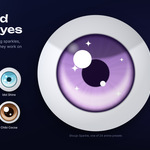
Anime touches that work on any eye. Each section has its own on/off box.
- Lid Shadow: the shadow of the upper eyelid across the top of the eye, with Shadow Size and Shadow Color.
- Lower Shine: a crescent of reflected light along the bottom of the iris, with Shine Color.
- Sparkles: twinkling four-point stars over the iris, with Count, Size, Seed and Sparkle Twinkle. Sparkles use the Highlight Color.
Sclera
- Colors: White, Corners and Vessels, plus Edge Tint Amount, Redness and Sclera Relief.
- Real Sclera: Blotches (soft, uneven color), Yellowing (toward the corners, with small pinguecula patches), Limbal Shadow and Shadow Width (the soft gray ring that seats the iris), and Translucency (subsurface scattering that follows the size of your eyeball).
- Blood Vessels: Veins (overall visibility), Count, Thickness, Length, Branching, Wiggle, Corner Focus (gathers vessels at the left and right corners), Capillaries, Deep Vessels, Vessel Relief and Seed.
Deep Vessels and the fine capillary web need Real Sclera. For a bloodshot eye, raise Veins and Redness together.
Glow
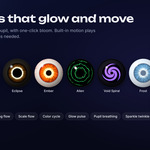
Glow Color, Iris Colors ↔ Glow Color, Iris Glow, Pattern Glow and Pupil Glow. Click Add Bloom to Compositor to add a bloom glare so emissive eyes glow in the final render (EEVEE and Cycles).
Highlights
Painted anime catch-lights: Highlights (strength), Color, X and Y position, Size, Softness and Second Size. Highlights are painted in eye space, so they rotate with the eye.
Surface
Realistic ↔ Toon (flat shading), Roughness, Cornea Gloss (the wet cornea), Iris Relief, Sclera Relief and Vessel Relief.
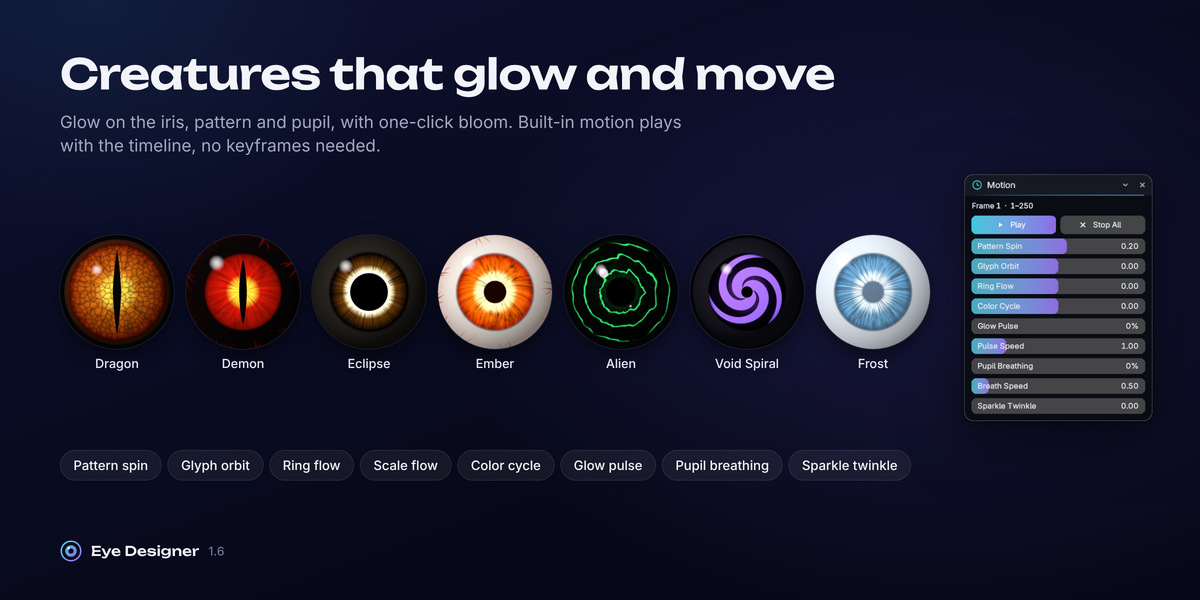
Motion
Every eye is linked to the timeline automatically (a driver on the hidden Time input). If the link was removed, click Link to Timeline.
- Rotation: Pattern Spin and Glyph Orbit.
- Flow & Color: Ring Flow, Scale Flow, Color Cycle and Sparkle Twinkle.
- Glow Pulse: amount and Pulse Speed.
- Pupil Breathing: amount and Breath Speed.
- Stop All Motion sets every motion speed and amount to zero.
Set any speed above zero and press Play. Every slider can also be keyframed: hover it and press I, or click the keyframe dot next to it.
Switch Animation
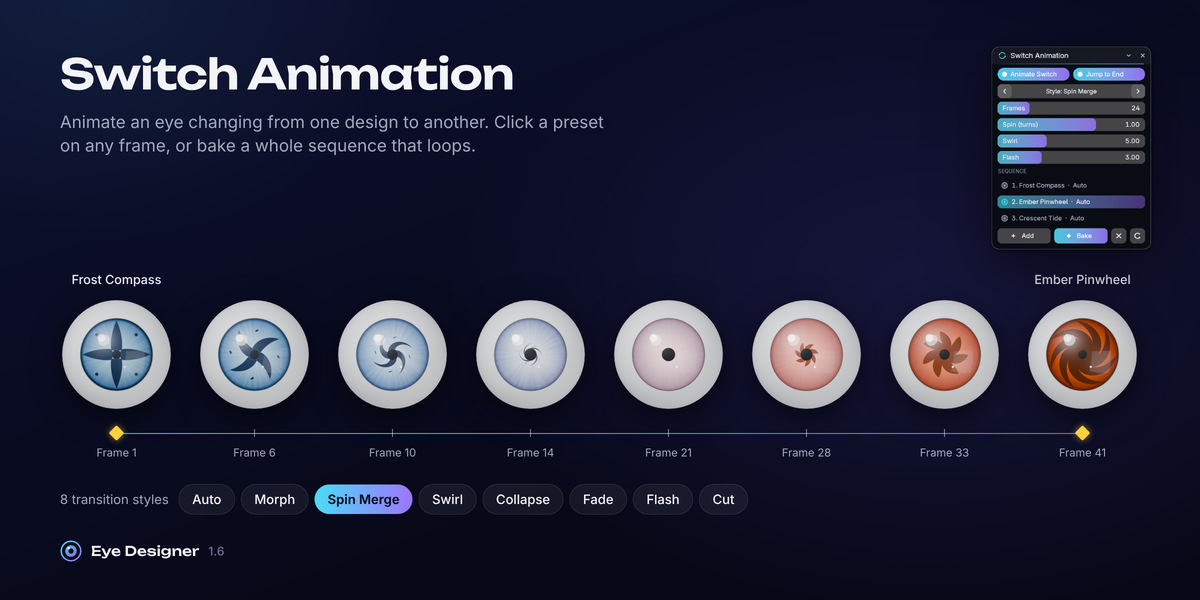
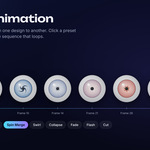
Animate an eye changing from one design to another, for example a tomoe pattern going from 1 to 2 to 3 marks, or a calm iris bursting into a glowing creature eye.
One click per switch
- Open Switch Animation (or use the Animate Switch toggle under the gallery, or the HUD) and turn Animate Switch on.
- Go to the frame where the switch should start and click a preset. The switch is keyframed from the current look to that preset, and the playhead jumps to its end (Jump to End).
- Click the next preset, and so on. Keyframes after the current frame are replaced, so you can go back and redo a switch.
Transition settings: Style, Frames (length of the switch), Spin (extra turns), Swirl and Flash strength.
Sequence
- Click a preset, then + to add it as a step (you can also type or search a preset name in the list).
- For each step, set Hold (frames it stays on screen), Transition (frames to switch into it), Style and Spin.
- Click Bake Sequence to keyframe everything on the active eye. Loop switches back to the first design for a seamless loop; Fit sets the scene frame range.
Transition styles
- Auto: Morph when the designs differ only smoothly (1 > 2 > 3 tomoe), otherwise Spin Merge.
- Morph: every value blends; tomoe slide apart and grow in.
- Spin Merge: spins up, swirls and sinks into the dilating pupil, then bursts out as the new design.
- Swirl: twists into a vortex and untwists as the new design.
- Collapse: shrinks into the pupil and grows back out.
- Fade: the pattern fades out and the new one fades in.
- Flash: a glow burst hides the switch.
- Cut: an instant switch halfway through.
Except with Cut, colors and the pupil sliders blend smoothly. Whole-number values (petal, blade, orb, vessel and sparkle counts, star points, seeds) change at the midpoint, and with the masking styles (Spin Merge, Swirl, Collapse, Fade, Flash) the pattern-layer settings also swap at the midpoint, where the effect hides the pattern. The effect itself lives in six extra inputs under Effect Values (Spin (turns), Swirl, Pattern Scale, Pattern Opacity, Flash, Pupil Pulse), which you can also keyframe by hand. Clear Animation (trash icon) removes all keyframes from the eye and keeps the timeline link.
Viewport HUD
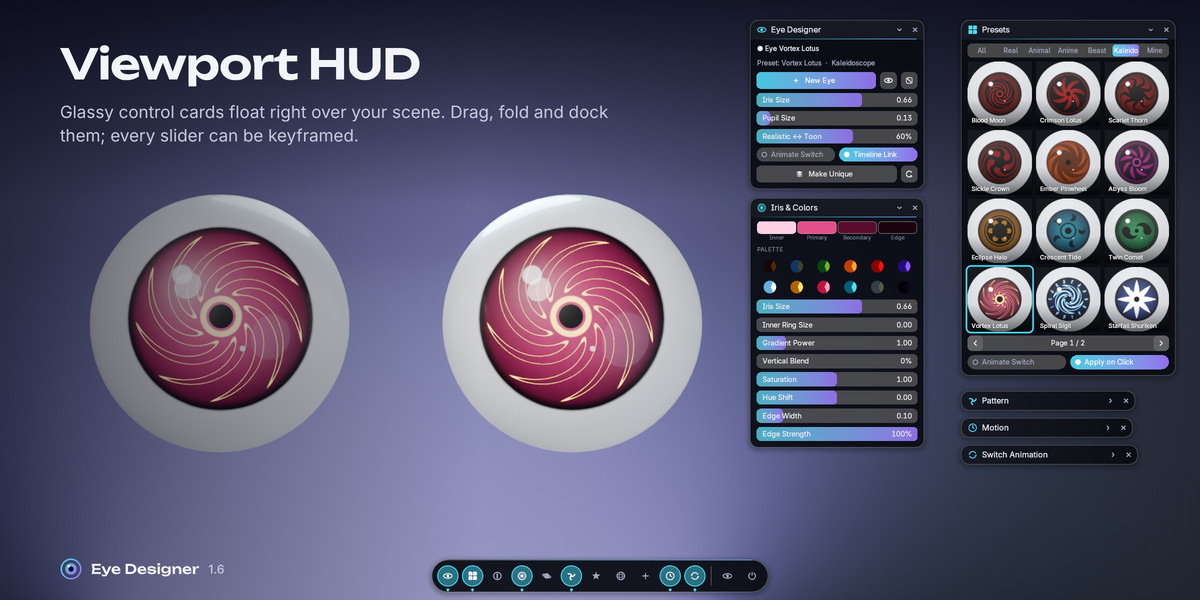
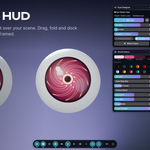
Click Eye HUD in the 3D Viewport header, or Open Viewport HUD in the sidebar, to float glassy control cards over your scene.
Cards
- Eye Designer: new eye or pair, random eye, iris and pupil size, Realistic ↔ Toon, Animate Switch, Timeline Link, Make Unique.
- Presets: thumbnail grid with category tabs, 12 per page. One click applies (or switches to) a preset.
- Pupil: shape chips (including Heart), size, width, height, squareness, rotation, heart and star points.
- Iris & Colors: current colors, palette swatches, size, gradient, saturation, hue and edge ring.
- Real Iris: Real Iris, Crypts and Freckles toggles, pattern-type chips, a color preview and the main structure sliders.
- Pattern: layer toggles, and a layer browser that shows the chosen layer's settings.
- Stylize: lid shadow, lower shine and sparkles with their settings.
- Sclera & Vessels: Real Sclera and Vessels toggles, a sclera color preview, redness, the real sclera sliders and every blood-vessel control.
- Glow & Surface: glow strengths, Add Bloom, catch-lights, toon shading and gloss.
- Motion: play / pause, spin, flow, color cycle, pulse, pupil breathing, sparkle twinkle and Stop All.
- Switch Animation: Animate Switch, style browser, frames, spin, swirl, flash, the sequence and Bake.
Using the HUD
- Drag a card by its title bar to place it anywhere. Fold it with the chevron or a double-click; close it with ×.
- The dock along the bottom shows or hides each card, hides everything at once (eye icon) and turns the HUD off (power icon).
- Click or drag sliders. Shift-drag for fine control, mouse wheel to nudge (Ctrl + wheel for finer steps), right-click to reset to the default, Esc to cancel a drag.
- A gold diamond marks values that have keyframes.
- Card layout, size, opacity and accent color (Aurora, Crimson, Emerald, Gold, Sakura, Mono) are remembered between sessions. Change them in the sidebar under Viewport HUD > Look.
Good to know
- Pupil and pattern shapes live in the shader, not in the geometry. That keeps everything fast and fully animatable.
- All eye materials share one node group, EyeDesigner Core. It uses a few hidden helper groups whose names start with .EyeDesigner; leave them in the file.
- Anime and kaleidoscope presets keep a smooth white with no sclera or vessel relief. Realistic presets and most animal presets use Real Sclera.
- Eyes from files made before 1.6 look exactly as before: Real Sclera, Sclera Relief and Vessel Relief start at 0. Switch them on, or click the preset again, to upgrade an older eye.
- The README inside the zip includes a quick guide in Arabic.
Troubleshooting
- The iris is on the side or back of my eyeball. Open Orientation and pick the axis your eyeball looks along, then adjust Fine Rotation.
- The eye looks stretched or the pattern is off-center on my own model. The eyeball must be a separate object with its origin at its center. Set the origin to the geometry center and apply scale if needed.
- The motion doesn't play. Check that the Motion panel says Linked to the timeline, and that at least one speed is above zero.
- Changing one eye changes the other. A pair shares one material. Select one eye and click Make Unique.
- Glow doesn't show in the render. Raise Iris, Pattern or Pupil Glow, then click Add Bloom to Compositor.
- Something looks wrong after updating. Click Rebuild Shader (refresh icon in the main panel). Your settings and keyframes are kept.
- Playback looks slow?
- If a switch plays in slow motion, open Playback in the Timeline and set Sync to Frame Dropping. Blender keeps real-time speed by skipping frames the viewport can’t draw in time. Final renders still include every frame.n the Timeline, open Playback and set Sync to “Frame Dropping”. The switch then plays at real speed, skipping frames the viewport can’t keep up with.
Have questions about this product?
Login to message
| Blender Extension Compatible | Yes |
| Dev Fund Contributor | |
| Published | about 4 hours ago |
| Blender Version | 4.2 - 5.2 |
| Extension Type | Add-on |
| Render Engine Used | Cycles, Eevee |
| License | GPL |