Ezbake | One Click Game Ready Baking
 Damian Mathew


EZBake Documentation
Version 1.0 | For Blender 3.6+
Professional PBR texture baking for Blender. Convert Principled BSDF materials into optimized texture maps for game engines and real-time rendering.
Table of Contents
- Introduction
- Installation
- Quick Start Guide
- Interface Overview
- Core Settings
- Channel Reference
- Game Engine Presets
- Advanced Features
- Common Workflows
- Troubleshooting
- Frequently Asked Questions
1. Introduction
What is EZBake?
EZBake is a professional Blender add-on designed to streamline the process of baking Principled BSDF materials into individual texture maps. Whether you're preparing assets for Unity, Unreal Engine, Godot, or other game engines, EZBake automates the complex node setup and baking workflow, saving you hours of manual work.
Key Capabilities
- 30+ Channel Support: Bake any input from the Principled BSDF shader including Base Color, Metallic, Roughness, Normal, Emission, Alpha, and advanced properties like Sheen, Clear Coat, and Thin Film.
- Game Engine Integration: Pre-configured packed texture maps for Unity (Standard & HDRP), Unreal Engine (ORM), Godot (ORM), and CryEngine (MRG).
- Smart Material Management: Merge multiple materials into a single game-ready asset or keep them separate for modular workflows.
- Non-Destructive Workflow: Bake on duplicates to preserve your original assets, or overwrite directly for rapid iteration.
- Professional Quality: Industry-standard texture output with configurable resolution, margins, and sampling.
System Requirements
- Blender version 3.6 or newer
- Materials must use the Principled BSDF shader
- Objects must have at least one UV map
- Cycles or EEVEE render engine (Cycles recommended for AO and shadow baking)
2. Installation
Standard Installation
- Download the
EZBake.pyfile - Open Blender
- Navigate to Edit > Preferences > Add-ons
- Click Install button at the top
- Browse to the downloaded
EZBake.pyfile and select it - Enable the add-on by checking the box next to "Material: MOUVAL EZBake"
- Save preferences to retain the add-on on restart
EZBake.py directly in your Blender scripts/addons folder, typically located at:C:\Users\[Username]\AppData\Roaming\Blender Foundation\Blender\[Version]\scripts\addons\
Verifying Installation
After installation, verify EZBake is working:
- Select any mesh object in your scene
- Open the Properties Editor
- Click the Render Properties tab (camera icon)
- Scroll down to find the EZBake panel
3. Quick Start Guide
Your First Bake in 5 Steps
Step 1: Prepare Your Object
Ensure your object has:
- At least one material using Principled BSDF
- At least one UV map (use the Auto Lightmap feature if needed)
Step 2: Select Your Object
In the 3D Viewport, select the mesh object you want to bake.
Step 3: Access EZBake
Navigate to Properties Editor > Render Properties > EZBake panel.
Step 4: Configure Bake Settings
- Expand the Bake section
- Open Settings > Channels
- Enable the channels you want to bake (e.g., Base Color, Metallic, Roughness, Normal)
- Set your desired resolution under Core Settings
Step 5: Execute Bake
Click the Bake button and wait for the process to complete. Your baked textures will be created and automatically assigned to your object.
4. Interface Overview
EZBake's interface is organized into collapsible sections within the Render Properties panel.
Main Sections
Info
Displays version information and quick troubleshooting tips for common issues like black or broken bakes.
Lightmap
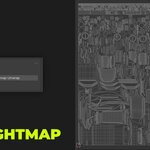
Provides quick access to the Auto Lightmap Unwrap operator, which automatically creates UV maps using Smart UV Project if your mesh doesn't have proper UVs.
Bake
The main baking interface containing all settings and channel toggles:
- Settings: Core baking parameters
- Channels: Individual channel toggles organized by category
- Bake Button: Executes the baking operation
5. Core Settings
Core settings control the fundamental behavior of the baking process.
Target
| Option | Description |
|---|---|
| Single Object | Bakes only the currently active mesh object |
| Multi Selection | Bakes all selected mesh objects in the scene |
Resolution
Sets the square texture resolution for baked maps. Available resolutions:
- 128 x 128
- 256 x 256
- 512 x 512
- 1024 x 1024 (default)
- 2048 x 2048
- 4096 x 4096
- 8192 x 8192
Scope
| Option | Description |
|---|---|
| All Materials (default) | Bakes all materials assigned to the object |
| Active Material | Bakes only the currently active material slot |
Object Handling
| Option | Description |
|---|---|
| Duplicate (default) | Creates a copy of the object and materials before baking, preserving the original |
| Overwrite | Bakes directly onto the original object and materials |
Output
| Option | Description |
|---|---|
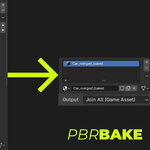
| Join All (Game Asset) (default) | Merges all selected meshes and materials into a single object with one unified PBR material. Ideal for game engines. |
| Keep Separate | Maintains each material slot separately with its own baked textures. Useful for modular assets. |
UV Map
Specifies which UV map to use for baking. If left empty, EZBake uses the active UV map. Ensure your UV map is properly unwrapped and has no overlapping islands for best results.
Margin
Sets the bake margin in pixels (0-128, default: 2). The margin extends the texture slightly beyond UV island boundaries to prevent seams and filtering artifacts.
Image Handling
Overwrite Image If Exists
When enabled (default), replaces existing image datablocks with the same name. Disable this to create new versions instead.
Image Name
Sets the base name for generated texture files. Default: BaseColor_Bake
6. Channel Reference
EZBake supports baking over 30 individual channels from the Principled BSDF shader. Channels are organized into logical categories.
PBR Core Channels
| Channel | Description | Color Space |
|---|---|---|
| Base Color | The diffuse/albedo color of the material. This is the primary color channel. | sRGB |
| Metallic | Controls metallic response. White = metal, black = dielectric. | Non-Color |
| Roughness | Surface roughness. White = rough/matte, black = smooth/glossy. | Non-Color |
| Smoothness | Inverted roughness (1 - Roughness). Used by some engines like Unity. | Non-Color |
| Normal | Tangent-space normal map encoding surface detail. | Non-Color |
| Alpha | Transparency/opacity channel. White = opaque, black = transparent. | Non-Color |
Lighting & Emission
| Channel | Description | Notes |
|---|---|---|
| Emission | Self-illumination color from the Emission input | Baked as flat color without lighting calculation |
| Emission Strength | Emission intensity multiplier | Grayscale output |
| Emission Samples | Fully lit emission using the Combined pass | Includes lighting calculation; disable scene lights for clean results |
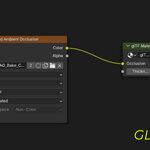
| Ambient Occlusion (AO) | Cavity shading showing surface occlusion | Requires Cycles render engine |
Transmission & Refraction
| Channel | Description |
|---|---|
| Transmission | Light transmission through the surface (for glass, translucent materials) |
| IOR | Index of Refraction controlling how light bends through transparent surfaces |
Subsurface Scattering
| Channel | Description |
|---|---|
| Subsurface Weight | Amount of subsurface scattering effect |
| Subsurface Radius | Color-based scattering radius for red, green, and blue channels |
| Subsurface Scale | Global scale multiplier for subsurface effect |
| Subsurface Anisotropy | Directional scattering bias |
| Diffuse Roughness | Roughness applied to the diffuse component |
Specular
| Channel | Description |
|---|---|
| Specular IOR Level | Specular intensity controlled by IOR |
| Specular Tint | Tints specular reflections with the base color |
| Specular Anisotropic | Elongates specular highlights (for brushed metal, hair) |
| Specular Anisotropic Rotation | Rotates the anisotropic highlight direction |
| Tangent | Custom tangent direction for anisotropic shading |
Clear Coat
| Channel | Description |
|---|---|
| Clear Coat | Weight/intensity of the clear coat layer (for car paint, lacquer) |
| Clear Coat Roughness | Roughness of the clear coat layer |
| Clear Coat IOR | Index of refraction for the clear coat |
| Clear Coat Tint | Color tint applied to the clear coat |
| Clear Coat Normal | Separate normal map for the clear coat layer |
Sheen
| Channel | Description |
|---|---|
| Sheen Weight | Intensity of fabric-like sheen effect |
| Sheen Roughness | Controls the size/softness of the sheen highlight |
| Sheen Tint | Color tint for the sheen layer |
Thin Film
| Channel | Description |
|---|---|
| Thin Film Thickness | Thickness of thin film causing iridescence effects |
| Thin Film IOR | Index of refraction for the thin film layer |
7. Game Engine Presets
EZBake includes pre-configured packed texture maps for popular game engines. These automatically combine multiple channels into industry-standard formats.
Unity Standard
Channel Packing:
- Red: Metallic
- Green: (unused/black)
- Blue: (unused/black)
- Alpha: Smoothness (inverted Roughness)
Use Case: Standard shader material in Unity's built-in render pipeline.
Unity HDRP MaskMap
Channel Packing:
- Red: Metallic
- Green: Ambient Occlusion
- Blue: Detail mask (currently unused/white)
- Alpha: Smoothness (inverted Roughness)
Use Case: Mask Map texture for Unity's High Definition Render Pipeline (HDRP) Lit shader.
Unreal ORM
Channel Packing:
- Red: Ambient Occlusion
- Green: Roughness
- Blue: Metallic
- Alpha: (unused)
Use Case: Standard packed texture format for Unreal Engine 4 and 5. Import as "OcclusionRoughnessMetallic".
Godot ORM
Channel Packing:
- Red: Ambient Occlusion
- Green: Roughness
- Blue: Metallic
- Alpha: (unused)
Use Case: ORM texture for Godot Engine's StandardMaterial3D and ORMMaterial3D.
CryEngine MRG
Channel Packing:
- Red: Roughness
- Green: Metalness
- Blue: Ambient Occlusion
- Alpha: (unused)
Use Case: Packed texture for CryEngine's PBR workflow (note different channel order from Unreal/Godot).
8. Advanced Features
Combined Bake
The Combined Bake option produces a single, fully lit texture without channel separation. This creates an "unlit" result that captures the visual appearance of your material in one texture.
When to Use:
- Creating texture atlases for mobile games
- Baking lighting into textures for performance
- Simplifying complex shaders into a single diffuse texture
Shadow Catcher
Generates a specialized shadow plate texture by inverting the Ambient Occlusion pass. Perfect for compositing 3D objects over photo backgrounds.
Shadow Mode Options
| Mode | Description |
|---|---|
| Ambient Occlusion | Uses inverted AO with contrast adjustment (default) |
| Shadow | Uses Cycles Shadow pass for sharper shadows |
Shadow Contrast
Adjusts the contrast of the shadow plate (0.0 - 10.0, default: 0.2). Higher values produce darker, more pronounced shadows.
Procedural Bevel
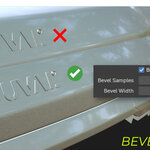
Adds fake edge highlights to your normal map using Blender's Bevel shader node, eliminating the need for actual beveled geometry.
Settings
- Bevel Width: Radius of the fake bevel (0.0 - 10.0, default: 0.0002). Smaller values create tighter edge highlights.
- Bevel Samples: Sample count for noise reduction (0 - 256, default: 16). Higher values reduce artifacts but increase bake time.
Use Case: Add realistic edge wear and highlights to hard-surface models without adding geometry. Particularly useful for game assets where polygon budgets are tight.
AO Samples Override
When baking Ambient Occlusion, this setting overrides Blender's render samples to control quality independently (1 - 8192, default: 32).
Recommended Values:
- Preview: 16-32 samples
- Production: 64-128 samples
- Final/Print: 256+ samples
9. Common Workflows
Workflow 1: Basic Game Asset
Goal: Create a single game-ready mesh with PBR textures for Unity or Unreal.
- Model your object in Blender with Principled BSDF materials
- Use Auto Lightmap Unwrap or manually unwrap UVs
- Select your object
- In EZBake settings:
- Target: Single Object
- Output: Join All (Game Asset)
- Object Handling: Duplicate
- Resolution: 2048
- Enable channels: Base Color, Normal, Unreal ORM (or Unity equivalent)
- Click Bake
- Export textures and FBX to your game engine
Workflow 2: Modular Asset Library
Goal: Bake multiple objects while keeping materials separate for mix-and-match flexibility.
- Select all objects to bake
- In EZBake settings:
- Target: Multi Selection
- Output: Keep Separate
- Object Handling: Duplicate
- Enable desired channels
- Click Bake
- Each object retains its material structure with baked textures
Workflow 3: Product Visualization with Shadow Plate
Goal: Create a product render with a realistic shadow for compositing.
- Position your product model above a ground plane
- Set up your hero material on the product
- Enable Shadow Catcher mode
- Set Shadow Contrast to taste (try 0.3-0.5 for products)
- Bake only the ground plane
- Use the resulting shadow texture as a multiply layer in your compositor
Workflow 4: High-to-Low Poly Baking
Goal: Bake detail from a high-poly sculpt to a low-poly game mesh.
- Create your low-poly model with clean topology
- Unwrap UVs on the low-poly mesh
- Set up a Principled BSDF material with your desired maps
- Use Blender's native "Selected to Active" bake to transfer normals from high to low
- Then use EZBake to bake out all PBR channels from the low-poly result
Workflow 5: Texture Baking for Mobile
Goal: Create ultra-optimized textures for mobile games.
- Build your material with all details in the shader
- Use Combined Bake mode for a single diffuse texture
- Set Resolution to 512 or 1024
- Optionally bake Normal and AO separately at lower resolution (256-512)
- Export as compressed formats (PVRTC, ASTC, ETC2)
10. Troubleshooting
Black or Empty Bakes
Symptoms: Baked textures appear completely black or show no detail.
Solutions:
- Check UV Maps: Ensure your object has at least one UV map. Use Auto Lightmap Unwrap if needed.
- Verify Material: Confirm your material uses Principled BSDF shader. Other shader types are not supported.
- Select Correct UV Map: Make sure the specified UV Map name matches your object's UV layer.
- Check UV Bounds: UVs must be within the 0-1 space. UVs outside this range may cause issues.
- Material Assigned: Verify the material is actually assigned to the mesh faces, not just in the slot.
Seams Visible in Textures
Symptoms: Visible lines or gaps appear along UV seams.
Solutions:
- Increase Margin: Set bake margin to at least 4-8 pixels for high-resolution textures.
- Check UV Overlap: Ensure UV islands don't overlap each other.
- Improve UV Layout: Reduce sharp angles and distortion in your UV unwrap.
- Use Post-Processing: Apply a dilation filter in an image editor to extend colors beyond UV borders.
Normal Map Appears Flat or Wrong
Symptoms: Baked normal map doesn't show detail or has incorrect colors.
Solutions:
- Verify Normal Input: Make sure your source material has a normal map connected to the Principled BSDF Normal input.
- Check Color Space: Normal maps must use Non-Color color space in Blender.
- Tangent Space: Ensure you're using tangent-space normals (purple/blue color), not object or world space.
- Normal Map Node: Verify any normal map nodes are set to "Tangent Space" mode.
Bake Takes Too Long
Symptoms: Baking process takes an excessive amount of time.
Solutions:
- Lower Resolution: Reduce texture resolution for testing (use 512 or 1024 instead of 4096).
- Reduce AO Samples: Lower the AO Samples Override to 16-32 for preview bakes.
- Disable Bevel: Bevel shader can be slow; disable it for test bakes.
- Reduce Bevel Samples: If using bevel, lower samples to 4-8 for testing.
- Simplify Channels: Bake only essential channels during iteration, add others later.
- Check Scene Complexity: Extremely high poly counts can slow down AO calculation.
Textures Not Applying Correctly
Symptoms: After baking, textures appear in wrong slots or with wrong settings.
Solutions:
- Check Output Mode: "Join All" creates a single new material; "Keep Separate" modifies existing materials.
- Verify Color Space: Base Color should be sRGB; technical maps (Metallic, Roughness, Normal) should be Non-Color.
- Inspect Shader Editor: Open the Shader Editor to verify texture nodes are connected correctly.
- Material Preview: Switch viewport shading to Material Preview or Rendered to see results.
Error: "Active object must be a mesh"
Solutions:
- Ensure you've selected a mesh object, not a camera, light, or empty
- Check that the active object (last selected) is a mesh
- Convert curves, text, or other object types to mesh first (Object > Convert to > Mesh)
Error: "No channels selected for baking"
Solutions:
- Enable at least one channel in the Channels section
- If using Combined Bake mode, ensure it's properly enabled
11. Frequently Asked Questions
General Questions
Q: Can I use EZBake with EEVEE render engine?
A: Most channels work with EEVEE, but Ambient Occlusion and Shadow Catcher require Cycles as they use Cycles-specific baking modes.
Q: Does EZBake work with Blender 2.8 or earlier?
A: No, EZBake requires Blender 3.6 or newer due to API changes and newer Principled BSDF features.
Q: Can I bake multiple objects at once?
A: Yes, set Target mode to "Multi Selection" and select all objects you want to bake. They can be merged into one asset or kept separate depending on your Output setting.
Q: Will EZBake work with custom shader setups?
A: EZBake specifically targets the Principled BSDF shader. Materials using other shaders or complex node setups may not bake correctly.
Technical Questions
Q: What's the difference between "Emission" and "Emission Samples"?
A: "Emission" bakes just the emission color/texture without any lighting calculation (flat output). "Emission Samples" uses the Combined bake pass to capture fully lit emission, including how it illuminates nearby surfaces.
Q: Why do my baked textures look different than the viewport?
A: Baking captures the raw channel data, not the lit result. The appearance depends on your target engine's lighting. For viewport-matching results, use Combined Bake mode.
Q: Can I bake vertex colors instead of textures?
A: No, EZBake currently only supports baking to image textures, not vertex colors.
Q: How do I save the baked textures to disk?
A: EZBake creates image datablocks in Blender. To save them:
- Open the Shader Editor
- Select your baked material
- For each texture node, click the image selector
- Go to Image menu > Save As
- Choose format (PNG for lossless, JPG for albedo, EXR for HDR)
Q: What file formats does EZBake support for saving?
A: EZBake itself creates textures in Blender's image format. When saving, you can export as PNG, JPEG, TIFF, OpenEXR, TGA, or any format Blender supports.
Workflow Questions
Q: Should I use Duplicate or Overwrite mode?
A: Use Duplicate during development to preserve your original materials. This lets you iterate without losing your source setup. Use Overwrite only when you're ready to replace the original or need to update an existing bake.
Q: What resolution should I use for game assets?
A:
- Mobile: 512-1024
- PC/Console (Standard): 1024-2048
- Hero Assets: 2048-4096
- Cinematic/VFX: 4096-8192
Q: Can I bake transparent materials?
A: Yes, enable the Alpha channel to bake transparency. Make sure your material uses the Alpha input of the Principled BSDF or connects to the Surface Alpha socket of the Material Output.
Q: How do I bake multiple material IDs into one texture?
A: Use the "Join All (Game Asset)" output mode with "Multi Selection" or "All Materials" scope. EZBake will merge all materials into a single texture atlas.
Optimization Questions
Q: How can I reduce bake times?
A:
- Lower resolution for test bakes
- Reduce AO samples (use 16-32 instead of 128)
- Disable expensive features like Bevel during iteration
- Bake only the channels you need
- Use simpler materials during testing
Q: Do I need to bake every channel?
A: No, only bake what your target engine requires. A typical PBR game asset needs: Base Color, Normal, and either individual Metallic/Roughness/AO channels or a packed map (ORM).
Q: Can I pack custom channel combinations?
A: Currently, EZBake supports preset packed formats (Unity, Unreal, Godot, CryEngine). For custom packing, bake individual channels and combine them in an image editor like Photoshop using channel operations.
Support & Contact
For additional support, bug reports, or feature requests, please contact:
MOUVAL LLC
5900 Balcones Drive STE 100
Austin, TX 78731
EZBake is proprietary software. Unauthorized copying or distribution is prohibited.
Copyright © 2024 MOUVAL LLC. All rights reserved.
Discover more products like this
normal map texture-baking Asset Pipeline gltf PBR material-baking orm Unreal Engine Game asset unity glb Real-time rendering