 bhdesign


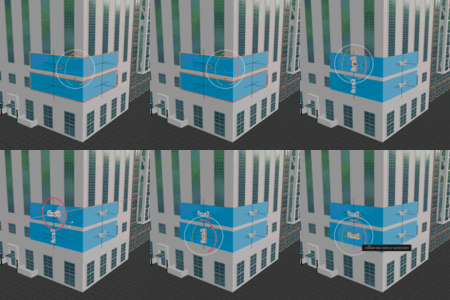
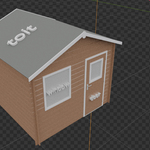
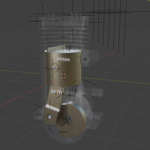
FaceTag — Face Label Generator for Blender
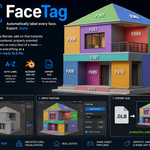
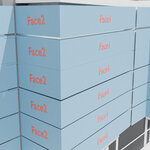
FaceTag is a Blender add-on that instantly generates centered, properly oriented 3D text labels on every face of a mesh — and exports everything as a production-ready GLB file.
Perfect for architectural visualization, real estate, game asset pipelines, and any workflow where you need to identify, annotate, or mark the faces of a 3D object.
Features
- One-click label generation — select any mesh, click Preview, done
- Auto-oriented text — each label faces outward along its face normal
- Fully customizable — set your own label prefix, text size, and extrusion depth
- Non-destructive — labels are stored in their own collection and can be regenerated at any time
-
GLB export — exports the building object and all labels together in a single
.glbfile - Blender 4.3+ compatible
Requirements
- Blender 4.3.0 or later
- Windows, macOS, or Linux
Installation
- Download
facetag.py - Open Blender and go to Edit → Preferences → Add-ons
- Click Install... in the top right corner
- Navigate to and select the downloaded
facetag.pyfile - Enable the add-on by ticking the checkbox next to "FaceTag"
The panel will appear in the 3D Viewport Sidebar under the Tool tab (N key to open).
How to Use
Step 1 — Configure your labels
In the Tool sidebar panel, set:
| Setting | Description |
|---|---|
| Label | Base name for generated labels (e.g. Face → Face1, Face2…) |
| Text Depth | Extrusion thickness of the 3D text |
| Text Size | Scale of the text |
Step 2 — Preview labels
- Select one or more mesh objects in the viewport
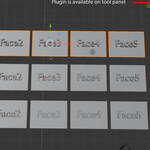
- Click "Preview labels for Units"
- Labels will be generated on every face and stored in a collection called
Labels_[ObjectName]
Re-clicking the button will clear and regenerate labels automatically.
Step 3 — Export to GLB
- Select your main mesh object (the building or asset root)
- Set the output directory:
- Enable "Use .blend directory" to save next to your
.blendfile - Or choose a custom folder using the directory picker
- Enable "Use .blend directory" to save next to your
- Click "Export data in GLB"
The exported .glb will include your mesh, all children, and all generated label objects.
Tips
- Run Preview before Export to make sure labels look correct before baking them into the GLB
- Labels are placed slightly in front of each face (0.01 units) to avoid z-fighting
- Triangulated faces are automatically merged into quads before labeling for cleaner results
- The
Labels_[ObjectName]collection can be hidden or deleted manually without affecting the original mesh
License
This add-on is sold for single-user, commercial use. Redistribution or resale is not permitted.
Support
For questions or bug reports, contact BH-DEV.
Have questions about this product?
Login to message
| Blender Extension Compatible | Yes |
| Published | 6 months ago |
| Blender Version | 4.3 - 5.0 |
| Extension Type | Add-on |
| Render Engine Used | Cycles, Eevee |
| License | GPL |
Discover more products like this
Annotate Customizable Labels. 3D Annotations 3d-text-label 3d label label Annotate Face