Salman Naseem


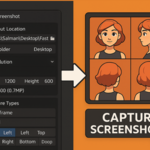
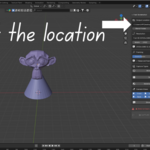
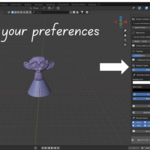
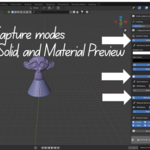
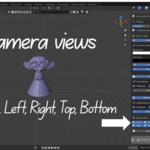
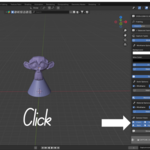
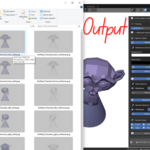
Fast Screenshot is a professional Blender addon designed to make Models screenshot capture fast, simple, and efficient. Instead of manually setting up cameras and hiding extra objects, this tool automates the entire process with a single click.
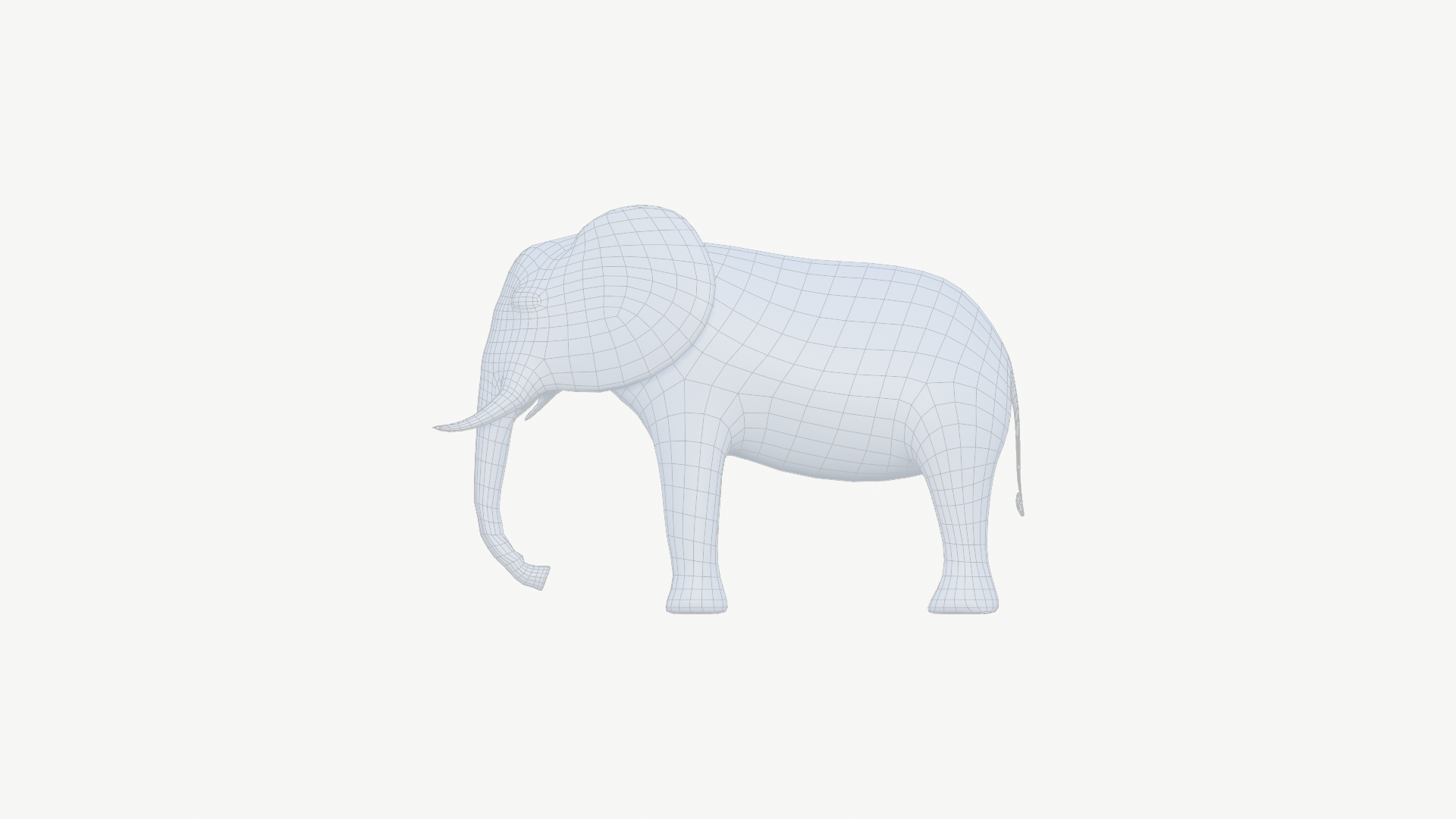
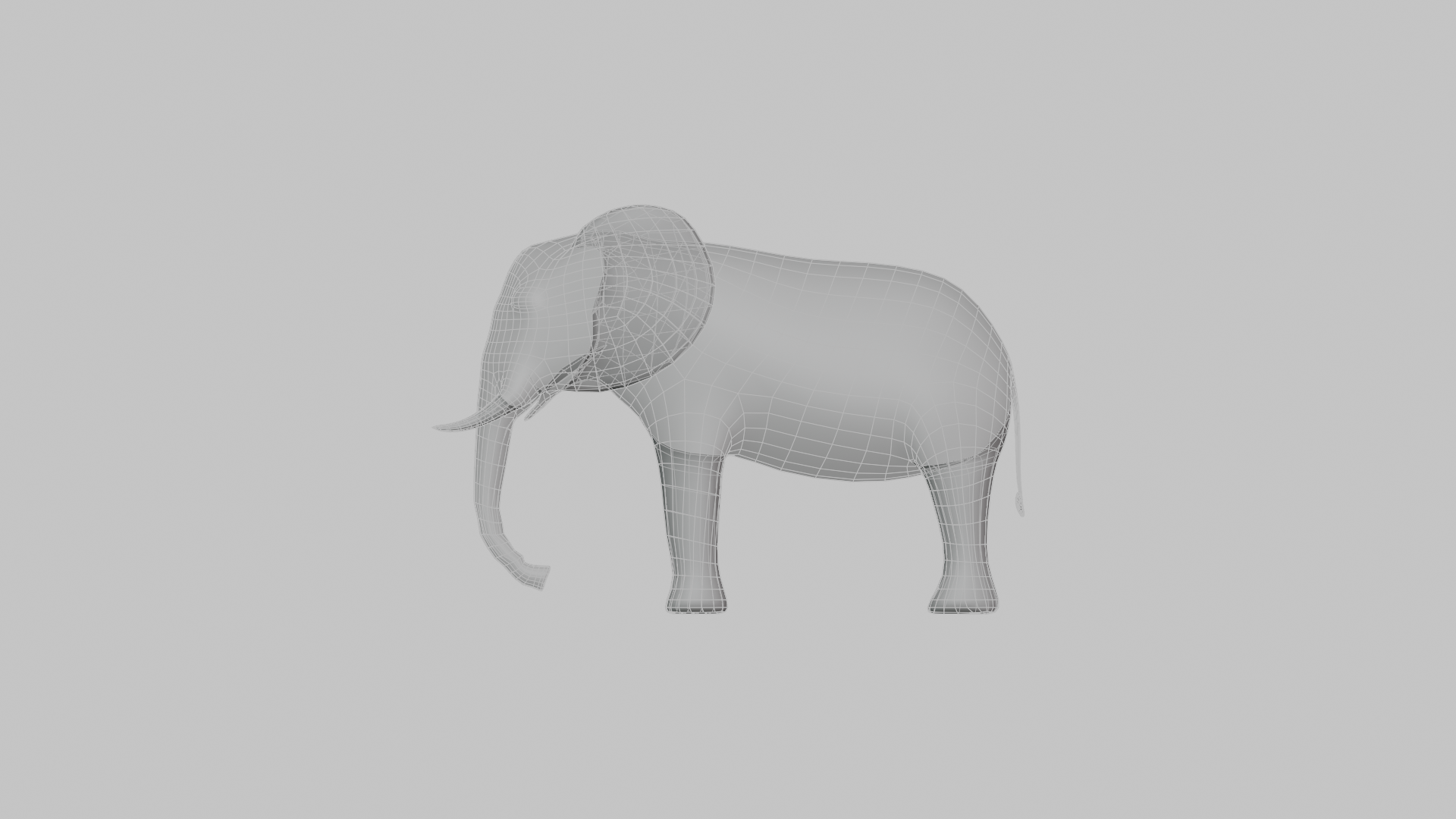
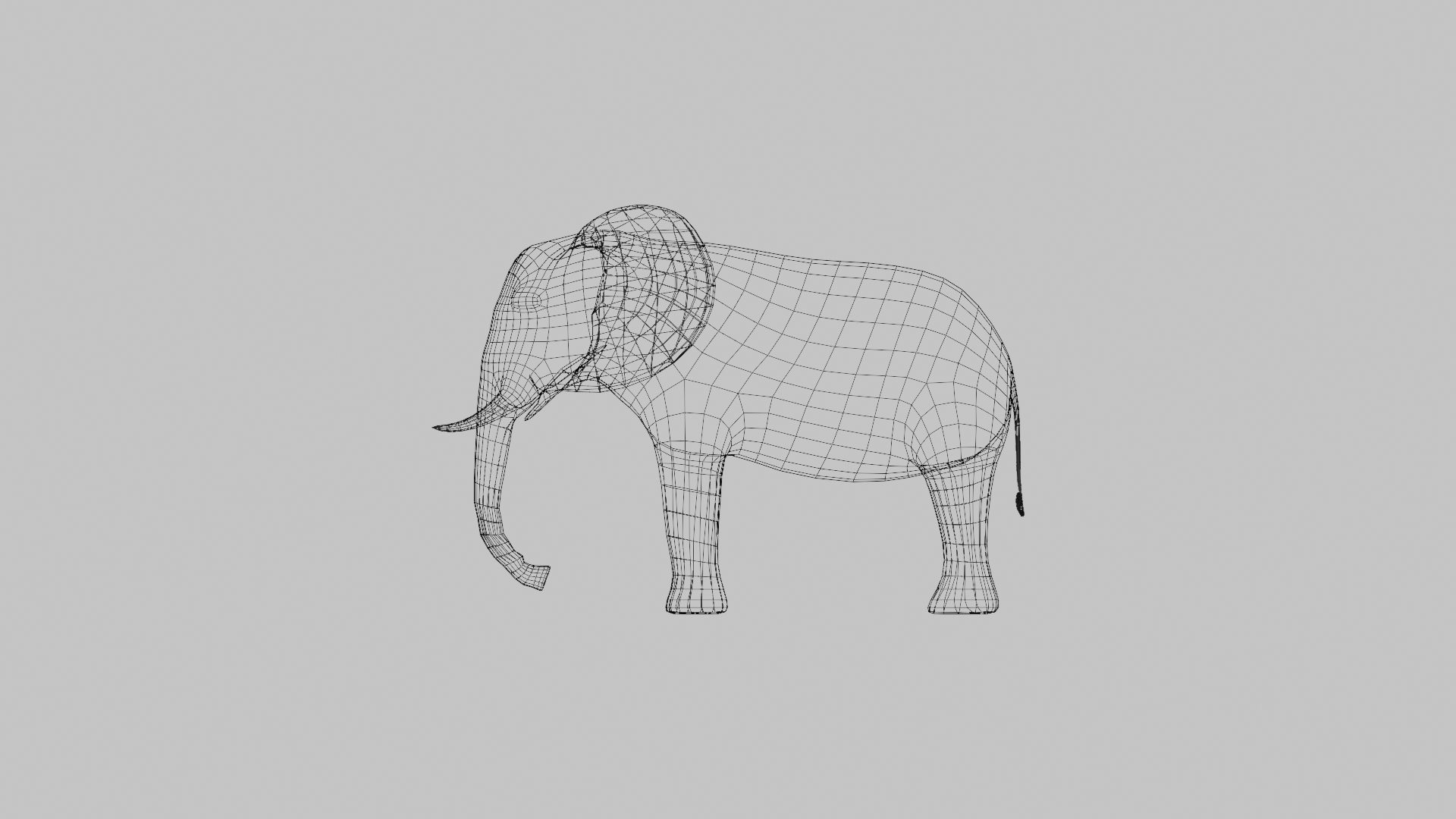
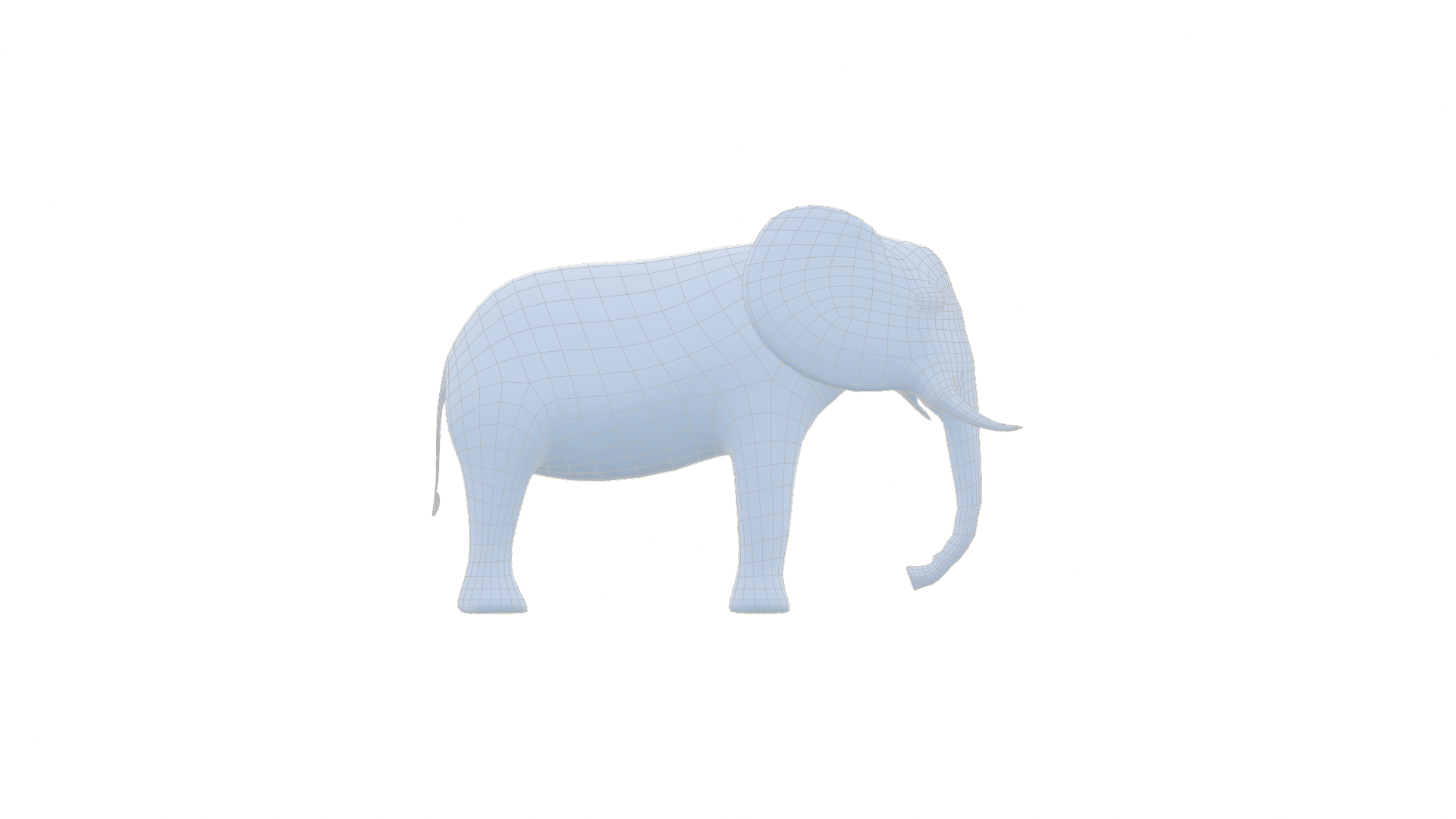
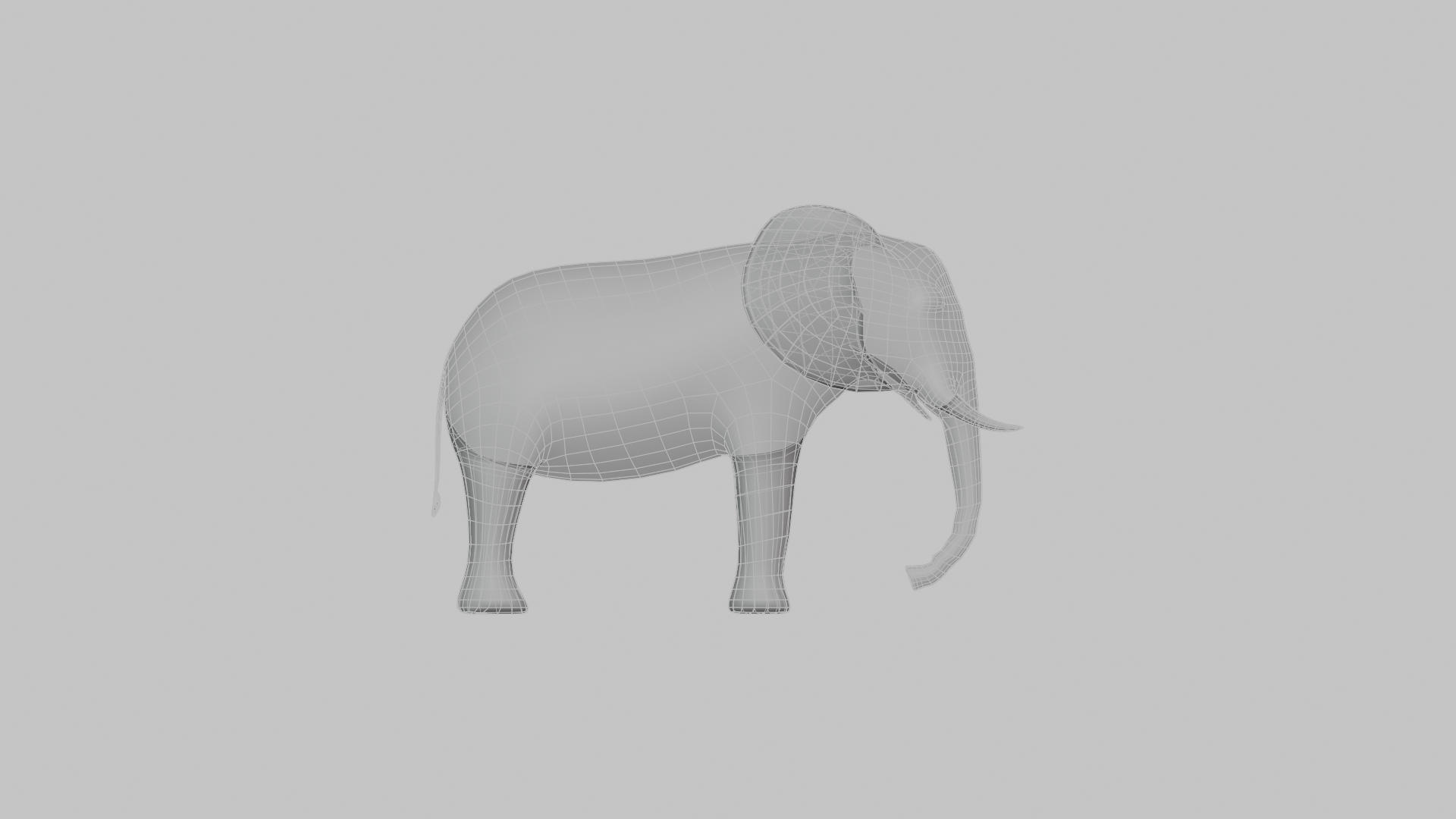
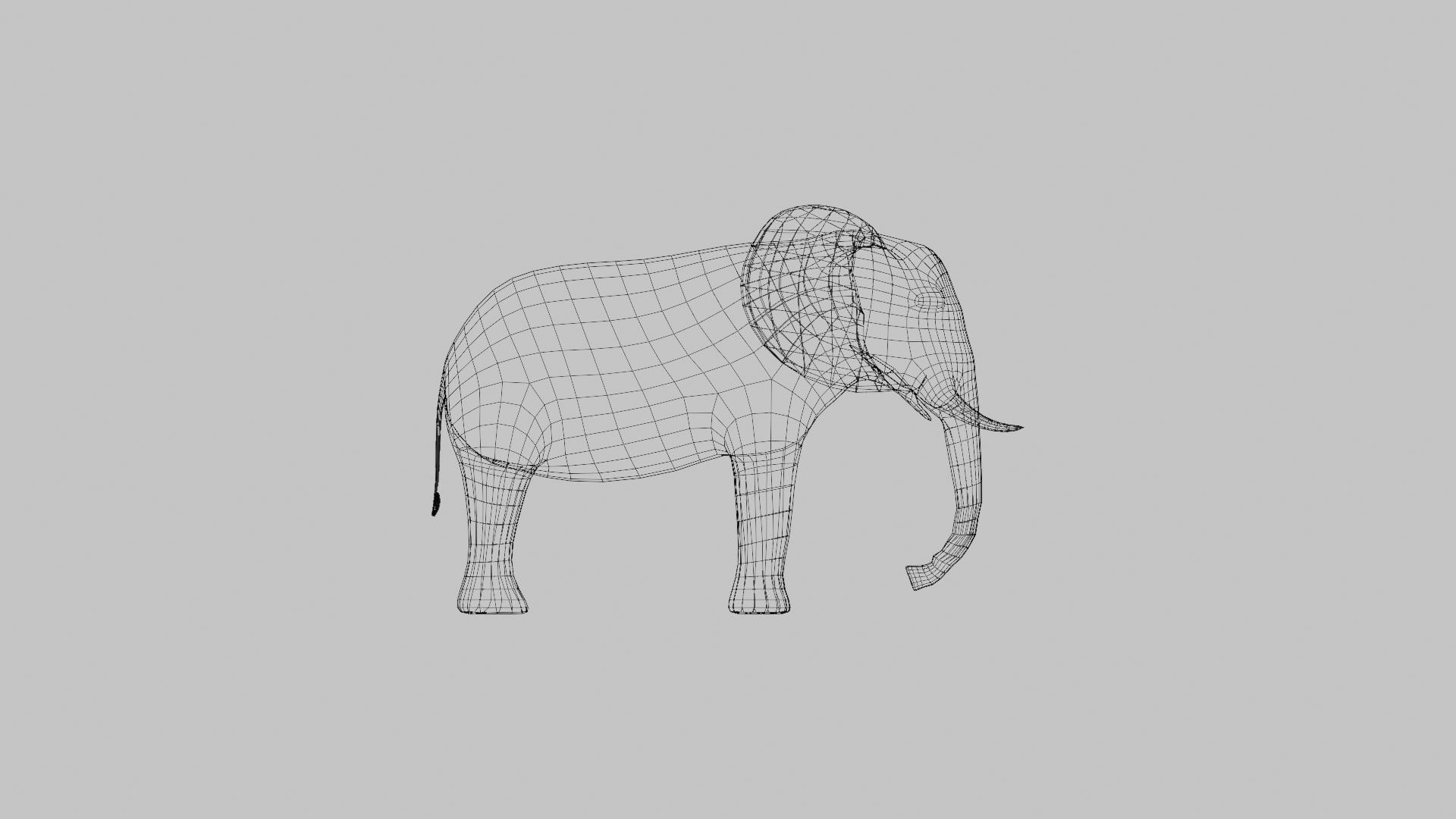
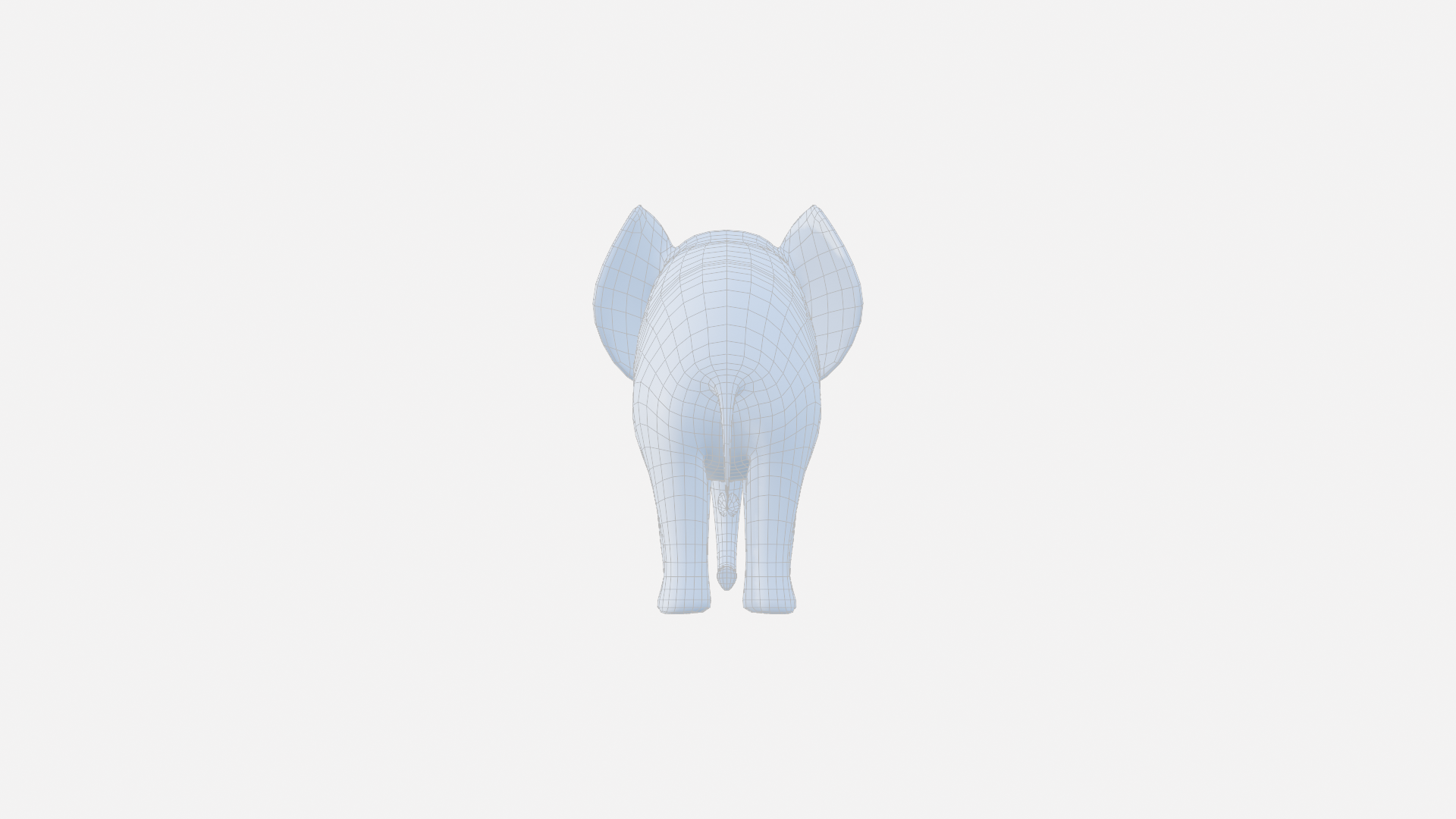
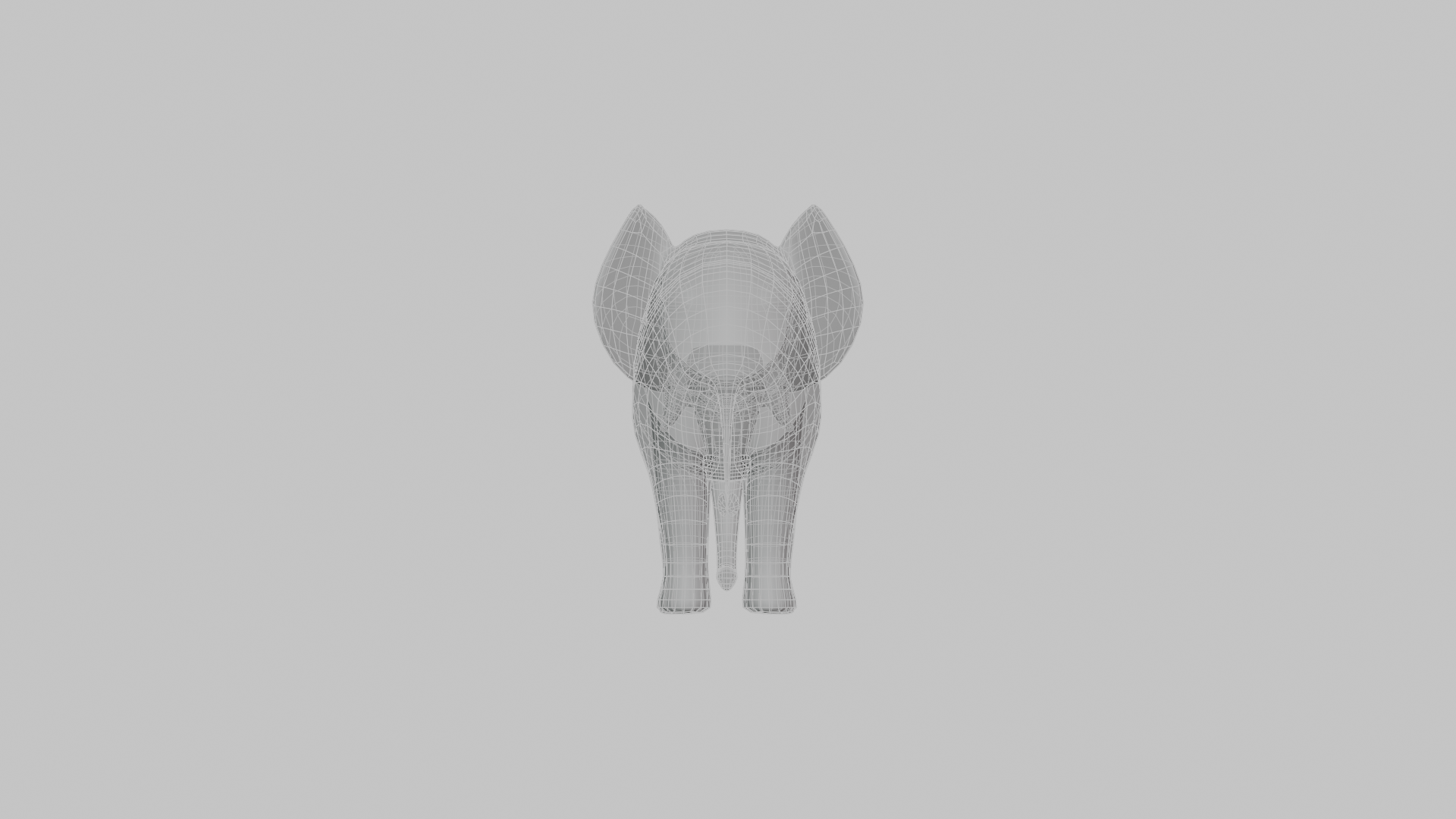
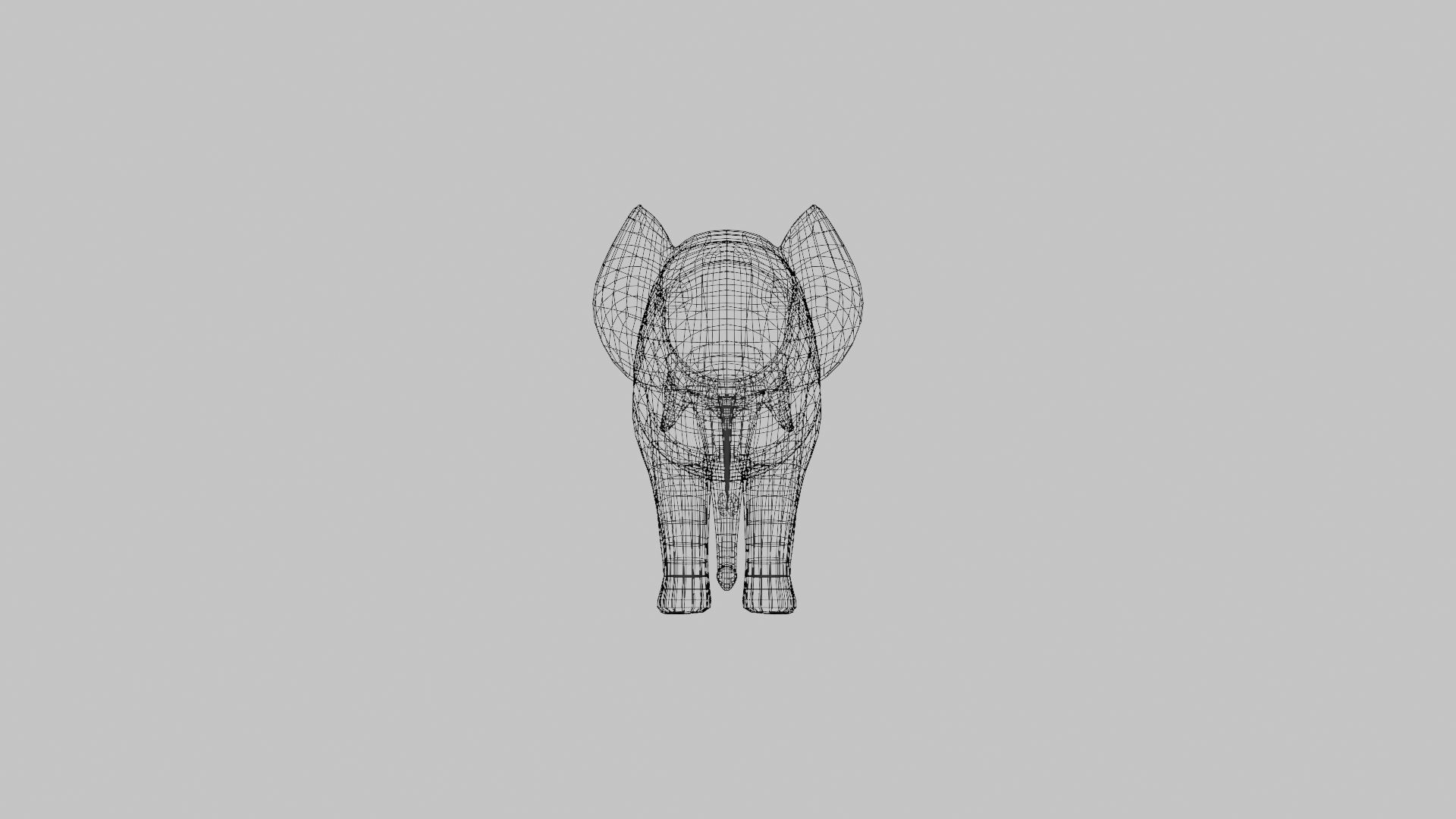
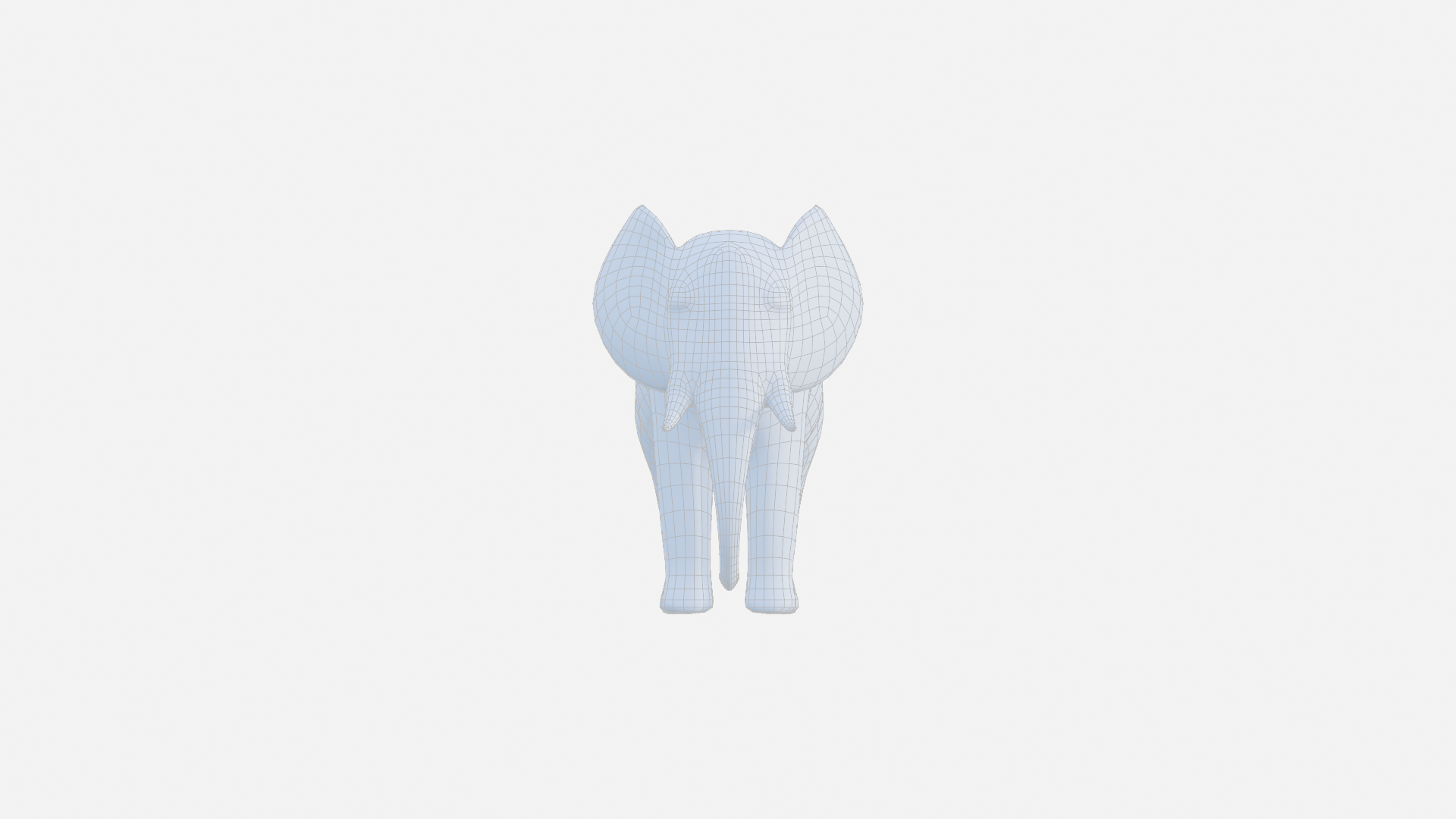
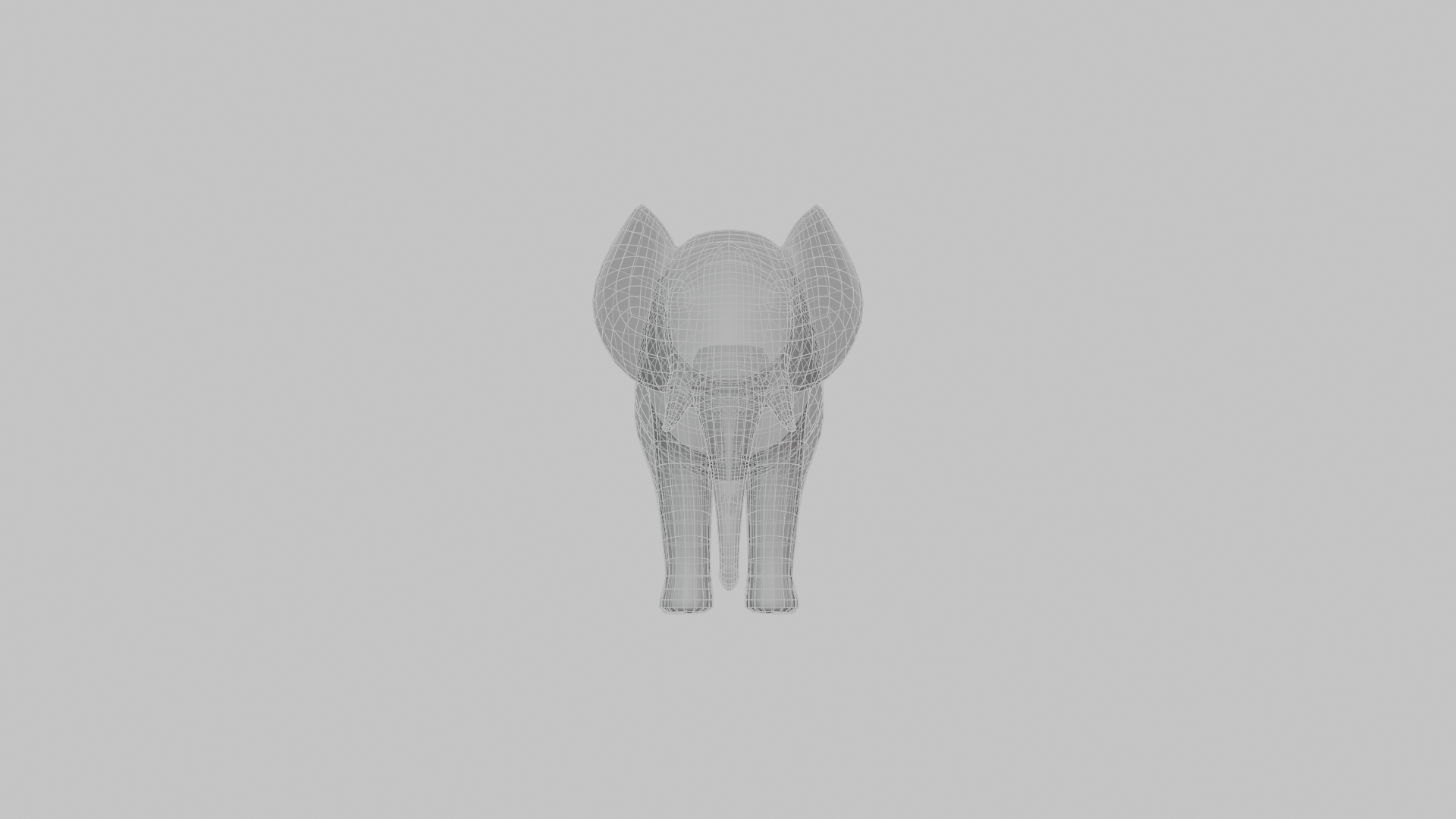
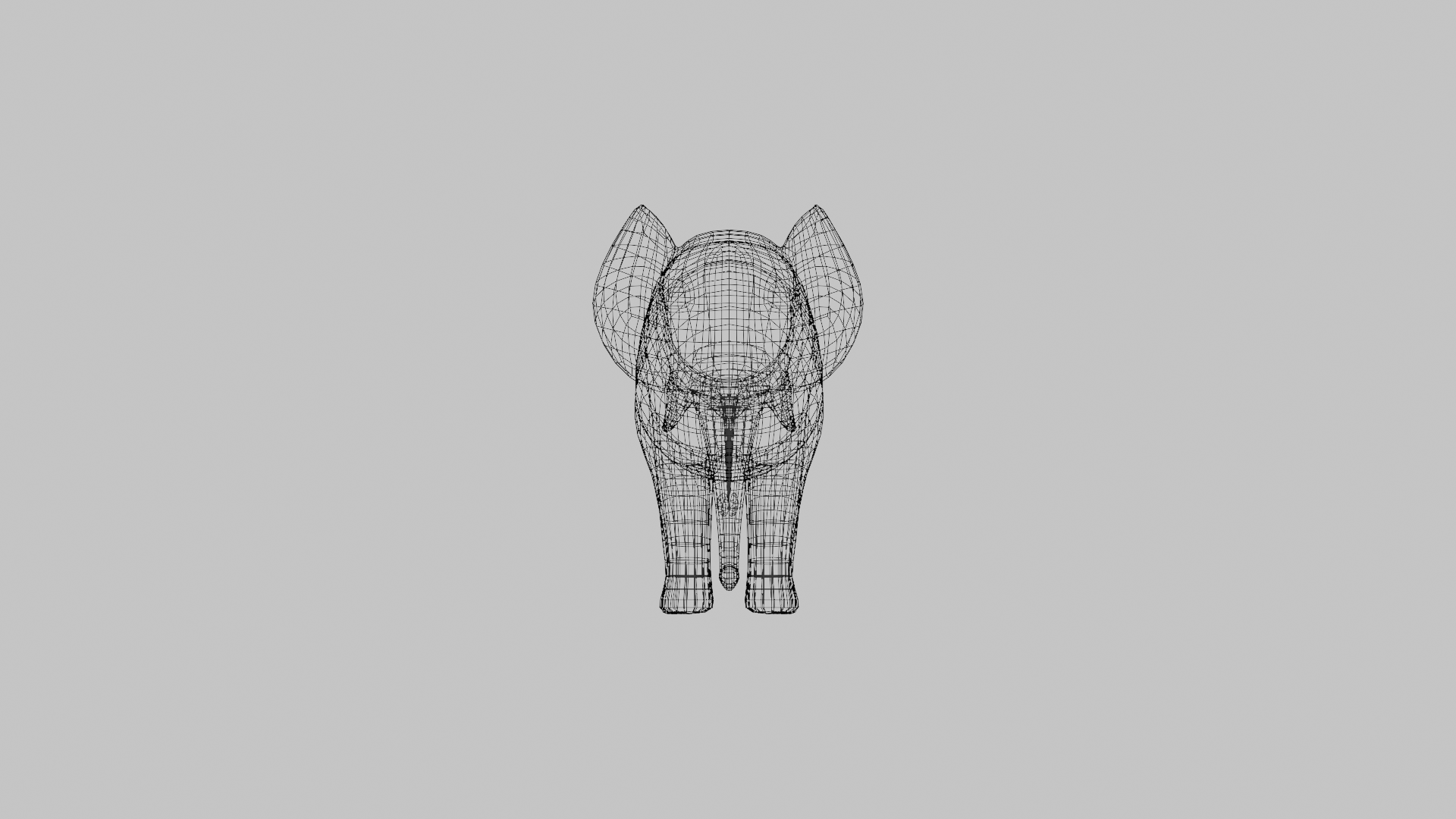
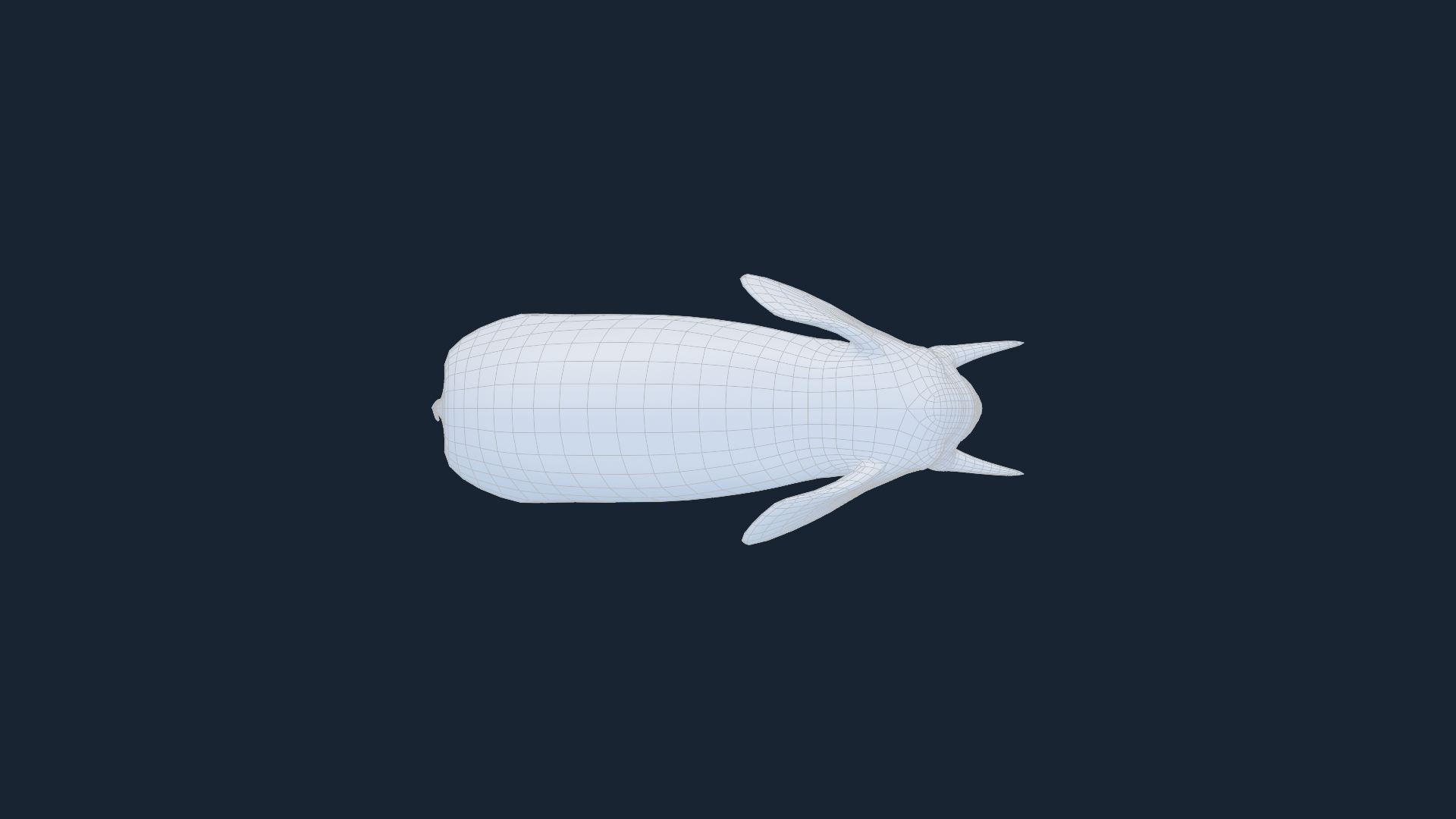
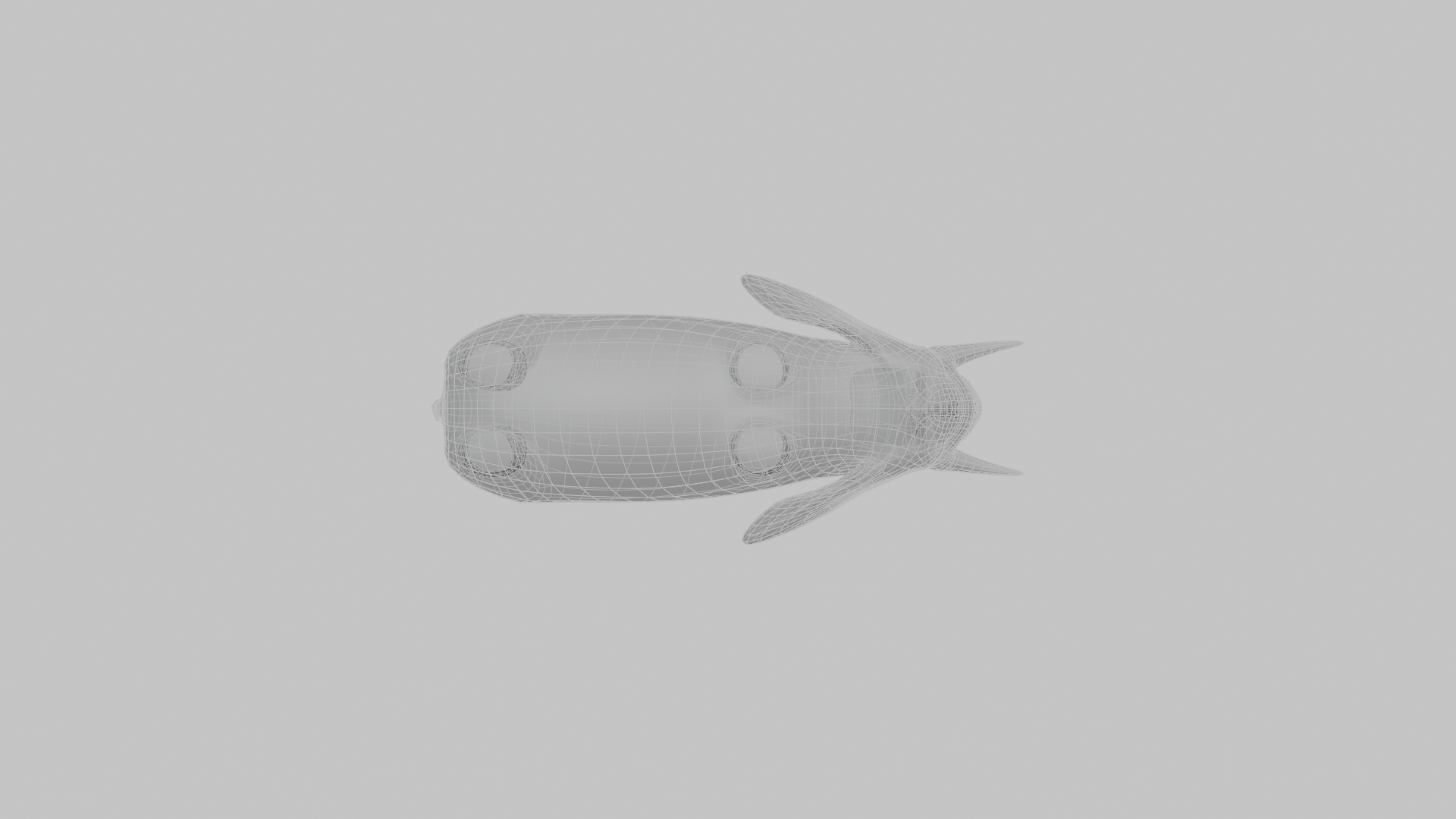
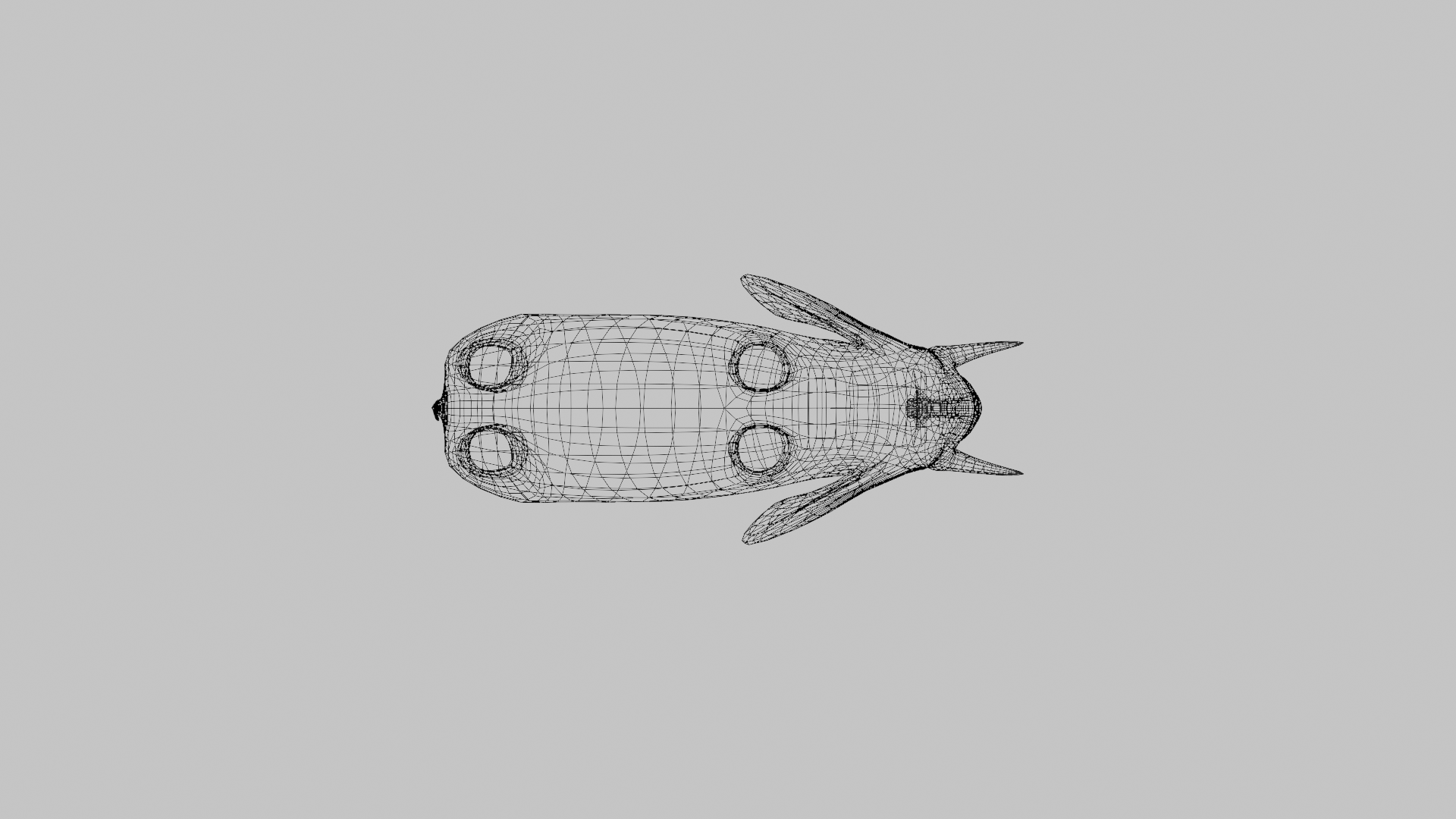
With support for multiple capture modes (Wireframe, Solid, and Material Preview) and six camera views (Front, Back, Left, Right, Top, Bottom), you can generate complete models screenshots in seconds. The addon also includes resolution presets (HD, Full HD, 2K, 4K, and custom), adjustable zoom factor for flexible framing, and an option to hide unwanted objects like lights, cameras, and armatures for a clean result. Check the Example blow
Batch processing makes it possible to create multiple screenshots at once, while smart file naming and automatic output organization ensure your images stay neatly arranged. An optional statistics overlay can also display polygon and vertex counts directly on your renders perfect for documentation and game development.
-
 Blender 5.0 compatibility (FFMPEG workaround)
 -
Wireframe opacity working correctly
-
Checkbox-style UI
-
macOS compatibility (Intel & Apple Silicon)
-
Cross-platform desktop detection
-
Complete viewport restoration ← NEW!
Short Tutorial
🚀 How to Use Fast Screenshot
-
Enable the Addon
-
Open Blender → Edit → Preferences → Add-ons
-
Search for Fast Screenshot and enable it.
-
You’ll now find it in the N-Panel → Fast Screenshot tab.
-
-
Select Your Objects
-
Choose the character or model you want to capture in the 3D Viewport.
-
-
Set Your Options
-
Output Location: Choose between saving to the Blend file folder or your Desktop.
-
Resolution: Pick from presets (HD, Full HD, 2K, 4K) or enter custom dimensions.
-
Zoom Factor: Adjust framing (1.0 = tight, 2.0 = more space).
-
Capture Modes: Select Wireframe, Solid, and/or Material Preview.
-
Camera Views: Pick one or multiple (Front, Back, Left, Right, Top, Bottom).
-
-
Capture Screenshots
-
Click CAPTURE.
-
Fast Screenshot will instantly generate clean, organized screenshots of your model.
-
-
Find Your Images
-
Screenshots are saved automatically with smart naming:
MyCharacter_Character_front_wireframe.png
-


✅ Example Workflow and Screenshots Capture with FastScreenshot Addon
You’re preparing a portfolio sheet of your character model.
-
Select the model → Choose Full HD resolution → Enable all six views → Select Material + Wireframe → Click CAPTURE.
-
In just one click, you now have 12 organized screenshots ready to showcase here is the example
Image name: Untitled_Character_front_solid