 M3D
M3D


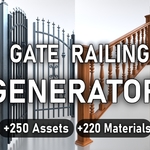
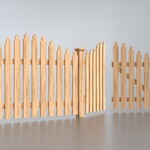
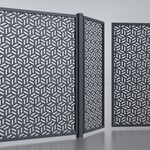
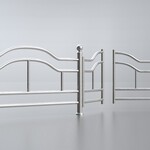
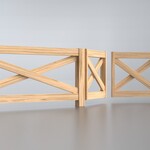
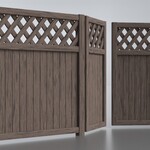
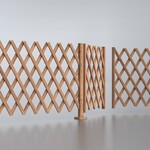
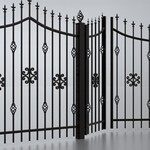
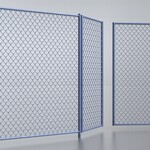
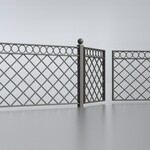
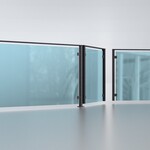
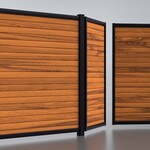
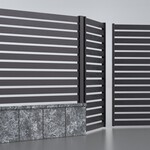
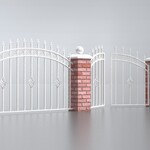
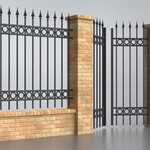
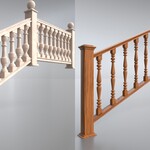
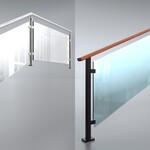
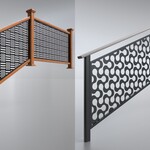
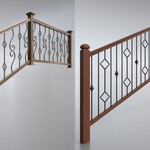
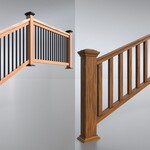
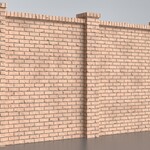
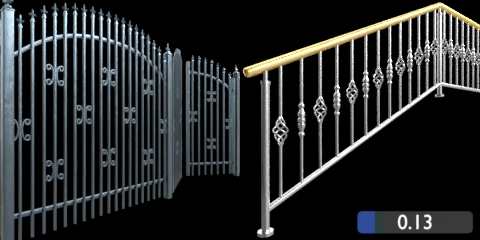
Full Procedural Fence, Gate, Railing & Wall Generator
Powered by Blender’s Geometry Nodes
+250 procedural assets created with this generator
+220 material assets created with 6 procedural materials
(brick, cement, marble, metal, rock and wood included)
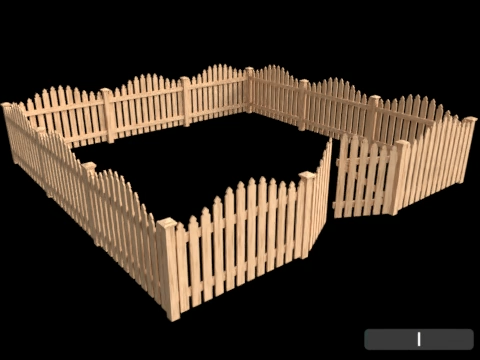
Create any fence, gate, railing and wall you can imagine, from scratch or by customizing any of the assets and materials.
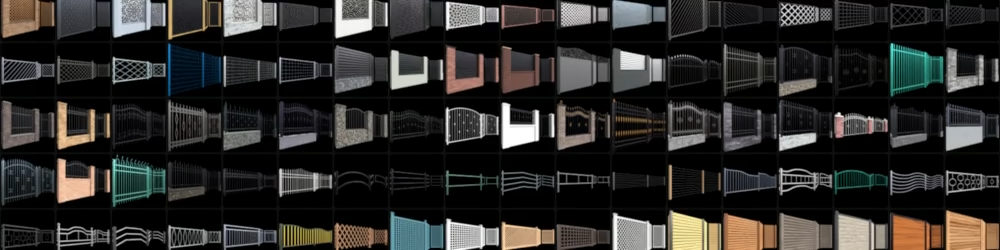
Full Procedural
All geometry is being created %100 procedurally, which enables great customization and performance.
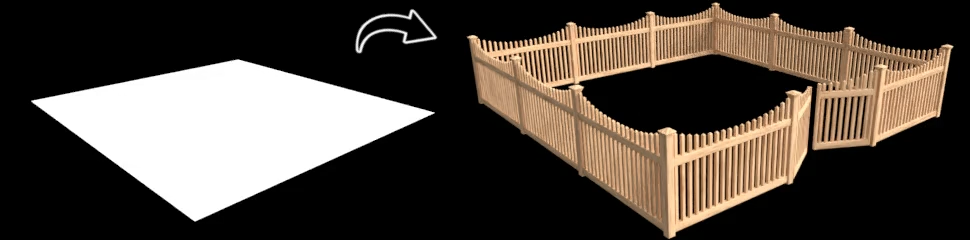

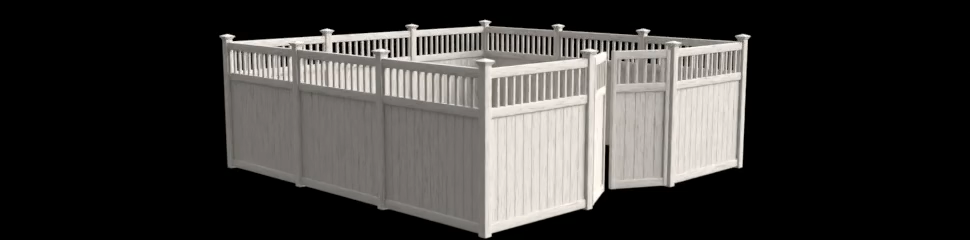
Import Assets Quickly
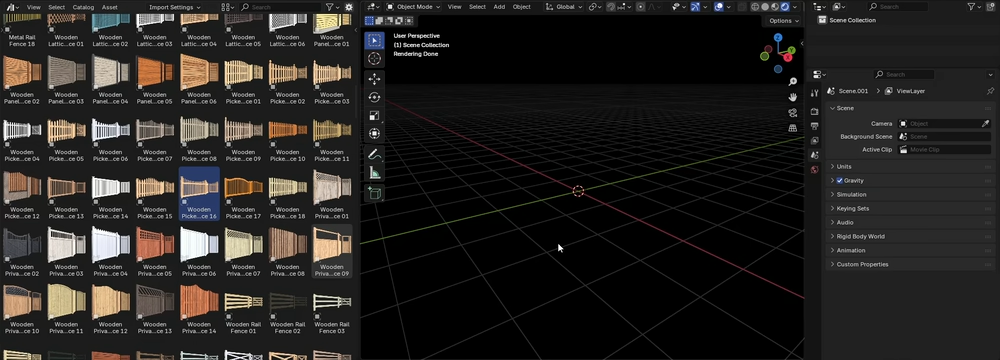
Full Customizable
Made to be easy to use, all settings are self-explanatory. You have tons of options to make your own versions
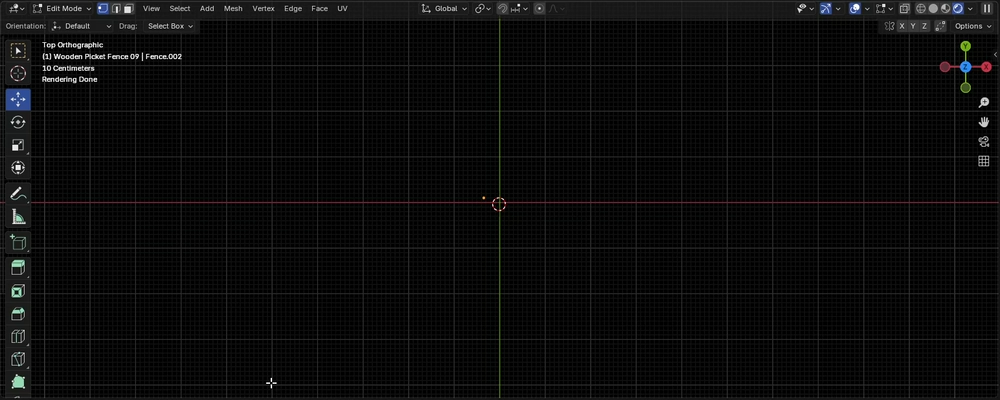
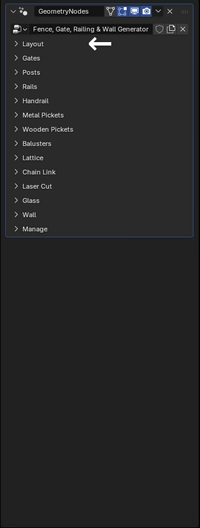
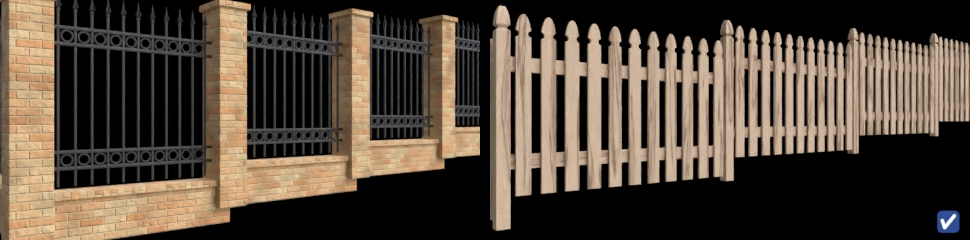
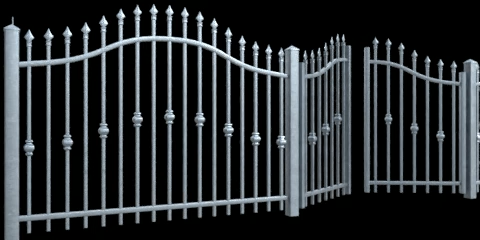
Stepped & Sloped Fencing
Low Poly & High Poly
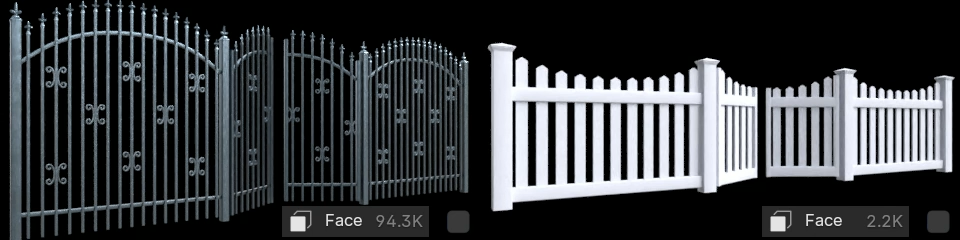
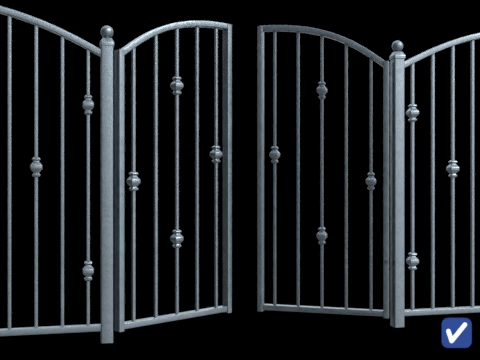
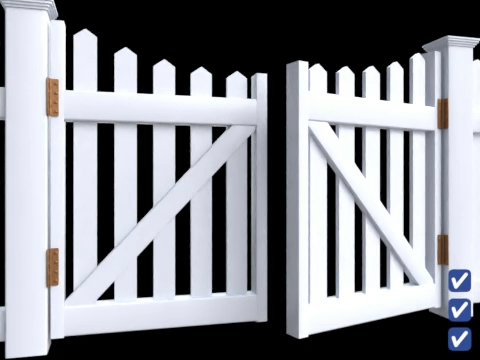
Gates
Opening
|
Width
|
Position
|
Index
|
1 or 2
|
Holders & Hinges
|
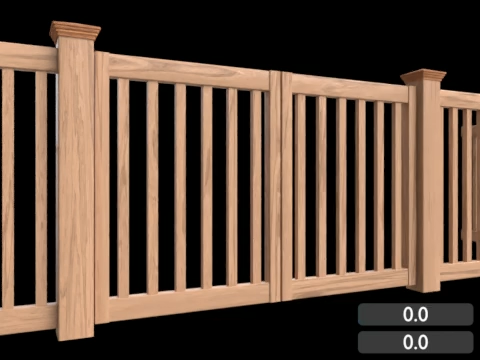
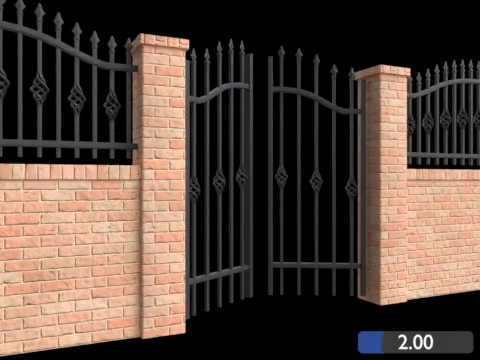
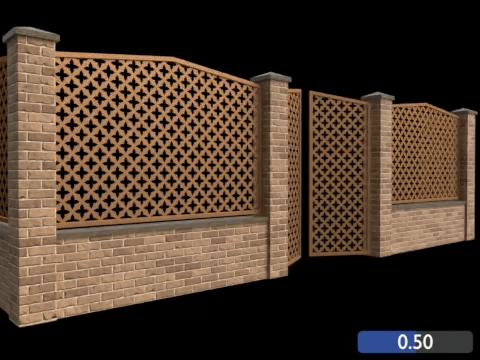
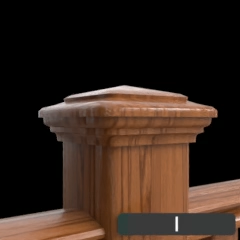
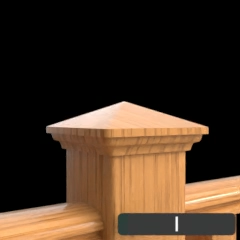
Posts
Distance
|
Auto Rotate
|
UV Mode
|
Bevel
|
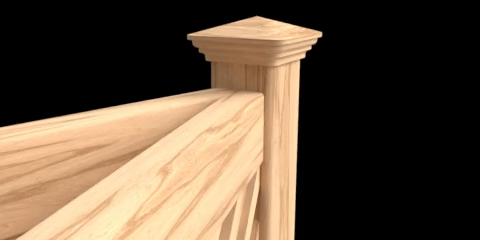
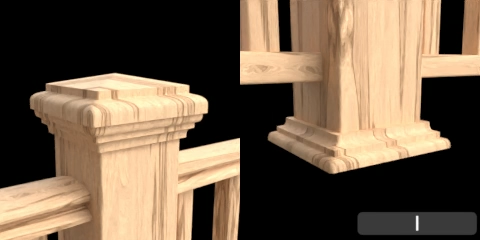
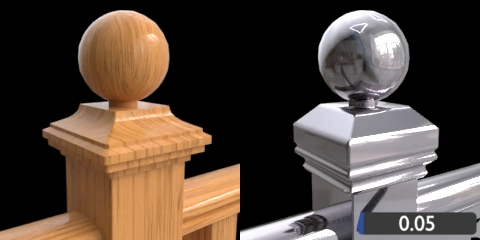
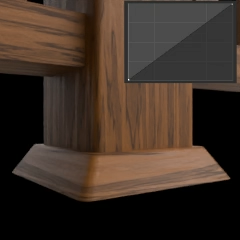
Base Mode
|
Collar Mode
|
Cap Mode
|
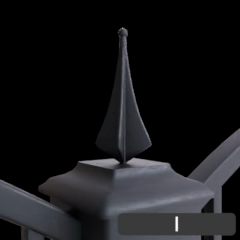
Finial Mode
|
Custom Base
|
Custom Collar
|
Custom Cap
|
Custom Finial
|
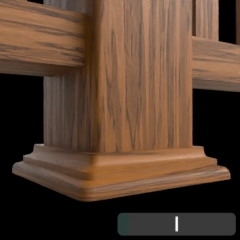
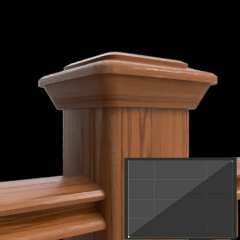
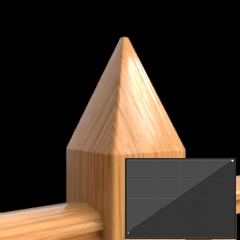
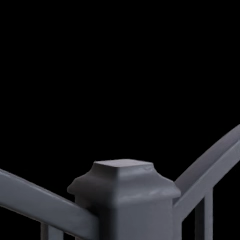
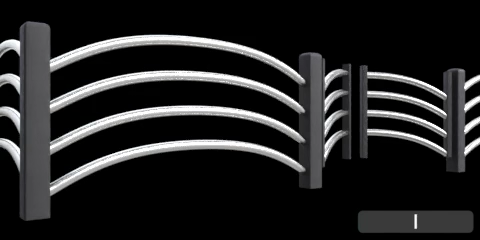
Rails
Number
|
Distance
|
Bend Mode
|
Custom Bend
|
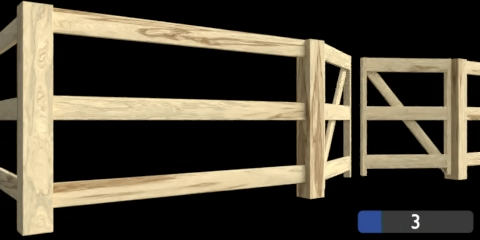
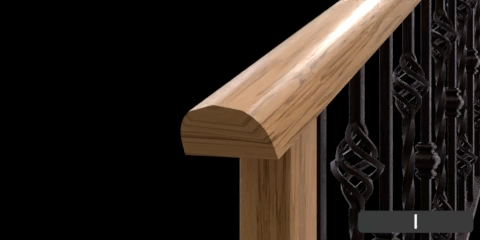
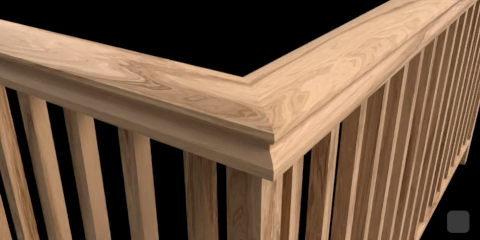
Handrail
Width & Bevel
|
Cap Mode
|
Round Corner
|
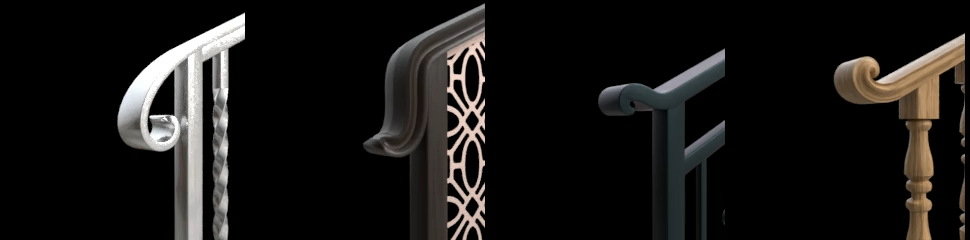
End Mode
|
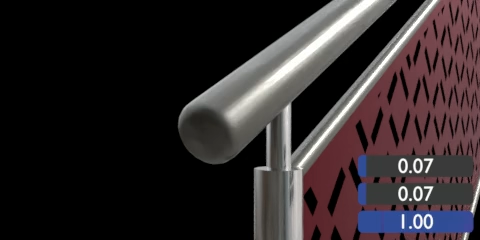
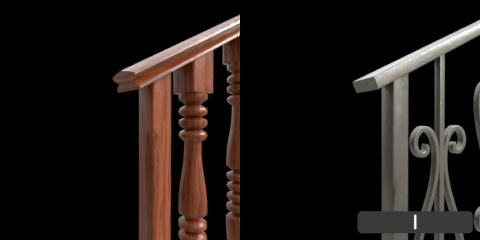
Editable End
|
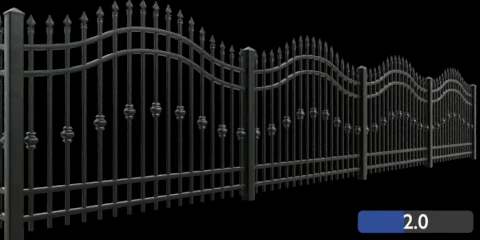
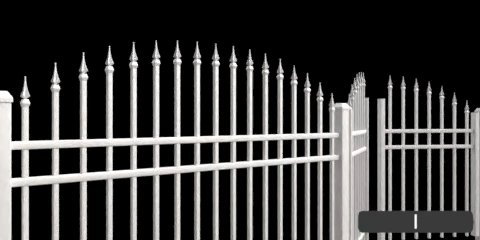
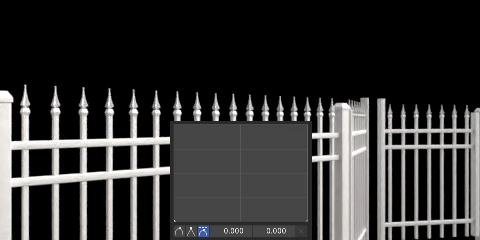
Metal Pickets
Distance
|
Bevel
|
Top Mode
|
Custom Top
|
Select Decorations
|
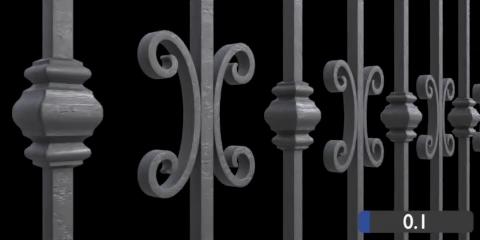
Editable Decorations
|
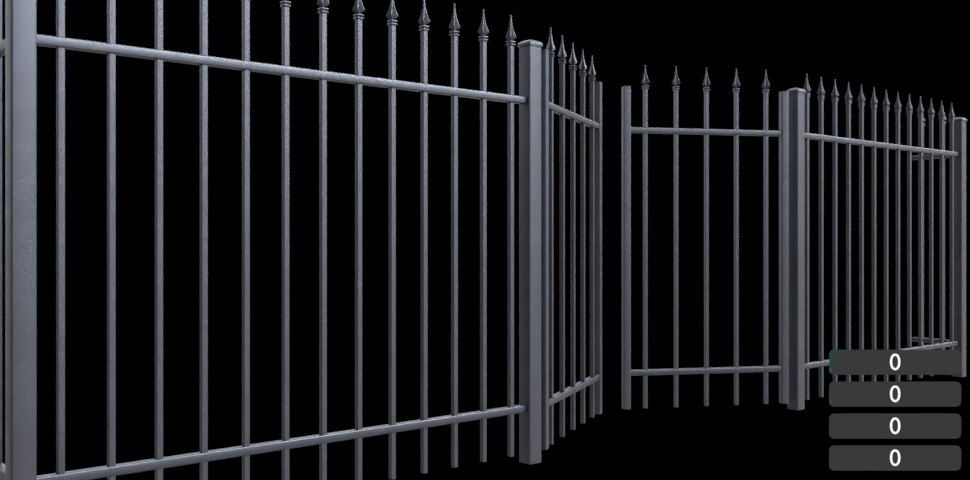
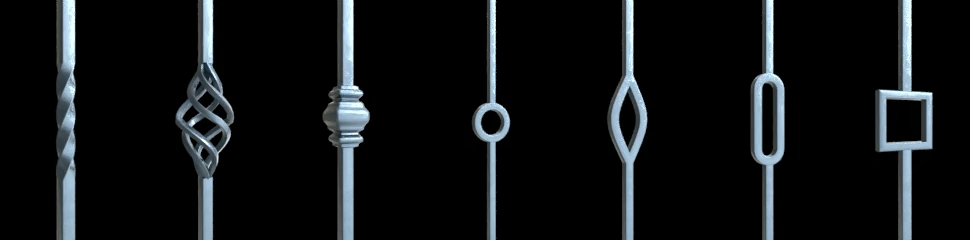
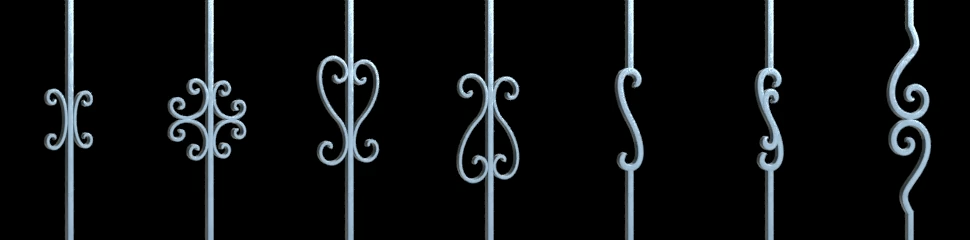
Decorations Distance
|
Custom Decorations
|
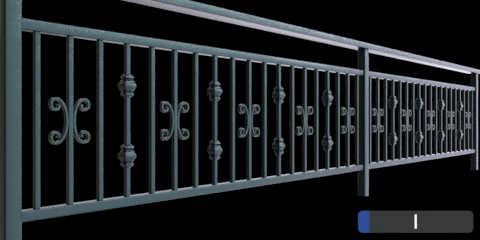
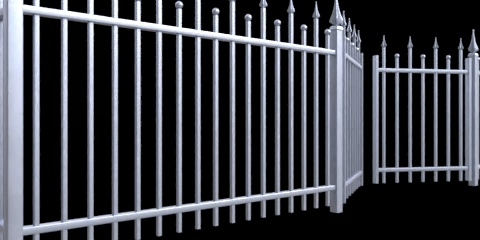
Finial & Collar Mode
|
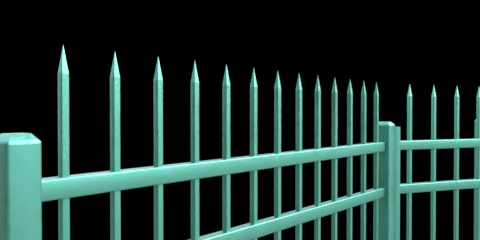
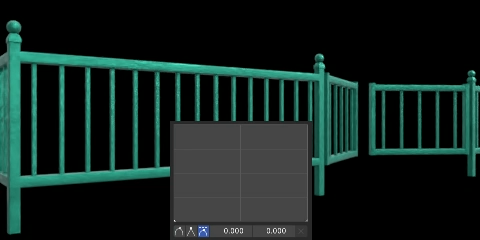
Wooden Pickets
Distance
|
Front or Back
|
Cap Mode
|
Custom Cap
|
Pointed Cap
|
Top Cut
|
Top Mode
|
Custom Top
|
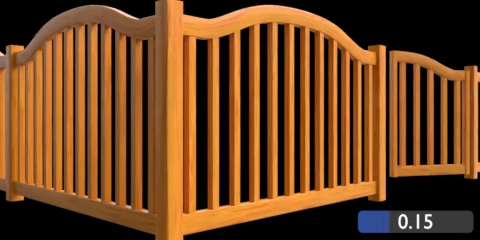
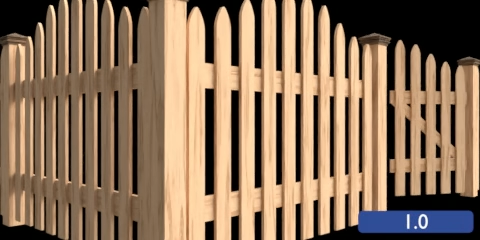
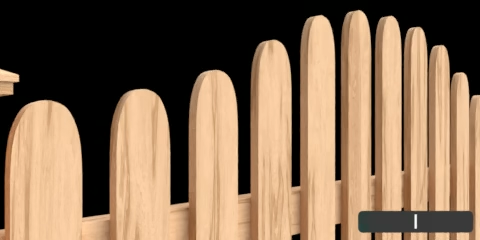
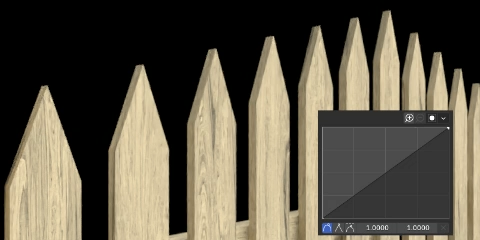
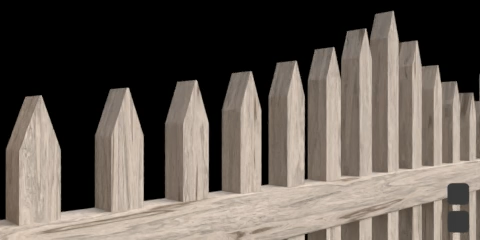
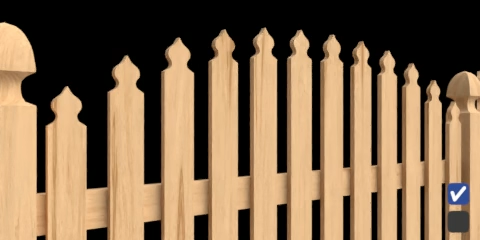
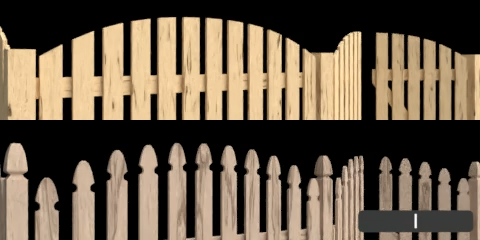
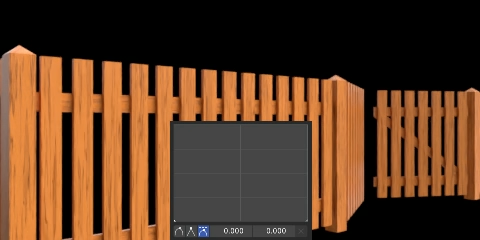
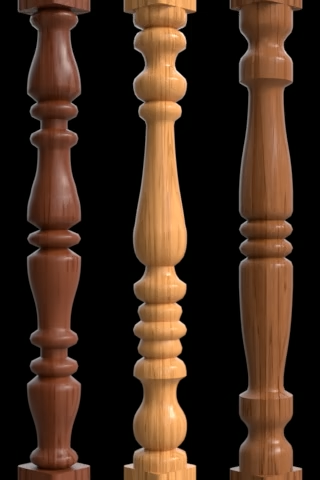
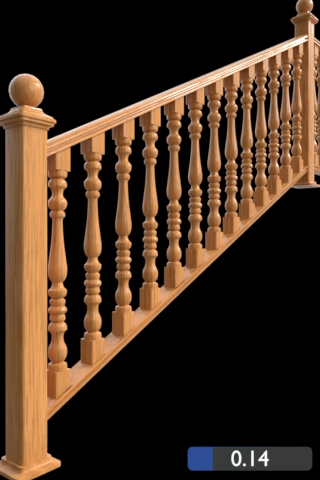
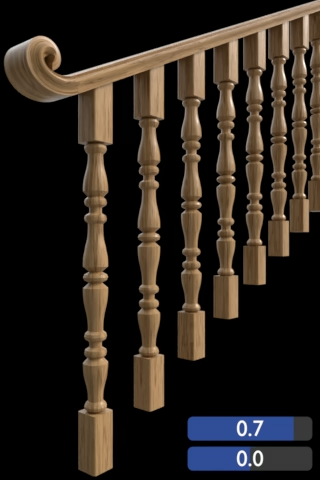
Balusters
Shape Mode
|
Custom Shape
|
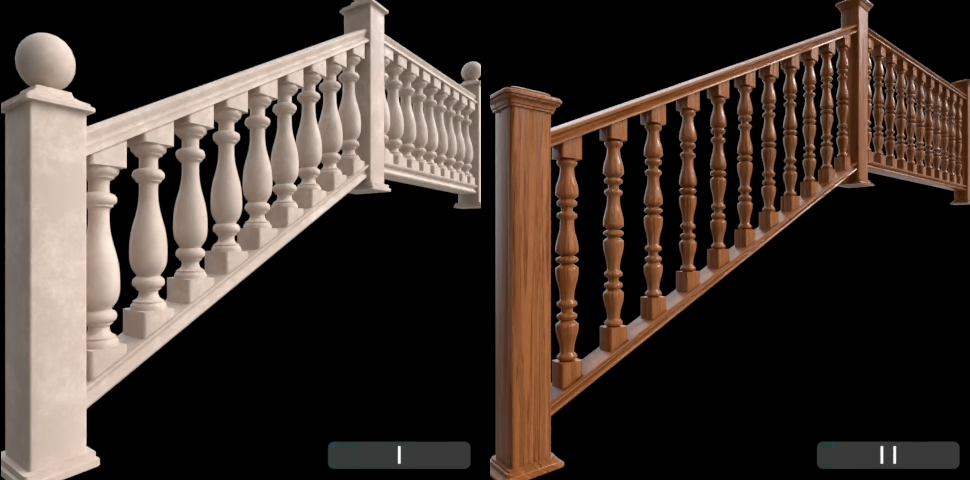
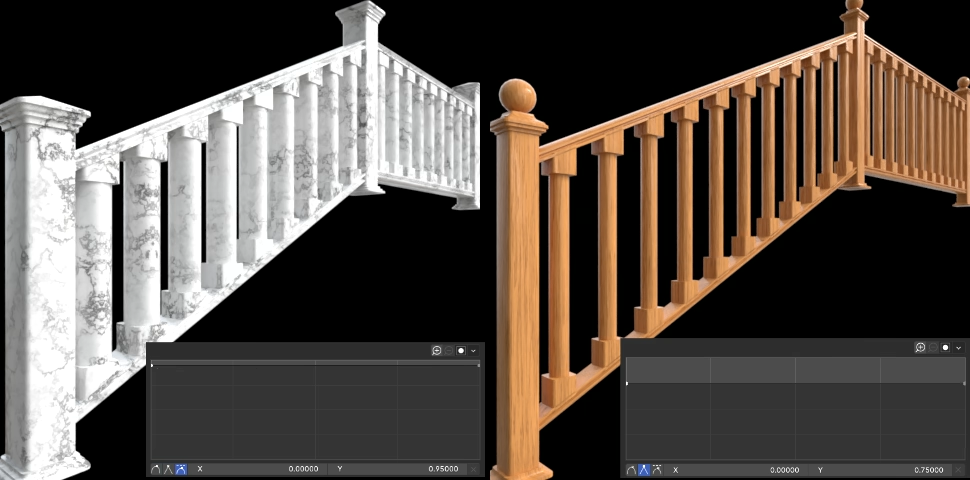
Smart UV
|
Distance
|
Height
|
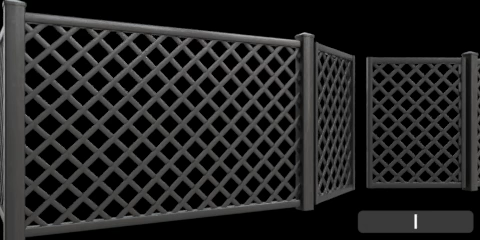
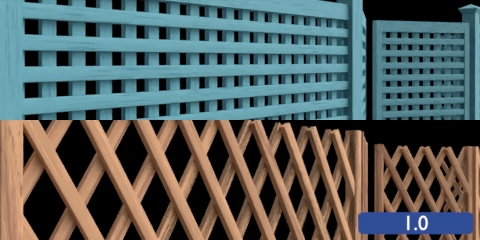
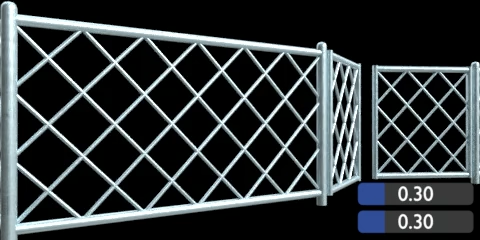
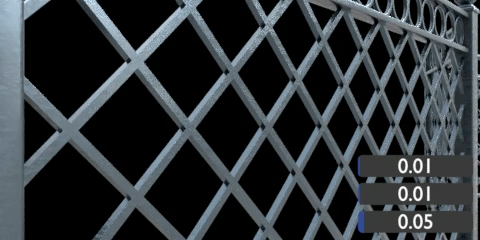
Lattice
Lattice Mode
|
Front or Back
|
Distance
|
Width & Bevel
|
Laser Cut
Laser Cut Mode
|
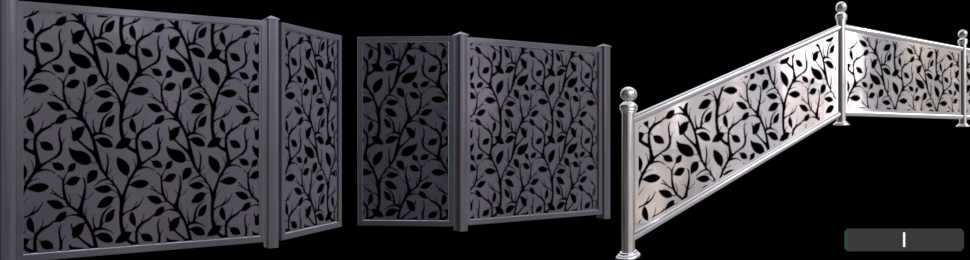
Scale
|
Top Mode
|
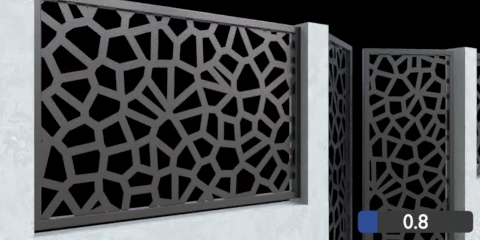
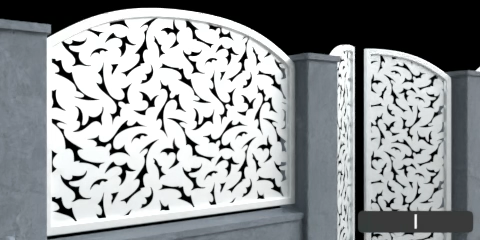
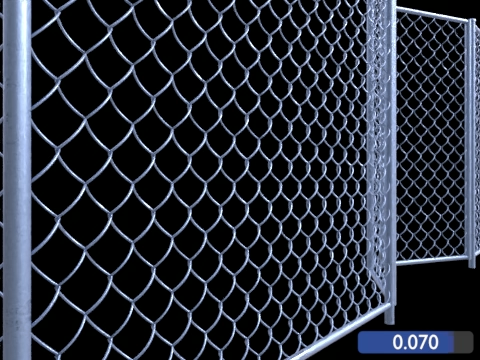
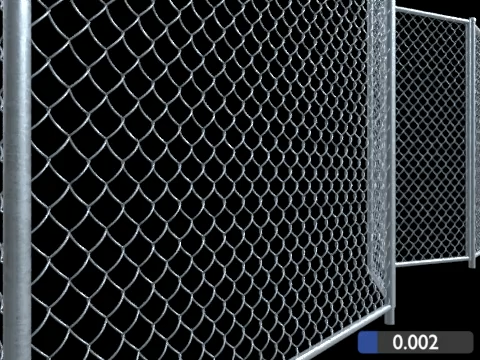
Chain Link
Distance
|
Diameter
|
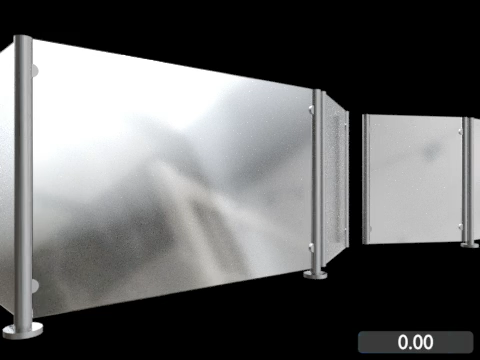
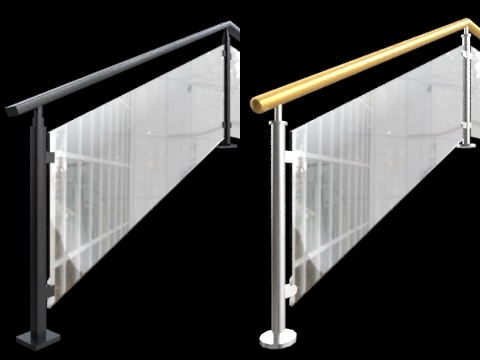
Glass
Distance
|
Height
|
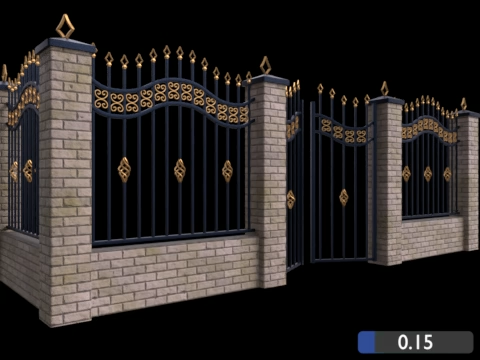
Wall
Width
|
Height
|
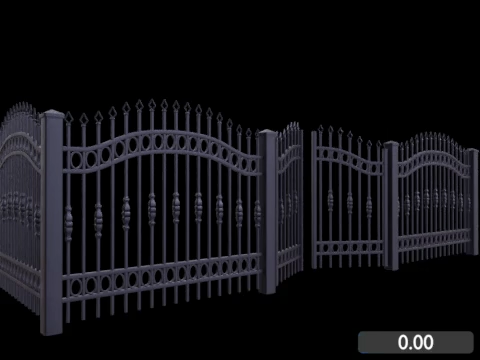
+250 Procedural Assets
Created with this generator

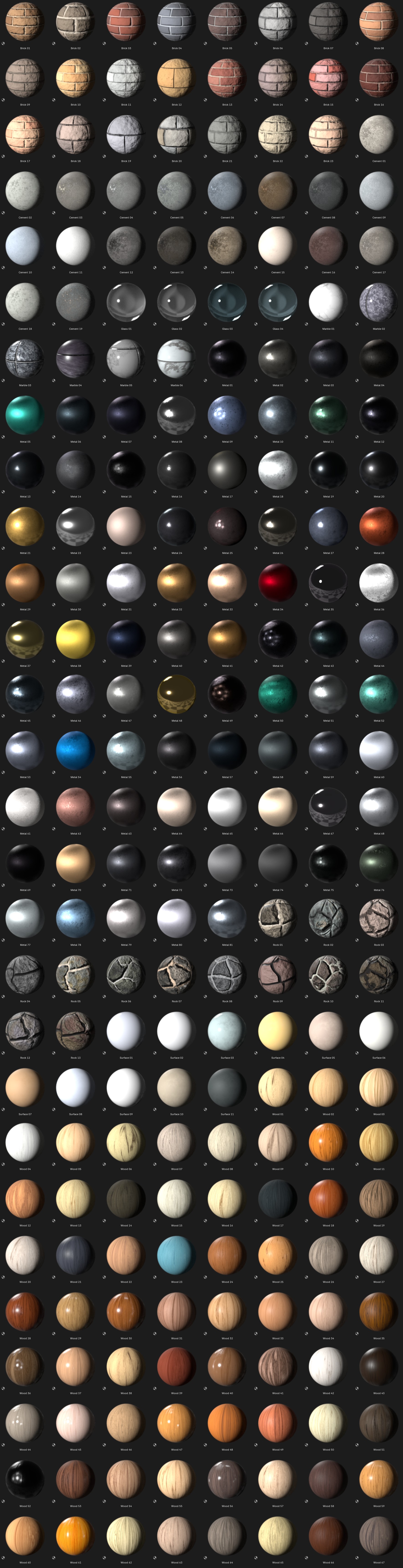
+220 Material Assets
Created with 6 procedural materials
(brick, cement, marble, metal, rock and wood included)
How to set up the asset library?
If you’re unsure how to set up an asset library, here’s a quick tutorial that might help:
Go to Edit > Preferences > File Paths > Asset Libraries.
Click the + button to add a new library.
Select the folder containing the Fence, Gate, Railing & Wall Generator.blend file.
Set the Import Mothod to Append mode.
Save your preferences.
After that, you should be able to find your assets in the Asset Browser and simply drag and drop them into your scene.
