Fill Mesh Tool
 Bissieres Guillaume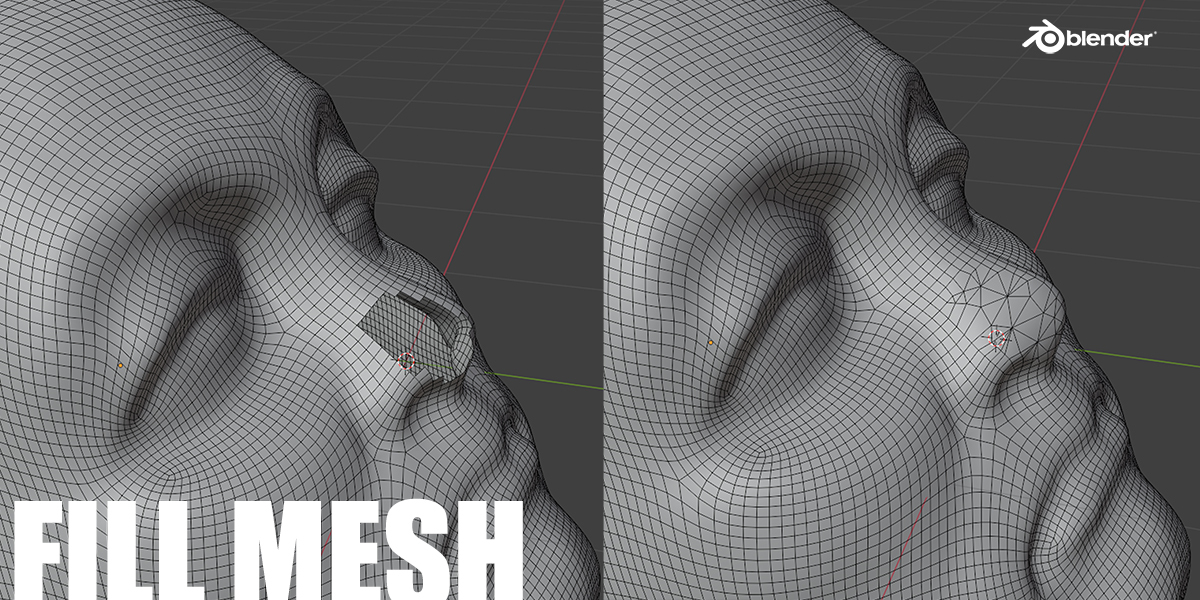
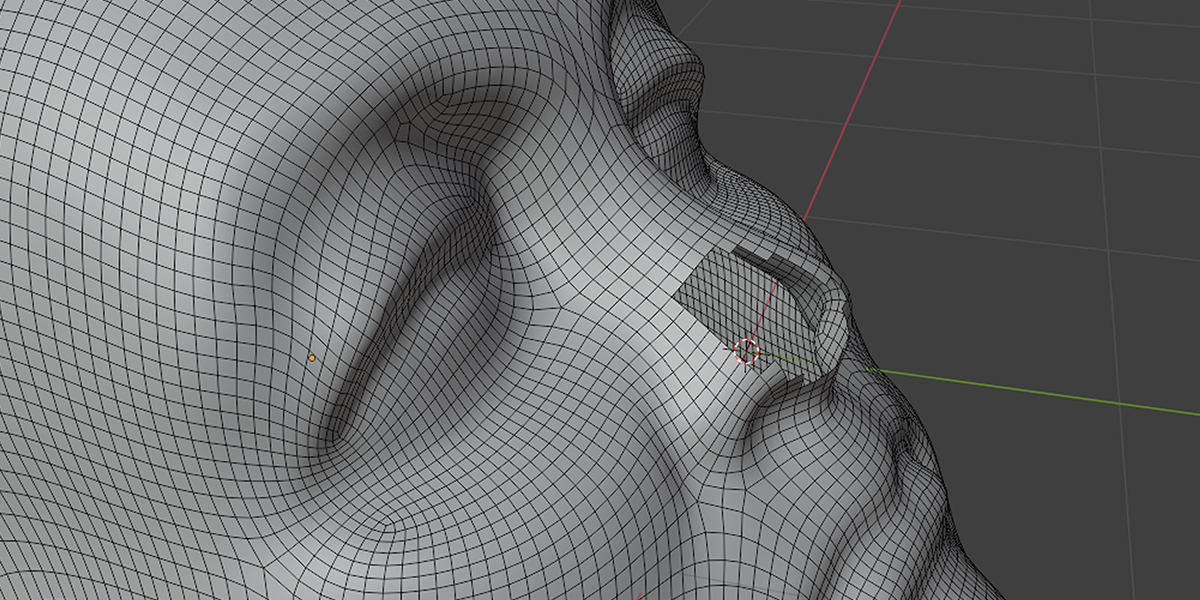
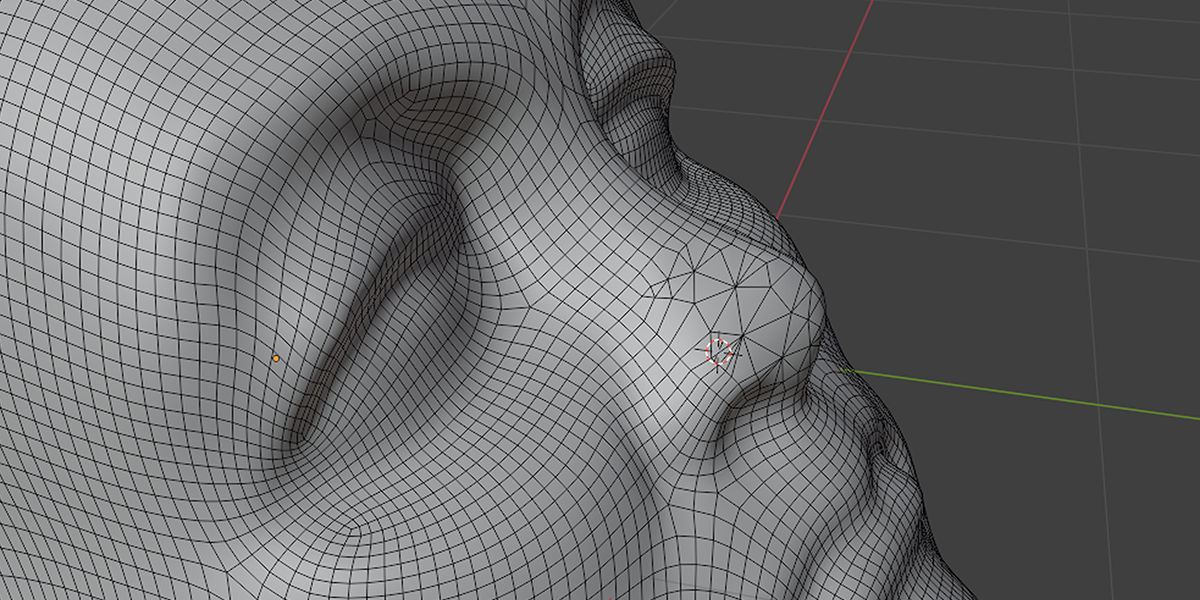
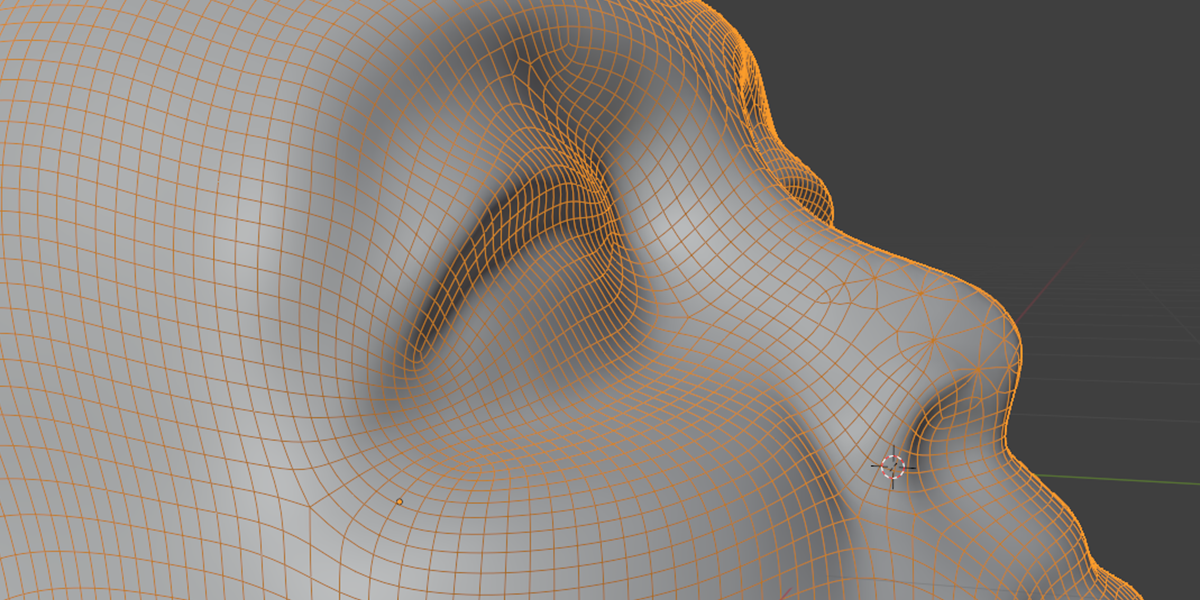
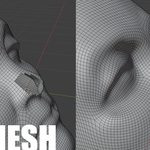
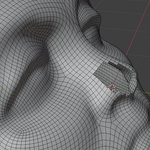
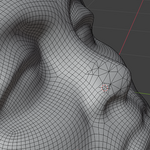
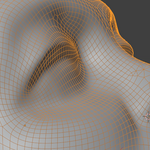
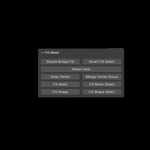
Fill Mesh is a Blender add-on designed for automatic mesh repair. It intelligently fills holes while preserving the original shape and volume, ensuring a precise and optimized reconstruction of 3D models.
Ideal for 3D artists, modelers, and engineers working on 3D scans or damaged models, Fill Mesh simplifies the mesh correction process, delivering professional results in just a few clicks.
Installation
- Download the ZIP file.
- Open Blender and go to Edit > Preferences > Add-ons.
- Click Install, select the ZIP file, and click Install Add-on.
- Enable the add-on by checking the corresponding box.
- Access Fill Mesh in the N menu (sidebar) under the Fill Mesh tab.
How to Use Fill Mesh
- Select an object: Choose a mesh that contains holes to fill.
-
Choose the filling option:
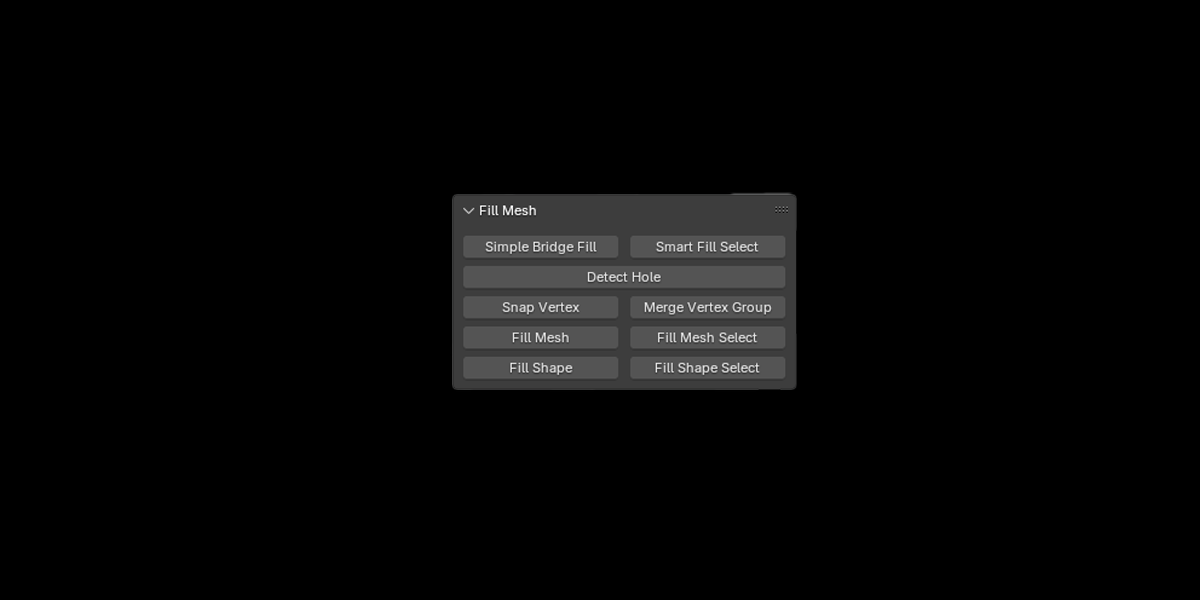
- Smart Fill Select: smart filling algorithms uses advanced techniques like Grid Fill and Hole Fill, for optimal results.
- Simple Bridge Fill: allows you to work manually by selecting edges. Fills gaps by adding extra edges loop cut.
- Detect Hole: Automatic Hole Detection no need to manually select edges, finds the gaps for you.
- Snap Vertex: Automatically moves selected vertices closer to a target group of vertices based on snapping settings.
- Merge Vertex Group: Fuses nearby vertices group within a set distance, ensuring a cleaner topology by connecting the closest points.
- Fill Mesh: Fills holes by adding a mesh, providing better continuity and a cleaner structure on flat surfaces.
- Fill Shape: Analyzes the area and reconstructs the missing shape by adding a more complex mesh, perfect for curved and organic surfaces.
- Click on the option of your choice: The add-on analyzes the mesh and applies the selected option.
- Adjust the settings if needed: Modify the fill density or apply smoothing for better results.
- Validate the changes: Once satisfied, apply the corrections to permanently integrate the new geometry.
Advanced Options
- Curvature Adaptation: Analyzes the topology to optimally distribute new vertices.
- Smart Vertex Distribution: Prevents the creation of overly large or misaligned faces.
- Progressive Smoothing: Integrates a relaxation option to soften mesh edges after repair.
FAQ & Support
Q: The add-on doesn’t properly fill some areas. What should I do?
- Ensure your mesh is clean (Mesh > Clean Up > Delete Loose).
- Try increasing the fill resolution in the advanced options.
Q: Where can I get support?
- For any questions or issues, contact me via Blender Market.
Discover more products like this
fill mesh 3D Mesh fill detector hole mesh 2025-add-ons-for-blender mesh holes MeshDetails 2025addon