Fill the Air - God Rays, Volumetric Fog & Gobo Light Beams
 Rasheed's Edit


Installing
In Blender, open Edit › Preferences › Add-ons, use the drop-down at the top right and choose Install from Disk, then pick the zip you downloaded. Tick Fill the Air in the list to enable it. Blender 4.2 and newer; no restart needed.
Do not unzip it first — Blender wants the archive.
Where the panel is
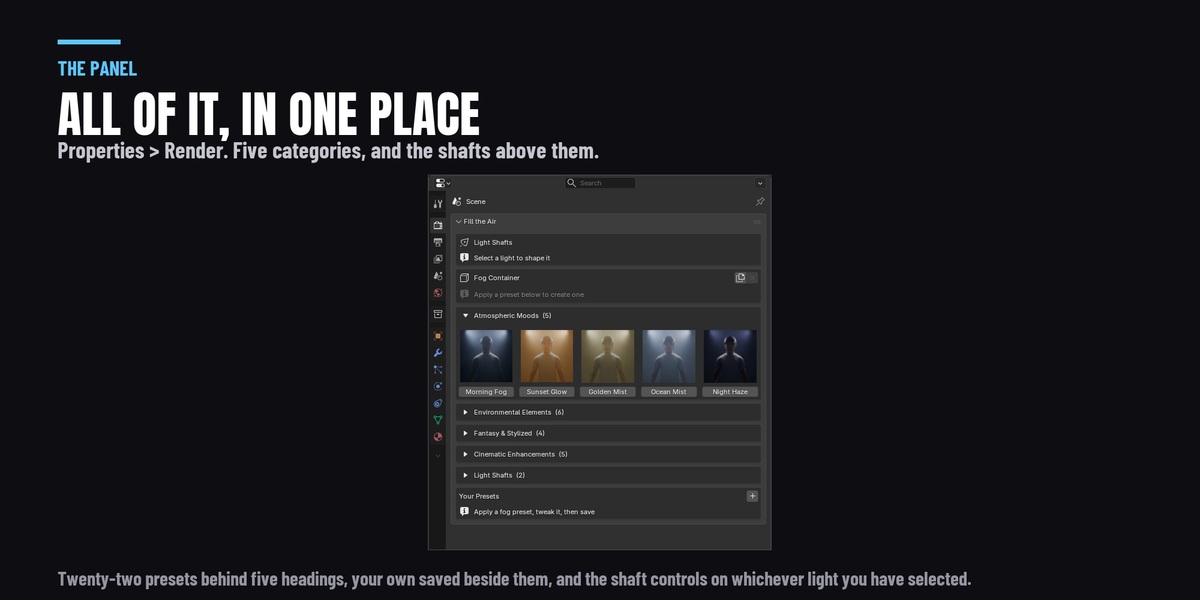
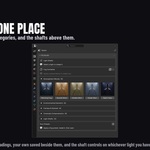
The Properties editor, on the Render tab, in a panel called Fill the Air. That is the same place Blender keeps your render engine and sampling settings — not the N panel in the 3D viewport.
Making a beam
- Select a light. Any light in any scene — a spot, an area light, a point or a sun. It does not have to have been made by this add-on.
- Open Properties › Render › Fill the Air.
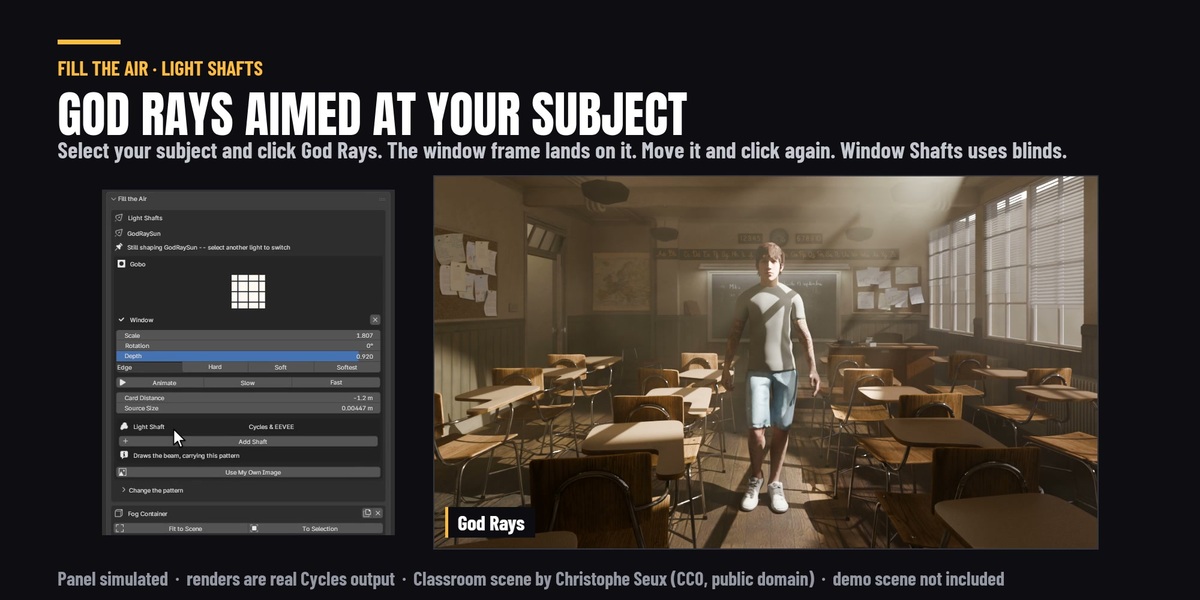
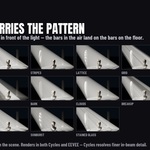
- Pick a pattern under Add Gobo. A camera-invisible cutter is placed in front of the light and parented to it.
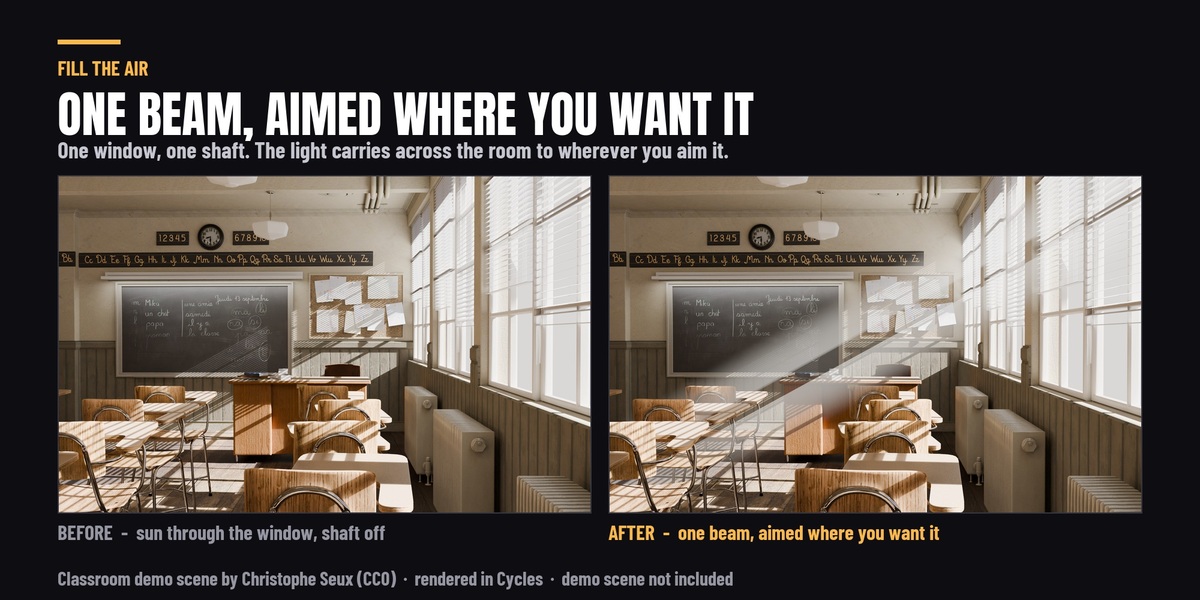
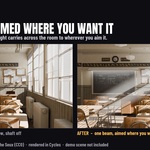
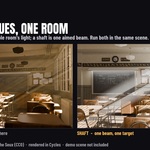
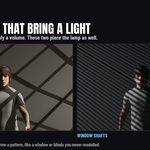
- Press Add Light Shaft. The visible beam appears, carrying the same pattern the cutter is blocking with.
The throw is measured from what the light is actually pointing at — a tracking constraint's target if it has one, otherwise a raycast down the light's own axis — so the cutter is sized for your scene rather than for an assumed distance.
The beam controls
Every one is a live slider on the light, and each writes straight into the beam's node graph. Nothing is baked.
- Strength — emission per unit length along the ray. It is independent of the lamp's watts, so brightening the beam does not brighten the room.
- Spread — narrows the shaft without moving the pattern, the way a spot's cone angle clips light without rescaling a gobo. Widen the light's own cone to go past 1.
- Length — how far down the beam the brightness falls off. This is the fade, not the cone; the cone always runs past whatever the light lands on.
- Far End — what is left of the brightness at the far end, as a fraction of the near end.
- Edge Fade — where the beam starts softening towards its wall. 0 is the axis, 1 is the cone wall.
- Haze — how much light still fills the bars the gobo blocks. Zero leaves them pure black, which is what a beam with no scattering does and what reads as a harsh strip; real fog spills light sideways into its own shadows.
- Colour — the beam's own tint, without regrading the key light.
- Cone or Rectangle — a round shaft or a slab. On a sun the same two buttons read Cylinder and Box, because that is what a parallel beam builds.
Shaft Pattern Size coarsens the pattern inside the beam without touching the pattern on the floor. A cutter detailed enough to read on a wall can be too fine to read in the air, and this is the control for that.
The sixteen patterns
Blinds, window, stripes, lattice, grid, honeycomb, city lights, palm fronds, bark breakup, clouds, breakup, water caustics, rain, dots, sunburst and stained glass. Every one is a node graph rather than an image, so there is nothing to download and nothing to run out of. Each has a rendered tile in the panel.
- Scale sets how many times the pattern repeats across the cutter.
- Depth sets how dark the blocked part gets. 1 blocks the light completely; lower values only break it up.
- Match Gobo, 2× and 4× fit the pattern to your subject, so the bars land at a size that reads at the distance your light is actually throwing.
- Animate Gobo drives the pattern from the frame number. Leaves sway, water shimmers, rain falls — in the air as well as on the floor, because both read the same cutter. It uses drivers rather than keyframes, so nothing is left in your F-curves and there is no range to set. Stop Gobo Animation takes it off.
Using your own image
Load Gobo Image takes any image Blender can open — PNG, JPEG, EXR, TIFF — and uses it as the cutter. The beam projects it into the air exactly as it does the built-in sixteen.
- The image keeps its aspect ratio rather than being squashed to a square.
- It is read as non-colour data, so a stencil is not put through a colour curve that would soften every edge in it.
- Bright areas pass light by default, which is what a photograph of a window wants — bright panes, dark mullions. Flip Gobo Image inverts that for a gobo scanned the other way round, and it is a value change rather than a rebuild, so your placement survives it.
- Match Gobo and the 2× / 4× buttons deliberately leave a loaded image alone. They write a repeat count, which is meaningful for a tiling procedural and destructive for a photograph.
- Of the three animation styles, a loaded image gets the one that moves the whole picture — an image has no internal graph to drive.
The fog presets
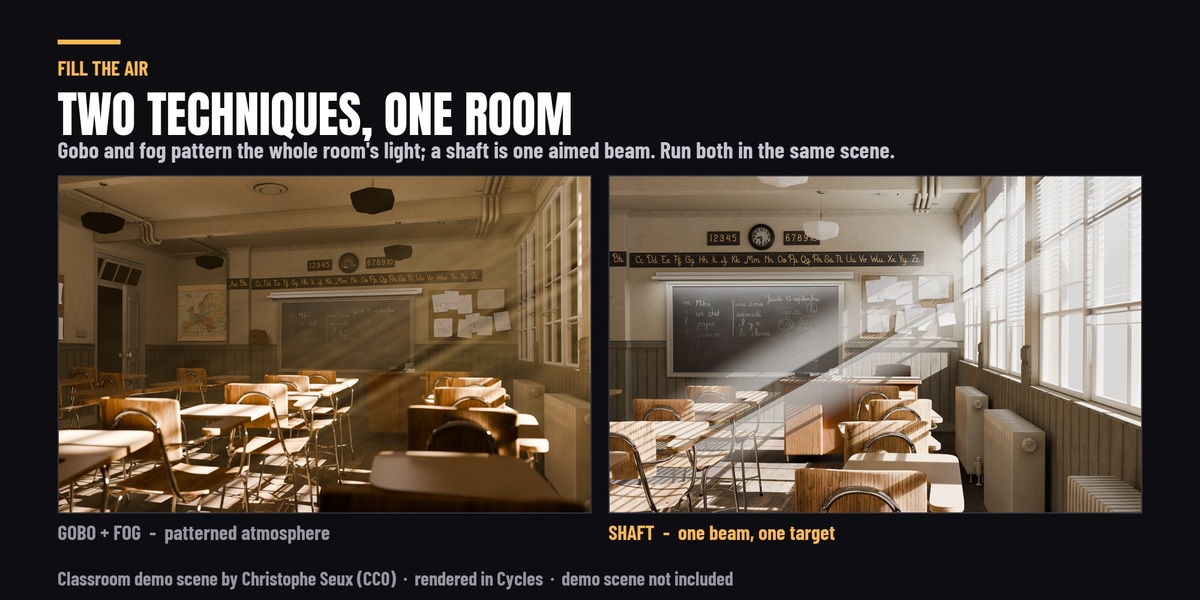
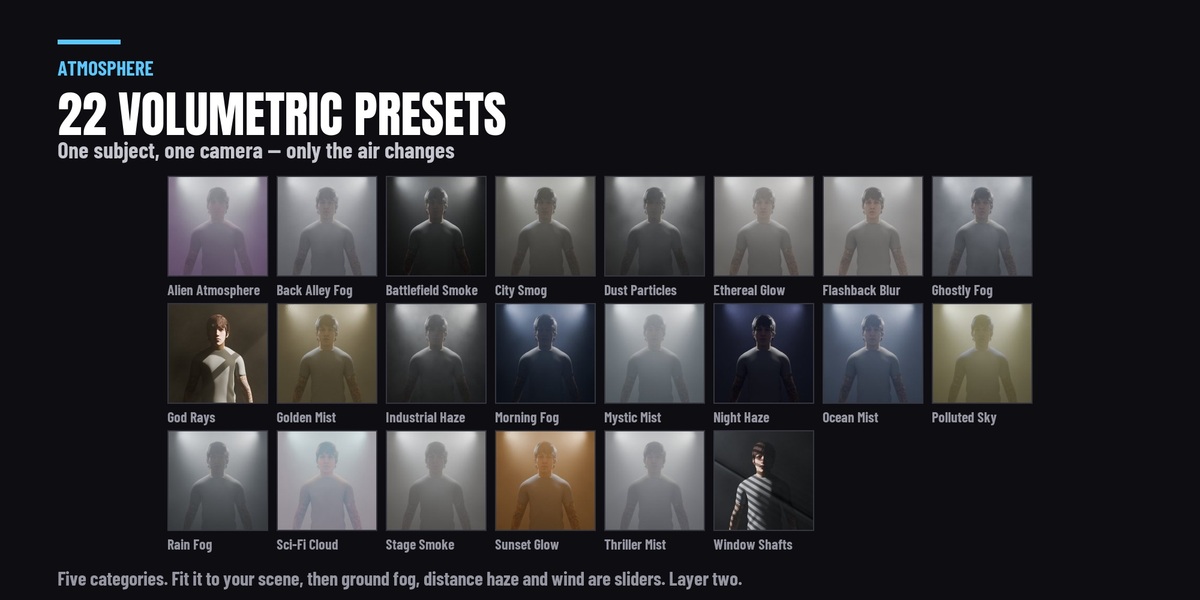
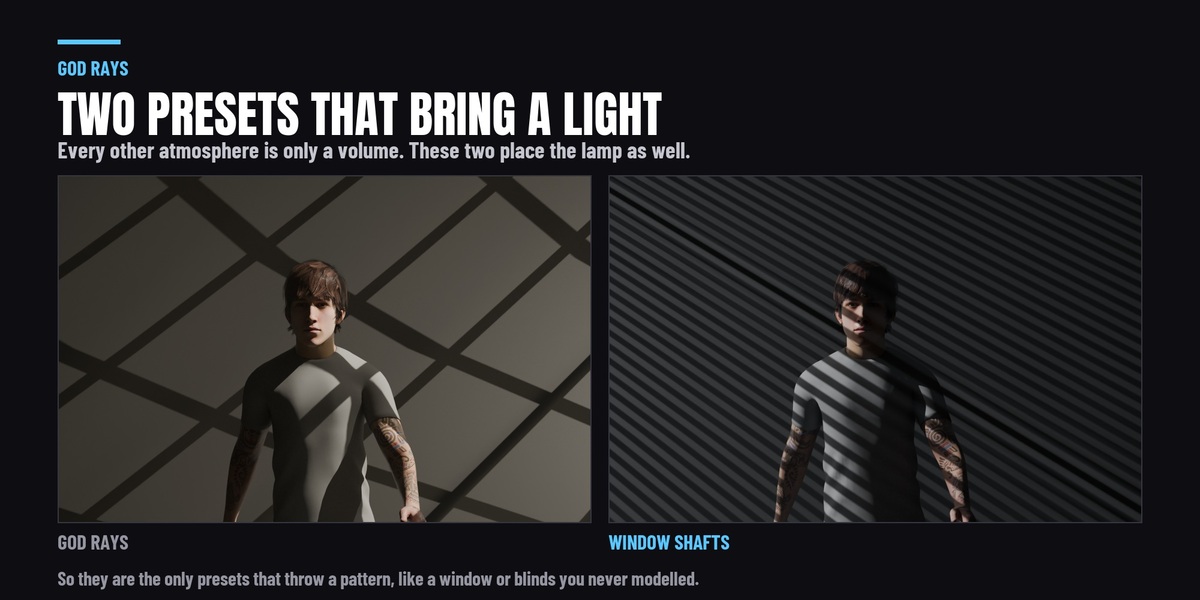
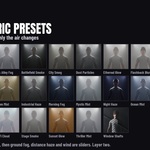
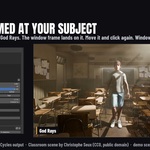
Twenty-two atmosphere presets in five categories, each with a rendered tile, including God Rays and Window Shafts — the only two that place a light as well as a volume. The container fits itself to your scene, so there is no domain to size or position by hand.
- Fit to Scene sizes the container to what you have built.
- Ground fog settles the density to the floor on a slider.
- Distance haze thickens the air with depth.
- Wind moves it.
- Layers stack, so a cool ground fog under a warm haze is two presets rather than one compromise.
- Your own settings can be saved as a preset and reused.
The beam and the fog are independent. A shaft does not need fog in the scene and fog does not need a shaft — use either, or both, and they do not interfere with one another.
Render engines
The beam renders in Cycles and EEVEE with no volumetric setup. Cycles resolves finer detail inside the beam; EEVEE's volumetrics are grid-based, so the pattern in the air is softer there. The pattern landing on your surfaces is identical in both, because the gobo here is a camera-invisible cutter rather than a texture wired into the light.
What it leaves in your file
The beam is an ordinary mesh with an ordinary emission material, and the cutter is an ordinary plane. Both are in your scene, both are parented to your light, and both are editable by hand in the Shading workspace — the panel reads its values back out of those nodes, so an edit you make there is what the sliders show.
Remove Light Shaft and Remove Gobo take them out again. Nothing is hidden, nothing phones home, and no library has to stay installed for a file to render.
Versions this release was run against
Blender 4.2 LTS, 4.5 LTS, 5.1 and 5.2, on Windows, macOS and Linux. The test suites drive the real operator API and assert on rendered pixels rather than on whether a button exists.
 Included
Includes 12 months of
- Support from Rasheed's Edit
- Product updates
Extend this product’s Support Period +12 months: 50% of product price
Have questions before purchasing?
Login to message
| Blender Extension Compatible | Yes |
| Published | about 2 months ago |
| Blender Version | 4.2 - 5.2 |
| Extension Type | Add-on |
| Render Engine Used | Cycles, Eevee |
| License | GPL |
Discover more products like this
cinematic-lighting volumetric fog light beams gobo window light volumetric sunbeams light shafts Lighting atmosphere fog god rays