Finance Studio Lite - Virtual News Set
 virtualset
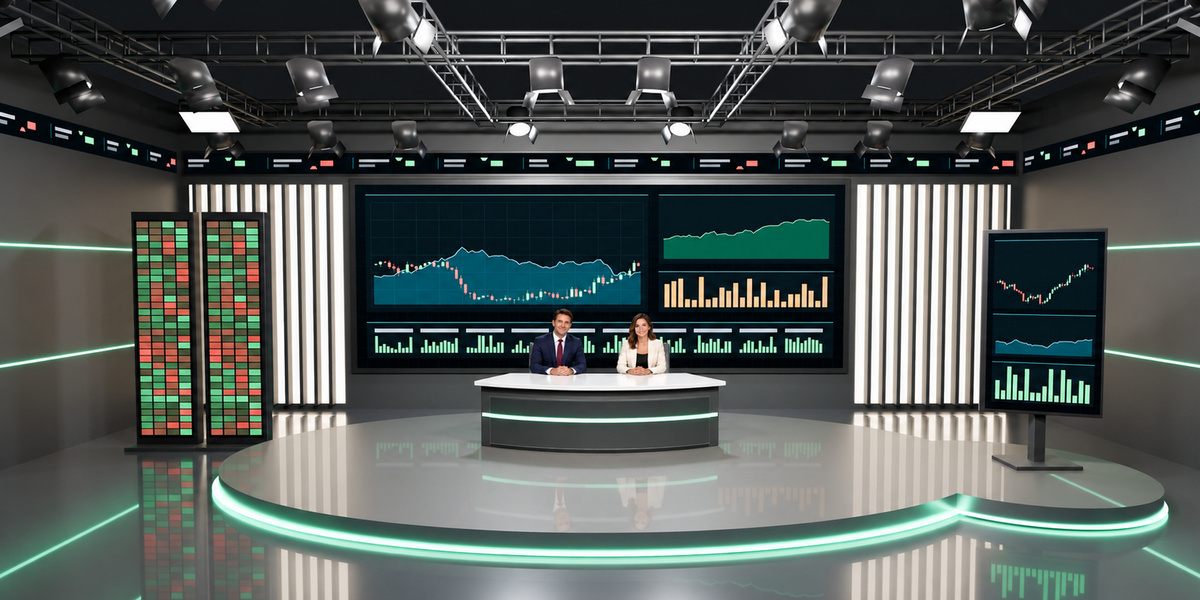
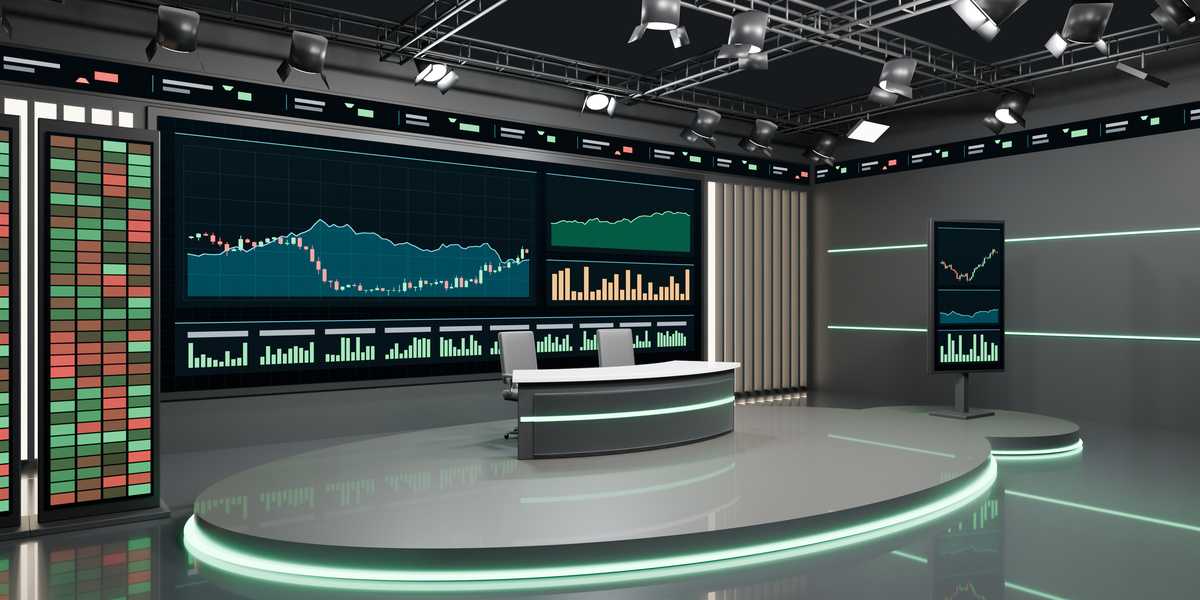
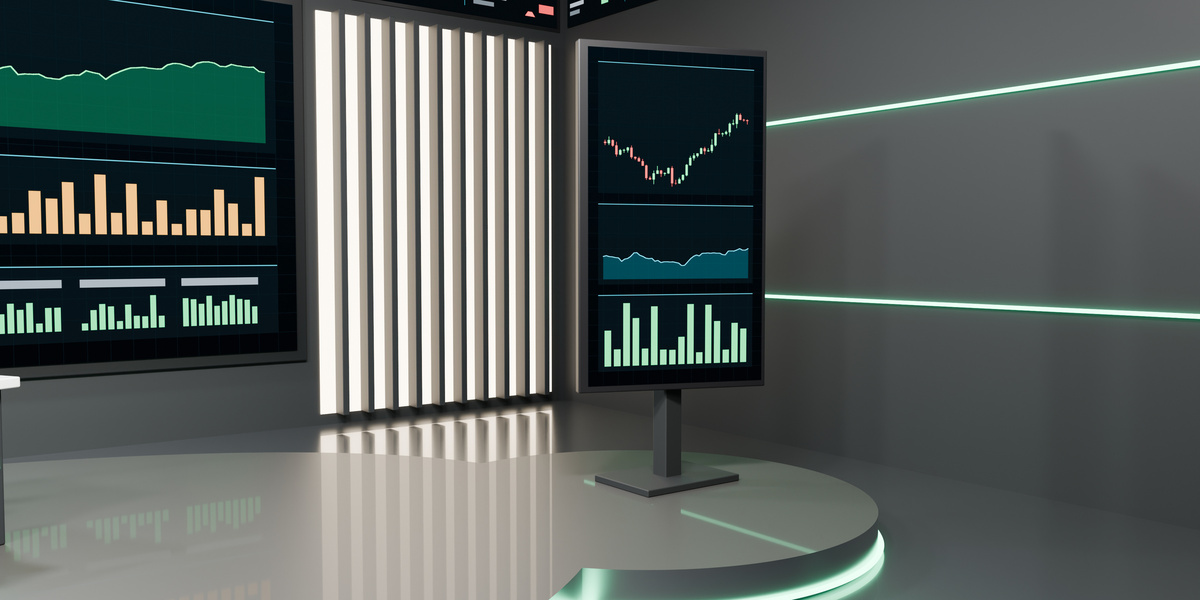
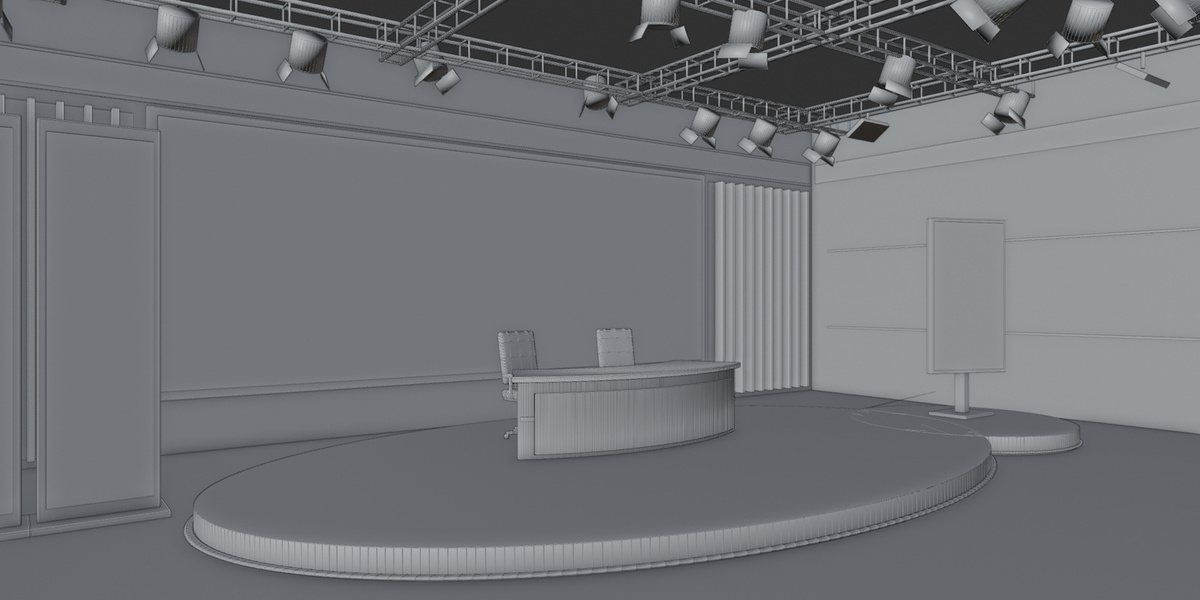
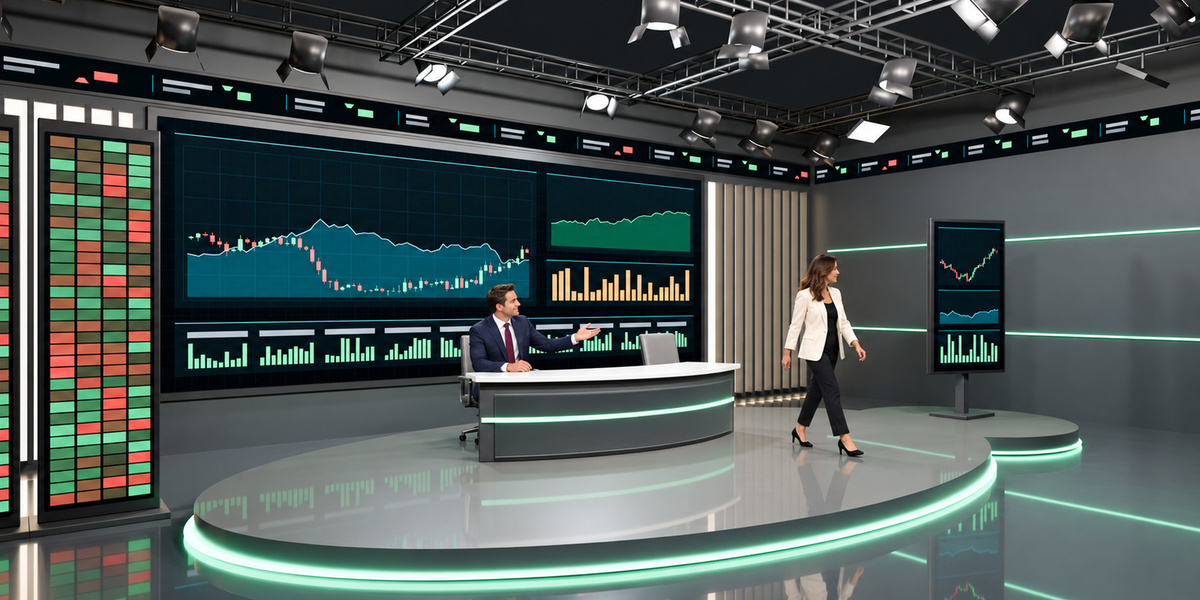
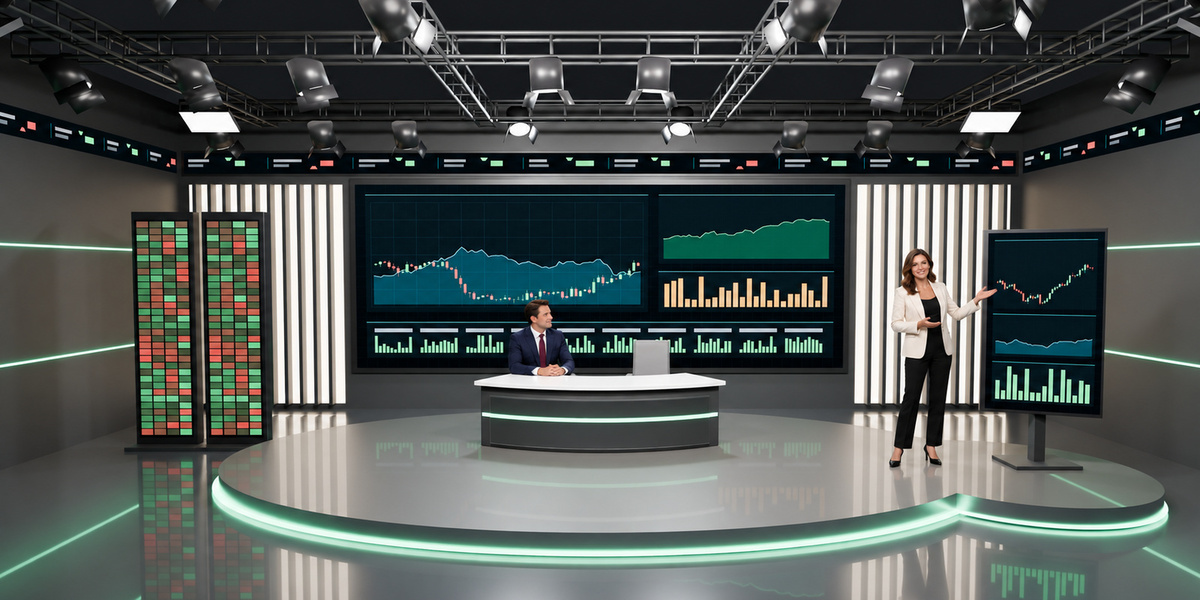
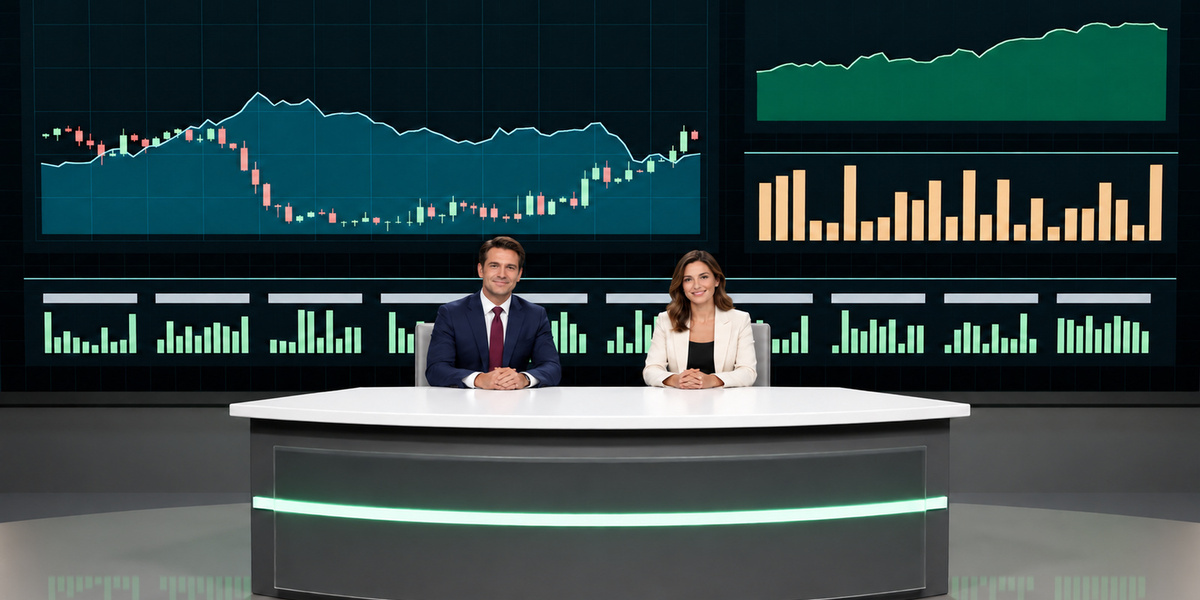
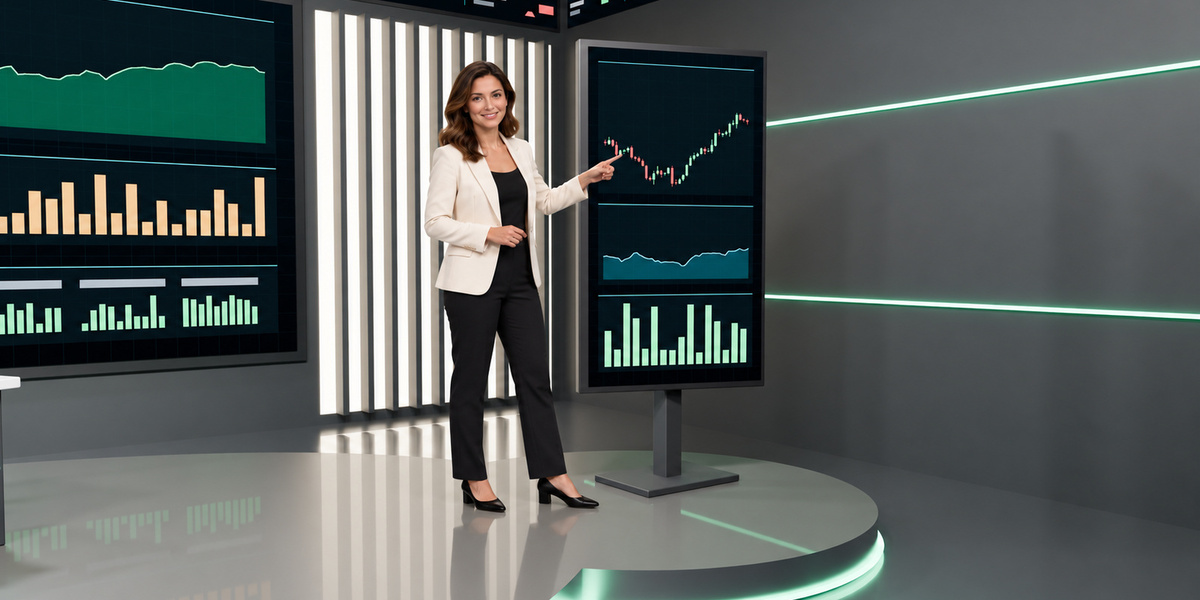
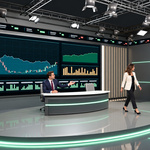
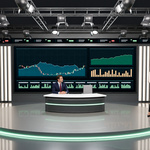
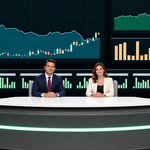
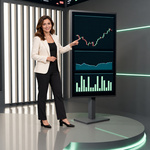
Getting started
- Unzip the download and open FS_FinanceStudio_Lite.blend in Blender 5.3 or newer.
- Select a camera in the FS_06_CAMERAS collection, set it active (Ctrl+Numpad 0) and press F12 to render. Cycles and EEVEE are both set up.
Scene structure
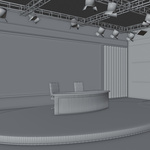
- FS_01_ARCH – floor, walls, risers and ceiling truss
- FS_02_DESK – anchor desk and chairs
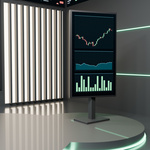
- FS_03_SCREENS – LED video wall, data pillars, ticker and touchscreen
- FS_04_PROPS – props and set dressing
- FS_05_LIGHTS – the real light rig
- FS_05b_RIG_DECOR – decorative ceiling fixtures (no real light; hide for a cleaner ceiling)
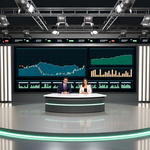
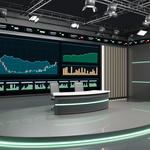
- FS_06_CAMERAS – FS_CAM_01_WIDE, FS_CAM_02_TWOSHOT, FS_CAM_03_STANDUP, FS_CAM_04_HERO_3Q
Using it as an asset
The collection FS_FINANCE_STUDIO_LITE is marked as an asset. Add the folder to Preferences › File Paths › Asset Libraries and drag the studio into any scene.
Your own screen content
Each screen uses an Emission material named FS_MAT_Screen_*. Replace its Image Texture with your image, image sequence or movie. The node labelled LED_Brightness sets the intensity. Source PNGs are in the textures folder.
Re-branding
Change the Emission colour of FS_MAT_LED_Accent_Green to recolour the desk strip, riser ring and wall lines at once.
4K plates for vMix / OBS / Wirecast
The vmix_plates folder has four 3840×2160 backgrounds named after the cameras. Load one as a background layer, key your presenters on top and match your real camera angle to the plate. For other angles, move a camera in the .blend and render your own plate.
Other software
FBX (embedded textures) and OBJ/MTL exports are in the export folder.
Have questions about this product?
Login to message
| Published | about 17 hours ago |
| Blender Version | 5.3 |
| Render Engine Used | Cycles, Eevee |
| License | Royalty Free |

Discover more products like this
studio set tv studio virtual set virtual studio broadcast obs news studio finance Interior vmix led-screen newsroom