FingerRig: Add Finger and Toe Bones With Weights to Any Avatar (VRChat, Mixamo, AI Characters)
 Meshwright
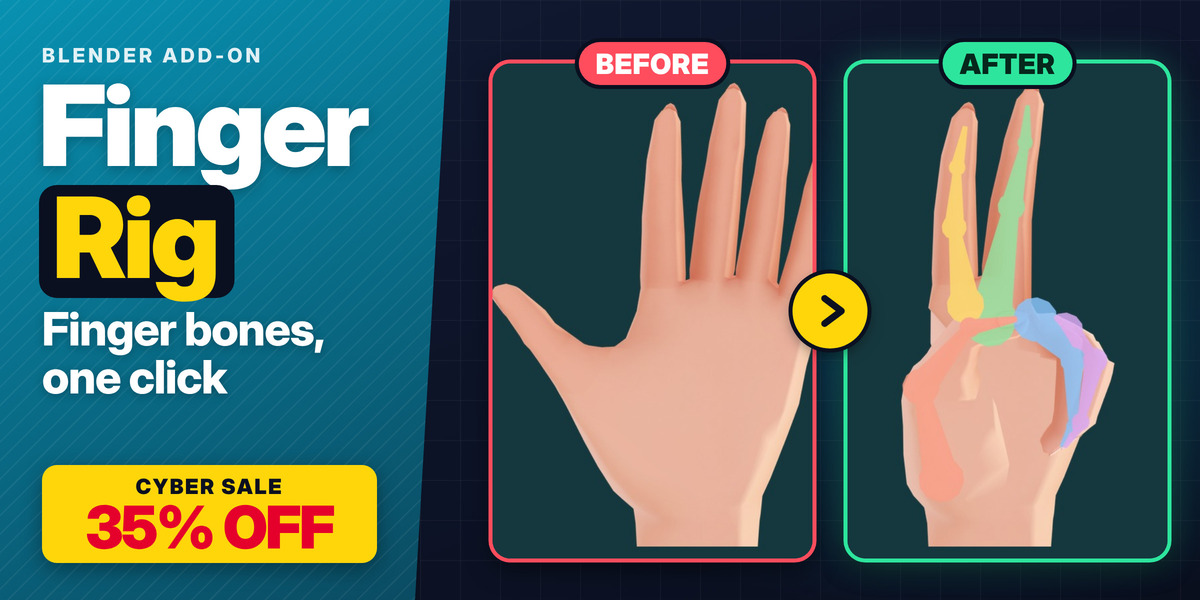
Install: Edit > Preferences > Get Extensions > arrow menu (top right) > Install from Disk > fingerrig-1.0.0.zip. Blender 4.2 or newer. Nothing else is installed or downloaded.
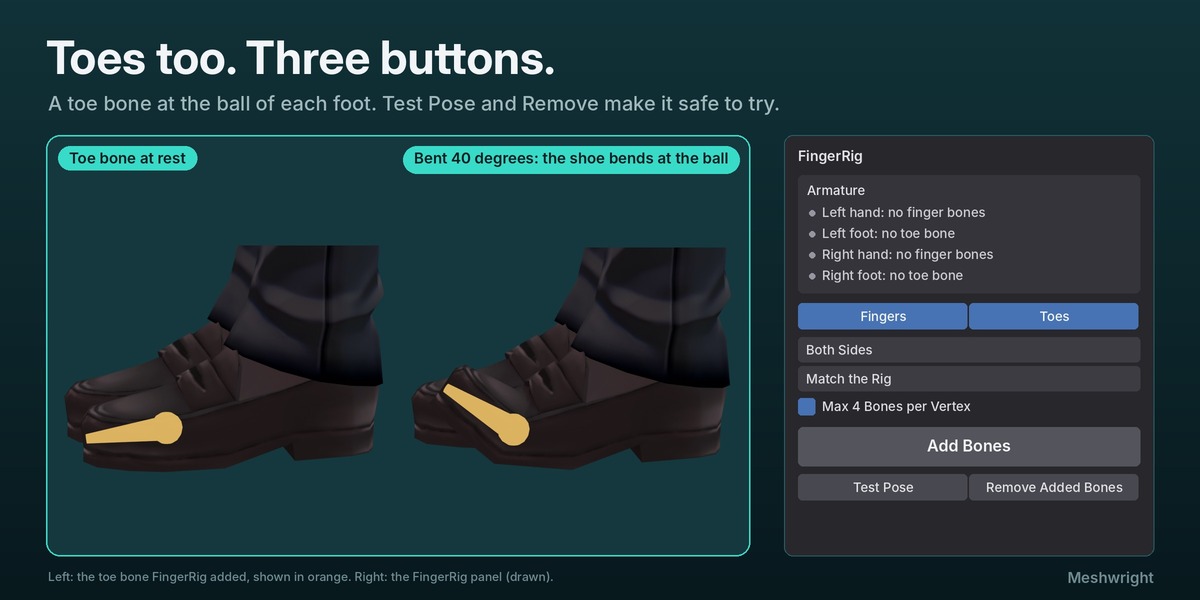
Add Bones
- Select the armature, or any mesh with an Armature modifier that uses it.
- The panel lists each hand and foot: "no finger bones", "15 finger bones", "no toe bone" and so on.
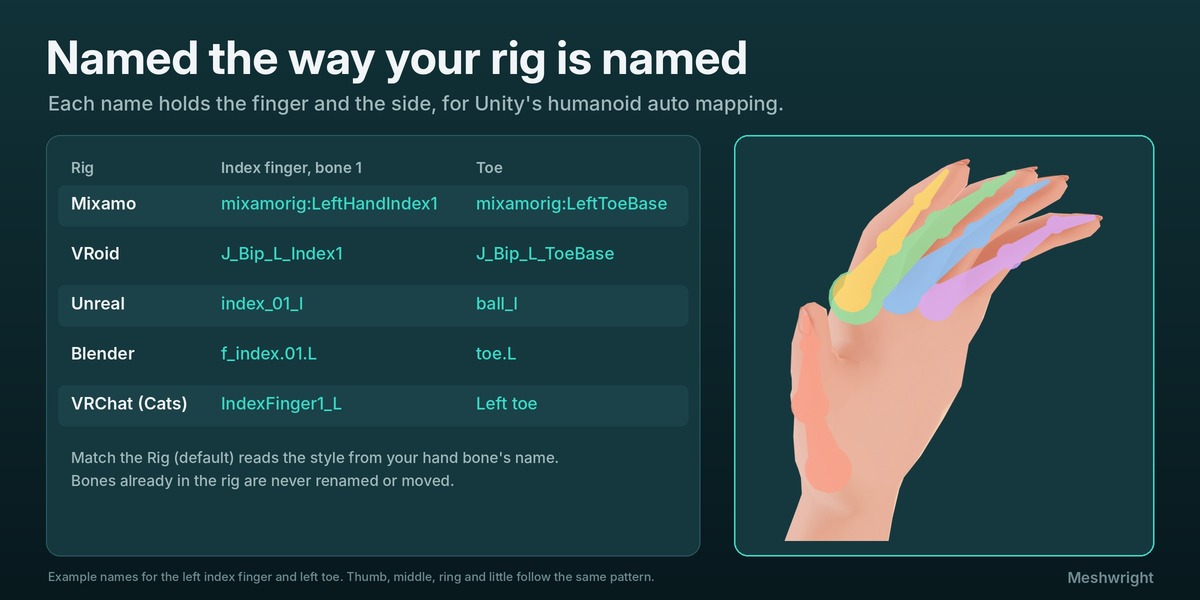
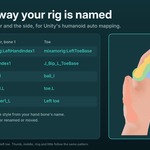
- Fingers and Toes choose what to add. Sides: both, left or right. Names: Match the Rig (default), Mixamo, VRoid, Unreal, Blender or VRChat (Cats).
- Press Add Bones. The report lists, for each hand, the fingers found, the bones added and the vertices weighted.
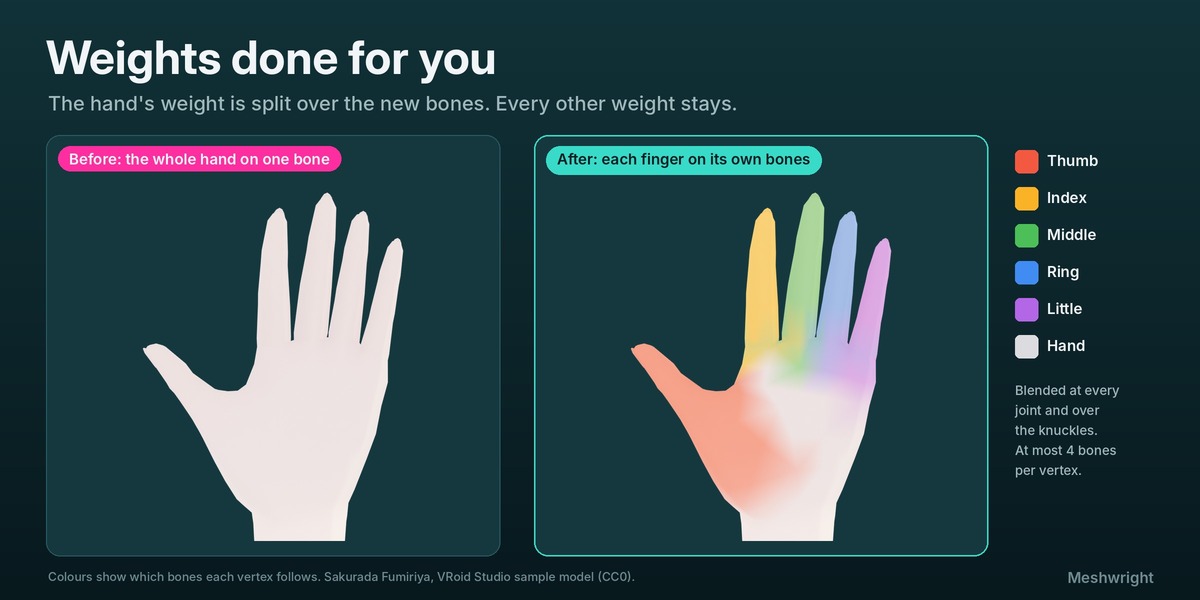
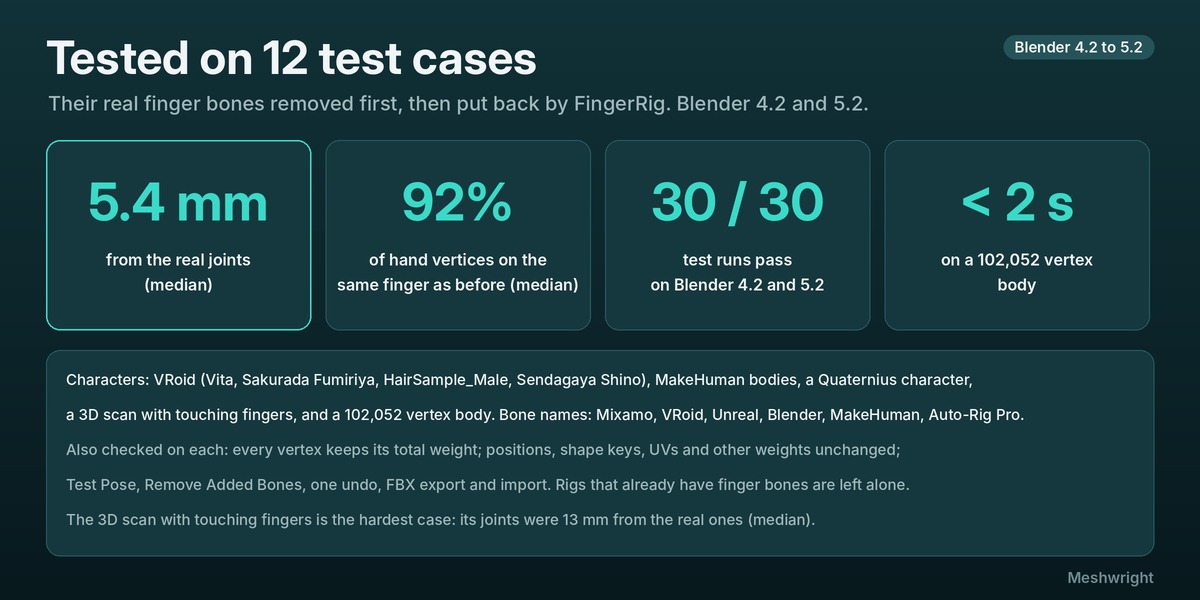
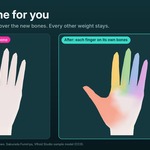
How the weights are made: a vertex on a finger follows that finger's 3 bones, blended over a short distance at each joint. Palm skin near the knuckles follows the nearest one or two fingers, so the knuckles bend smoothly. The thumb's first bone takes the ball of the thumb. The new weights are split from the hand's weight only, so each vertex keeps its total weight and its other bones. Max 4 Bones per Vertex (on by default) keeps the 4 strongest bones on a changed vertex.
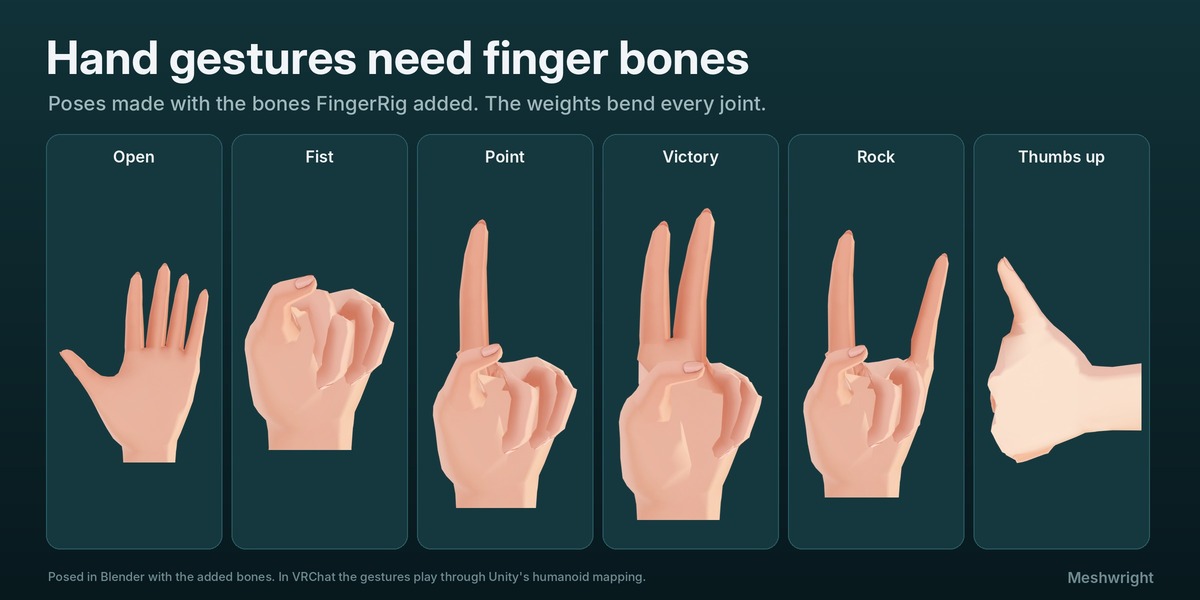
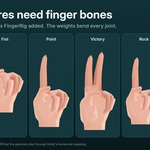
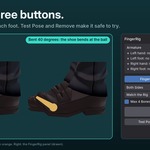
Test Pose: curls the added finger bones into a fist (no keyframes). Press again for the rest pose.
Remove Added Bones: deletes only the bones FingerRig added (it keeps a list in the armature) and adds their weights back to the hand and foot bones.
Tips
- The hand should be in its rest pose (T-pose or A-pose) with the fingers apart. Slightly curled fingers work.
- Separate meshes on the hand (gloves, sleeves, rings) are weighted too: they follow the finger of the nearest skin.
- In Unity: select the FBX, Rig > Animation Type: Humanoid > Configure, and check the hand page. All 15 finger slots should be filled.
- For hand poses and grips in Blender, see our add-on GripKit.
Have questions about this product?
Login to message
| Blender Extension Compatible | Yes |
| Published | 1 day ago |
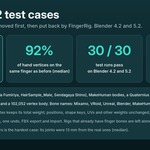
| Blender Version | 4.2 - 5.2 |
| Extension Type | Add-on |
| License | GPL |