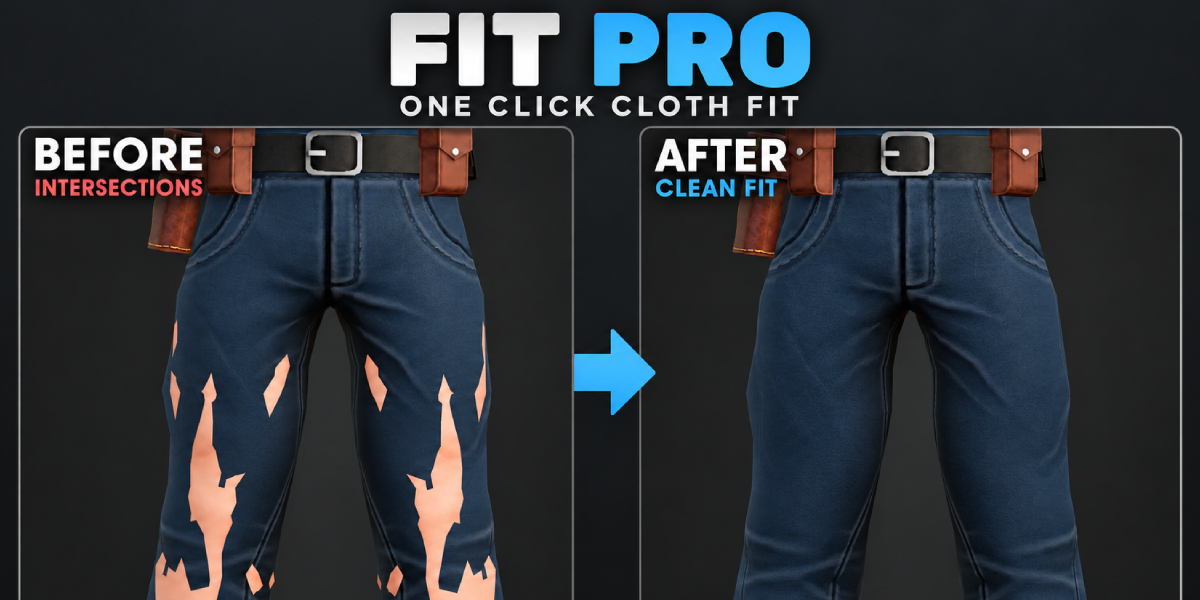
Fit Pro: One Click Fix for Clothes Clipping Through the Body
 Salman Animator
Requirements
Blender 4.2.0 or newer. A body mesh and a cloth mesh in Object Mode. The cloth must be a local editable mesh without existing shape keys. Body normals must face outward.
Install
- Keep the ZIP as it is. Do not unzip it.
- Open Edit > Preferences > Add-ons and choose Install from Disk.
- Pick Fit-pro-1.12.0-SalmanAnimator.zip and enable Fit pro.
- In the 3D Viewport press N and open the Fit pro tab.
Disable older ClothFit Pro or Fit pro versions first and restart Blender.
Quick start
- Roughly position the clothing around the body in the same pose.
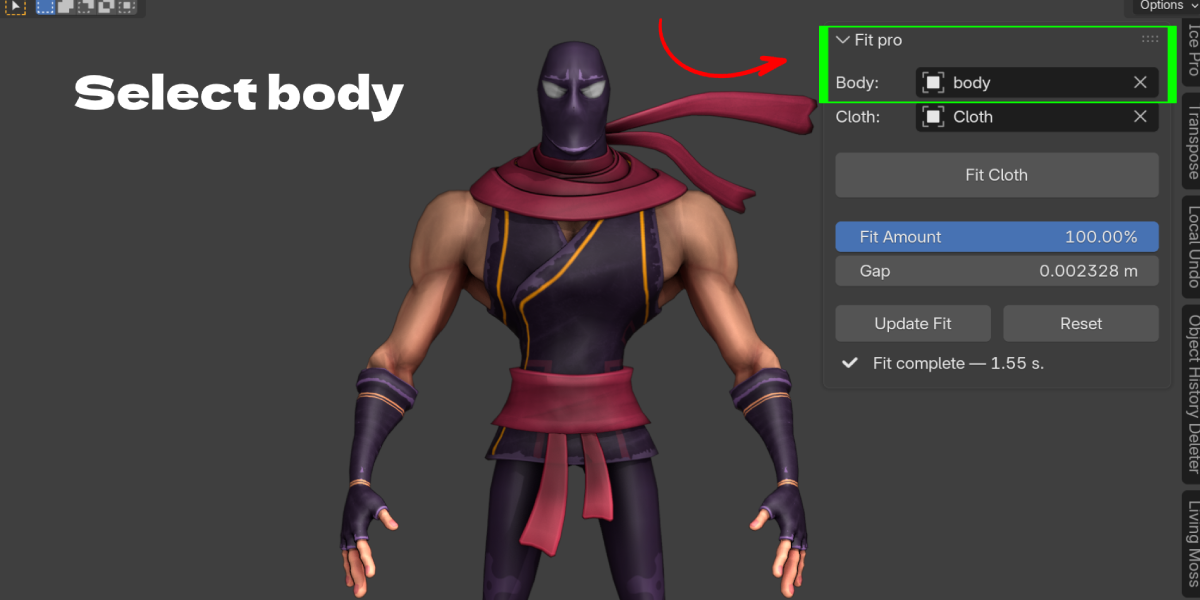
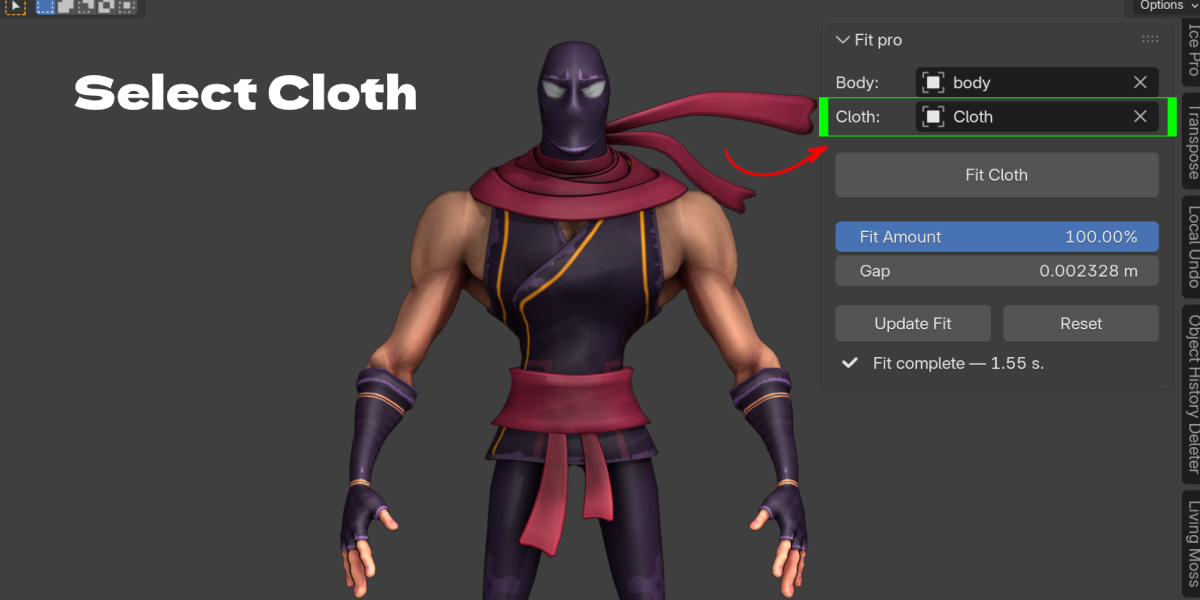
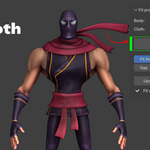
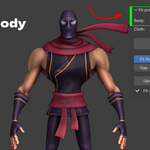
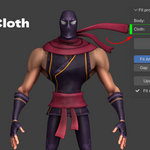
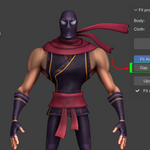
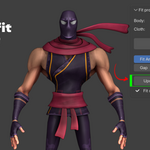
- In Object Mode choose the Body and Cloth objects in the panel.
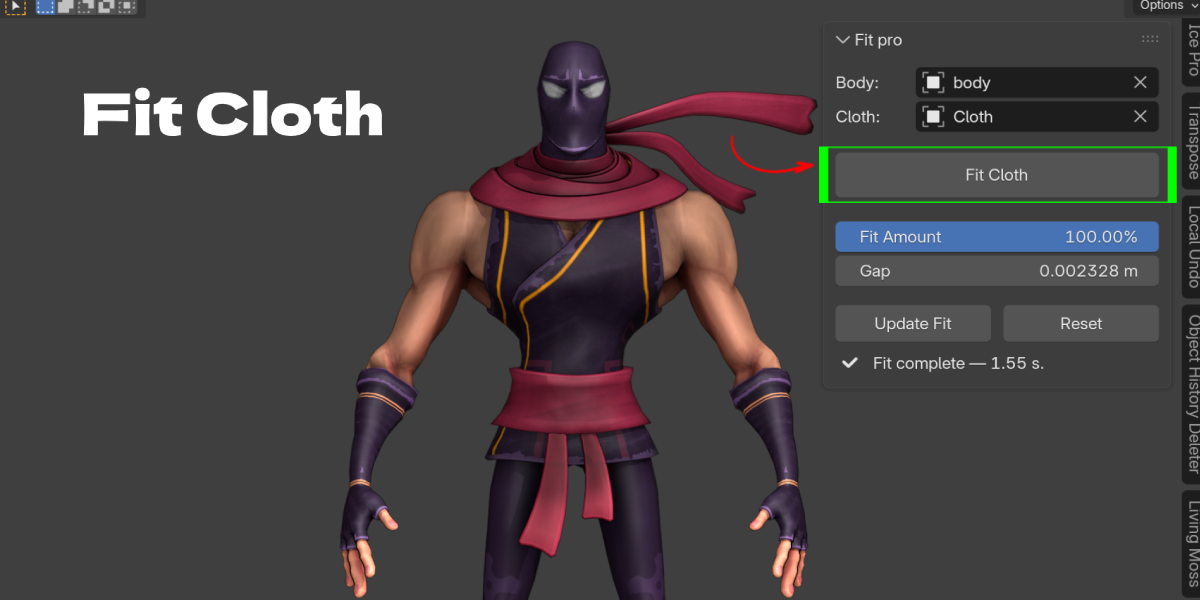
- Click Fit Cloth. Press Esc to cancel a fit in progress.
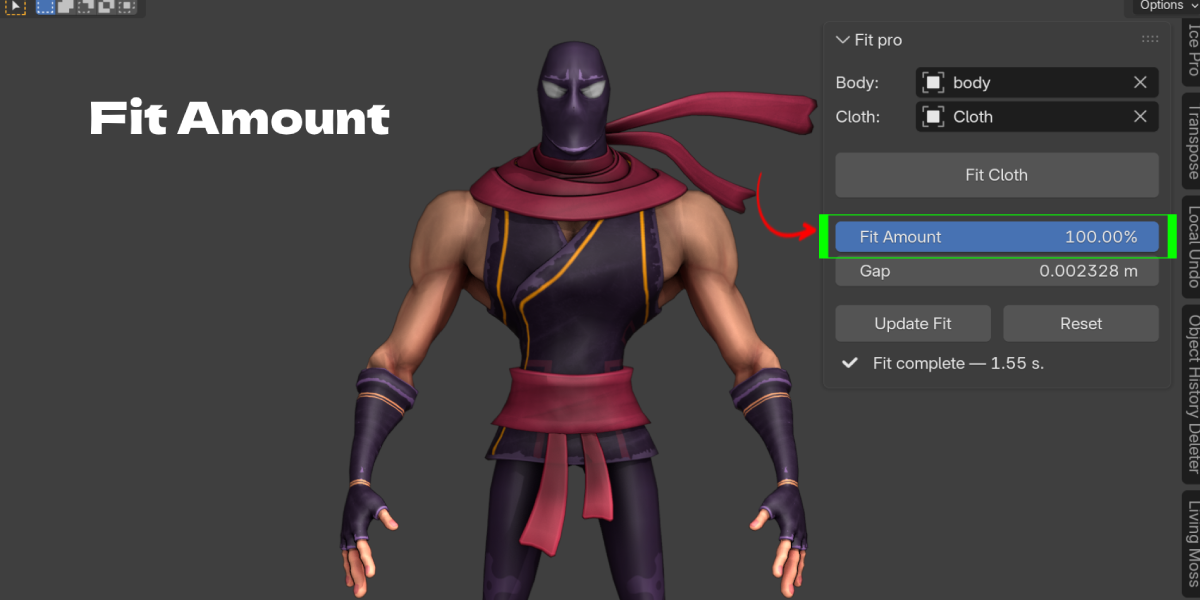
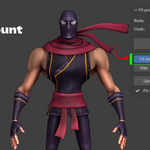
- Use Fit Amount to blend between original and fitted (100% is the full fit).
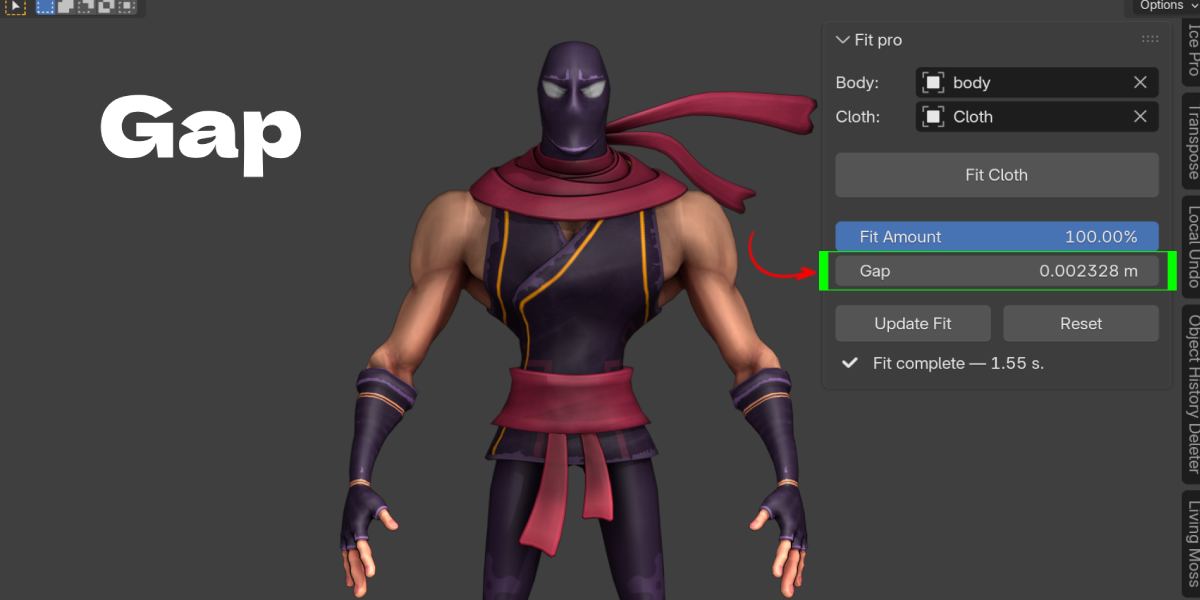
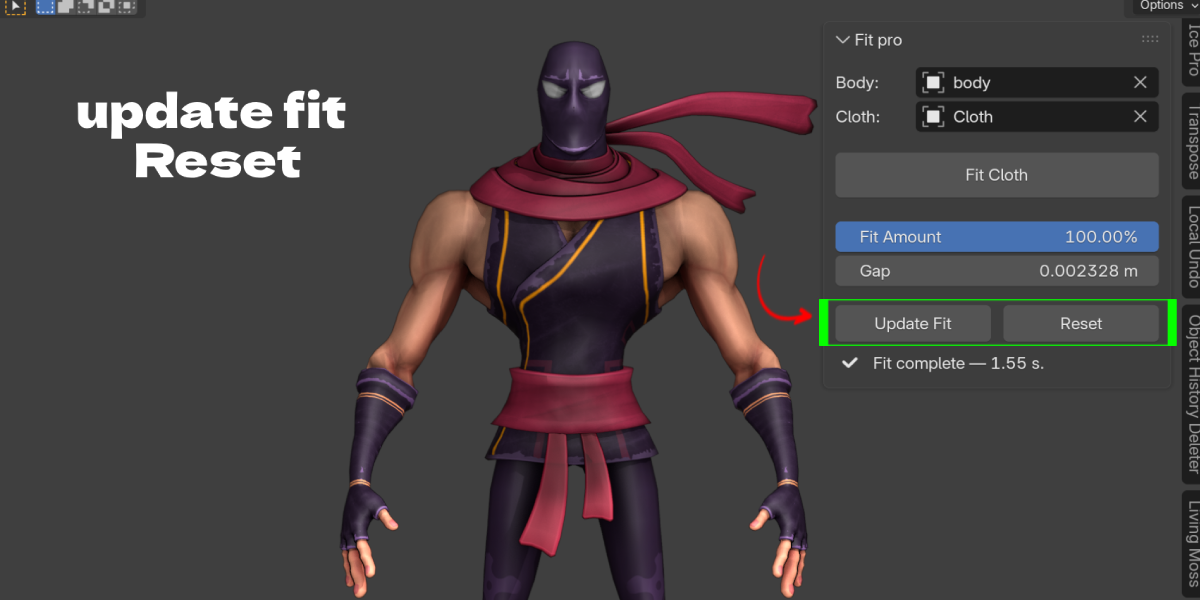
- Change Gap and click Update Fit to recalculate.
- Click Reset to restore the original cloth.
Supported modifiers
Armature, Weighted Normal, Normal Edit, and shading only Geometry Nodes such as Smooth by Angle. Apply or disable Mirror, Subdivision, Solidify and geometry changing nodes before fitting.
Limits
Gap is a sampled clearance target, not a guaranteed minimum everywhere. The result is checked for the current pose, not every animation frame. Open body meshes use local surface checks.
Troubleshooting
- Fit Cloth refuses to run: the cloth has shape keys or a topology changing modifier. Apply or remove them first.
- Cloth moves inward or strangely: recalculate body normals so they face outward.
- Small clipping remains: raise Gap slightly and click Update Fit.
- The fit looks too strong: lower Fit Amount.
- I want the original back: click Reset.
Have questions about this product?
Login to message
| Blender Extension Compatible | Yes |
| Published | about 5 hours ago |
| Blender Version | 4.2 - 5.2 |
| Extension Type | Add-on |
| License | GPL |
