 jfmatheu

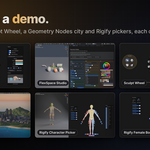

Build the Blender panel you always wanted.
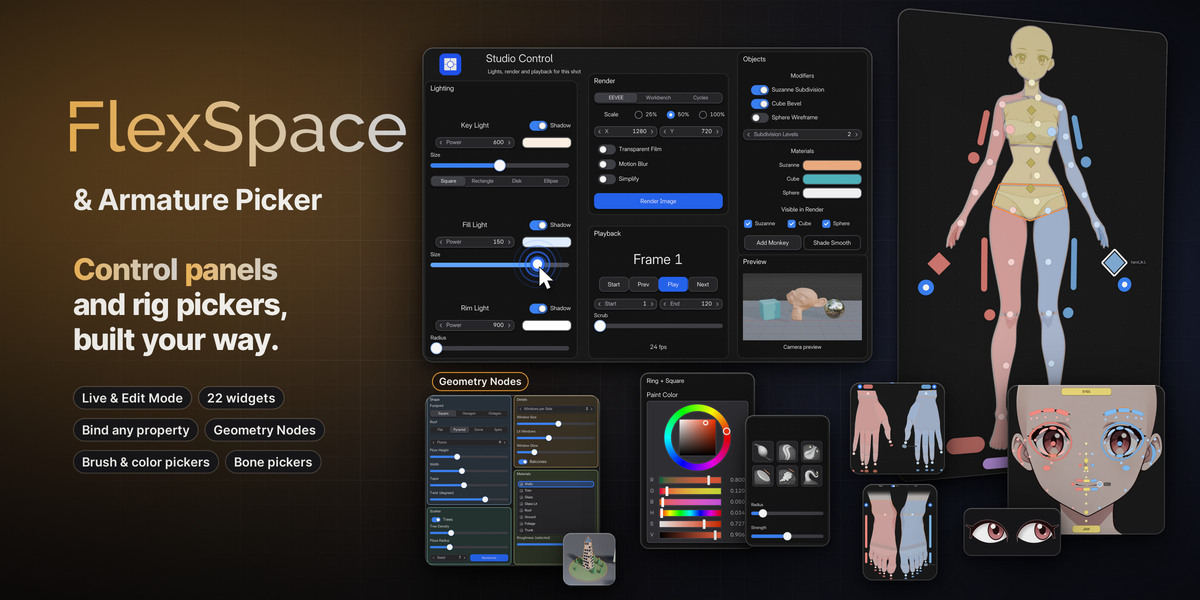
FlexSpace turns any area into a canvas for your own controls. Lay out buttons, sliders, toggles, colour pickers and a sculpt-ready Ring Menu, bind them to any property, operator or script, and use them while you work. And when it's time to animate, the Armature Picker puts every bone of your rig one click away.
- CONTROL PANELS
- RING MENU
- PAGES PER MODE
- ARMATURE PICKER
- RIGIFY BODY PICKER
- TabEdit ↔ Live
- Shift AAdd a widget
- Right-clickAdd to FlexSpace Canvas
- IKey what's under the mouse
- Blender 5.3+Built as an extension
- Demo files includedEach opens in its own window
- Full docsOnline and inside Blender
- Public issue trackerReport a Bug from Blender
- GPL-3.0Open licence
See it in action.
Screen recordings taken in Blender, most of them with the demo files that come with FlexSpace.
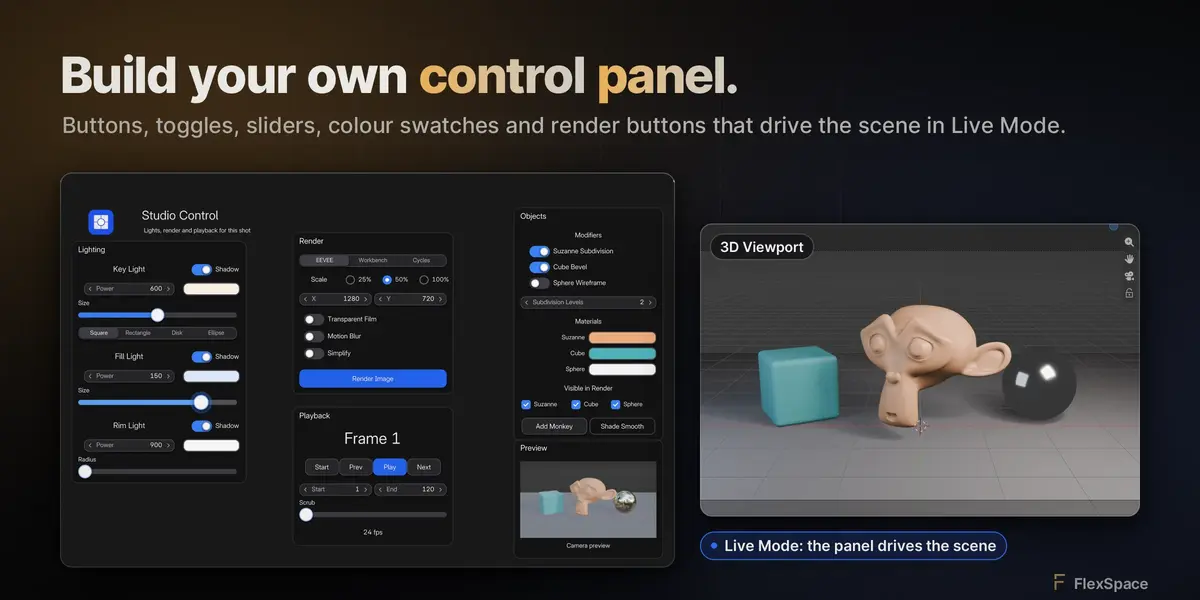
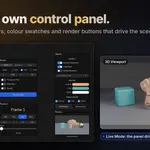
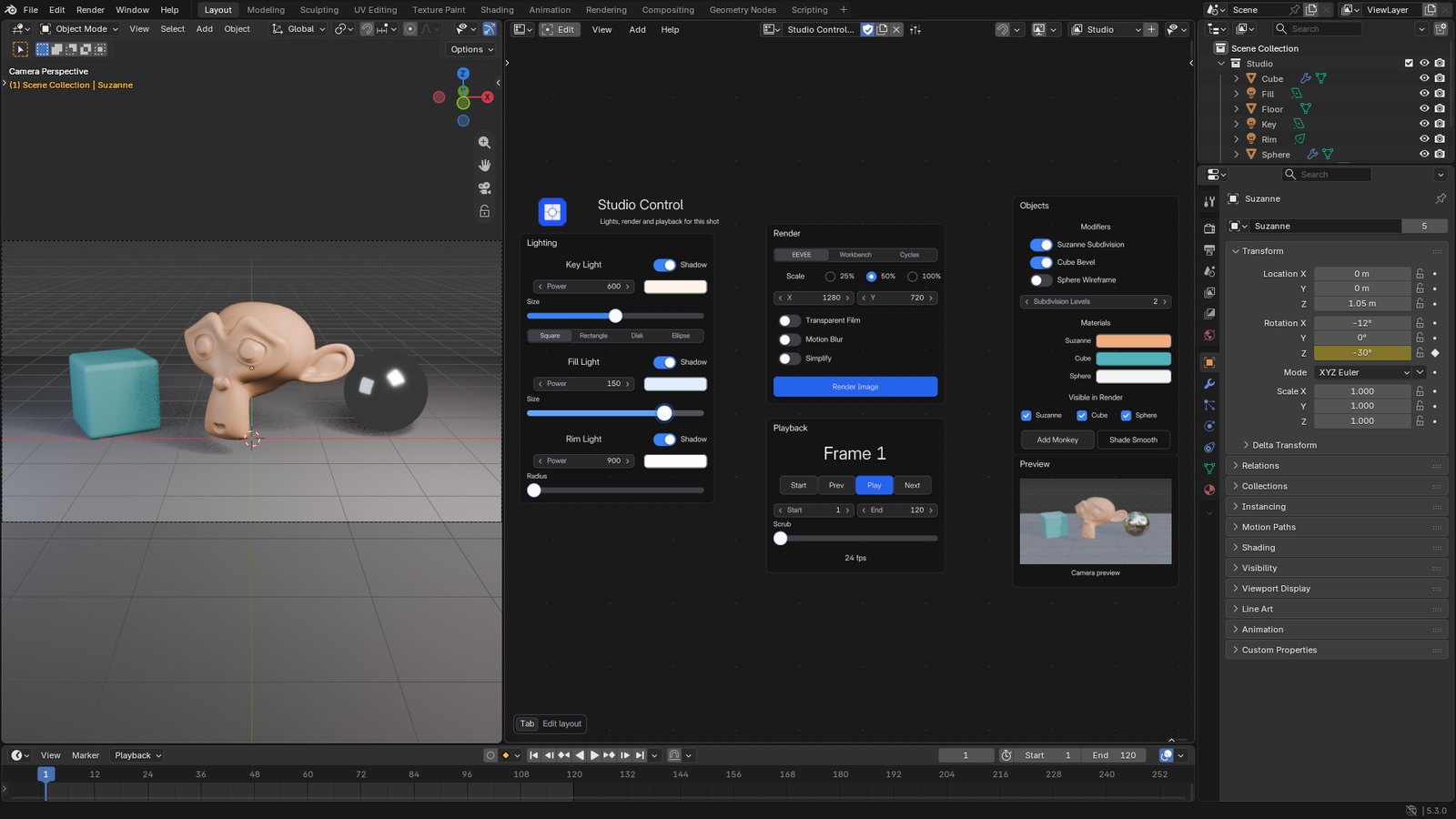
Your panel drives the scene. In Live Mode every toggle, field and slider changes the scene right away: modifiers, light shadows, light power and the current frame.
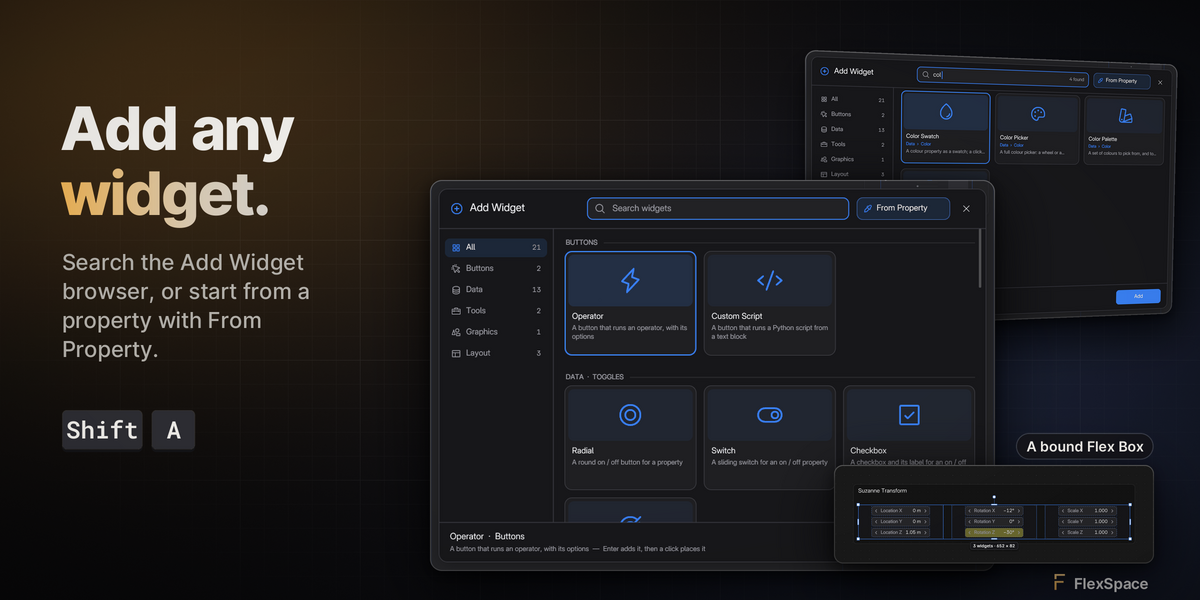
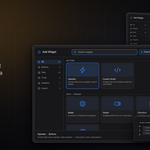
Add any widget in seconds. Press Shift A, type a few letters, pick the card and click to place the new widget on your canvas.
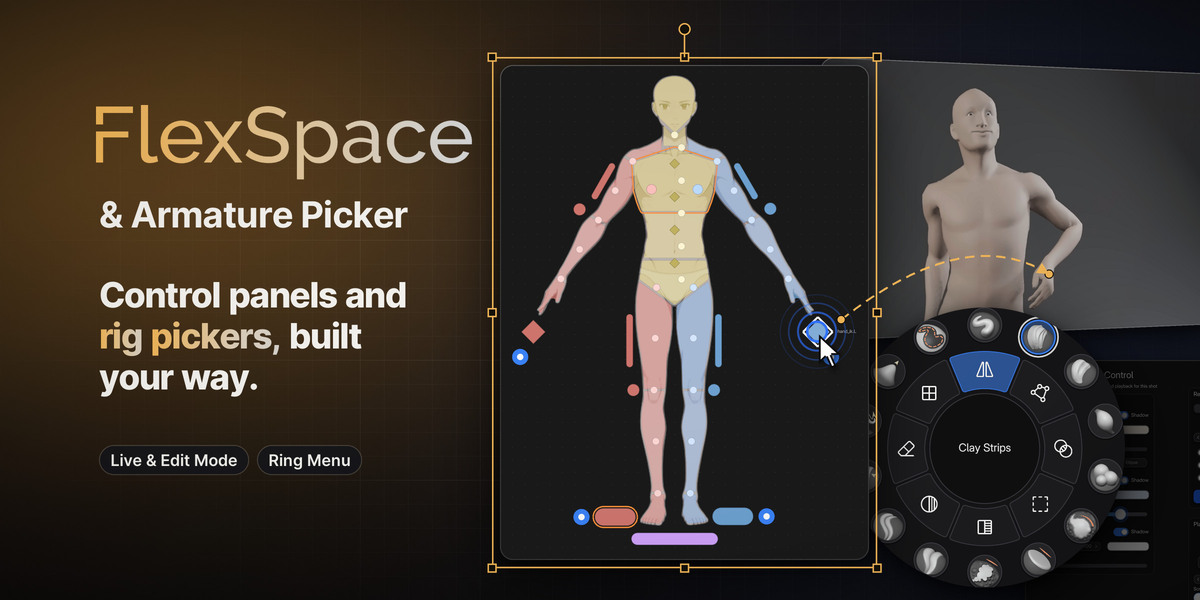
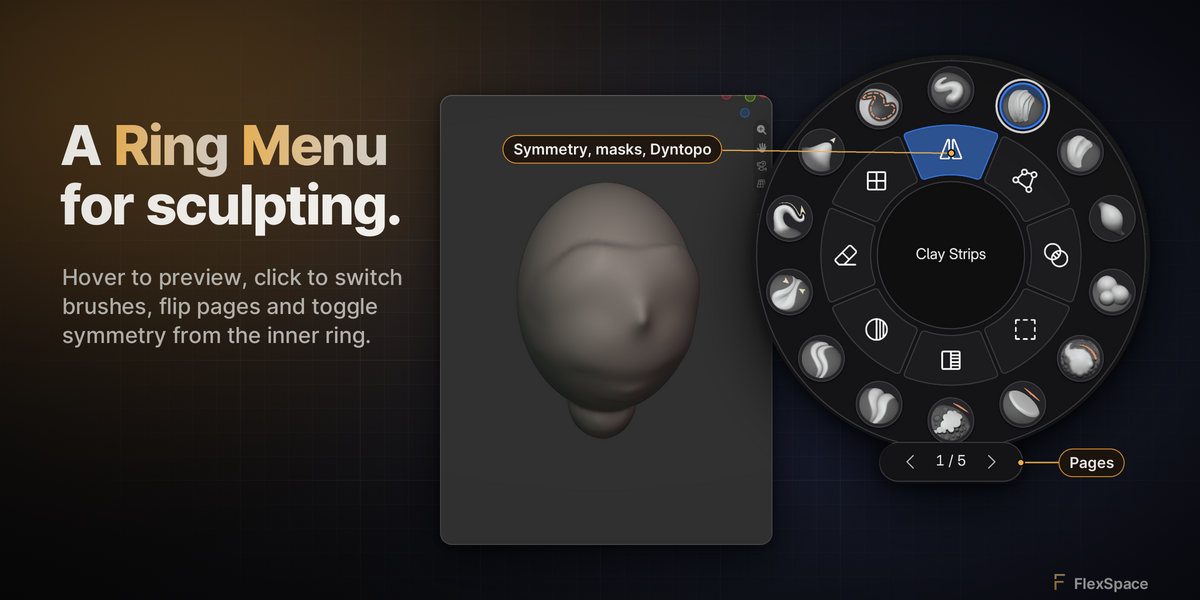
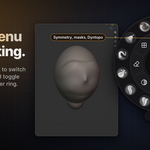
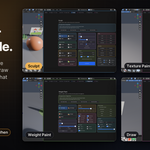
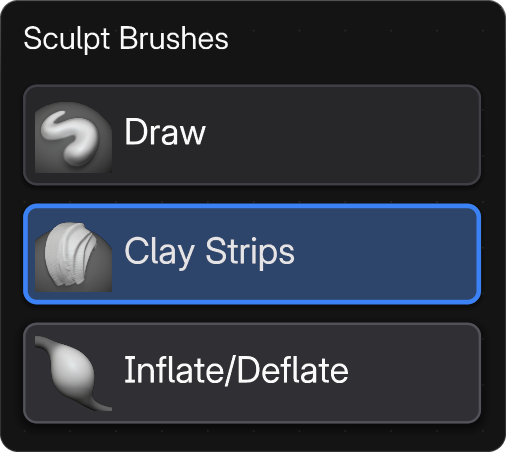
A Ring Menu for sculpting. Hover the ring to see each brush, click one to use it, sculpt, flip pages and switch symmetry from the inner ring.
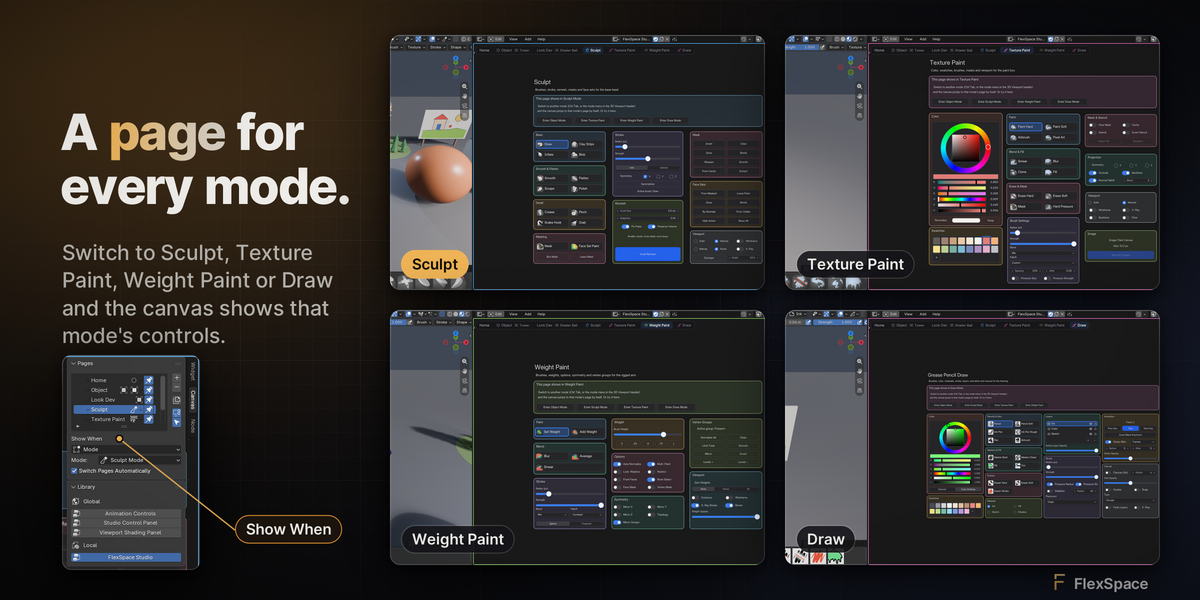
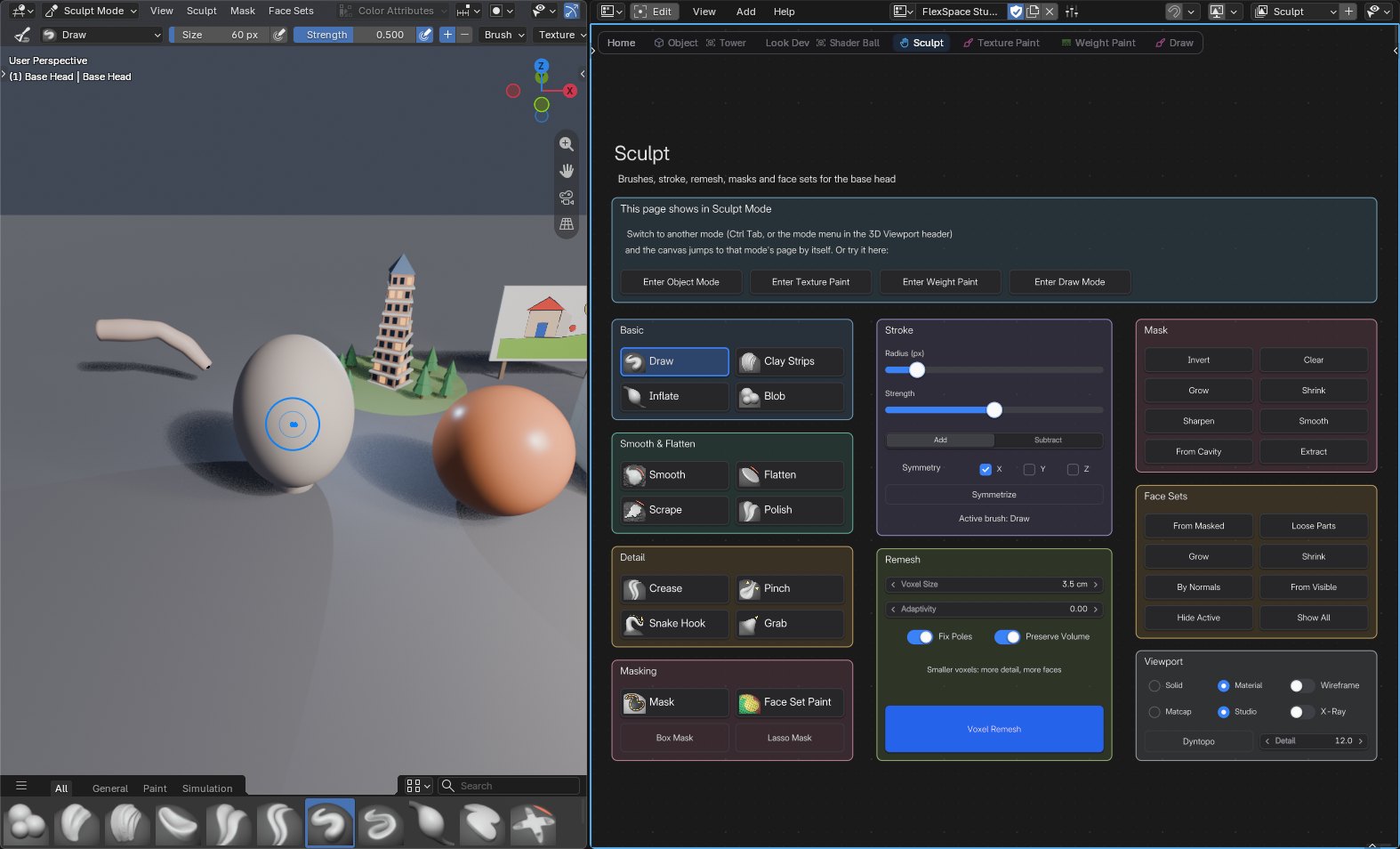
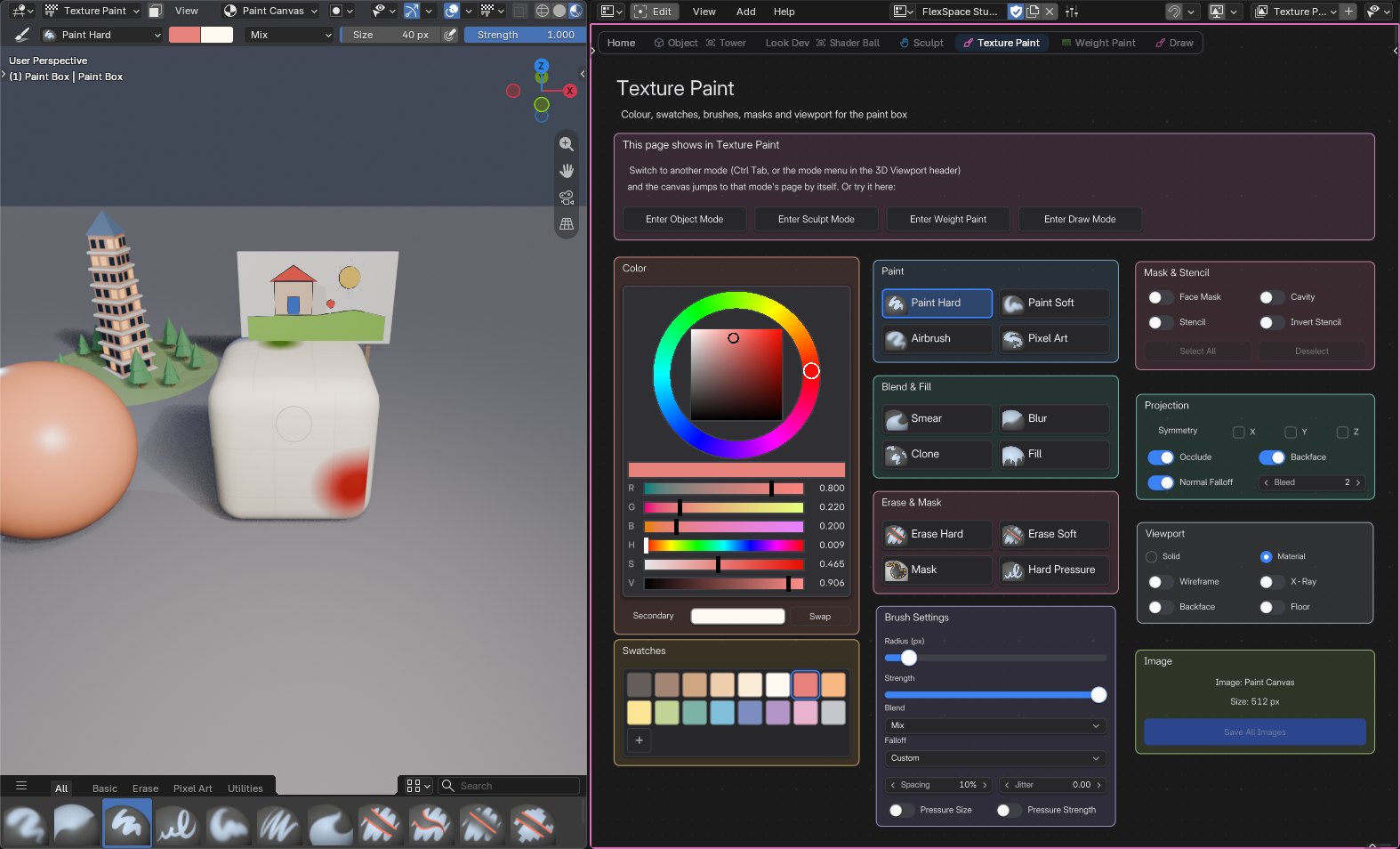
One canvas, a page per mode. Switch to Sculpt, Texture Paint, Weight Paint or Draw and the canvas shows the controls made for that mode.
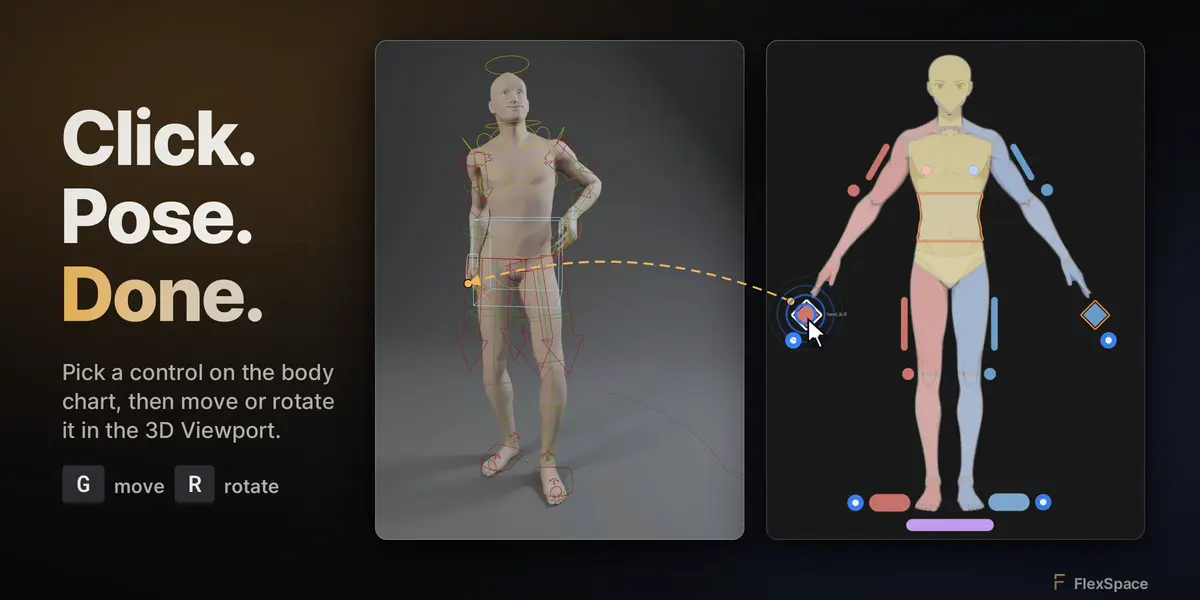
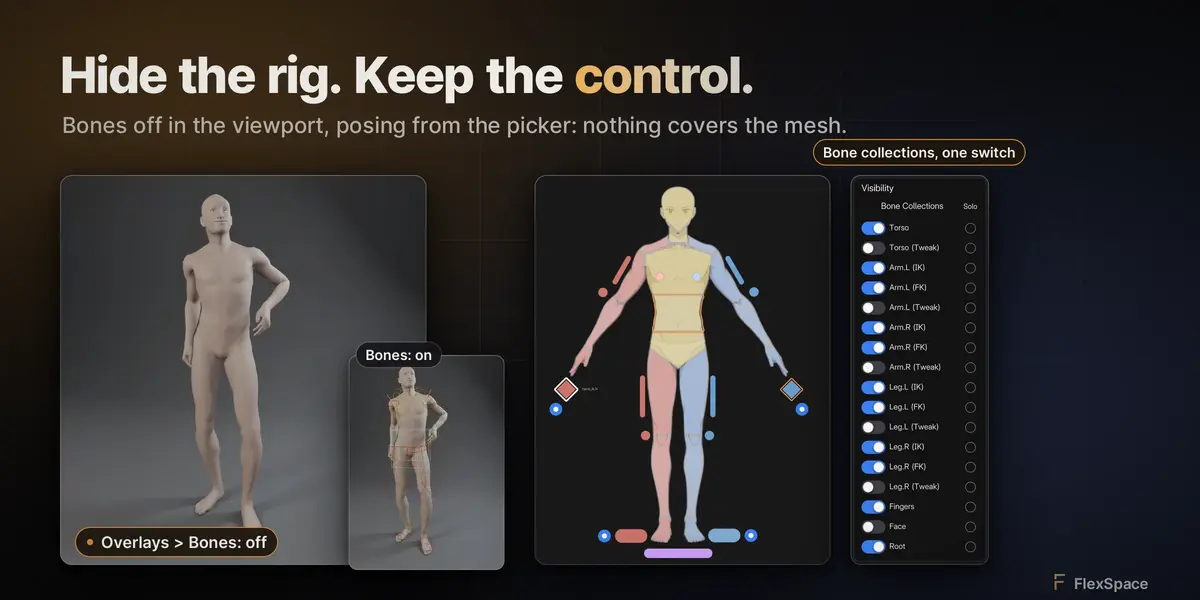
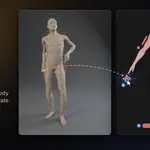
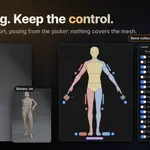
Click in the picker, pose in the viewport. With the rig's controls hidden, click a body part in the picker, then move or rotate it with G or R in the viewport: the arm, the head and the spine.
Two modes. One canvas.
Build your panel in Edit Mode, use it in Live Mode. On a picker, Live Mode is Blender's own Pose Mode.
Lay it out.
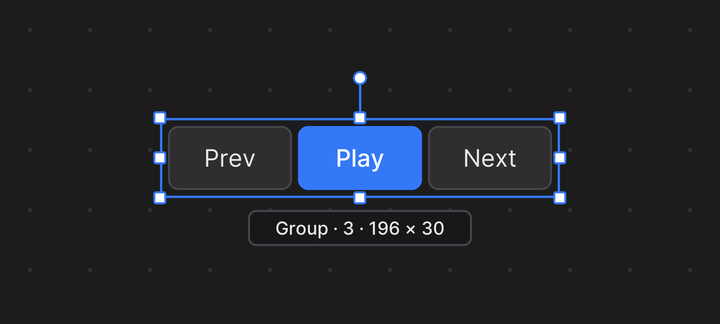
Add widgets with Shift A, then drag, resize, rotate, snap, group and frame them.
Use it.
Click buttons, drag sliders, flip toggles. Every change is one undo step.
Your tools, where your hands are.
Every control, one click away.
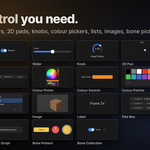
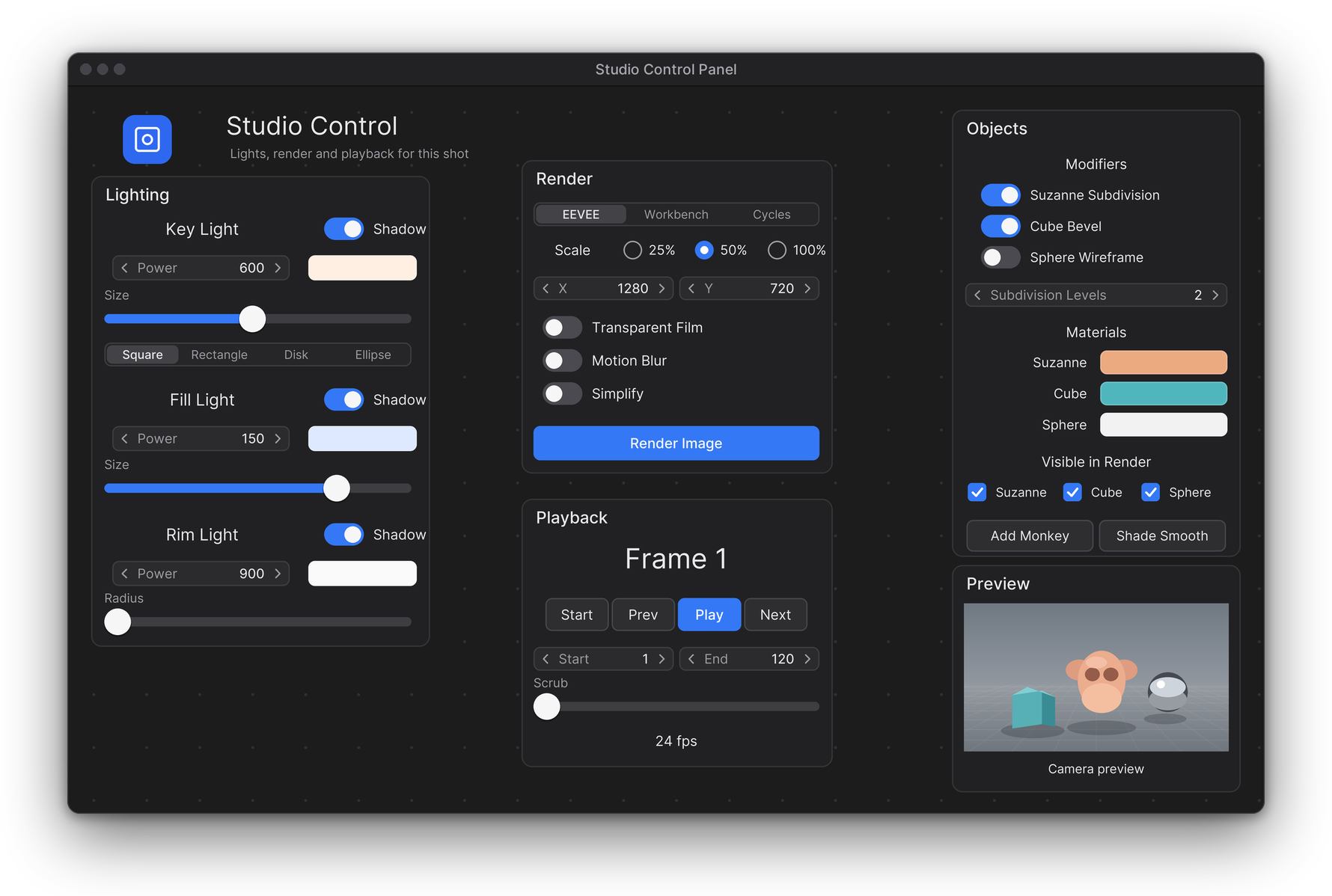
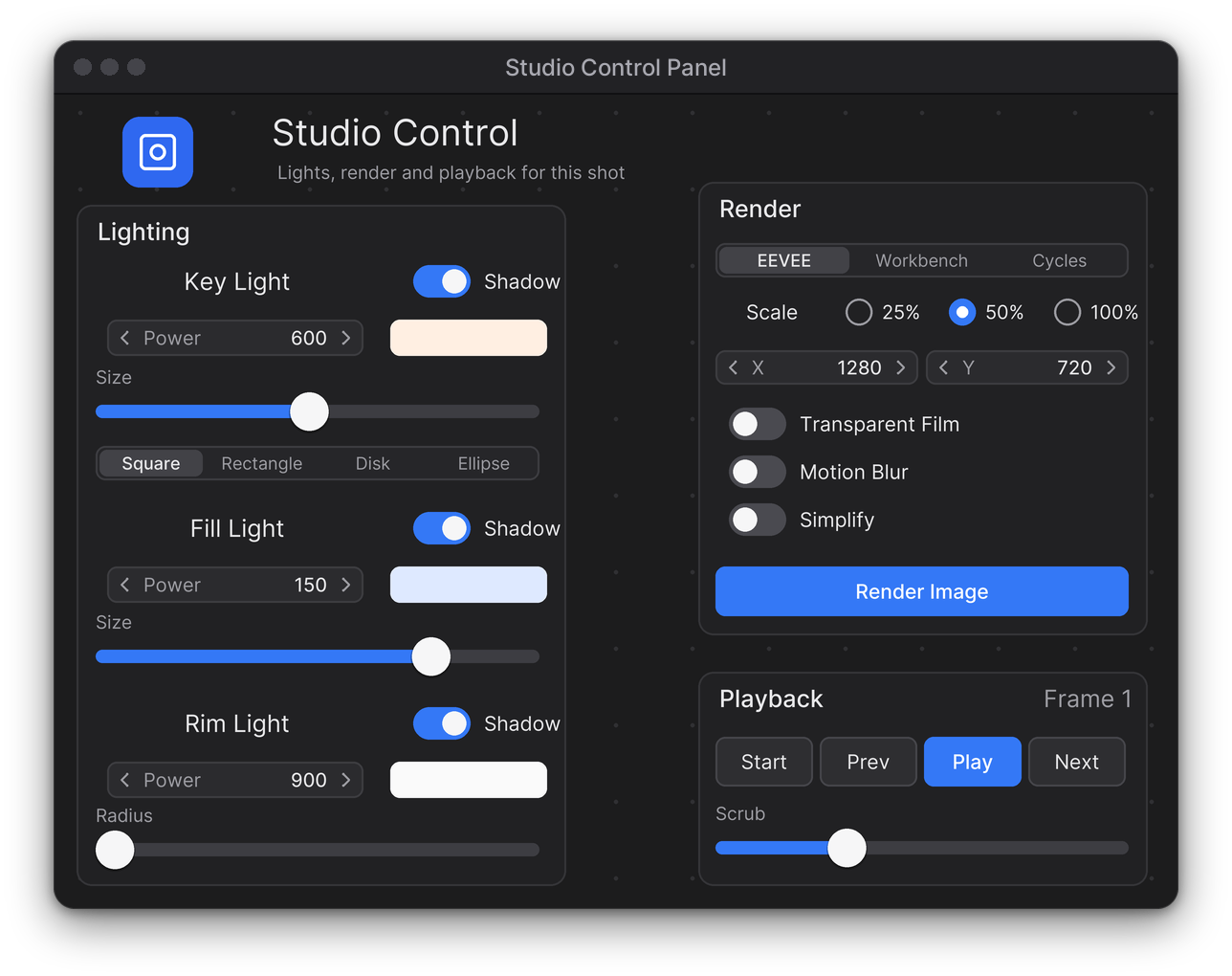
Lights, render settings, playback, modifiers, materials: put the controls you reach for on one canvas, in the order that makes sense to you. Buttons run operators or your own Python scripts; sliders, number fields, toggles and enums drive any property.
- ✓Operator and Custom Script buttons
- ✓Sliders, Number Fields, Toggles, Enums, Lists
- ✓Labels that read values out, images and frames
 SCREENSHOT
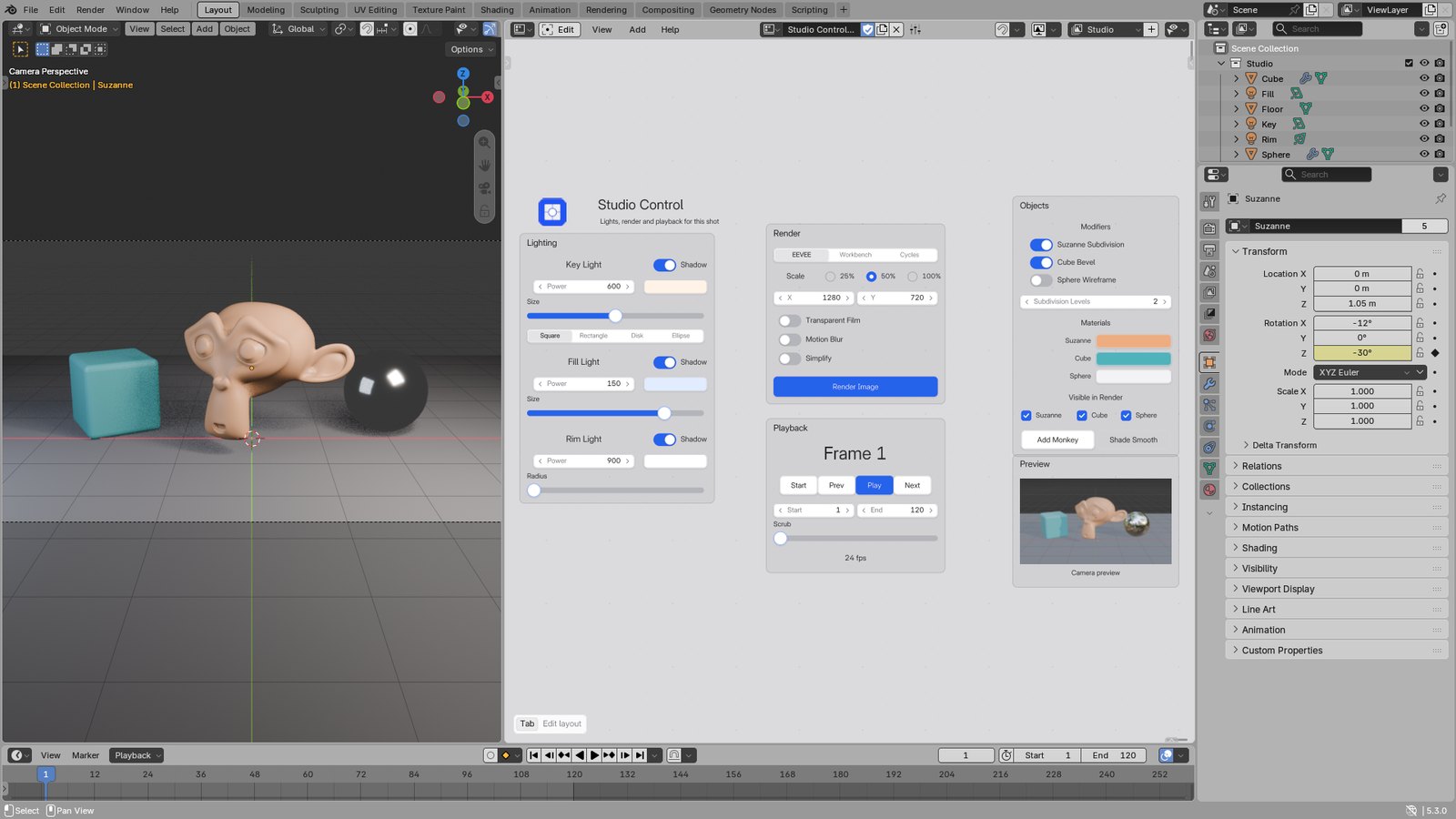
Studio control panel (Dark). A control panel canvas next to the 3D Viewport: lights, render settings, playback and objects one click away.
 SCREENSHOT
Studio control panel (Light). The same control panel in the Light appearance, next to a light Blender theme.
Bind anything with a right-click.
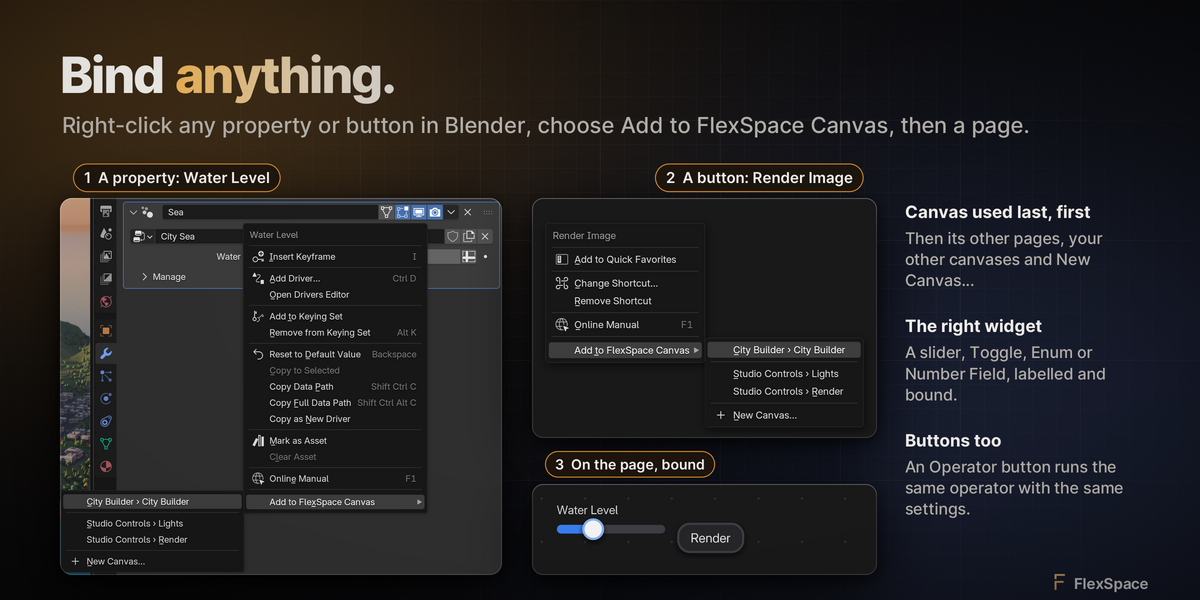
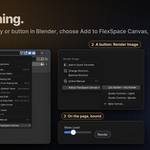
Right-click any property or button in Blender and choose Add to FlexSpace Canvas, then a page: the right widget lands there, already bound and labelled. The canvas you used last comes first. From the canvas itself, Shift A › From Property does the same. Widgets show Blender's animation colours, I keys them, and Auto Keying just works.
- ✓Properties and buttons, from any right-click menu
- ✓Data paths, eyedropper or From Property
- ✓Follow the active object or pin one
- ✓Visible When and Disabled When conditions
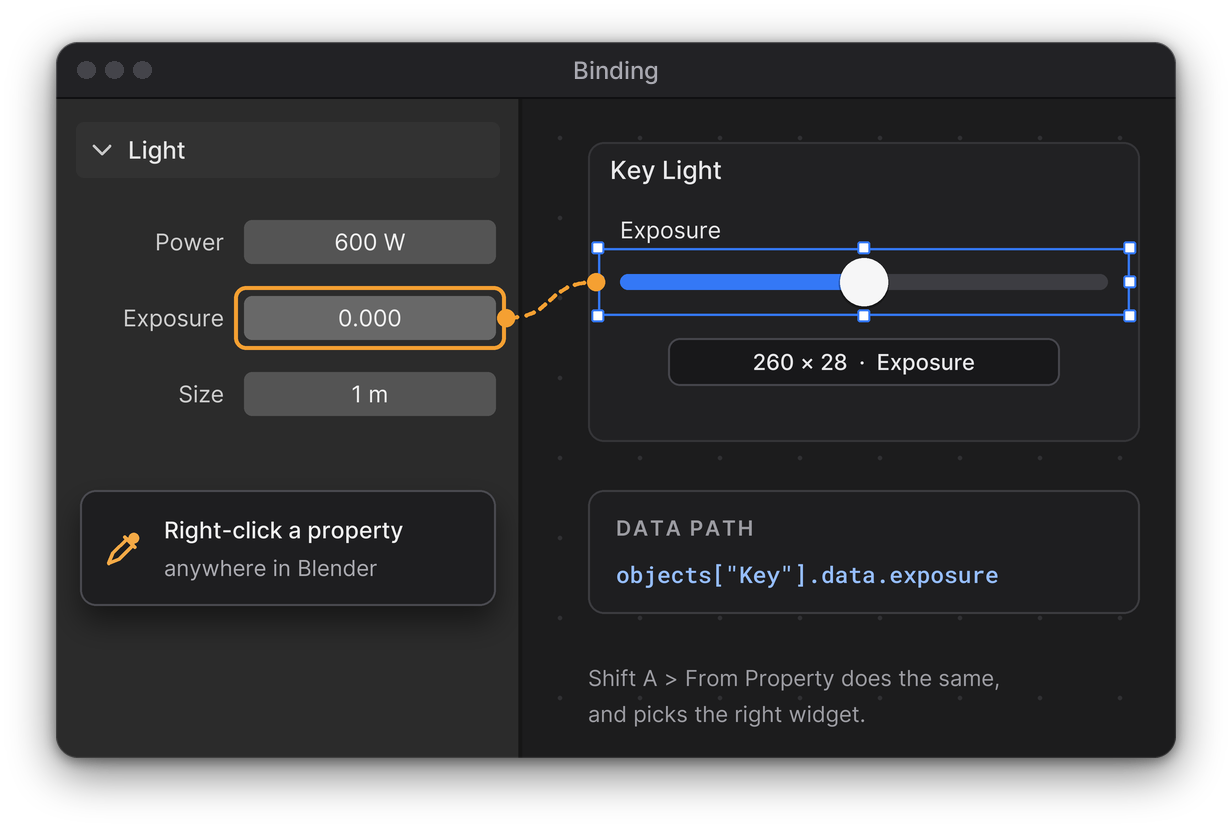
The eyedropper asks for the right kind of property, then fills in the data path for you.
 SCREENSHOT
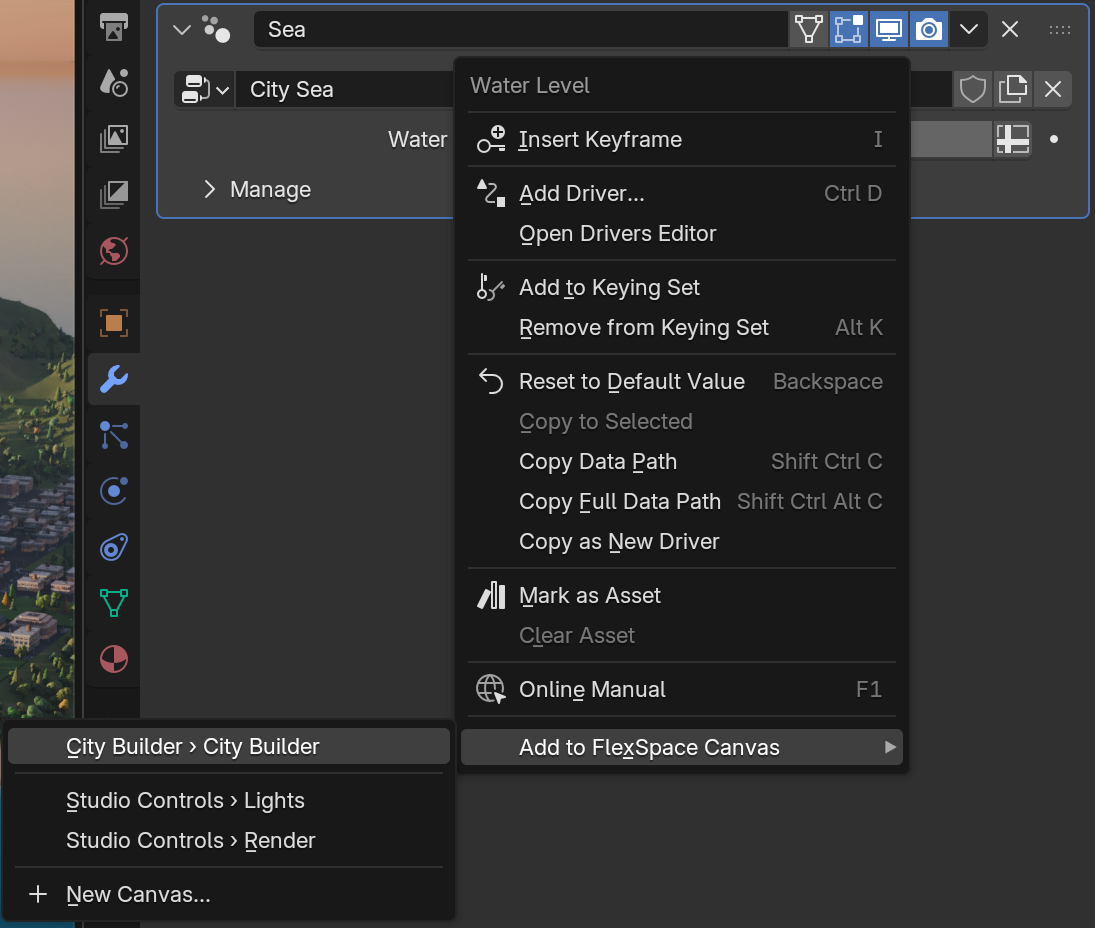
Right-click a property. Add to FlexSpace Canvas lists your canvases and pages, the one you used last first, and New Canvas... at the end.
 SCREENSHOT
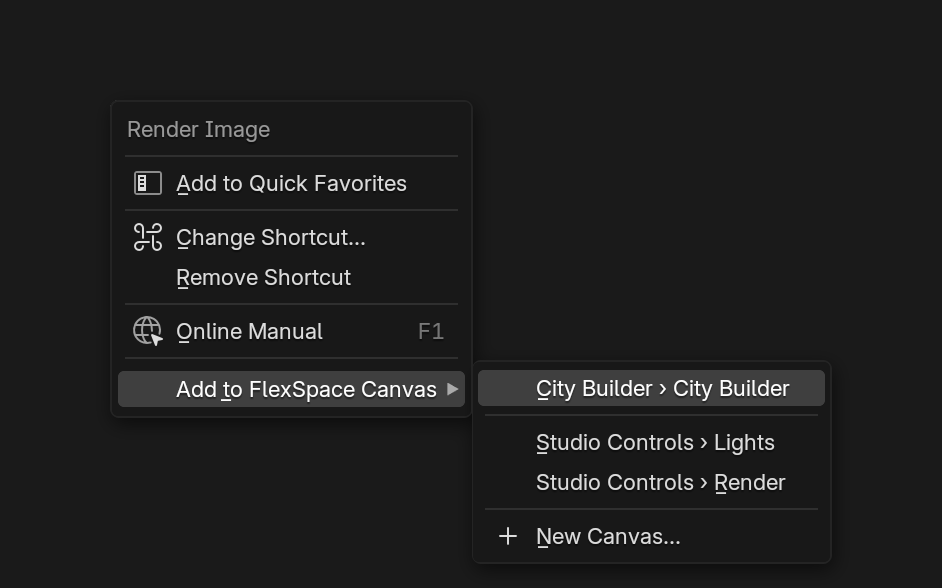
Right-click a button. Render Image, Shade Smooth or any other: you get an Operator button that runs it with the same settings.
 SCREENSHOT
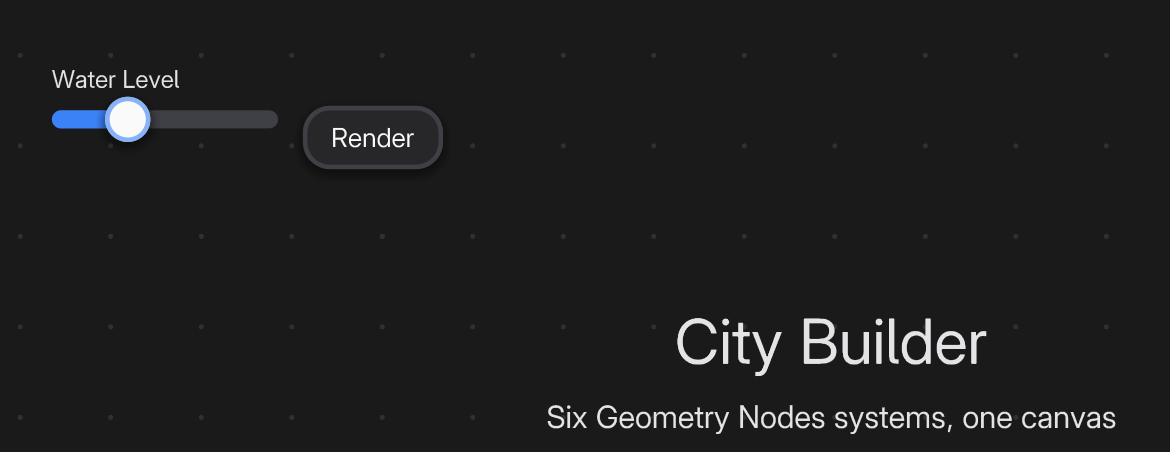
On the page, bound. Each widget goes to a free spot in the part of the page you can see: here a Water Level slider and a Render button.
Bind any property with a right-click. Choose From Property, right-click a property in Blender and get a widget already bound to it, ready to drive the scene.
 SCREENSHOT
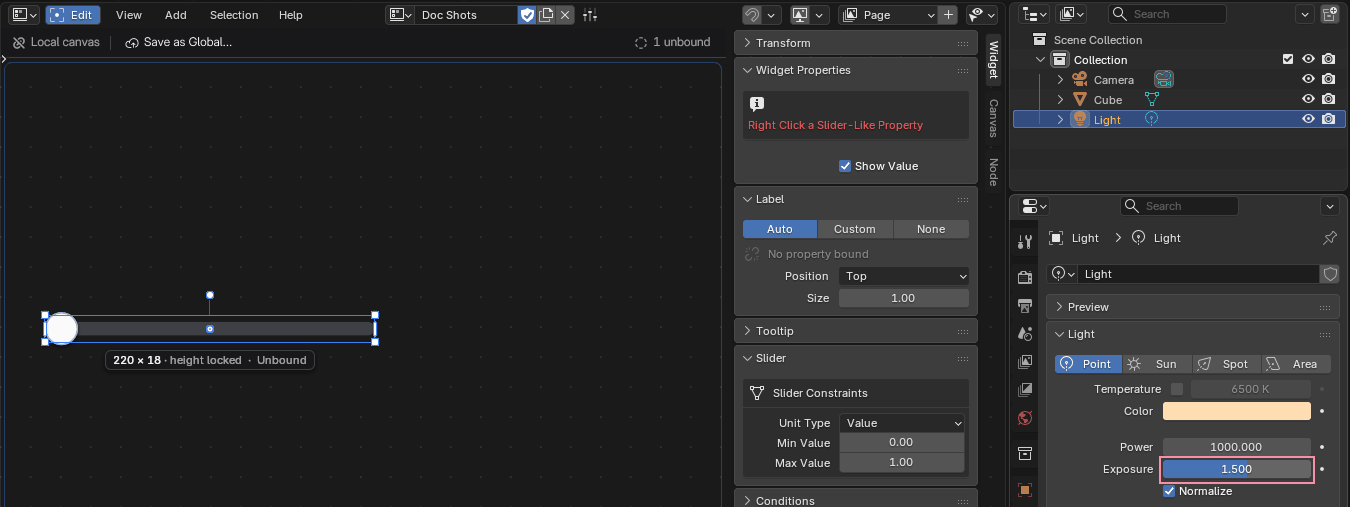
Binding eyedropper. Bind a slider with the eyedropper: right-click any slider-like property, here the light's Exposure.
 SCREENSHOT
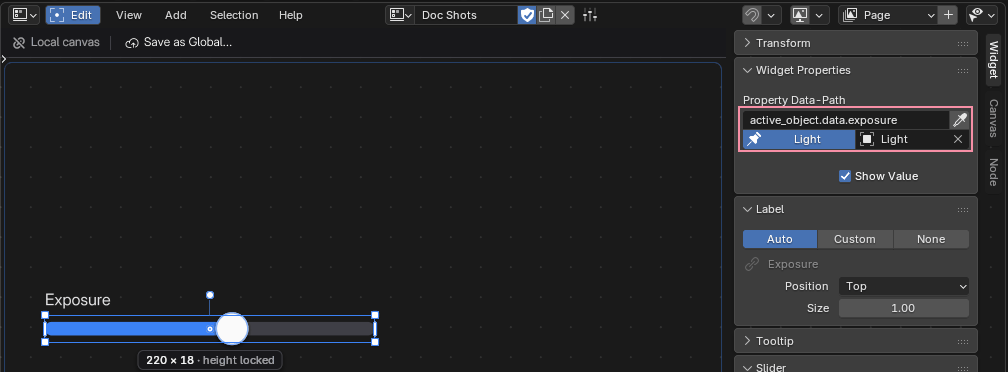
Bound data path. After the pick the slider is bound to the light's exposure, pinned to that light, and labelled for you.
One canvas for every mode.
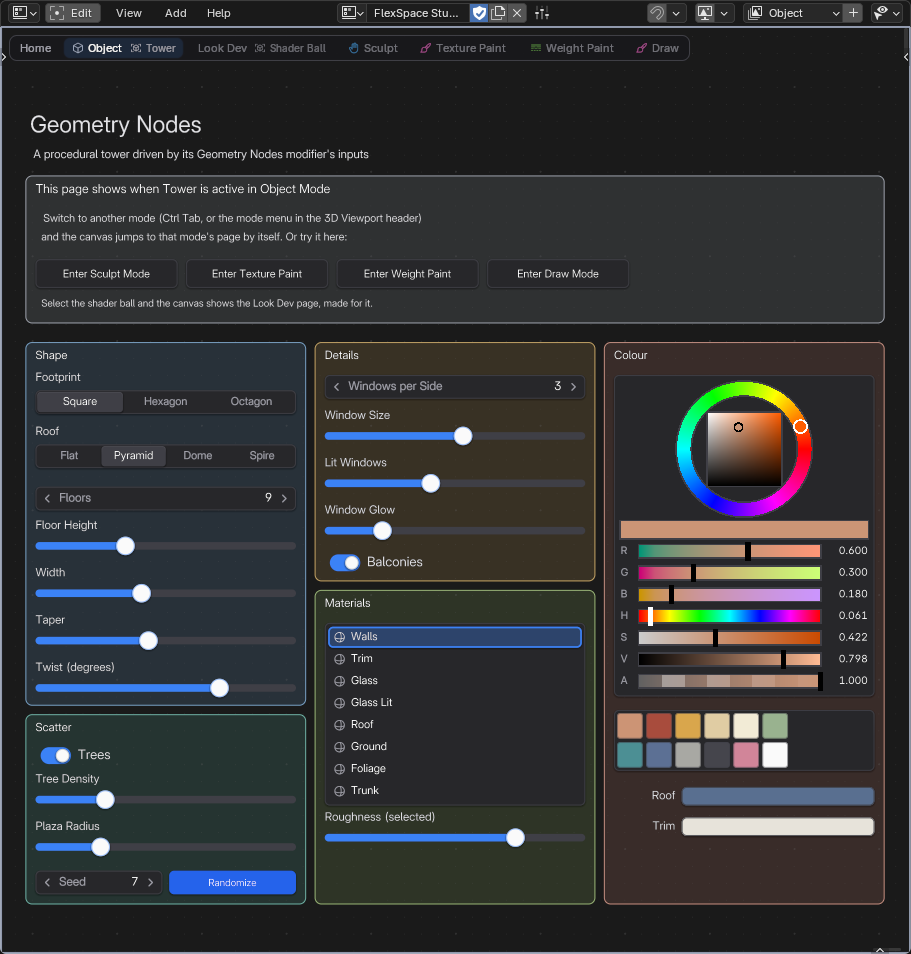
Give each page its moment: always, in one Blender mode, for one object, or for one object in one mode. Switch to Sculpt Mode and your sculpt page is there; select the tower and its Geometry Nodes controls show up.
- ✓Show When: Always, Mode, Object, Object in Mode
- ✓Switch Pages Automatically
- ✓A clear notice, and one click to enter the right mode
 SCREENSHOT
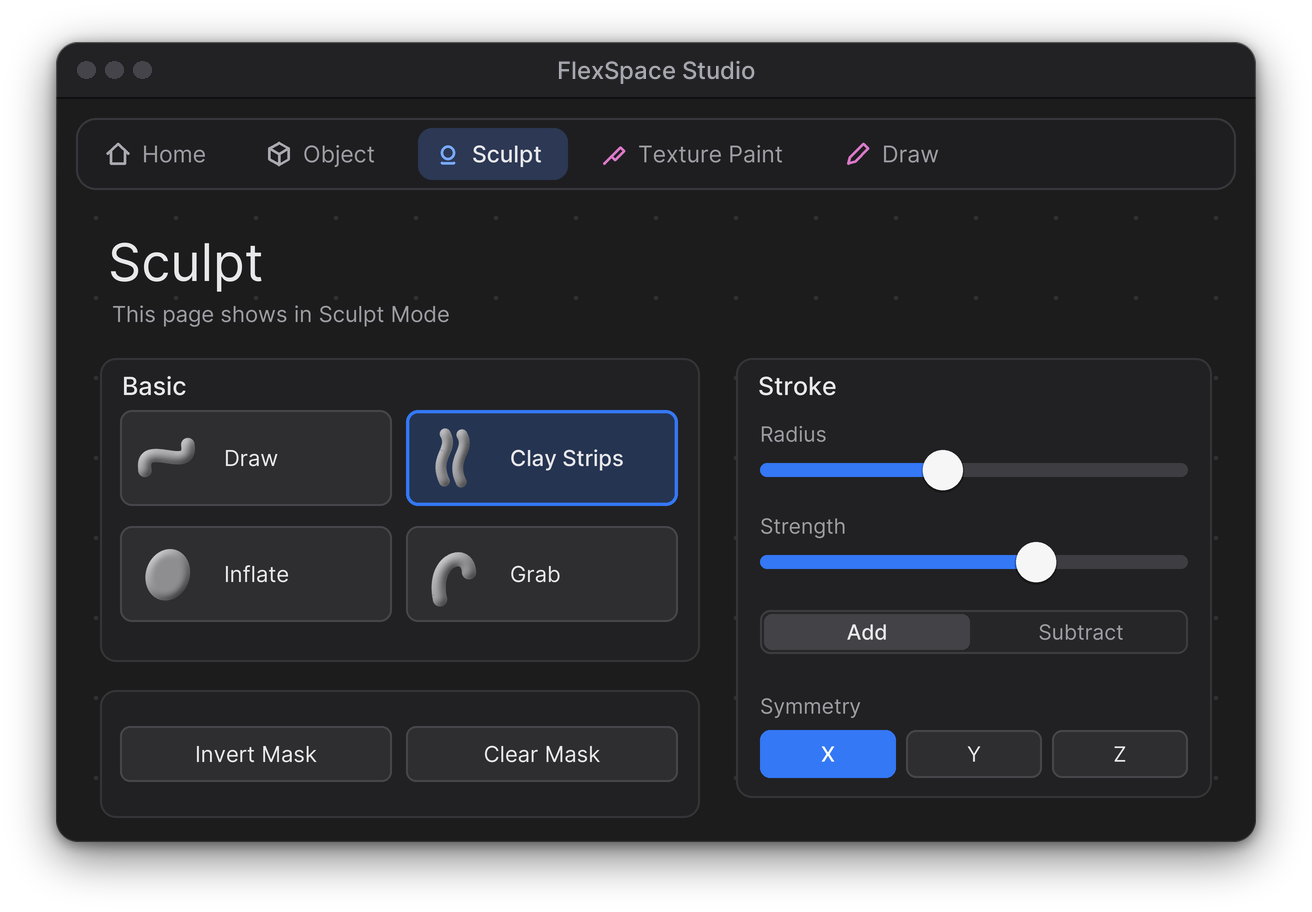
Pages and modes. One canvas, a page per mode: the tabs show each page's mode, the active one is outlined.
 SCREENSHOT
FlexSpace Studio: Sculpt page. Enter Sculpt Mode and the canvas jumps to its Sculpt page: brushes, stroke, remesh, masks and face sets.
 SCREENSHOT
FlexSpace Studio: Texture Paint page. In Texture Paint the canvas shows a colour picker, swatches, paint brushes, masks and projection settings.
A sculpt wheel that stays put.
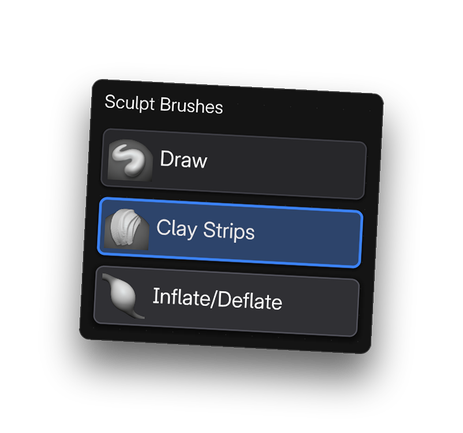
Brushes in the outer ring, toggles and operators in the inner ring, the active brush named in the core. It lives on the canvas: no pie to summon, no menu to close. Fill it with every Essentials brush in one click and page through the rest.
- ✓Brushes, toggles and operators
- ✓Pages for more brushes
- ✓Disabled When per item
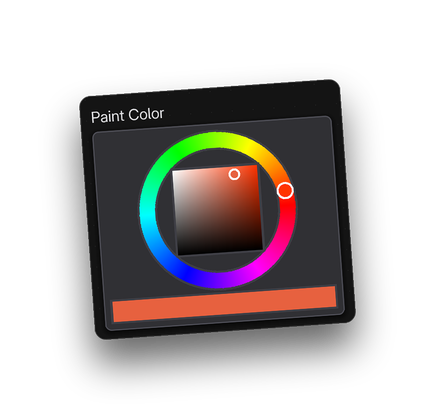
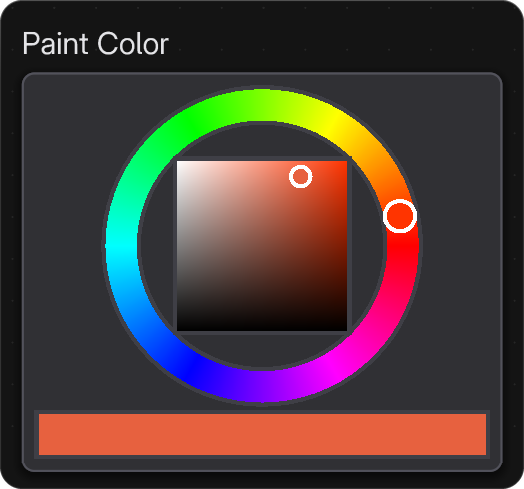
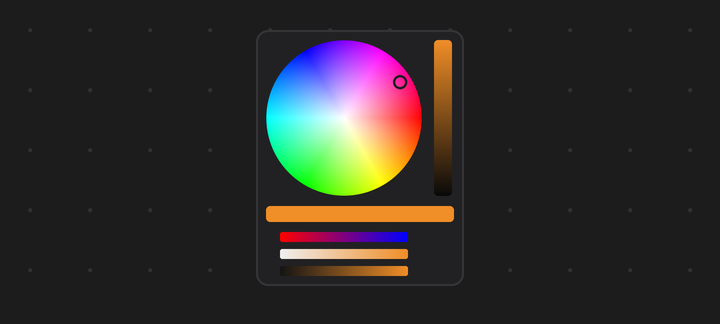
Also on the canvas: Color Picker, Color Palette and Brush Picker.
 Color Picker
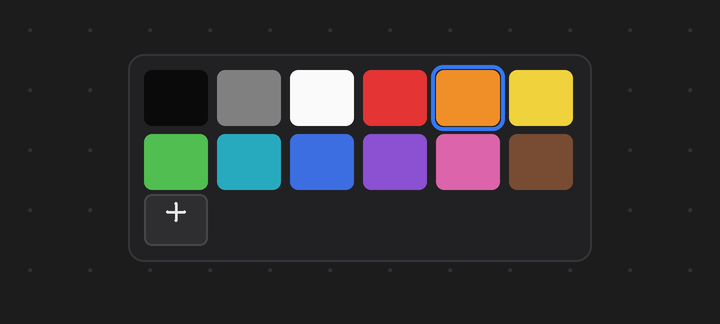 Color Palette
 Brush Picker
Recorded with the Sculpt Wheel demo, which has every Essentials sculpt brush ready to try: hover the ring to see each brush, click one to use it, flip pages and switch symmetry from the inner ring.
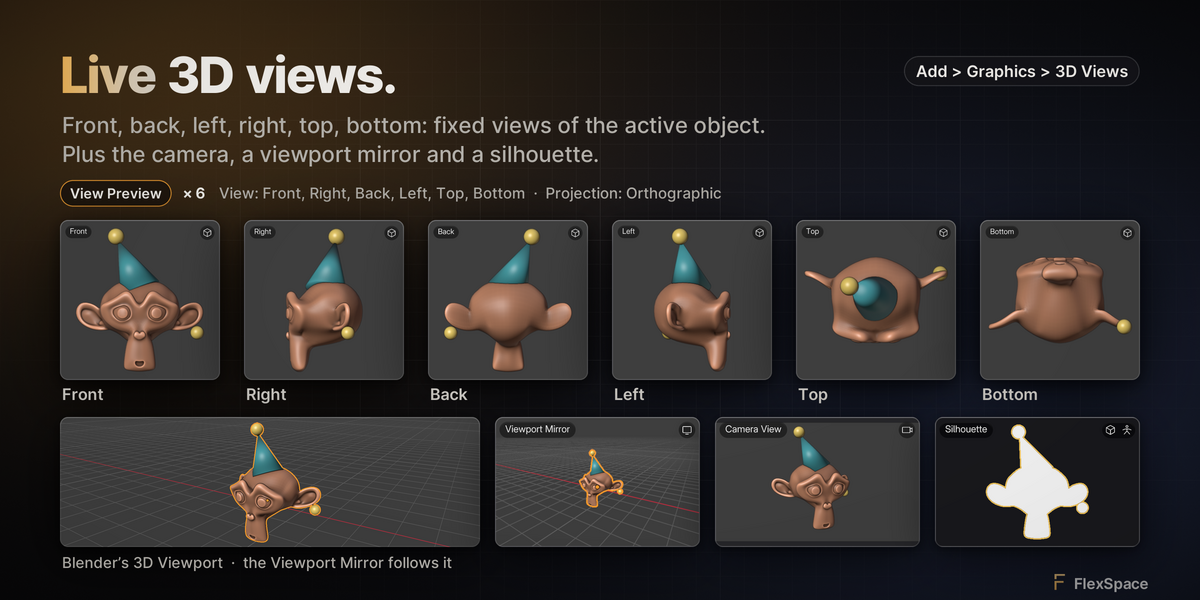
Live 3D views, right on the canvas.
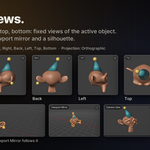
A close-up of the object you are working on, what the camera sees, or a second look at your viewport, updated as you work. Add › Graphics › 3D Views has four ready to place: View Preview, Camera View, Viewport Mirror and Silhouette, the flat shape in one colour for checking a pose. A view draws again only when something it shows changes.
- ✓Frame the active object, the selection, an object or a collection
- ✓Look through a camera, follow a viewport or orbit freely
- ✓Solid, Wireframe, Material Preview or the viewport's shading
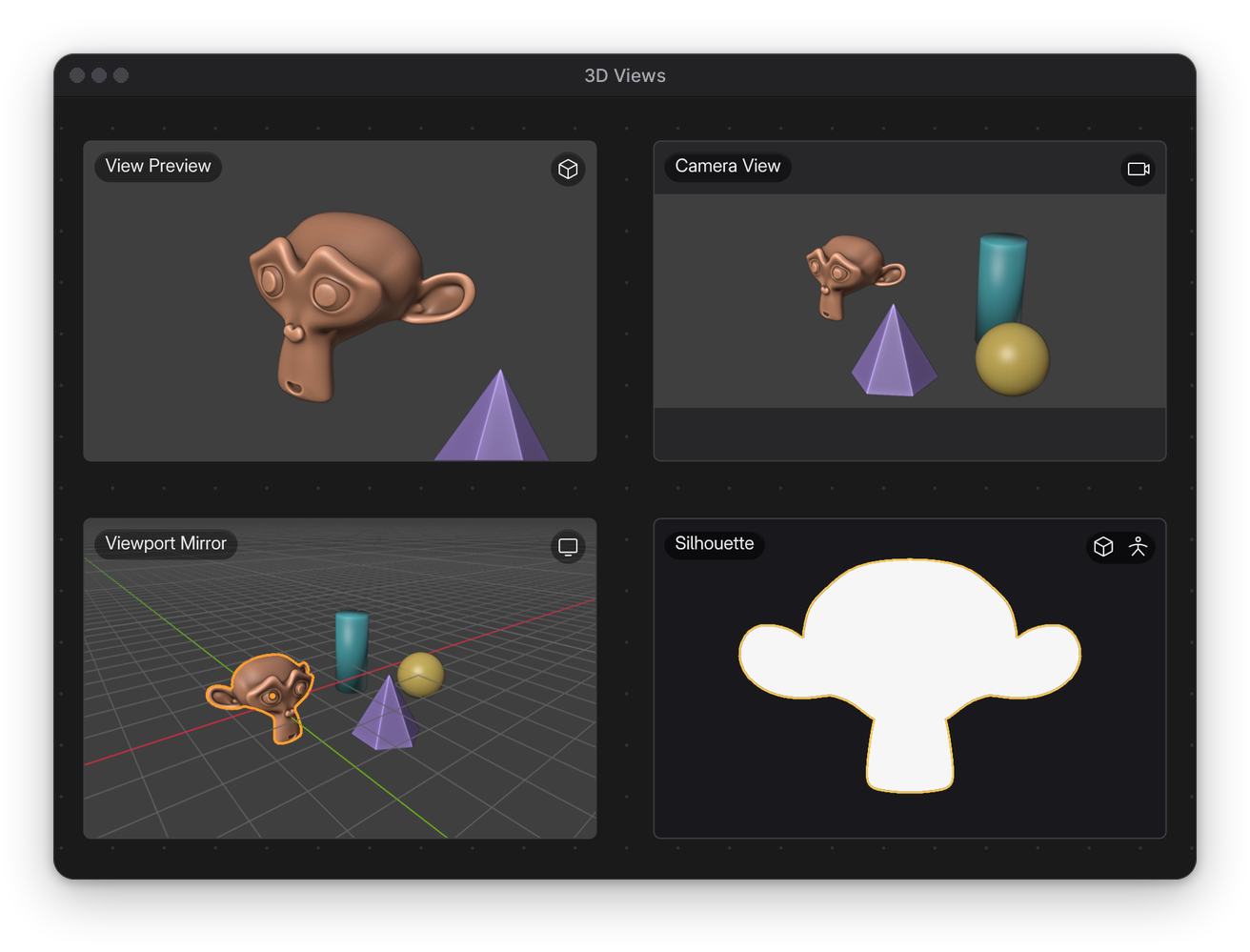
View Preview. Click the ball, the cylinder, the pyramid, then Suzanne in the viewport: View Preview frames each new active object.
Camera View. As the camera swings round the props, Camera View shows what it sees, with bars around the camera's wide frame.
Viewport Mirror. Orbit the 3D Viewport and Viewport Mirror follows, with the grid and the selection outline drawn too.
Silhouette. A Toggle on the canvas turns Silhouette off and on; then the head turns and its shape follows.
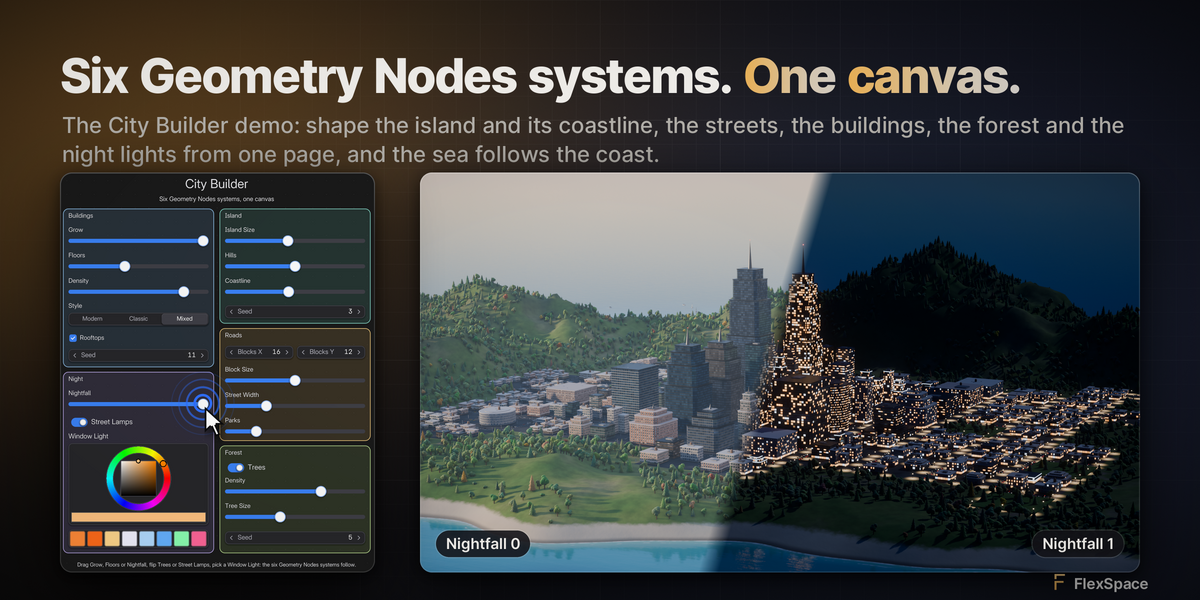
Six Geometry Nodes systems. One canvas.
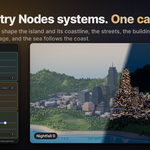
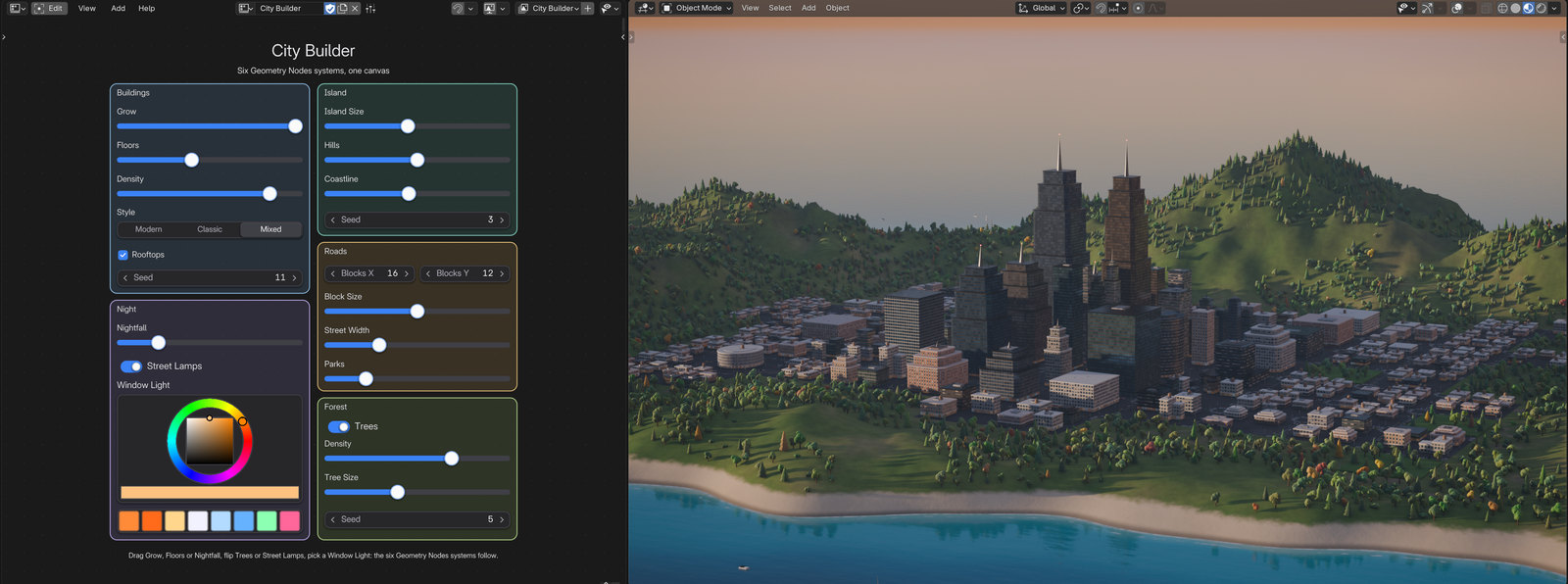
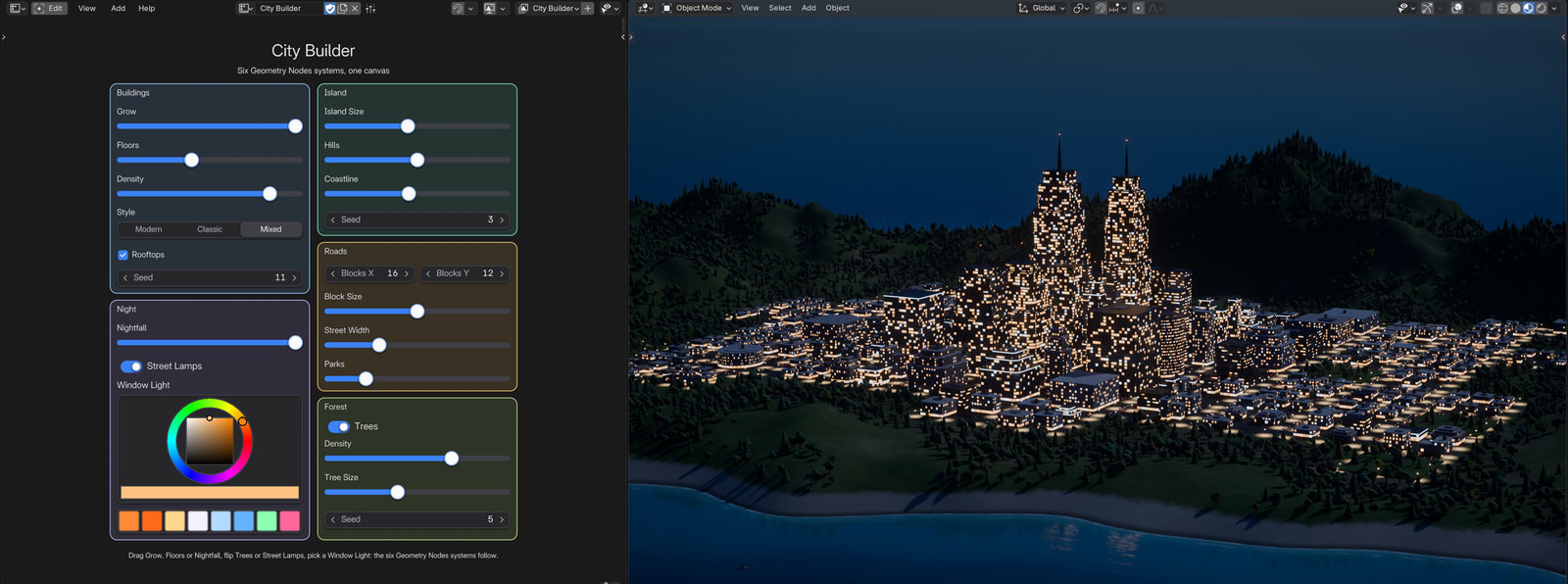
The City Builder demo is a procedural island city: the island, the sea, the streets with their traffic, the buildings, the forest and the street lights, each its own Geometry Nodes system. One canvas page shapes the island and its coastline, the streets, the buildings, the forest and the night lights, and the sea follows the coast. Drag Grow and the city rises from its empty plots; drag Nightfall and the sun sets, the windows and the street lamps light up and the night falls.
- ✓Widgets bound to the modifiers' inputs
- ✓Buildings, night, island, roads and forest on one page
- ✓No Python scripts in the file
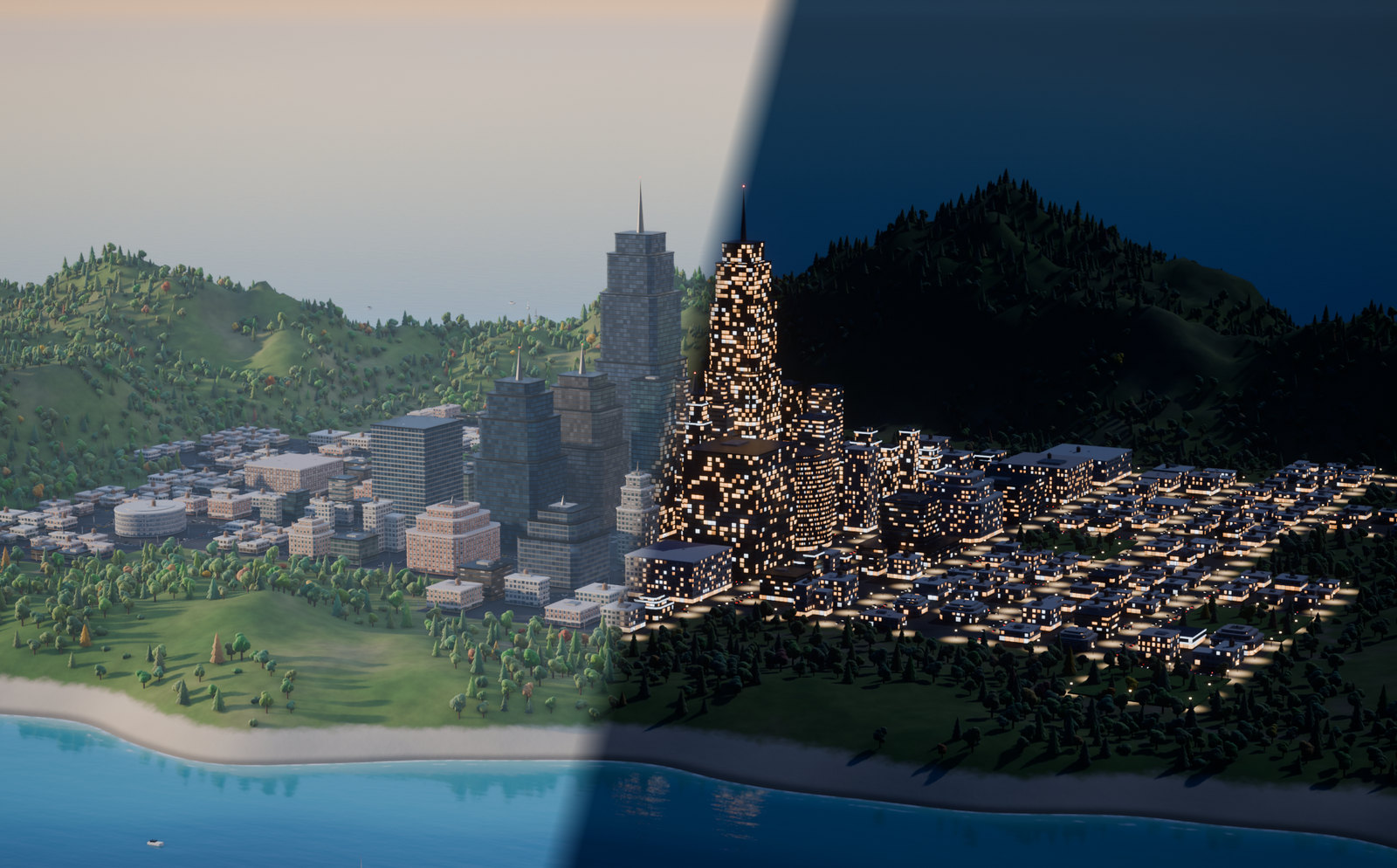
The same view with Nightfall at 0 and at 1, in the 3D Viewport (EEVEE, Material Preview with the scene's lights and world).
 SCREENSHOT
City Builder, as it opens. The canvas in Live Mode beside the 3D Viewport, at golden hour.
 SCREENSHOT
Nightfall at the end. The sun has set: the windows and the street lamps are lit and the sky is night.
Lay out like a design tool.
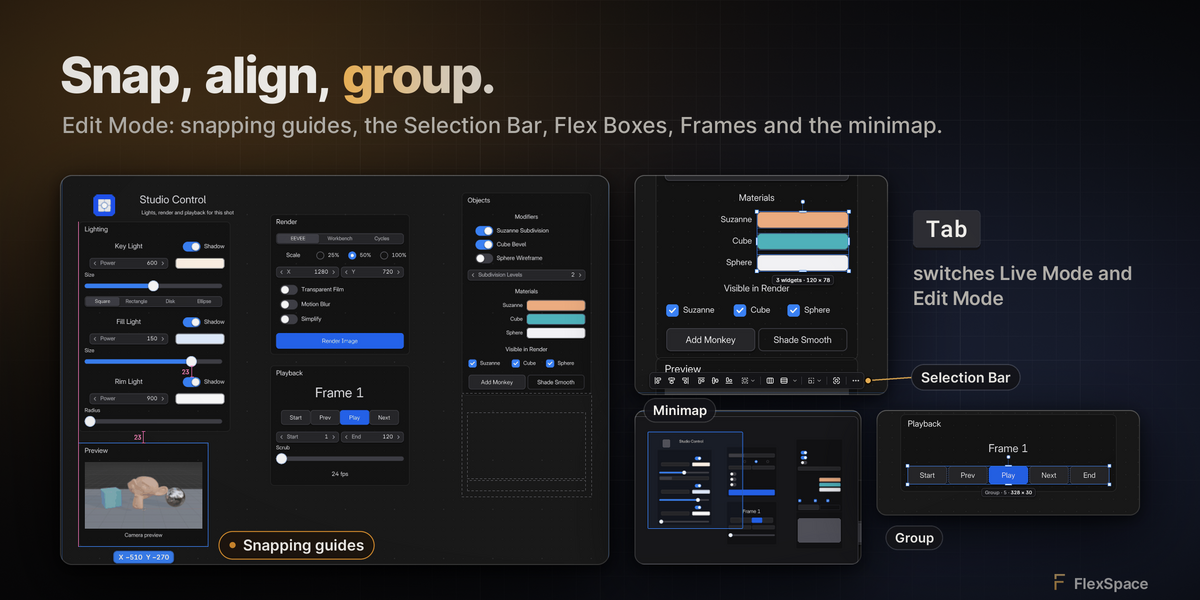
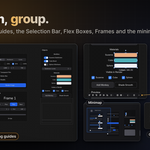
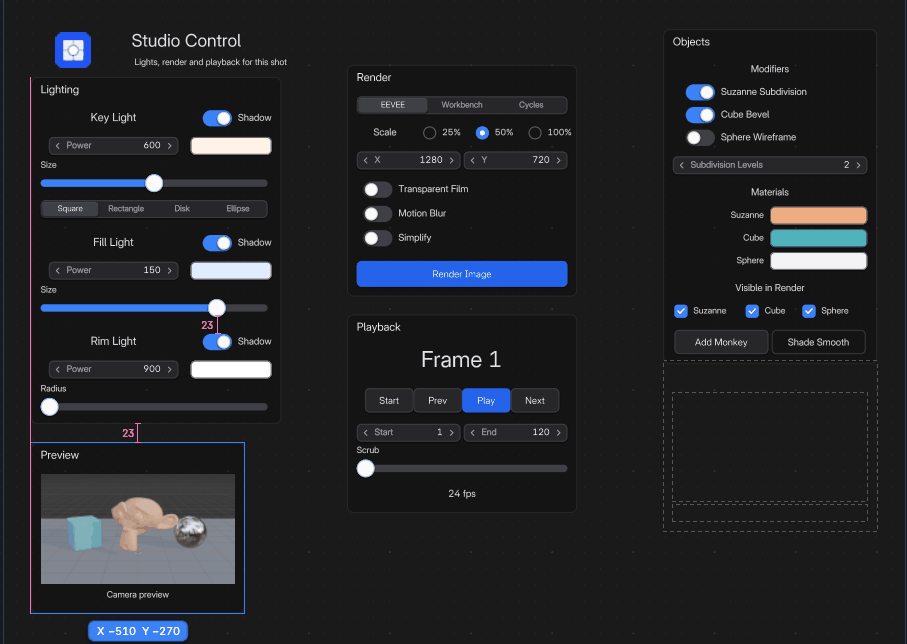
Smart snapping to edges, centres, equal gaps and the grid. A Selection Bar to align, distribute and match sizes. Frames, groups and Flex Boxes keep it tidy; copy and paste work across canvases of the same kind.
- ✓Snapping guides
- ✓Align, distribute, match size
- ✓Frames, groups, Flex Boxes, minimap
GRS move, rotate, scale · Ctrl G group · Ctrl J frame
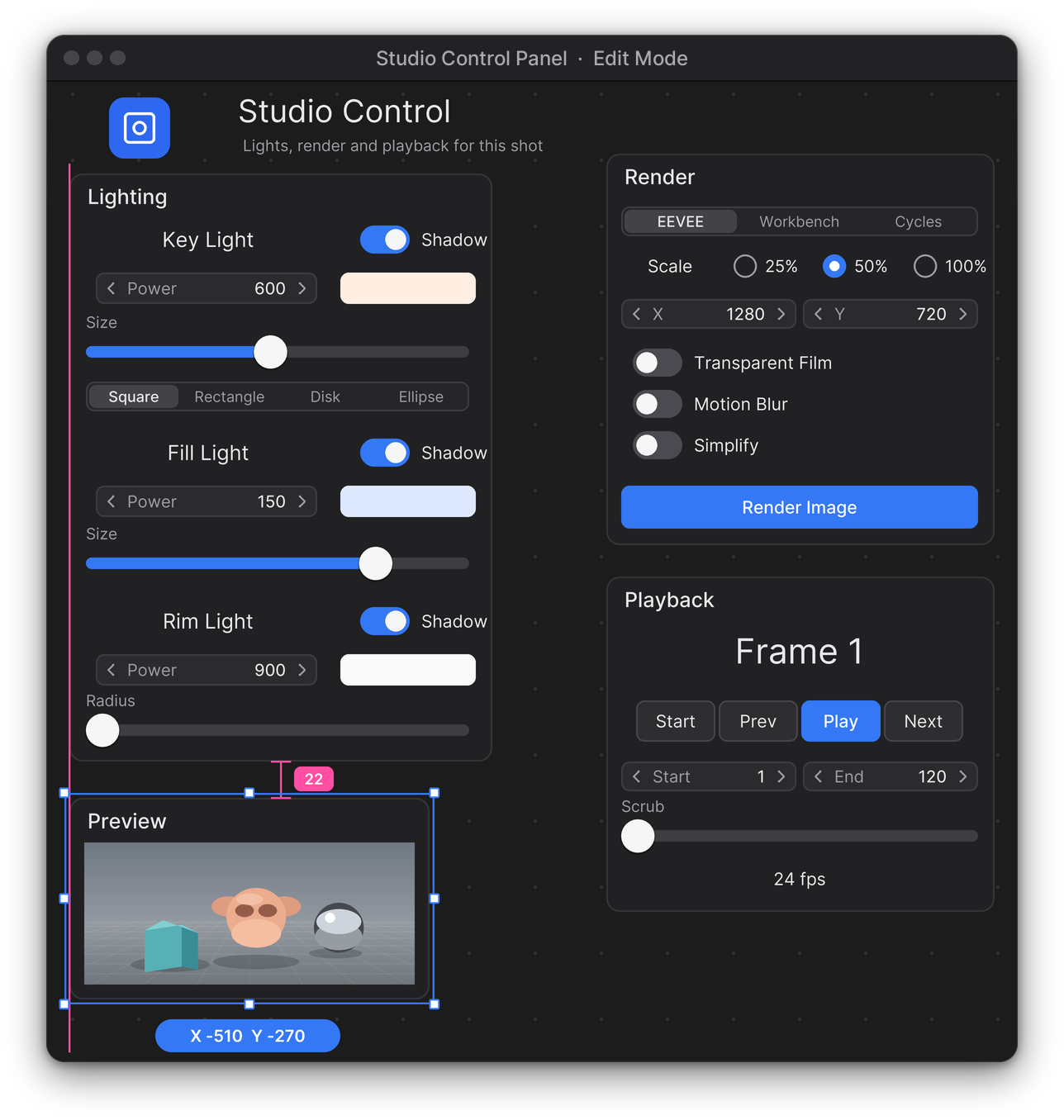
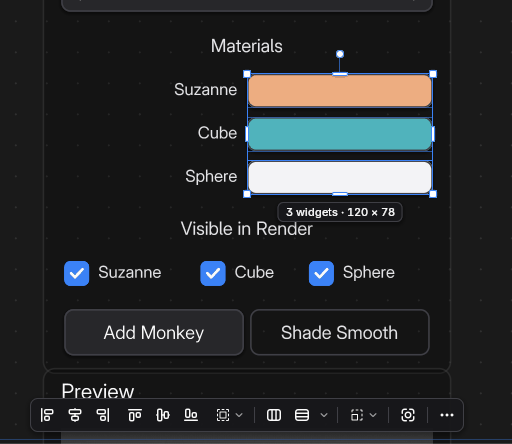
Lay out with snapping and the Selection Bar. Drag widgets with smart snapping guides, align and distribute them from the Selection Bar, then group them and move them as one.
 SCREENSHOT
Smart snapping. Drag a frame and it snaps to the edges, centres and equal gaps of its neighbours, with guides that show why.
 SCREENSHOT
Selection Bar. With several widgets selected, the Selection Bar aligns, distributes and matches their sizes.
Pose without hunting for bones.
A picker is a canvas of buttons that select the bones of your rig. It's saved with the armature, so it travels when you link or append the rig, and your Pose Mode keys keep working over it. Using Rigify? Add a full Humanoid Body picker (body, hands, feet and face) in one step.
- ✓Bone buttons, custom shapes and mirroring
- ✓IK/FK switches, knobs and 2D pads
- ✓Bone collection toggles
- ✓IK/FK Snap, Hidden Bones and Right Click Select
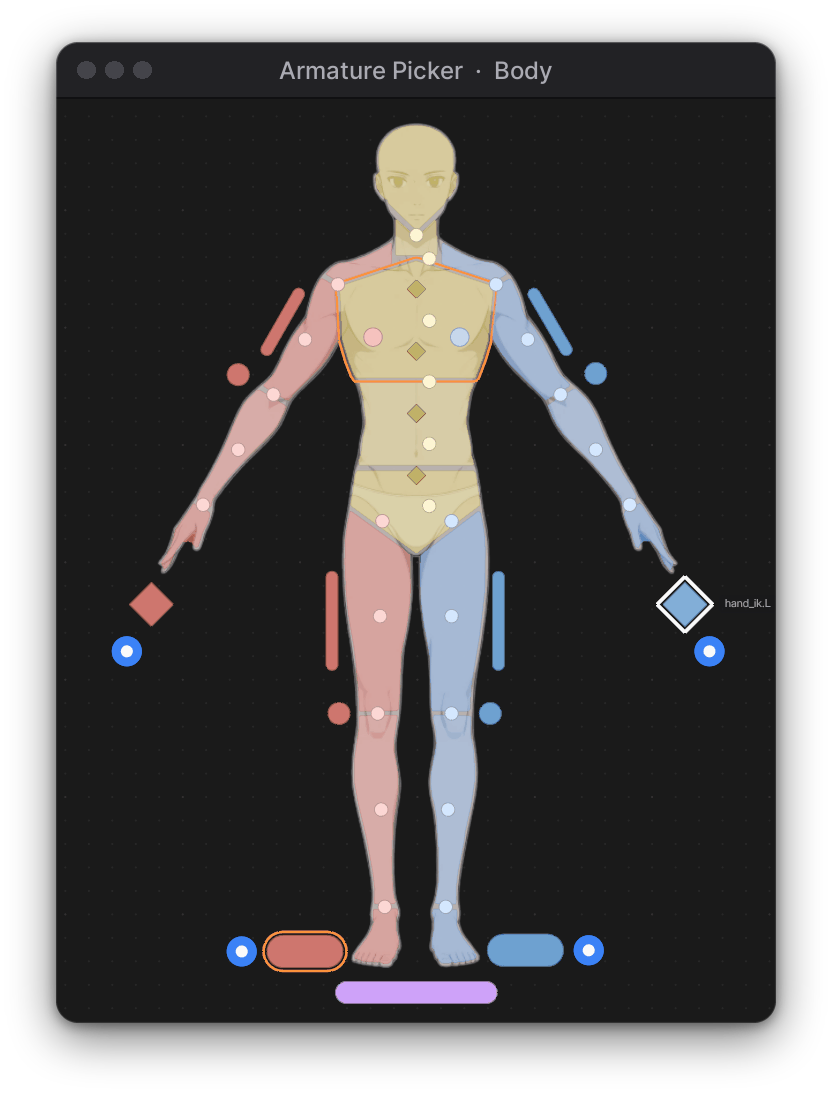
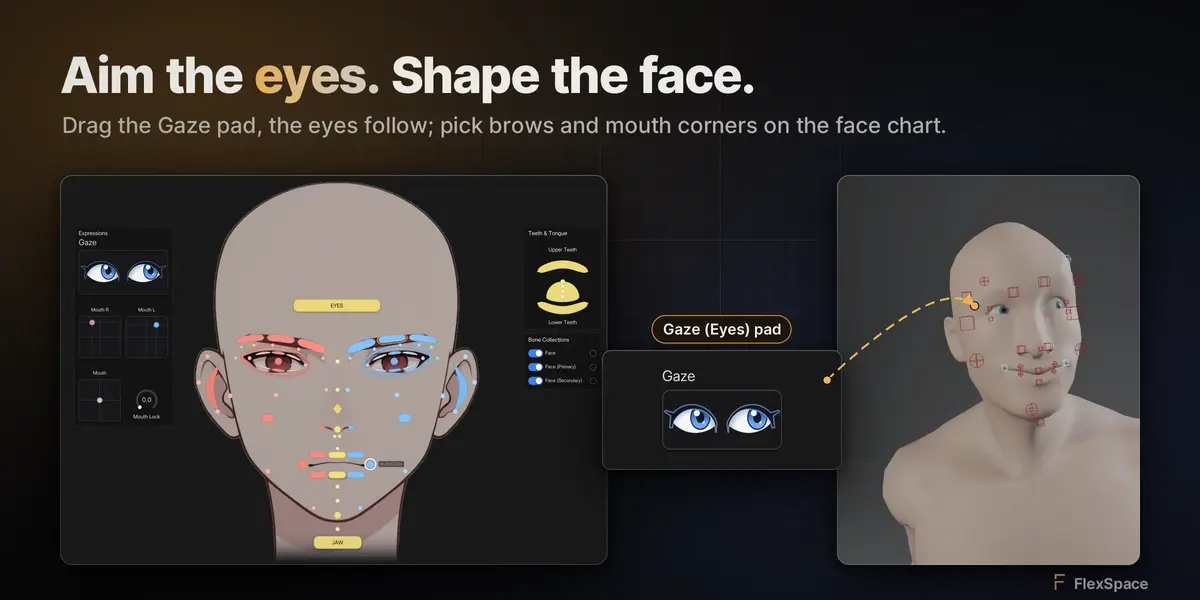
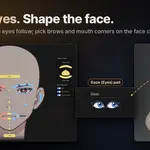
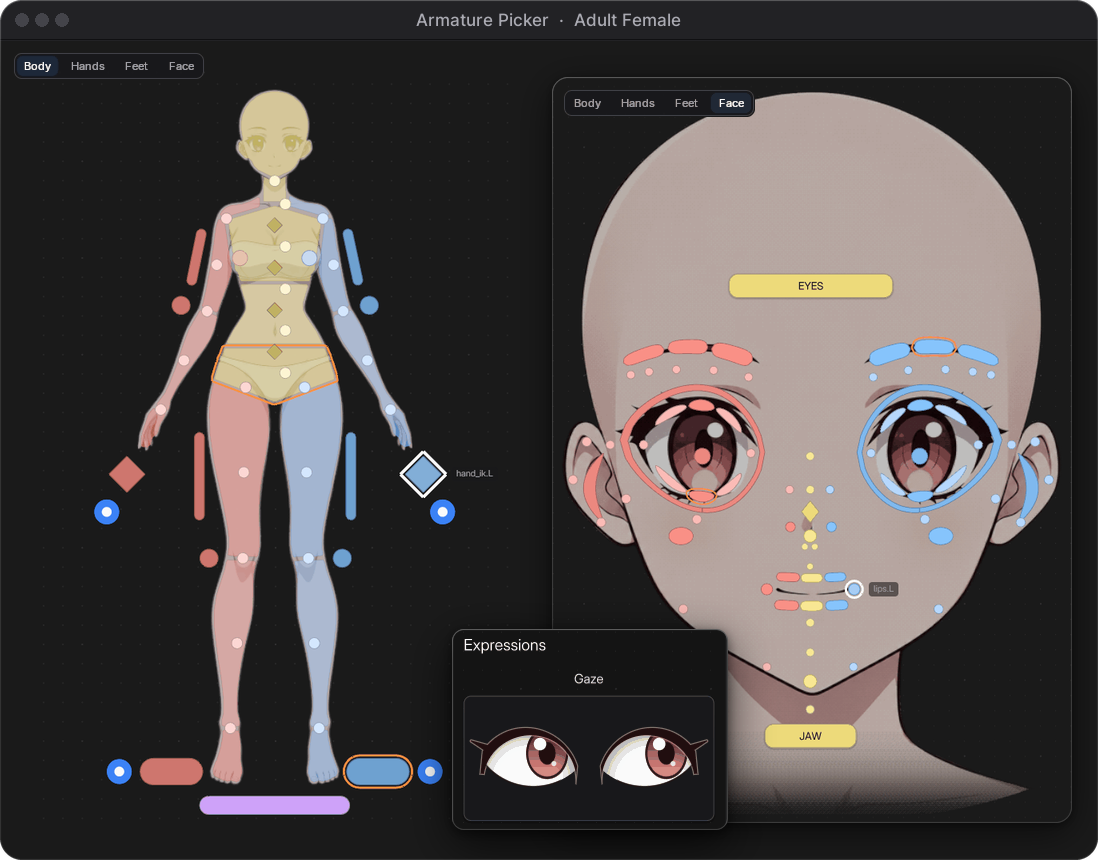
Aim the eyes, then shape the face. Drag the gaze pad and the character's eyeballs follow; then pick the brows and the mouth corners on the face chart and move them for a smile, no controls cluttering the face.
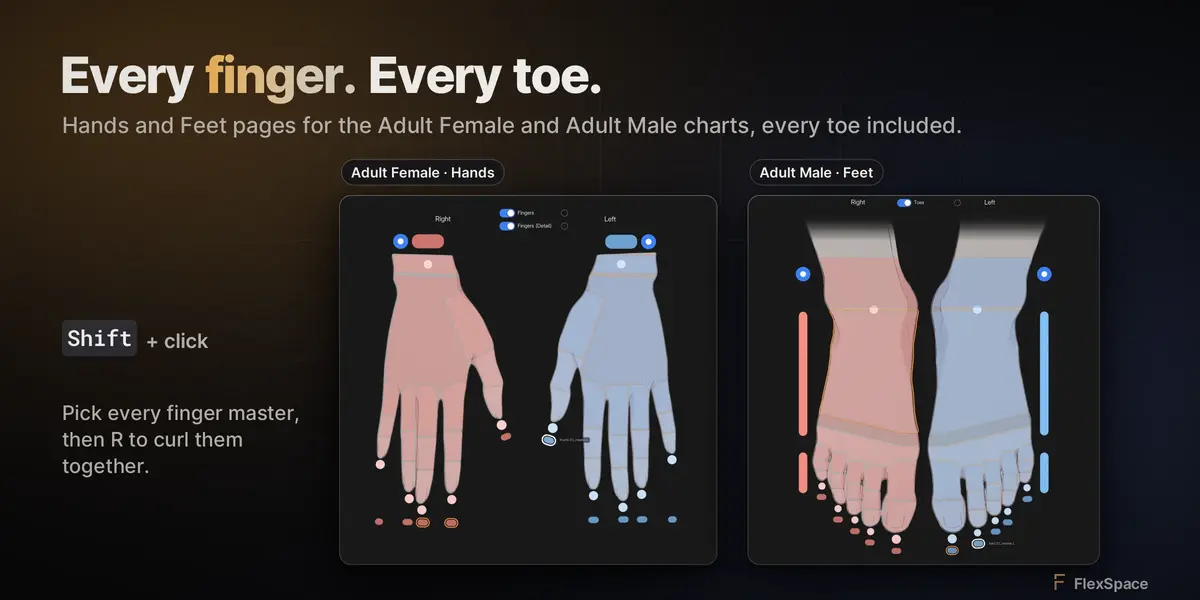
Curl a hand in one move. Shift-click the four finger masters in the picker and curl them together in the viewport (R, X X), then the thumb.
IK and FK in one click. The puck beside the hand flips the arm between IK and FK, one click each way.
Build it once. Use it everywhere.
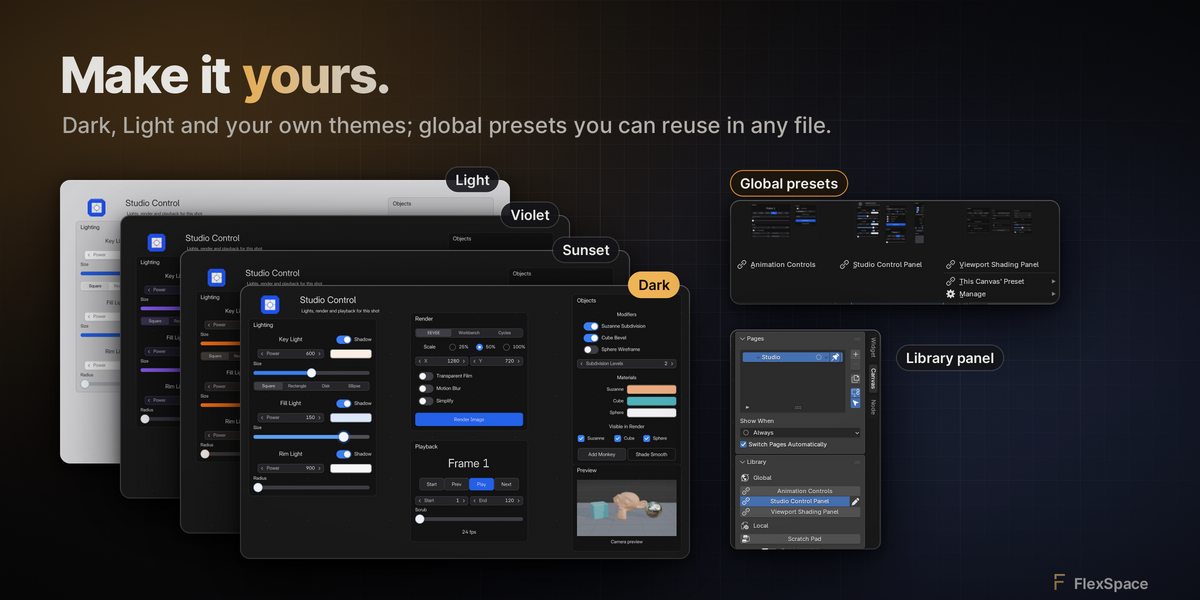
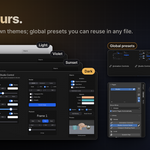
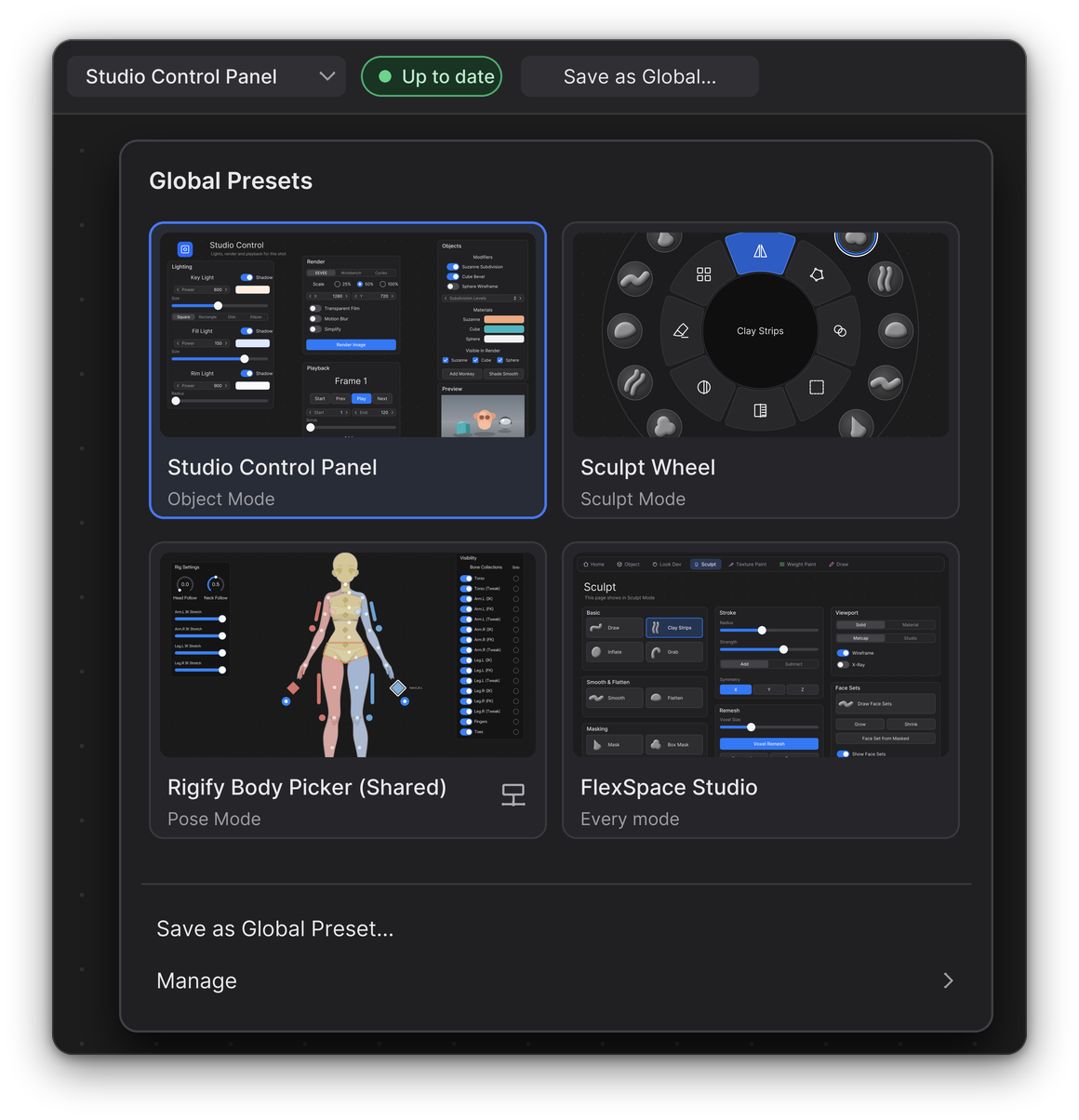
Save a canvas as a global preset and add it to any project. Linked canvases know when the preset changed, keep your local edits until you choose, and can restore any of the last 5 versions. Export a .flexspace file, or point your team at a shared presets folder.
- ✓Up to date, Modified and update badges
-
✓
.flexspaceexport and import - ✓Shared team folder
 SCREENSHOT
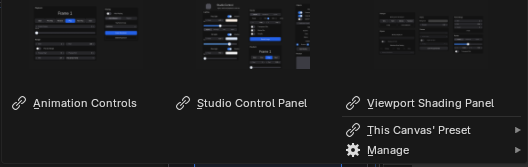
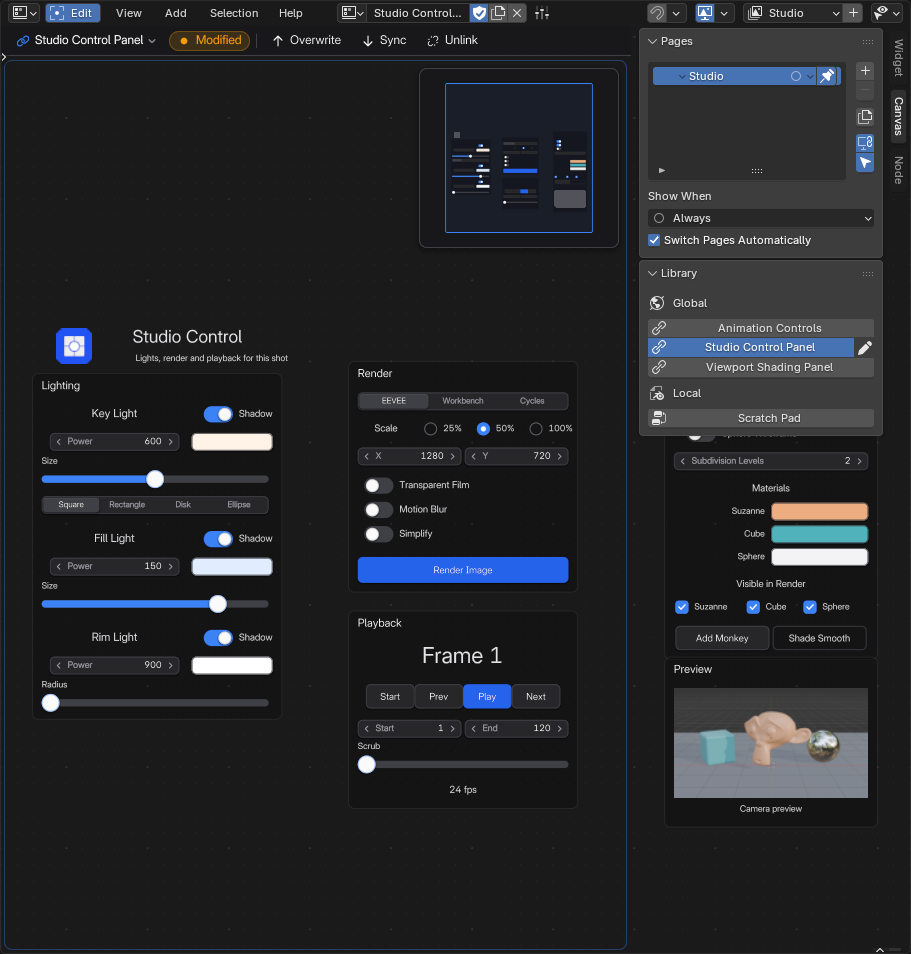
Global presets. Save any canvas as a global preset and add it to any project from a menu of thumbnails.
 SCREENSHOT
Library. The Canvas tab of the sidebar: the pages and the Library of global presets and local canvases.
DARK
 LIGHT
Dark, Light or your own.
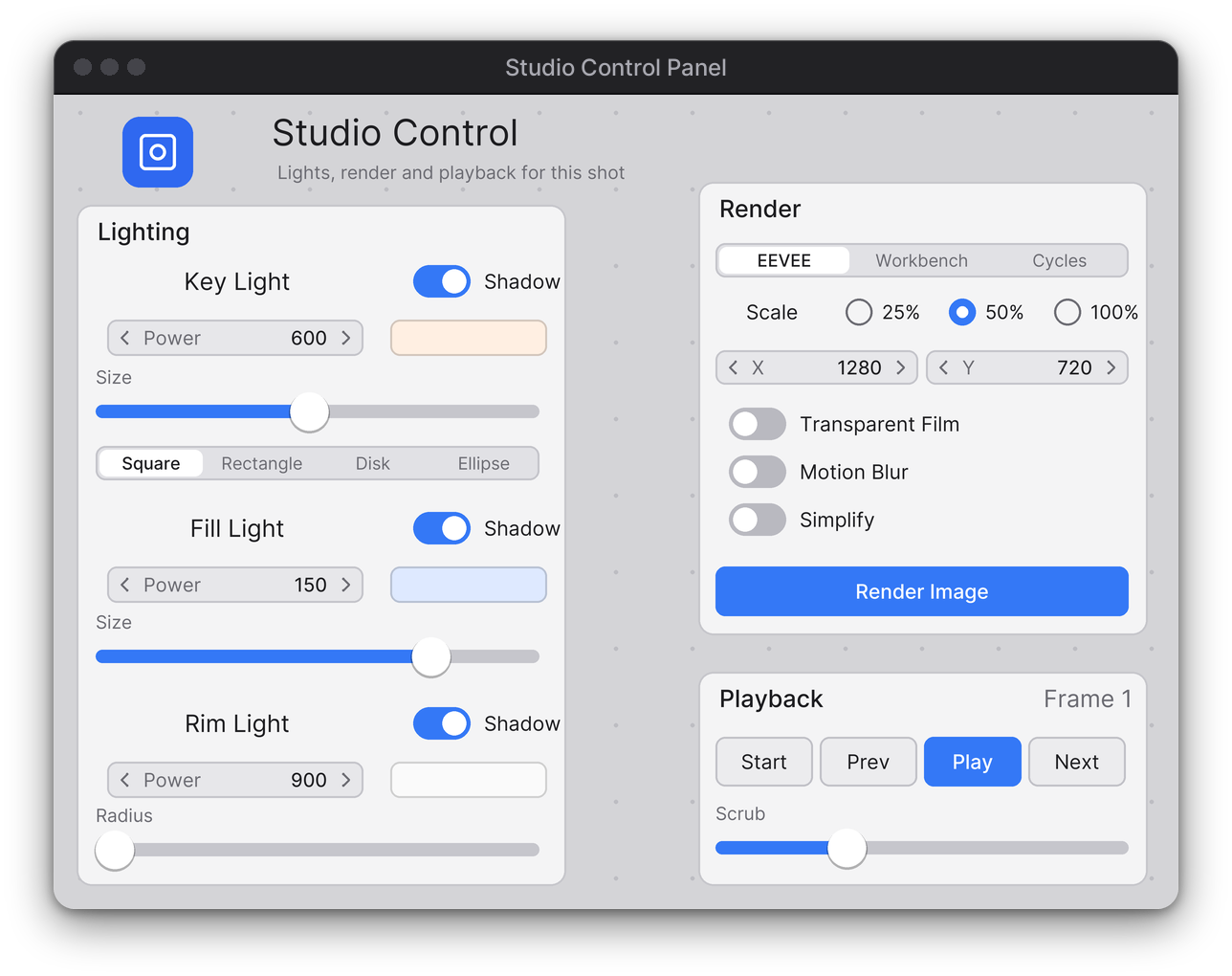
The theme sets the colours, shapes and type of every widget, on every canvas.
Themes. One canvas through the Default theme, two user themes and the Light appearance.
 SCREENSHOT
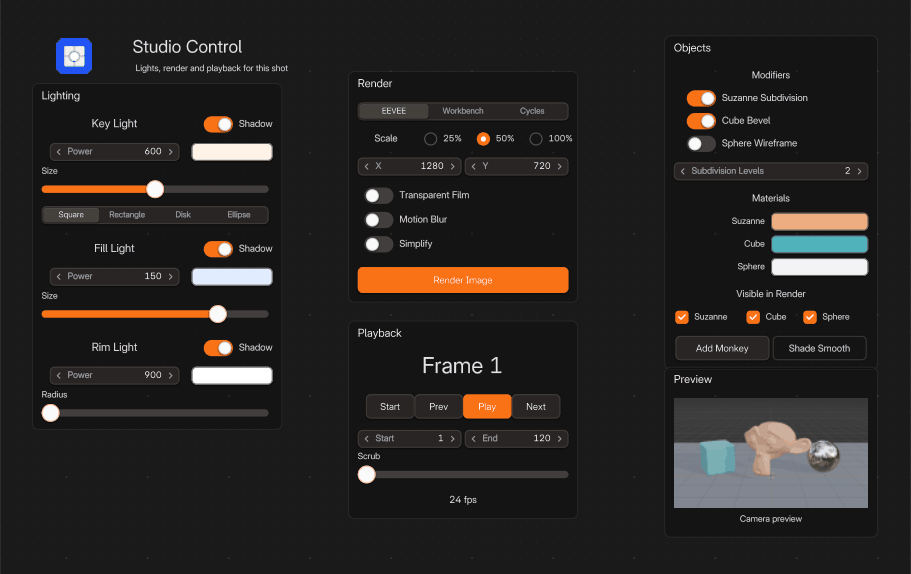
Sunset theme. The same canvas in a user theme, Sunset: made in the theme editor in a few clicks.
The details that make it feel native.
Add in a second.
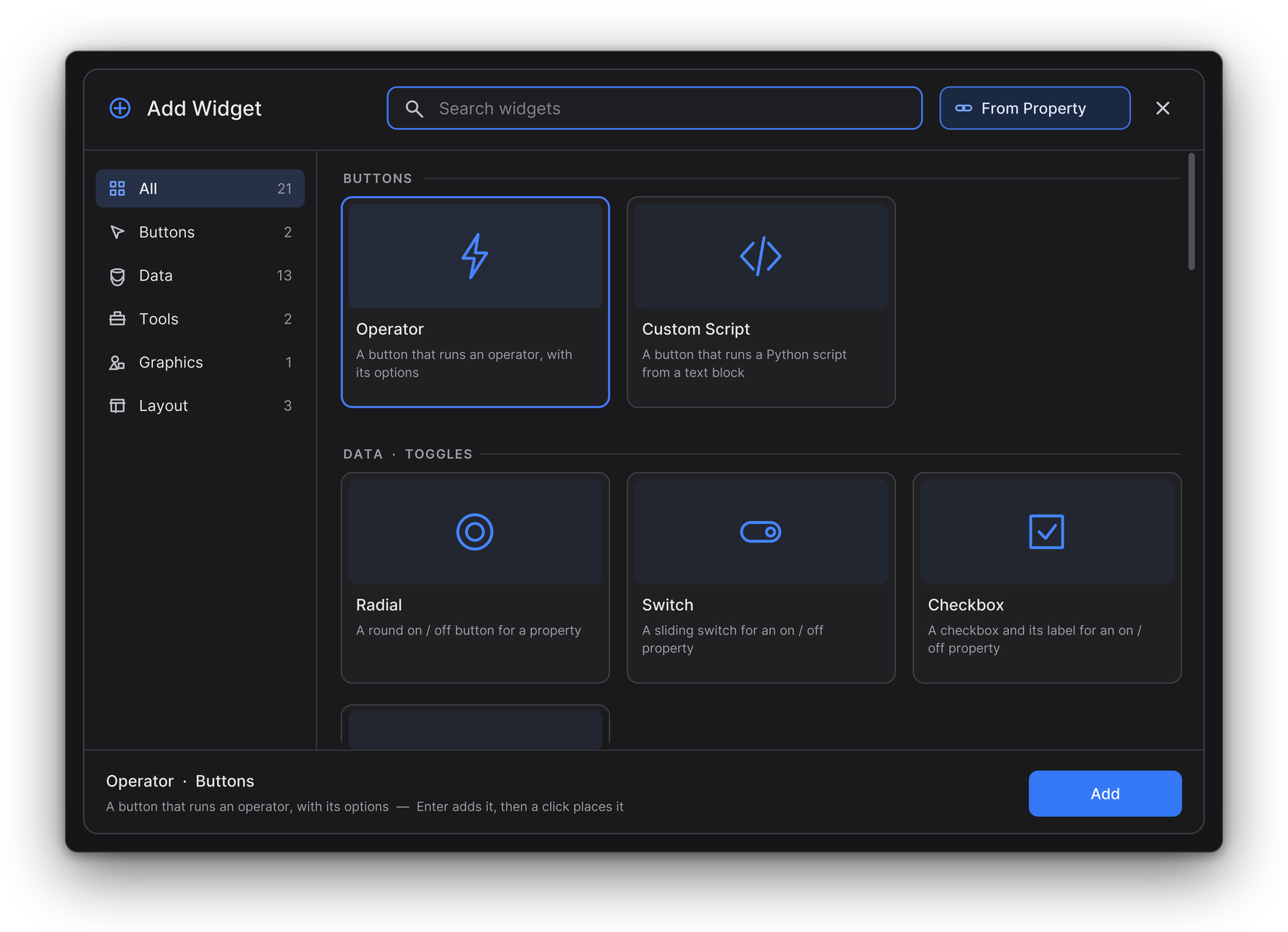
Shift A, start typing, Enter. A click places it.
Panels that adapt.
Show a widget only while a property is on with Visible When, or grey it out with Disabled When. On a frame or a Flex Box, everything inside follows.
Tooltips that explain.
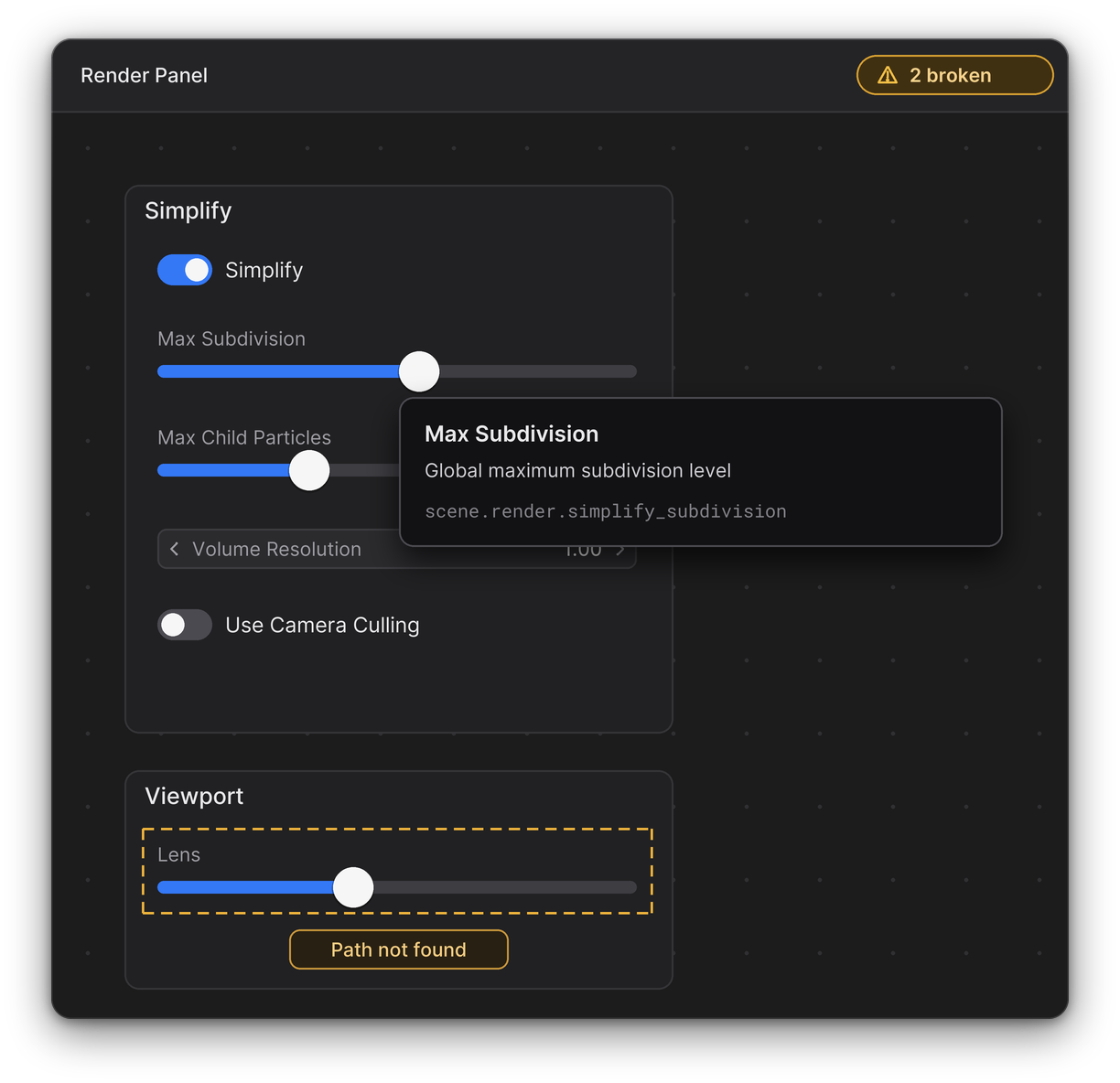
Rest on a widget for its operator or property, its data path, and why it can't run.
Broken bindings, found.
The top bar counts them; one click frames the next one.
Your keys still work.
Canvas keys come first; everything else goes to Blender's keymap, custom ones included.
Every change, one undo.
A slider drag, a toggle click, a paste: one step each. Bound widgets show Blender's animation colours.
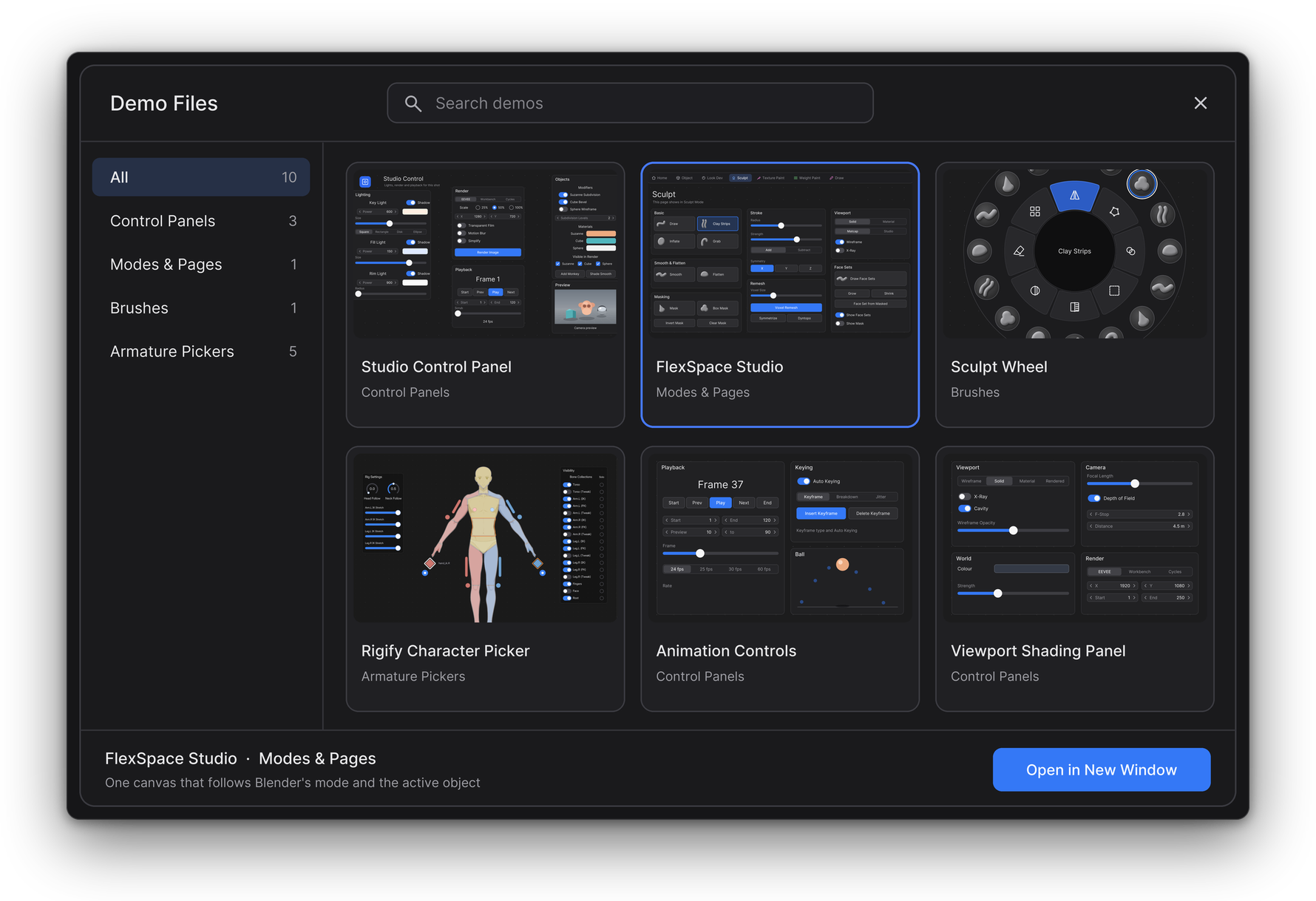
Demo files.
Finished canvases open in their own window; your file stays untouched.
Copy, paste, anywhere.
Into this canvas or another of the same kind, even after you open another file.
Report a bug from Blender.
Versions, system and recent errors filled in for you. You review it on GitHub before it is sent.
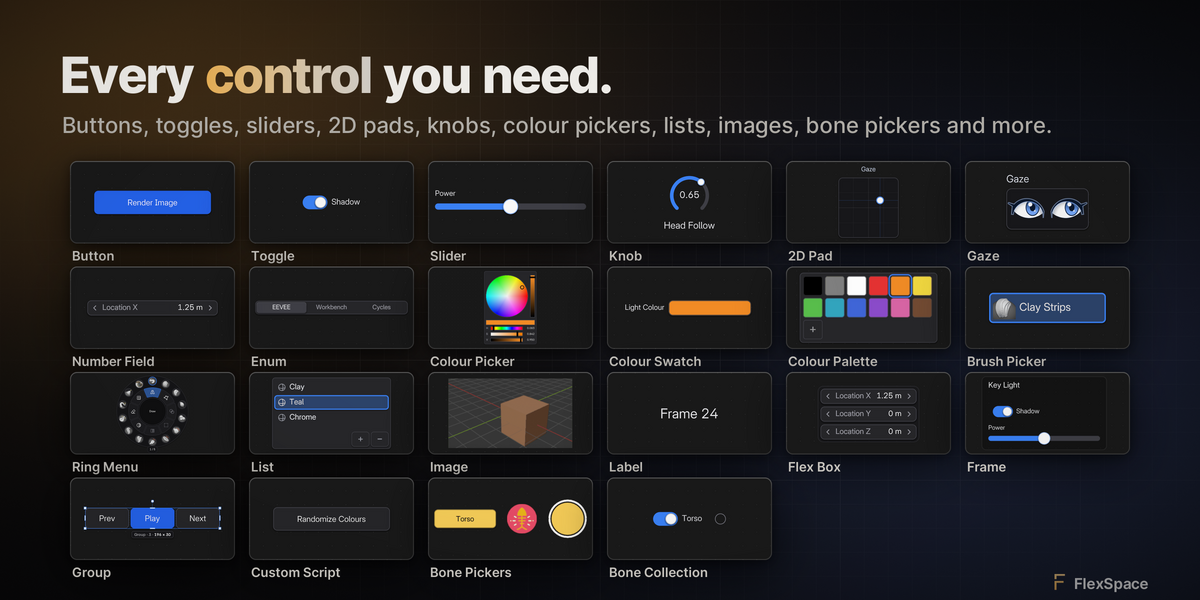
Every widget, bound to anything.
Flex Space widgets, plus the Armature Picker's own. Each one in the Add Widget panel, one Shift A away.
Operator
Runs a Blender operatorBUTTONS
Custom Script
Runs your own Python scriptBUTTONS
Toggle
Switches an on / off property, or sets an enum or integer valueDATA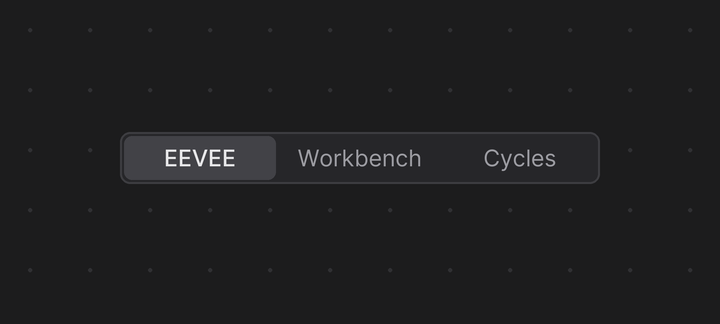
Enum
Picks one value of an enum or integerDATA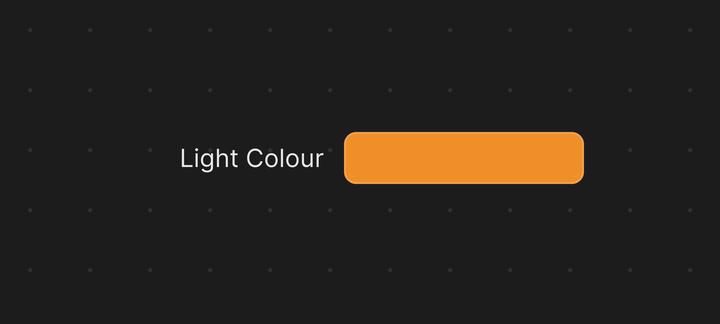
Color Swatch
Shows a colour and opens Blender's colour pickerCOLORColor Picker
Edits a colour on the canvasCOLORColor Palette
A grid of colour swatchesCOLORBrush Picker
Makes one brush the active brushTOOLS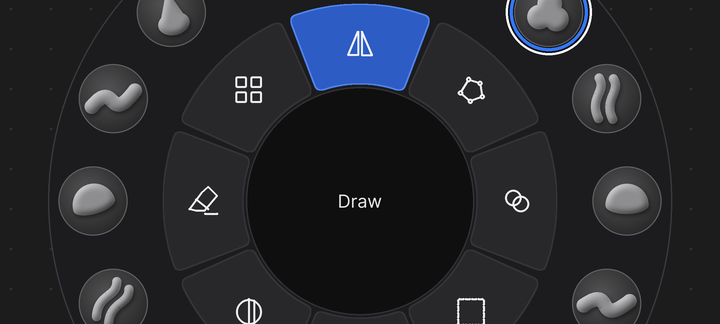
Ring Menu
Brushes, toggles and operators in a ring, like a sculpt wheelTOOLS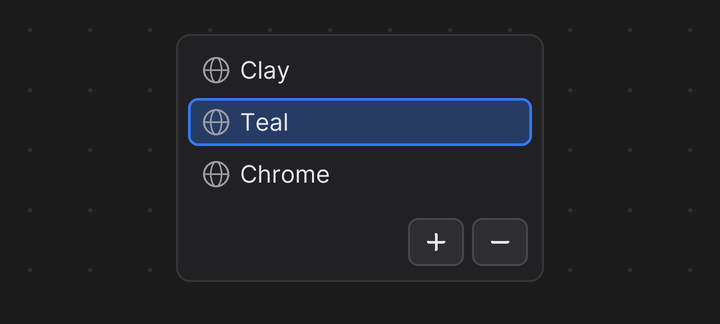
List
Layers, material slots, vertex groups and other lists as rows you can clickDATA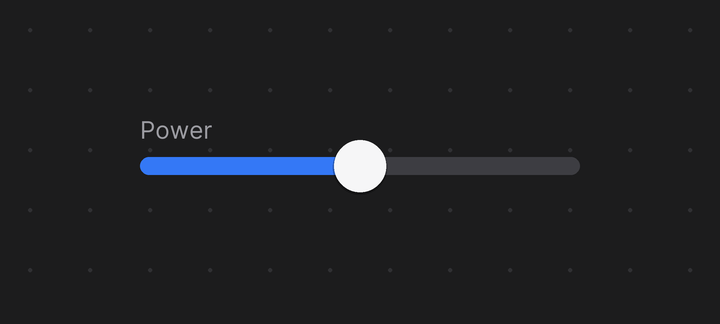
Lineal slider
Drag along a bar to change a numberDATA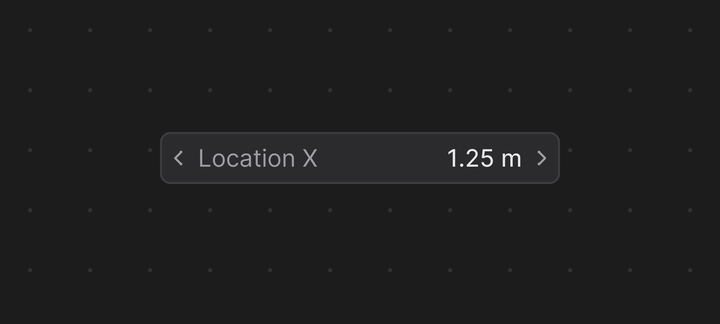
Number Field
A number field like Blender's ownDATA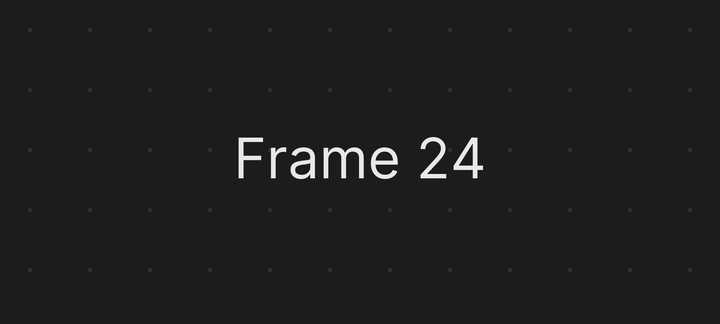
Label
Text, or a property's valueDATA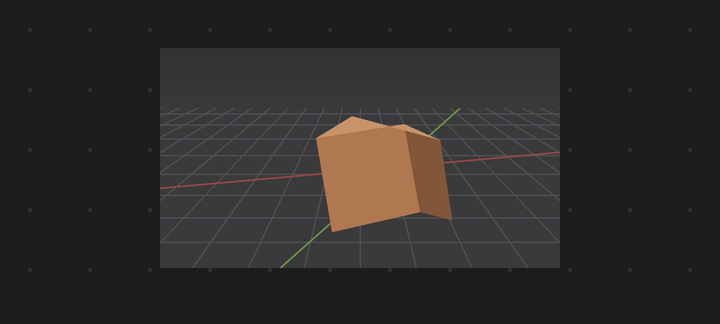
Image
Shows a picture, or sits behind everything as a backdropGRAPHICS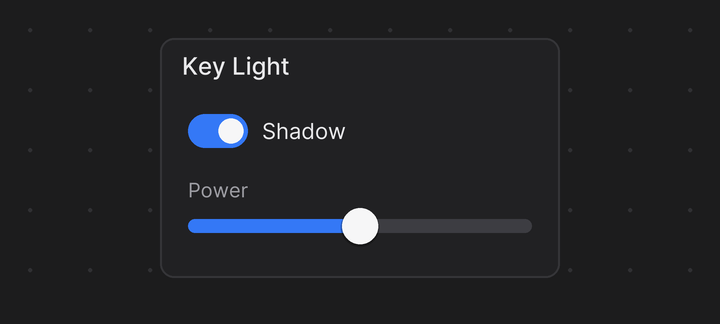
Frame
A titled area, square or round, that holds and moves other widgetsLAYOUT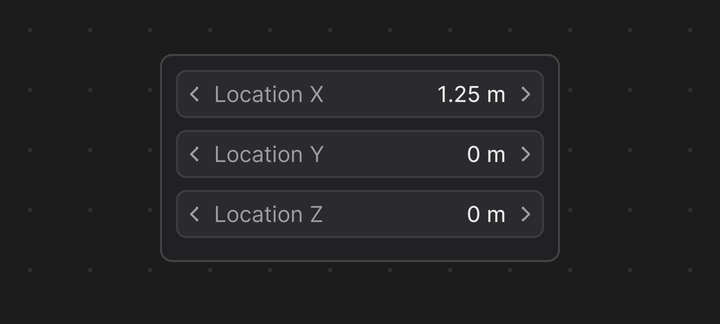
Flex Box
Lines up other widgets in a row or a columnLAYOUTGroup
Moves and resizes other widgets as oneLAYOUT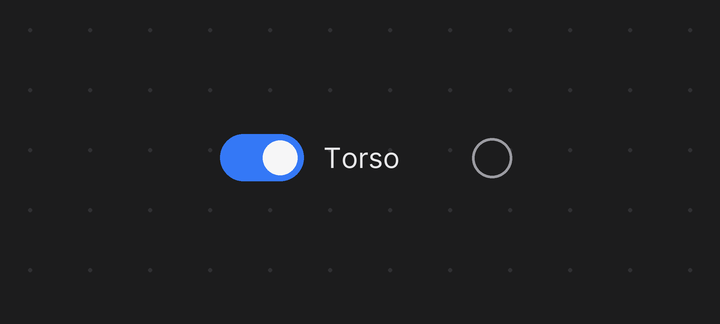
Bone Collection toggle
Shows, hides or solos a bone collectionPICKER
Radial slider
A knob you drag to change a numberPICKER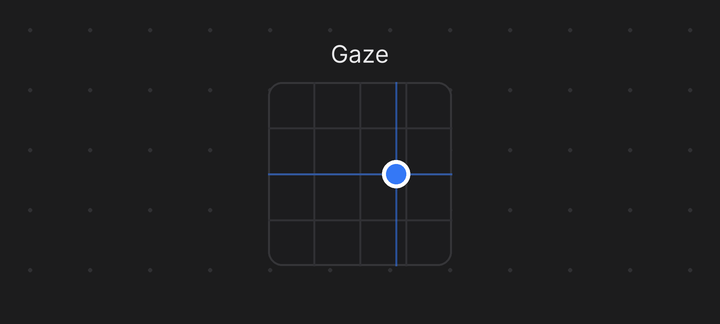
Lineal 2D slider
A pad that drives two properties at oncePICKER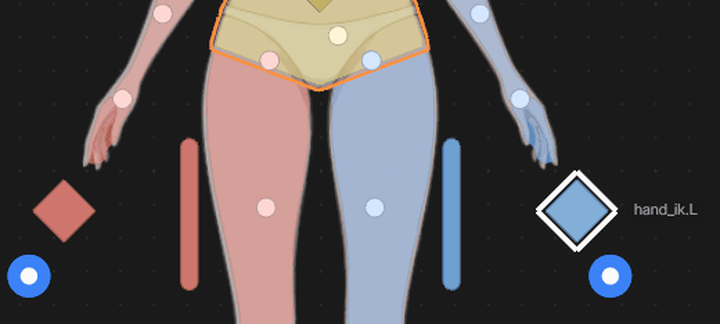
Button, Button Image, Geometry Shape
Bone pickers: select their bonePICKER3D VIEWS · ONE WIDGET, FOUR SETUPS
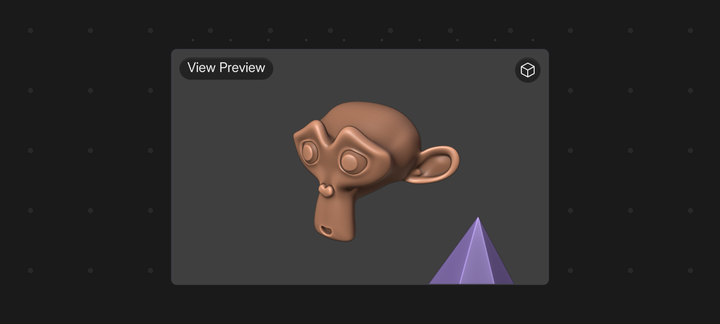
View Preview
A live 3D view that frames the active objectGRAPHICS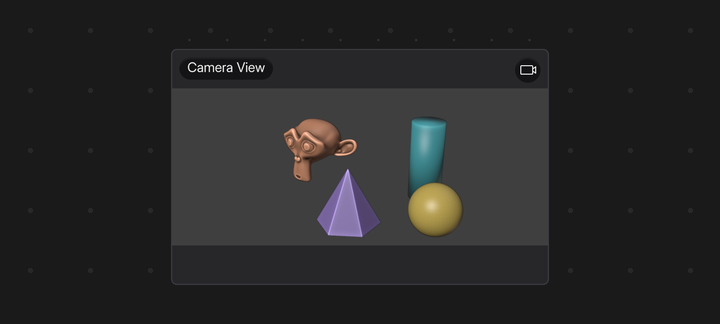
Camera View
The same 3D view, through the scene cameraGRAPHICS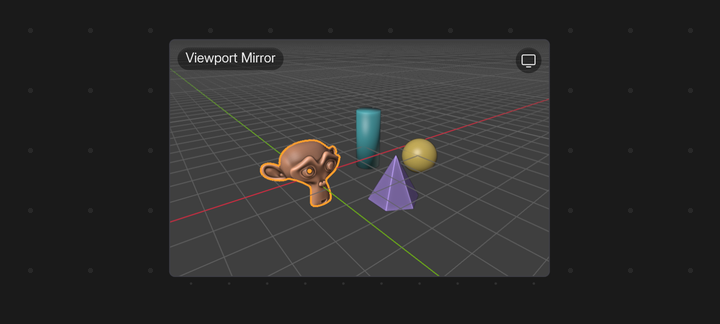
Viewport Mirror
The same 3D view, following your 3D ViewportGRAPHICS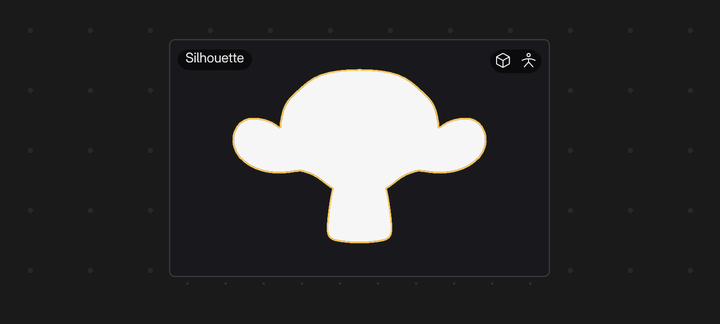
Silhouette
The same 3D view as a flat shape in one colourGRAPHICSShift A › From Property
Right-click any property in Blender and get the right widget, bound and labelled (from its own right-click menu too: Add to FlexSpace Canvas):
- On / off
- Toggle
- Enum
- Enum
- Number
- Number Field
- Factor, percentage
- Lineal slider
- Colour
- Color Swatch
- Vector
- Flex Box of Number Fields
- Anything else
- Label
Rigify? One step.
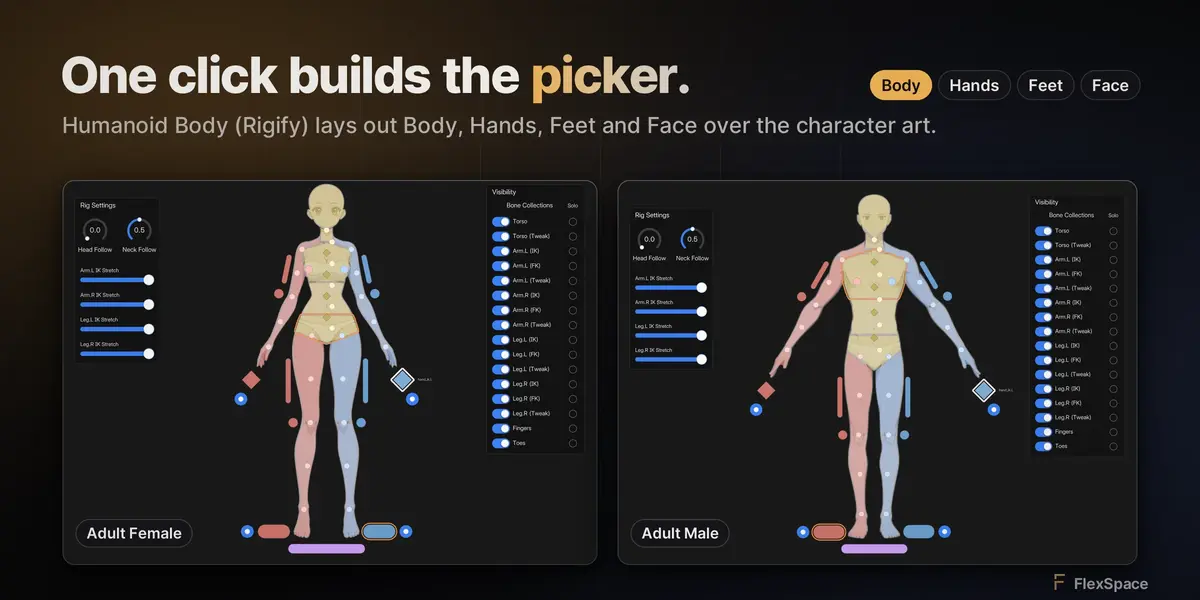
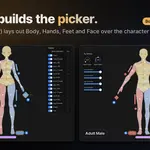
In the picker's Edit Mode, press Shift A and choose Bone Picker › Humanoid Body (Rigify).
- Left
- Right
- Centre
- Root
- 1Adult Male or Adult Female. The shapes are made to measure and follow each body's proportions.
- 2Body, Hands, Feet and Face pages. Each on its own page, with its own tab: the FK and torso controls, every finger segment, every toe, and every face control with a gaze pad drawn as eyes.
- 3IK/FK switches next to each IK hand and foot, keyed with Auto Keying, one undo step per click.
- 4Colours that read at a glance: left blue, right red, centre yellow.
Four pages, two bodies.
What one Humanoid Body (Rigify) adds, page by page, over the character art. Left is blue, right is red, the centre is yellow.
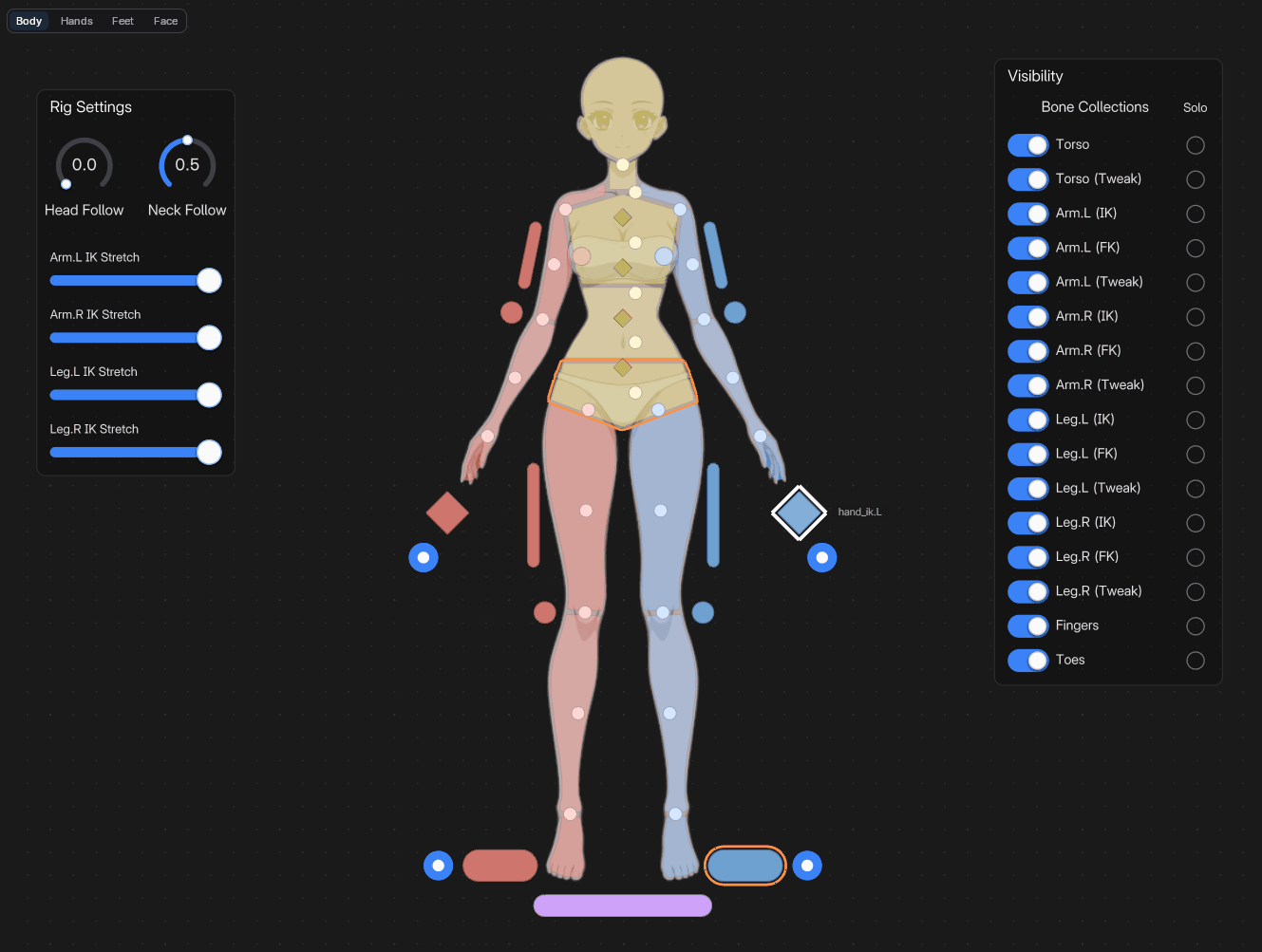
Body. The body in regions, IK hands and feet with their IK/FK pucks, poles, spine and tweaks, Rig Settings and bone collections.
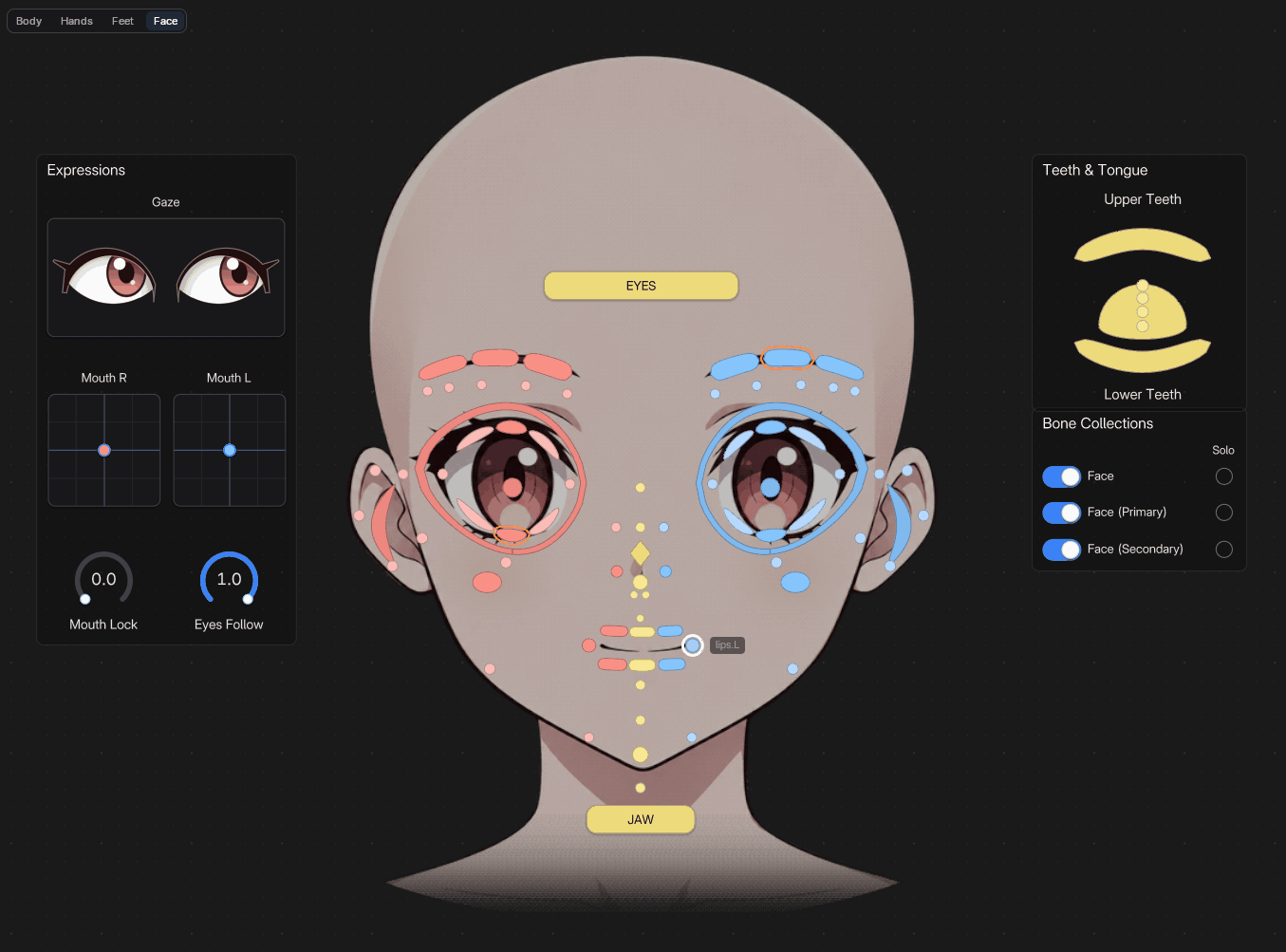
Face. Every face control on the face art; the Expressions panel with the gaze pad drawn as eyes, mouth pads and knobs; teeth, tongue and the face collections.
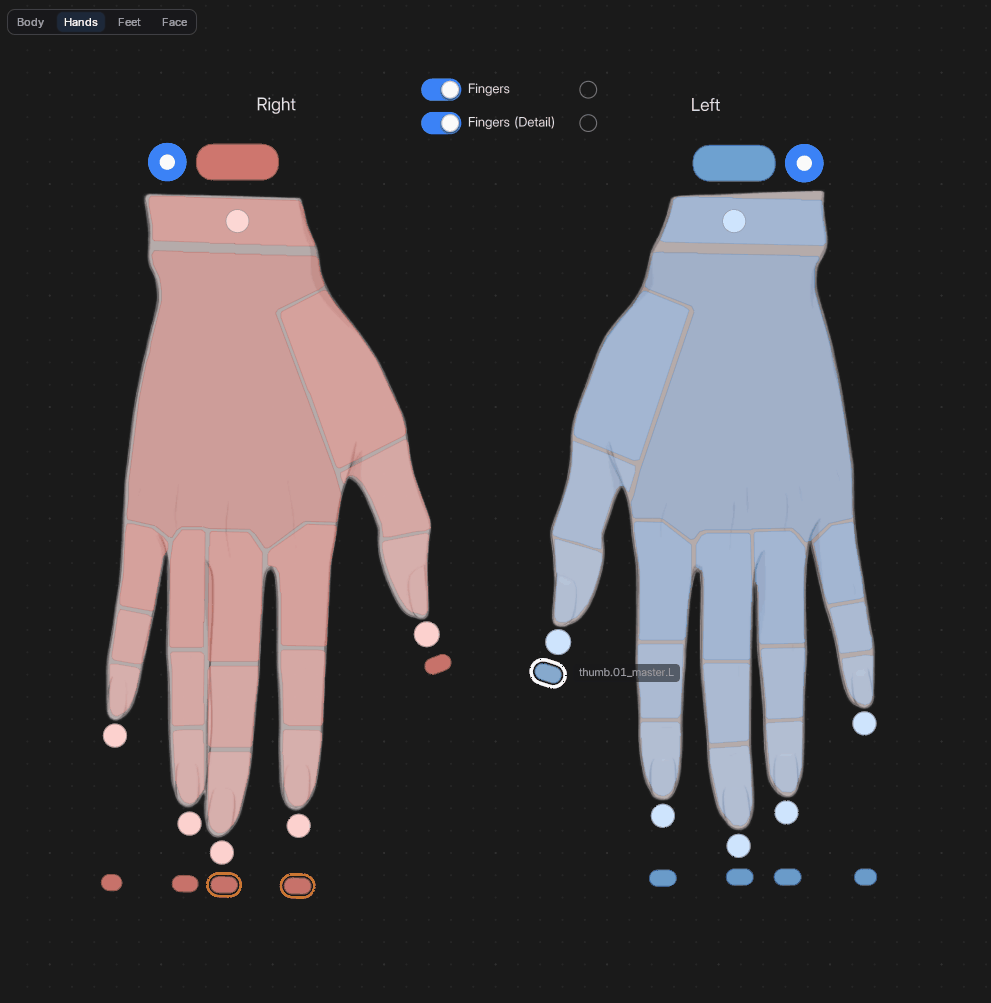
Hands. Every finger segment, the fingertips and finger masters, the FK wrist band and the IK hand with its switch.
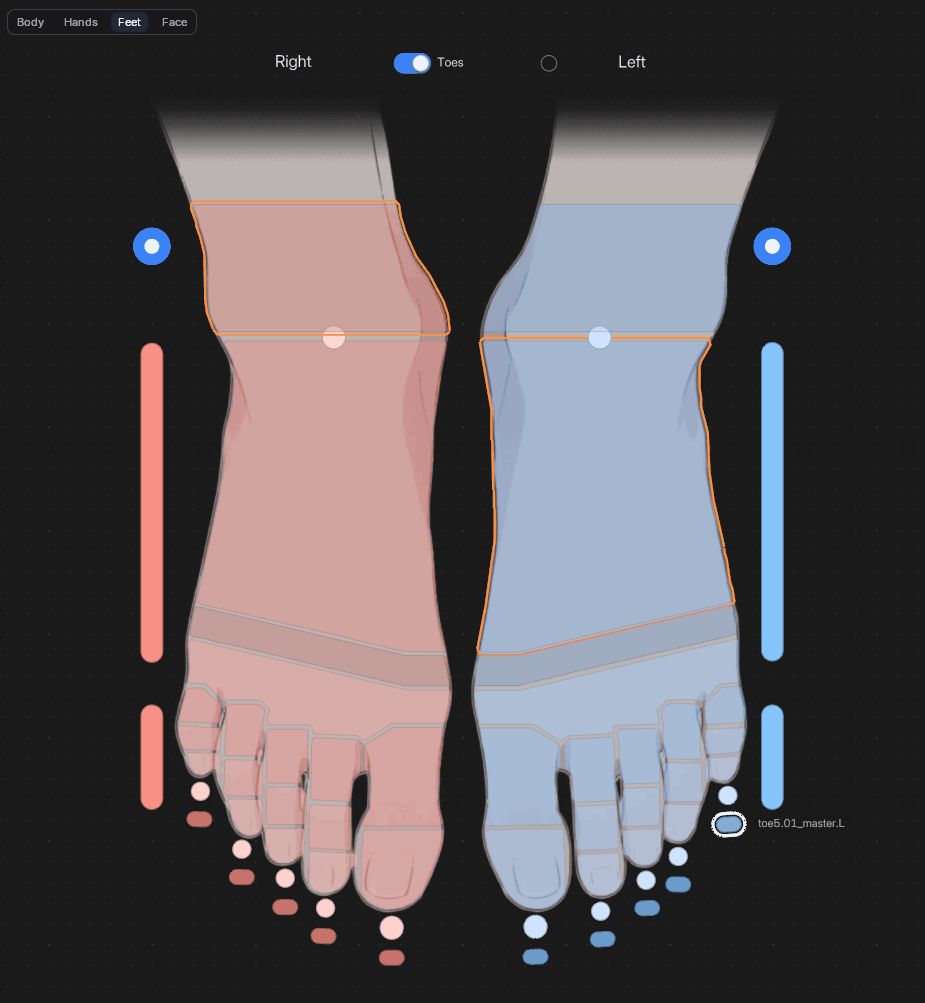
Feet. Heel, foot, ball and toe controls, every toe with its master, and the FK foot and toe bars.
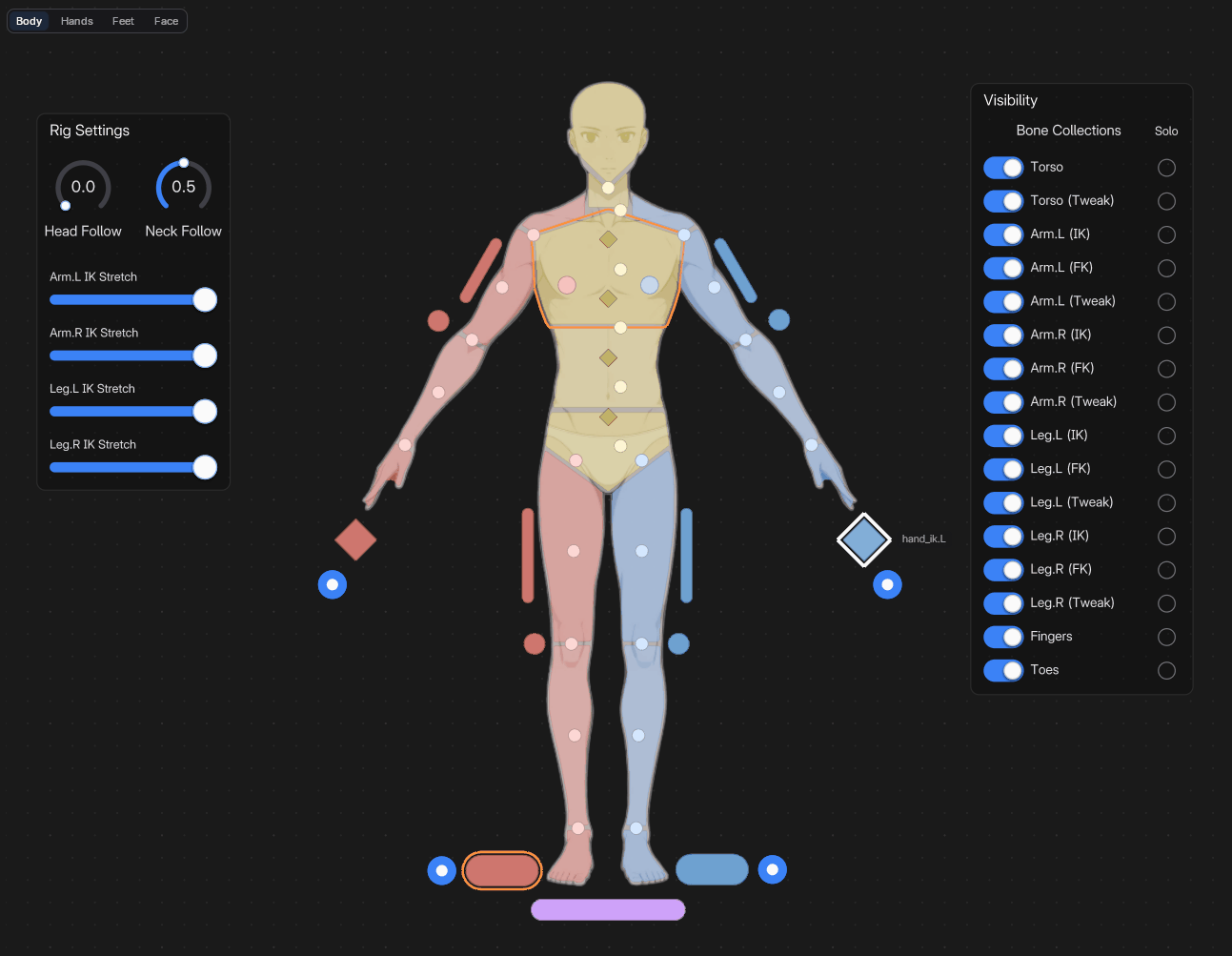
Body.
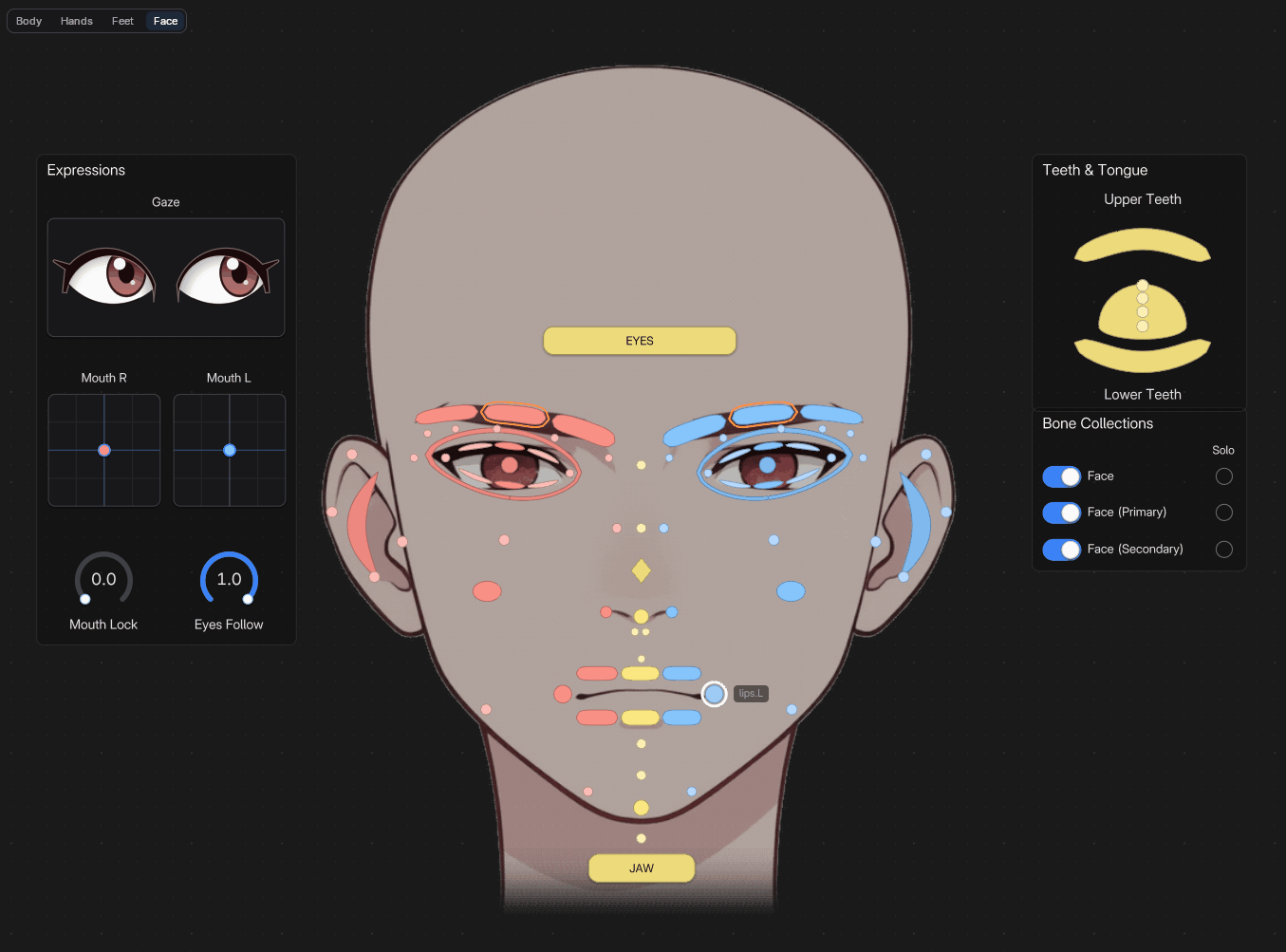
Face.
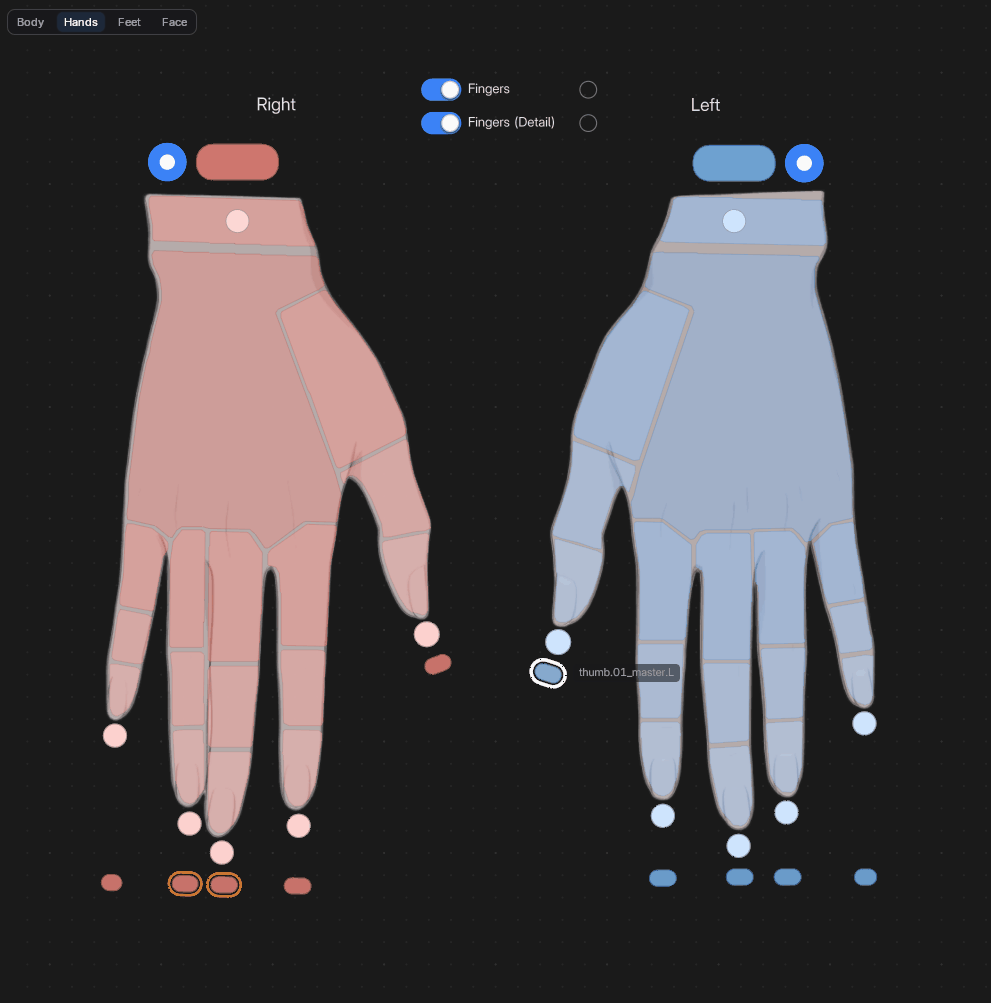
Hands.
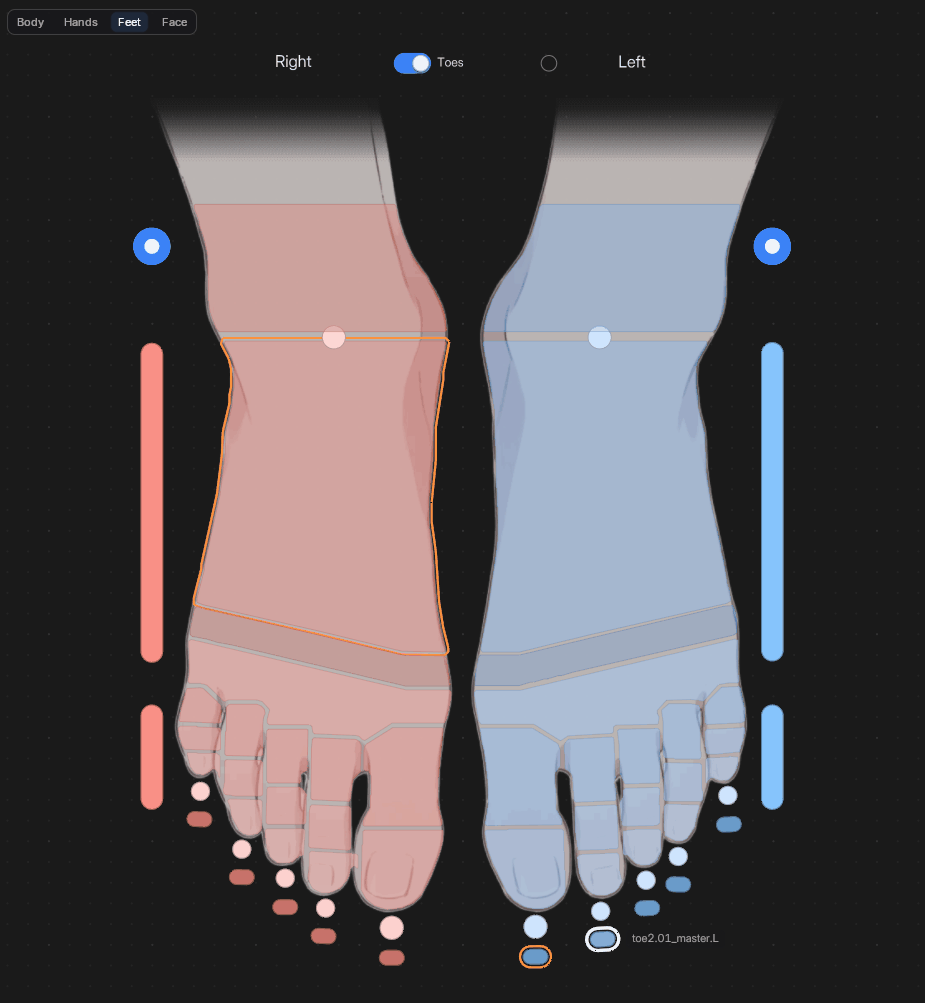
Feet.
- Bone buttons and shapesClick to select, Shift-click to add, drag on empty space to box select.
- KnobsFor follow switches and any custom property of the rig.
- 2D pads and gazeTwo properties at once, or a pair of eyes that look where you drag.
Everything in the box.
- 2
Canvases in one add-on
Flex Space for control panels and Armature Picker for rig pickers. Install once, both are there.
- 11
Demo files
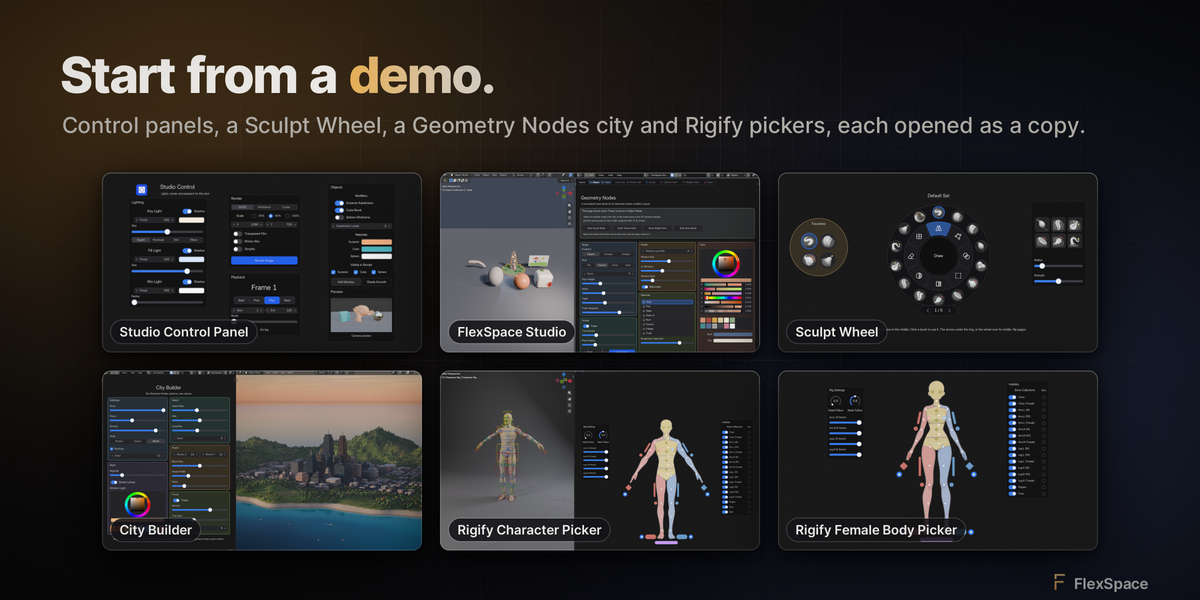
Control panels, a canvas that follows Blender's mode, a Sculpt Wheel, a Geometry Nodes city and five armature pickers, each opened in its own window.
- 12
Guides
The full docs online and in the Help menu: getting started to troubleshooting, with every shortcut.
- 22
Widgets
Buttons, data controls, colour and brush tools, live 3D views, layout, and the Armature Picker's own, one Shift A away.
.flexspace preset files, shared presets folder| Flex Space | Armature Picker | |
|---|---|---|
| FOR | Your own control panels, for any workflow | Picking and posing the bones of a rig |
| SAVED WITH | The .blend file, as a canvas data-block | The armature data: it travels when you link or append the rig |
| MODES | Edit Mode and Live Mode; pages per Blender mode or object | Edit Mode and Pose Mode |
| ITS OWN WIDGETS | Brush Picker (brush modes), Flex Box | Bone pickers, Bone Collection toggle, Radial slider, Lineal 2D slider, IK/FK puck |
3+ years in the making.
Built and refined by an independent developer since 2023.
-
Sep 2023
It starts with a picker
Development of the Armature Picker begins.
-
-
Dec 2023
A shared base
MySpace, later FlexSpace, begins. The picker becomes one of its modules.
-
Jan–Mar 2024
First betas
MySpace 1.0 and 1.1 betas, then the FlexSpace 1.3 beta, for Blender 4.0.
-
Oct 2026
A Blender extension
FlexSpace becomes an extension, for Blender 5.2.
-
NOWNov 2026
FlexSpace 1.4.1
For Blender 5.3. The current version.
“Are you ready for some interactive editing in my upcoming picker addon for Blender?”
J. Fran Matheu · @jfranmatheu on X · 25 Oct 2023
FlexSpace and the Armature Picker are made by one independent developer, J. Fran Matheu.
Questions, answered.
Is it a Blender fork or separate software?
Neither. FlexSpace is a regular Blender extension that runs inside the Blender you already use (5.3 or newer). Install the zip from Edit › Preferences › Get Extensions › Install from Disk... and that's it. No custom Blender build, no external app, nothing else to install. It also works in a studio's in-house Blender build, as long as it's based on 5.3+ and supports extensions.
Which Blender versions does it support?
Blender 5.3 or newer. FlexSpace is a Blender extension: install the zip from Edit › Preferences › Get Extensions › Install from Disk.... Getting started →
Is the Armature Picker included?
Yes. FlexSpace comes with two canvases: Flex Space for control panels and Armature Picker for rigs. The Armature Picker →
Does the picker work with my rig?
Any armature works: import selected bones and place their buttons. Rigify rigs get a full Humanoid Body picker in one step. Buttons follow renamed bones, and Repair Bone Bindings fixes the rest. Picker with Rigify →
Can my team share panels?
Yes. Save a canvas as a global preset, export it as a .flexspace file, or set a shared presets folder on a network drive. Global presets →
Will my shortcuts still work?
Yes. The canvas uses its own keys first; any other key goes to Blender's keymap, Industry Compatible and custom bindings included. Shortcuts →
Can a button run my own Python?
Yes, with a Custom Script button. Buttons from an untrusted file ask before running. Widgets →
What if something breaks?
Open Help › Report a Bug... in the canvas header: it opens a GitHub issue with your versions and recent errors filled in. Troubleshooting →
Make Blender fit your hands.
Start with a demo, then build the panel your workflow deserves.
FlexSpace is GPL-3.0-or-later. Blender is a trademark of the Blender Foundation.