 TopoPen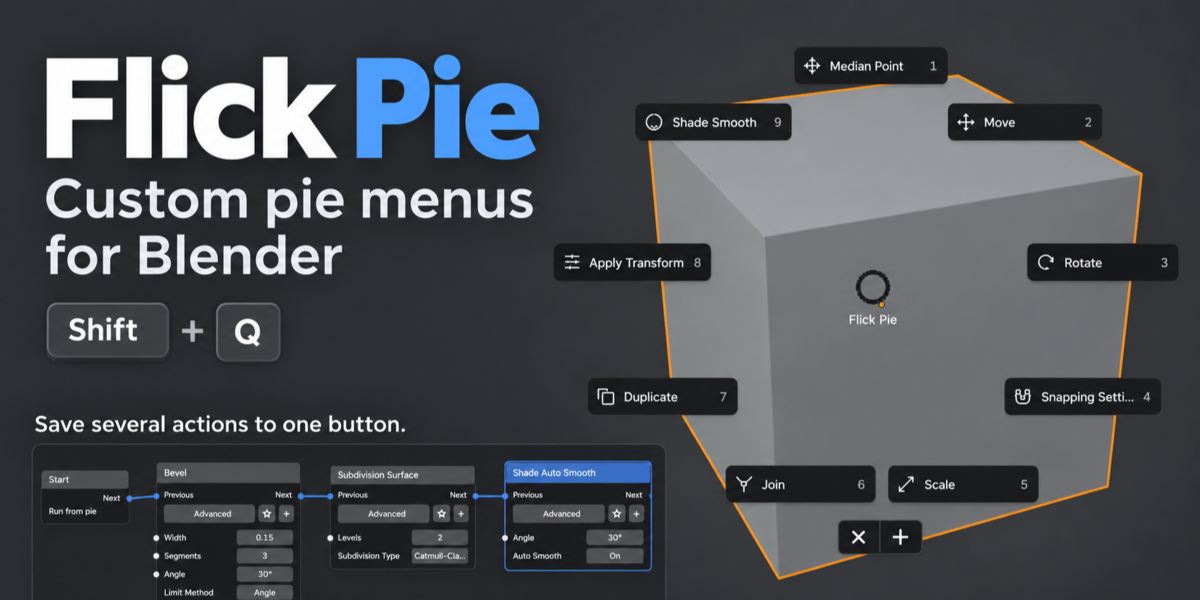

BLENDER ADD-ON
Flick Pie
Custom pie menus for Blender
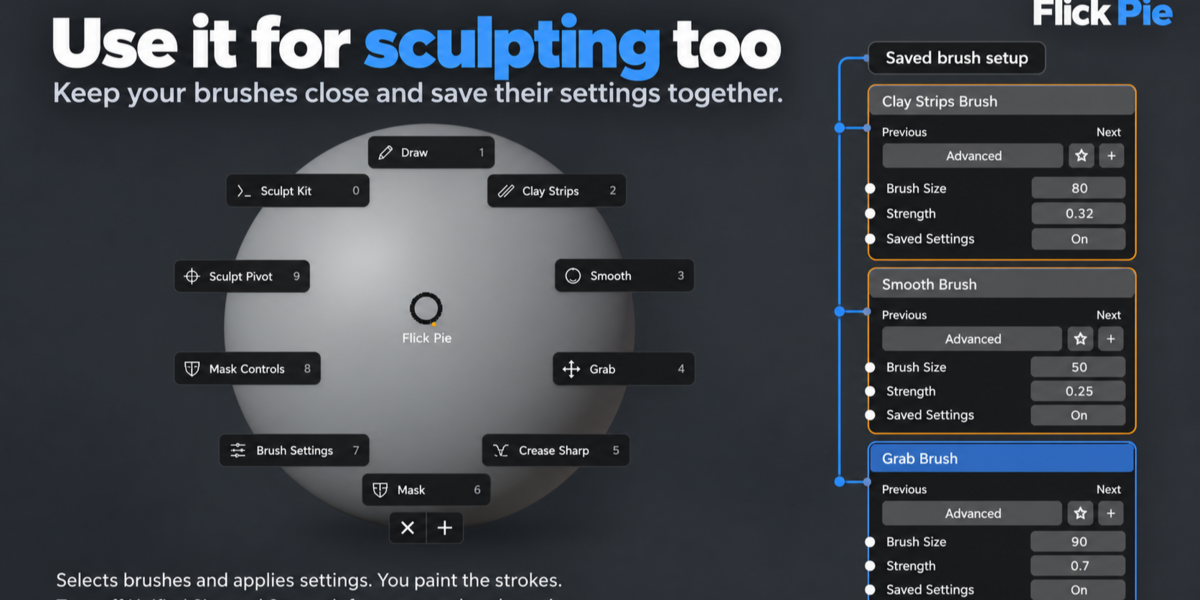
Keep the commands you use most in a circular menu under your cursor, and save repeated steps as a single button.
Press Shift + Q in the 3D Viewport to open your pie.
Blender 4.5 or newer · Tested through Blender 5.2 · No coding required
01 / CUSTOMIZE YOUR MENU
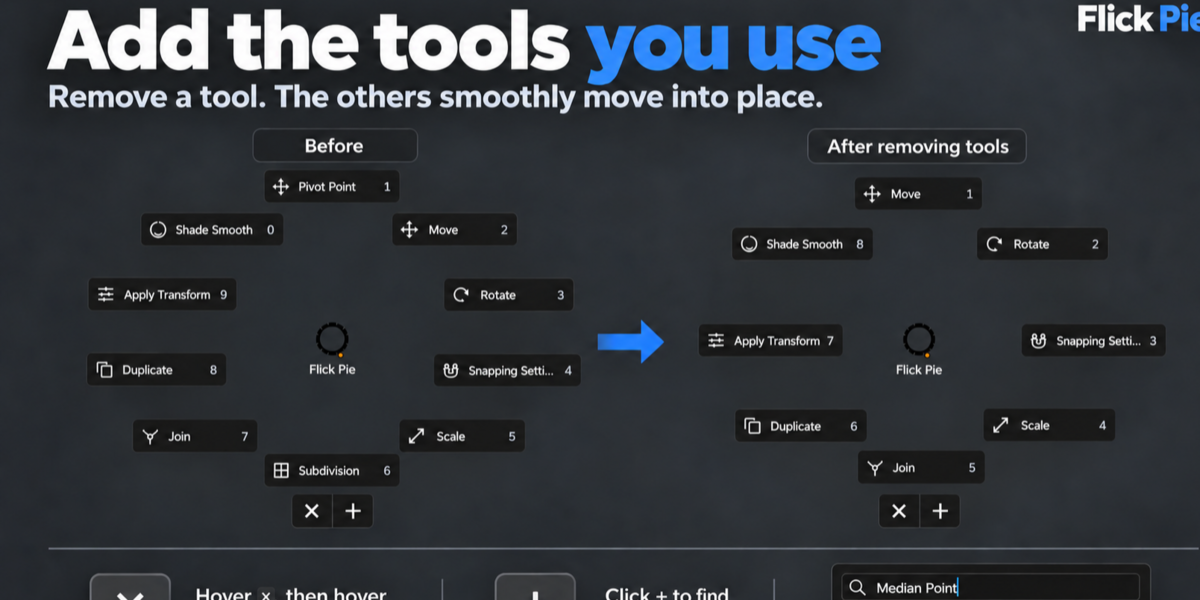
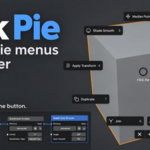
Add the tools you use most
Add commands with the + button and remove them with ×. Object, Edit and Sculpt modes each keep their own layout, with up to 10 commands per menu.

02 / COMBINE REPEATED STEPS
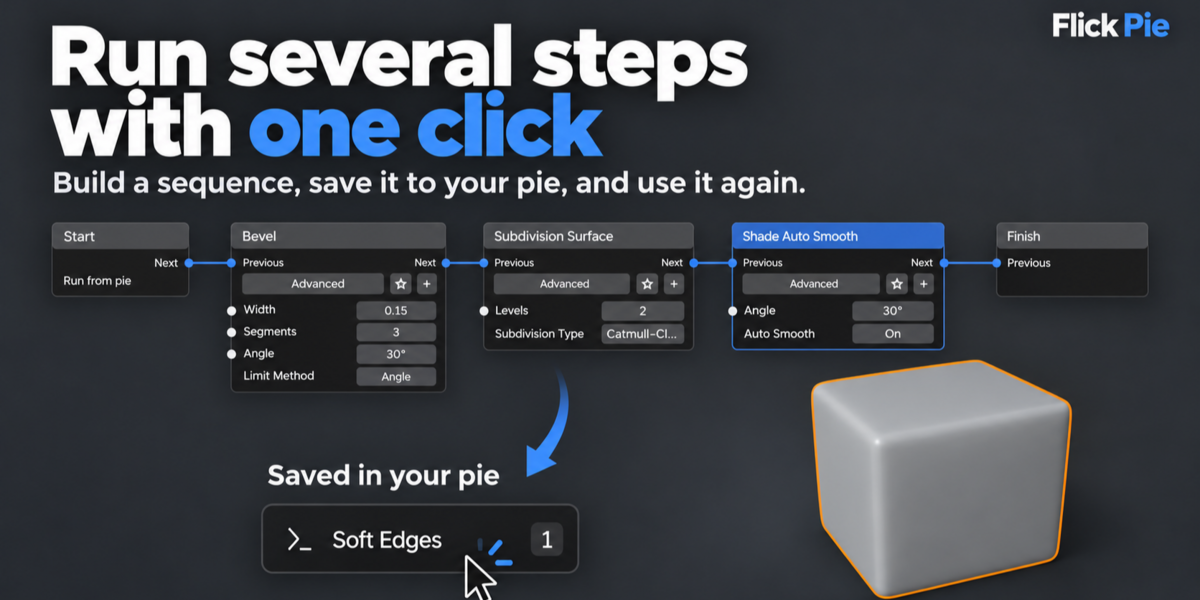
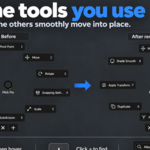
Run several steps with one click
Connect actions, name the sequence and place it in your pie. For example, a “Soft Edges” button can run Bevel, Subdivision Surface and Shade Auto Smooth in order.

03 / SAVE YOUR SETTINGS
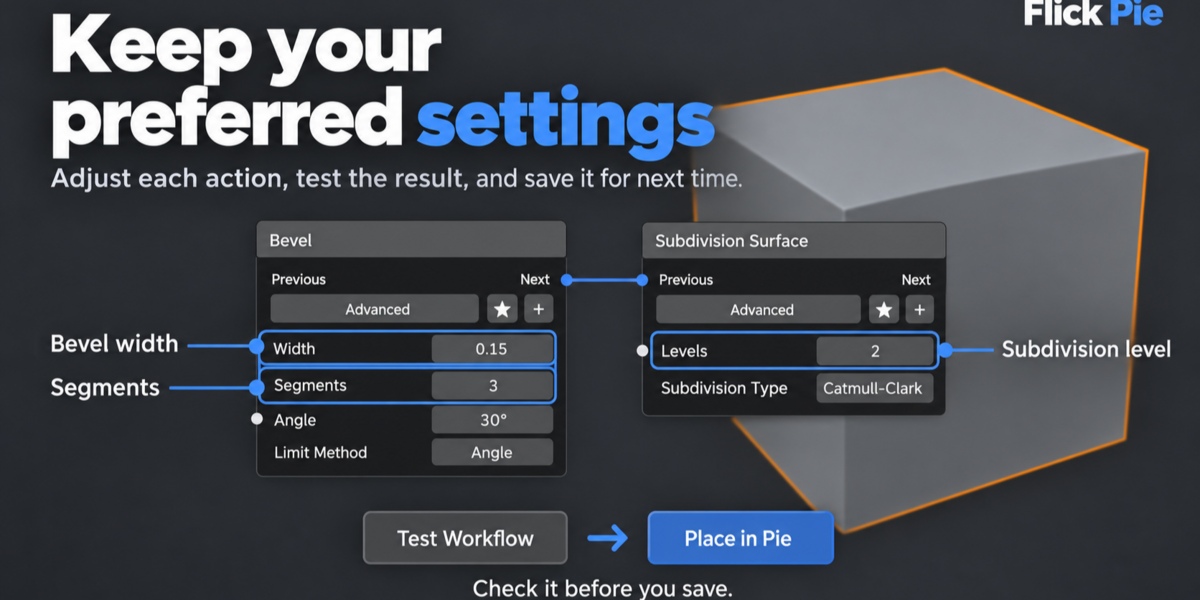
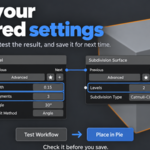
Save your preferred settings
Set bevel width, segments or subdivision level on each action. Use Test Workflow to check the result, Undo Test to restore the model, and Place in Pie to save. Hover a saved sequence and press S to edit it later.

04 / SCULPTING
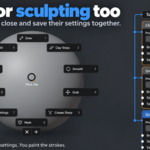
Works in Sculpt mode too
Keep brushes like Clay Strips, Smooth and Grab in your Sculpt menu, with their size and strength saved. For separate settings on each brush, turn off Blender’s Unified Size and Unified Strength.

Getting started
- Install the ZIP in Edit → Preferences → Add-ons → Install from Disk.
- Put your cursor in the 3D Viewport and press Shift + Q.
- Choose + to add a command, or Create Workflow to combine several actions.
You can also match your Blender theme, change the wheel size, and export or import your menus to back them up.
Good to know
Which Blender versions are supported?
Blender 4.5 or newer. Verified in 4.5.5 and 5.2.2 on Windows. Works with any render engine.
Will my setup stay saved?
Yes, if Auto-Save Preferences is on. Otherwise, use Save Preferences.
Can every action run on any object?
Commands follow Blender’s usual selection and mode rules. Workflow testing needs Global Undo enabled.