Floating Sculpt Toolbar Pro
 Not-deadpool360
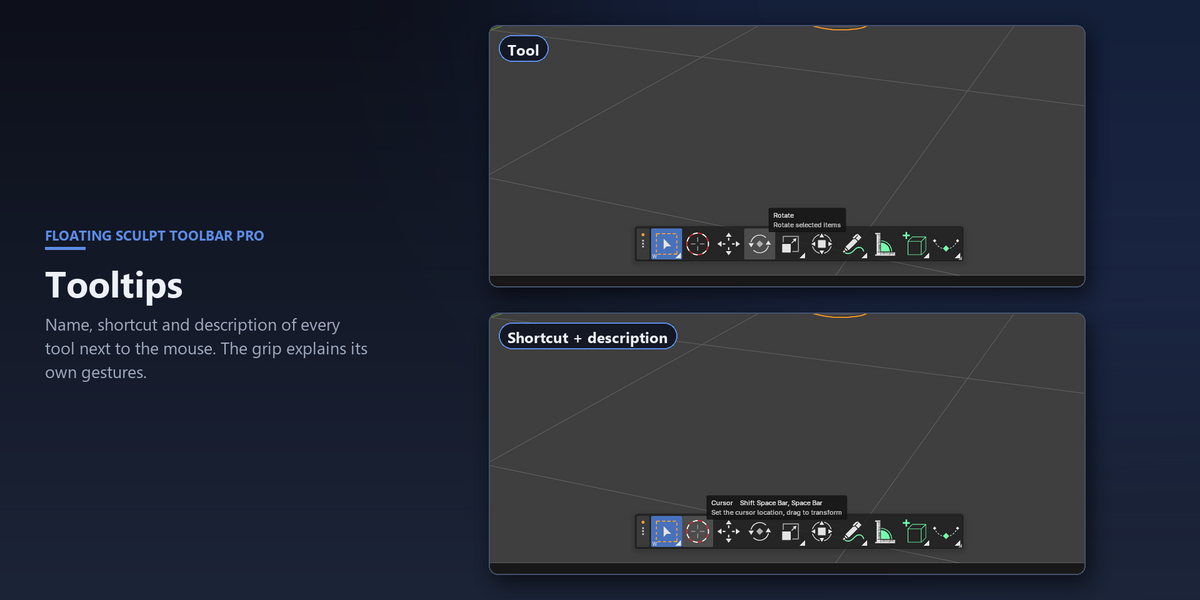
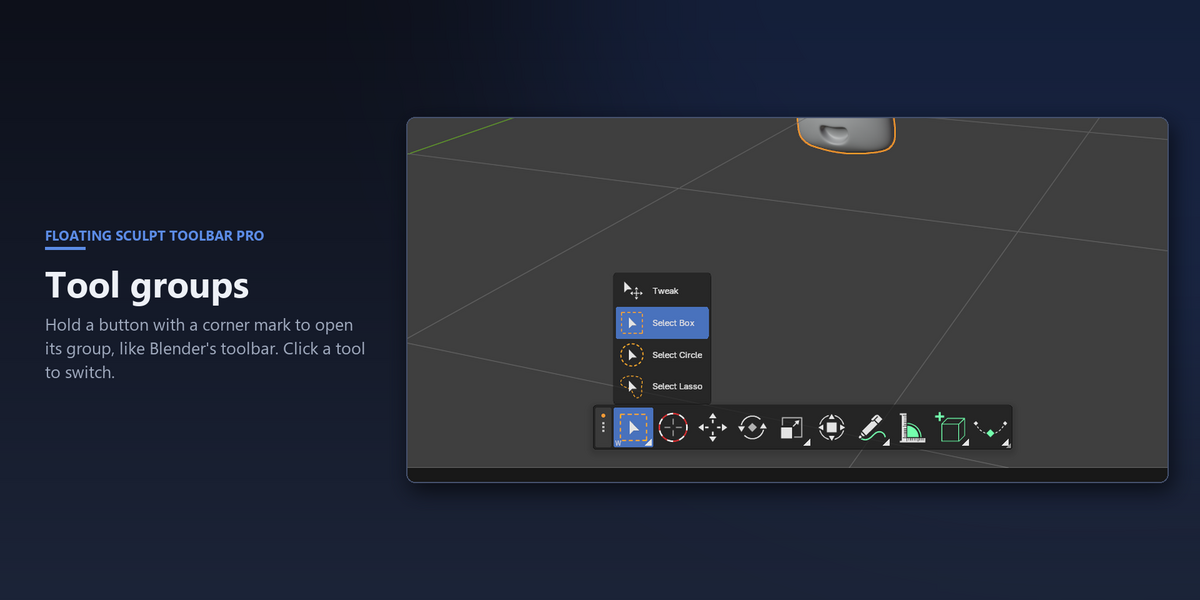
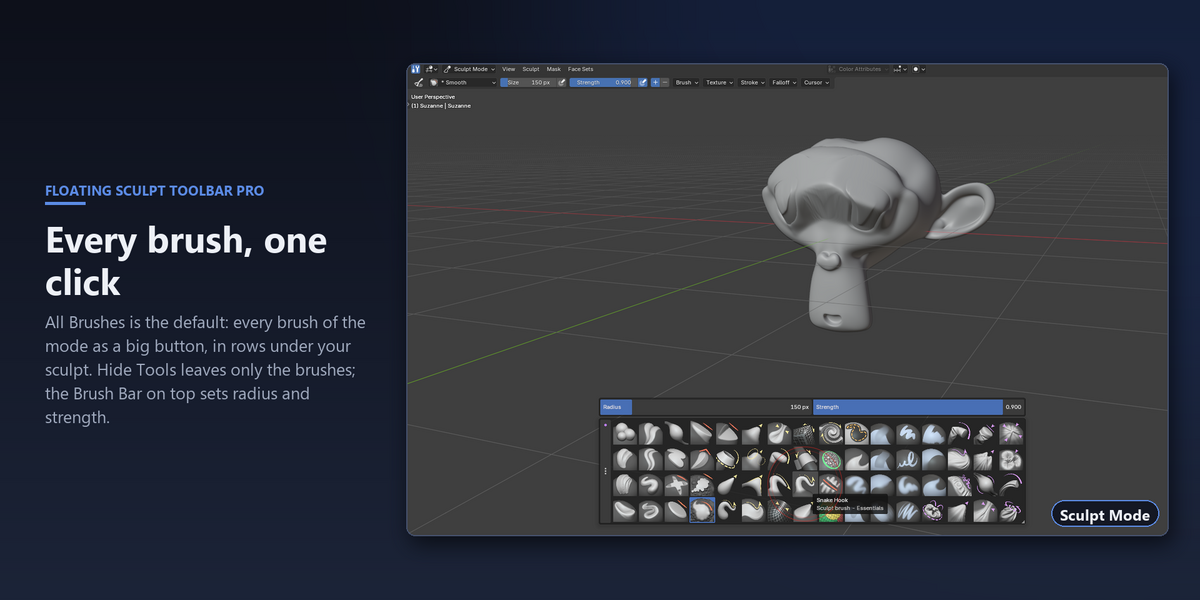
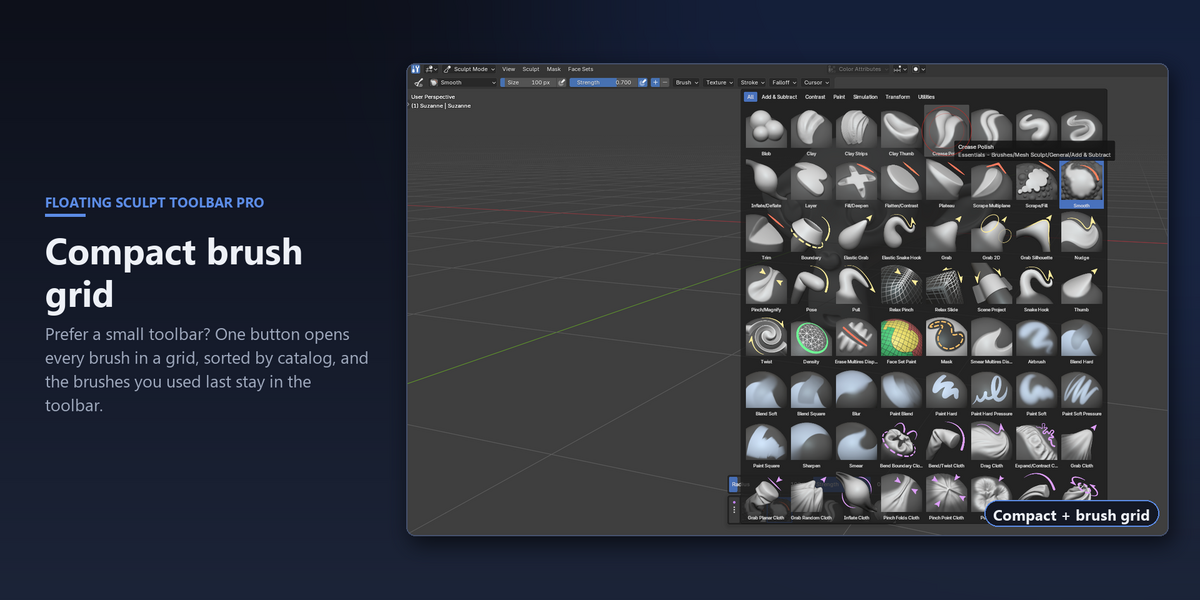
Getting started
- Download
floating_sculpt_toolbar_pro-1.0.0.zip(don't unzip it). - Blender › Edit › Preferences › Get Extensions › ▾ menu (top right) › Install from Disk…
- Pick the zip. It is enabled right away.
(Or simply drag & drop the zip into Blender.)
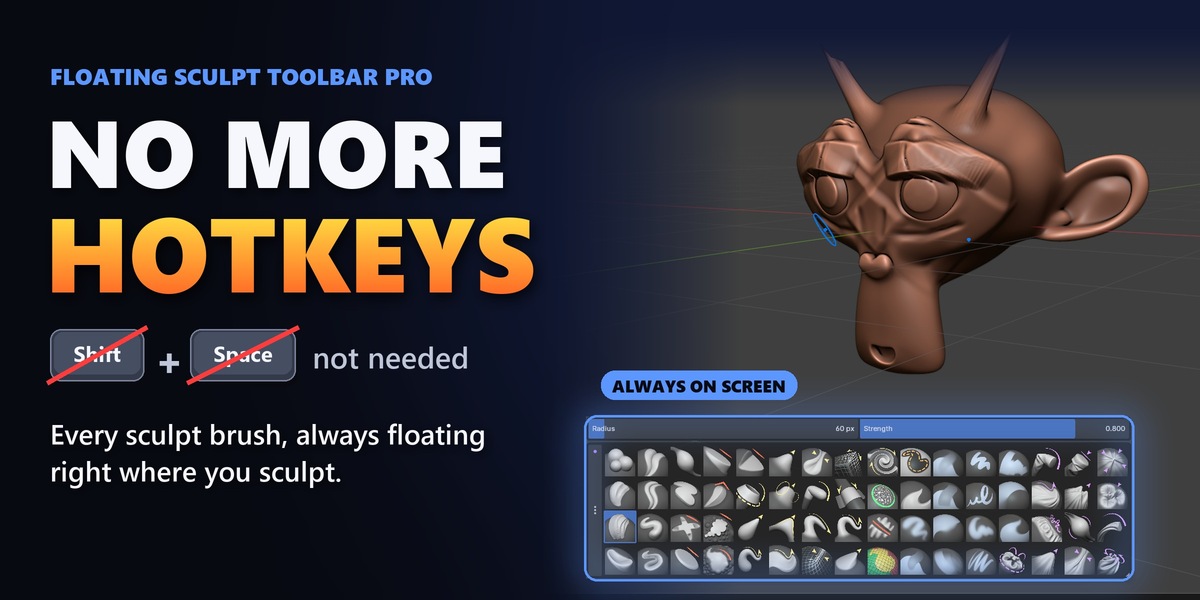
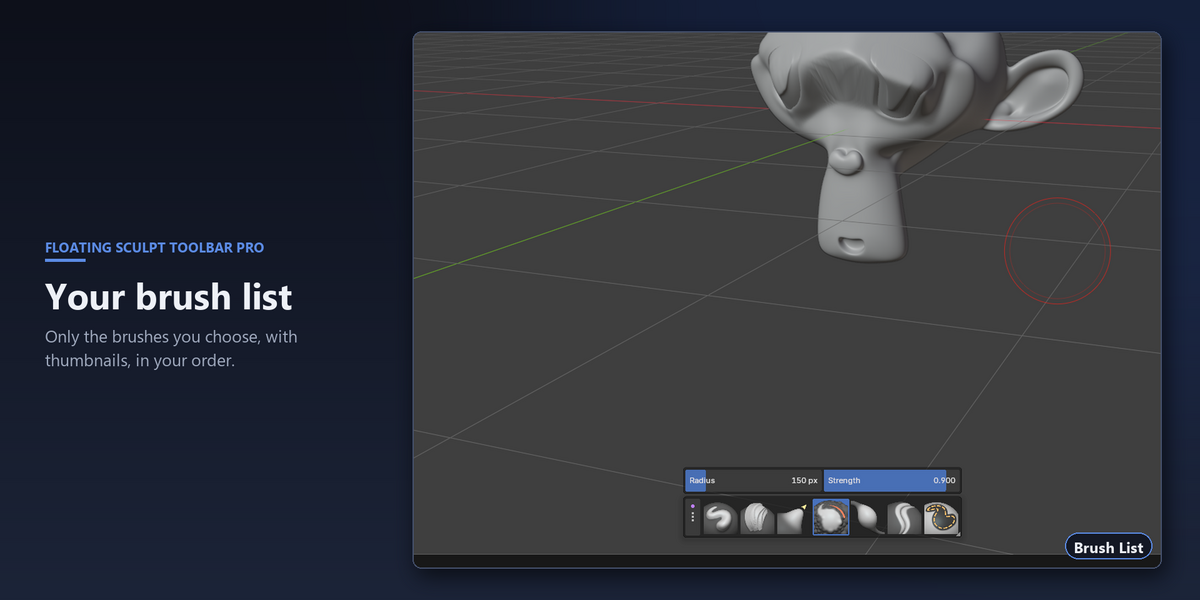
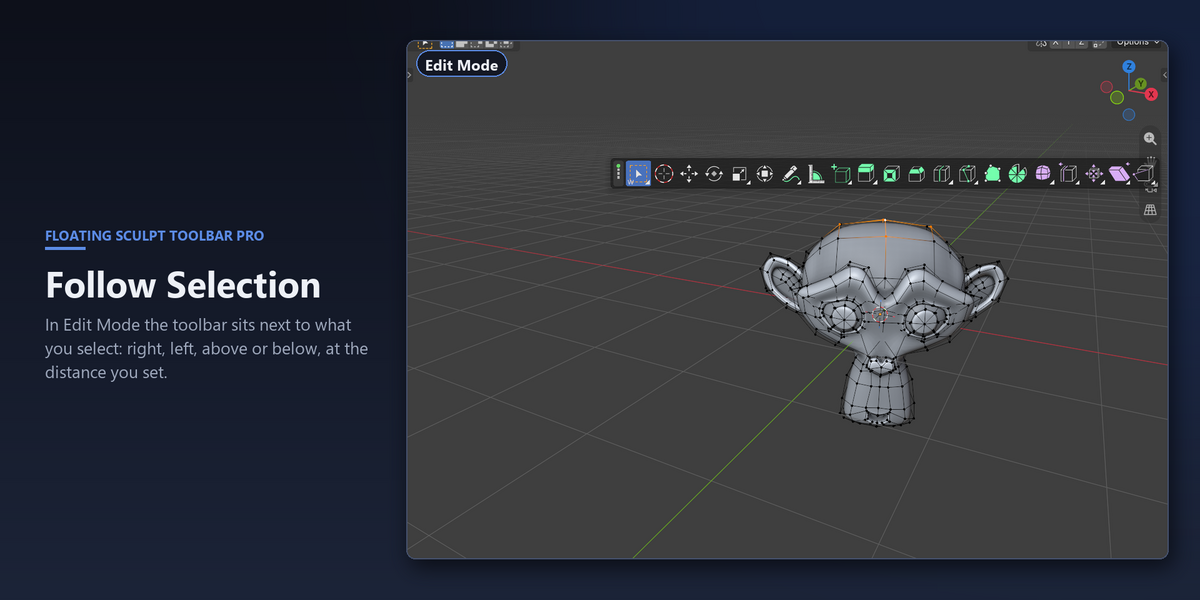
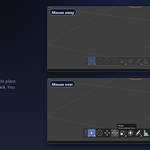
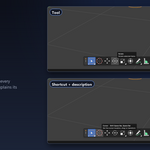
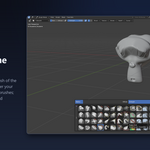
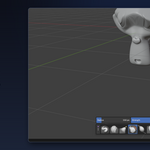
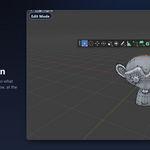
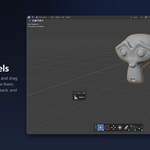
The toolbar opens by itself in your first 3D View. Use the wrench button in the 3D View header to show or hide it in any viewport, and Sidebar (N) › Sculpt Toolbar for every option.
Mouse and keys
| Gesture | What it does |
|---|---|
| Drag the grip (the strip at the top / left) | Move the toolbar. Right click or Esc while dragging: back where it was |
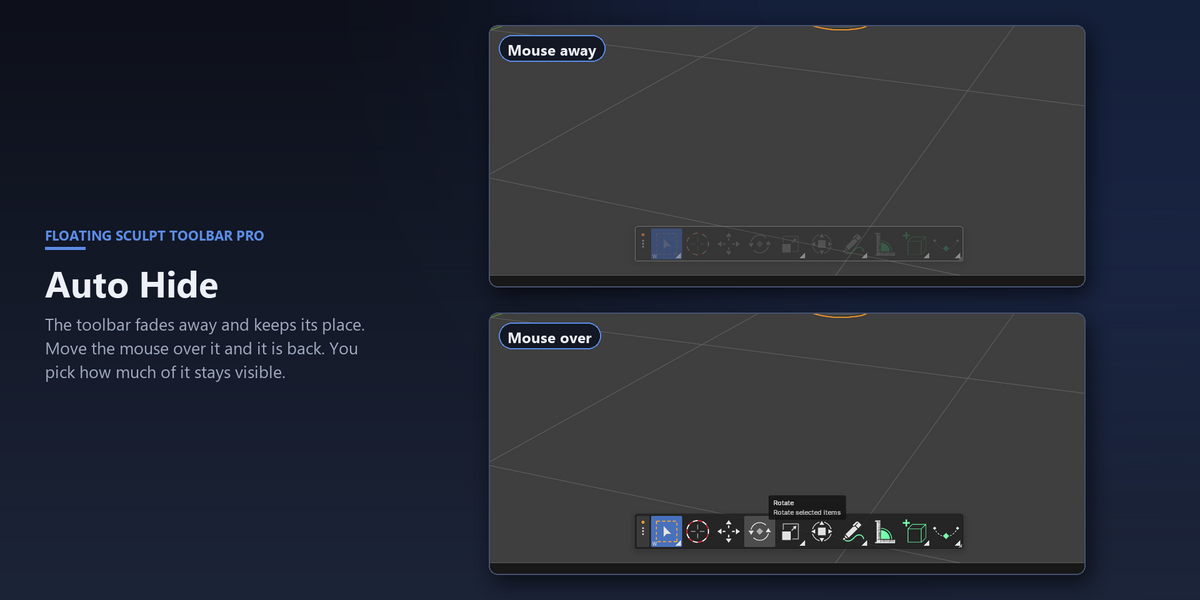
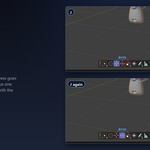
| Double click the grip | Fold to the grip / unfold |
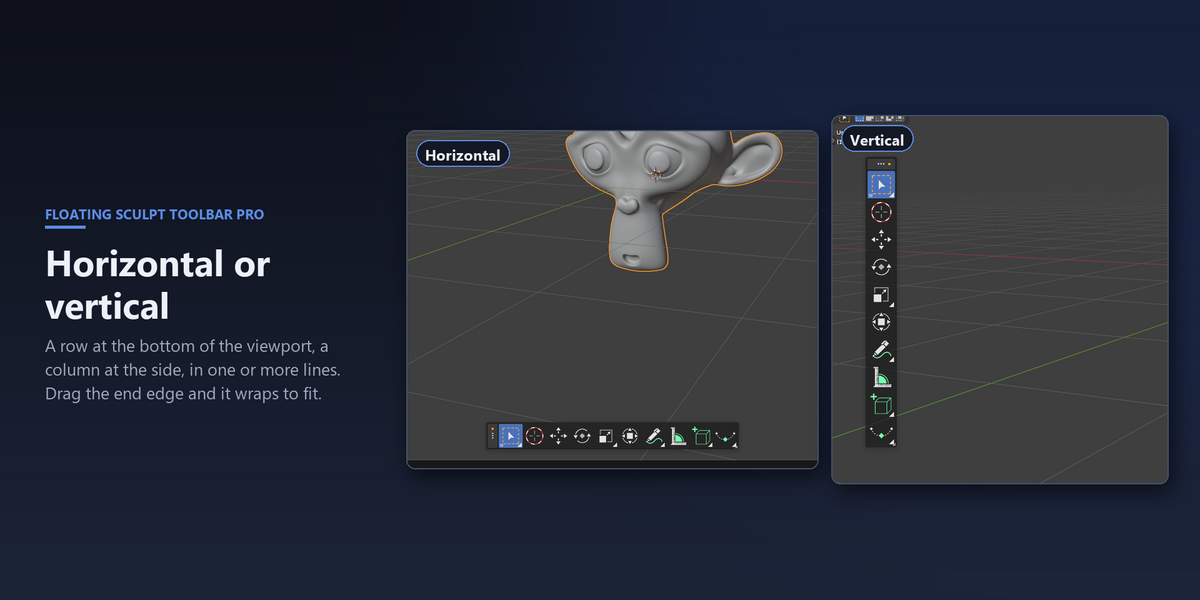
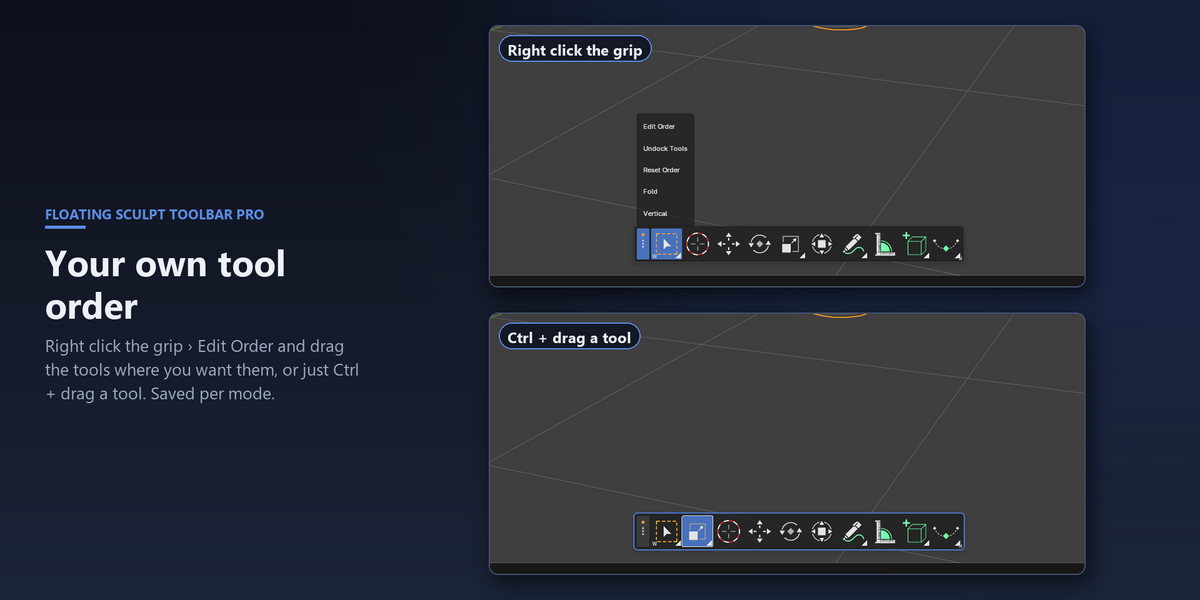
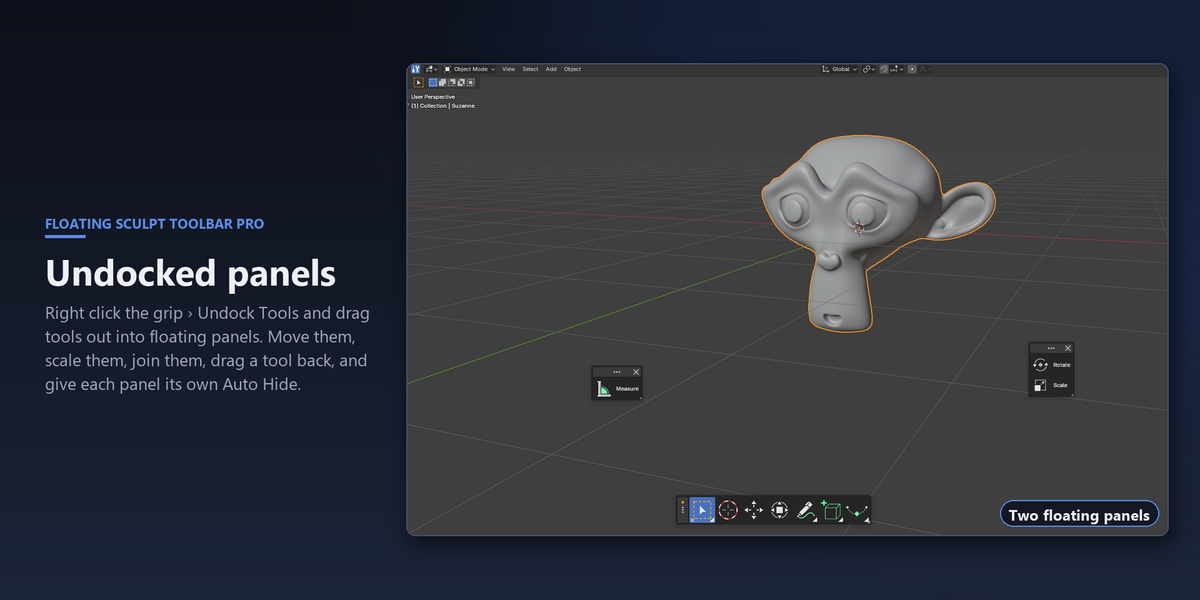
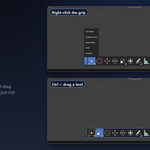
| Right click the grip | Grip menu: Edit Order, Undock Tools, Reset Order, Fold, Horizontal / Vertical |
| Ctrl drag a tool | Move it to another place in the toolbar |
| Grip menu › Undock Tools, then drag tools out of the toolbar | Undock them into a floating panel (click: select several, Shift: a range; Esc: done) |
| Click a tool | Use it |
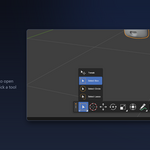
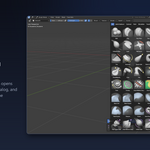
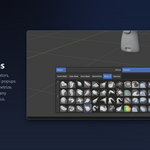
| Hold or right click a group (small corner triangle) | Open the group's flyout and pick any of its tools |
| Right click the active tool | Open its tool settings |
| Right click a custom operator button | Change its arguments |
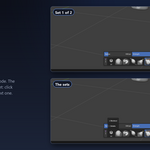
| Drag the end edge | Wrap the tools into more rows / columns |
| Drag the corner or Ctrl + wheel | Scale the toolbar |
| Wheel over a toolbar that doesn't fit | Scroll it |
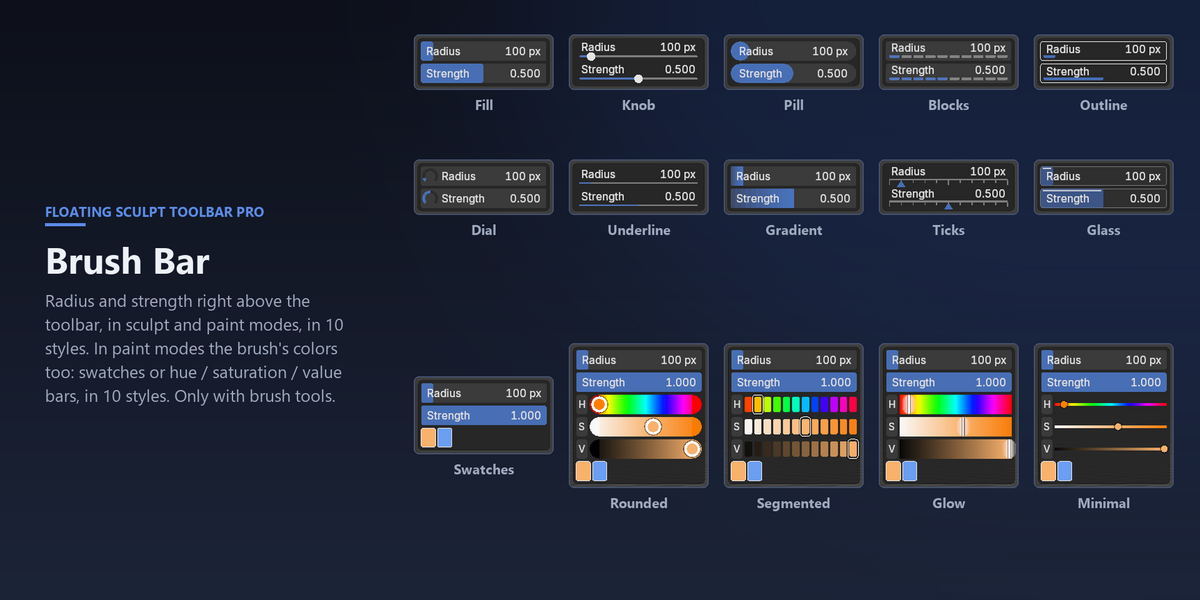
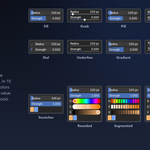
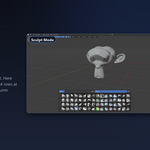
| Brush modes, tune button | Drag: radius (up / down) and strength (left / right); wheel: radius |
| Brush modes, color swatch | Click: color panel; right click: swap the two colors |
| Edit Order, Esc | Done |
Settings panel
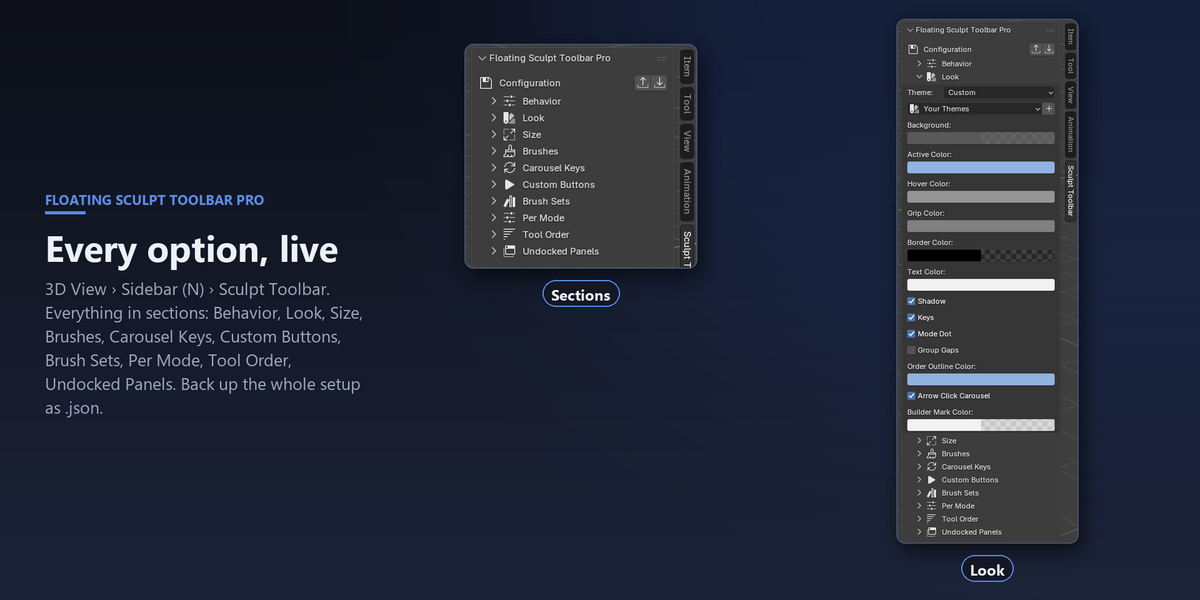
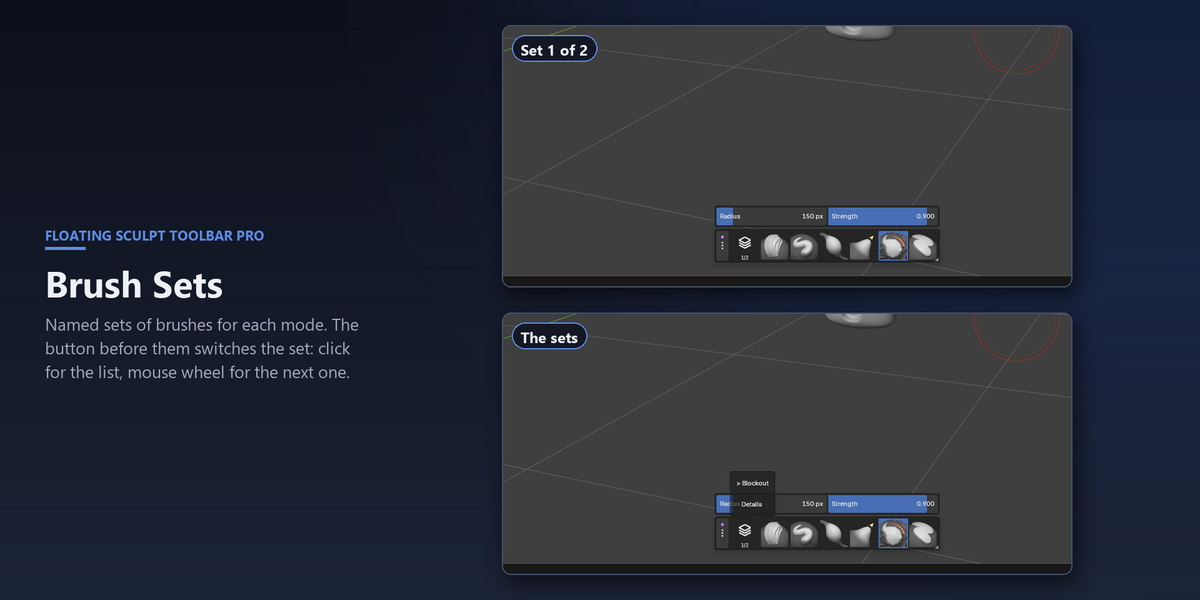
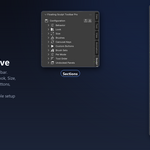
Sidebar (N) › Sculpt Toolbar has every option in sections: Behavior, Look, Size, Brushes, Carousel Keys, Custom Buttons, Brush Sets, Per Mode, Tool Order and Undocked Panels. Configuration (top row) exports / imports your whole setup as a .json file.
-
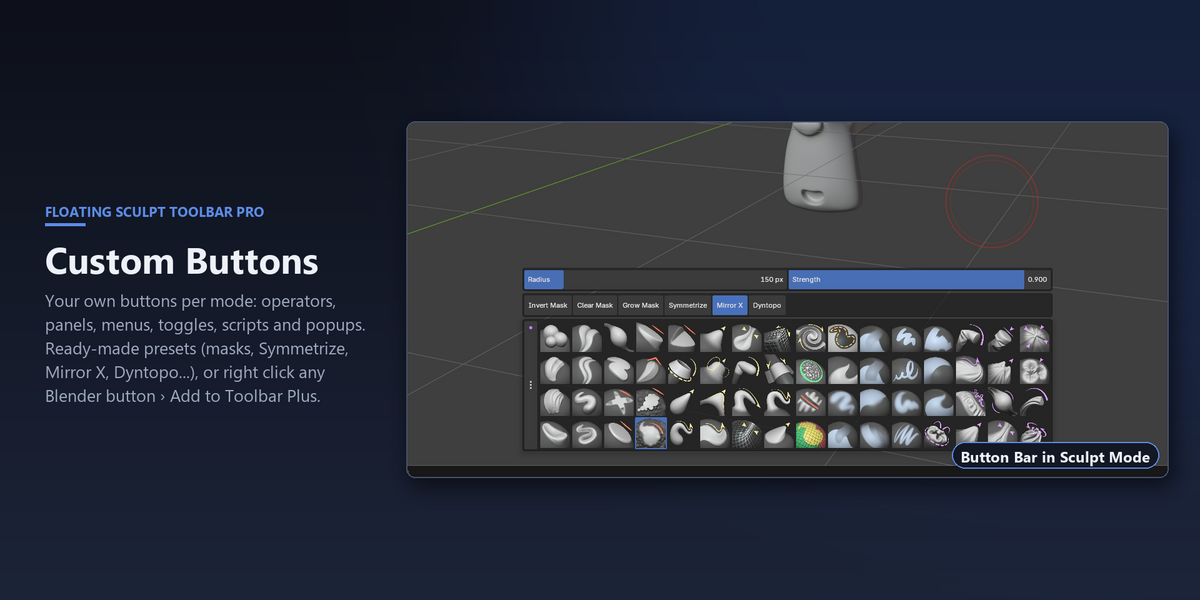
Custom Buttons: turn on Use Custom Buttons, pick a mode, press + (or the preset button) and set Name, Type (Operator / Panel / Menu / Toggle / Script) and Target, e.g.
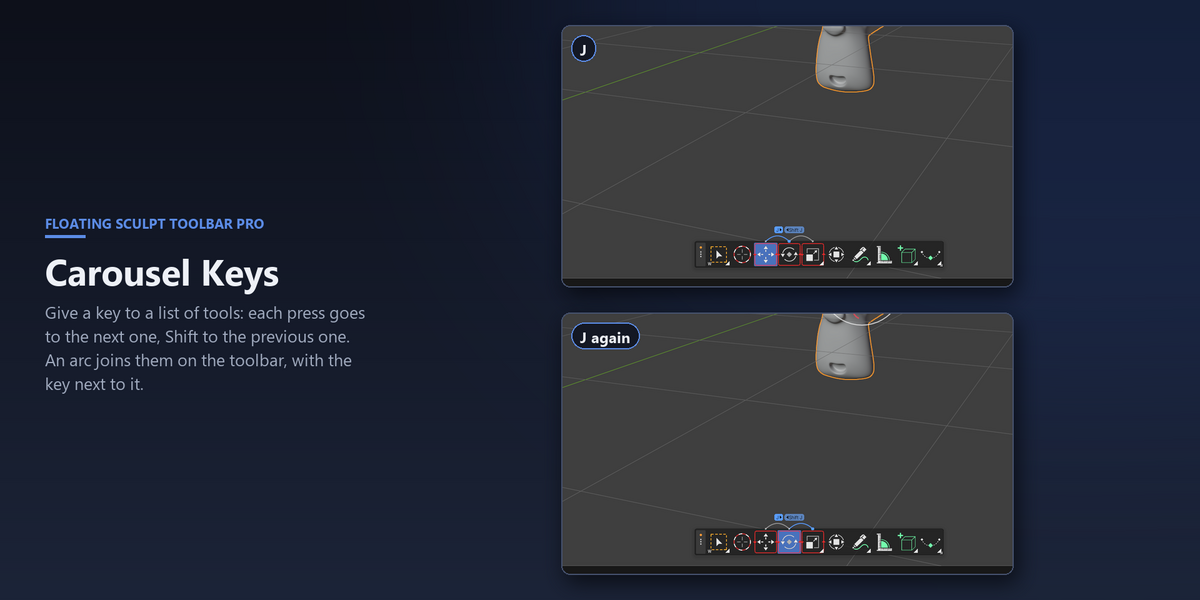
object.shade_smooth(). - Carousel Keys: + adds a carousel for the mode; add its tools, then set the key for Next / Previous (with Ctrl / Shift / Alt).
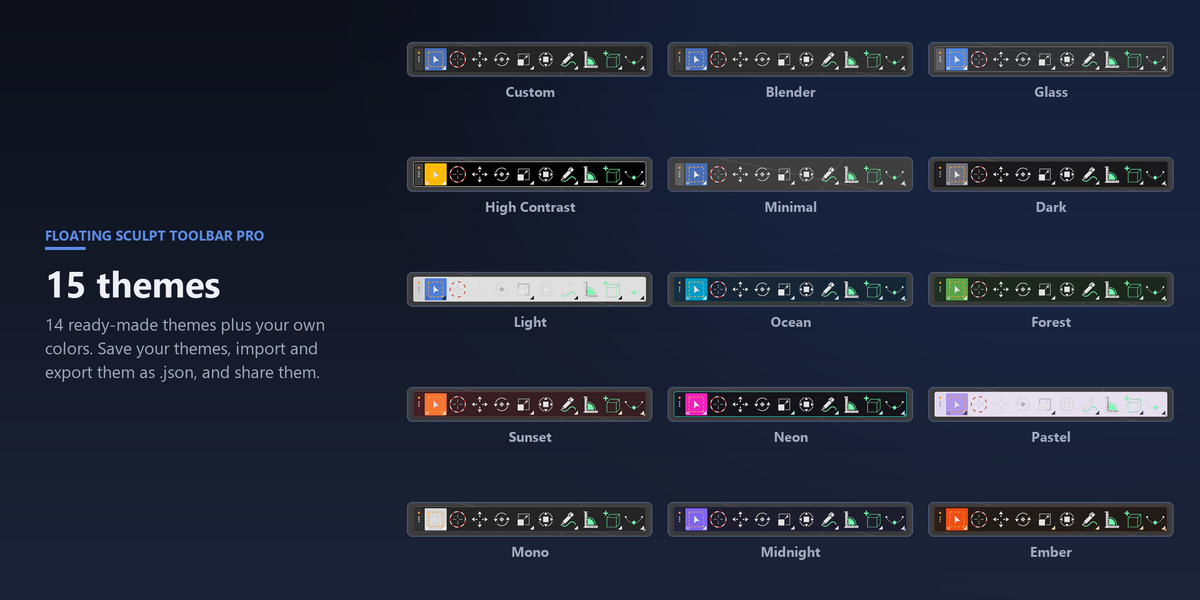
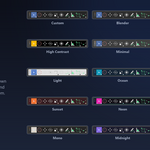
- Your own themes: Look › Your Themes: save, apply, import or export them as .json.
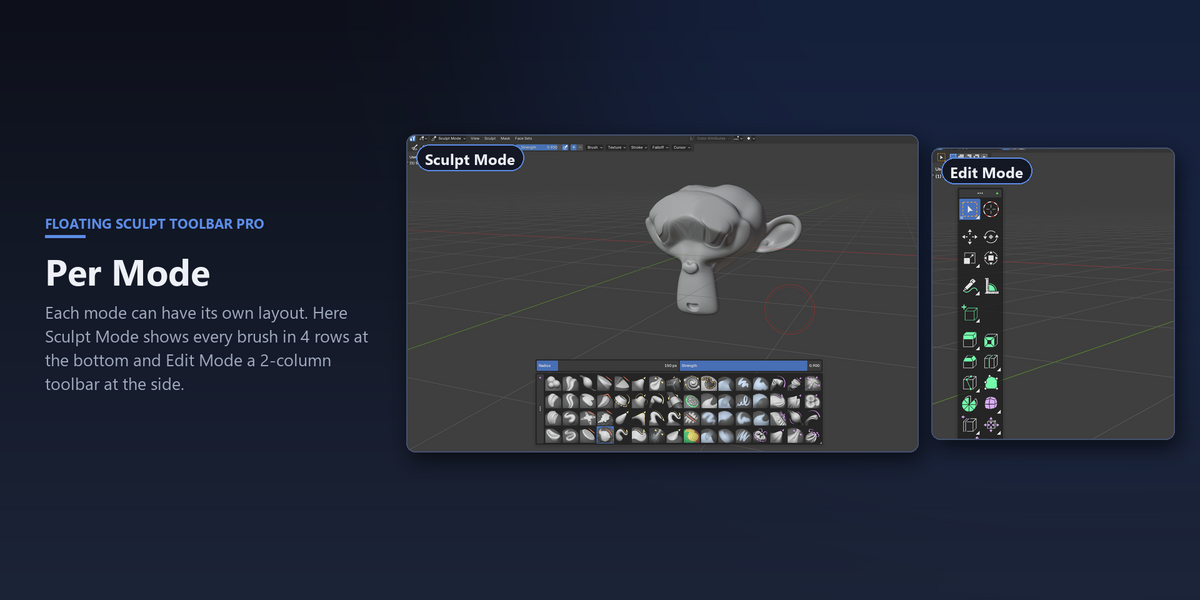
- Per Mode: give a mode its own orientation, lines, Hide Tools, Brush Bar…
Requirements
- Blender 5.0 or newer (tested on 5.2 LTS)
- Windows, macOS or Linux (pure Python, no compiled parts; tested on Windows)
Have questions about this product?
Login to message
| Blender Extension Compatible | Yes |
| Published | 25 minutes ago |
| Blender Version | 5.0 - 5.2 |
| Extension Type | Add-on |
| License | GPL |
