Flower - Flow Editor
 Trestle Trotter



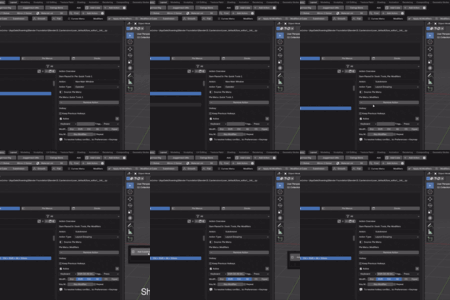
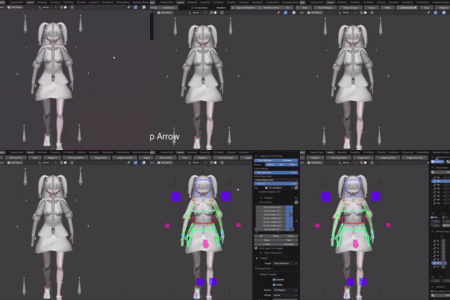
Find new video tutorials here:
Flower Tutorials | SPM 2 Tutorials - YouTube Playlist
Flower | Flow Editor for Blender
A practical guide to creating reusable Actions, context-aware Pie Menus, and personalized Docks in Blender.
Getting started
Install Flower
Option 1:
Setup the Blender superhive market extensions.
Follow instructions on the download page when purchasing the addon.
It's a one time setup.
Option 2:
Easy manual Install.
1. Download the zip file.
2. Drag and drop into blender's interface.
3. Click accept when prompted to install the add-on.
After updating
Restart Blender after installing a new version. This ensures that registered panels, menus, hotkeys, and interface scans are refreshed cleanly.
Open the Flower settings
Open Edit → Preferences → Add-ons, search for Flower, and expand the add-on entry. The main interface is divided into three tabs:
- Actions stores reusable commands and interface elements.
- Pie Menus creates radial menus that open around the mouse cursor.
- Docks creates compact horizontal tool areas at the top or bottom of supported editors.

Common interface controls
| Control | Purpose |
|---|---|
| + | Add a new item, preset, Action, or menu. |
| − | Remove the selected entry. Some removals ask for confirmation. |
| Up / Down | Reorder the selected item. |
| Refresh | Rebuild a list or rescan Blender's registered interface elements. |
| Search | Filter the current list by name or other available fields. |
| Eye / Visibility | Show or hide an item without deleting it. |
02
Core concepts
Flower separates the tool you want to use from the place where you want to access it. This makes it possible to reuse the same command in more than one part of your setup.
Action
A reusable command, property, panel, menu, script, asset, or custom layout.
Pie Menu
A radial menu placed around the cursor and normally opened with a hotkey.
Dock
A horizontal area for panels and controls at the top or bottom of a Blender editor.
A typical setup begins with an Action. You can place that Action in a Pie Menu, place it in a Dock, assign a direct hotkey, or use it inside a Layout Action. Pie Menus and Docks can also contain controls that are not stored as reusable Actions.
Recommended approach
Create an Action when a tool will be used in several places or needs its own configuration. Add an item directly to a Pie Menu or Dock when it is specific to that one layout.
03
Actions
An Action describes something Flower can display or execute. Actions are stored in a searchable library and can be reused across Pie Menus, Docks, hotkeys, and Layout Actions.
Create an Action
- Open the Actions tab in Flower's preferences.
- Select the + menu.
- Choose New Action for a single control, or New Layout Action for a group of controls.
- Choose the Action type and configure its settings.
- Give the Action a clear name. Adjust its label and icon if it will be displayed in a menu or Dock.
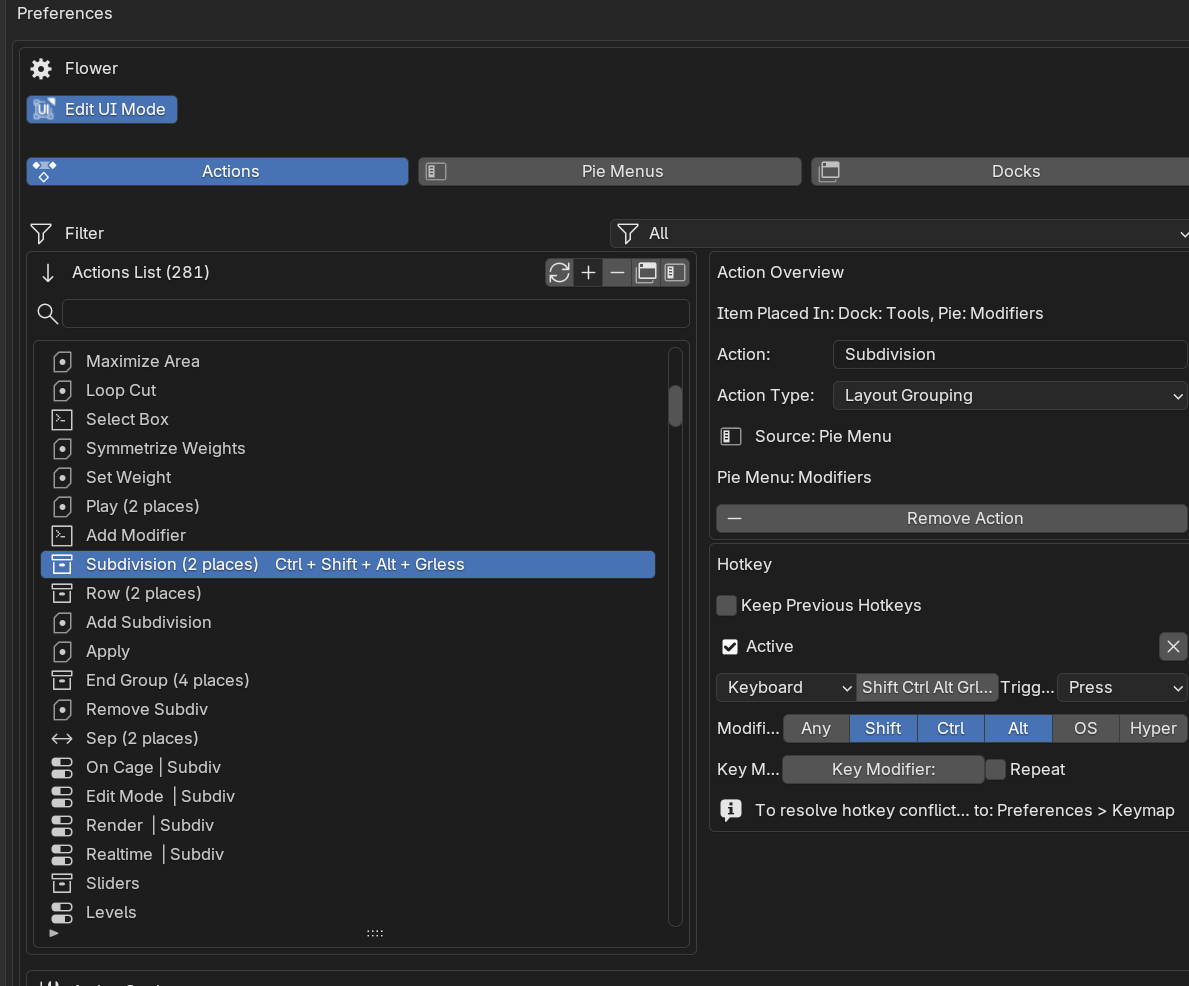
Common Action types
| Type | Use |
|---|---|
| Operator | Runs a Blender operator with configurable operator properties. |
| Command | Executes a Python command. This is useful for compact operations that are not exposed as a normal button. |
| Property | Displays or changes a live Blender property. |
| Menu | Opens an existing Blender menu. |
| Panel | Displays or opens a registered Blender panel. |
| UI Template | Displays a supported Blender UI template. |
| Brush / Asset | Provides access to a selected brush or asset. |
| Smart Pie Menu | Opens another Flower Pie Menu. |
| Execute Action | Runs another reusable Flower Action. |
| Custom Script | Runs a larger Python script. |
| Layout | Groups several Actions into rows, columns, boxes, or other interface structures. (Create it with the pie menu editor) |
| Separator | Adds visual spacing or separation inside a layout. |
Python Actions
Command and Custom Script Actions run Python inside Blender and can access bpy. Only use scripts you wrote yourself or obtained from a source you trust.
Place an Action
Select an Action in the library and use the placement controls to:
- add it to a Pie Menu;
- add it to a Dock preset;
- assign one or more direct hotkeys;
- reuse it inside a Layout Action.
Flower records where reusable Actions are used. The Action overview can show its source, type, and placements, which is useful when maintaining a larger configuration.
Assign an Action hotkey
- Select the Action.
- Open its hotkey settings and add a shortcut.
- Choose the editor or keymap context in which the shortcut should work.
- Press the key combination you want to use and save it.
- Enable Keep Previous Hotkeys when the Action needs more than one shortcut.
Build a Layout Action
A Layout Action is a reusable mini-interface. It can contain several controls arranged in rows, columns, boxes, and nested groups. Use one when the same cluster of tools should appear in multiple Pie Menus or Docks.
- Choose + → New Layout Action.
- Add controls or existing Actions to its item list.
- Add layout markers to define rows, columns, boxes, or nested groups.
- Reorder the items until the preview follows the intended structure.
- Place the completed Layout Action in any supported destination.
Edit or remove an Action
Select an Action to edit its settings. Use search and type filters to locate it in a large library. The refresh control rebuilds the visible Action list if it becomes stale after changes.
Removing a source Action may also remove linked uses of that Action from Pie Menus, Docks, or layouts. Flower displays a confirmation before performing a linked removal. Check the listed placements before confirming.
04
Pie Menus
A Pie Menu places controls in directions around the cursor. Directions become easy to remember through repeated use, and context rules allow one menu to display different tools for different parts of a workflow.
Create a Pie Menu
- Open the Pie Menus tab.
- Select + to create a menu and give it a descriptive name.
- Make sure the menu is enabled.
- Add a hotkey. Use Multiple Hotkeys if the same menu should have several shortcuts.
- Optionally enable Open On Drag for gesture-style opening.
- Add items to the eight directional areas and test the menu in its intended editor.
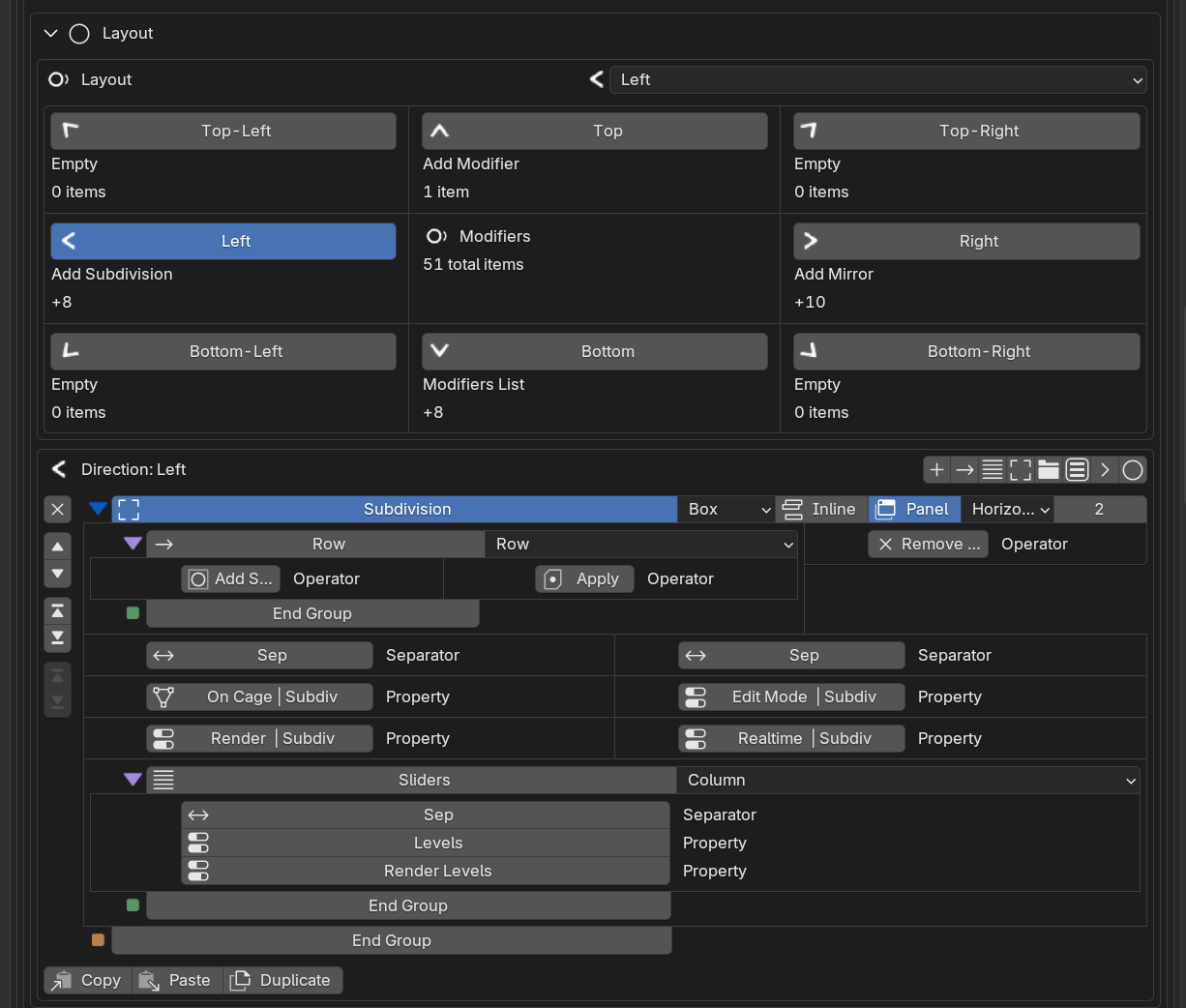
Add items
You can populate a menu in several ways:
- Add an existing Action from the Actions library.
- Use the item add menu to select an operator, menu, panel, property, brush, asset, script, or other supported type.
- Use Edit UI Mode to capture a supported control while browsing Blender's normal interface.
- Add a layout group, then place several controls inside that group.
Use the radial editor
The radial editor represents the eight Pie Menu directions: left, right, top, bottom, and four corners. Select a direction before adding an item to place it there. A direction can contain one control or an entire layout.
Keep frequently used commands in the four main directions. Corners require slightly more precise movement and work well for secondary tools or submenu access.
Manage the All Items list
All Items provides a linear view of everything stored in the selected Pie Menu. Use it for precise selection and reordering when the radial view becomes crowded.
- Select an entry and use − to delete it.
- Use the arrow controls to move it within the layout.
- Use Copy, Paste, or Duplicate from the item operations menu.
- Use Ctrl or Shift selection when working with multiple entries.
Arrange more than one control in a direction
Layout groups control how several items are displayed together:
| Layout group | Result |
|---|---|
| Row | Places child controls horizontally. |
| Column | Places child controls vertically. |
| Box | Places controls inside a visible framed group. |
| Panel / Folder | Creates an expandable or grouped section. |
| Popup Menu | Opens child controls in a clicked popup. |
| Hover Menu | Opens child controls when the pointer enters the menu item. |
| Nested Pie | Opens another radial layout from the current Pie Menu. |
| End | Marks the end of a layout group. Flower normally creates this marker automatically. |
Set menu context
Context rules control when a Pie Menu is available. A rule can check the current editor, object mode, active object type, and viewport shading mode.
For example, a modeling menu could use these two rows:
- Row 1: 3D Viewport + Object Mode + Mesh
- Row 2: 3D Viewport + Edit Mode + Mesh
The same hotkey can then open the menu in either of those situations.
Set item context and behavior
Individual menu items can have their own visibility rules. This allows one Pie Menu to keep a stable overall layout while showing only the controls that apply to the current editor, mode, object type, or shading setup.
Supported Actions can also switch to a required object mode, mesh selection submode, or viewport shading mode when activated. Use automatic switching only when it is a deliberate part of the Action; otherwise, visibility rules are usually less disruptive.
Adjust item presentation
Each item can be adjusted independently:
- change the displayed label and icon;
- use icon-only display for compact layouts;
- change alignment and scale;
- display compatible controls inline;
- configure type-specific properties such as operator options or popup width.
Organize several Pie Menus
Use collections to group menus by task, project, or discipline. For example, you can keep Modeling, Sculpting, Animation, and Character Pipeline menus in separate collections. Collections affect organization; each menu still controls its own enabled state, contexts, and hotkeys.
05
Docks
A Dock is a compact horizontal area created at the top or bottom of a supported Blender editor. It can contain Sidebar panels, Actions, operators, properties, labels, separators, and script buttons.
Docks do not remove or replace Blender's normal Sidebar. The original N panel remains available, while a Dock gives you another way to reach selected tools.
Create a Dock preset
- Open the Docks tab.
- Select New and name the preset after its purpose.
- Choose the target editor.
- Add Sidebar items, Actions, buttons, properties, labels, separators, or scripts.
- Arrange and configure the items.
- Assign a Dock Top or Dock Bottom hotkey.
- Move the mouse over the target editor and use that hotkey to create or open the Dock.
Target editor matters
A Dock shortcut acts on the editor under the mouse cursor. Place the pointer over the correct editor before using the top or bottom Dock hotkey.
Supported editors
- 3D Viewport
- Node Editor
- Image Editor
- Graph Editor
- Video Sequencer
- Dope Sheet
- NLA Editor
- Movie Clip Editor
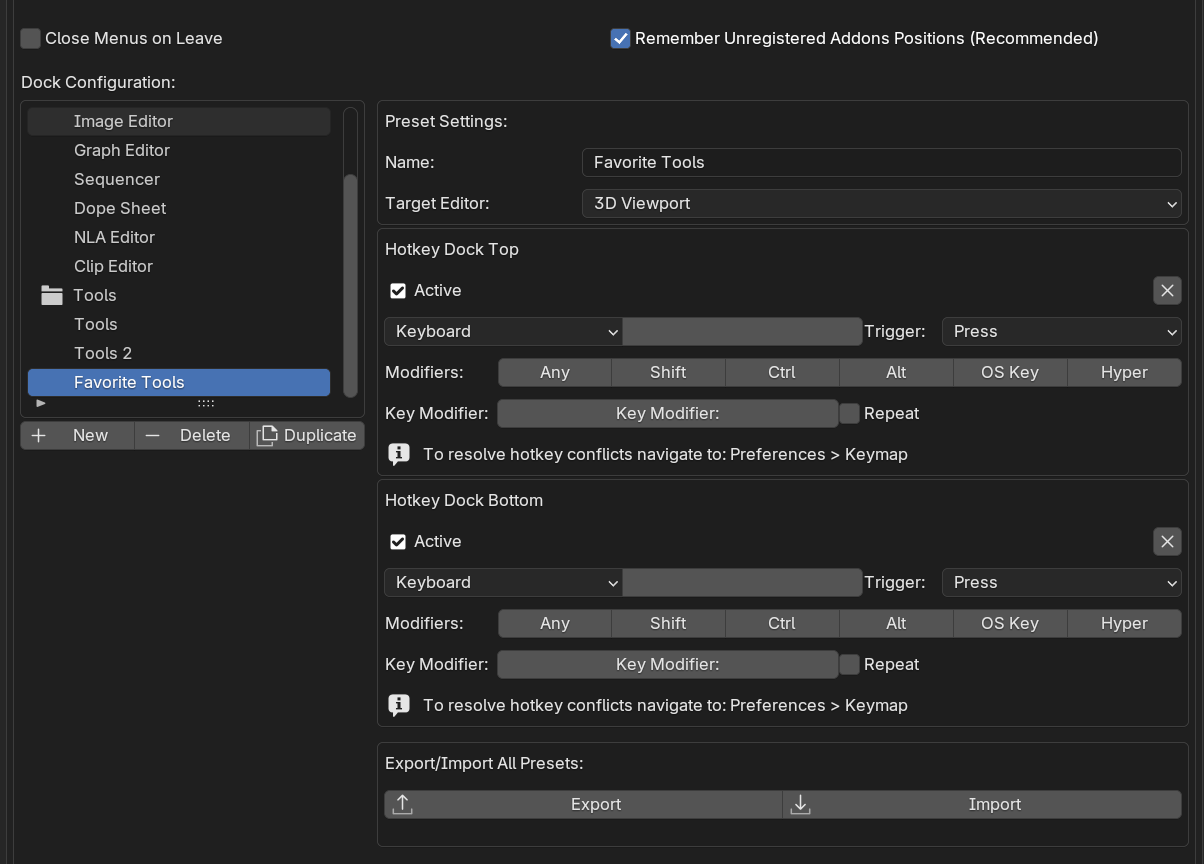
Dock item types
| Item | Purpose |
|---|---|
| Sidebar Item | Provides access to a supported Blender or add-on Sidebar panel category. |
| Action | Uses a reusable Action from Flower's Actions library. |
| Button / Operator | Runs a Blender operator directly from the Dock. |
| Property | Displays or edits a live Blender property. |
| Label | Adds text that identifies a section of the Dock. |
| Separator | Adds spacing or a visual division between groups. |
| Custom Script | Runs a Python script from a Dock button. |
Add Sidebar panels
- Add a Sidebar Item to the Dock preset.
- Select the Sidebar category or supported panel group.
- Choose how it should open: Popover or Panel.
- Set its label or alias, icon, visibility, and position.
- For popovers, adjust the width if the original panel needs more room.
Popover keeps the Dock compact and opens the panel content temporarily. Panel is almost the same, but with a single panel layout, this might change in future versions.
Add Actions and direct controls
Use an existing Action when a control is already part of your reusable library. Use a direct operator, property, or script item when the control belongs only to the current Dock.
Labels and separators are useful for larger Docks. Keep related tools together and avoid adding every available panel to one preset; focused presets are generally easier to scan and maintain.
Manage Dock items
- Reorder items with the move controls.
- Hide an item temporarily without deleting it.
- Use batch visibility controls when reorganizing a large preset.
- Rename items and choose recognizable icons.
- Use filters to find specific item types.
Use several presets
Create separate presets for different tasks, such as Modeling, Rigging, Animation, Shading, or Export. Duplicate an existing preset when the new workflow shares most of the same controls. Presets can be placed in collections for easier organization.
When several presets target the same editor, use the Dock's preset switcher to change the active layout without rebuilding the Dock area.
Temporarily unavailable add-ons
The option to remember unregistered add-on panel positions helps preserve a Dock arrangement when another add-on is temporarily disabled. When that add-on becomes available again and the interface is rescanned, its stored item can return to its previous position.
06
Edit UI Mode
Edit UI Mode adds Flower capture controls to supported Blender menus and context menus. It is useful when you can find a command visually but do not know its operator name or technical identifier.
Capture an interface item
- Enable Edit UI Mode in Flower's preferences.
- Return to Blender and open the menu or context menu that contains the desired command.
- Use the Flower capture entry associated with that command.
- Choose Add to Actions, Add to Pie Menu, or Add to Dock.
- If adding to a Pie Menu, choose the destination menu and direction or layout group.
- Disable Edit UI Mode when capture is complete.
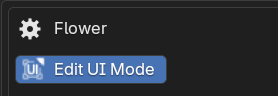

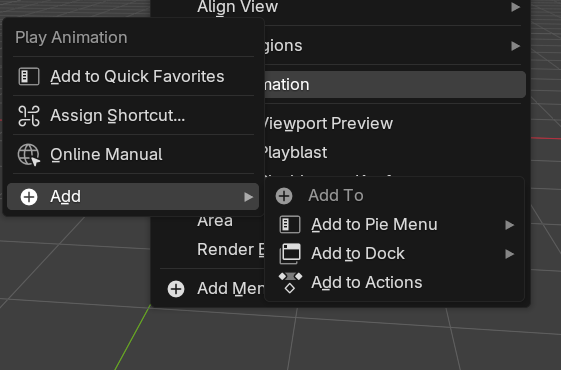
Flower also provides searchable catalogs for registered operators, menus, panels, brushes, and other supported UI types. If an item from a newly enabled add-on is missing, use the relevant refresh or rescan control before restarting Blender.
07
Example workflows
Example 1
A context-aware modeling Pie Menu
- Create a Pie Menu and assign one hotkey.
- Add one context row for 3D Viewport + Object Mode + Mesh.
- Add a second row for 3D Viewport + Edit Mode + Mesh.
- Add object-level controls and make them visible only in Object Mode.
- Add mesh editing controls and make them visible only in Edit Mode.
- Test the same hotkey in both modes and refine the directional layout.
Example 2
A Dock for frequently used add-ons
- Create a Dock preset for the 3D Viewport.
- Add the Sidebar categories used during the current task.
- Set large or occasional panels to open as popovers.
- Add direct buttons for the two or three commands used most often.
- Add labels or separators to distinguish each workflow group.
- Assign a Dock Top hotkey and create the Dock in the 3D Viewport.
Example 3
One reusable Action in several places
- Create and test an Operator Action.
- Add the Action to a utility Pie Menu.
- Add the same Action to a cleanup Dock.
- Assign a direct hotkey if it is used frequently without either interface.
- Use the Action overview later to find each placement.
08
Import, export, and backups
Export configurations before making large changes, reinstalling Blender, or moving Flower to another computer. Store backups outside Blender's add-on folder so they are not removed during an update.
Pie Menu configuration
- Use Export Configuration to save Pie Menu settings.
- Enable Selected Menus Only when sharing or backing up a limited set.
- During import, use Import as Presets when the imported menus should be kept separately from the current working set.
Dock configuration
- Use Export All Presets to save Dock presets and their organization.
- Use the corresponding import control to restore them.
- After importing, check target editors and hotkeys on the destination Blender installation.
Before sharing a configuration
Remove private file paths and verify dependencies on third-party add-ons. A panel, operator, brush, or asset can only work when its source is available on the receiving system.
09
Troubleshooting
A Pie Menu does not open
- Confirm that the menu is enabled.
- Check that its hotkey is active and assigned to the intended editor or keymap.
- Review the menu's context rows. At least one complete row must match the current Blender context.
- Check Preferences → Keymap for another tool using the same shortcut.
An item is missing from a Pie Menu
- Check the item's visibility and context settings.
- Confirm that the source add-on, panel, operator, asset, or brush is available.
- Open All Items to confirm that the item still exists and is inside the intended layout group.
- Use the UI rescan control if the source was enabled after Flower started.
The minus button does not remove the intended Pie Menu item
- Select the item directly in the All Items list before pressing −.
- When multiple items are selected, confirm which entries Flower reports before removal.
- Update to Flower 0.55 or newer, which includes the corrected All Items removal behavior.
A Dock does not appear
- Confirm that the preset targets the editor under the mouse cursor.
- Check the Dock Top or Dock Bottom hotkey.
- Make sure the current Blender area is one of the supported editors.
- If the Dock area already exists, use its preset selector instead of creating another split.
A Sidebar panel is missing from a Dock
- Make sure the add-on that owns the panel is enabled.
- Use Flower's refresh or rescan control.
- Check the Dock item's visibility and target editor.
- Some panels depend on a particular mode, active object, or other Blender context.
Blender's normal N-panel tabs are missing
- Update to Flower 0.54 or newer.
- Restart Blender after the update so panel registrations are rebuilt.
- Flower Docks should coexist with the normal N Sidebar; creating a Dock is not intended to hide the original panels.
The Actions list looks out of date
Use the refresh control in the Actions tab. If the missing entry depends on another add-on, confirm that the source add-on is enabled and rescan Blender's interface.
A hotkey conflicts with another add-on
Open Edit → Preferences → Keymap, search for the shortcut, and change one of the assignments. When possible, scope Flower hotkeys to the editor where they are used instead of assigning them globally.
10
Glossary
| Term | Meaning |
|---|---|
| Action | A reusable command or interface element managed by Flower. |
| Context | The current Blender state, including editor, mode, active object type, and shading. |
| Dock | A Flower tool area placed at the top or bottom of a supported editor. |
| Dock Preset | A saved arrangement of Dock items for a particular editor or task. |
| Edit UI Mode | A capture mode that adds Flower controls to supported Blender menus. |
| Layout Action | A reusable group of Actions arranged as a small interface. |
| Pie Menu | A radial menu whose controls are arranged around the cursor. |
| Popover | A temporary floating panel opened from a compact button. |
| Sidebar | Blender's standard region commonly opened with N. |
Have questions about this product?
Login to message
| Blender Extension Compatible | Yes |
| Published | 3 months ago |
| Blender Version | 4.2 - 5.2 |
| Extension Type | Add-on |
| License | GPL |

Discover more products like this
rig menu 3dviewport interface worfklow Export dock 3dflower flower Sidebar 3D animation tool smart pie menu pie menu