 Trestle Trotter



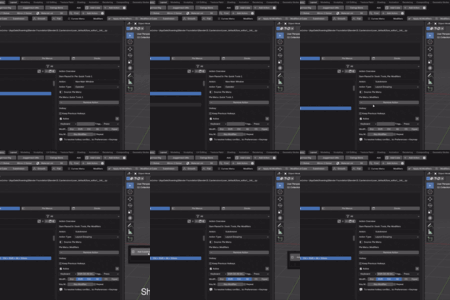
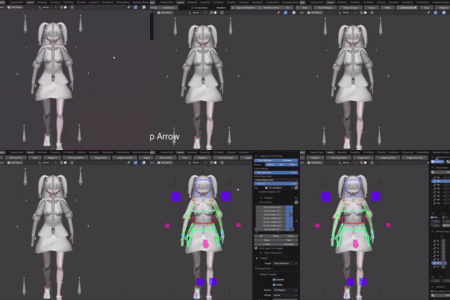
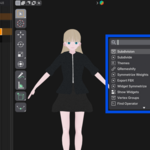
You open BLENDER every day, ready to start working on amazing projects...
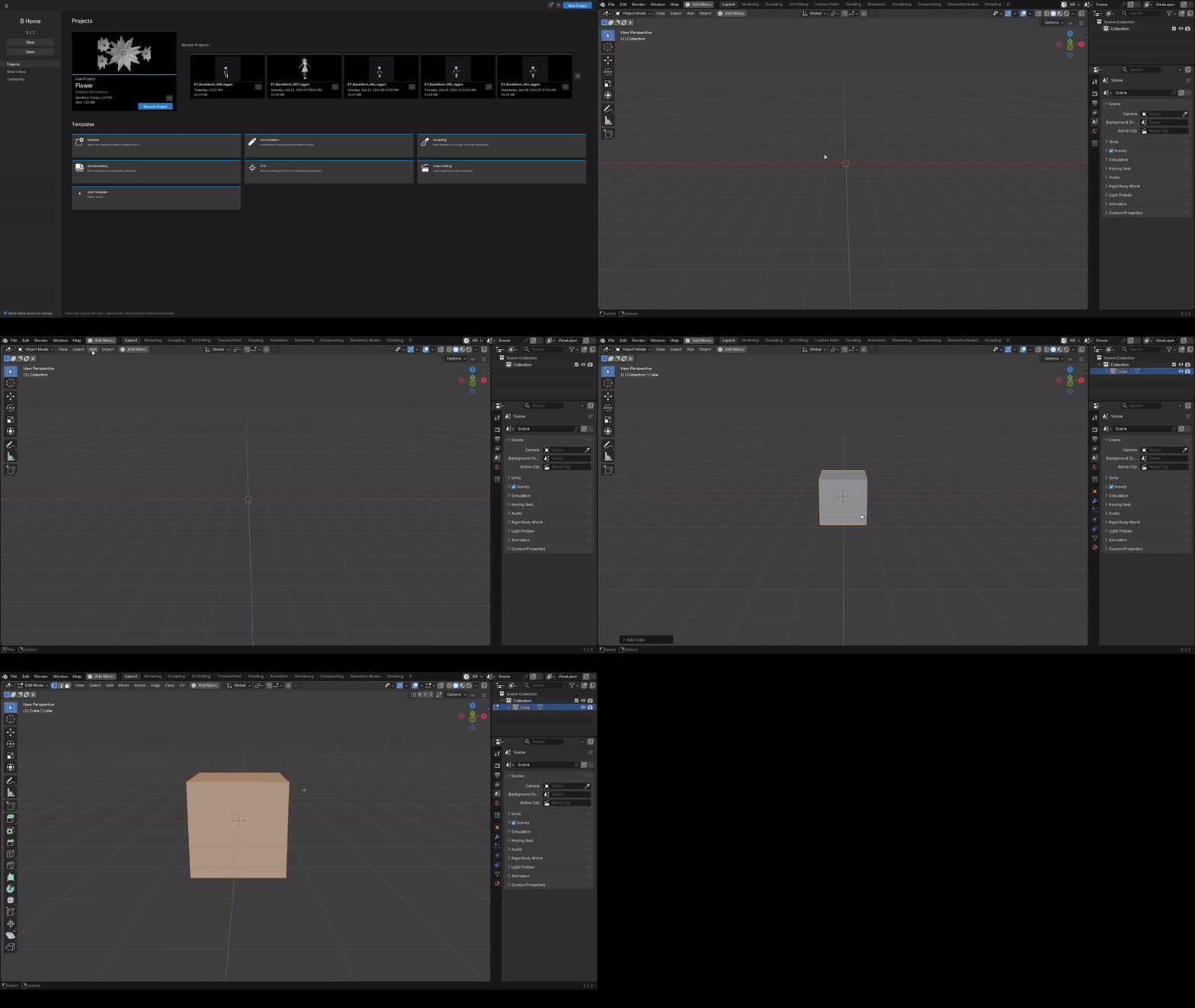
Until you realize you have no idea where half of its features are.
Then it begins...
The search through countless menus buried deep inside the interface like Russian matryoshka dolls.
Layer after layer, you dig through the interface.
Click after click after click...
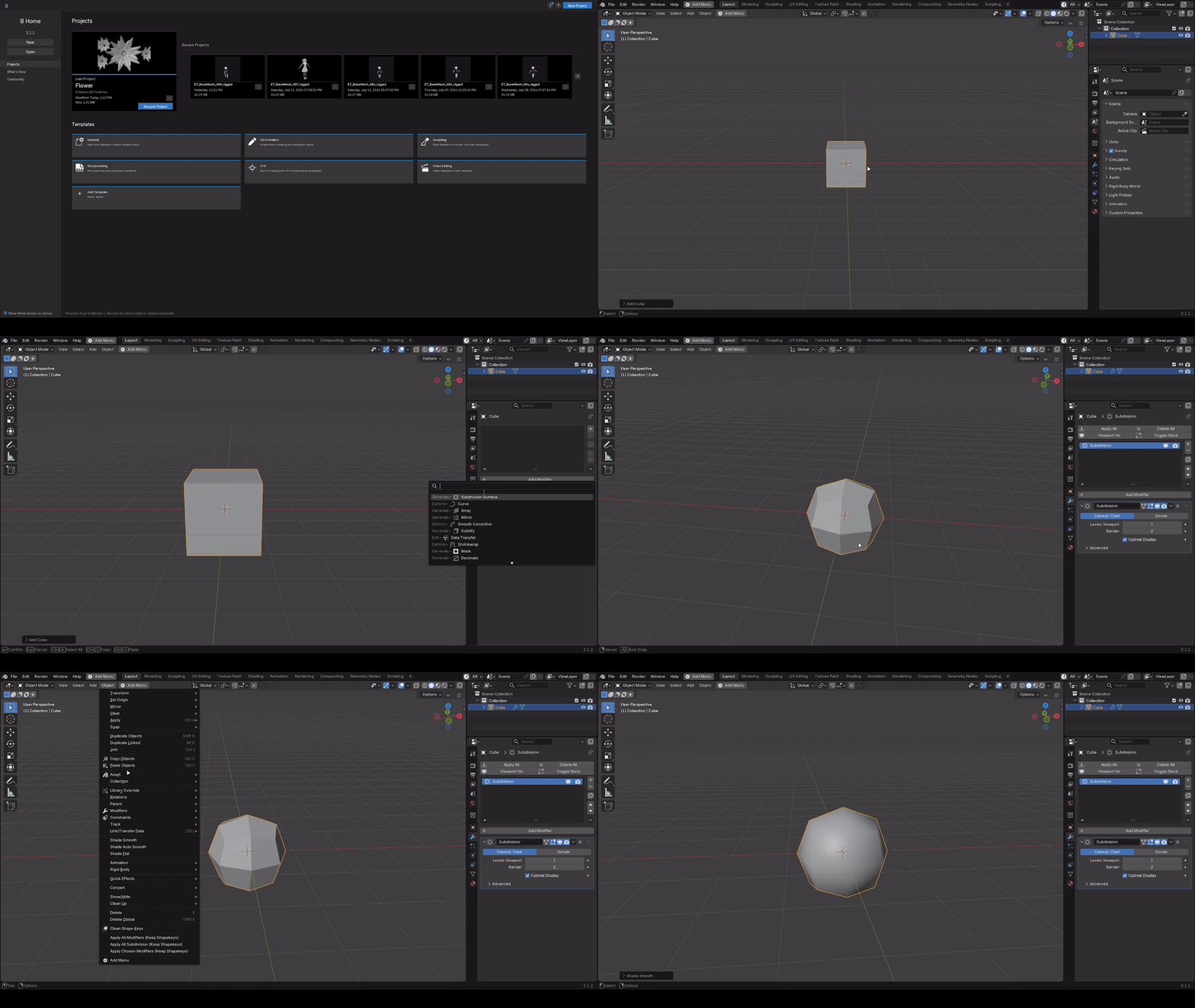 It all adds up until navigating Blender becomes a learned second job.
And the worst part is...
You learn to love it.
Or at least, you convince yourself that you do.
You learn to go through all those nested menus to find the thing you need, then repeat that same repetitive process over and over again, hoping it will end once the job is done.
But here's the truth...
You don't love going through hundreds of menus.
Doing that drains your creativity and leaves you tied up, slowed down, and wondering where the next function you need is hiding.
It hurts your focus.
And I'm sure you've felt it too.
“I've been there. I've gone through all those 100+ menus and lost countless hours wondering if there was a way out.”
Wondering if I could become a pro while somehow working a second job as a professional menu-clicker... on top of doing the exciting stuff in Blender.
As a technical artist working in Blender for 8+ hours a day and developing a technical pipeline for games, I needed a way out of Sidebar and nested-menu hell.
Focus matters,
And professionals know it.
I decided to put my time and effort looking for the fix.
My main roles are programmer and technical artist, so I stopped working around the problem and started building a solution.
I worked on it for hundreds of hours so that nobody else would have to go through that terrible feeling of not knowing where to find what they need to get the job done.
And it's finally here...
FLOWER.
Flow Editor or, as I like to call it, Flower (Flow-Er).
You get it.
So what does Flower actually do?
The answer is surprisingly simple...
It puts all the tools you use everyday At a single click / key of distance.
Anyway, let's get right to it. Because the way Flower does this is actually very clever.
Flower actually contains TWO powerful systems in one.
The first is all about context-aware Pie Menus.
System No. 1
Smart
Pie Menus.
What are these menus, you might be asking?
Oh boy... they are exactly what you need to put hundreds of Blender functions right at your fingertips.
Literally.
Press a hotkey and a radial menu appears around your cursor. Instead of dragging your mouse across the screen, reading a giant list, or opening three nested menus, you move toward a direction and get back to work.
Up. Down. Left. Right. And every corner between them.
Your hand starts remembering the direction before your brain even finishes naming the command.
But these are not normal pie menus.
If that was the case... there are already a few other alternatives out there.
With Flower, each menu defines its own context.
It can know which editor you are using.
It can know whether you are in Object Mode, Edit Mode, Sculpt Mode, Pose Mode, Texture Paint, or another part of your workflow.
It can react to the active Object's Type: mesh, curve, armature, camera, light, Grease Pencil, and more.
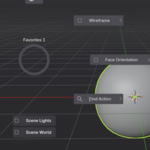
It can even respond to your viewport shading: Wireframe, Solid, Material Preview, or Rendered.
In other words, Flower changes the question from, “Which menu did you open?”
To, “What are you doing RIGHT NOW?”
Then it shows the exact tools your past self lovingly wanted to show you at that moment.
You can set context for the whole menu, per individual item, or make an Action switch to the mode or shading setup it needs when you activate it. Your actions then become reusable.
So your menu can stay clean instead of becoming yet another place where every possible tool fights for attention.
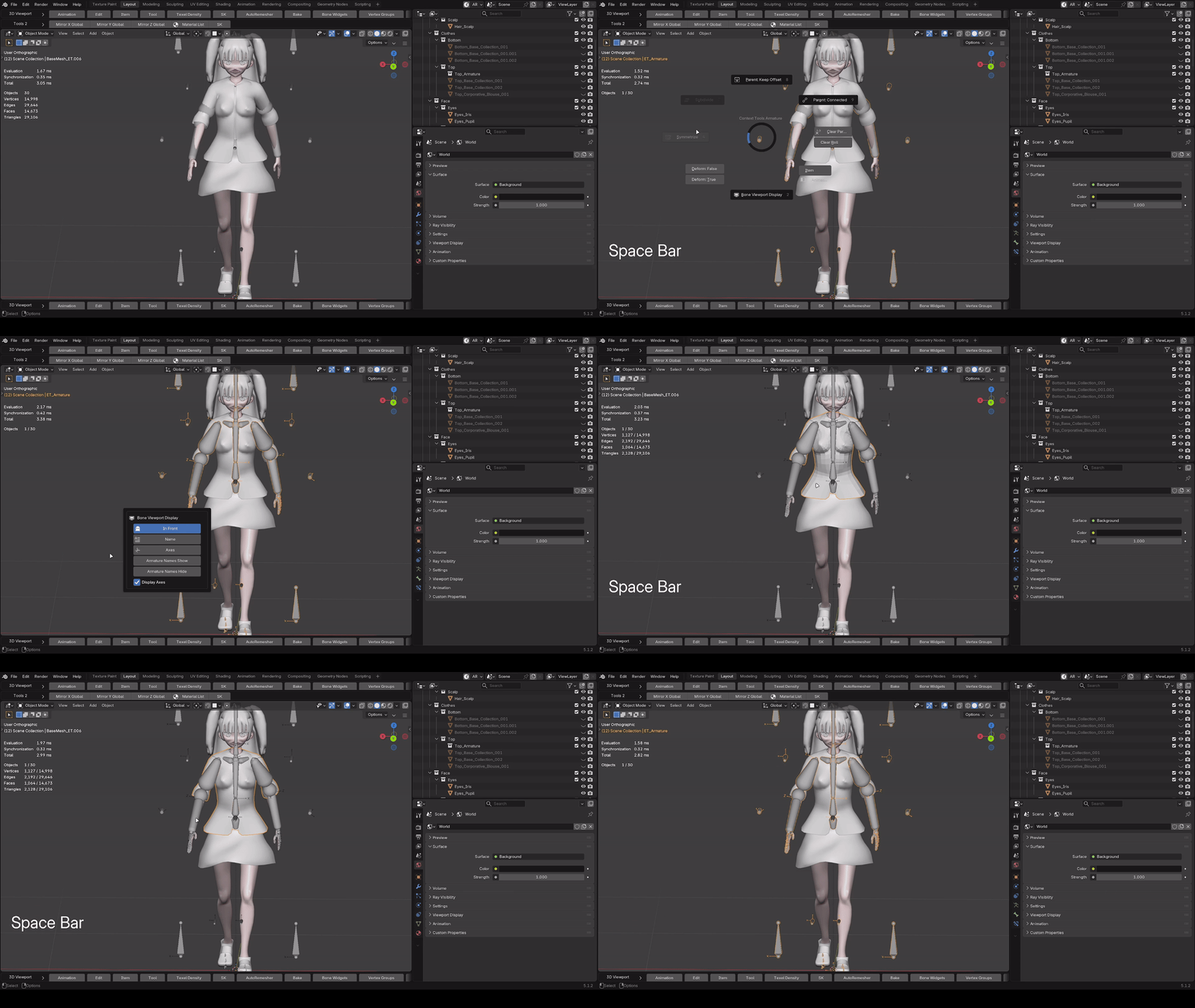
It can open a completely different menu.
And it gets better
One direction can hold much more than one lonely button.
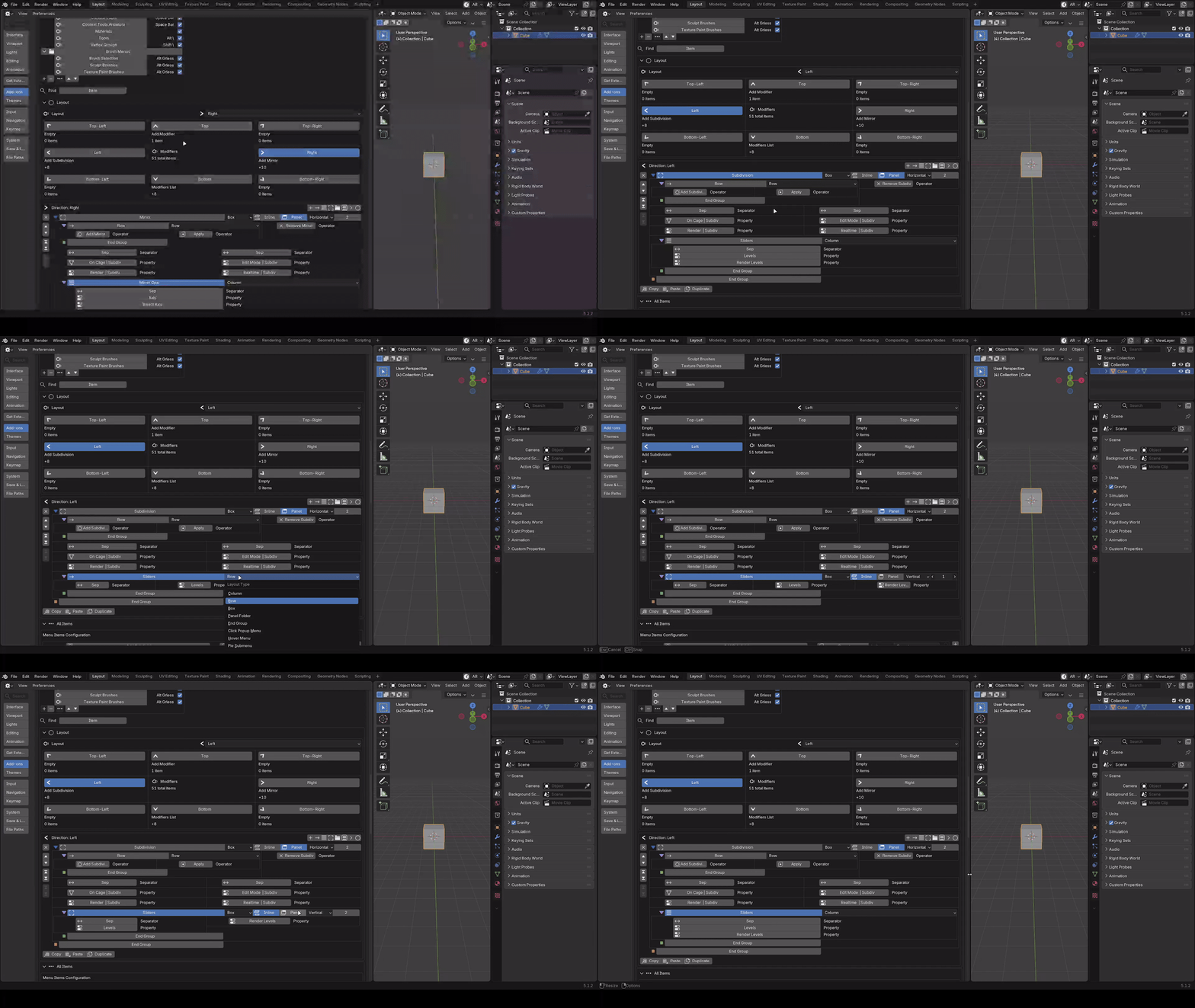
Stack Actions vertically. Place them side by side. Build rows, columns, boxes, folders, click popups, hover menus, and even Pie Menus inside other Pie Menus.
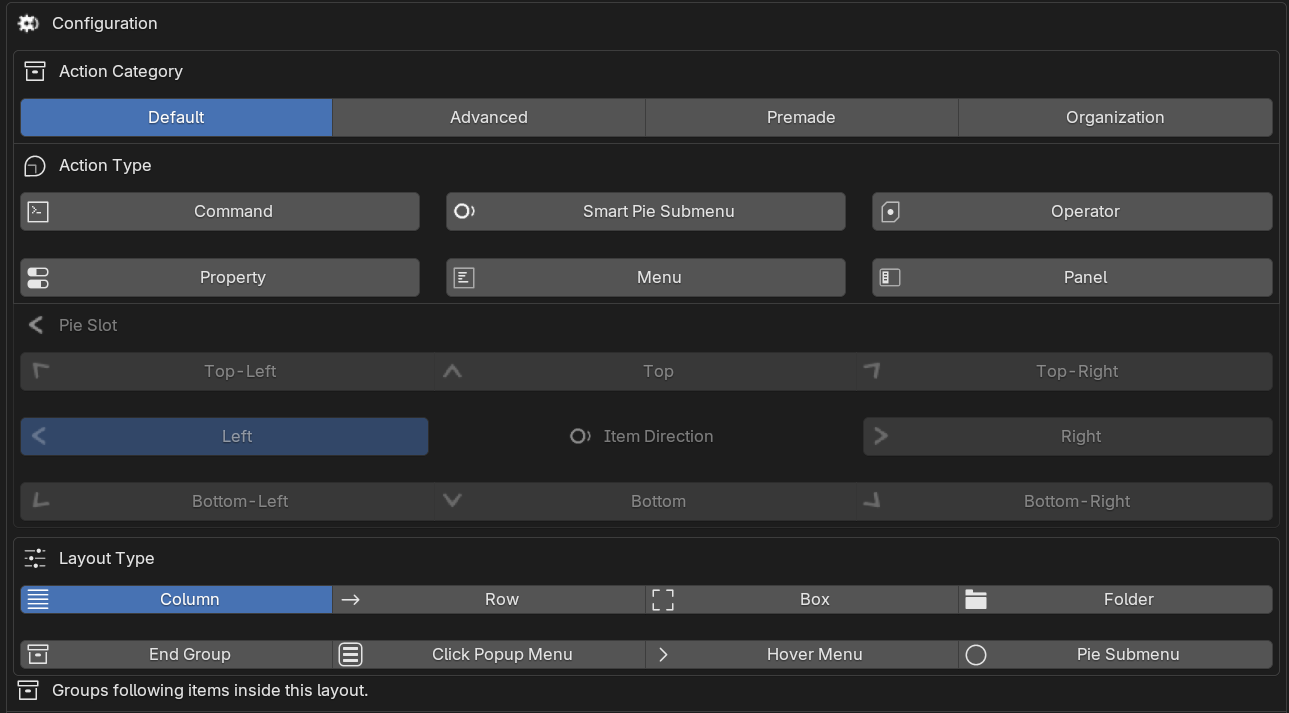
Add Blender operators, commands, live properties, native menus, full panels, UI templates, brushes, assets, custom scripts, and reusable Flower Actions.
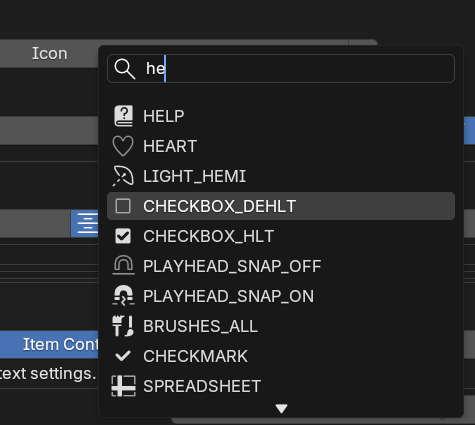
Customize the label. Pick the icon. Change the alignment and scale. Use icon-only buttons.
You don't even have to know technical Blender commands.
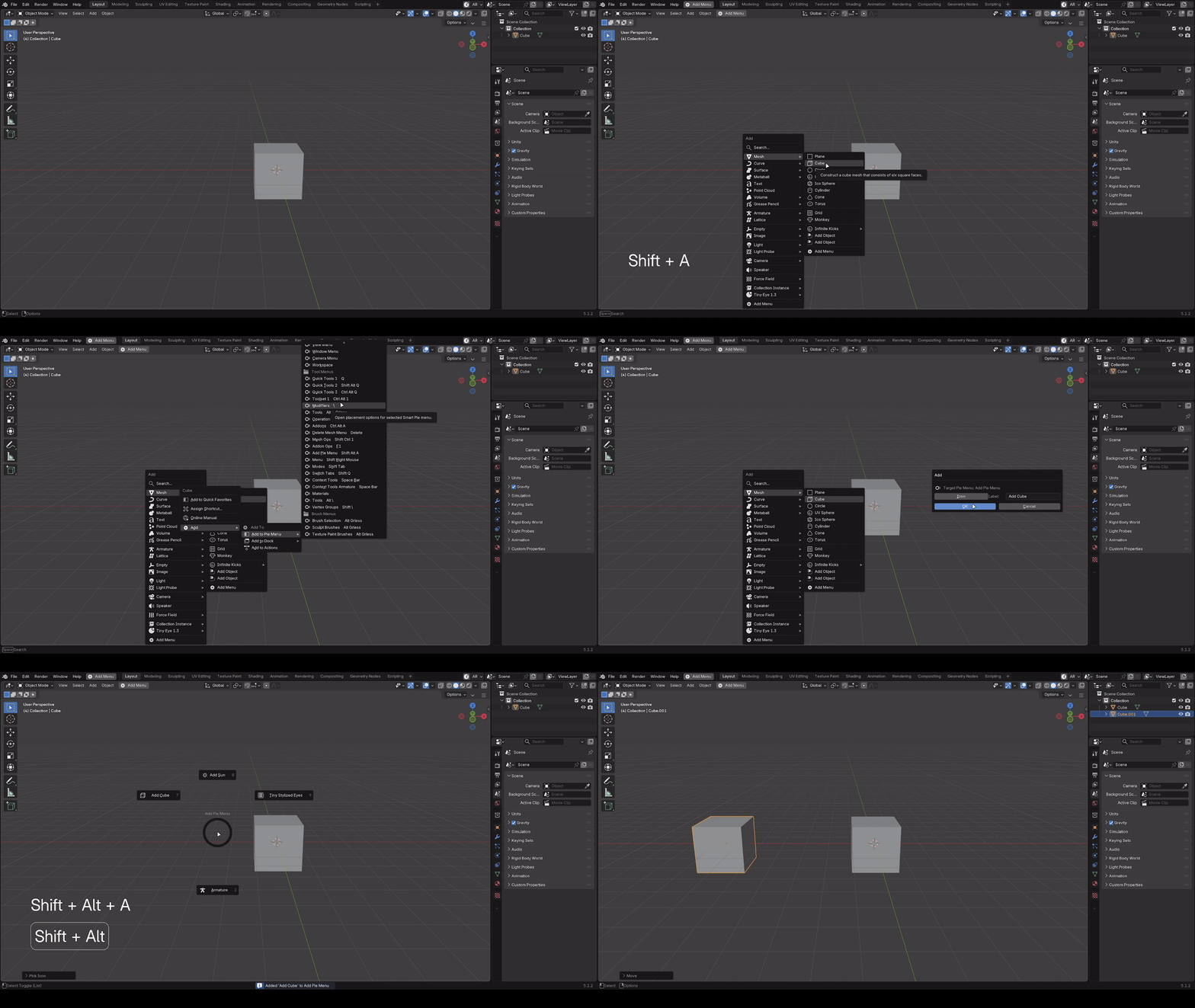
Turn on Flower's Edit UI Mode and Blender menus and operators can be directly added to your workflow.
Find something useful while you work?
Grab it.
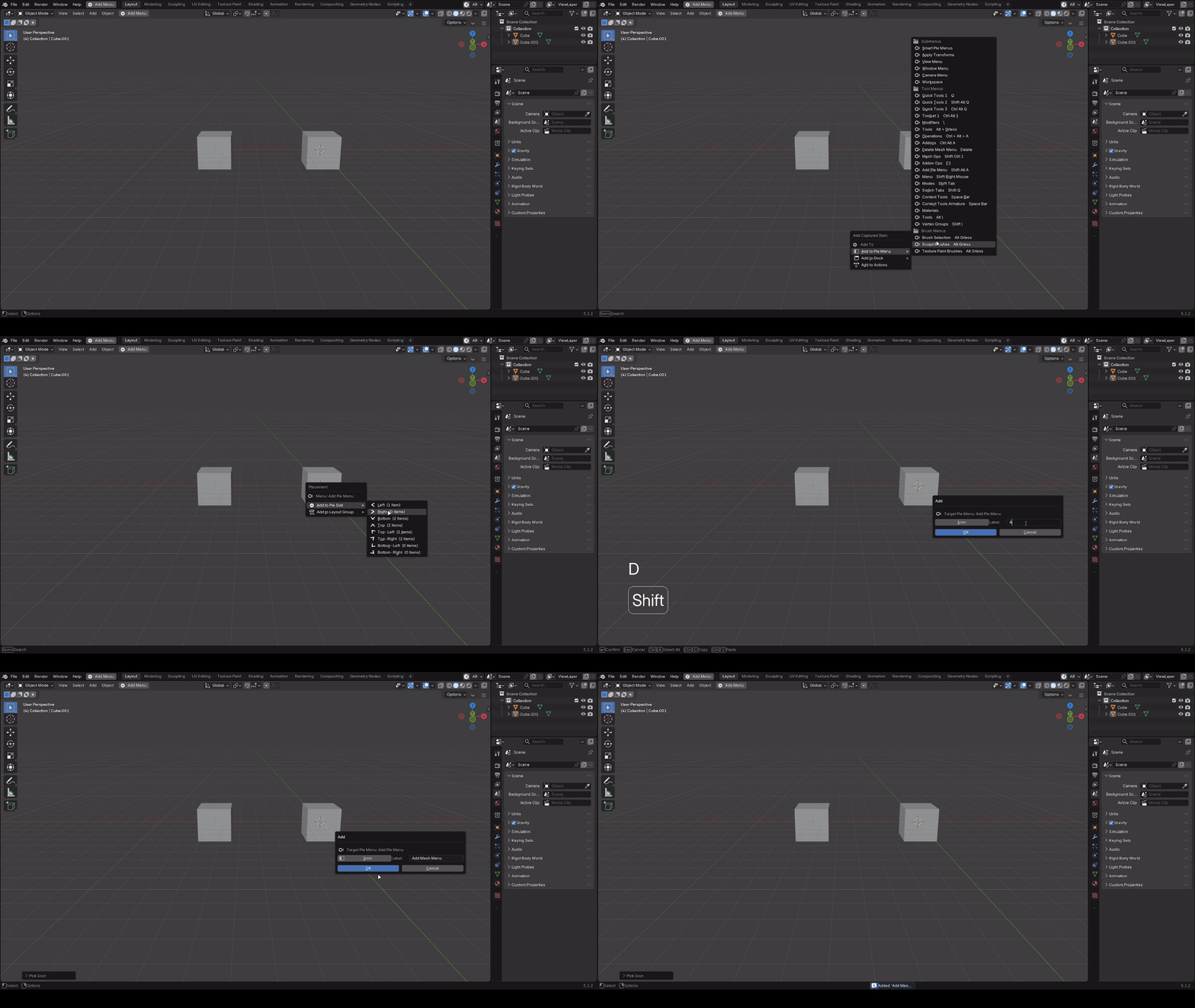
You can even add entire menus.
Give each Pie Menu its own hotkey. Add multiple hotkeys if you need them. Use drag-to-open behavior for a faster gesture-like workflow. Organize growing menu libraries into collections, then import or export your configuration when it is time to move it somewhere else.
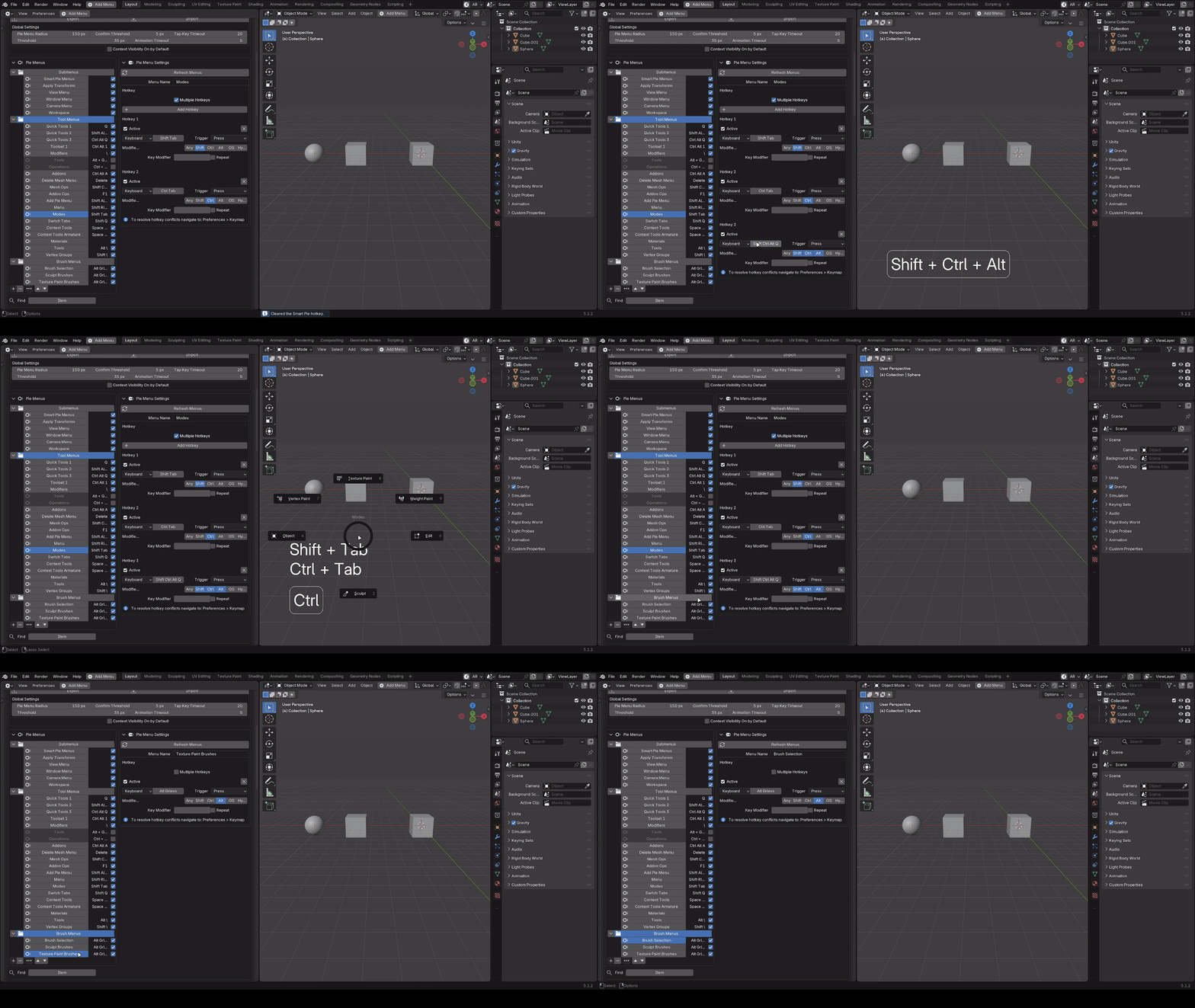
"If you want it, bag it" - Loba.
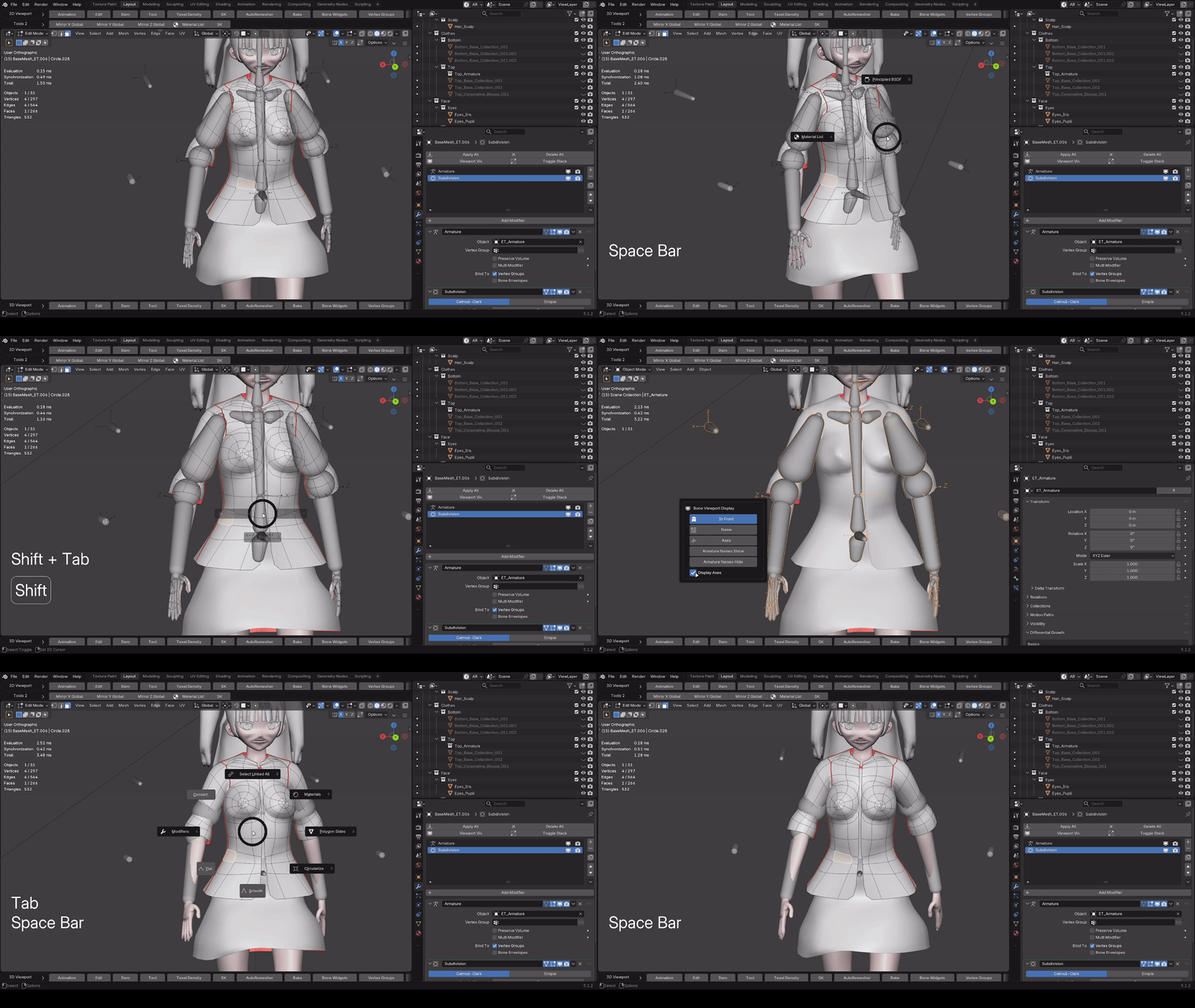
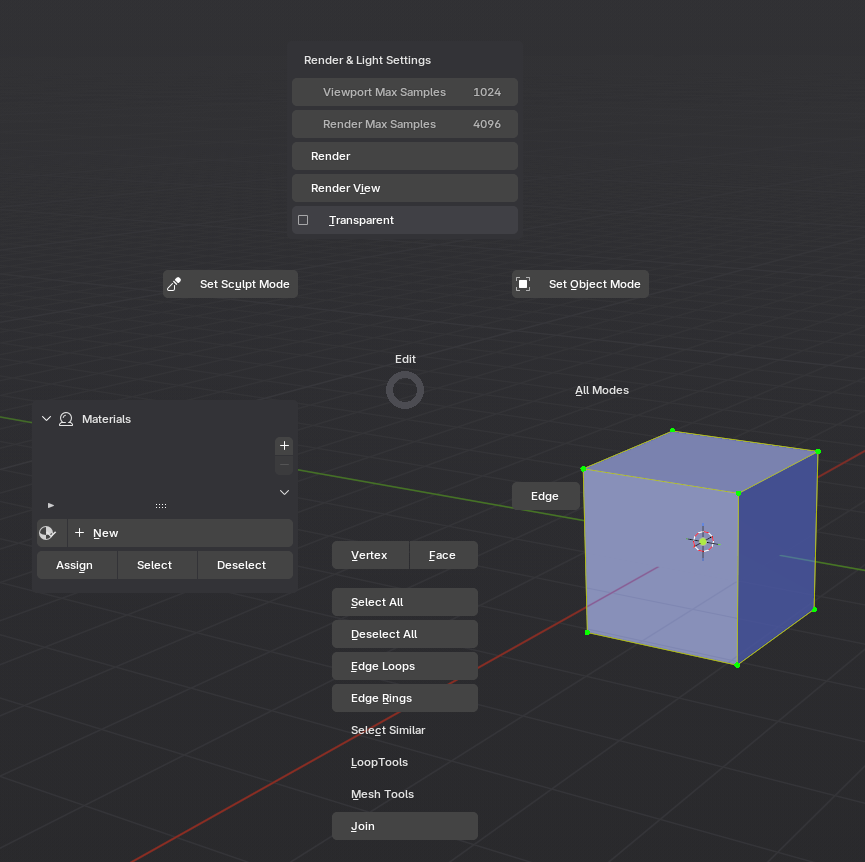
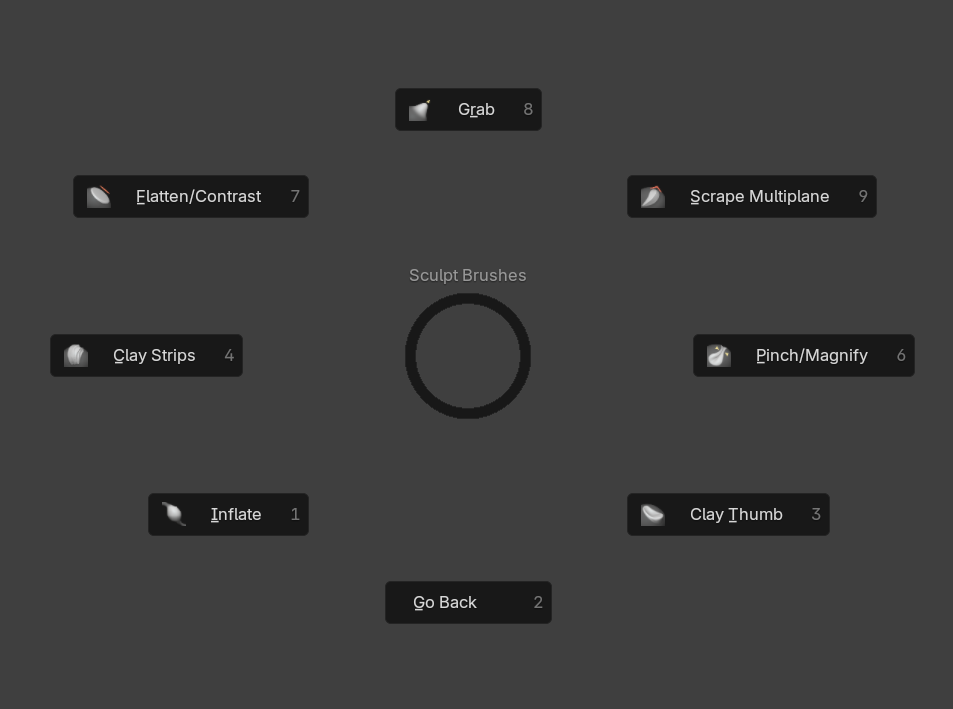
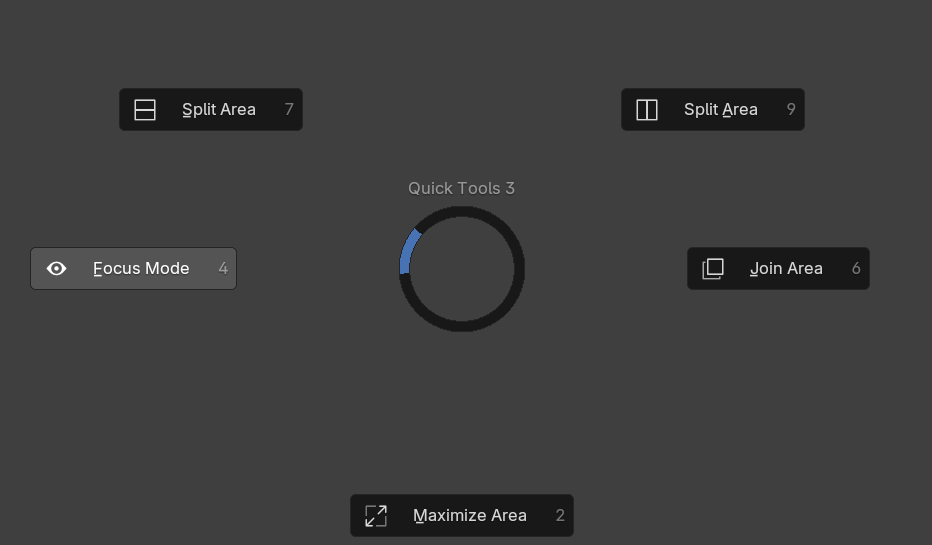
Here are some of the menus I've come up with in my real day-to-day Blender work:
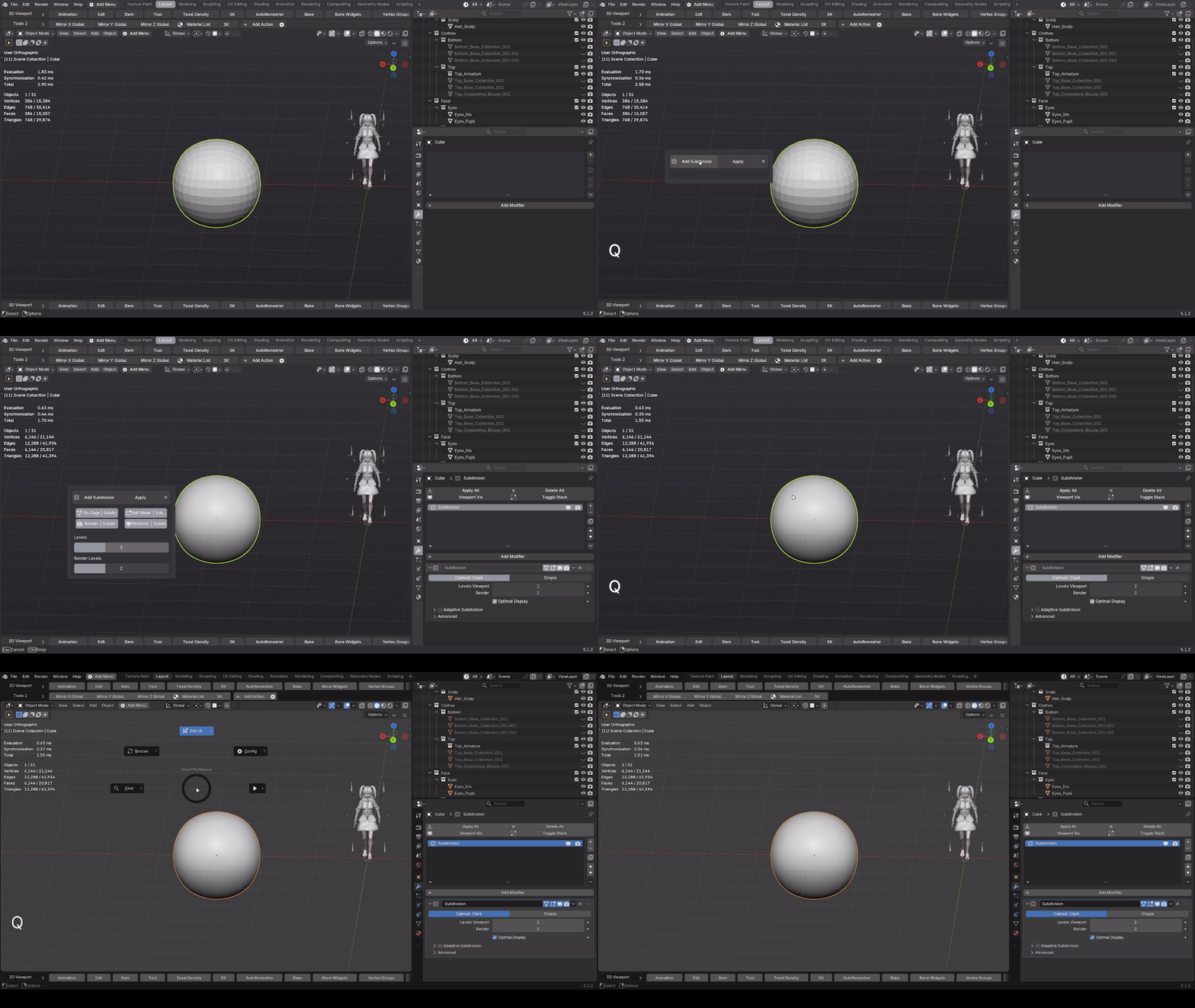
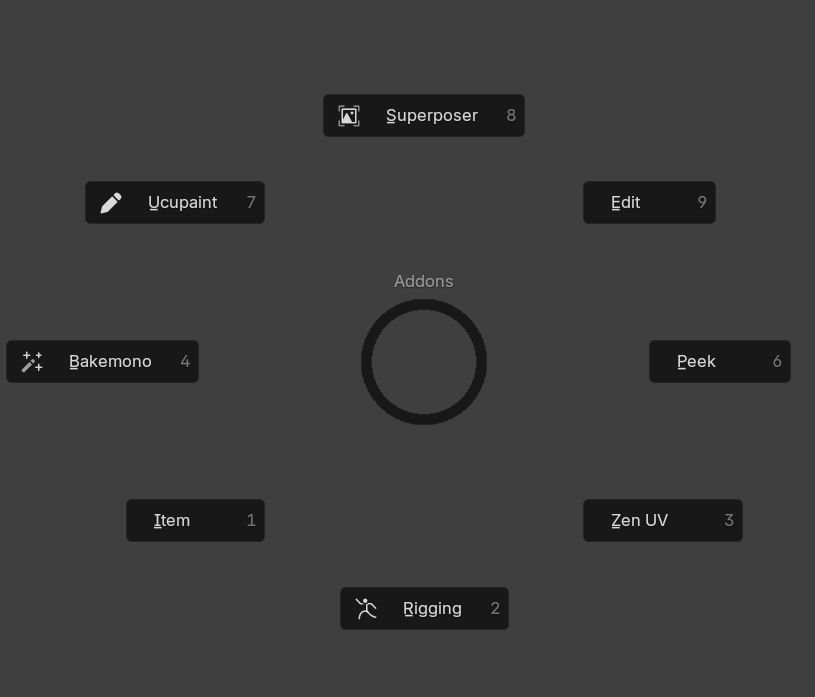
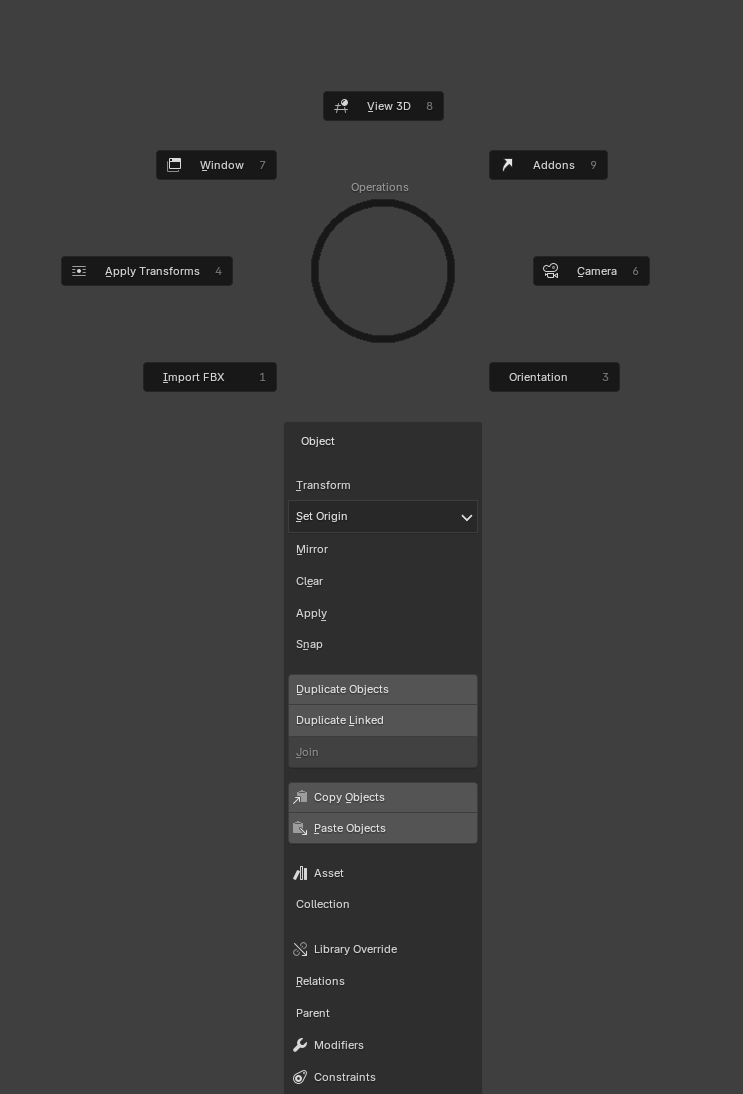
Then comes my favorite part...
Docks.
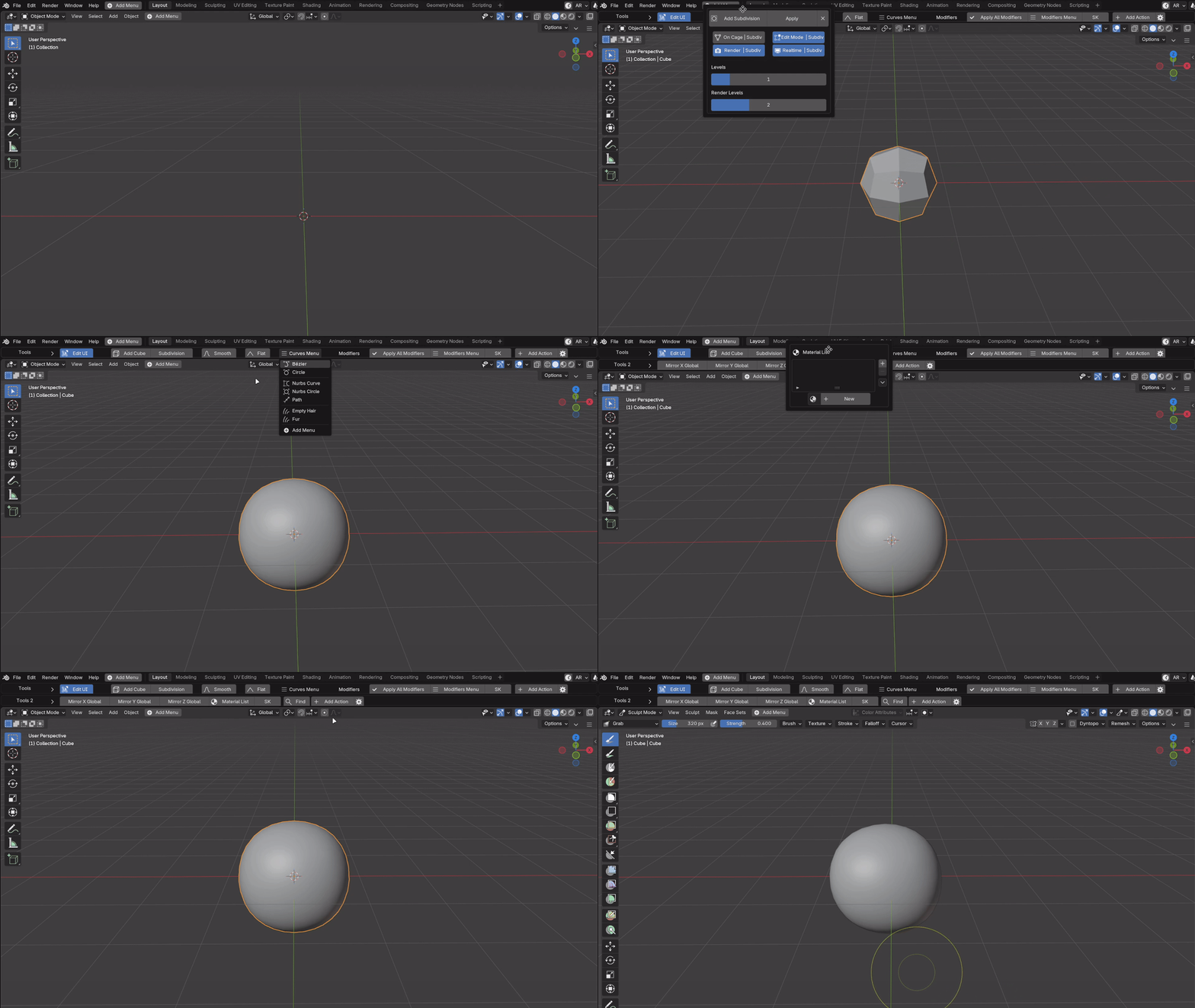
This is where things go to the next level.
With Docks, you can remove that uncomfortable feeling of having to navigate nested menus forever.
You can even reduce how often you need to enter the Sidebar for every add-on.
Let's be honest: you will still need the Sidebar sometimes.
But Flower can reduce that need to a minimum.
How?
How did I manage to solve that problem?
I found a way to reproduce the structure of supported Sidebar panel categories inside personalized Docks placed directly at the top or bottom of your Blender editors.
That is where the real magic of Flower happens.
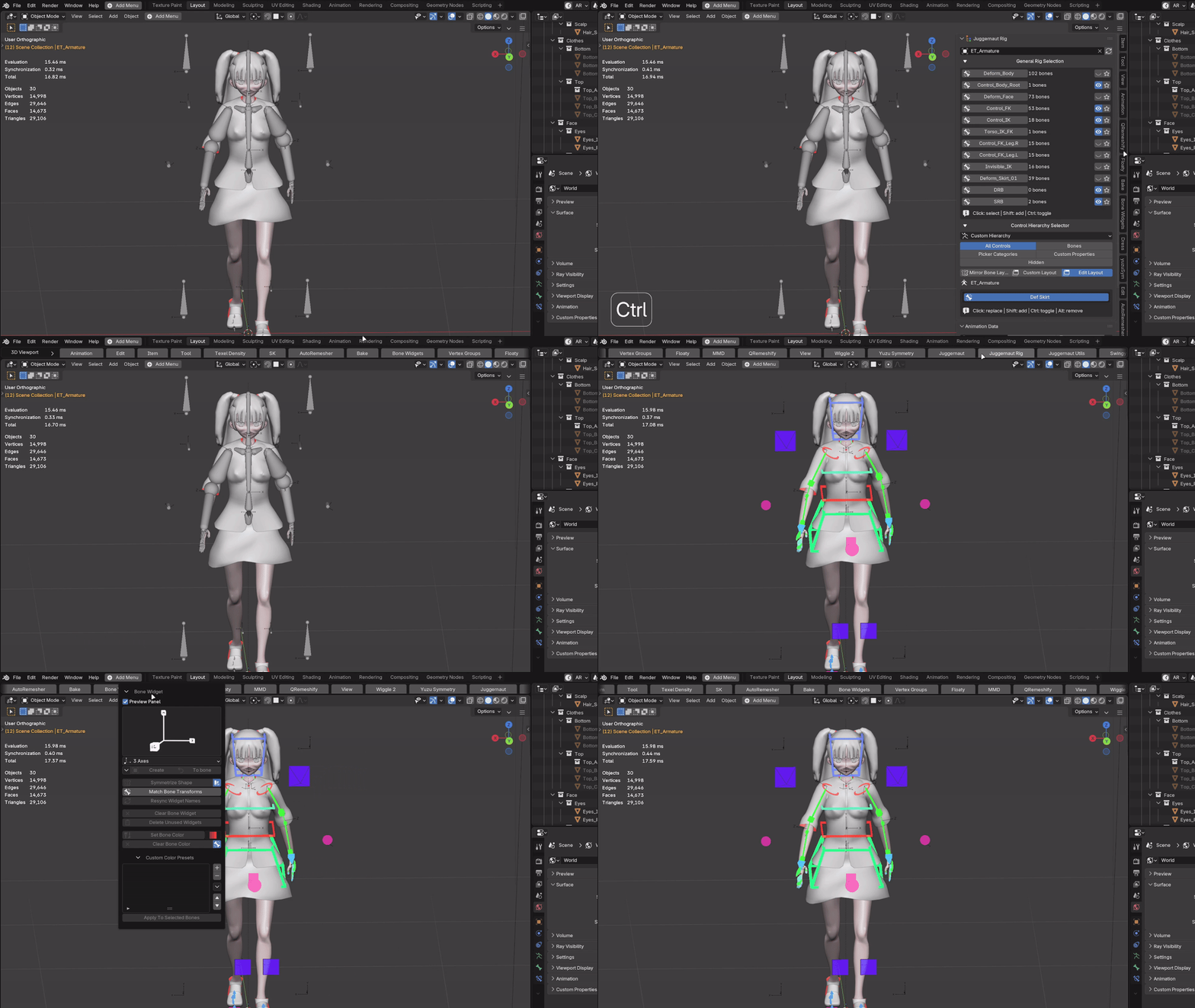
I can simply open their replicas in the docks and I can even distribute them in several docks to easily access all of my addons at once.
Here's how Docks work.
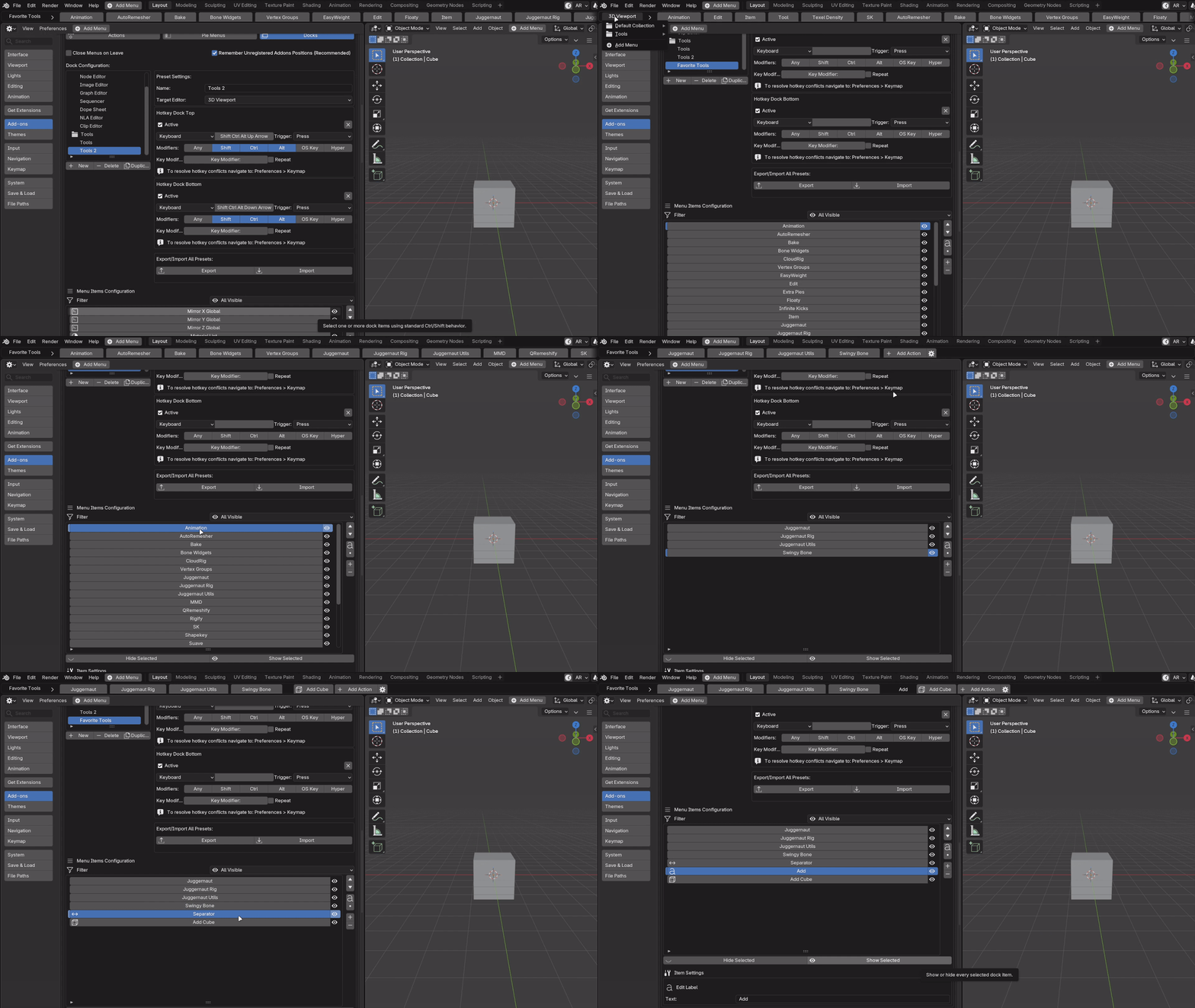
Pick the Sidebar categories that matter to you and bring them forward as Dock items.
Open them as compact popovers that emulate the real panels drawing and order.
Rename them. Choose icons. Adjust popover widths. Reorder them. Hide the ones you do not need. Add labels and separators so the Dock reads like a workflow instead of a random row of buttons.
Then add reusable Flower Actions, direct operator buttons, live properties, or custom script buttons beside those panels.
It is not another toolbar filled with everything.
It is a Dock with a purpose.
One setup does not have to rule your entire Blender life.
Create a modeling Dock. A character Dock. An animation Dock. A shading Dock. A favorites Dock. Any Dock you want.
Flower supports Dock presets for the 3D Viewport, Node Editor, Image Editor, Graph Editor, Sequencer, Dope Sheet, NLA Editor, and Clip Editor.
Duplicate useful presets and adapt them. Organize them into collections. Assign shortcuts to create a Dock at the top or bottom of its editor. Export the setup when you want to preserve it, and import it when you need it again.
Flower can even remember the position of panels from temporarily unavailable add-ons, so enabling or disabling a tool does not have to destroy the Dock arrangement you carefully built.
Your Blender interface can finally change when your work changes.
And here's the clever part
Pie Menus and Docks do not live in separate worlds.
They are connected by Flower Actions.
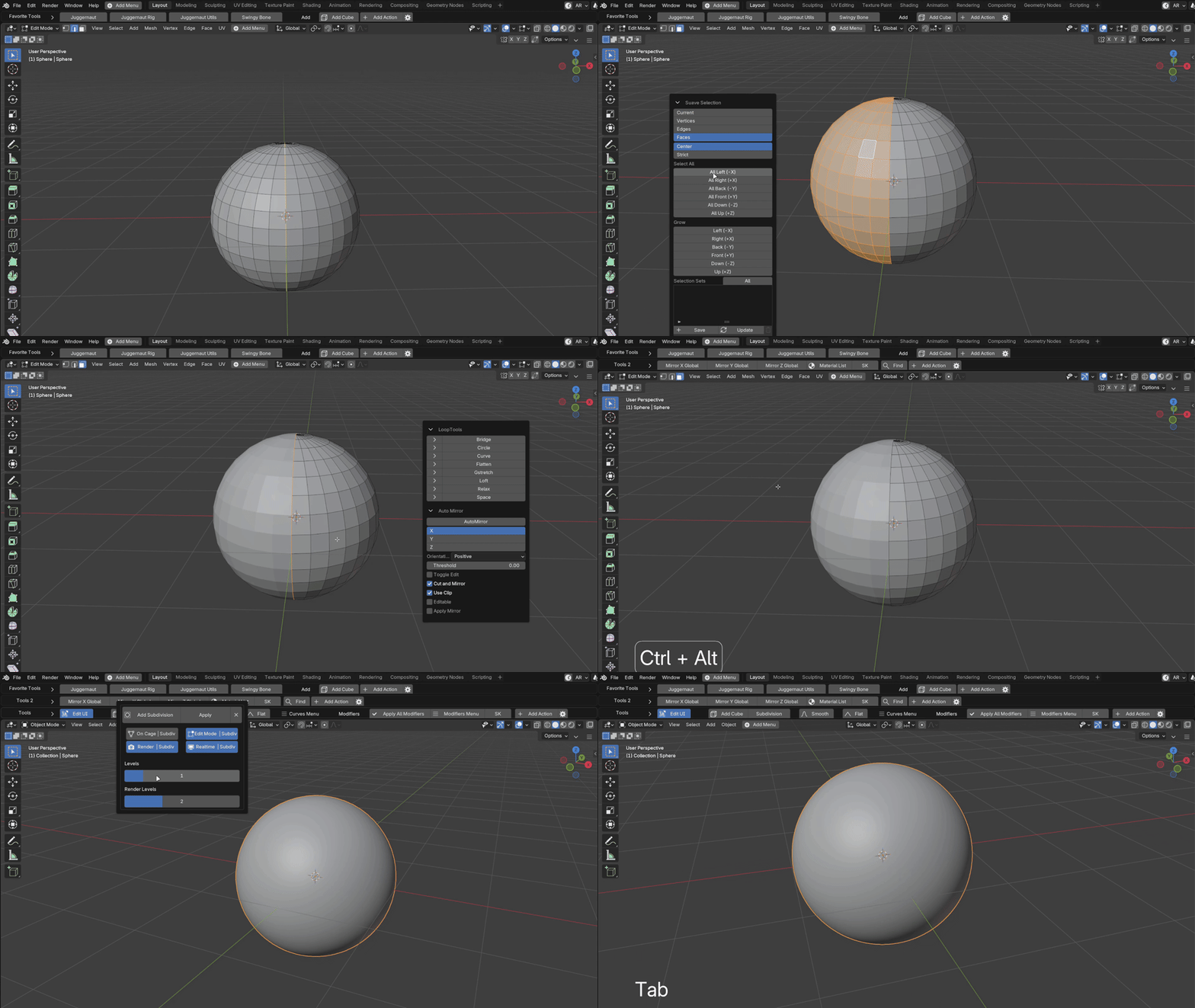
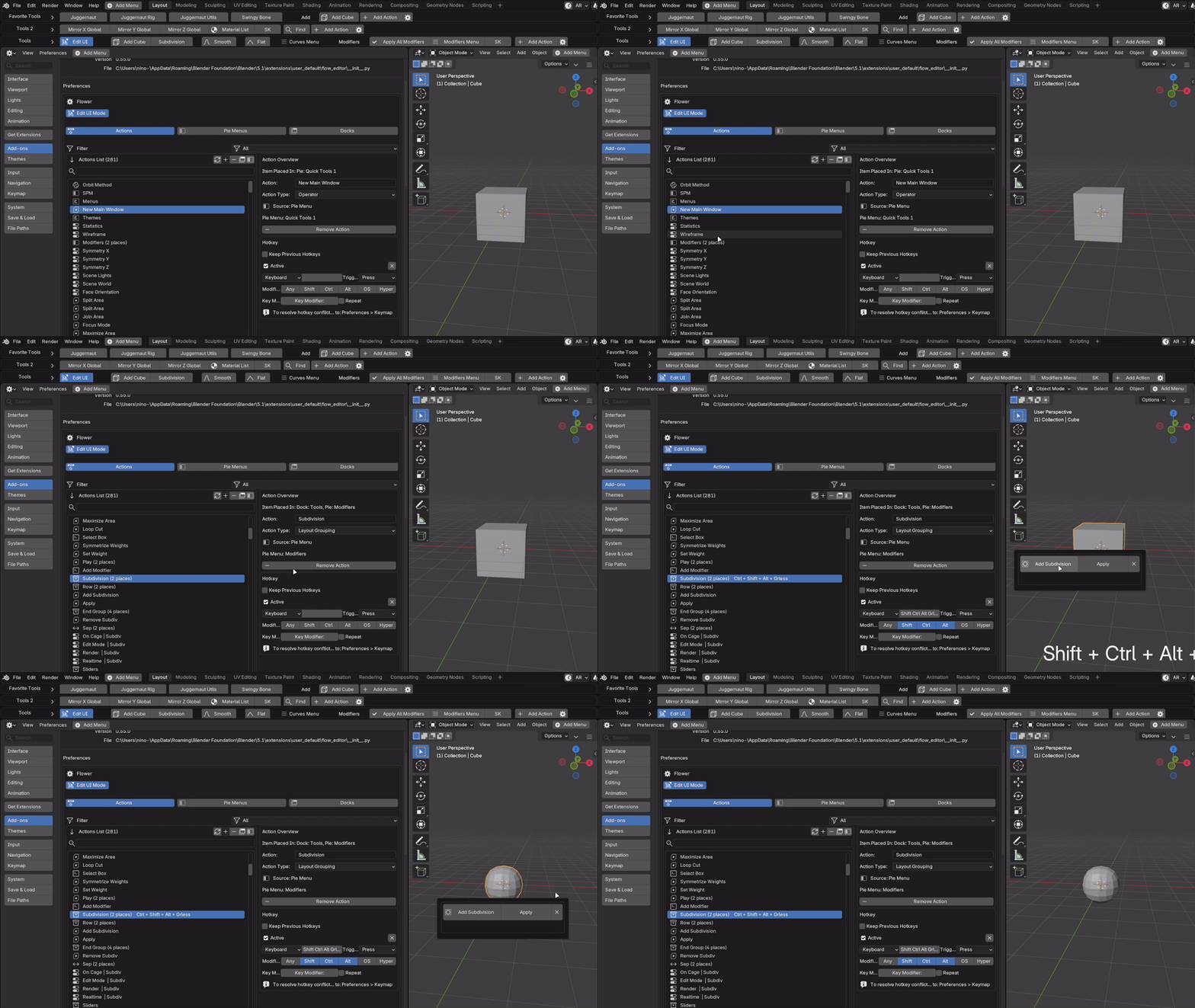
An Action is a reusable building block: an operator, command, property, menu, panel, brush, asset, script, or even a complete mini-layout created with the pie menus editor.
Create it once.
Add it to a Dock.
Put it in a Pie Menu.
Give it a hotkey.
Call it directly.
Flower keeps these building blocks in one searchable Actions library. Filter them by type. Find them by name, source, or location. See when the same Action appears in several places. Edit its settings without searching through every menu and Dock you have created.
And that's how I got rid of my clicking problems.
How many times did you open the same menu today?
How many times did you scan the Sidebar for the same add-on tab?
How often did you interrupt a good idea just to find the command that could execute it?
Flower will not model the character for you.
It will not animate the shot, build the material, or get the finished asset into a game engine.
With Flower, you'll blossom as a professional capable of doing all of that in the most time-effective manner..
Flower.
The Ultimate Workflow Editor for Blender
Stop working for Blender's interface.
Make it work for YOU.
Build context-aware Pie Menus. Bring essential panels into personalized Docks. Create reusable Actions. And stay focused on the work you opened Blender to do.

Trestle Trotter.
Bridge tools with art.
