FlowCam (Blender Addon by S4C)
 Shift4cube


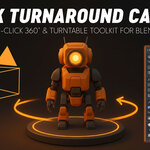
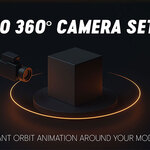
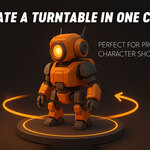
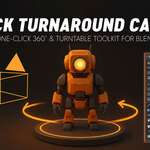

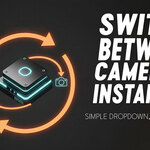
Here is the complete User Documentation for FlowCam V7 Master.
You can copy and paste this into a README.txt file to include with your download, or use it as a "How-To" guide on your Gumroad page.
📚 FlowCam V7 Master - User Manual
Installation
Download the
FlowCam_V7.zip(or.pyfile).Open Blender.
Go to Edit > Preferences > Add-ons.
Click Install... and select the file you downloaded.
Check the box next to "Camera: FlowCam V7 Master" to enable it.
You will find the FlowCam tab in the N-Panel (Sidebar) in the 3D Viewport.
Interface Overview
The interface is divided into 4 Smart Zones to keep your workflow clean.
1. 🎥 The Director's View (Top)
Active Camera: Shows which camera is currently active.
< Prev / Next >: Quickly cycle through all cameras in your scene without searching the Outliner.
2. 🎬 Cinematography (Lenses & Light)
-
Lens Kit: Instant focal length buttons.
24mm(Wide/Landscape)35mm(Standard)50mm(Portrait)85mm(Cinematic Close-up)
-
💡 Add Hero Light: Creates a professional lighting rig attached to your camera.
Smart Feature: If you have a Target Object selected, the light will automatically track it!
3. 🎯 Focus & Framing
Target: Pick an object for the camera to look at.
Look Strength: Adjust how strongly the camera locks onto the target (0.0 = Free Look, 1.0 = Locked On).
Auto Focus: Automatically keeps your Target Object sharp.
f/Stop: Controls the background blur (lower number = more blur).
Guides: Toggle "Rule of Thirds" or "Center" overlays to help you frame your shot.
4. 🕹️ Motion Control (Context Sensitive)
This panel changes depending on what type of camera you are using.
If using a PATH Camera:
Height: Move the camera Up/Down relative to the path.
Side: Move the camera Left/Right relative to the path.
Linear Speed: Check this for constant robotic movement. Uncheck for smooth ease-in/out.
Follow Tilt: calculating banking turns automatically.
If using an ORBIT Camera:
Displays status that "Orbit Mode is Active".
5. ✨ Magic & Time
Start / End Frame: Sets the duration of your animation.
Motion Blur: One-click toggle for render motion blur.
-
Dolly Zoom (The Vertigo Effect):
Select a Target Object.
Set your Start/End frames.
Choose an "End Lens" (e.g., zoom in to 100mm).
Click Generate Effect. FlowCam animates the camera moving backward while zooming in!
6. 🛠️ Studio Tools (Generators)
New Path Cam: Select a Curve -> Click to attach a camera instantly.
New Orbit Cam: Select an Object -> Click to create a 360° spin rig.
Spin Object: Select an object, choose an Axis (X/Y/Z), and click to make it rotate perfectly loopable.
Format: Instantly switch resolution between 16:9 (YouTube), 9:16 (Shorts/TikTok), and 1:1 (Instagram).
Transparent: Toggle transparent background for PNG renders.
Quick Start Guide
How to make a cinematic Path Shot:
Add a Curve to your scene (
Shift+A > Curve > Path).Shape the curve however you want.
With the curve selected, go to FlowCam and click "New Path Cam".
Pick a Target Object in the "Focus & Framing" section.
Hit Spacebar to play!
How to make a Product Turntable:
Select your product model.
Click "New Orbit Cam".
Set End Frame to 120.
Hit Play. You now have a perfect 360° loop.
Here is the complete User Documentation for FlowCam V7 Master.
You can copy and paste this into a README.txt file to include with your download, or use it as a "How-To" guide on your Gumroad page.
📚 FlowCam V2 Master - User Manual
Installation
Download the
FlowCam_V2.zip(or.pyfile).Open Blender.
Go to Edit > Preferences > Add-ons.
Click Install... and select the file you downloaded.
Check the box next to "Camera: FlowCam V2 Master" to enable it.
You will find the FlowCam tab in the N-Panel (Sidebar) in the 3D Viewport.
Interface Overview
The interface is divided into 4 Smart Zones to keep your workflow clean.
1. 🎥 The Director's View (Top)
Active Camera: Shows which camera is currently active.
< Prev / Next >: Quickly cycle through all cameras in your scene without searching the Outliner.
2. 🎬 Cinematography (Lenses & Light)
-
Lens Kit: Instant focal length buttons.
24mm(Wide/Landscape)35mm(Standard)50mm(Portrait)85mm(Cinematic Close-up)
-
💡 Add Hero Light: Creates a professional lighting rig attached to your camera.
Smart Feature: If you have a Target Object selected, the light will automatically track it!
3. 🎯 Focus & Framing
Target: Pick an object for the camera to look at.
Look Strength: Adjust how strongly the camera locks onto the target (0.0 = Free Look, 1.0 = Locked On).
Auto Focus: Automatically keeps your Target Object sharp.
f/Stop: Controls the background blur (lower number = more blur).
Guides: Toggle "Rule of Thirds" or "Center" overlays to help you frame your shot.
4. 🕹️ Motion Control (Context Sensitive)
This panel changes depending on what type of camera you are using.
If using a PATH Camera:
Height: Move the camera Up/Down relative to the path.
Side: Move the camera Left/Right relative to the path.
Linear Speed: Check this for constant robotic movement. Uncheck for smooth ease-in/out.
Follow Tilt: calculating banking turns automatically.
If using an ORBIT Camera:
Displays status that "Orbit Mode is Active".
5. ✨ Magic & Time
Start / End Frame: Sets the duration of your animation.
Motion Blur: One-click toggle for render motion blur.
-
Dolly Zoom (The Vertigo Effect):
Select a Target Object.
Set your Start/End frames.
Choose an "End Lens" (e.g., zoom in to 100mm).
Click Generate Effect. FlowCam animates the camera moving backward while zooming in!
6. 🛠️ Studio Tools (Generators)
New Path Cam: Select a Curve -> Click to attach a camera instantly.
New Orbit Cam: Select an Object -> Click to create a 360° spin rig.
Spin Object: Select an object, choose an Axis (X/Y/Z), and click to make it rotate perfectly loopable.
Format: Instantly switch resolution between 16:9 (YouTube), 9:16 (Shorts/TikTok), and 1:1 (Instagram).
Transparent: Toggle transparent background for PNG renders.
Quick Start Guide
How to make a cinematic Path Shot:
Add a Curve to your scene (
Shift+A > Curve > Path).Shape the curve however you want.
With the curve selected, go to FlowCam and click "New Path Cam".
Pick a Target Object in the "Focus & Framing" section.
Hit Spacebar to play!
How to make a Product Turntable:
Select your product model.
Click "New Orbit Cam".
Set End Frame to 120.
Hit Play. You now have a perfect 360° loop.
Discover more products like this
turntable curve to camera 360 degrees addon blender flowcam best addons for blender #3DCamera