Flower Creator
 Didjelirium


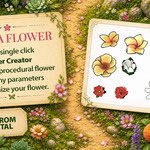

Flower Creator is
a procedural flower creation toolkit for Blender. It lets you create stylized
flowers from bundled petal sources, textured petal presets, or your own mesh
and curve petals, then shape, finalize, distribute, and animate them directly
inside Blender.
The add-on is built around a simple workflow:
Design -> Finalize -> Generate
You can start with a one-click random flower, adjust it live, add leaves and
pistils, finalize the flower head into a reusable mesh, then use the Flower
Generator to place finished flowers along procedural stems.
### Requirements
Flower Creator requires Blender 4.5.0 or newer. Some of the Geometry Nodes used
by the included node trees were introduced in Blender 4.5, so earlier Blender
versions are not supported.
### Installation
Install the ZIP file through Blender's add-on preferences:
1. Open Blender.
2. Go to Edit > Preferences > Add-ons.
3. Click the install button and choose the Flower Creator ZIP file.
4. Enable the add-on.
5. Open the 3D View sidebar and look for the DJ Flower Creator panel. In some
layouts, the tab may appear as DJ with a flower icon.
You can also access some creation tools from Shift + A > Mesh > DJ Flower
Creator.
### Quick Start
1. Open the DJ Flower Creator panel in the 3D View sidebar.
2. Click Make a Flower to generate an editable procedural flower.
3. Select the generated flower and adjust its Basic, Details, and Materials
settings from Selected Tool Parameters.
4. Add leaves or pistils if needed.
5. Use Finalize Flower when you are happy with the flower head.
6. Use Flower Generator to draw stems and place finalized flower heads along
them.
7. Use Procedural Wind for live procedural stems, leaves, and flower setups, or
Final Wind for finalized flower-head meshes.
### Make a Flower
Make a Flower creates one editable procedural flower per click. It uses
controlled random ranges for petal count, bloom, fold, leaves, center details,
and materials, so it is useful for quick starting points and fast visual
exploration.
Generated flowers are still procedural. You can continue editing their
parameters before finalizing.
### Flower Designer
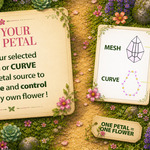
Flower Designer creates procedural flower heads from:
- bundled base mesh petals
- bundled curve petals
- textured petal presets
- your own selected mesh petal
- your own selected curve petal
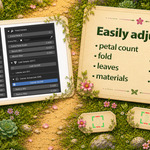
The flower stays editable until finalized. You can adjust petal count, shape,
fold, bloom, thickness, leaves, center details, and materials from the add-on
panel.
### Using Your Own Petal
To create a flower from your own petal, select a mesh object or curve object in
the scene, then create a Flower Designer or use Make a Flower with the
appropriate source option.
This makes it possible to use Flower Creator with your own style, silhouettes,
and design language instead of relying only on bundled presets.
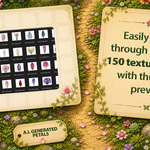
### Petal Presets
Flower Creator includes base petal sources and 189 textured petal presets with
thumbnail previews.
Textured petals use a dedicated UV layer so they remain visible when combined
with leaves and stems through Geometry Nodes.
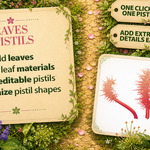
### Leaves
Leaves can be enabled directly on the flower or generated along stems with the
Flower Generator. Leaf parameters and materials can be adjusted from the
add-on's contextual material controls.
### Pistil Designer
Pistil Designer creates editable pistil curves with optional extra details and
tip spheres. You can create multiple pistils, randomize their shapes, adjust
their materials, and finalize them together with the flower head.
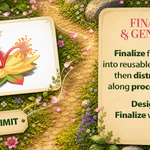
### Finalize Flower
Finalize Flower converts the procedural flower head and selected pistils into a
reusable mesh flower.
This is not texture baking. It is closer to applying the visible procedural
result into a mesh object so it can be reused in the Flower Generator, edited
as a mesh, or used in other Blender scenes.
Use Blender Undo if you need to return to the procedural state immediately
after finalizing.
### Flower Generator
Flower Generator creates a procedural stem setup. You draw or edit a curve, and
the generator places finalized flower heads and leaves along it.
For animated shots, it is usually best to keep Flower Generator objects
procedural so Procedural Wind can animate stems and leaves cleanly.
### Wind Animation
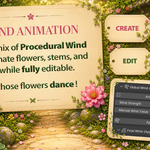
Flower Creator includes two wind workflows:
Procedural Wind is for live procedural objects, especially Flower Generator
setups with stems, leaves, and flower heads.
Final Wind is for finalized flower-head meshes. It adds fake wind motion to
loose flower parts so petals and details can flutter after the flower has been
finalized.
For best results, use Procedural Wind on the Flower Generator and Final Wind on
finalized flower heads when needed.
### Materials
The add-on includes contextual material controls in the Selected Tool
Parameters panel. Procedural flowers, finalized flowers, generated stems,
leaves, and flower source materials can be adjusted without constantly
switching to Blender's material properties tab.
### Licensing Notes
You may use the flowers, meshes, renders, animations, games, films, images, and
other creative work you create with Flower Creator in personal and commercial
projects.
You may not redistribute, resell, sublicense, share, upload, or repackage the
bundled source assets, petal textures, thumbnails, icons, documentation, or
asset blend files as standalone files or as part of another asset pack, add-on,
template library, or competing product without written permission from
Didjelirium.
Flower Creator and its bundled assets are provided as-is, without warranty of
any kind.
### Tips
- Start with Make a Flower when you want quick ideas.
- Use your own mesh or curve petal when you want a specific art direction.
- Keep flowers procedural while exploring shape and materials.
- Finalize only when you are ready to reuse the flower head.
- Keep Flower Generator setups procedural for stem and leaf wind.
- Use Final Wind on finalized flower-head meshes, not as the main wind system
for full procedural stem setups.
Have questions about this product?
Login to message
| Published | about 2 months ago |
| Blender Version | 4.5 - 5.2 |
| Render Engine Used | Cycles, Eevee, Octane, Vray |
| License | GPL |

Discover more products like this
stylized timesaver Generator creator flower creator flower Didjelirium