 Noderift



FLOWGEN
User Guide
Get the most out of FlowGEN. Skip what you already know.
Quick Start
1. Install
flowgen.zip via Edit → Preferences → Add-ons → Install. Requires Blender 4.2+.
2. Select your mesh. In the N-panel under the FlowGEN tab, click the eyedropper to set it as Target.
3. Click BUILD, then toggle BLOOM on. You're done.
Speed boost (optional): Install scipy in Blender's Python for 10–50× faster builds on dense meshes.
import subprocess; subprocess.run([bpy.app.binary_path_python, "-m", "pip", "install", "scipy"])
Settings That Matter
The controls you'll actually use. The rest are self-explanatory.
Particle Count
Up to 15,000. Use 2,000–4,000 while editing, push higher only for renders.
Direction
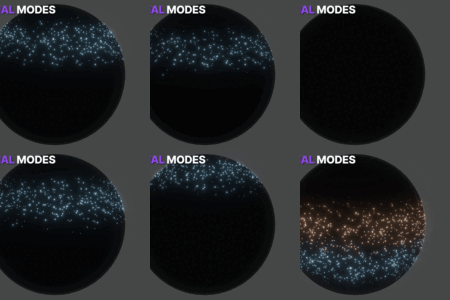
Outgoing (center→edge), Incoming (edge→center), or Bidirectional (both, with separate colors per direction).
From
Origin or 3D Cursor. Use 3D Cursor to start the wave from any exact point on the mesh.
Particle Size
1.0 = auto (recommended). Lower for tight meshes, higher for sparse ones.
Stagger
0 = clean synced waves. 0.5+ = organic, breathing feel.
Trails
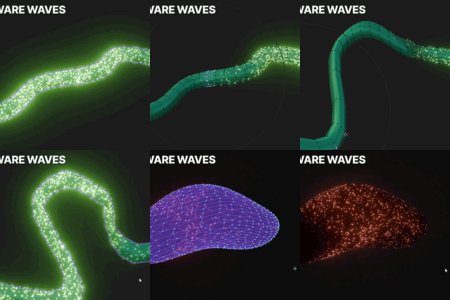
Enable, then click Build Trails. Width auto-scales with particle size.
Frame Range
Lock the effect to a Start/End frame with built-in Fade In and Fade Out. No keyframing needed.
Single Wave Mode
Want just one wave with no repeats? Turn off Auto Interval in Direction & Timing, then set Out Interval (or In Interval) to 999. Effectively spawns only 1 wave for the entire scene.
Bake
Pre-computes brightness per frame for faster renders. Skip it for rigged/animated meshes — bake uses build-time positions only.
Colors
4 presets: Electric Blue, Solar Red, Toxic Lime, Plasma Purple. Or set custom Glow + Core colors.
Every parameter is keyframable. Right-click any slider → Insert Keyframe.
Tips
Apply scale before building
Ctrl+A → Scale. Ensures accurate distance computation across your mesh.
For smooth waves, give it geometry
500 verts = chunky. 5,000+ = smooth. Subdivide first if needed.
For rigged characters
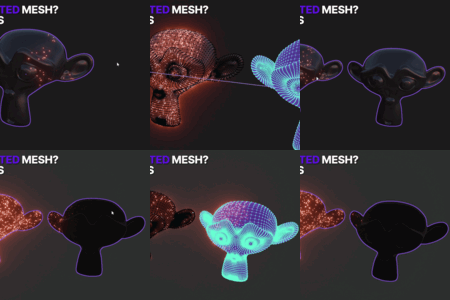
Build in T-pose or rest pose. Particles will track deformation automatically — in viewport and render. Do not use Bake.
For logo / text reveals
Place 3D Cursor where you want it to start, set From: 3D Cursor, use Outgoing direction, lock to Frame Range with Fade In.
For a single wave (no repeats)
Turn OFF Auto Interval in Direction & Timing, then set Out Interval (or In Interval) to 999. The next wave won't spawn for 999 seconds — effectively only 1 wave ever exists. Perfect for single energy pulses, logo reveals, or hero shots.
For music visualizers
Drive Glow Intensity or Wave Speed with audio drivers. Bidirectional with contrasting colors looks great.
Common Problems
I see no particles after Build
Switch viewport to Rendered shading (Z → Rendered).
Bloom isn't showing
Enable Viewport Compositor in shading overlay options → set to "Always".
Particles frozen during render
You're in Bake mode. Bake doesn't follow mesh deformation — use Live mode for animated/rigged meshes.
Wave looks diagonal across joined meshes
After joining with Ctrl+J, click Rebuild.
"Handler paused" warning
Click Reset Handler in the Advanced panel.
Build is slow
Install scipy (see Quick Start). 10–50× faster on dense meshes.
Viewport feels laggy
Drop particle count to 2,000–4,000. Disable Trails while editing.
Trails look zigzag
Increase particle count to 5,000+ or reduce Trail Length to 5–8.
FAQ
Does it work on any mesh?
Yes — anything with at least 10 vertices. Characters, hard surface, text, terrain, scans.
Does it follow rigged/animated meshes?
Yes, in both viewport and render. Build in rest pose for best results. Don't use Bake.
Does it work across joined meshes with gaps?
Yes. The wave bridges across and enters each piece from the center of its facing face.
Which Blender versions?
4.2 and newer. Tested on 4.2, 4.3, 5.1.
Will scrubbing the timeline work correctly?
Yes. Wave state is deterministic — computed from frame number. Forward, backward, jump — always correct.
EEVEE Next and Cycles?
Both. Renders match the viewport exactly.
Do I need a GPU?
No. Wave compute runs on CPU. Cycles rendering still uses GPU as normal.
Can I have just one wave instead of repeating waves?
Yes. Turn off Auto Interval and set Out Interval to 999. Only one wave will spawn.
Does it save with the file?
Yes. Particles, materials, node setup all persist. Baked data is RAM-only — rebake after reload if you used it.
Can I use it commercially?
Yes. Commercial license included. Films, games, ads, client work — all fine.
Do I get updates?
Yes. Lifetime free updates.
$29
Have questions about this product?
Login to message
