

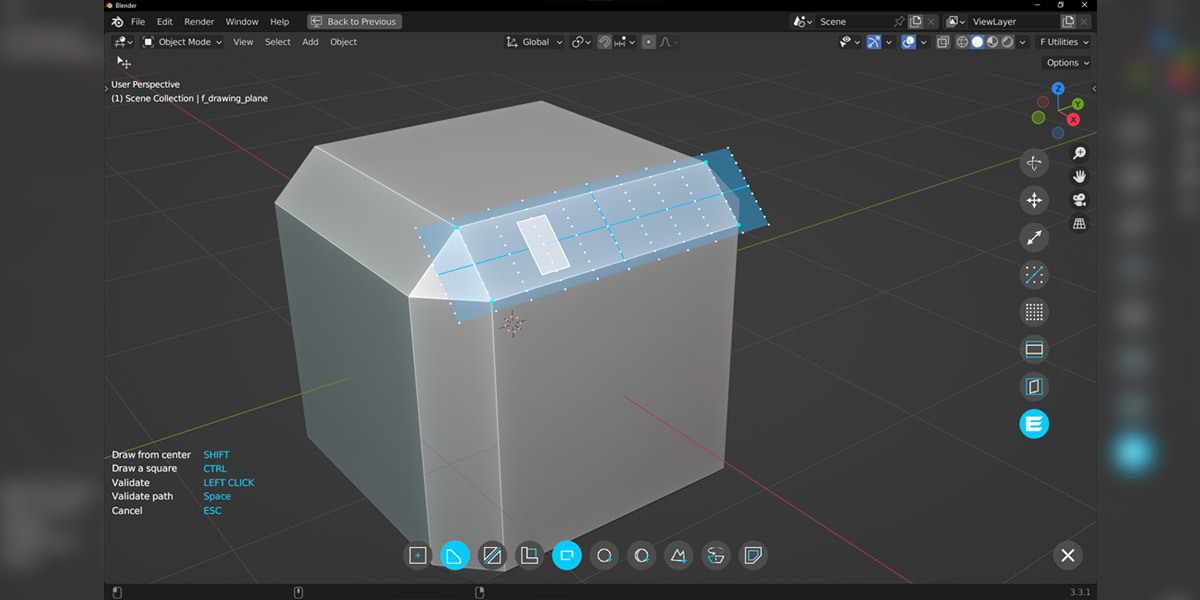

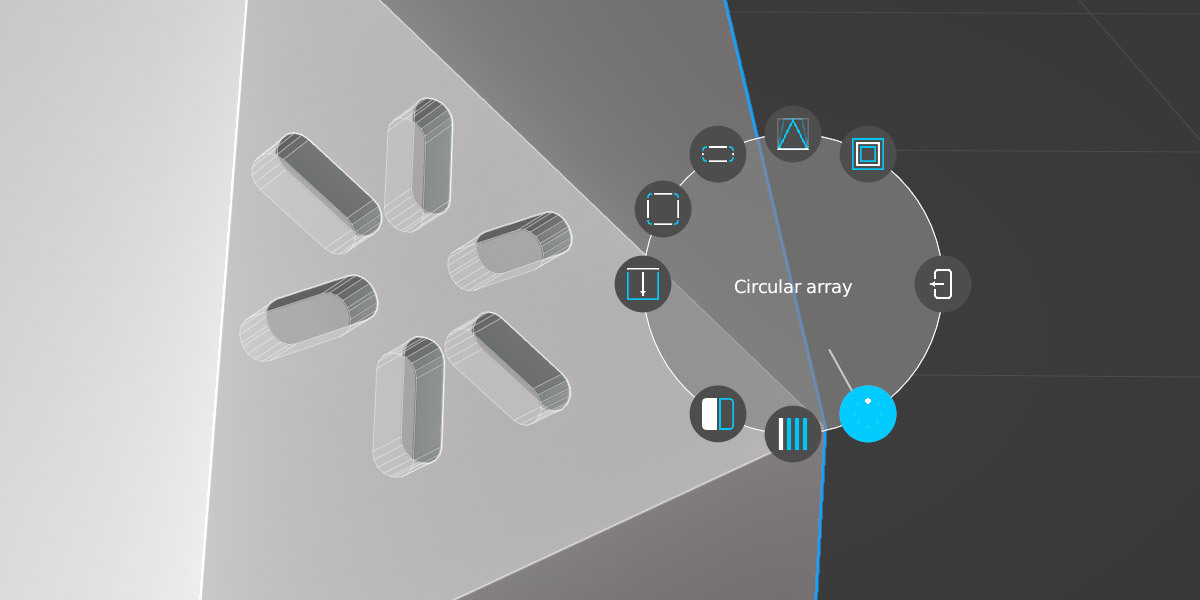
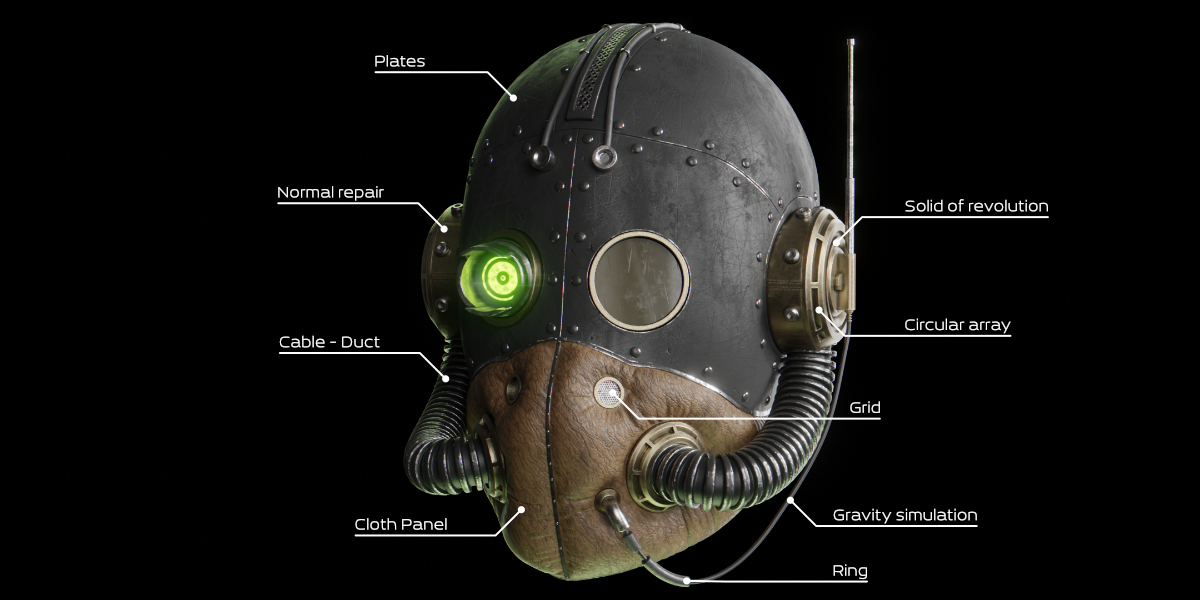
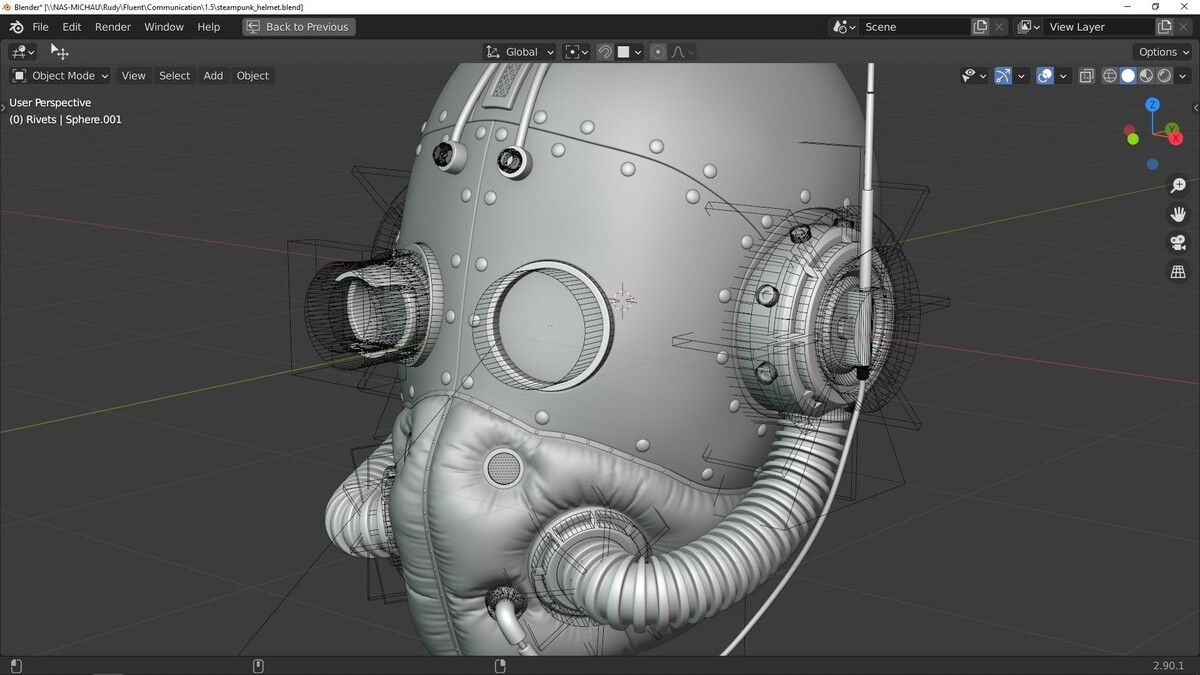



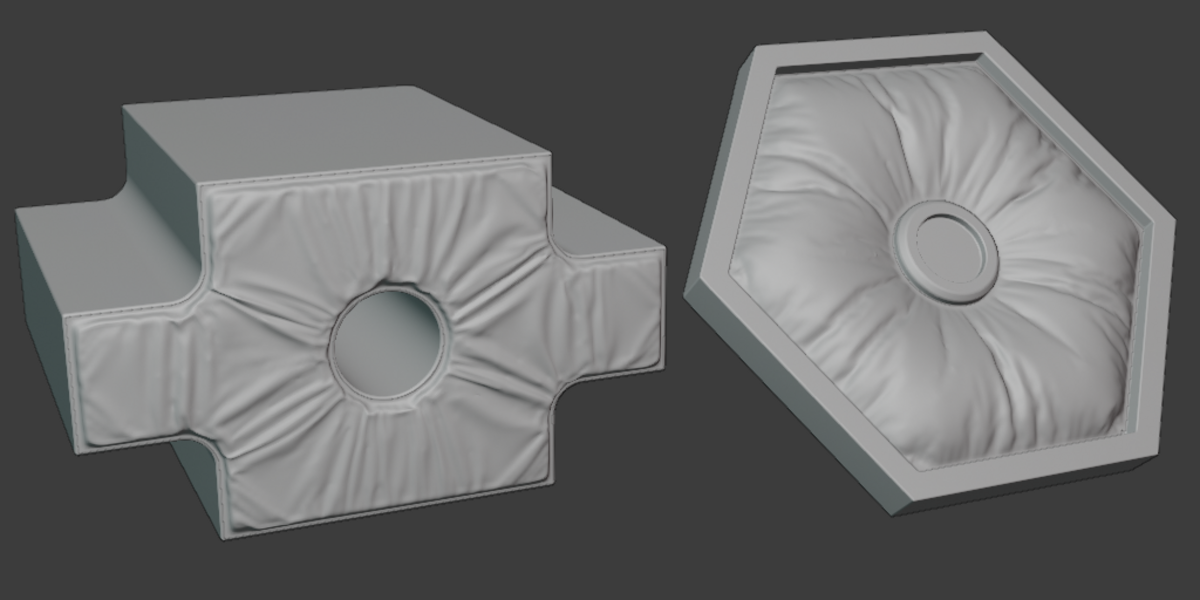

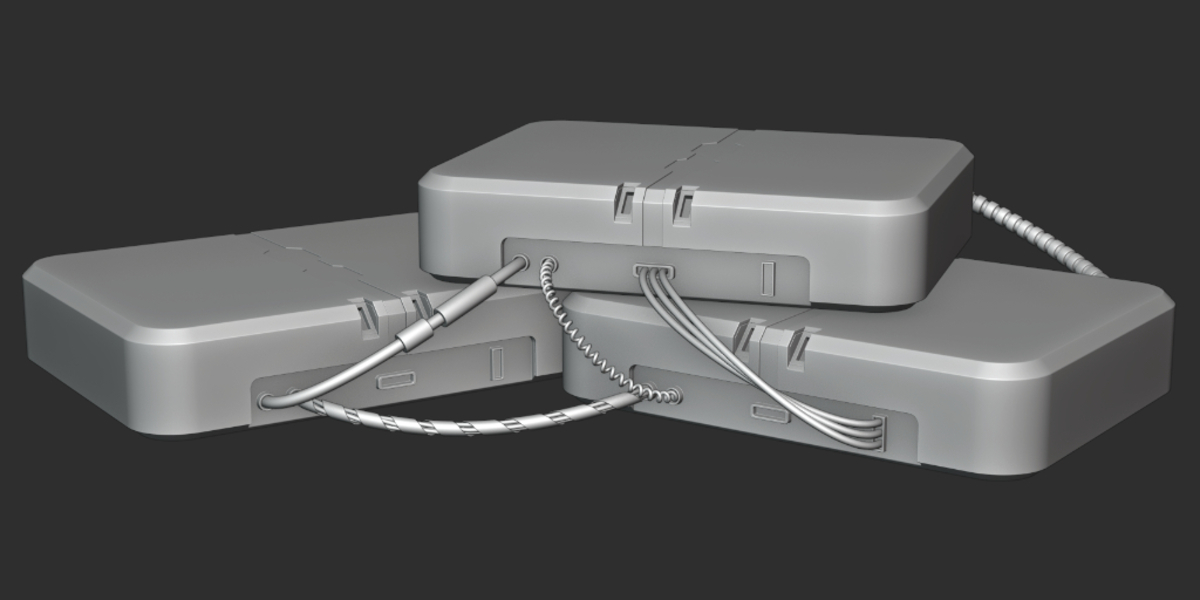
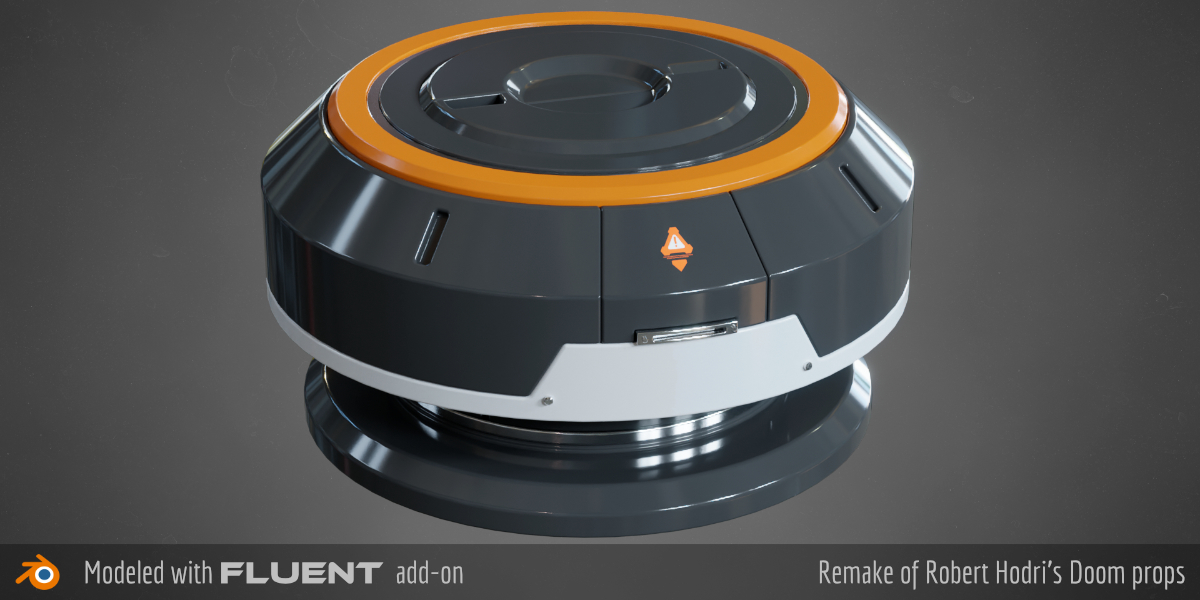
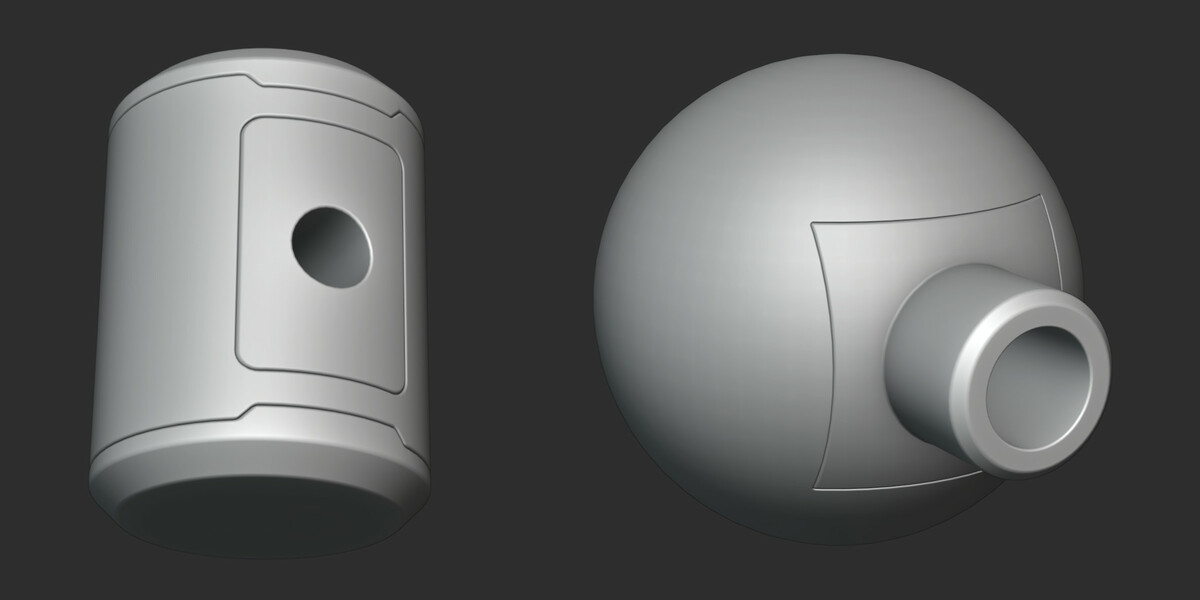









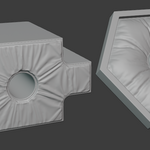

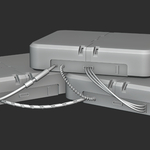

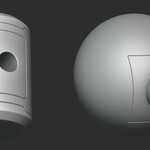




Fluent 4 - Hard Surface Modeling Tool Suite

CG Thoughts in Addons


Item Rating

This item has an average rating of 5 from 130 ratings by the community.

80%
8%
7%
3%
5%

Purchase this item to leave a review!

  • Alan
    over 5 years ago

    Very good addon, a lot of bugs but is getting very stable every new update, also i want to disable options like adding a bevel and weighted normals because i want no edges in very complex already beveled meshes

    • Rudy MICHAU

      over 5 years ago

      Hello Alan,
      if you find bugs, thanks to report how you make them. The bug shows up when an unexpected thing is made by the users, everyone has different habits. Like the majority of people, I don't have any bug. Thanks to report what you find to improve the next update.

      Regarding the automatic bevel, you can deactivate it in the preferences. 🙂

      Join the discord for efficient help (https://discord.gg/3uPv3fv) I'm connected everyday.

      Have a great day.

  • adhi.hargo
    about 6 years ago

    This is one of the most well-organized modeling addon here. Its combination of shortcuts and UI widgets strikes a good balance for me, not a lot of hotkeys to remember or reams of menus to fight through.

    As of now, there's no proper written documentation yet, just some Youtube videos and a Discord server's chat history. Seriously, new users need to pore over the videos AND JOIN THE SERVER, where issues mentioned nowhere or potentially misheard through the accent in the videos may have been answered (in my case, don't use orthographic view to correctly align grid to right-clicked face).

    All in all, it's a good addition in anyone's modeling toolbox.

  • Crab Interactive
    almost 7 years ago

    Great tools with lots of power however documentation is sparse and moves very fast with no voice over just text and Holy cow is it unstable if you try using CTRL-Z! Crashed my blend file 4 times in an hour doing that. Stability aside it is a cool addon

    • Rudy MICHAU

      over 6 years ago

      Hello, this problem has been fixed ;-)

  • R Brown
    over 2 years ago

    Although I'd love to give Fluent Power Trip a higher rating for all that you can do with it, I have to give it a dismal 2-star rating because I think the interface is truly awful (examples below) and it crashes in isolation and sometimes takes Blender 4.02 with it. The latter happened (again) five minutes ago after simply creating an object and applying First Bevels that it clearly didn't appreciate. This should never happen! I'm a retired software developer with decades of experience. I know making an interface bulletproof is a lot of work but it has to be done. I don't think Fluent is anywhere close.

    Examples of interface issues:
    1. Selecting Rectangle mode and drawing the shape using one L-click and Spacebar creates a rectangular path, rather than a filled-in shape. Nice. Selecting the Circle mode only creates a filled in circle; no circle path is possible. Huh???
    2. A R-click is used to bring up the drawing grid on faces. It's also used to validate settings, which is a recipe for endless frustration. It's very easy to think you're in a drawing mode where you can add a grid but when you're not, instead of a grid, you get bounced out with a validated object. I'm sure even experienced users encounter this annoyance.
    3. While changing the thickness and offset of an object by moving the mouse, the numeric values appear on the LHS of the screen. If you try to enter the values using the number keys, as soon as you enter a single digit, moving the mouse afterwards can still be used to change the thickness and offset but their on-screen numeric values are no longer updated.
    4. Many aspects of the interface are totally foreign to Blender, which would be fine if there was a reason but I don't see one. Example: to select a vertex (e.g. to choose the location of a bevel), you hover the mouse over the vertex and press X, which is Blender's Delete hotkey. To deselect all Fluent vertices, X is also used, unlike anything built into Blender.
    5. The Esc key works in ways I wouldn't have expected. Let's say you've just entered Creation mode then accidentally added the grid using an erroneous R-click. Does Esc help? Nope. It actually bumps you out of Creation mode and exits Fluent. If you're setting the thickness and offset of a rectangle, I'd expect pressing Esc to back me out to the point I'm drawing the rectangle. Nope, it validates the rectangle as a flat object. I've yet to figure out when Esc can be used to abandon an operation. Sometimes it can; sometimes it cannot--which is an example of my biggest frustration with the Fluent interface, i.e. it's just not consistent.
    6. Some parameters are set by dragging the mouse such as the grid resolution and object thickness and offset. I think this approach should never be used because the changes are limited by the window size. As soon as the mouse is beyond Blender's window, the parameter being edited is stuck at the value when the mouse crossed the window border. And, to make matters worse, many parameters can only be set this way, i.e. they can't be entered using the numeric keys (e.g. the grid resolution).
    7. To continue the above, another issue is repeatedly moving the mouse in and out of window focus does not guarantee the same parameter value at the moment of crossover. I'm not sure why this occurs--maybe it's just a timing issue--but it just goes to show why the process is flaky.
    8. Minor details: the scaling icon for the grid is not the same as the scaling icon for objects. Again, another inconsistency.
    9. I swear I've seen objects move in opposite directions based on the -1 to +1 offset scale, i.e. sometimes a positive value moves an object upward; sometimes it moves the object down.
    10 When editing a Fluent object, there are options on the RHS to scale and rotate the object but not to offset it along an axis. Of course, the object can be offset outside of Fluent but it can also be scaled and rotated outside of Fluent as well. All three modes should be available within Fluent to be complete (so you don't have to jump in and out unnecessarily).
    11. Selecting the Dimensions icon to edit the scale of an object brings up a 3D widget. The red and green knobs at the end of the axes enable the object to be scaled along the X and Y axes. The blue knob, presumably for scaling along the Z axis, does nothing.

    And all the above is only a partial list of things I've found annoying after only a handful of hours trying to learn Fluent. I've been making notes for myself because it's impossible to remember all the quirks but the more I write, the more I get frustrated.

    Overall, I think Fluent functionality is very good in the sense that it has features to greatly simplify modelling but it desperately needs a complete interface overhaul so that it's much easier to learn and use, which means becoming consistent in all of its modes of operation as well as with Blender conventions. For instance, I'd aim to have have input fields for every numeric parameter, possibly in a pop-up table such as the one for a newly added cube, and have icons appended to the T-panel for choosing modes of operation.

    Hope this is helpful.
    Audios

    • Rudy MICHAU

      over 2 years ago

      Hello,
      I'm sorry to hear that you're not happy with the interface that's usually hailed as Fluent's strong point.

      I'm very close to my users and all you have to do is contact me to suggest improvements and get information on how to use the addon, in addition to the tutorials available.
      I'm everyday on Discord and quikly answer to everyone.

      0. The first bevel is a basic function, here since the first day and and no bug reported form thousand of users. If you have an error, thanks to share me the python error message, the Blender and Fluent version used.
      1. Thanks for the suggestion, it's not a bug I simple didn't add this ability. I will add it, good idea.
      2. I thinked it was obvious that if nothing is drawing you can't set...nothing
      3. It's normal. Entering the value remains the priority until you press enter. This avoids losing your entry if you inadvertently move the mouse.
      4. There's a simple reason for this. Clicking is already used to bring up the menu, so it can't be used for selection.
      5. The escape key has long been a subject of debate, and I've noticed over the years that nobody expects the same thing from this key. The choice is as follows: the escape key cancels the current operation and returns to the previous step. In the case of drawings, let's imagine you want to draw a rectangle and your drawing doesn't suit you. Simply press the R key again to re-draw the rectangle as many times as you like.
      6. It's why I add ctrl/shift key to change speed. Each paramter uses the horizontal move, it's why Fluent is easy to use for many people, consitent workflow. At least, that's what I try to maintain as much as possible.
      7. Fluent is an addon, not a new Blender build. Fluent works in the Blender environnement and need to use Blender API and events. To use a Blender addon, yes, the mouse have to be in Blender window.
      8. Not the same icone for same function ? Maybe you didn't read correctly these buttons. Each "scale" button has the same icon. About the object maybe you refer to "dimension" button. It's why it's not the same icone, not the same name.
      9. It's the normal solidify modifier of Blender behavior. It's depend if you cut or add.
      10. You already can do that. Press G. In Fluent G and R still available to move and rotate the object. You can read it in the documentation and hear that in tutorials, or ask to know.
      11.Excuse me but this widget doesn't have a Z axis ! One more time, which Fluent version do you use with which Blender version ?

      The last point, and the first, raises a number of questions. The function you mention simply doesn't exist, and the bevel problem, if it did, would be worth countless returns.
      Please contact me for a constructive discussion.

      Have a nice day.

  • danny
    over 3 years ago

    a good a

  • Shodan0101
    over 4 years ago

    Incredible just get it!! <3

  • ZAQraven99
    about 5 years ago

    Well, nice addon. But I don't think I will be fit due used new interface and kind of complicated to learn. Also, I don't feel the freedom to edit in edit mode.

  • David
    over 6 years ago

    I'm sure this is a powerful tool, but I'm really struggling to learn it. "Intuitive" is the absolute last term I would use to describe this.

    All the English tutorials are in an extremely thick French accent which is very difficult to understand. The 'documentation' is just more YouTube videos. I've tried following along with the videos, but the creator moves very quickly, seemingly unaware that anyone watching is not going to be able to keep up. The screencast shows mouse/key presses but it requires micro-pausing and rewinding to catch them. Basic principles (like when you should/shouldn't click or right click, or what native Blender shortcuts and UI are locked while you use this) are not covered, which makes getting started even harder. On top of that, duplicating his inputs seems to produce very different behavior from what is shown.

    I thought this looked impressive, and I'm sure it is. But at this point I regret buying it.

    • Rudy MICHAU

      over 6 years ago

      Hi David,
      thanks for this feedback. Reading you I think you didn't see that there was speechless, slow and fully subtitled documentation.
      Here is the link : https://www.youtube.com/channel/UCpPFCb5Kl7hmLaCMk-HYOsw
      For more help don't hesitate to join the discord : https://discord.gg/3uPv3fv

      Have a nice day.

  • Rich Tarbox
    over 6 years ago

    Not nearly as intuitive as suggested. Also, product crashes 2.82 regularly (and I'm not using CTRL-Z). No conflict with other mods as I don't use any. Needs much better documentation, at least in my opinion.

  • Ryan Pavlik
    almost 7 years ago

    Seems neat, but:

    1. *Does not work on other blender objects*. Edits/etc _only_ work on its own objects, created with "Create". This is something that ought to be advertised front and center, as it's a rather glaring limitation.

    2. Has weird, custom, non-blender-like UI/UX.

    3. The only documentation is various videos.

    Probably useful in its own right, but not something you can drop in and use to edit your existing models/etc.

    • Rudy MICHAU

      almost 7 years ago

      Hello Ryan,
      quick answers to help you :
      1- You can cut every object made or not with Fluent. Obviously, you can't edit Fluent operation on objects without Fluent operation or modifier template.

      2- I don't understand you notice. Fluent has a light UI directly in the viewport. This is the users' favorite part.

      3- Everything you need to know is written on the screen and in the tool tips. If the documentation channel and my personal channel don't answer all your questions, I suggest to you to join us on my discord to ask your question to me and the community.

      The Discord of Fluent is the best way if you need help.

  • Fluent + plate, wire, pipe, grids, screws and cloth panel tool

    $29.90
  • The most accurate cutter add-on without plate, wire, pipe, grid, scerws and cloth panel tools

    $20
  • Fluent Power Trip + Fluent Materializer (2 addons). Save 10%. !!! It's not the default option, if you select it, no refund for accidental purchases. !!!

    $57
$29.90

Have questions about this product?
Login to message

Details
Blender Extension Compatible Yes
Sales 16100+
Rating
130 ratings
Published over 7 years ago
Blender Version 3.6 - 5.1
Extension Type Add-on
Render Engine Used Arnold, Blender-Internal, Blender-Game-Engine, Cycles, Eevee, Freestyle, Luxrender, Mental-Ray, Octane, Vray, Yafaray
License GPL