Fold Box
 Blender Procedural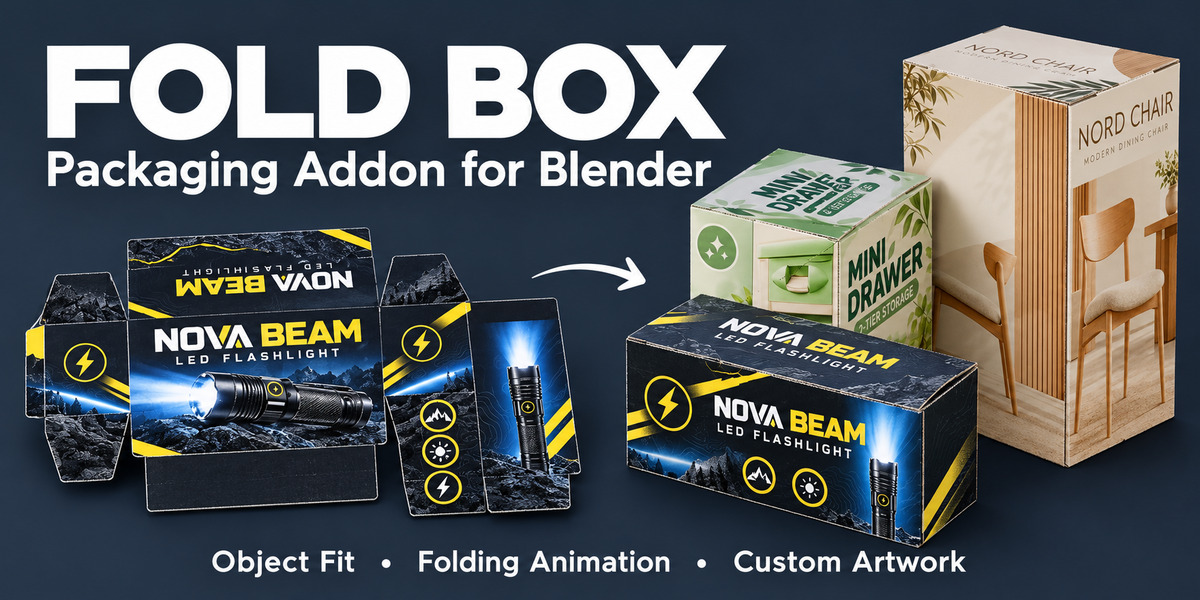
USER GUIDE
Fold Box Documentation
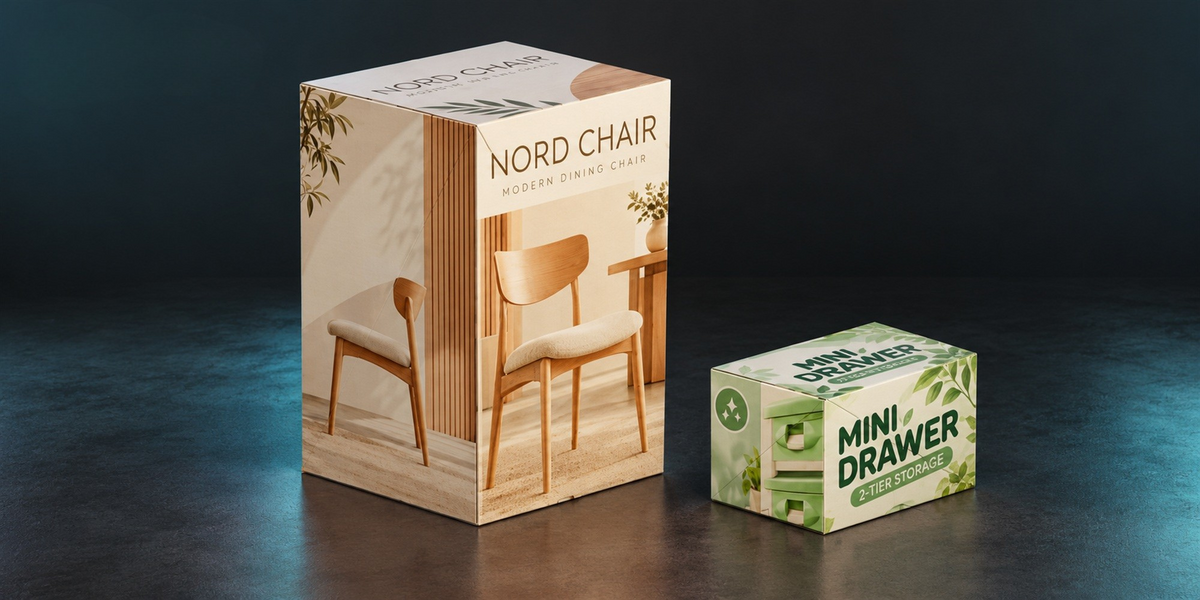
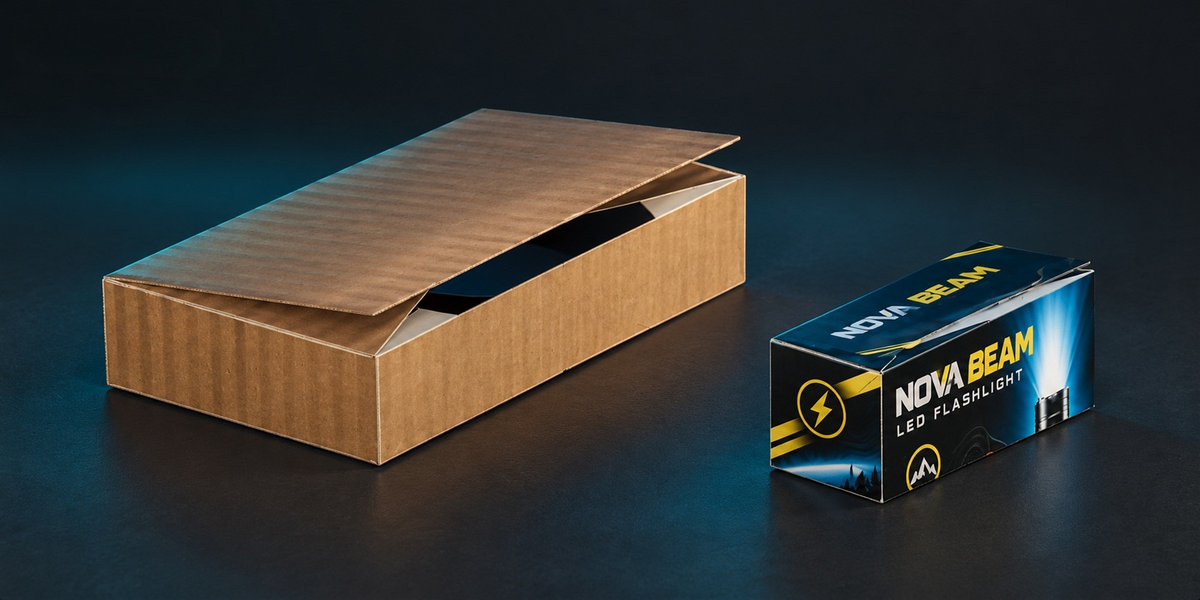
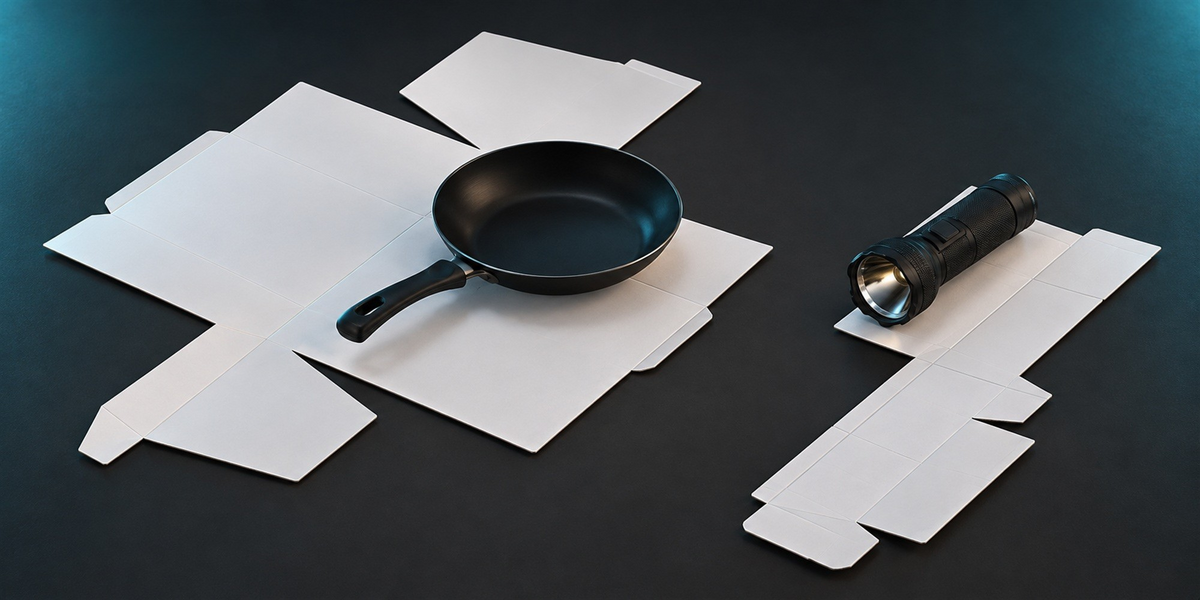
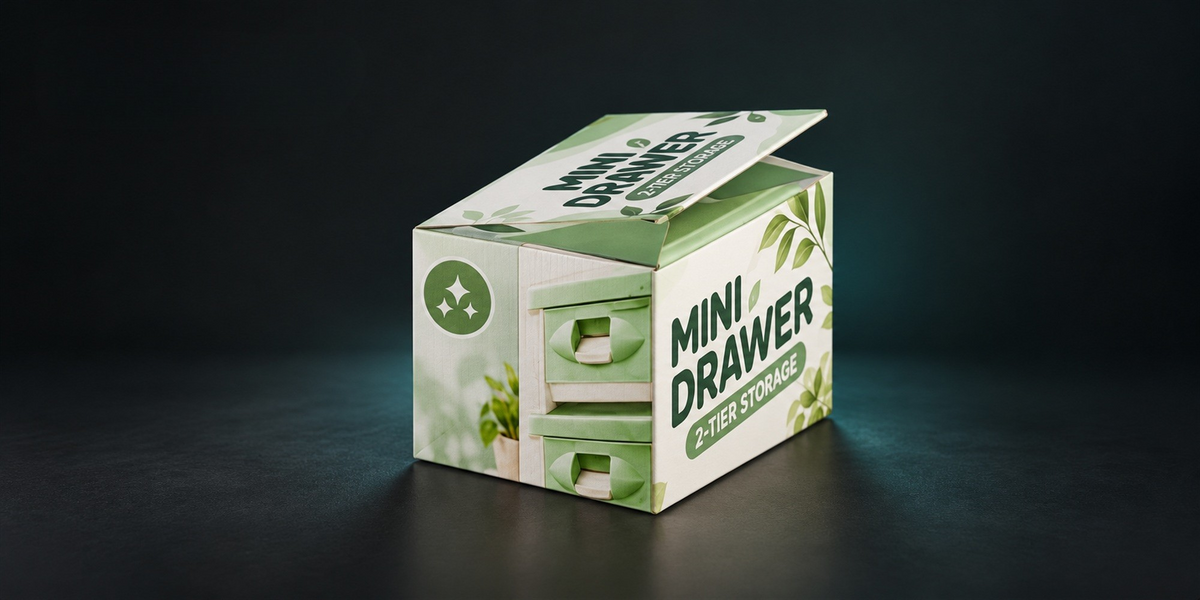
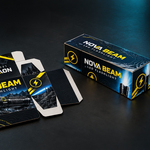
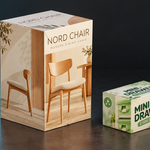
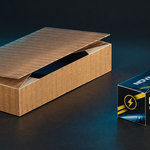
Create fitted packaging for your selected 3D object, customize its appearance, and animate its folding motion inside Blender.
1. Getting Started
- Select the 3D object you want to package.
- Use Fold Box to generate a box sized for the selected object.
- Review the box dimensions and adjust the packaging settings.
- Add text or load custom artwork.
- Use the folding controls to preview or animate the box.
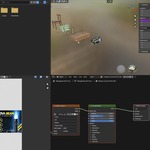
The sections below explain the controls visible in the FoldBox panel.
2. Box Dimensions & Construction
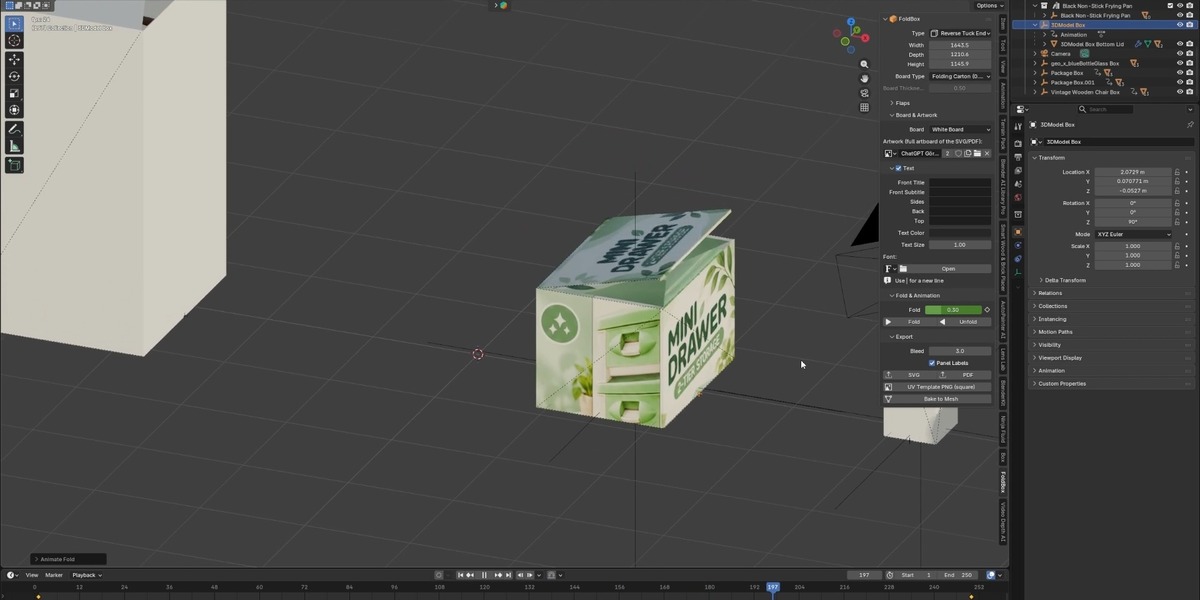
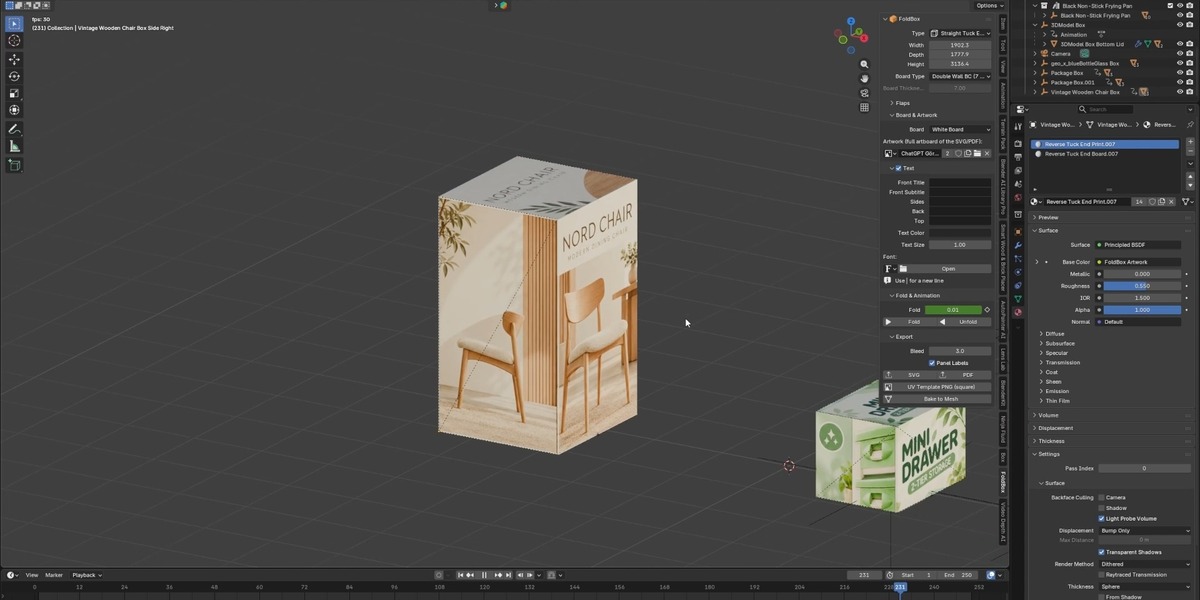
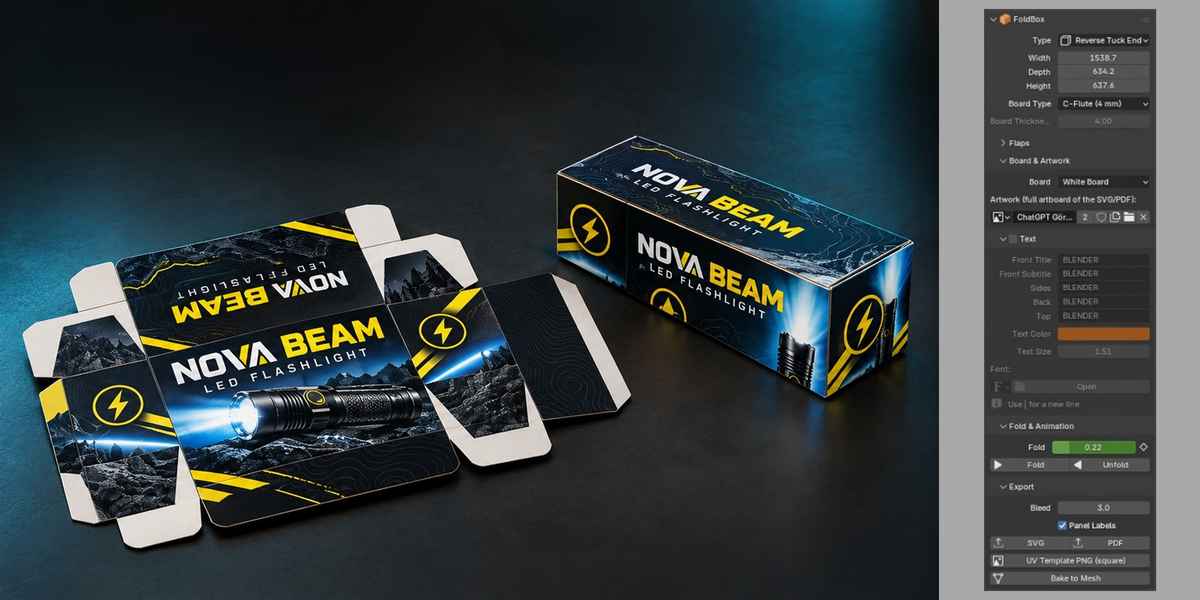
- Type: Choose the packaging construction from the available box types. The example panel shows Reverse Tuck End.
- Width, Depth & Height: Adjust the three main box dimensions. Check the resulting fit around your object after changing these values.
- Board Type: Select the board construction or material preset.
- Board Thickness: Displays the board thickness. If this field is disabled, use the Board Type selector to choose the appropriate preset.
- Flaps: Expand this section to access the flap controls available for the selected box type.
3. Board & Artwork
Expand Board & Artwork to configure the board appearance and load your packaging design.
- Board: Choose the available board appearance. The example panel shows White Board.
- Artwork: Select an existing image, create a new image with New, or use Open to load your artwork.
4. Adding Text
Enable the Text checkbox to use the packaging text controls.
- Front Title: Main text on the front panel.
- Front Subtitle: Secondary text on the front panel.
- Sides: Text for the side panels.
- Back: Text on the back panel.
- Top: Text on the top panel.
- Text Color: Choose the text color.
- Text Size: Adjust the text size.
- Font: Select or open a font for the text.
Use the | character to insert a new line, as indicated in the panel. For example: YOUR BRAND | PRODUCT NAME.
5. Folding & Animation
Expand Fold & Animation to control the packaging’s folded state.
- Fold slider: Adjust the folding amount to inspect intermediate states.
- Fold button: Use the folding action to close the package.
- Unfold button: Use the unfolding action to open the package into its flat layout.
To animate the folding amount manually, move to a frame in the timeline, set the Fold value, and insert a keyframe using the diamond beside the slider. Move to another frame, change the value, and insert another keyframe. Play the timeline to review the motion.
6. Creating Custom Artwork with the PNG Template
- Finalize the box dimensions and construction settings.
- In the Export section, click UV Template PNG (square).
- Open the exported PNG in your preferred image editor.
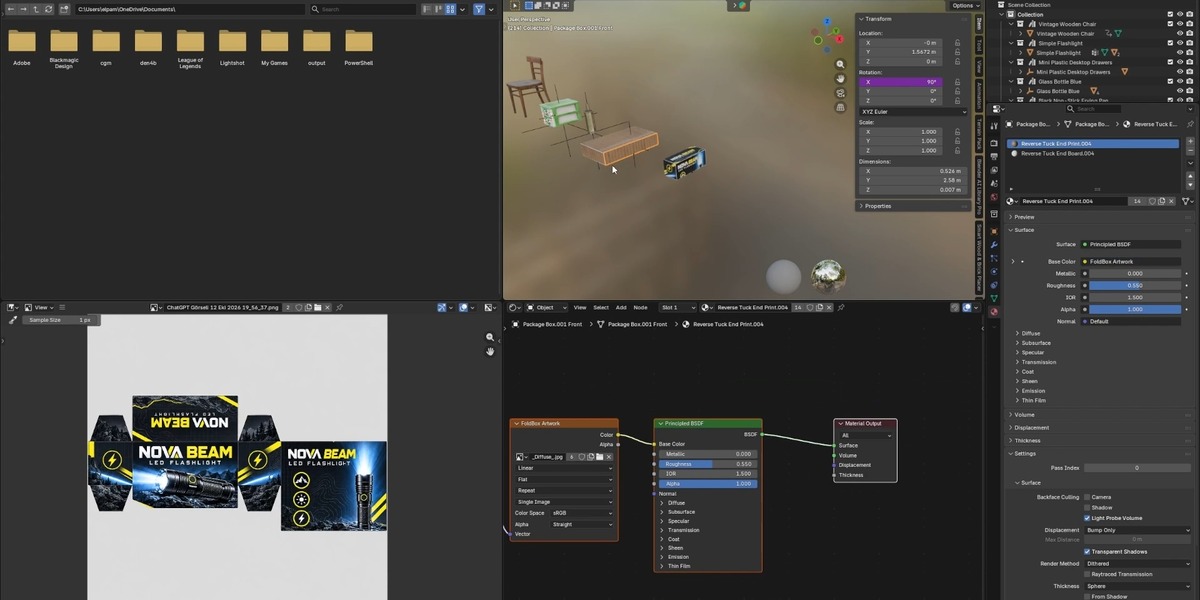
- Use the template as a guide to position graphics, colors, and text across the packaging panels.
- Preserve the template’s canvas dimensions and panel positions. Hide the guide layer before saving if you do not want its lines to appear on the finished box.
- Save the finished artwork as an image and load it through Board & Artwork → Open.
- Inspect the texture on the folded box and check the orientation of each panel.
7. Export Controls
- Bleed: Set the bleed value for the exported packaging layout. Match this to the requirements of your intended workflow.
- Panel Labels: Enable or disable panel labels for the layout export.
- SVG: Export the packaging layout in SVG format.
- PDF: Export the packaging layout in PDF format.
- UV Template PNG (square): Export a square PNG guide for creating texture artwork.
- Bake to Mesh: Convert the generated packaging into a mesh for further editing. Keep a separate editable copy before baking if you want to continue adjusting the Fold Box settings.
8. Checking Your Result
- Check the box fit around the selected object.
- Inspect the flap arrangement in both folded and unfolded states.
- Check text size, placement, and readability.
- Inspect artwork orientation across all visible panels.
- Preview the animation before rendering.
- For physical production, confirm dimensions, bleed, material, and cutting requirements with your packaging supplier.
Watch the Demonstration
Fold Box Video Guide ↗
Have questions about this product?
Login to message
| Blender Extension Compatible | Yes |
| Dev Fund Contributor | |
| Published | about 11 hours ago |
| Blender Version | 4.5 - 5.2 |
| Extension Type | Add-on |
| Render Engine Used | Cycles, Eevee |
| License | GPL |
Discover more products like this
procedural dieline carton box mockup Packaging Design packaging fold-animation cardboard Product packaging unboxing UV template