 Mrs Eliza
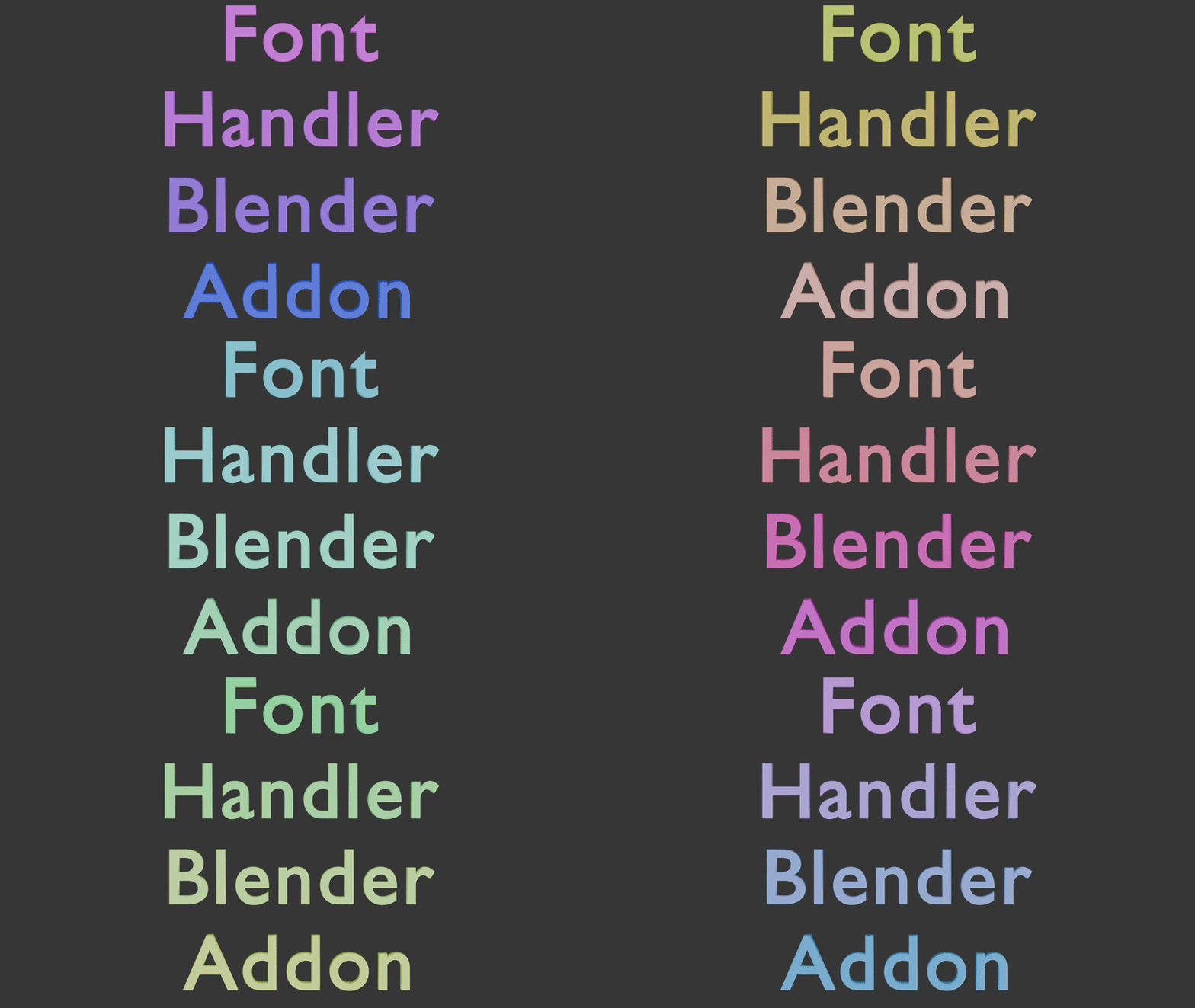
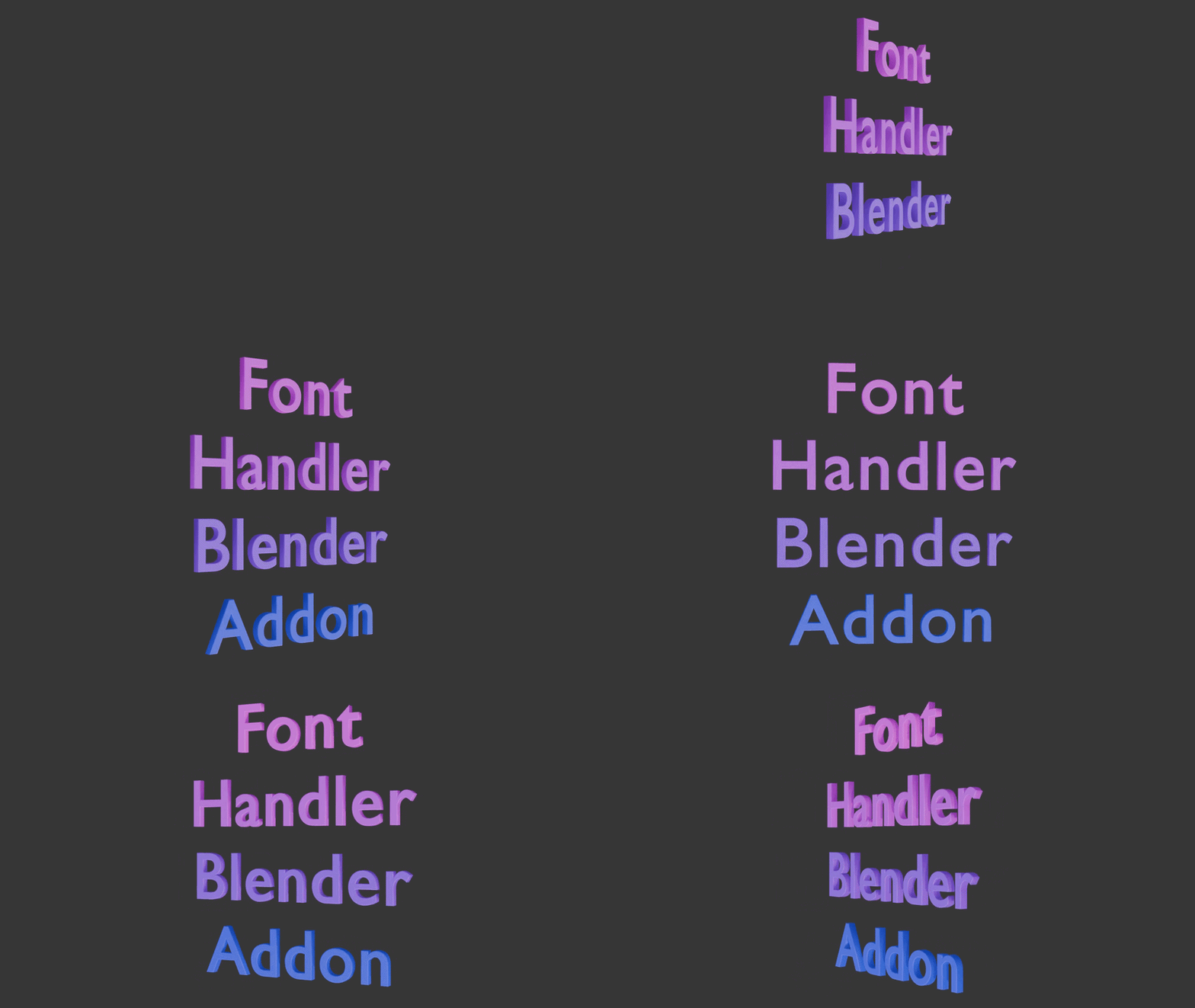
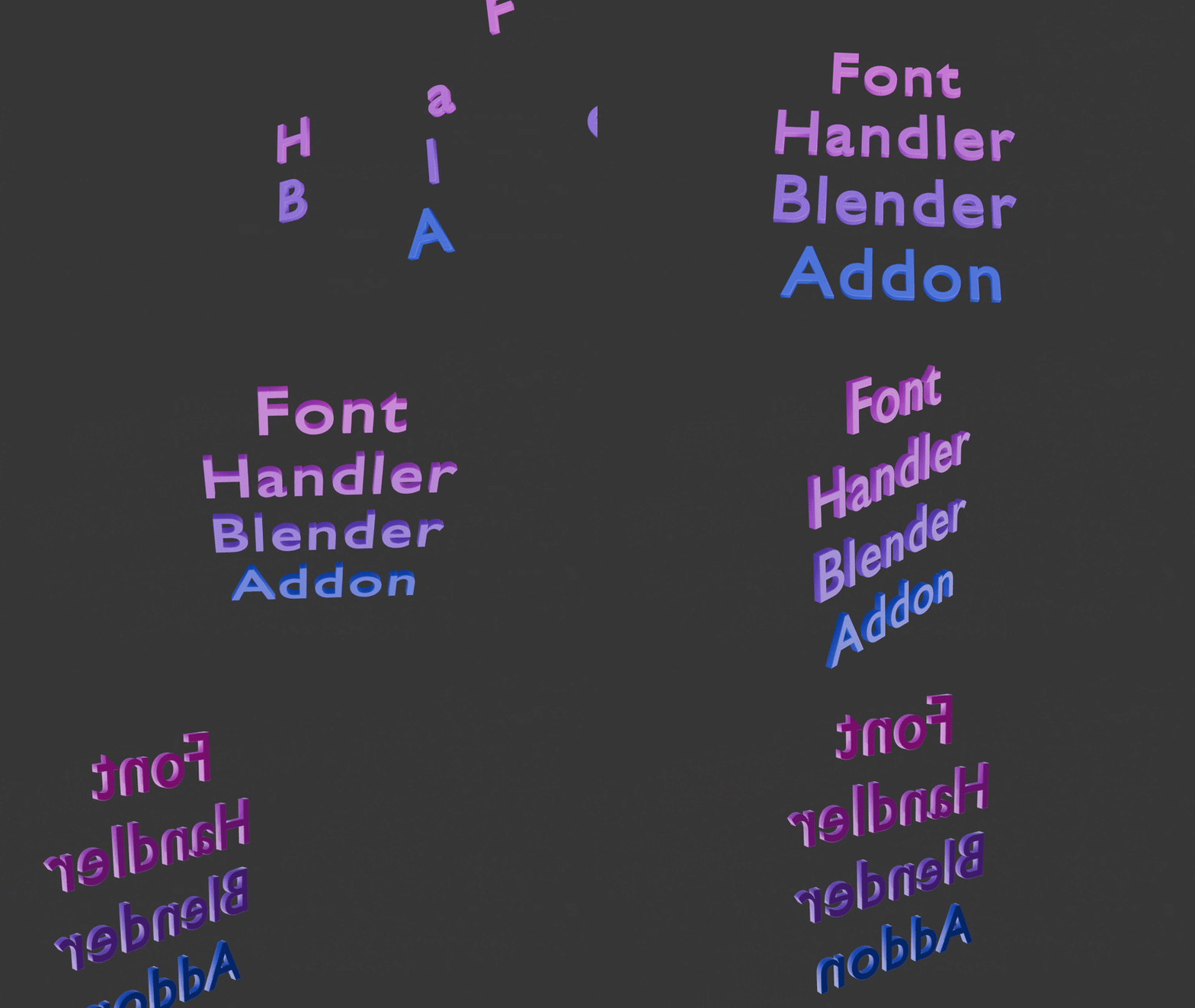
Font Handler: Documentation
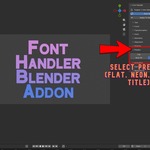
Font Handler is a control panel for Blender text objects. Change the transform, color, 3D shape, alignment, spacing and fonts of your text, animate it with 21 animations, film it with an animated camera, and put it in front of 21 animated backgrounds, all from one sidebar tab. Every change is applied live to the selected text objects.
1. Installation
Requirements
- Blender 3.0 or newer (Blender 3.x, 4.x and later).
- No other dependencies. It uses only Blender's built-in Python (
bpy).
Install steps
- Download
font_handler_addon.zip. Do not unzip or rename it. - Open Blender and go to Edit → Preferences → Add-ons.
- Click Install….
- In Blender, click the small ▾ arrow in the top-right corner of the Add-ons page and choose Install from Disk….
- Select
font_handler_addon.pyand confirm. - Tick the checkbox next to Object: Font Handler to enable it.
- Close Preferences.
Where to find it
Open the 3D Viewport, press N to open the sidebar, and click the Font Handler tab on the right edge.
If you don't see the tab, hover over the 3D Viewport and press N. Check that the add-on is ticked in Preferences.
2. Quick Start (2 minutes)
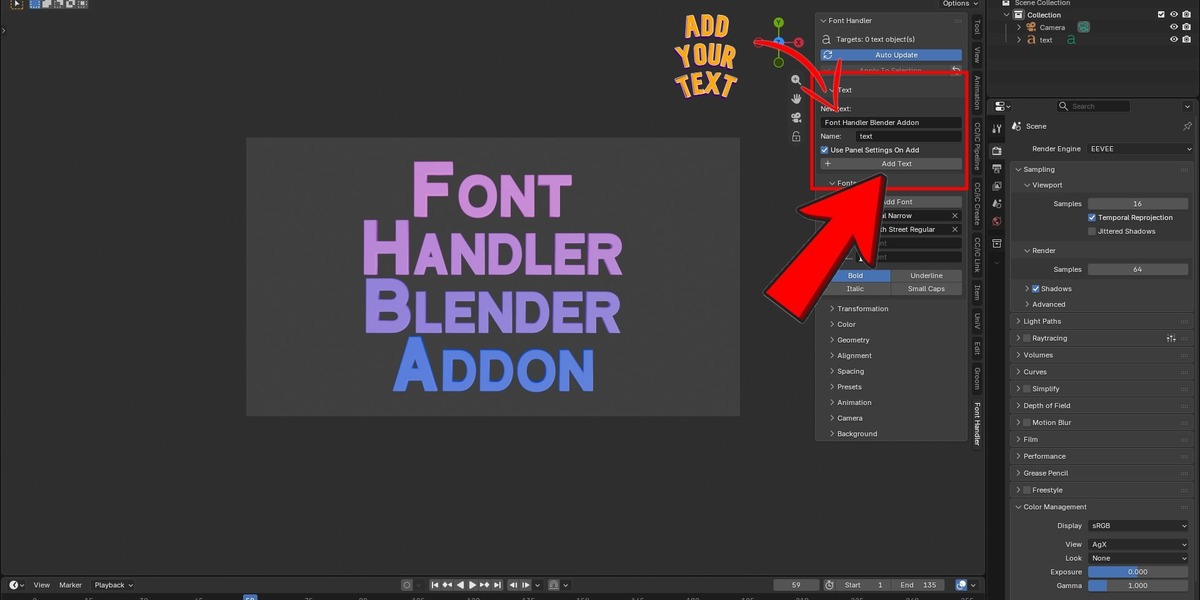
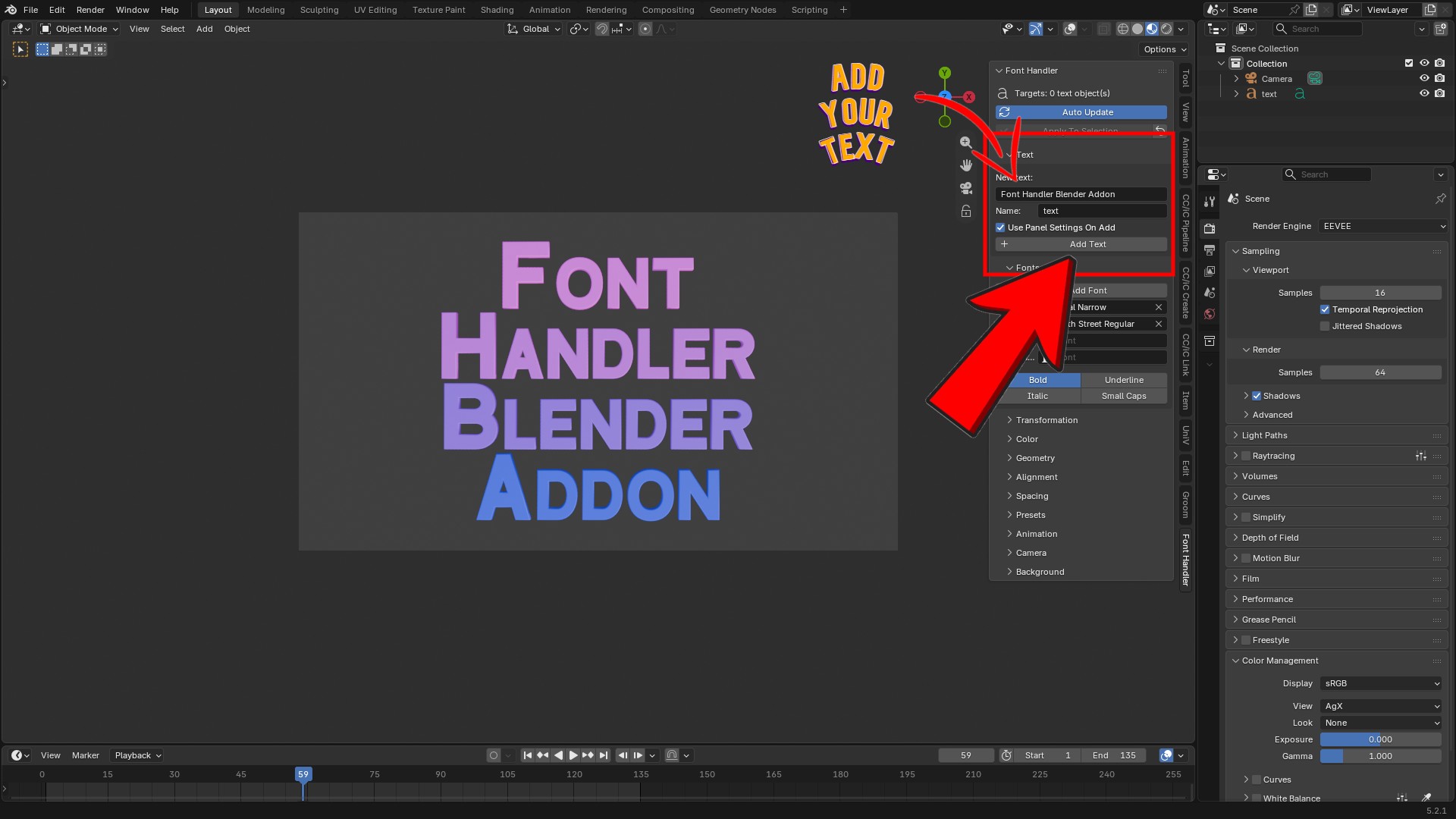
- Open Font Handler → Text and type your words in the New text box.
- Click Add Text. A text object appears at the 3D cursor.
- Open Geometry and raise Extrude to
0.15and Bevel Depth to0.02. The text becomes 3D right away. - Open Color, pick a color, and switch the viewport to Material Preview (top-right shading buttons) to see it.
- Open Animation and click Pop In. Press the play button.
That's all. There are no Apply buttons to press.
3. How the Add-on Works
Targets
Font Handler works on the selected text objects. If nothing is selected but the active object is text, it works on that one. The top of the panel shows Targets: N text object(s). Select several text objects to edit them all at once.
Auto Update
Every value in the panel is applied the moment you change it, whether you drag a slider, pick a color or choose a font. Turn Auto Update off (main panel) if you want to prepare many values first and push them yourself with Apply To Selection.
Panel values are not read back from objects
The panel holds one set of values and pushes them to whatever is selected. It does not read an object's current values back into the panel. After you select a different text object, click Apply To Selection once to give it the panel's values. After that, changes are live again.
Object actions use buttons
One-off actions that make or move things use buttons instead of live values: Add Text, Add Font, Convert To Mesh, Distribute, Align To Active, Presets, Random Animation and Clear Animation.
4. Panel Reference
4.1 Main Panel
| Control | What it does |
| Targets | Shows how many text objects will be affected. |
| Auto Update | When on (default), every change is applied instantly. When off, use Apply To Selection. |
| Apply To Selection | Pushes every panel value (fonts, styles, geometry, spacing, alignment, color, transform) onto the selected text objects. Use it after selecting a different object. |
| Reset Settings (↺ button) | Sets every panel value back to its default and applies the defaults to the selection. It does not delete objects or animations. |
4.2 Text
Active text (live) Shown when the active object is a text object. The text field edits the object's content directly, so what you type appears in the viewport as you go.
Case buttons
| Button | Result |
| AA | UPPERCASE |
| aa | lowercase |
| Aa | Title Case |
| A | Capitalize (first letter only) |
New text
| Control | What it does |
| Text field | The content the next new text object will have. |
| Name | The object name given to the new text. |
| Use Panel Settings On Add | When on, the new text immediately gets all current panel settings (font, geometry, spacing, alignment, color, transform). When off, you get a plain Blender text object. |
| Add Text | Creates a text object at the 3D cursor. |
4.3 Fonts
Add Font
Opens a file browser. Choose one or more font files (.ttf, .otf, .ttc, .pfb, .pfm); hold Ctrl or Shift to select several.
After you click, open the small operator panel at the bottom-left of the viewport and use Assign To to choose where the font goes: Nothing, Regular, Bold, Italic or Bold Italic. The default is Regular.
Font slots
| Slot | Used for |
| Regular | The main font of the text. |
| Bold | Characters that have Bold turned on. |
| Italic | Characters that have Italic turned on. |
| Bold Italic | Characters with both turned on. |
Pick any font already in your Blender file from the slot dropdowns, or load new ones with Add Font. Assigning a font applies it to the selection right away.
Style toggles: Bold, Italic, Underline, Small Caps These apply to every character of the selected text. Bold and Italic only change the look if the matching font slot has a font assigned (Blender swaps fonts; it doesn't fake bold or italic). Underline and Small Caps work with any font.
4.4 Transformation
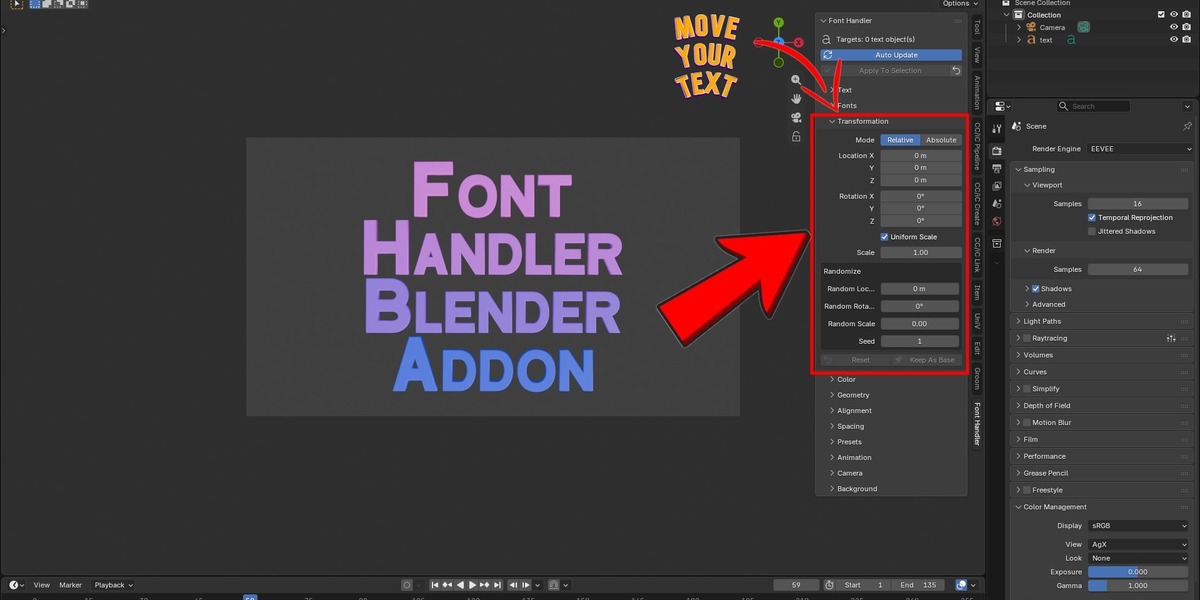
Moves, rotates and scales the selected text objects.
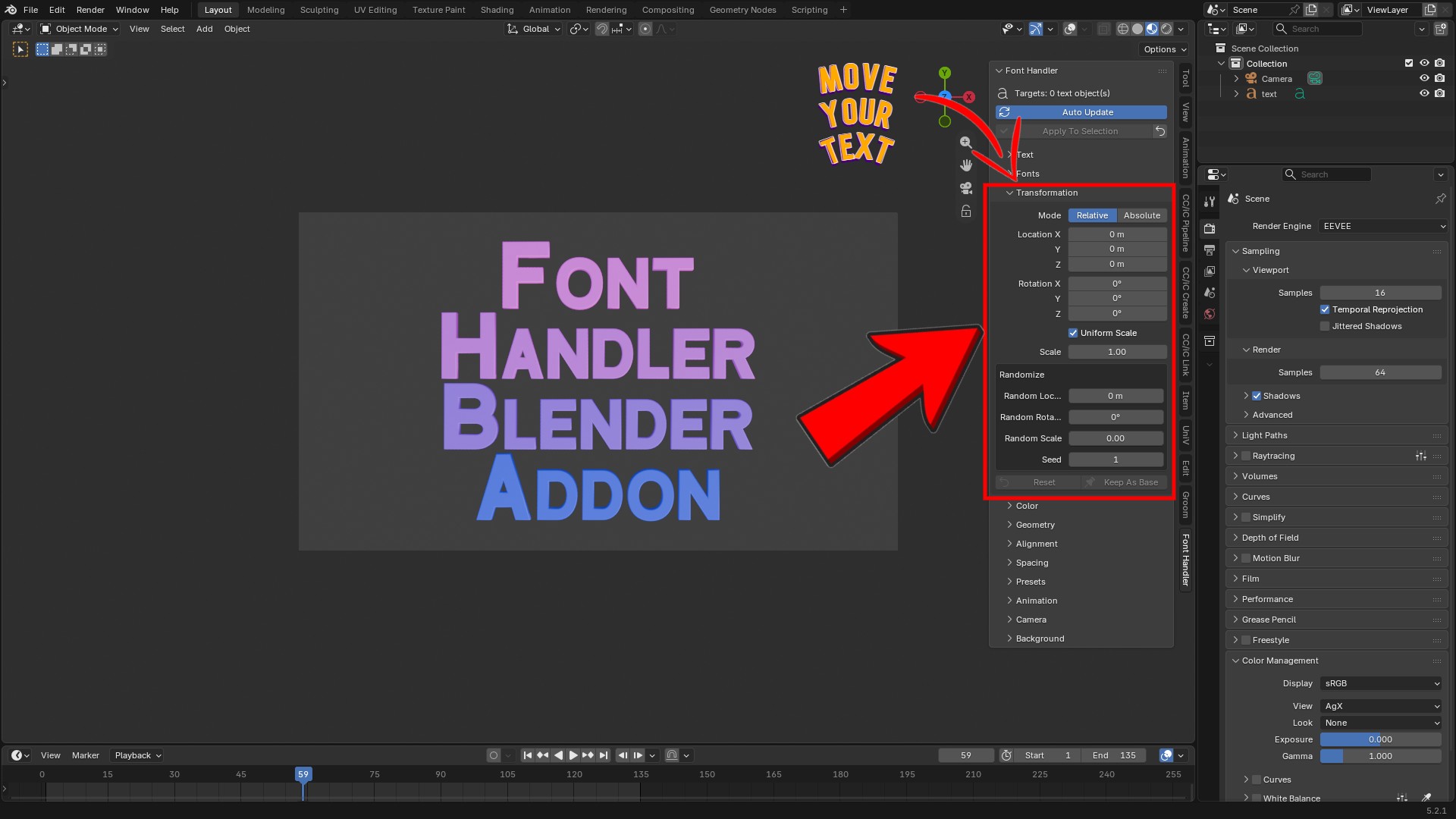
| Control | What it does |
| Mode: Relative | The values are offsets from the object's own transform. Zero offsets and scale 1 leave the object as it is. |
| Mode: Absolute | The object is set to exactly these values. |
| Location | X / Y / Z position (or offset). |
| Rotation | X / Y / Z rotation in degrees. |
| Uniform Scale | When on, a single Scale value scales all axes. When off, you get separate X / Y / Z scale. |
| Random Location | Each object gets a random position offset of up to this size. |
| Random Rotation | Each object gets a random rotation of up to this angle. |
| Random Scale | Each object gets a random scale change of up to this percentage. |
| Seed | Changes the random pattern. The same seed always gives the same result. |
Base transform: Offsets are always added to the object's saved base transform, so changing a value never stacks up. Dragging a slider from 1 to 2 gives the same result as setting 2 directly. If you move an object by hand in the viewport, Font Handler notices and adopts the new position as the base.
Objects that have a Font Handler animation ignore this panel, because the animation controls their transform. Use Clear Animation first.
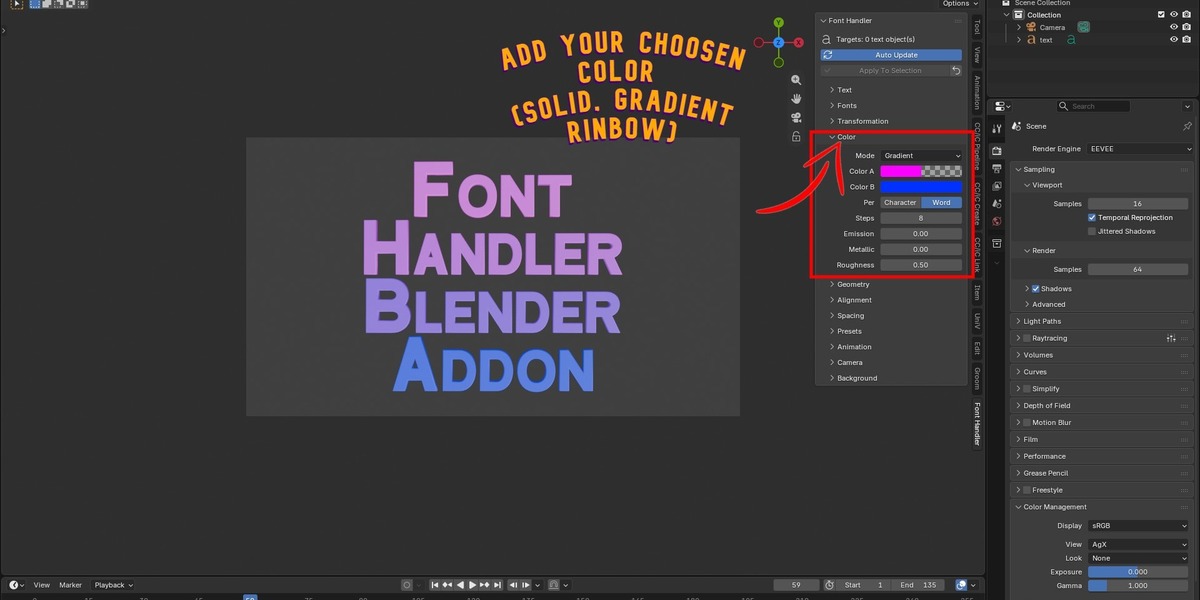
4.5 Color
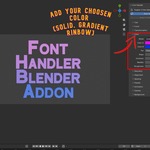
Creates materials and colors the text. You can use one color for the whole text or vary it per character or per word.
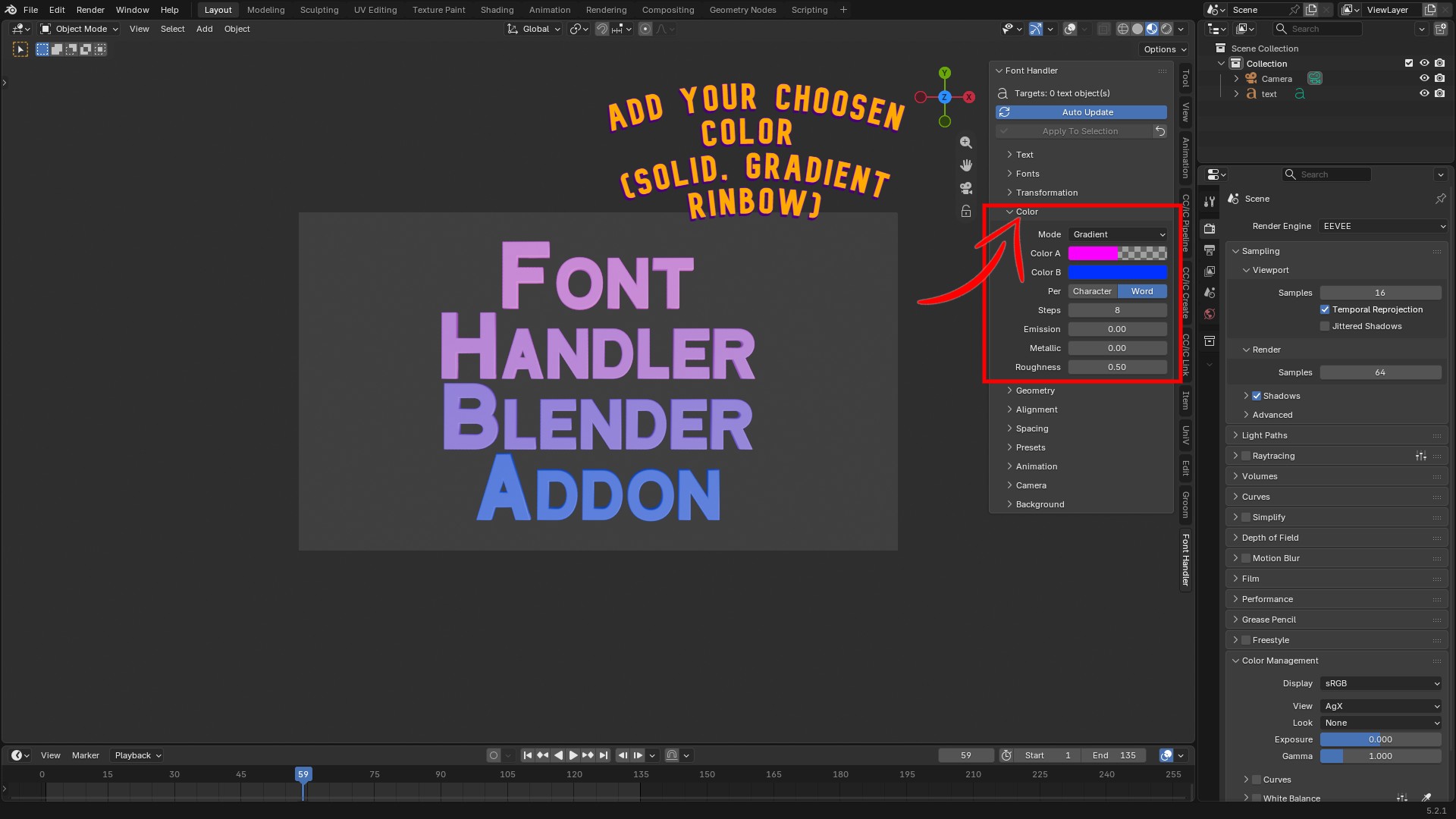
| Mode: Solid | One color (Color A) for all text. |
| Mode: Gradient | Blends from Color A to Color B across the text. |
| Mode: Rainbow | A rainbow across the text. Colors A and B are not used. |
| Mode: Random | Each character or word gets a random mix between Color A and Color B. |
| Color A / Color B | The colors. Color B is shown only for Gradient and Random. |
| Per: Character / Word | Whether the gradient or randomness changes per letter or per word. |
| Steps | The number of distinct colors (and materials) used. Lower = chunkier steps, higher = smoother gradient. |
| Seed | Changes the pattern in Random mode. |
| Emission | Makes the text glow. 0 is no glow; try 5–10 for neon. |
| Metallic / Roughness | Standard surface properties. |
Good to know
- Materials are named
FH__. Font Handler updates the same materials when you change a color, so dragging a color picker does not fill your file with new materials. - You will only see color in Material Preview or Rendered shading, not in Solid view. (Font Handler also sets the viewport display color.)
- Changing the text later recolors it automatically when Auto Update is on.
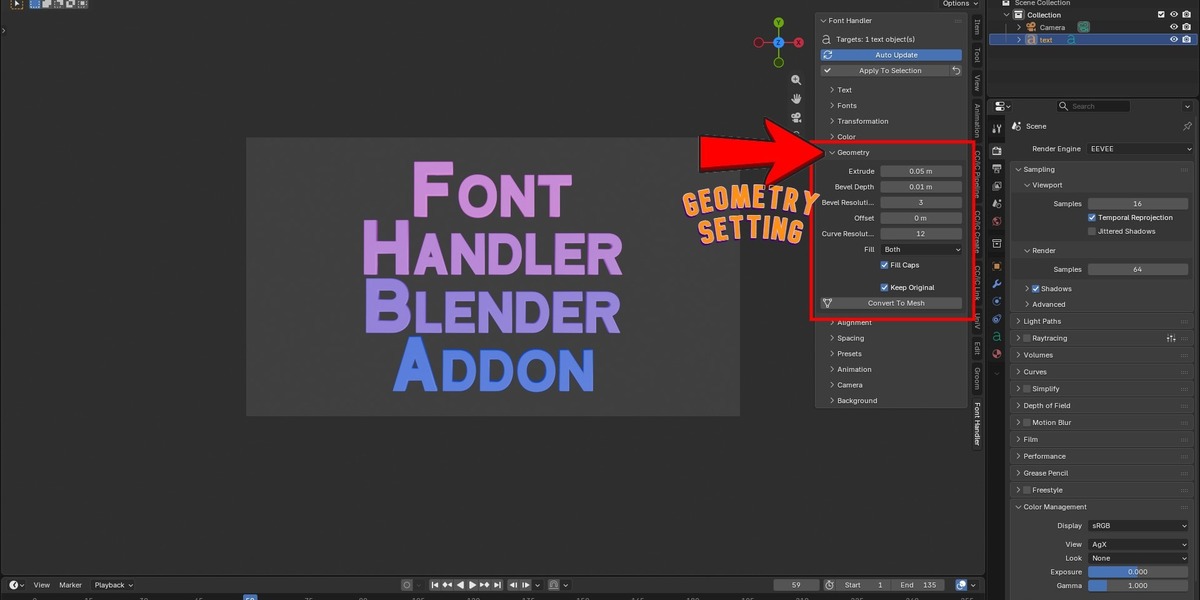
4.6 Geometry
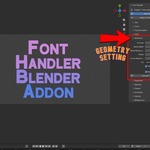
Turns flat text into 3D, or smooths and shapes it.
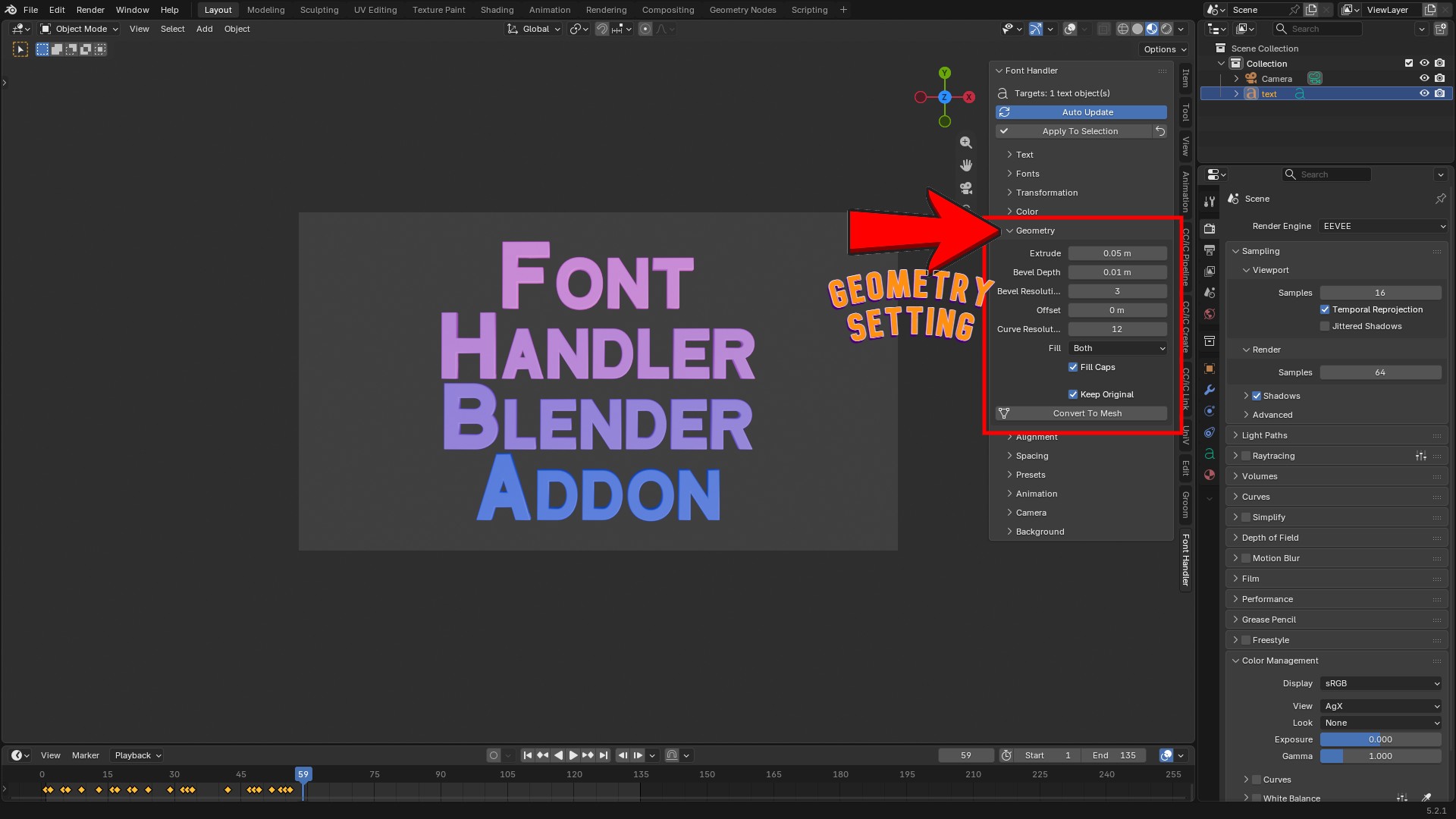
| Control | What it does |
| Extrude | The thickness (depth) of the text. |
| Bevel Depth | Rounds the edges. Combine with Extrude for solid 3D lettering. |
| Bevel Resolution | The smoothness of the bevel. 0 is a sharp edge; 3 to 5 is smooth. |
| Offset | Grows (positive) or shrinks (negative) the letter shapes. |
| Curve Resolution | The smoothness of the letter curves. Higher is smoother but heavier. |
| Fill | Which side(s) of the letters are filled: Both, Front, Back or None. |
| Fill Caps | Closes the ends of an extruded or beveled shape. |
| Keep Original | When on, Convert To Mesh keeps the original text object. |
| Convert To Mesh | Turns the selected text objects into regular mesh objects. After this they are no longer text and Font Handler will not target them. |
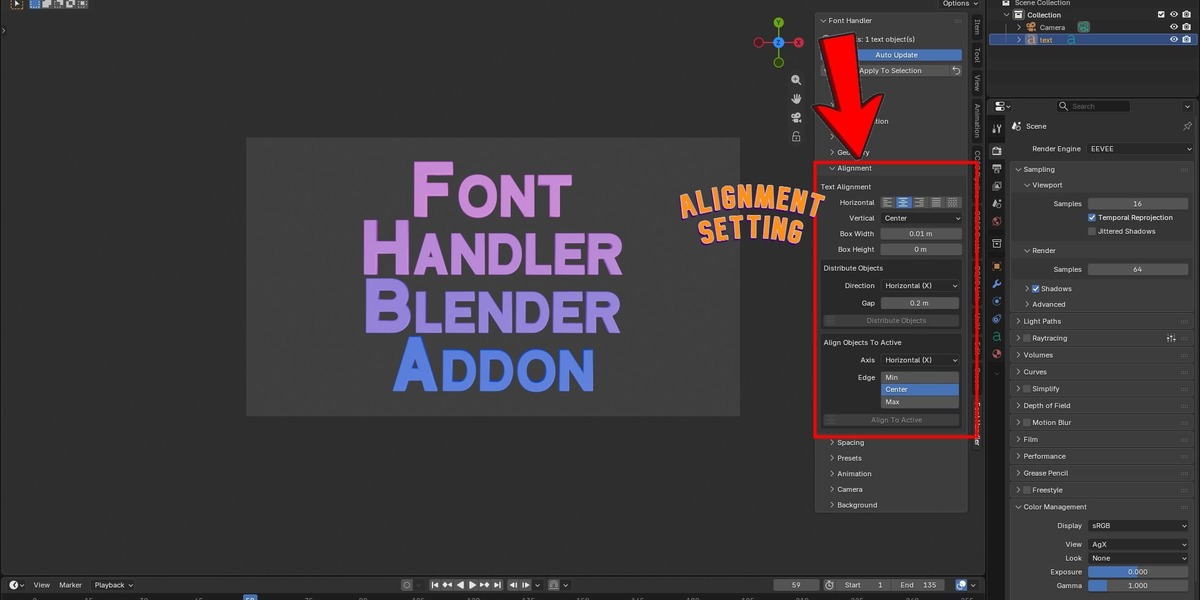
4.7 Alignment
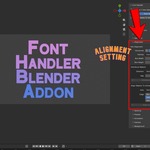
Text alignment (applies live)
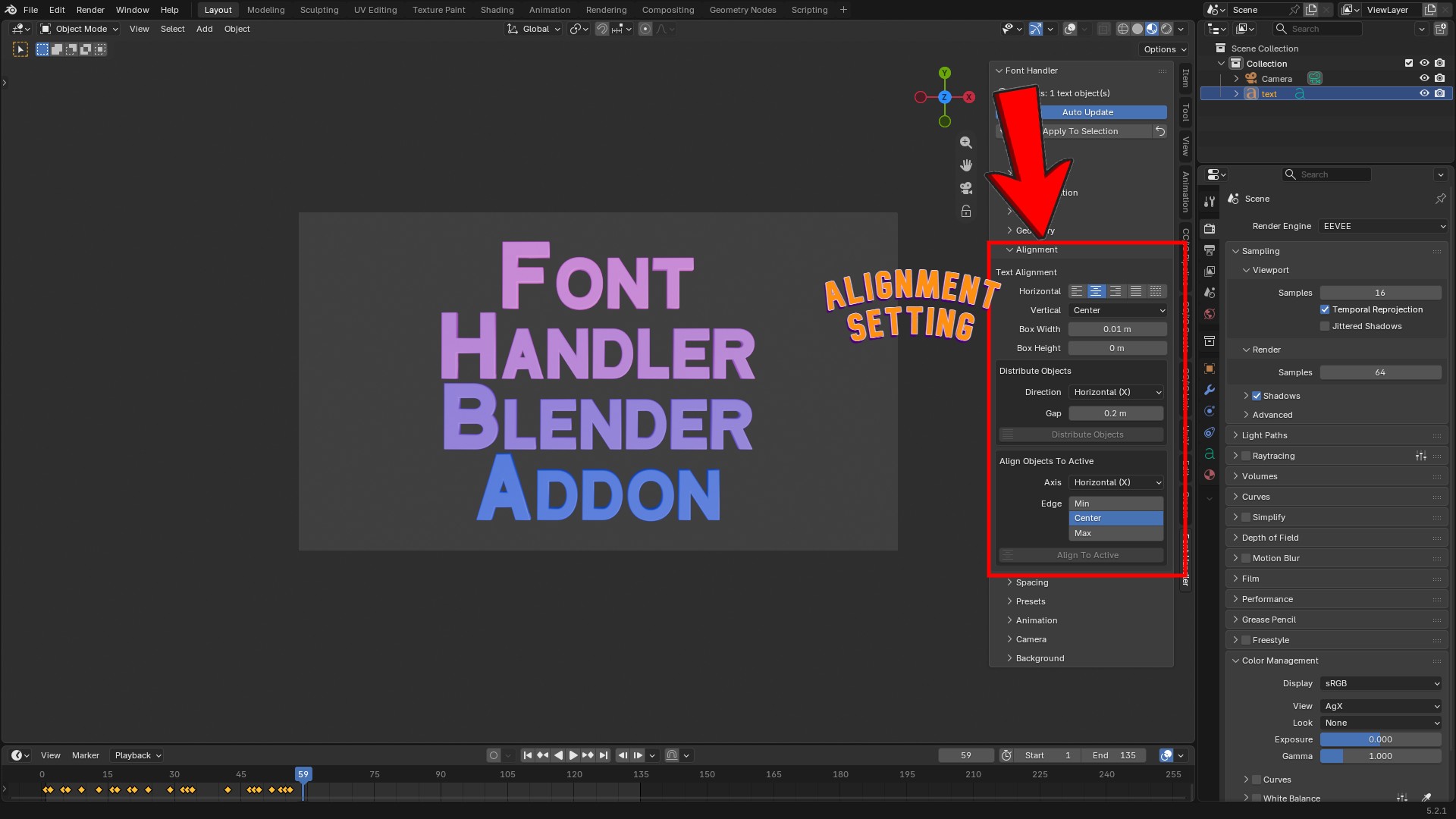
| Control | Options |
| Horizontal | Left, Center, Right, Justify, Flush |
| Vertical | Top Baseline, Top, Center, Bottom, Bottom Baseline |
| Box Width / Height | Sets a text box. 0 means no box. |
Justify and Flush only work when Box Width is greater than 0, because they need a width to stretch the text to.
Vertical Center places the text's own pivot in the middle. This is the easiest way to center a title on its object origin.
Distribute Objects Select two or more text objects, then:
| Control | What it does |
| Direction | Horizontal (X), Vertical (Z) or Depth (Y). |
| Gap | The empty space left between objects. |
| Distribute Objects | Places the objects one after another with the gap. Vertical stacks from top to bottom. |
You can fine-tune Direction and Gap in the redo panel at the bottom-left of the viewport after running it.
Align Objects To Active Select several text objects and make one of them active (last clicked):
| Control | What is does |
| Axis | Horizontal (X), Vertical (Z) or Depth (Y). |
| Edge | Min, Center or Max. Which edge or center to line up. |
| Align To Active | Moves the other selected objects to line up with the active one. |
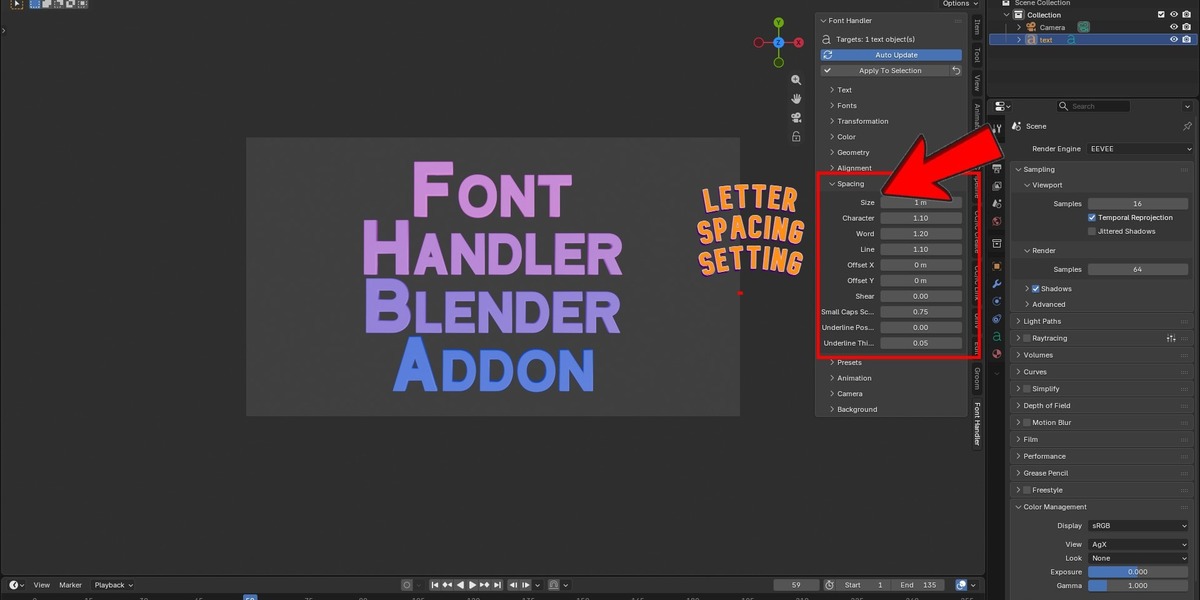
4.8 Spacing
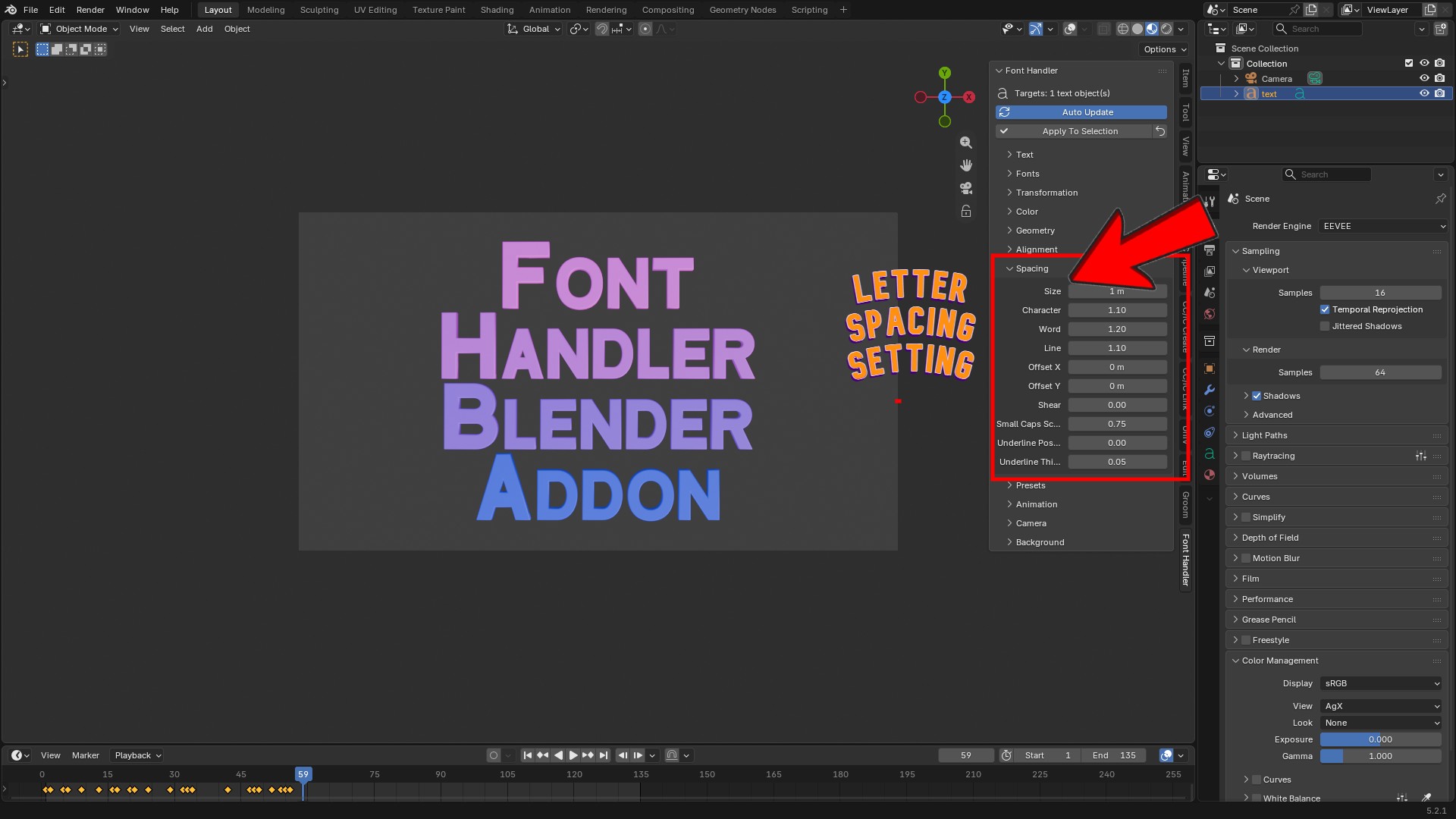
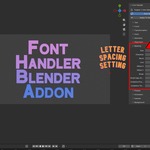
| Control | What it does |
| Size | The overall text size. |
| Character | Space between letters (1.0 = normal). |
| Word | Space between words. |
| Line | Space between lines. |
| Offset X / Offset Y | Shifts the text inside its object. |
| Shear | Slants the text, like a fake italic. Range −1 to 1. |
| Small Caps Scale | The size of small-cap letters when Small Caps is on. |
| Underline Position / Thickness | Position and thickness of the underline. Visible only when the Underline style is on (Fonts panel). |
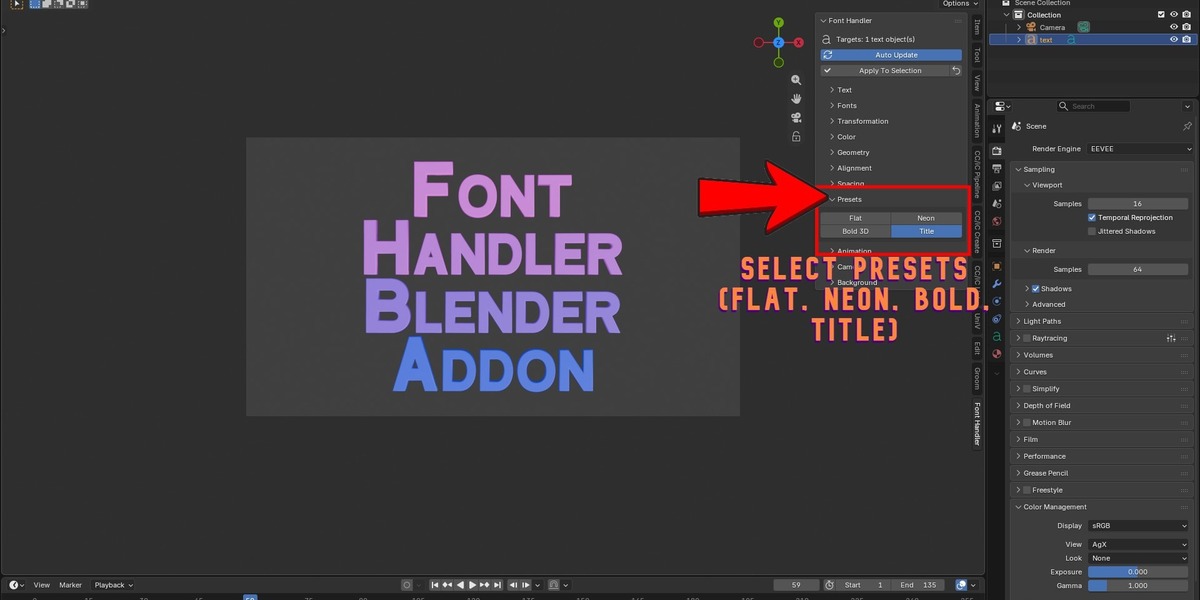
4.9 Presets
One click loads a look and applies it to the selected text.
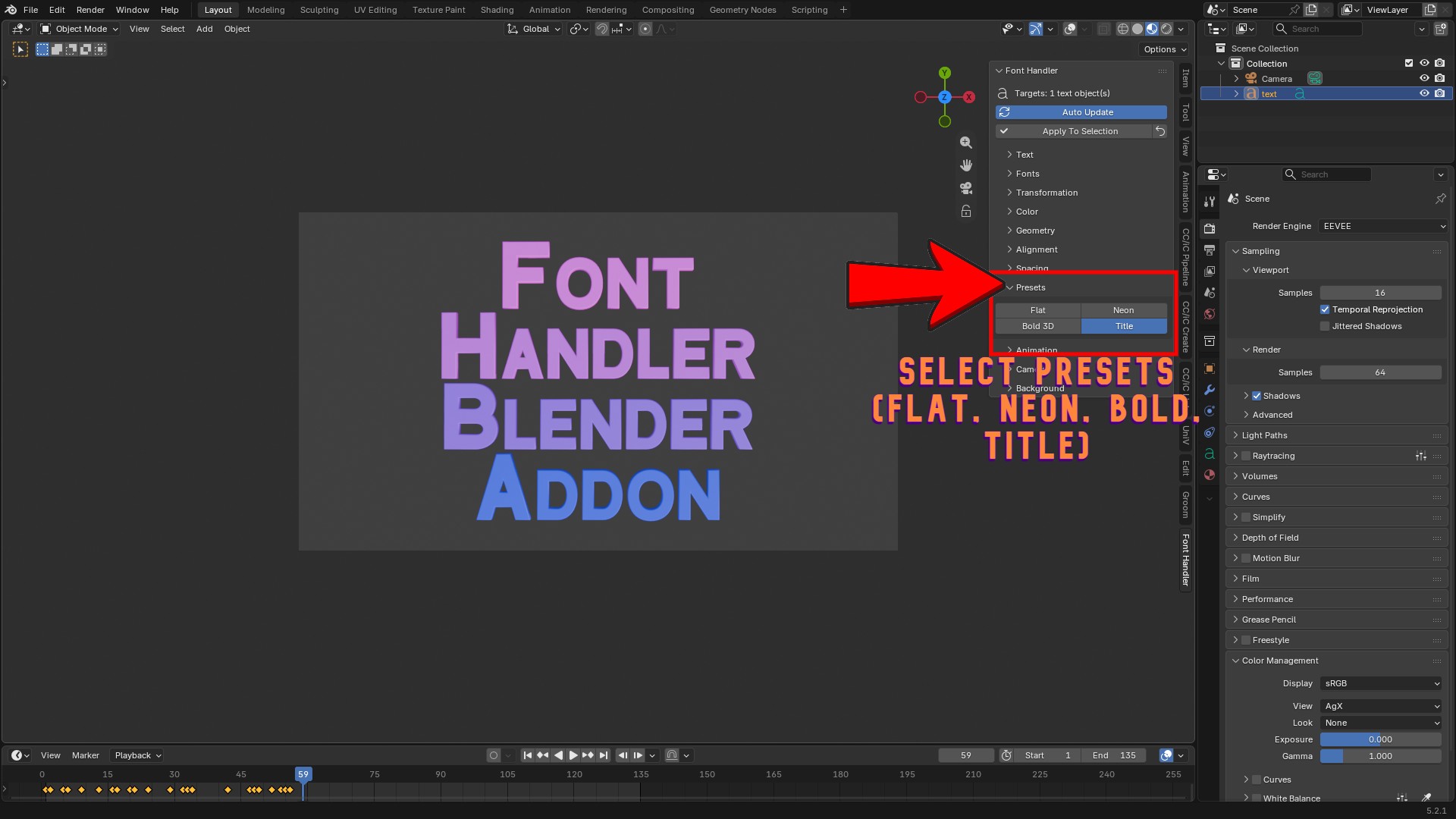
| Preset | What it sets |
| Flat | No extrude, no bevel. Solid light-gray color, no emission. |
| Bold 3D | Extrude 0.15, bevel 0.02 (resolution 4). Solid red-orange, slightly metallic. |
| Neon | Thin extrude, small bevel. Cyan→pink gradient, emission 8. Looks best in Rendered view with bloom or the compositor glow. |
| Title | Center / Center alignment with slightly wider character, word and line spacing, plus a light extrude and bevel. |
Presets change the panel values too, so you can tweak them afterward.
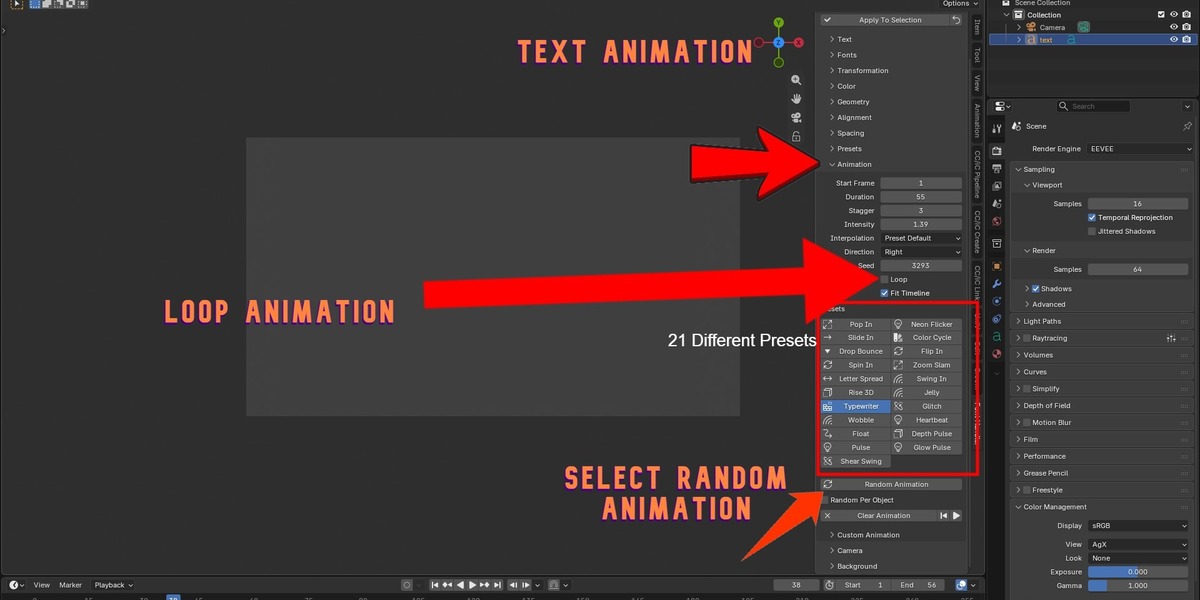
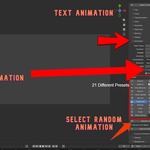
4.10 Animation
Adds keyframed animation to the selected text objects. All timing is in frames.
Settings
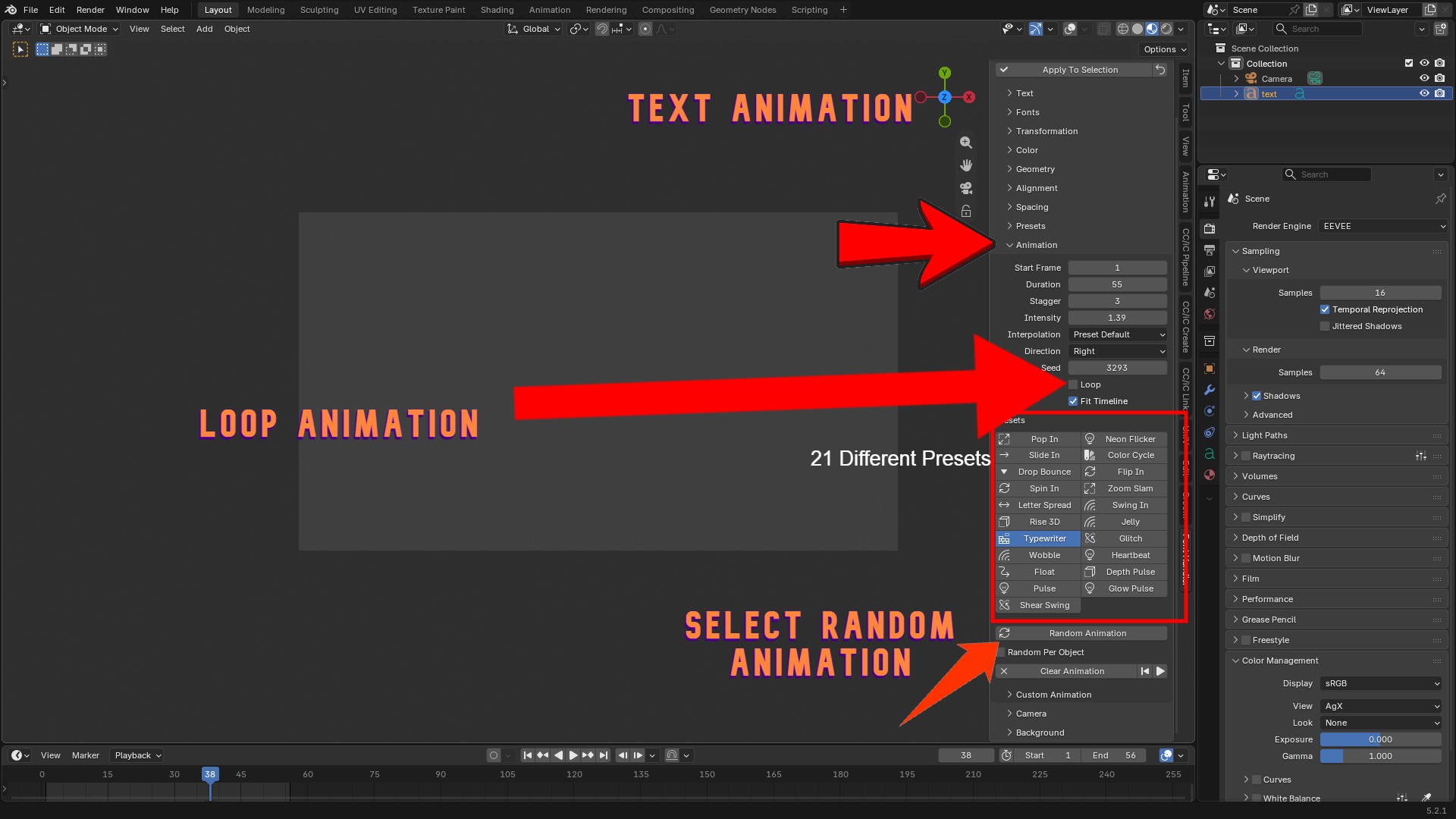
| Control | What it does |
| Start Frame | The frame the animation begins on. |
| Duration | The length of one animation cycle, in frames. |
| Stagger | A frame delay added per selected object. With a stagger of 3, the second text starts 3 frames after the first, and so on. |
| Intensity | How strong the effect is (distance, angle, size, depth). 1.0 is the default. |
| Interpolation | Preset Default uses the best curve for each animation. Or force Linear, Bezier, Sine, Cubic, Back, Bounce, Elastic or Constant. |
| Direction | Used by Slide In: Left, Right, Up or Down. |
| Seed | Changes the random pattern in Neon Flicker. |
| Loop | Repeats the animation forever. Works on any preset. |
| Fit Timeline | Sets the scene's start and end frame to match the animation. |
The 21 presets
Entrance animations (play once)
| 11 Animations | 11 Effects |
| Pop In | Grows from nothing, overshoots slightly, settles to size. |
| Slide In | Slides in from the chosen direction and eases to a stop. |
| Drop Bounce | Drops from above and bounces on landing. |
| Spin In | Spins one full turn while growing from nothing. |
| Letter Spread | The letters start far apart and close in to normal spacing. |
| Rise 3D | The text starts flat and grows to its full thickness. Uses your current Extrude (or 0.3 if the text is flat). |
| Typewriter | The text types itself out letter by letter. |
| Flip In | Flips over from the side while growing. |
| Zoom Slam | Starts huge and slams down to size with a small rebound. |
Swing In: Swings in like a hanging sign and settles with a fading wobble.
Jelly: Pops in with a squash-and-stretch wobble that fades out.
Looping animations (repeat automatically)
| Animation | Effect |
| Wobble | Rocks left and right. |
| Float | Gently bobs up and down. |
| Pulse | Scales up and down like a heartbeat. |
| Shear Swing | The text slants back and forth. |
| Neon Flicker | The glow flickers like a faulty neon sign. Uses your Emission value (or 5 if it's 0). |
| Color Cycle | The color shifts through the full color wheel. |
| Glitch | Quick digital glitches: the text jumps sideways, stretches and twitches, then snaps back. |
| Heartbeat | A double "lub-dub" pulse, like a heartbeat. |
| Depth Pulse | The 3D thickness grows and shrinks. |
| Glow Pulse | The glow smoothly rises and falls. |
For looping animations the timeline is set to two cycles so you can see the repeat. The loop itself continues forever.
Random Animation
Picks a random preset with a random duration, intensity and direction.
- Random Per Object: when on, every selected object gets a different random animation.
Playback and clearing
- Clear Animation: removes the Font Handler animation from the selected text and restores its original look. Your own keyframes are not touched.
- ⏮ / ▶ buttons: jump to the first frame and play or pause.
Changing animation settings later: with Auto Update on, changing Duration, Intensity, Start Frame, Stagger, Loop and so on re-builds the animation on any selected text that has one. You don't need to click the preset again.
Applying a new animation to text that already has one replaces the old animation.
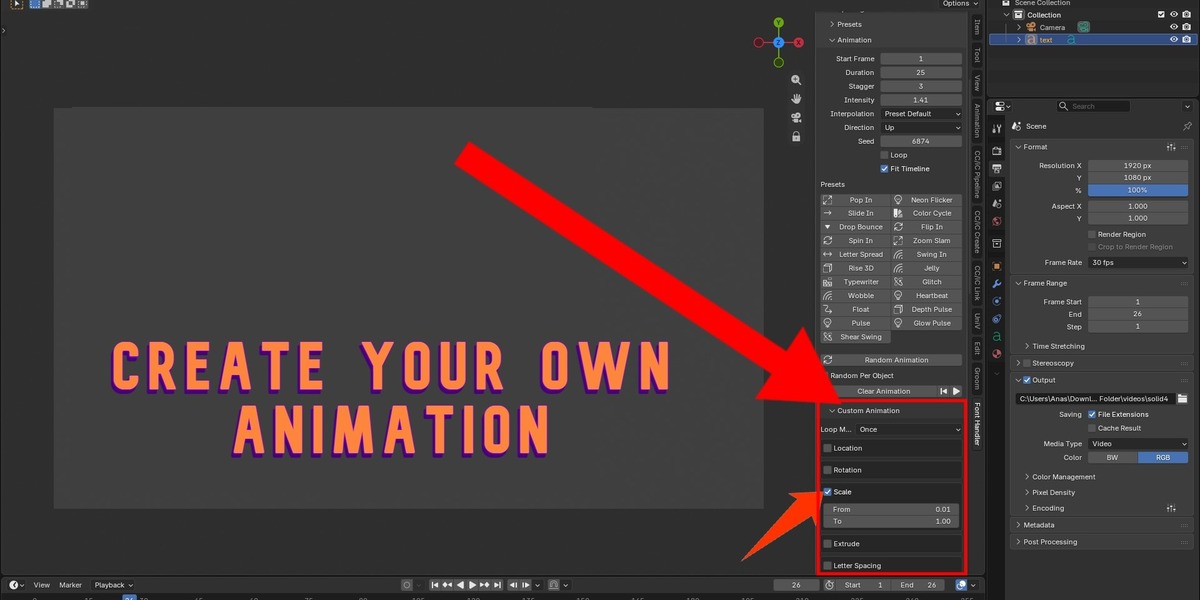
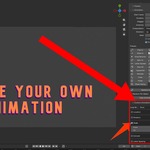
4.11 Custom Animation
Build your own animation by choosing what changes and setting From and To values.
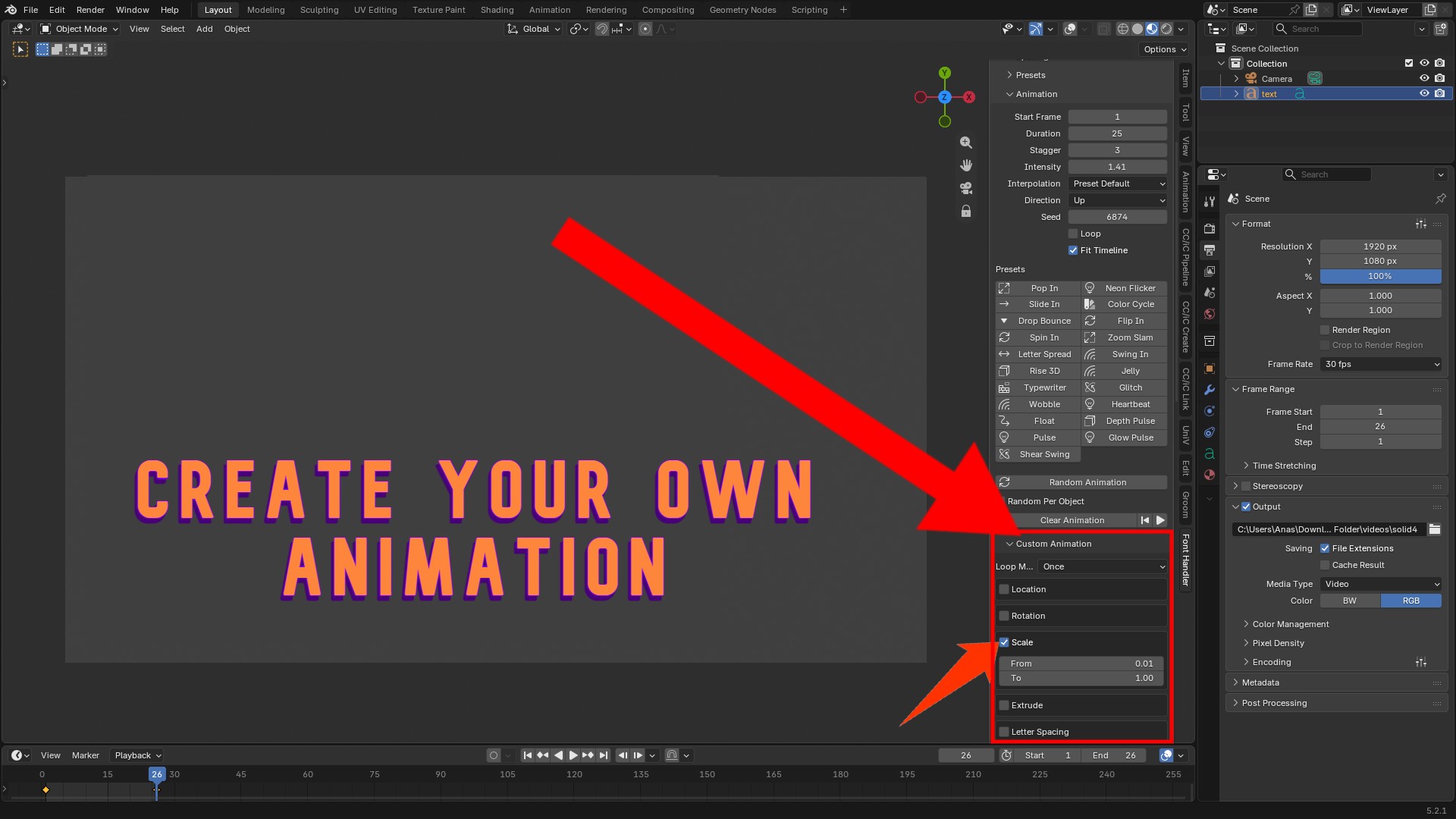
| Setting | Meaning |
| Loop Mode: Once | Plays From → To a single time. |
| Loop Mode: Repeat | From → To, then jumps back to From and repeats. |
| Loop Mode: Ping-Pong | From → To → From, repeating smoothly. |
Tick any of the eight tracks to use it (several at once is fine):
| Track | From / To meaning |
| Location | An offset from the current position. |
| Rotation | An offset from the current rotation. |
| Scale | A multiplier of the current scale (0.01 = almost invisible, 1 = normal). |
| Extrude | Thickness values (absolute). |
| Letter Spacing | Character spacing values (absolute). |
| Text Size (x) | A multiplier of the current text size. |
| Shear | Slant values (−1 to 1). |
| Emission | Glow strength values (absolute). |
Press Create Custom Animation to build it. Start Frame, Duration, Stagger, Interpolation and Loop from the main Animation panel also apply.
Example: a glowing pulse
Loop Mode: Ping-Pong. Tick Scale (From 1.0, To 1.2) and Emission (From 2, To 12). Duration 40. Click Create Custom Animation.
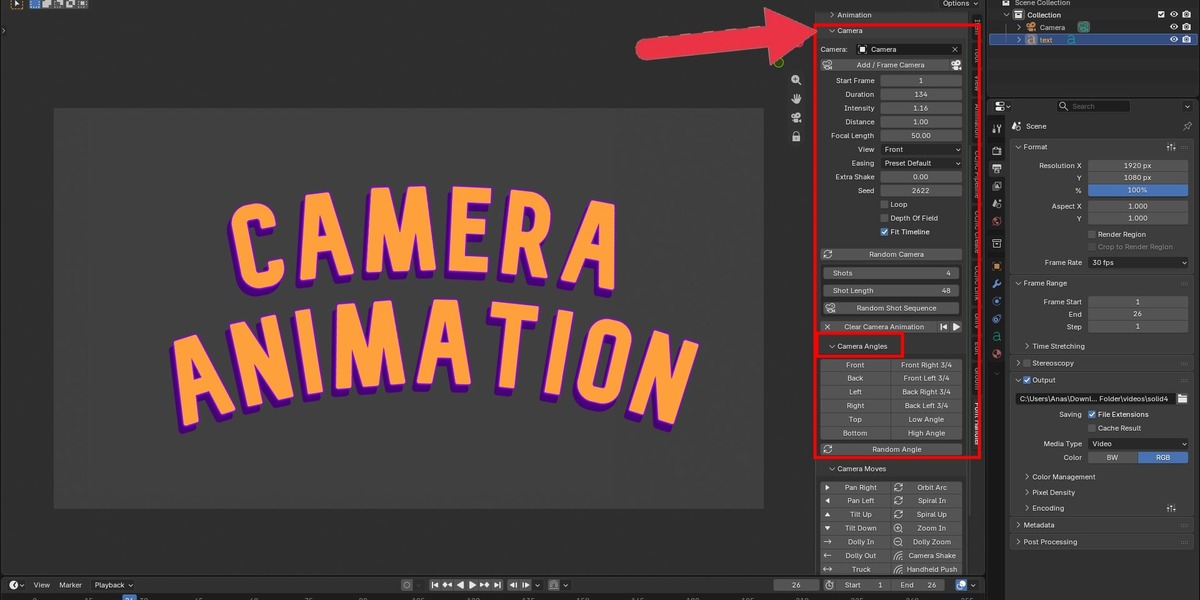
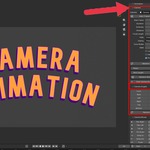
4.12 Camera
Creates an animated camera that films your text. The camera is keyframed (position, rotation, focal length and focus), so you can still edit the result in Blender's Graph Editor or Dope Sheet.
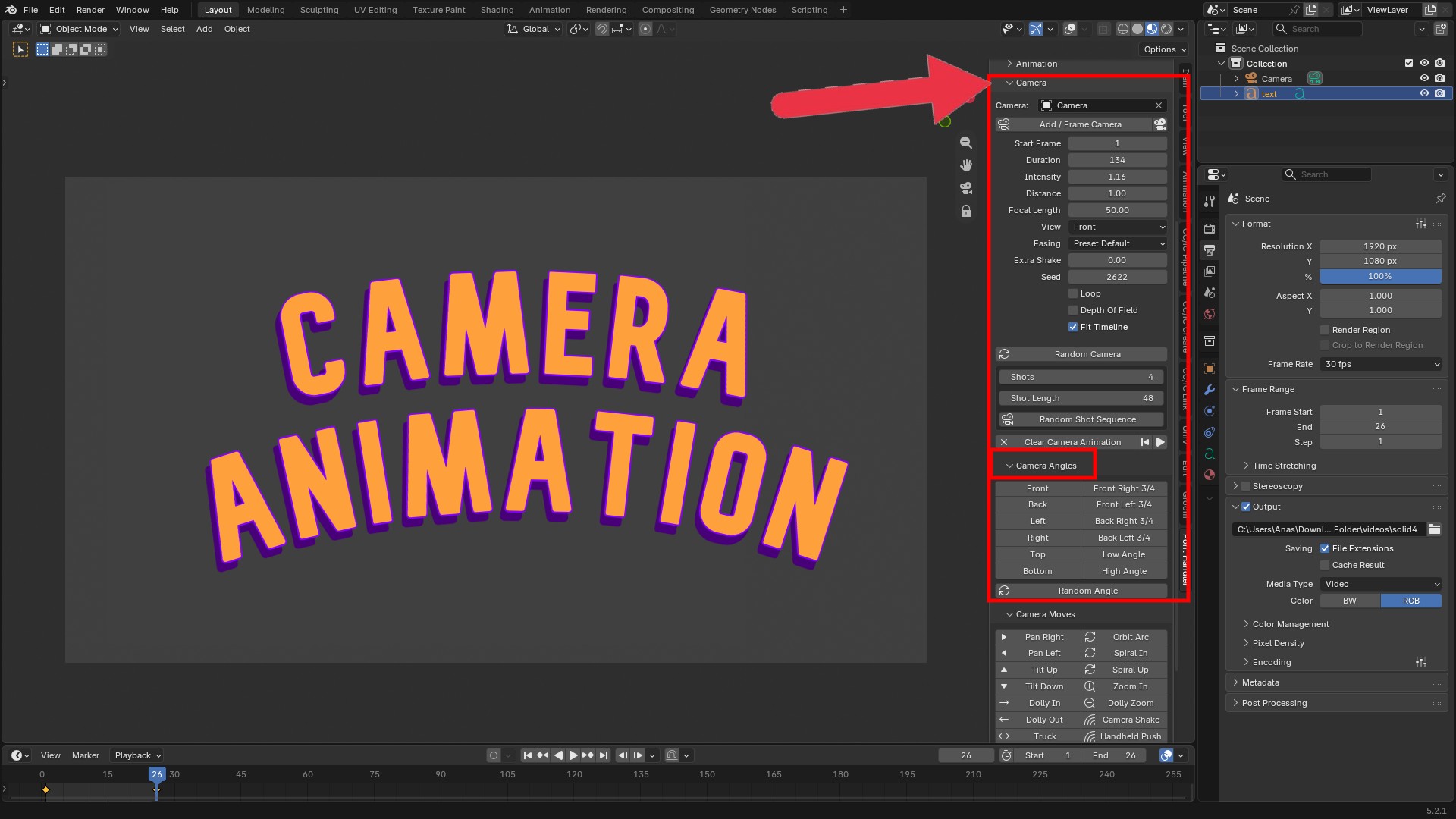
How the camera is aimed: The camera always looks at the center of the selected text and is placed so the text fits the frame, using your render resolution and focal length. "Front" means looking straight at the face of the text, whichever way the text object is turned. Text that lies flat on the ground (Blender's default) is therefore viewed from above for the Front angle.
Select your text object(s) first. After the camera exists you can also select the camera itself and keep changing settings. Font Handler remembers which text it is filming.
Camera panel
| Control | What it does |
| Camera | The camera Font Handler animates. Leave it empty and a camera named FH_Camera is created and set as the scene camera. You can pick your own camera instead. |
| Add / Frame Camera | Creates the camera (if needed) and frames the selected text at the chosen View. |
| Look Through Camera (button next to it) | Switches the viewport to the camera view. |
| Start Frame / Duration | When the move begins and how many frames it lasts. |
| Intensity | How far or how strong the move is (travel distance, angle, shake strength). |
| Distance | Framing distance. Smaller values give a closer shot, larger values a wider one. |
| Focal Length | The lens in millimeters. Low is wide angle, high is telephoto. |
| View | The starting angle (see below). Choose Random for a different angle each time you change the Seed. |
| Easing | Preset Default uses the best easing for each move, or force Linear, Ease In, Ease Out or Ease In-Out. |
| Extra Shake | Adds handheld shake on top of any move. |
| Seed | Changes the random pattern (random angle, shake pattern, random shots). |
| Loop | Repeats the camera move forever. Best with Orbit 360. |
| Depth Of Field / F-Stop | Turns on background blur. The focus stays on your text during the move. A lower F-Stop gives stronger blur. |
| Fit Timeline | Sets the scene frame range to the camera animation. |
| Clear Camera Animation | Removes the camera animation. The camera stays where it is. |
Camera Angles (12 views)
Front, Back, Left, Right, Top, Bottom, Front Right 3/4, Front Left 3/4, Back Right 3/4, Back Left 3/4, Low Angle and High Angle.
Clicking an angle places the camera there (without movement) and also sets it as the View for the camera moves. Random Angle picks a random viewpoint with a little variation each time.
Camera Moves (22 moves)
Click a move and the camera animates from the current View.
| Move | What the camera does |
| Pan Right / Pan Left | Turns on the spot, sweeping across the text. |
| Tilt Up / Tilt Down | Tilts on the spot, sweeping up or down the text. |
| Dolly In / Dolly Out | Moves toward or away from the text. |
| Truck | Slides sideways while keeping the same direction. |
| Pedestal Up | Rises straight up while looking forward. |
| Crane Up | Swings up in an arc from a low angle to a high one. |
| Crane Down | Starts high and far away and swoops down to the chosen angle. |
| Orbit 360 | A full circle around the text. It loops seamlessly with Loop on. |
| Orbit Arc | A partial arc around the text, ideal for a reveal. |
| Spiral In | Circles the text while moving closer. |
| Spiral Up | Circles the text while climbing higher. |
| Zoom In | The lens zooms in while the camera stays still. |
| Dolly Zoom | The "vertigo" effect: the camera moves while the lens counter-zooms, so the text stays the same size and the background warps. |
| Camera Shake | Strong handheld shake (earthquake, impact).i |
| Handheld Push | A slow push-in with natural handheld movement. |
| Dutch Tilt | Rolls the horizon from side to side while pushing in slightly. |
| Whip Pan | A fast whip that snaps onto the text. |
| Fly-By | The camera sweeps past the text while staying aimed at it, giving strong depth. |
| Rack Focus | The text starts out of focus and sharpens (turns on Depth Of Field automatically). |
Random Camera
Random Camera picks a random move with a random angle, duration and intensity.
Random Shot Sequence
Builds a short film of several shots cut one after another, each with its own random angle and random move.
- Shots: how many shots (1 to 12).
- Shot Length: frames per shot.
- Click Random Shot Sequence. Click it again for a new combination. Rack Focus is not used in sequences.
Editing later: with Auto Update on, changing Duration, Intensity, Distance, Focal Length, View, Easing, Shake, Seed or the shot settings re-builds the camera animation. If you move or retime the text, click a camera move or angle again to re-frame it.
Text animations (Animation panel) and camera animations are separate. Both can play together. Fit Timeline on either panel overwrites the scene range, so set the camera Duration to cover your text animation, or turn Fit Timeline off on one of them.
4.13 Background
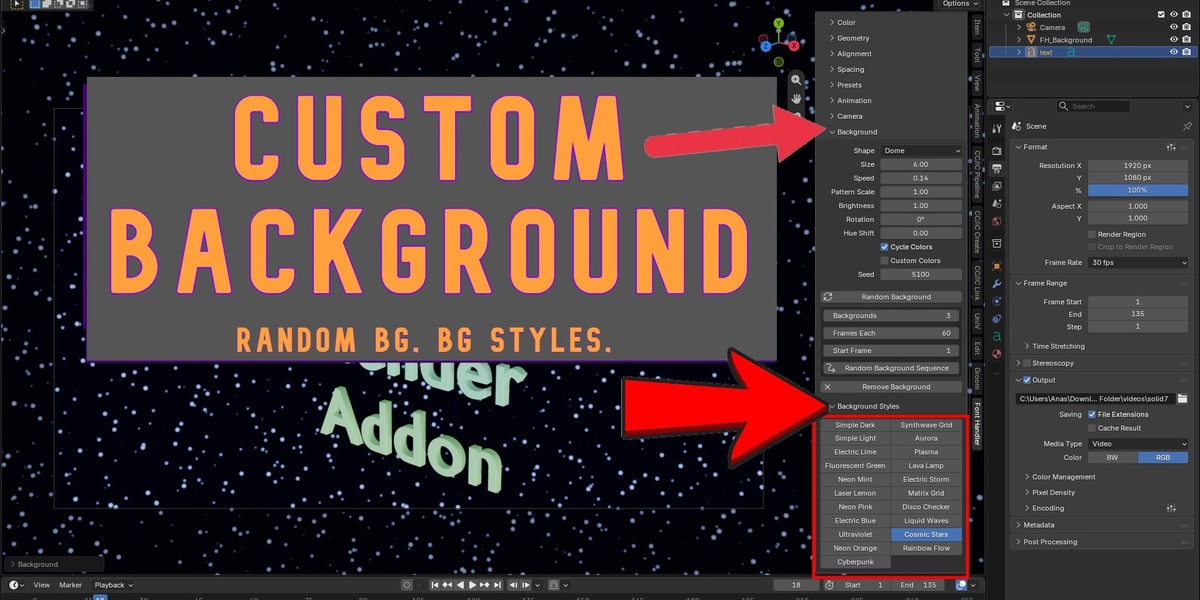
Puts your text in front of an animated procedural background. There are 21 styles, with colors such as Electric Lime, Fluorescent Green, Neon Mint and Laser Lemon. The backgrounds are generated by Blender's shader nodes, so they need no image files and keep animating for as long as the timeline runs.
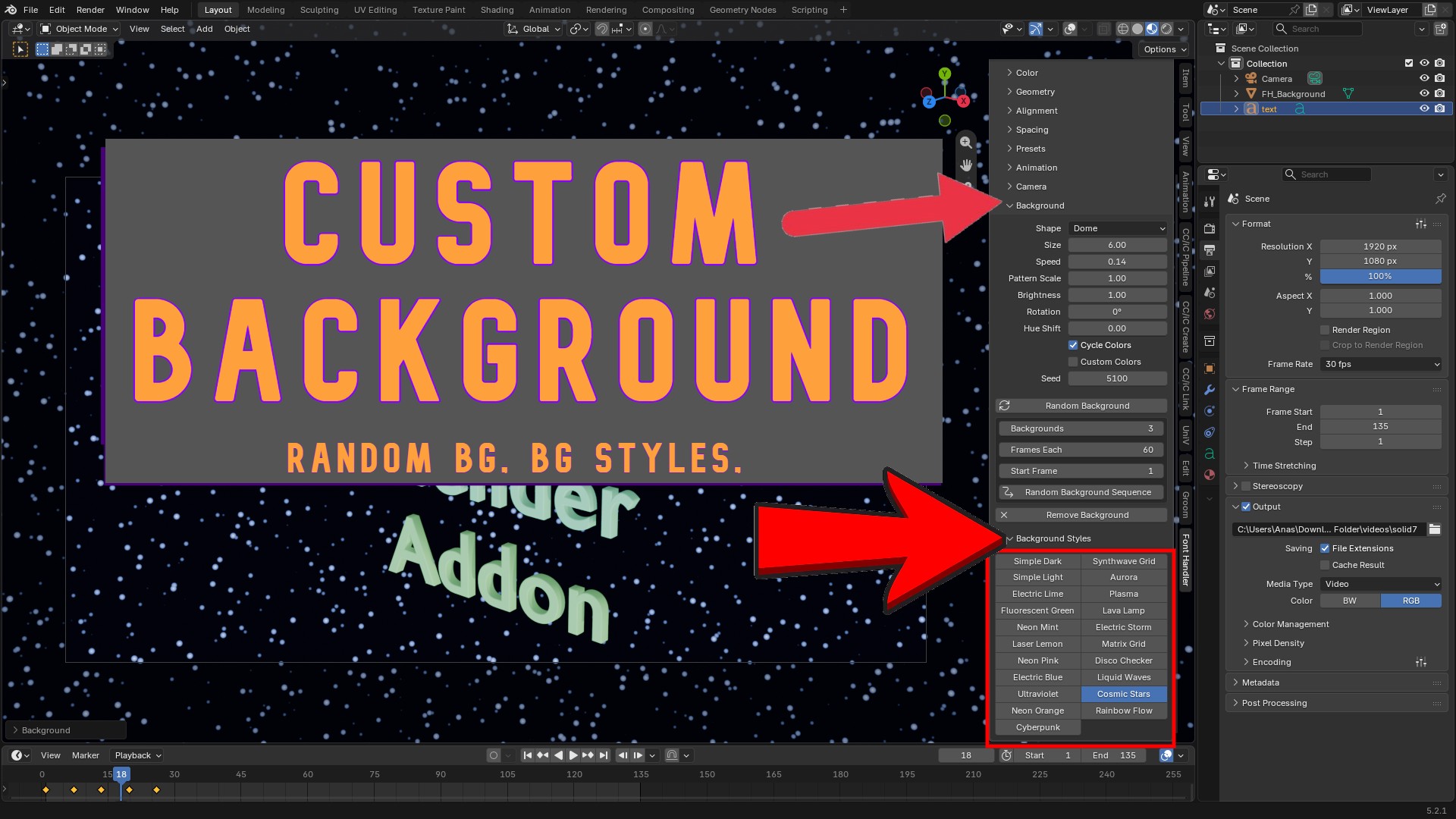
A background is a large glowing surface (a Plane behind the text, or a Dome around the whole scene). It lights up in Material Preview and Rendered view.
Select your text first so the background is sized and placed to match it. Without a selection, a default size is used.
Background settings
| Control | What it does |
| Shape: Plane | A flat backdrop directly behind the text. Best for front-facing shots. |
| Shape: Dome | A large sphere around the text. Use it when the camera orbits or looks from the side or back, so there is never an edge or a missing background. |
| Size | How big the backdrop is compared to the text. Raise it if you see the edge of the plane. |
| Distance Behind | How far behind the text the plane sits (Plane shape only). |
| Speed | How fast the background animates. 0 freezes it. |
| Pattern Scale | Makes the pattern bigger (low values) or finer (high values). |
| Brightness | The glow strength. Neon styles look best at 1 to 3. |
| Rotation | Rotates the pattern. |
| Hue Shift | Rotates every color around the color wheel. One style becomes many colors. |
| Cycle Colors | Slowly rotates the hue over time. |
| Custom Colors | Use your own Color 1 / 2 / 3 instead of the style's palette. They are spread across the pattern. |
| Seed | Changes the random variation of the pattern. |
The 21 background styles
Click a style in Background Styles to create it. Clicking another style replaces it.
| Style | Look |
| Simple Dark | A subtle, slowly moving dark gradient. Clean and unobtrusive. |
| Simple Light | A soft, light gray gradient. |
| Electric Lime | Flowing diagonal waves of vivid lime. |
| Fluorescent Green | Glowing, drifting clouds of highlighter green. |
| Neon Mint | A smooth minty-green gradient flowing across the screen. |
| Laser Lemon | Slowly rotating yellow sunburst rays. |
| Neon Pink | A pulsing hot-pink glow. |
| Electric Blue | Horizontal waves of glowing cyan. |
| Ultraviolet | Soft, drifting violet clouds. |
| Neon Orange | A fiery orange and amber gradient flow. |
| Cyberpunk | A magenta, purple and cyan gradient sweeping across. |
| Synthwave Grid | A retro neon pink grid moving toward you on a dark purple sky. |
| Aurora | Flowing green, blue and purple northern-lights ribbons. |
| Plasma | A swirling rainbow plasma. |
| Lava Lamp | Slowly moving blobs of orange and red. |
| Electric Storm | A dark stormy sky with bright, flickering electric blue flashes. |
| Matrix Grid | A green grid scrolling downward. |
| Disco Checker | A moving magenta and cyan checkerboard. |
| Liquid Waves | Teal ripples radiating like water. |
| Cosmic Stars | A starfield drifting through space. |
| Rainbow Flow | Full rainbow colors flowing diagonally. |
Random Background
Picks a random style with random speed, scale, rotation and color shift. Click it again for a new one.
Random Background Sequence
Creates several different random backgrounds that switch automatically over time and loop forever.
- Backgrounds: how many.
- Frames Each: how long each stays on screen.
- Start Frame: when the first one appears. Click the button again for a new random combination.
Remove Background
Deletes all Font Handler backgrounds, including their materials.
Live updates: with Auto Update on, changing Speed, Scale, Brightness, Hue, Colors, Size and the other settings re-builds the background immediately. Backgrounds in a random sequence follow the same shared settings and keep their own random color shift.
Good to know
- Backgrounds use light emission, so the Brightness setting also controls how much they light your text in Cycles and in EEVEE with light bake or screen-space effects.
- For a glow around neon colors, turn on bloom (EEVEE in Blender 3.x) or add a Glare node in the compositor.
- Backgrounds don't cast shadows, so they will not block your lights.
- Plane backgrounds face the front of the text. From the Back angle, or when orbiting, use Dome.