Fourier Animations
 Blender.Fun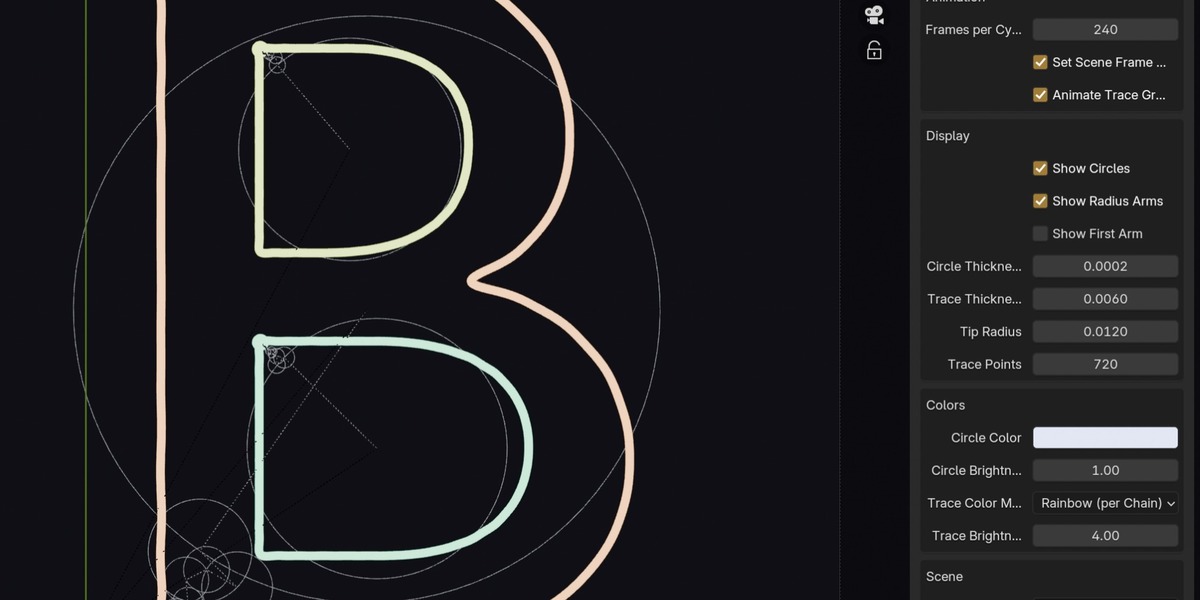




# Fourier Epicycles for Blender
A Blender add-on that converts 2D curves into animated Fourier epicycle drawings. It analyzes a curve using the Fast Fourier Transform (FFT), creates a chain of rotating circles and arms, and then generates a renderable animation that traces the original shape.
This is useful for generating clean motion graphics, procedural animation, decorative line art, and stylized tracing effects from hand-drawn or imported curves.
## What the add-on does
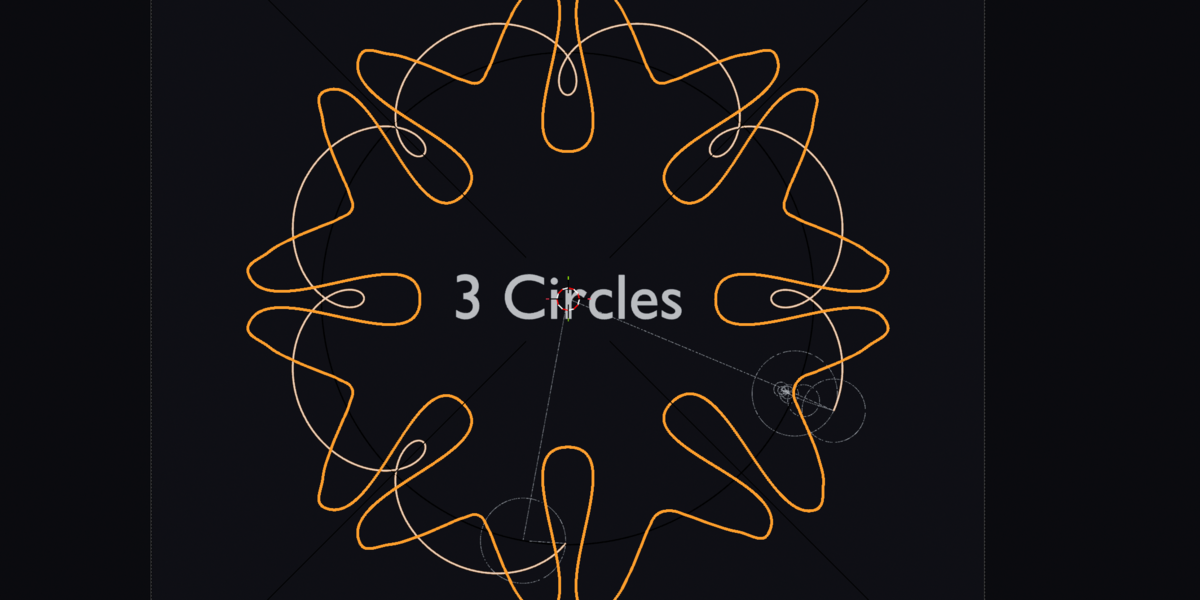
The add-on takes one or more 2D curves and approximates them as a sum of circular motions. Each circle in the chain represents one frequency component of the curve.
The result is:
- a set of rotating circles
- radius arms connecting each circle
- a moving tip at the end of the chain
- a traced path that follows the Fourier reconstruction
- optional animation, camera setup, and background styling
This makes it possible to turn a simple spline into a dynamic, visually interesting motion study.
## Main features
- Works with selected curves or a source collection
- Supports multiple curve objects and spline chains
- Joins multiple splines into one epicycle animation if desired
- Uses FFT sampling to decompose the path into frequency components
- Lets you control number of circles, resolution, and frame count
- Creates a camera and output collection automatically
- Supports black-and-white or colored stylized render output
- Includes an option to hide the source curves from the final render
## System requirements
- Blender 2.80 or newer
- A 2D curve or spline-based drawing in the XY plane
- The curve should be flat in the scene and not heavily skewed in Z-depth
## Installation
1. Open Blender.
2. Go to Edit > Preferences > Add-ons.
3. Click Install.
4. Select the add-on file or the packaged add-on folder.
5. Enable the add-on in the list.
6. The add-on will appear in the 3D Viewport sidebar under the "Fourier" tab.
If you are distributing this add-on as a ZIP package, install the ZIP file the same way.
## Quick start
1. In Blender, create or import a 2D curve.
2. Select the curve object(s), or place them in a collection.
3. Open the 3D Viewport sidebar and choose the Fourier panel.
4. Set the source collection or keep it empty to use the selected curves.
5. Adjust the FFT and animation settings.
6. Click Generate Epicycles.
7. The add-on creates a new collection containing the generated circles, trace, and optional camera.
## Interface overview
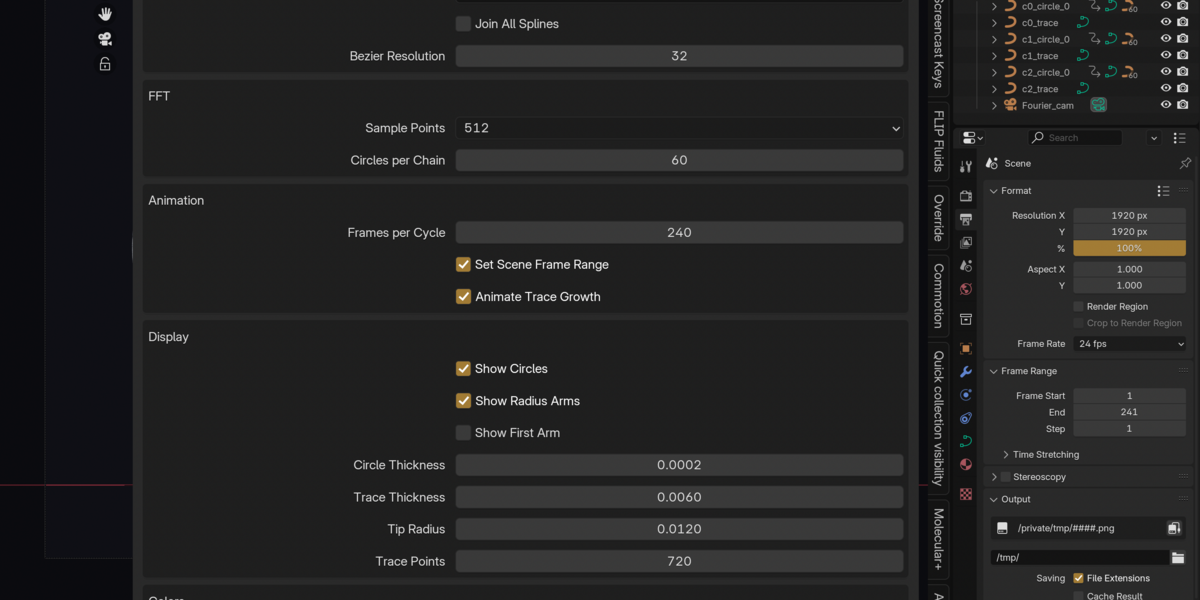
The add-on panel is divided into several sections:
### Source
- Source Collection
- Choose a collection containing the curves.
- Leave empty to use the selected objects.
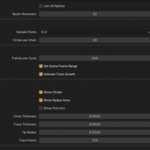
- Join All Splines
- If off, each spline is processed as its own chain.
- If on, all splines are combined into one shared path.
- Bezier Resolution
- Defines how many points are sampled along each Bezier segment.
- Higher values produce smoother input curves.
### FFT
- Sample Points
- Number of points used in the FFT analysis.
- Higher values generally produce more detailed and smoother epicycle results.
- Use values like 256, 512, 1024, or 2048 depending on your needs.
- Circles per Chain
- Number of frequency components used to build the epicycle chain.
- More circles means a more faithful reconstruction, but more computation and complexity.
### Animation
- Frames per Cycle
- Number of frames in one complete cycle of motion.
- Set Scene Frame Range
- Automatically sets Blender's scene start and end frames.
- Animate Trace Growth
- If enabled, the trace curve grows over time.
- If disabled, the full trace is visible immediately.
### Display
- Show Circles
- Shows the rotating circular guides.
- Show Arms
- Shows the radius lines between circle centers.
- Show First Arm
- Displays the arm from the origin to the first circle.
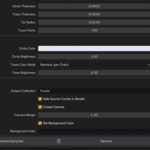
- Circle Thickness
- Thickness of the circle outlines.
- Trace Thickness
- Thickness of the reconstructed trace line.
- Tip Radius
- Size of the moving endpoint marker.
- Trace Points
- Number of points used to draw the trace path.
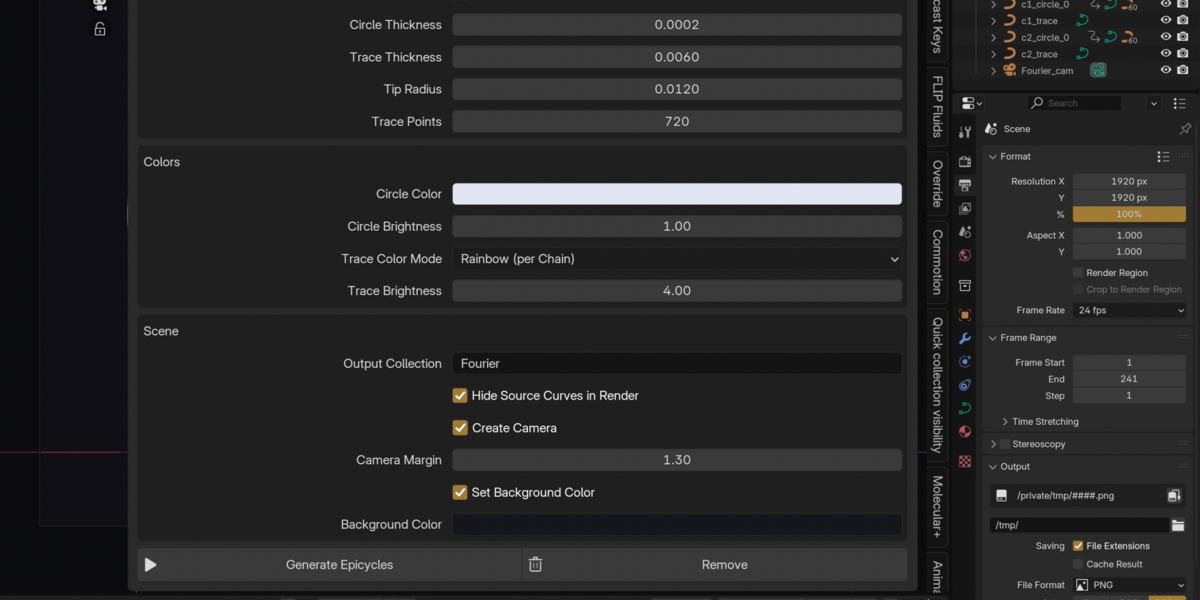
### Colors
- Circle Color
- Circle Brightness
- Trace Color Mode
- Rainbow: assigns a different color to each chain.
- Single Color: uses one fixed trace color for all chains.
- Trace Color
- Trace Brightness
### Scene
- Output Collection
- Name of the generated collection.
- Hide Source Curves in Render
- Hides the original source curve objects from renders.
- Create Camera
- Generates an orthographic top-down camera aimed at the drawing.
- Camera Margin
- Adjusts camera framing around the drawing.
- Set Background Color
- Applies a custom background color to the world.
## How the add-on works
The process is straightforward:
1. The input curve is sampled into points.
2. Those points are resampled into a uniform set of points for FFT analysis.
3. The FFT breaks the curve into frequency components.
4. Each component is converted into a circle with a radius and rotation speed.
5. The circles are linked together in a chain.
6. The endpoint of the chain traces the reconstructed curve over time.
This is a classic Fourier series visualization, but implemented in a practical Blender workflow.
## Best practices
- Use clean, simple curves for the best results.
- For highly detailed shapes, use larger Sample Points values.
- Increase the number of circles when you want a more faithful reconstruction.
- Keep the drawing centered in the XY plane for cleaner camera framing.
- If the trace looks noisy, increase the number of sample points or reduce the number of circles.
- Use the "Join All Splines" option when you want one continuous animation rather than multiple independent chains.
## Common workflow examples
### Hand-drawn logo or line art
- Draw a simple 2D curve in Blender.
- Select the curve and generate epicycles.
- Adjust circle count and sample points until the trace matches the shape.
- Render with the generated orthographic camera for a clean motion graphic result.
### Decorative looping animation
- Use a closed loop or repeated path.
- Set a frame count for one cycle.
- Keep the trace growing over time for a smooth reveal effect.
- Use the rainbow option for a vibrant animation style.
### Technical or scientific visualization
- Use a precise closed curve.
- Increase sample resolution for smoother harmonic decomposition.
- Use a single trace color for a cleaner presentation.
## Troubleshooting
### No curves found
This happens when no curve objects are selected or no curve objects are present in the chosen source collection.
Try:
- selecting actual curve objects
- checking the collection assignment
- confirming the object type is Curve
### Curves do not contain any usable splines
This usually means the selected object has no valid spline data or the Bezier data is empty.
Try:
- creating a curve with at least two control points or a valid spline
- using a simple curve object instead of unsupported data
### The output is too rough or inaccurate
Increase:
- Sample Points
- Circles per Chain
- Bezier Resolution
### The output is too dense or visually noisy
Reduce:
- Circles per Chain
- Sample Points
- Trace Points
### The generated animation is not looping cleanly
Make sure Set Scene Frame Range is enabled and that your animation is designed for a complete cycle.
## Limitations
- This add-on works best with flat 2D curves in the XY plane.
- Very complex shapes may require higher FFT settings.
- The add-on is designed for stylized and artistic outputs, not for exact CAD-like vector reproduction.
- The reconstructed path is an approximation, not a perfect mathematical copy of the original curve.
## Output collection
The add-on creates a collection named by the Output Collection setting. Inside it you will find:
- circle guides
- radius arms
- trace curves
- the generated endpoint tip
- optional camera
This collection is removed when you use the Remove button, allowing you to regenerate a fresh result.
## Remove generated output
Use the Remove button in the panel to delete the generated collection and any temporary materials and curves created by the add-on.
## License
This add-on is distributed under the GPL-3.0-or-later license.
## Support
For technical support, updates, or questions, refer to the project repository or the add-on maintainer listed in the Blender add-on metadata.
## Summary
The Fourier Epicycles add-on is a practical way to turn a 2D curve into a harmonic, rotating, animated drawing. By using the FFT, it automatically extracts the frequencies that define the path and reconstructs the motion in a visually expressive form.
Whether you are creating motion graphics, artistic traces, or procedural loop animations, this add-on gives you a fast and flexible way to explore Fourier-based motion in Blender.
Have questions about this product?
Login to message
| Blender Extension Compatible | Yes |
| Dev Fund Contributor | |
| Published | 3 days ago |
| Blender Version | 2.9 - 5.2 |
| Extension Type | Add-on |
| License | GPL |
