Pgt Fractal Generator
 Jonas Mangelschots


Installation Guide
Step 1: Download the Add-on
- After purchasing, download the provided zip file. Do not unzip it – Blender will handle this for you.
Step 2: Open Blender
- Launch Blender.
Step 3: Access Preferences
- In Blender, go to
Edit>Preferences. This will open the Preferences window.
Step 4: Install the Add-on
- In the Preferences window, navigate to the
Add-onssection. - Click on
The arrowin the top right corner thenInstall from disk... - Locate and select the downloaded zip file.
- Click
Install Add-onto proceed.
Step 5: Enable the Add-on
- After installation, a new entry for the Procedural Generator Toolkit will appear in the Add-ons list.
- Check the box next to the add-on name to enable it.
- If you do not see the add-on in the list, use the search bar in the Add-ons section and type “Procedural Generator Toolkit” to find it.
Step 6: Restart Blender (Important)
- If this is not your first time installing a PGT product, it’s crucial to restart Blender to ensure the proper functioning of the add-on.
- Simply close and reopen Blender.
Step 7: Accessing the Add-on
- Once
Blender is restarted, you can access the PGT tab in the Blender
interface, typically in the sidebar of the 3D viewport (shortcut N).
Select a generation method by clicking the image.
Step 8: Start Creating!
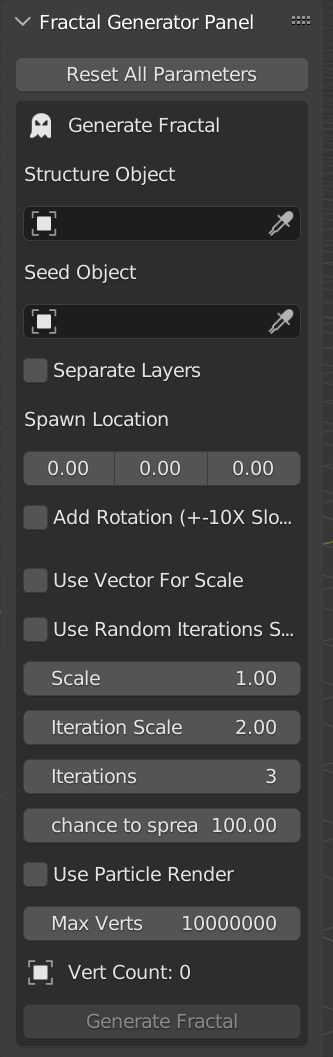
- You are now ready to use the PGT Fractal Generator. Explore its features and start creating stunning Fractal designs!
Need Help? If you encounter any issues during installation or need further assistance, don't hesitate to contact us through our Instagram or Discord channels. Our community is here to help!