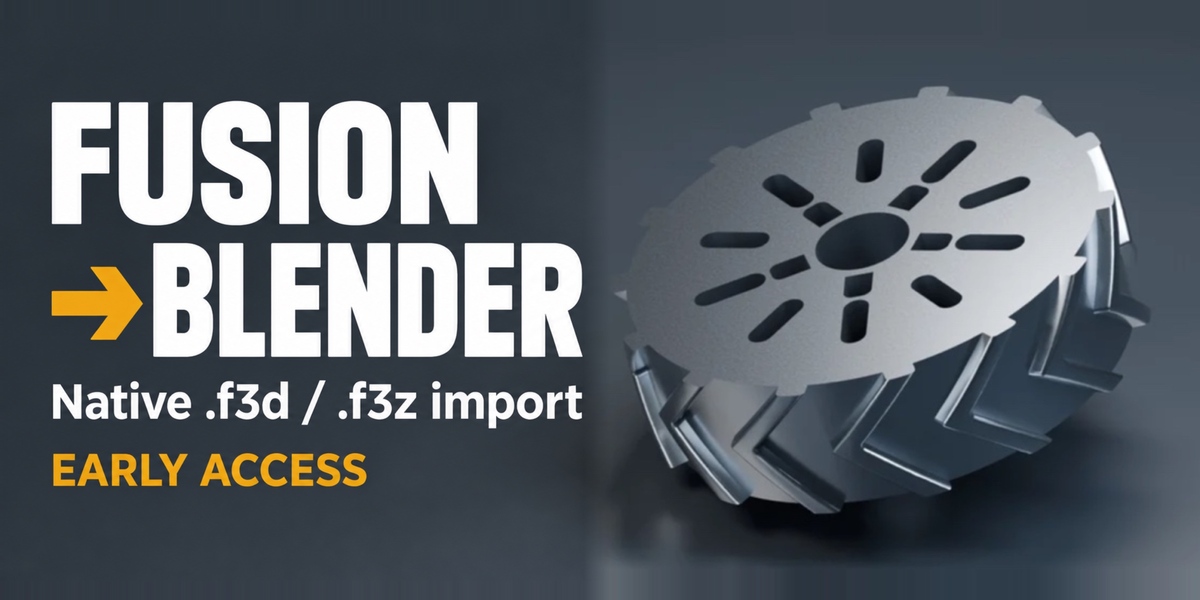
Fusion Native Importer — F3D/F3Z to Mesh (Early Access)
 AS Formworks


Install Fusion Native Importer 0.3.1
In Blender, open Edit → Preferences → Get Extensions. From the upper-right menu choose Install from Disk and select fusion-native-importer-0.3.1-extension.zip while it is still compressed. Enable Fusion Native Importer. The legacy ZIP is an alternative installation for the legacy add-on installer. Choose one installation method.
Try the included bracket
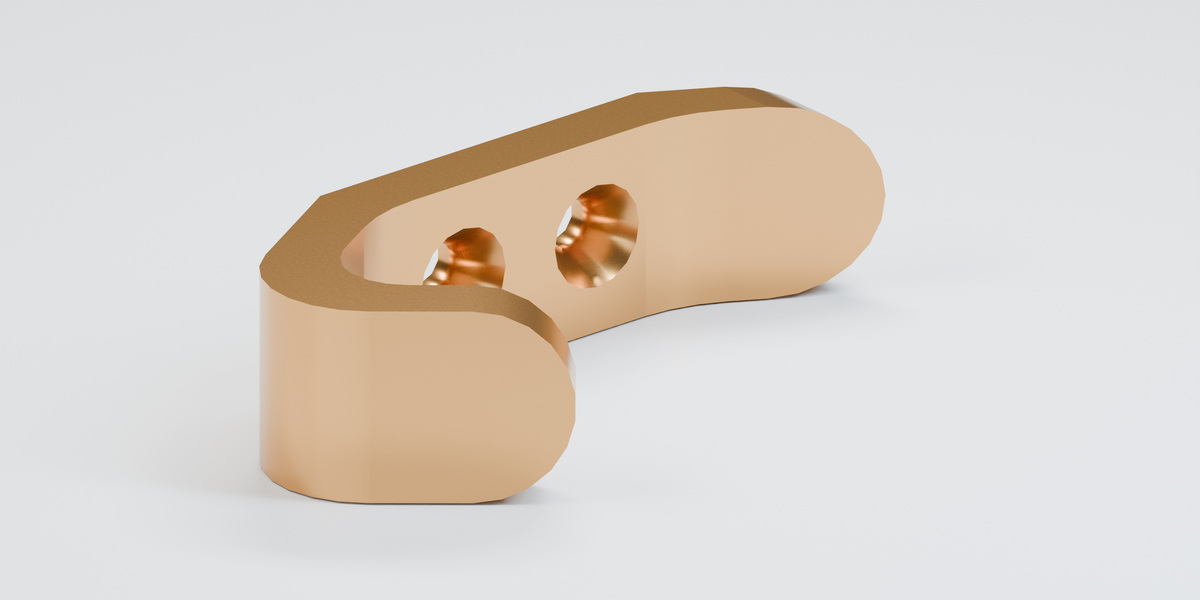
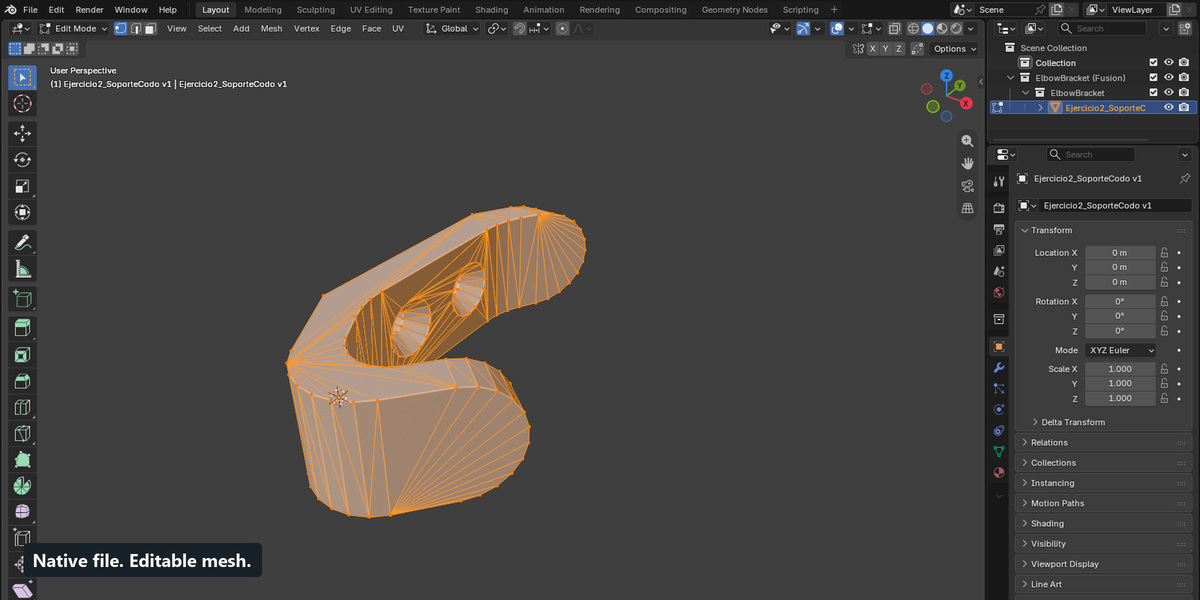
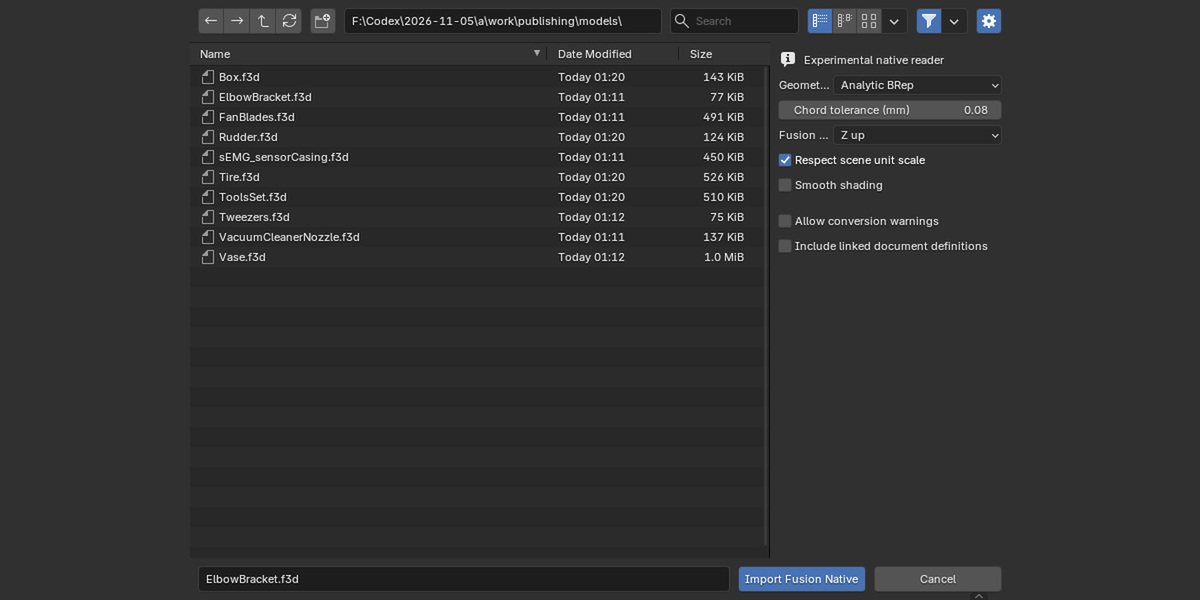
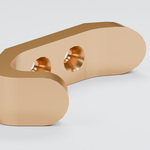
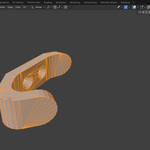
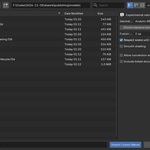
Extract the resources ZIP and locate ElbowBracket.f3d in the examples. In Object Mode, choose File → Import → Autodesk Fusion (.f3d/.f3z). Select Analytic BRep, set chord tolerance to 0.08 mm and choose Z up. Keep Respect scene unit scale on and Allow conversion warnings off. Click Import Fusion Native. Inspect the editable mesh and its dimensions.
Use the optional advanced reader
For broader CAD surface support, open the add-on preferences and choose Install advanced CAD engine. Initial setup needs online access and several hundred MB of downloads. Wait for Advanced engine ready before selecting Advanced CAD. After setup, conversion runs locally. Autodesk Fusion is not required.
Review the import
In Blender’s Text Editor, open Fusion Import Report or Fusion Rejected Import Report. Compare missing faces, body counts, placement and dimensions against your source. Review warnings before choosing to accept them. Invalid CAD geometry checks remain blocking. Save the .blend to keep the report.
Compatibility and examples
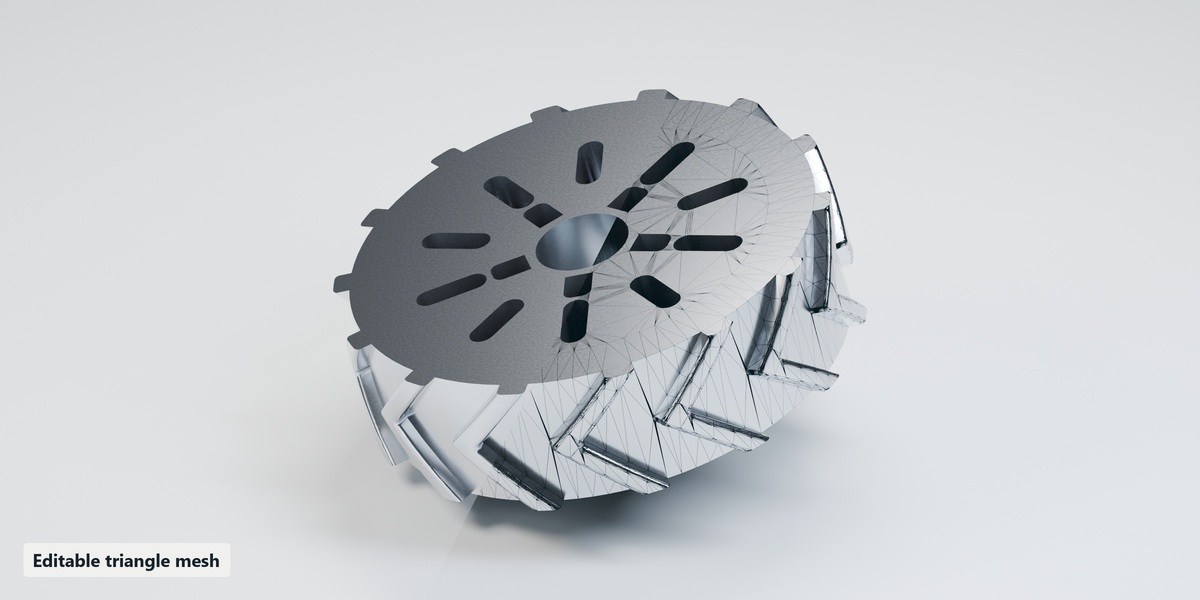
Windows x64 was tested in Blender 5.0.0 and 5.2.1 LTS. Native macOS and Linux testing is pending. F3Z support is experimental. Output is triangulated geometry. For illustrated instructions, troubleshooting and example reports, open START-HERE.html in the extracted resources.
Have questions about this product?
Login to message
| Blender Extension Compatible | Yes |
| Published | 2 days ago |
| Blender Version | 5.0 - 5.2 |
| Extension Type | Add-on |
| License | GPL |