G-Ready - Game Ready Modeling Tools
 Farid Mammadov





📄 G-Ready Addon - Quick Guide
What is it? G-Ready speeds up making game assets in Blender.
Where is it? 3D View Sidebar (Press N) > "G-Ready" tab.
✨ Key Tools & How to Use Them
(Tools grouped by common workflow steps)
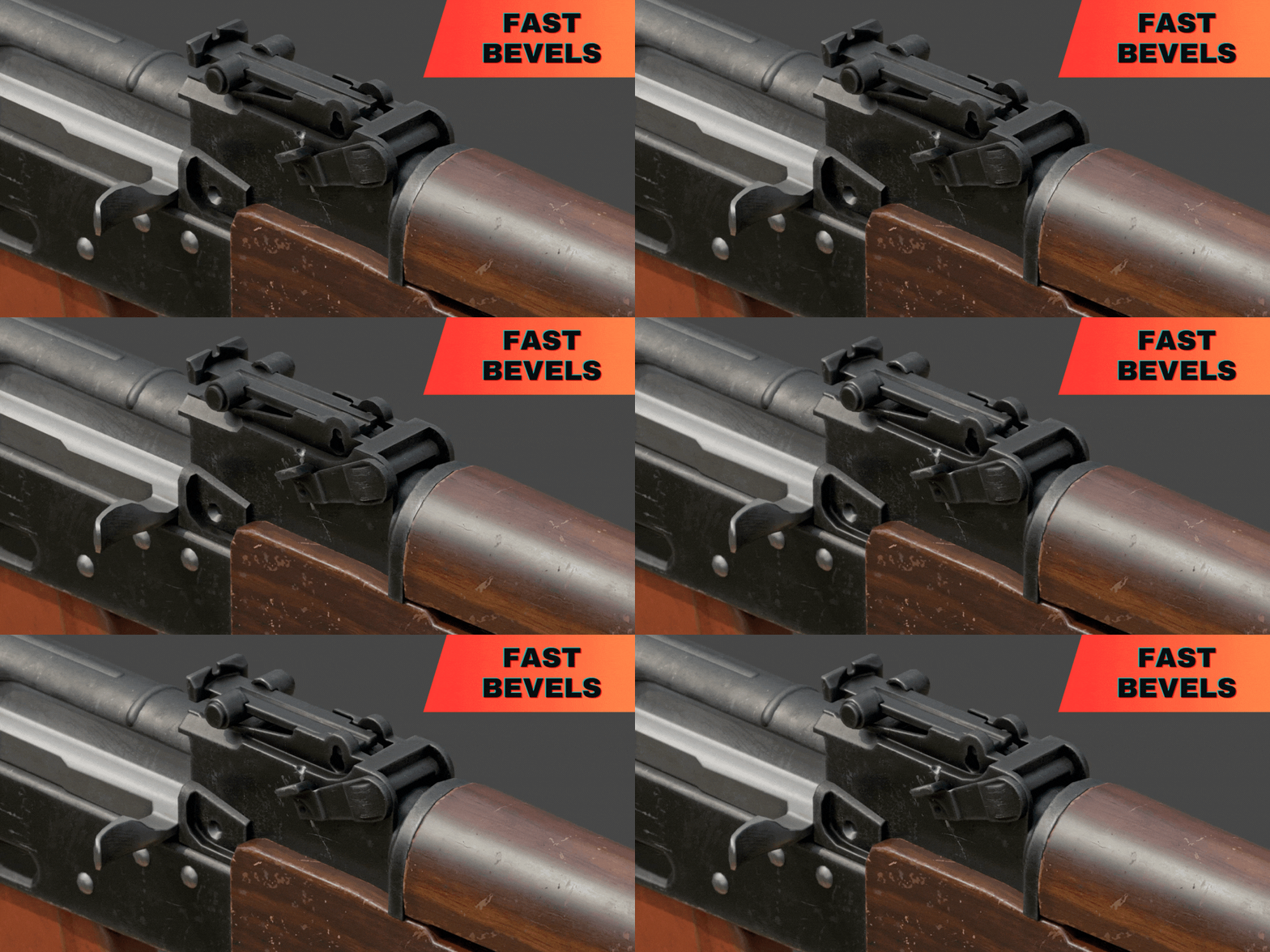
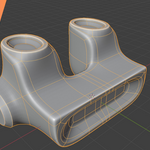
1. Bevel Shader Panel (Looks like Bevel, but no extra geometry!)
* Apply Bevel Shading: Click to set up Cycles render settings & materials for a fake bevel effect (good for previews).
* Remove Bevel: Click to remove the effect.
* Radius Slider: Controls the bevel size.
2. Baking Tools (In "Auto Rename" & "Bake" panels)
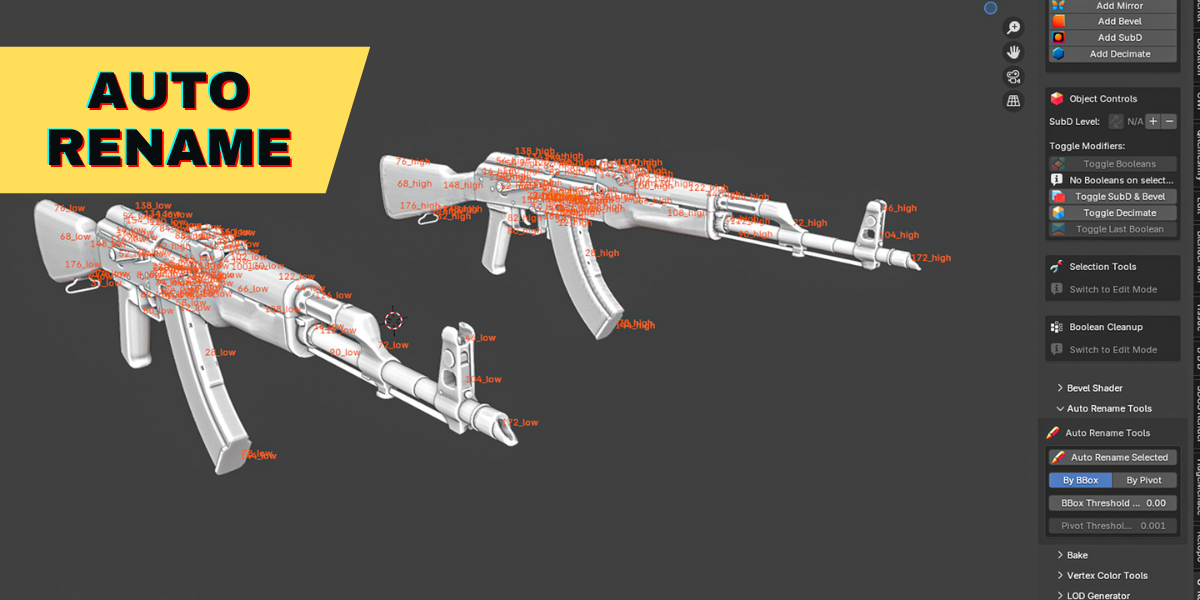
* Auto Rename: Select high & low poly objects together -> Click button. It renames them _low/_high and puts them in "Low" & "High" collections (case-sensitive). Recommended first step for High-to-Low baking.
* Create Cages: Makes offset cage meshes from objects in the "Low" collection. Click button after Auto Rename.
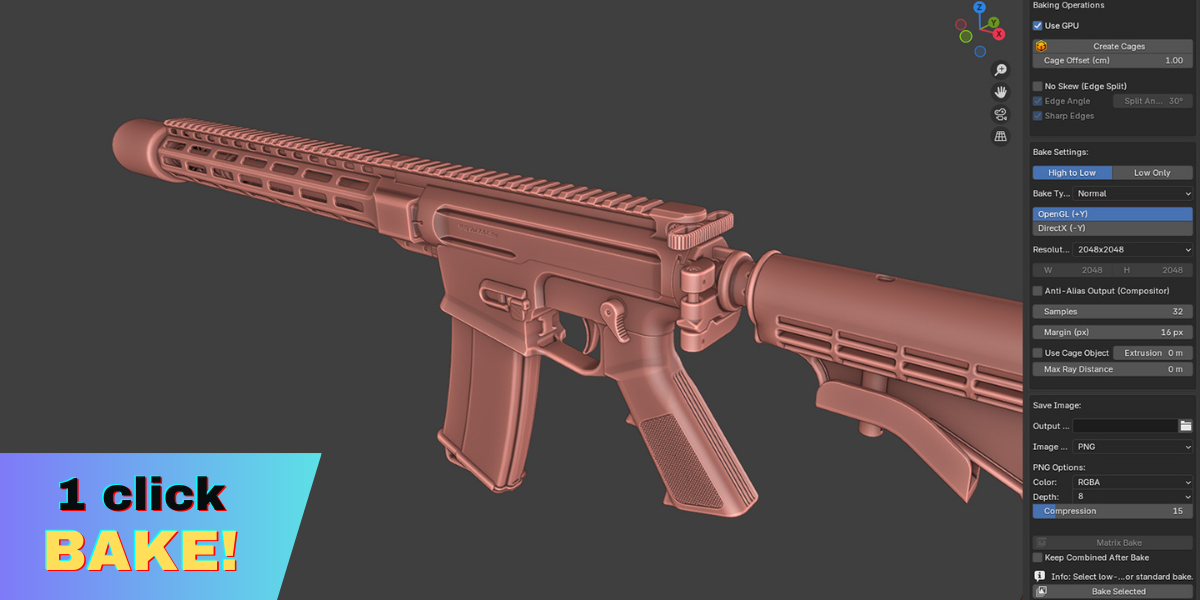
* Bake Settings: Choose map type (Normal, AO...), resolution, save location ("baked_maps" subfolder is created), format etc.
* Mode: Set to High to Low or Low Only.
* Bake Buttons:
* Matrix Bake (Experimental): Bakes multiple assets onto one map. For Low Only, select the low-poly objects. For High to Low, it finds pairs by name across the scene.
* Bake Selected: Standard bake. How to use depends on Bake Mode:
* For Low Only Mode: Simply select the low-poly object(s) you want to bake and click Bake Selected.
* For High to Low Mode:
1. Make sure you have objects named _low in the "Low" collection and matching _high objects in the "High" collection (use Auto Rename for this). Case matters!
2. Then, select ONLY the _low object(s) you want to bake onto.
3. Click Bake Selected. The addon will find the corresponding _high object(s) automatically.
* Multiple High-Polys: Name extra high-poly parts like MyModel_high.001, MyModel_high.002 – they'll be included automatically when baking MyModel_low in High to Low mode.
* Handles Multiple Materials: Works fine if your low-poly has several materials.
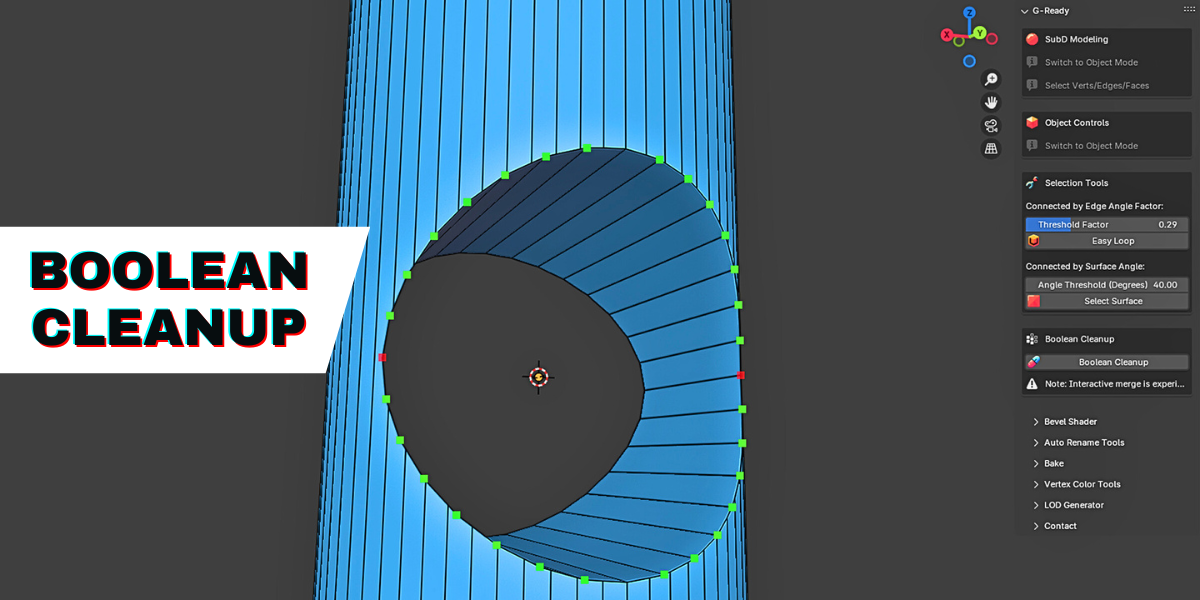
3. Boolean Cleanup Panel (Edit Mode)
* Boolean Cleanup: Helps fix messy edges from Booleans.
* How: Select the messy edge loop -> Click button -> Use interactive mode:
* Mouse L/R: Change merge distance.
* Wheel: Swap which side moves.
* LMB: Apply merge. RMB/ESC: Cancel.
* Warning: Experimental! Select the seam carefully.
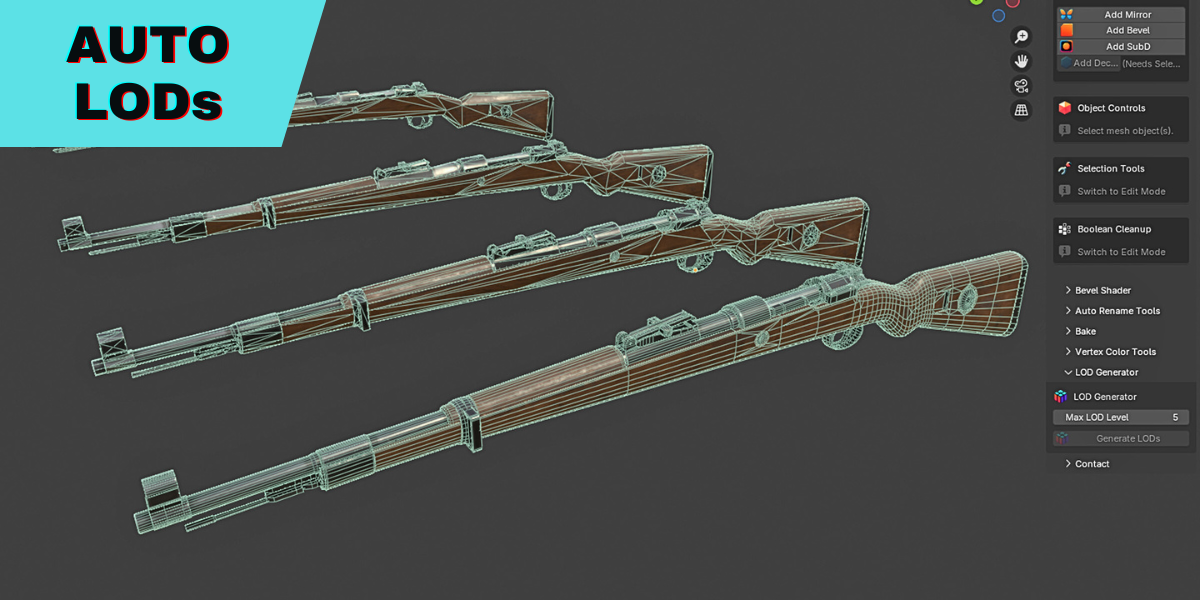
4. LOD Generator Panel (Object Mode)
* Generate LODs: Creates simplified versions (Levels of Detail).
* How: Select base model(s) -> Set max level -> Click button.
* Result: Creates _LOD0, _LOD1... objects in new collections, with some auto-cleanup applied.
5. Selection Tools Panel (Edit Mode)
* Easy Loop: Selects edges following a smooth path. Select start edge -> Adjust factor -> Click.
* Select Surface: Selects flat connected areas. Select start face -> Adjust angle -> Click.
6. Vertex Color Tools Panel (Edit Mode)
* Apply Custom/Random: Colors selected faces with your chosen color or a unique random one. This is great for creating ID maps used in texturing software like Substance Painter to easily assign materials to different parts of your model.
* Select by Color: Selects all faces matching the color of your currently selected face(s).
7. Object Controls Panel (Object Mode)
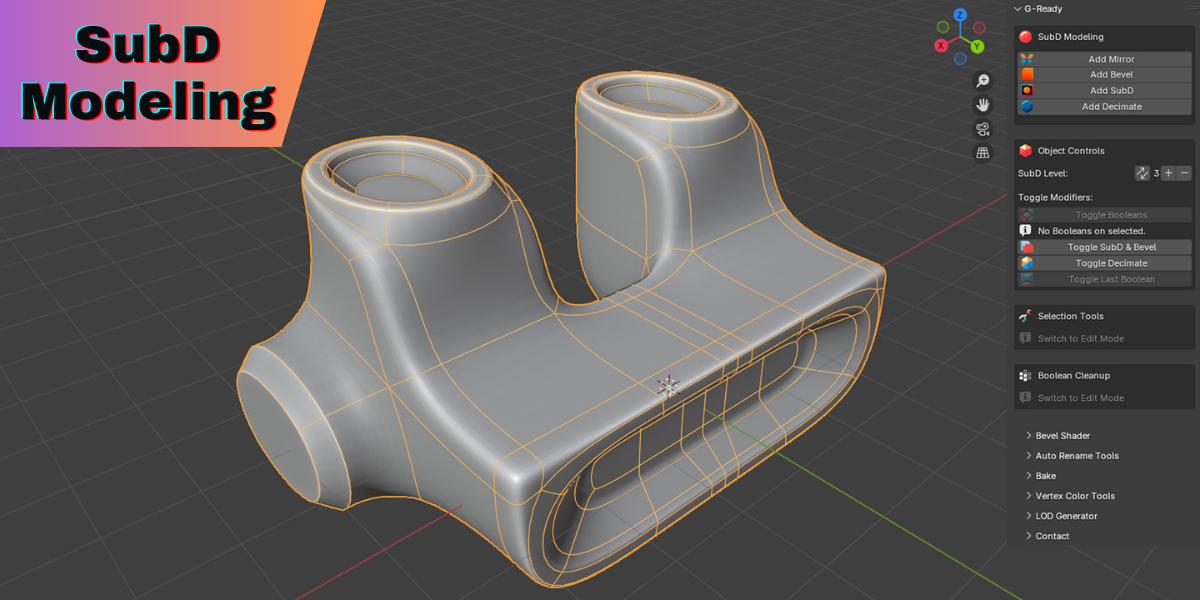
* SubD Level: Change (+/-) or Sync SubD levels across selected objects.
* Toggle Modifiers: Quickly show/hide Booleans, SubD/Bevel, Decimate, or the Last Boolean modifier in the viewport.
8. SubD Modeling Panel
* Quick Modifiers (Object Mode): Add Mirror, Bevel, SubD, or Decimate mods easily.
* Edge Data (Edit Mode): Apply/Reset Bevel Weight or Crease values using sliders.
💡 Important Notes
Check Mode: Some tools work only in Object Mode, others only in Edit Mode. Buttons will be greyed out if you're in the wrong mode.
-
Naming & Collections for Baking:
Using _low/_high/_cage suffixes is crucial. Use .001, .002 suffixes on _high names for multiple high-poly parts per low-poly.
The "Low" and "High" collections (case-sensitive) are essential for the standard High to Low workflow. Use Auto Rename to set this up easily.
Remember the specific selection requirements for Bake Selected based on the chosen mode.
Experimental Tools: Boolean Cleanup, Matrix Bake, Compositor AA need caution. Save first! Compositor AA clears your compositor setup.
Multiple Materials: Baking works fine if your low-poly has several materials.
⚙️ Installation
Download the addon .zip file.
In Blender: Edit > Preferences > Add-ons > Install...
Select the .zip file.
Enable "Object: G-Ready".
Find it in the 3D View Sidebar (N key) > "G-Ready" tab.
-
$14.90
Perfect for freelancers, students, or hobbyists.
-
$29.90
For small teams (up to 5 users). Great for indie game studios or collaborative projects.
-
$44.90
For larger studios or organizations (unlimited users within the studio).
Have questions about this product?
Login to message
Discover more products like this
modeling surfacing Game asset bevel Cycles blender G-Ready SubD Modeling Auto Bevel game ready subd addon blender