 DC Labs


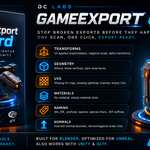
GameExport Guard — Pre-Flight Validator for Unreal & Unity
Stop broken exports before they happen. One scan. One click. Export-ready.
You know this loop.
Export your FBX. Import into Unreal. And there it is — your mesh is 100x too big, the normals are inside-out, the lightmaps won't bake because there's no second UV channel, and half your objects are named "Cube.003".
So you go back to Blender. Fix one thing. Export again. Import again. Find the next problem. Again. And again.
That loop costs you 20–40 minutes per asset. Across a project, it costs you days.
GameExport Guard kills the loop. Pick your engine, hit Scan, and see every single issue that would break your asset in-engine — before you ever touch the export button. Then fix them all with one click.
What it catches
Transform killers
- Un-applied scale — the #1 cause of wrong-sized meshes in Unreal
- Un-applied rotation
- Negative scale that silently flips your normals in-engine
- Delta transforms that exporters ignore or mangle
Geometry traps
- NGons — faces that triangulate differently in the engine than in your viewport
- Loose vertices floating in space, inflating your vertex count
- Zero-area faces that break baking
UV & lightmap problems
- Missing UV maps entirely
- Missing second UV channel — the silent killer of Unreal lightmap baking
- "Empty" UV maps where every coordinate sits at (0,0)
Material issues
- Objects with no material (hello, checkerboard default)
- Empty material slots that create junk material IDs in-engine
Naming violations
- Missing SM_ / SK_ prefixes (Unreal convention — automatically detects skeletal meshes)
- Spaces and special characters that break pipelines and scripts
- Blender's .001 / .002 duplicate suffixes
- Mesh data names out of sync with object names
Normal problems
- Inverted meshes (normals facing inward) detected automatically
- Inconsistent normals that cause blotchy, broken shading
Engine-aware, not generic
GameExport Guard doesn't just run generic checks — it validates against the actual conventions of your target engine:
- Unreal Engine preset — enforces SM_/SK_ prefixes, requires a "Lightmap" UV channel, warns about the centimeter scale mismatch
- Unity preset — meter-scale validation, "UV2" lightmap channel
- Generic / glTF preset — engine-agnostic core checks for everything else
Fix everything in one click
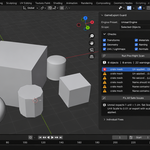
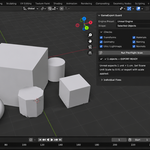
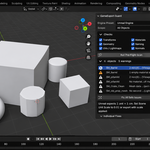
Every issue in the report is clickable — click it, and the offending object is selected and made active so you can inspect it.
Then choose your weapon:
- Fix All Safe Issues — applies transforms, recalculates normals, deletes loose vertices, generates lightmap UV channels, cleans empty material slots, and fixes every name. One button. Full undo support.
- Individual fix buttons — surgical control when you want it: apply transforms only, triangulate ngons only, fix names only, and more.
One deliberate design choice: NGon triangulation is never automatic. Changing topology should always be your call — so it gets its own button, separate from Fix All.
How it works
- Open the Export Guard tab in the 3D Viewport N-panel
- Pick your engine preset and scope (Selected / Visible / All objects)
- Toggle any check categories on or off
- Hit Run Pre-Flight Scan
- Review the report → Fix All Safe Issues → re-scan → ✓ EXPORT READY
That's it. What used to be four round-trips to Unreal is now 30 seconds in Blender.
Who it's for
- Game artists shipping assets to Unreal or Unity every day
- Indie devs who can't afford to burn an afternoon on a broken import
- Outsource / freelance artists who need every delivery to meet studio naming and pipeline standards the first time
- Educators & students learning the correct export workflow from day one
Compatibility
- Blender 4.2 LTS and newer, including the 5.x series
- Works with linked/library assets in your scene (they're scanned, and safely skipped by auto-fixes)
- Zero dependencies — pure Python, nothing to install beyond the addon itself
From DC Labs
Built by the makers of Optimesh Pro and Hyper Asset Browser. We build workflow tools that remove the boring parts of 3D production — check out the rest of the store.
Questions? Use the Contact Creator button — we respond fast, and every purchase includes support.