 DC Labs


GameExport Guard — Documentation
Installation
- Download
gameexport_guard.zipfrom your Superhive purchases (do NOT unzip it) - In Blender, go to Edit > Preferences > Add-ons
- Click the dropdown arrow (top-right) > Install from Disk...
- Select the downloaded zip file
- Enable the checkbox next to GameExport Guard
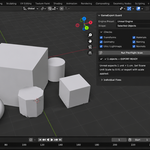
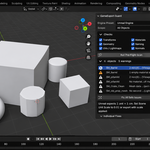
- In the 3D Viewport, press N to open the side panel — you'll find the Export Guard tab
Requires Blender 4.2 or newer. No additional dependencies.
Quick Start (30 seconds)
- Select the objects you want to export (or set Scope to "All Objects")
- Choose your Engine Preset: Unreal Engine, Unity, or Generic/glTF
- Click Run Pre-Flight Scan
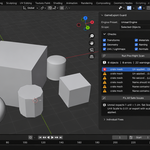
- Review the issue list — click any issue to select that object in the viewport
- Click Fix All Safe Issues
- Re-scan until you see ✓ EXPORT READY — then export as usual
The Panel, Explained
Engine Preset
- Unreal Engine — enforces SM_ prefix on static meshes and SK_ on skeletal meshes (objects with an Armature modifier), requires a second "Lightmap" UV channel, and shows a scale hint for Unreal's centimeter units
- Unity — expects meter scale and a "UV2" lightmap channel
- Generic / glTF — core checks only, no naming or lightmap requirements
Scope
- Selected Objects — only what you have selected (default)
- Visible Objects — everything visible in the viewport
- All Objects — every mesh in the file, including hidden ones
Check Categories (toggle on/off)
| Category | What it flags |
|---|---|
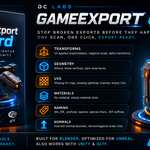
| Transforms | Un-applied scale/rotation, negative scale, delta transforms |
| Geometry | NGons (faces with 5+ sides), loose vertices, zero-area faces |
| UVs / Lightmaps | Missing UV map, missing second UV channel, empty UVs |
| Materials | No material assigned, empty material slots |
| Naming | Missing engine prefix, spaces, special characters, .001 suffixes, data-name mismatch |
| Normals | Inverted meshes, inconsistent normal direction |
Reading the Report
- Error — will visibly break your asset in-engine (wrong size, inverted shading, failed lightmap bake)
- Warning — likely to cause problems or violates convention
- Info — worth knowing, safe to ignore
Click any row to select and activate that object in the viewport.
Fixes
Fix All Safe Issues
Runs, in order: apply rotation & scale → recalculate normals outside → delete loose vertices → generate lightmap UV channels → remove empty material slots → fix names. Then automatically re-scans.
What "safe" means: every operation is non-destructive to your visible result and fully undoable with Ctrl+Z. NGon triangulation is deliberately excluded from Fix All because it changes topology — use its dedicated button when you're ready.
Individual Fixes (collapsible sub-panel)
- Apply Rotation & Scale — on all objects flagged with transform issues
- Recalculate Normals Outside — on objects flagged with inverted/mixed normals
- Triangulate NGons — converts only faces with 5+ sides to triangles (quads untouched, Beauty method)
- Delete Loose Vertices — removes floating verts and edges not attached to faces
- Generate Lightmap UV Channel — adds a second UV channel (named per your engine preset) and unwraps it with Smart Project at a 0.02 island margin
- Remove Empty Material Slots
- Fix Names — strips .001 suffixes, replaces spaces with underscores, removes special characters, adds the engine prefix, and syncs mesh data names to object names
All fixes automatically skip linked (library) objects — they are reported but never modified.
Recommended Workflow
Before every export: Scan → Fix All → handle any remaining ngons manually or via Triangulate → re-scan → export.
For teams/outsourcing: run a scan with scope "All Objects" before delivering a file — the naming and lightmap checks catch the issues studios most commonly bounce deliveries for.
Troubleshooting & FAQ
My flat ground plane is flagged as "inverted normals." Open, flat meshes can confuse the inward-facing heuristic (it's designed for closed-ish meshes). Either ignore that line or toggle the Normals category off for that scan. Your plane is fine.
"Fix All" didn't fix the ngons. By design — see above. Use the Triangulate NGons button in Individual Fixes.
The lightmap fix skipped an object. The object either has no primary UV map yet (unwrap it first — the fix adds a second channel, it doesn't create your first), or it already has 2+ UV channels, or it's a linked asset.
An issue points to an object I can't find. It may be hidden or in an excluded collection. Set Scope to "Selected" to limit scanning, or unhide (Alt+H) to inspect.
Does this work with [exporter X]? Yes — GameExport Guard validates your scene before export and doesn't touch the export process itself. It works alongside Blender's built-in FBX/glTF exporters, Send to Unreal, and any third-party exporter.
Undo? Full support. Ctrl+Z steps back through every fix.
Version History
v1.0.0 — Initial release. 6 check categories, 15+ validators, Unreal/Unity/glTF presets, Fix All + 7 individual fix operators, clickable issue list.
Support
Use the Contact Creator button on this page — include your Blender version and, if possible, a screenshot of the issue list. We aim to respond within 24–48 hours. Bug reports that include a .blend file that reproduces the problem get fixed fastest.
Have questions about this product?
Login to message
| Published | about 2 months ago |
| Blender Version | 4.2 - 5.2 |
| Extension Type | N/A |
| Render Engine Used | Cycles, Eevee |
| License | GPL |