 Mars0hod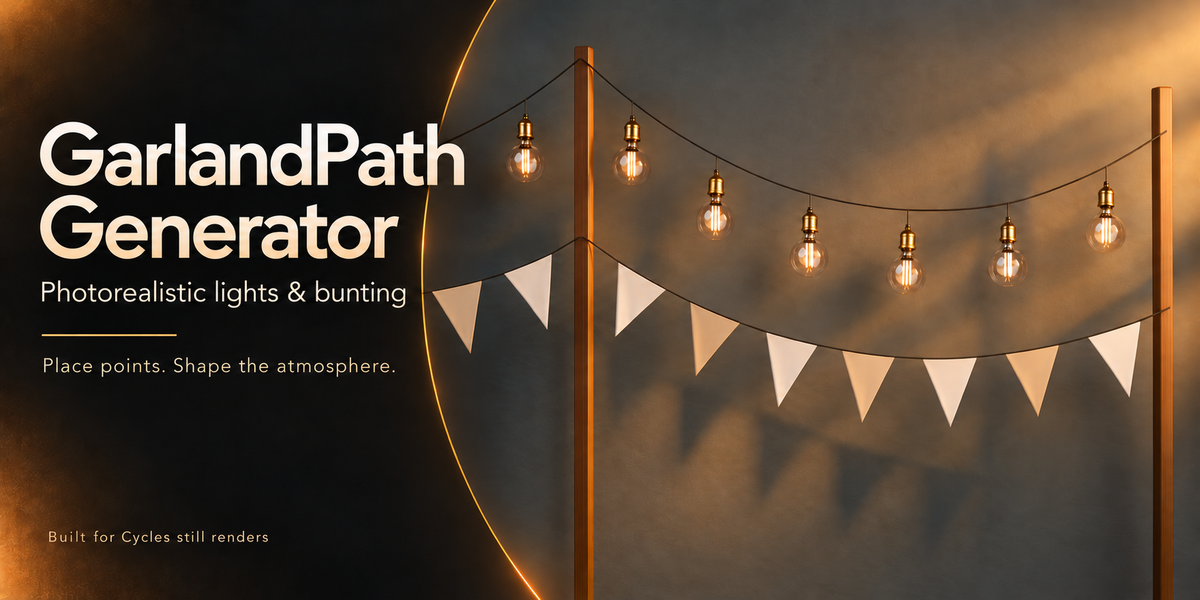


Getting started with GarlandPath Generator
Installation
Download garlandpath_generator-1.2.2.zip. Keep the ZIP intact.
In Blender, open Edit → Preferences → Get Extensions.
Open the menu and select Install from Disk.
Select the add-on ZIP and enable GarlandPath Generator.
In the 3D Viewport, press N and open the GarlandPath tab.
The demonstration scene and user guides are provided in a separate archive.
Create your first garland
Click Draw garland.
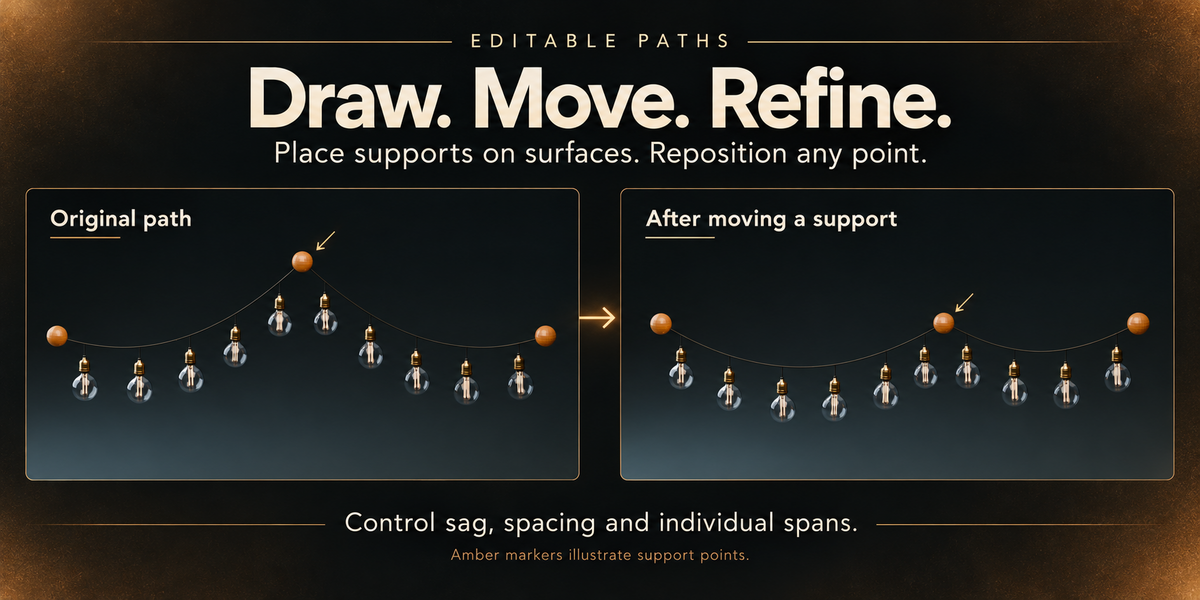
Left-click scene surfaces to place support points.
Press Enter to finish.
Choose Bulbs, Flags, or Bulbs and flags.
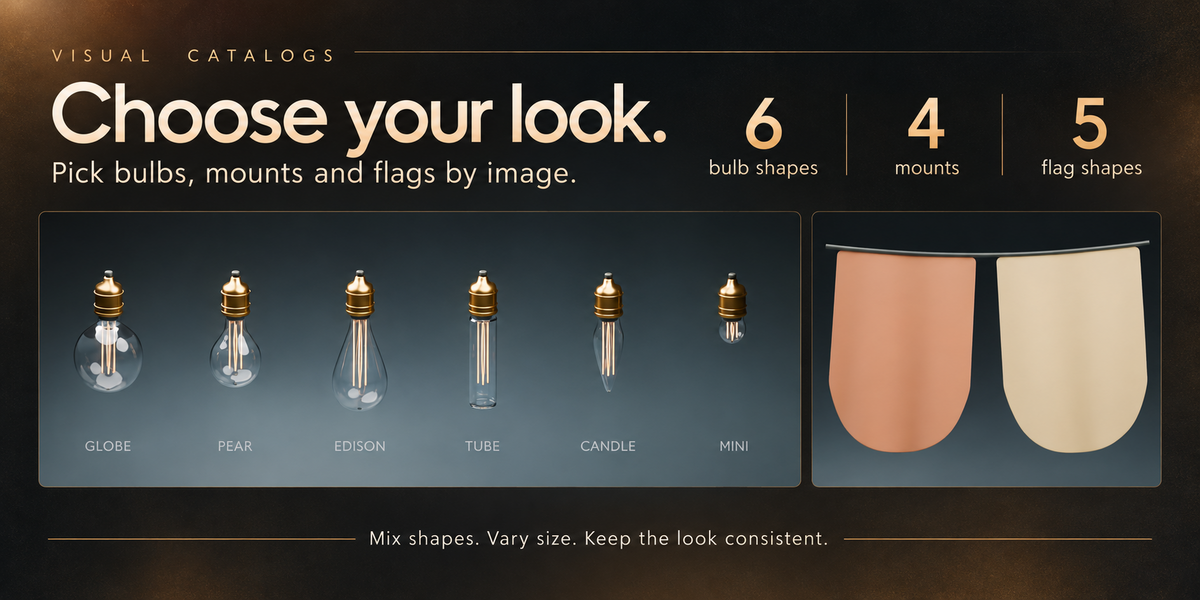
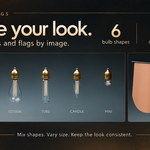
Select your bulb, mounting, flag and cable styles from the image catalogs.
Adjust sag, spacing and element size.
Drawing controls
• Left mouse button: place a support.
• Enter or Space: finish the path.
• Backspace: remove the last point placed during the current drawing operation.
• Esc or right mouse button: cancel.
• F: switch between scene surfaces and a horizontal plane through the 3D cursor.
• Middle mouse button and mouse wheel: navigate the viewport.
Edit an existing garland
Select its controller, a support or a generated decoration to access the settings.
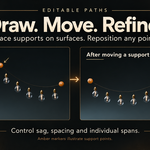
Move supports with Blender’s G shortcut, edit their coordinates, or use Reposition by click in Supports and route. Use Continue to extend the path.
Auto update regenerates the garland when its settings or supports change. If it is disabled, click Refresh.
Appearance
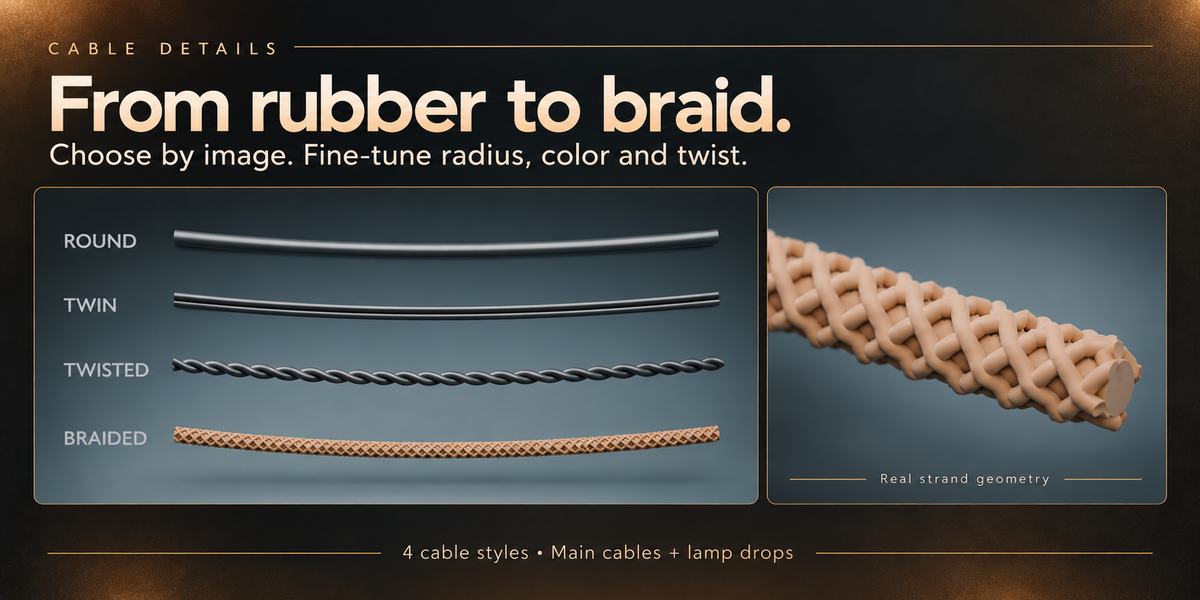
Choose from six bulb shapes, four mounting styles, five flag shapes and four cable constructions. Adjust size variation, suspension length, fabric dimensions and colors.
For Cycles renders, adjust filament emission, light temperature, glass tint and roughness. Additional light helpers are optional.
Static settling
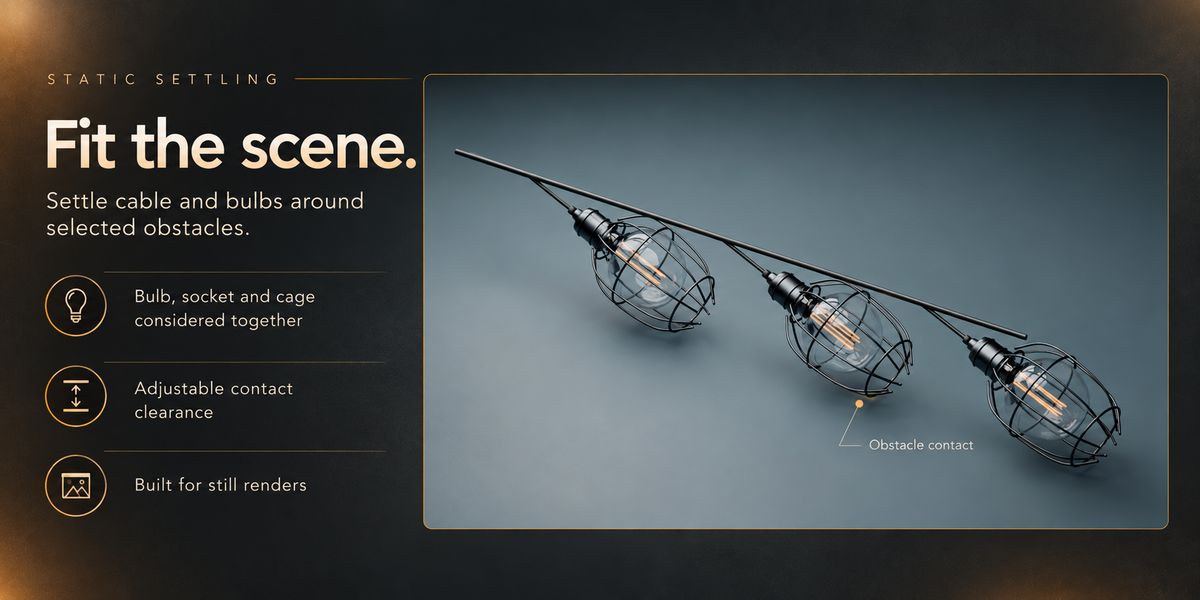
Select an obstacle collection in Final settling.
Use Settle cable and bulbs to settle the cable and fit lamp assemblies around the selected obstacles. Use Settle fabric to simulate the attached fabric and preserve its settled shape.
Allow sufficient spacing between decorations and sufficient clearance around supports. Inspect the result before rendering. These tools are intended for static scenes and still renders.
After fabric settling, use Return to settings before changing its geometry. This restores the procedural fabric, so repeat settling after your edits.
Rendering and mesh copies
The original garland can render directly. Create Mesh Copy is optional and creates an independent mesh version of the current result.
When created through the panel, the copy is enabled for rendering and the original is hidden from rendering to prevent duplicates. Subsequent edits to the original do not update the mesh copy.
Languages
The Language selector is at the bottom of the add-on panel. Interface labels and tooltips support English, German, French, Spanish, Brazilian Portuguese, Russian, Simplified Chinese and Japanese.
Separate user guides are included in English and Russian.
Updating
Save your scene before updating the add-on. Install the newer ZIP and restart Blender if necessary.
Select an existing procedural garland and click Refresh to regenerate its geometry. For settled fabric, use Return to settings first and repeat settling afterward. Recreate existing mesh copies when you want them to include updated geometry.
Support
When reporting a problem, include your Blender version, add-on version, reproduction steps and a screenshot or error message.
Have questions about this product?
Login to message
| Blender Extension Compatible | Yes |
| Published | about 22 hours ago |
| Blender Version | 4.5 - 5.2 |
| Extension Type | Add-on |
| Render Engine Used | Cycles |
| License | GPL |
Discover more products like this
procedural light bulbs ArchViz garland Cable festoon lights bunting flags string lights decoration Cycles Generator