 Megani
GeoBlend
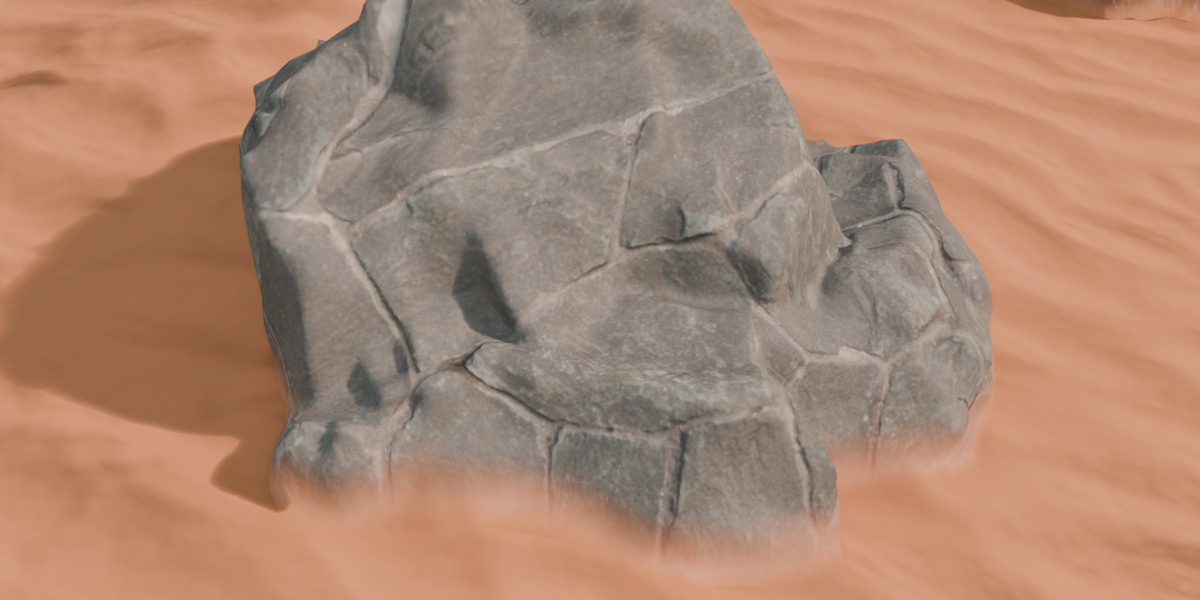
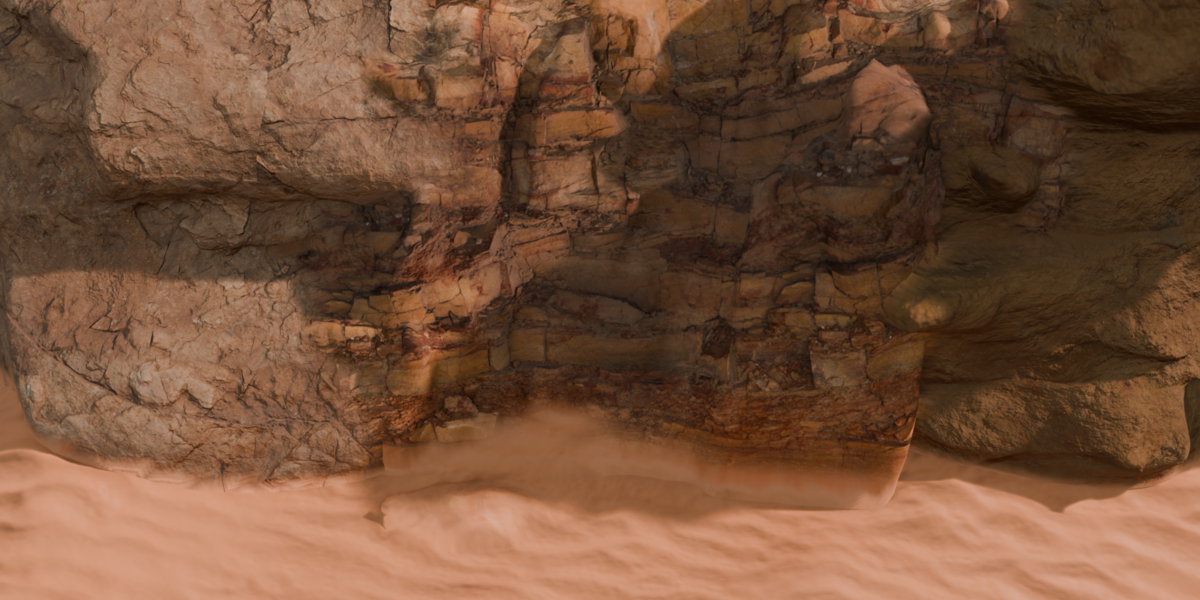
GeoBlend is a Blender addon designed to seamlessly blend two different objects together. It combines geometry and materials using a non-destructive workflow powered by Geometry Nodes and shading techniques.
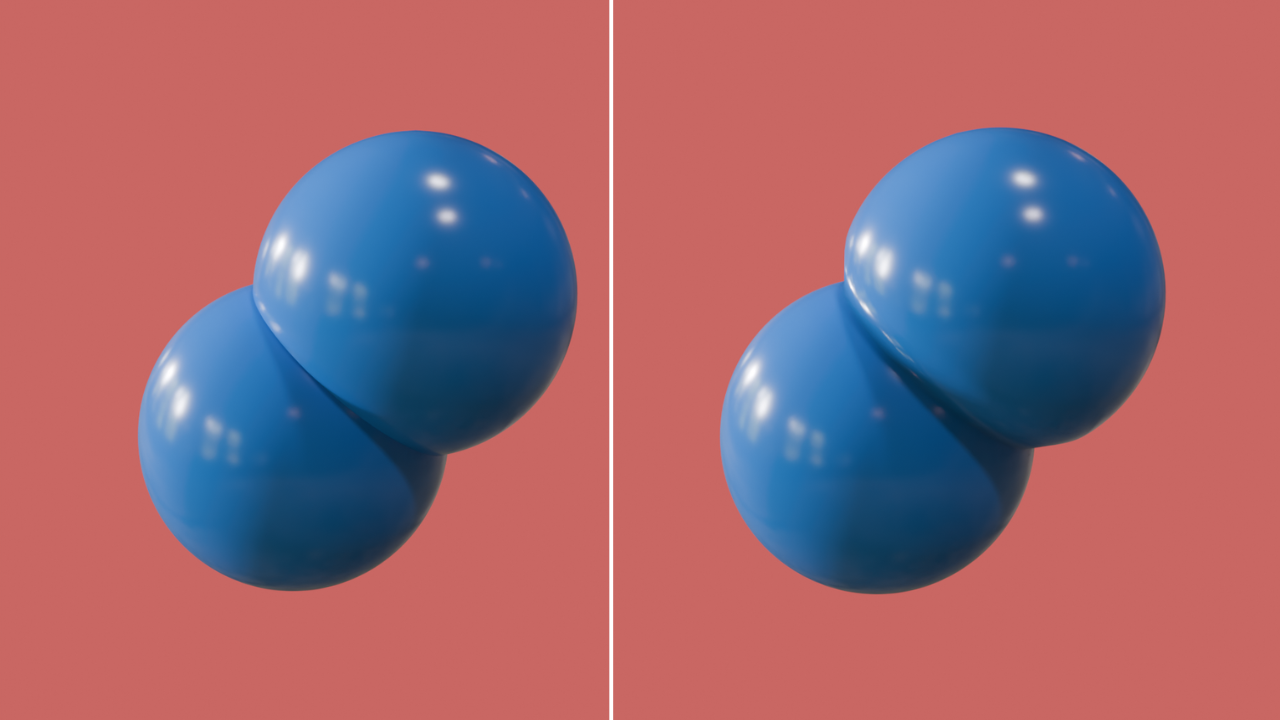
Natural & Organic Blending
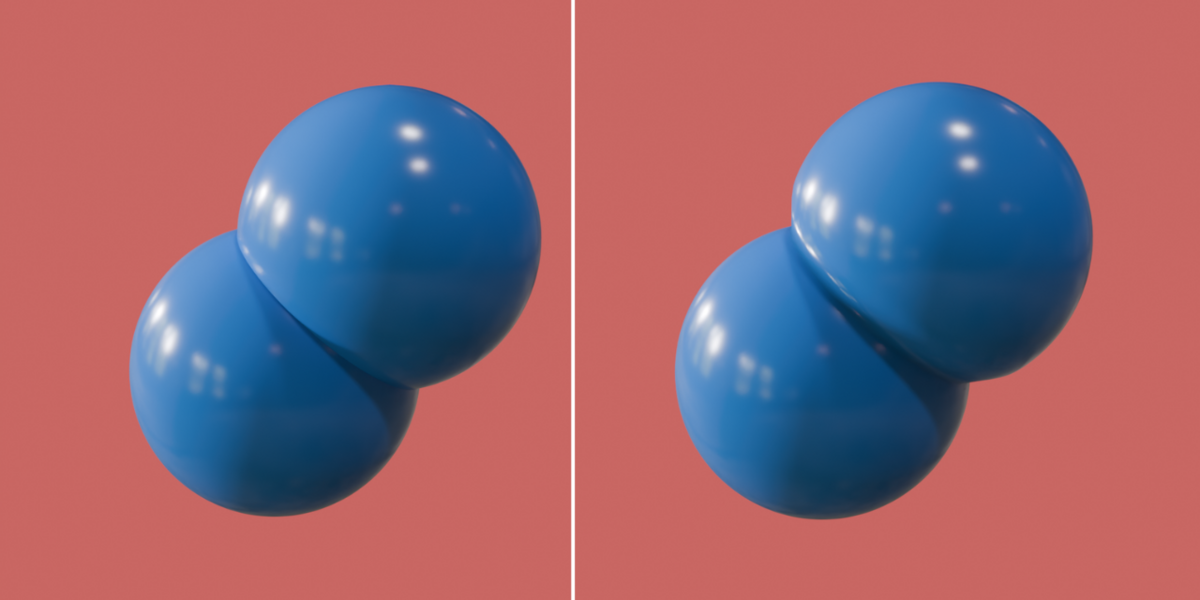
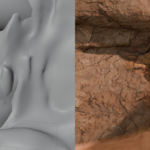
GeoBlend smoothly blends the surface normals of two objects, creating a more natural and organic transition between them.
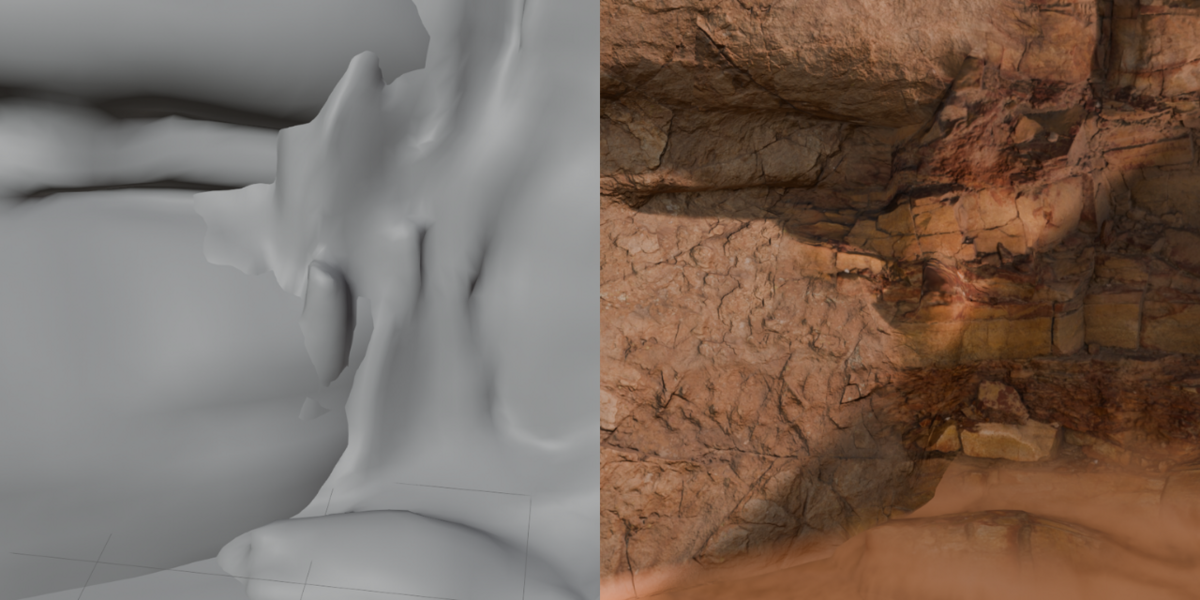
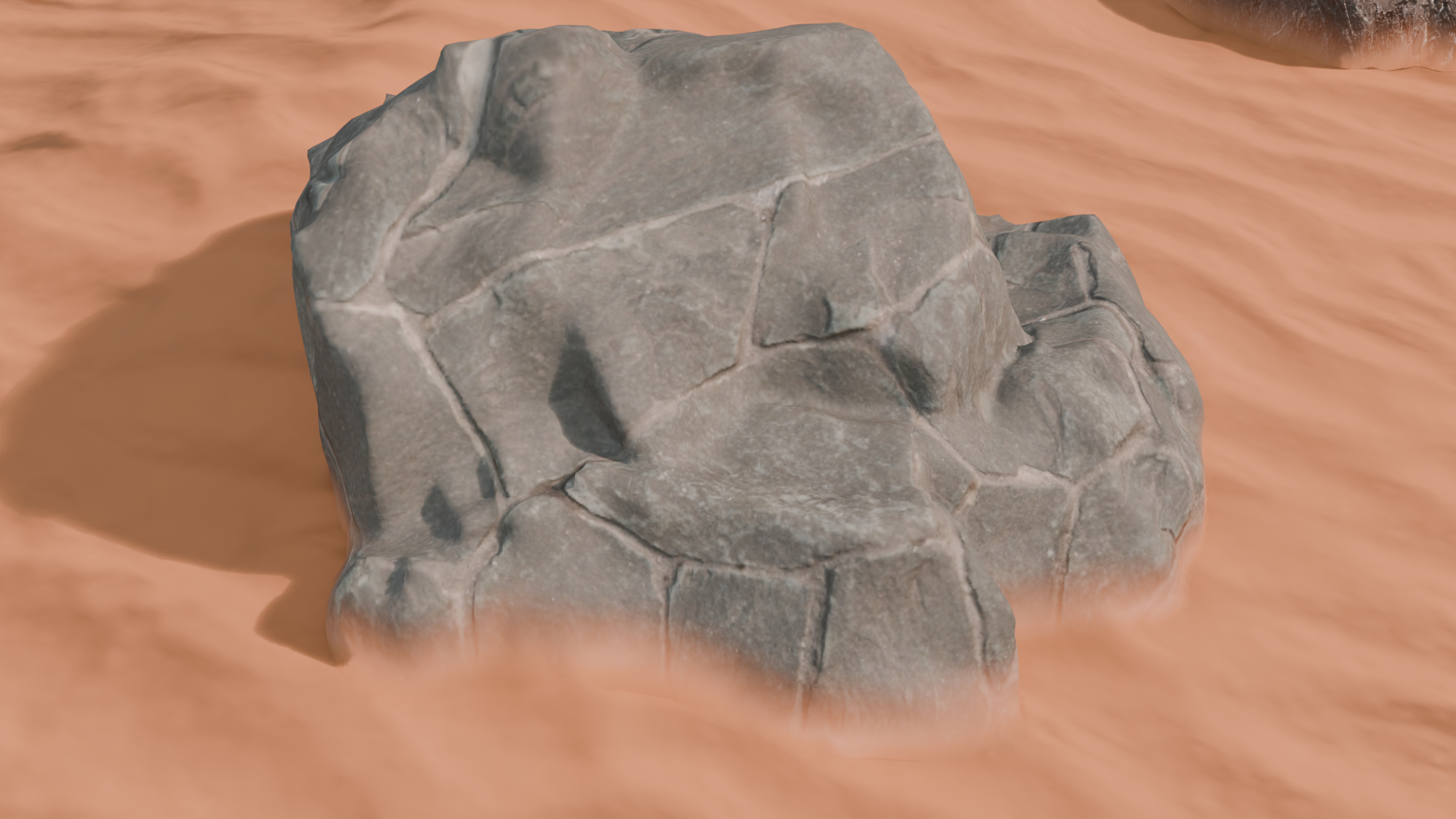
The addon also provides material blending, allowing the materials of two objects to transition smoothly across the blended area.
Features & Parameters
GeoBlend provides several parameters to control how objects are blended:
Blend Into
Select the target object that the current object will blend into.
Reach
Controls how far the blending effect extends from the intersection area.
Falloff
Controls the softness and transition of the blending effect.
Hide Inside
Removes hidden geometry inside the target object that is no longer visible after blending.
Adhesion
Controls how strongly the object conforms to and adheres to nearby surfaces of the target object.
Relax
Smooths the area where the two objects meet. You can control both the strength of the smoothing and the distance over which it is applied.
Normal Blend
Controls the strength of the normal blending between the two objects.
Bend Limit
Controls the maximum amount of surface bending applied during the blending process.
Their Material
Controls the opacity of the target object's material within the blended area.
Material Spread
Controls how far the target object's material spreads across and covers the main object.
UV Placing
Determines which object's UV coordinates are used for the blended material:
This UV – Uses the main object's UV map.
Their UV – Uses the target object's UV map.
If Their UV causes texture stretching, try switching to This UV.
UV Target
Specifies the UV map used from the target object.
The available UV map is automatically detected based on the target object's UV setup.
Common Problems & Solutions
Problem: Incorrect Material Blending
Sometimes the blended material may not match the expected target material, especially when objects already contain previous GeoBlend setups.
Solution
Remove the existing GeoBlend setup from Object A and Object B.
Blend Object A first.
Then blend Object B into the desired target.
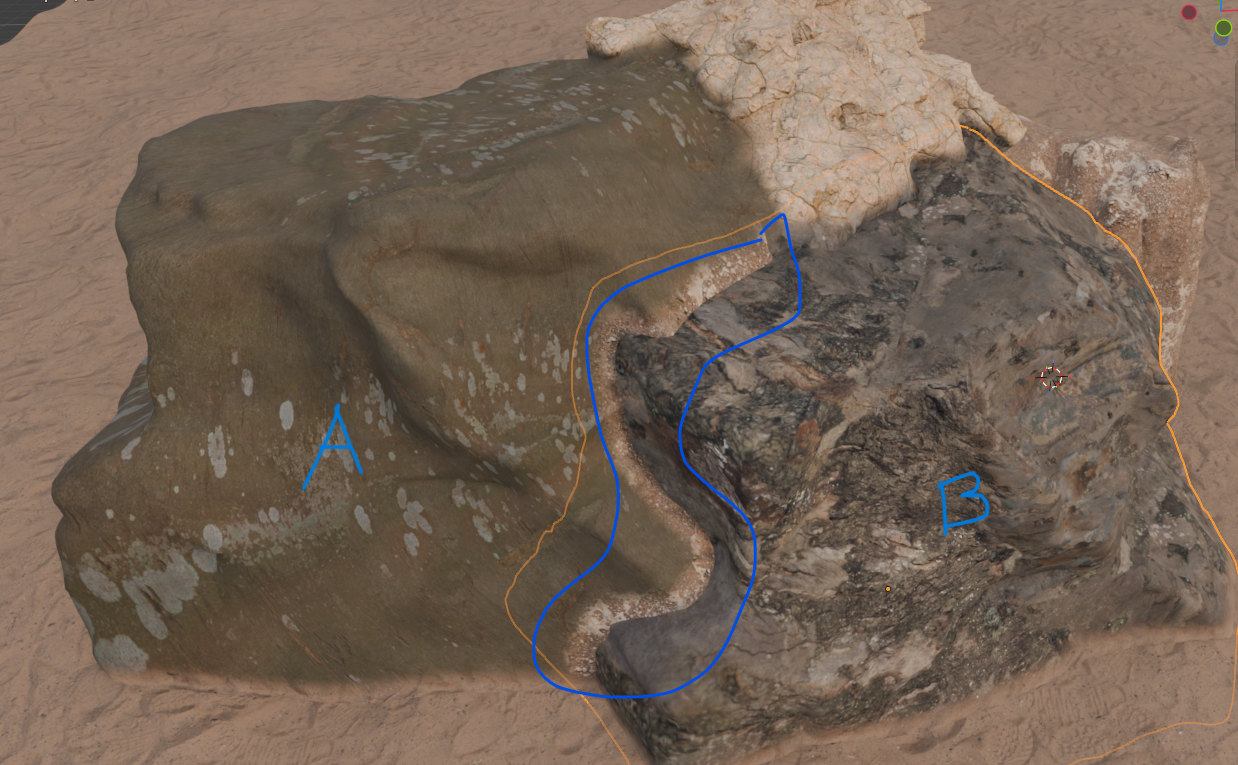
Problem: Black Material
If the blended area appears black or the material is displayed incorrectly:
Solution
Remove the existing GeoBlend setup from Object A and Object B.
Apply the blend to Object A first.
Then apply the blend to Object B.
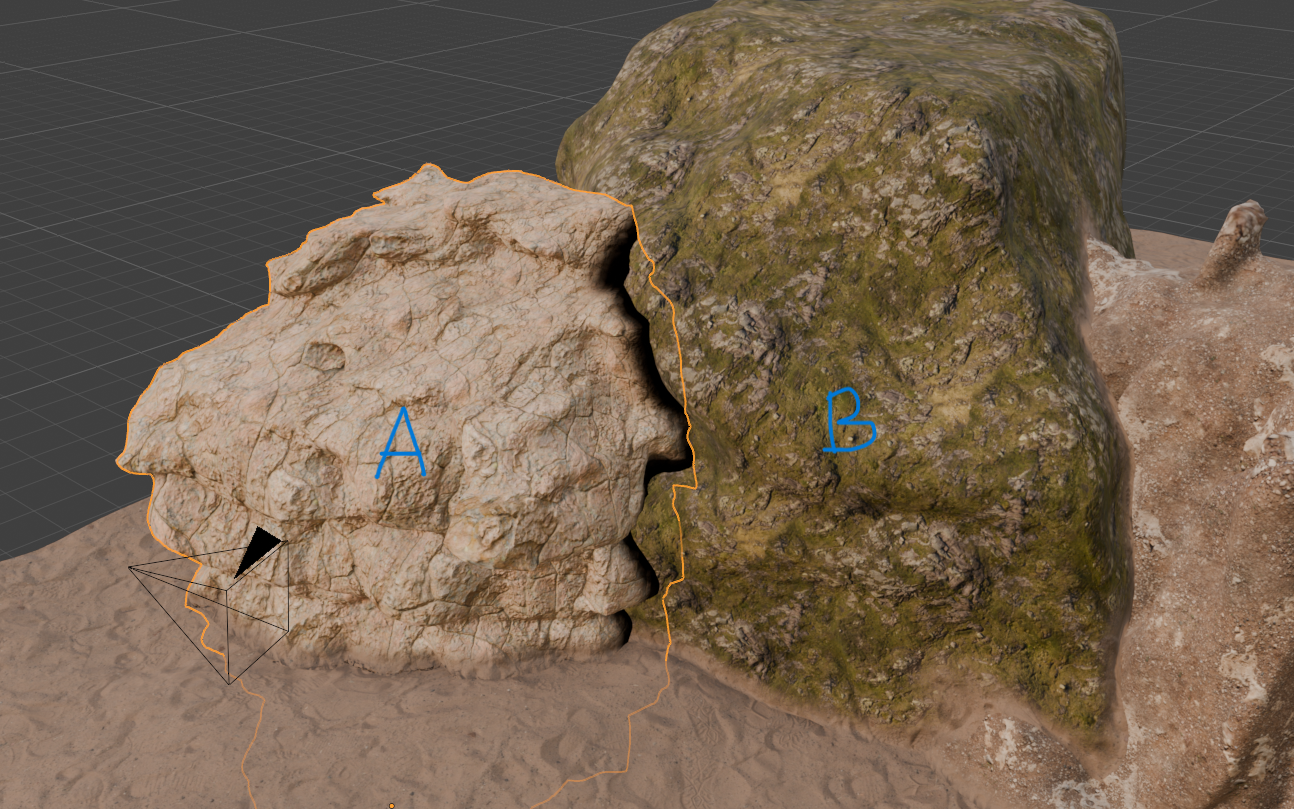
Problem: Black Shading in Cycles
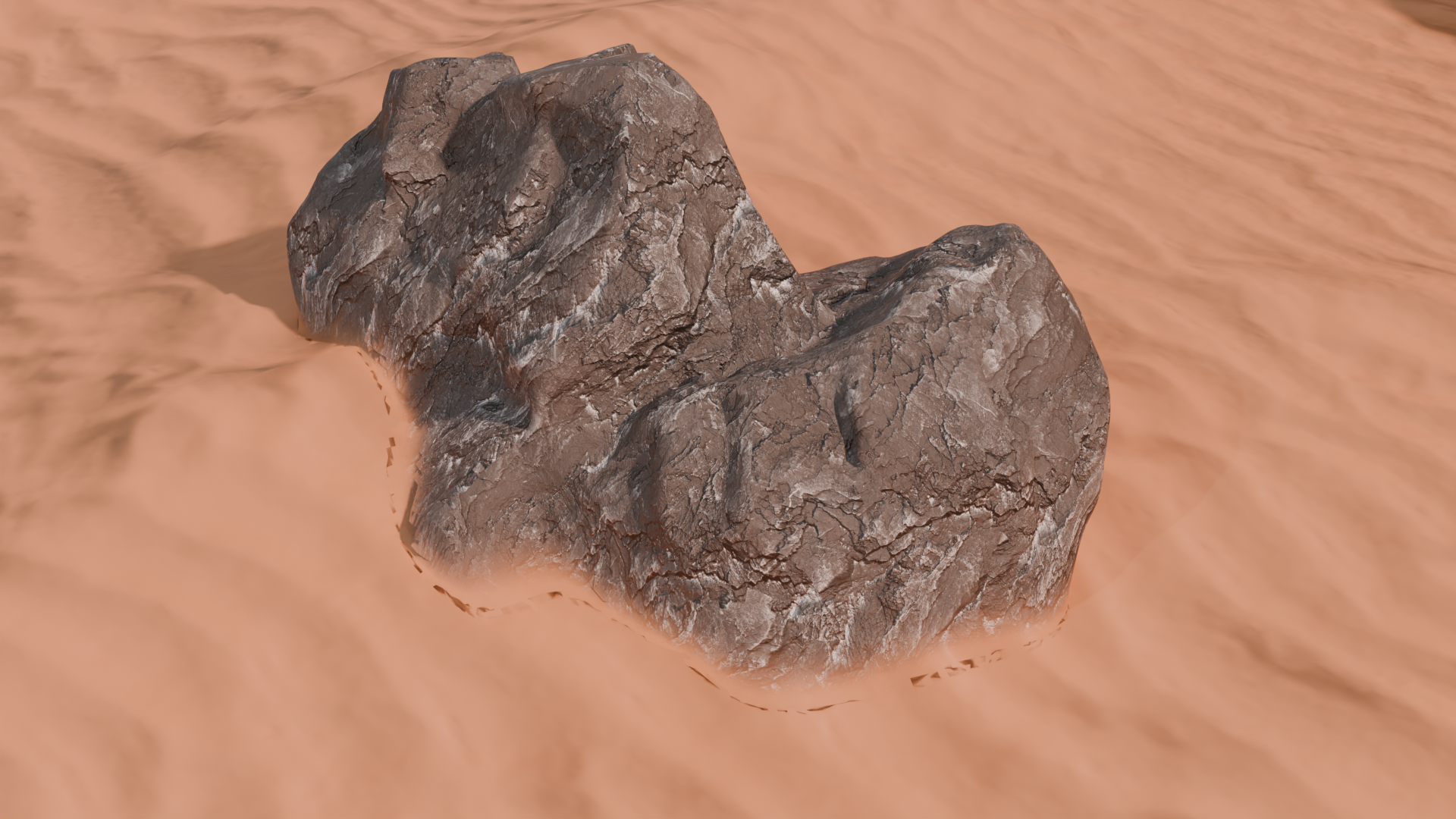
In some cases, the blended area may produce black or incorrect shading when using Cycles.
Solution
Try adjusting the blending parameters:
Increase the Falloff value.
Decrease the Reach value.
These adjustments can help reduce problematic shading in the blended area.
Recommended Render Engine
GeoBlend works particularly well with Eevee, due to differences in how lighting and shading are calculated compared to Cycles.
For the most consistent visual results, Eevee is recommended when working with GeoBlend.