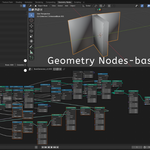
Geometry Nodes Book Generator - Build Procedural Library Fast
 Salman Naseem



How to Use - Geometry Nodes Book Generator
 Complete User Guide
Quick Start
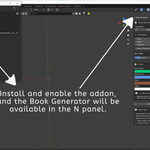
Installation
- Download
geometry_nodes_book_generator.zip - Open Blender (3.0 or newer)
- Go to: Edit > Preferences > Add-ons
- Click Install button
- Select the downloaded zip file
- Enable "Geometry Nodes Book Generator" checkbox
- Done!

Verification
After installation, you should see:
-
Add Menu:
Shift+A> Mesh > Book (Geometry Nodes) -
Sidebar: Press
N> Book Generator tab
Creating Your First Book
Method 1: Quick Add (Beginner Friendly)
- Delete the default cube (X key)
- Press
Shift+A(Add menu) - Navigate to: Mesh > Book (Geometry Nodes)
-
Book appears!

Adjust Settings (bottom left panel):
- Width, Height, Thickness
- Cover thickness
- Page count
- Colors
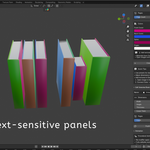
Method 2: N-Panel (Recommended)
- Press
Nto open sidebar - Click Book Generator tab
- Choose a preset (Paperback, Hardcover, etc.)
- OR customize dimensions manually
- Adjust colors if desired
- Click Create Book button
- Done!
Editing Books
Changing Dimensions
Select your book, then in the N-Panel:
Edit Selected Book panel shows:
- Width - Left to right size
- Height - Bottom to top size
- Thickness - Spine to edge size
- Cover Thick - Cover material thickness
- Page Count - Number of pages (10-500)
All changes update in real-time! No need to apply modifiers.
Using Presets
- In Book Generator panel
- Choose from dropdown:
- Pocket Book - 10.5 × 17 cm
- Paperback - 13 × 20 cm (novels)
- Hardcover - 15 × 23 cm (standard)
- Textbook - 21 × 27 cm (large)
- Coffee Table - 30 × 30 cm (display)
- Click Apply Preset
- Book resizes instantly!
Duplicating Books
- Select your book
- In N-Panel, click Duplicate Book
- New book appears at same location
- Move it with
Gkey
Adding Textures
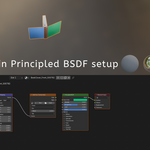
Step-by-Step Texture Setup
1. Select Your Book
Click on the book to select it.
2. Open Shader Editor
- Window > Shader Editor (or split your view)
- Make sure book is selected
3. Find the Material
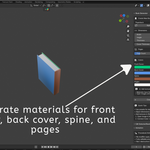
You'll see materials named:
BookCover_Front_XXXXXXBookCover_Back_XXXXXXBookSpine_XXXXXXBookPages_XXXXXX
4. Add Your Image
For Front Cover:
- Find the Image Texture node (labeled "Add Your Texture Here")
- Click the folder icon
- Browse to your image (PNG, JPG, etc.)
- Connect: Image Texture's Color → Principled BSDF's Base Color
For Back Cover:
- Repeat same steps with back cover material
- Or use same image for both covers
5. Adjust Mapping (Optional)
The Mapping node lets you:
- Location - Move texture position
- Rotation - Rotate the texture
- Scale - Size the texture
Texture Tips
Best Image Sizes:
- Front/Back Covers: 1024×1536 or 2048×3072 pixels
- Spine: 512×1536 pixels
- Higher resolution = better quality
Good File Formats:
- PNG (supports transparency)
- JPG/JPEG (smaller file size)
- TIFF (high quality)
Design Tips:
- Add book titles in image editing software first
- Leave margins (0.5cm) around edges
- Test with low-res images first
Animating Books
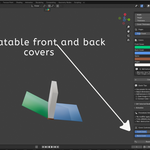
Opening the Covers
- Select your book
- Open Animation panel in N-Panel
- Adjust sliders:
Front Cover Angle:
-
0.0= Closed -
1.57= Half open (90°) -
3.14= Fully open (180°)
Back Cover Angle:
-
3.14= Closed -
1.57= Half open -
0.0= Fully open
Creating Animation
Method 1: Manual Keyframes
- Set timeline to frame 1
- Set covers to closed position
- Press
I> Available (creates keyframe) - Move timeline to frame 60
- Set covers to open position
- Press
I> Available again - Press Spacebar to play animation!
Method 2: Quick Animation (Not Yet Implemented)
Coming in future version
Reset to Closed
Click Reset to Closed button in Animation panel to return covers to closed position instantly.
Book Presets
Available Presets
| Preset | Dimensions | Best For |
|---|---|---|
| Pocket Book | 10.5 × 17 cm | Small novels, pocket guides |
| Paperback | 13 × 20 cm | Standard novels, fiction |
| Hardcover | 15 × 23 cm | Hardback books, non-fiction |
| Textbook | 21 × 27 cm | Textbooks, manuals |
| Coffee Table | 30 × 30 cm | Art books, photo albums |
| Custom | Your choice | Any size you want |
How to Use Presets
- Open Book Generator panel (N-Panel)
- Click Preset dropdown
- Select desired size
- Click Apply Preset (if editing existing book)
- OR just click Create Book (for new book)
Tips & Tricks
 Design Tips
Make Books Look More Realistic:
- Adjust Roughness in material (0.6-0.8 for worn books)
- Add slight Bump maps for texture
- Use aged paper colors (cream/beige instead of white)
- Add wear to cover edges
Scene Composition:
- Stack multiple books
- Rotate books at different angles
- Use array modifier for library shelves
- Add lighting for mood
 Performance Tips
Keep Blender Running Smoothly:
- Page Count: Keep under 300 for smooth viewport
-
Duplicates: Use linked duplicates (
Alt+D) instead ofShift+D - Viewport: Reduce page count while working, increase for final render
- Textures: Use 1K textures for viewport, 2K+ for render
 Workflow Tips
Efficient Book Creation:
- Create one master book with perfect settings
- Duplicate it multiple times
- Change cover textures per book
- Adjust dimensions slightly for variety
- Group all books (Ctrl+G) for easy selection
Texture Organization:
- Name your textures clearly (e.g., "mystery_novel_front.png")
- Keep all book textures in one folder
- Use consistent dimensions
Troubleshooting
Common Issues
 "Addon not showing in Add-ons list"
Solution:
- Make sure you have Blender 3.0 or newer
- Try restarting Blender after installation
- Check if zip file extracted correctly
"Book appears very small"
Solution:
- The book is there! Zoom in (scroll mouse wheel)
- Default size is 45cm × 60cm × 9cm
- Scale up with
Skey if needed
"Can't find Book Generator panel"
Solution:
- Press
Nto toggle sidebar - Make sure you're in Object Mode
- Look for "Book Generator" tab on right side
"Texture not showing on book"
Solution:
- Make sure you're in Material Preview or Rendered view
- Check if Image Texture is connected to Base Color
- Verify image file path is correct
"Book looks faceted/blocky"
Solution:
- Already set to smooth shading automatically
- If still blocky, select book > Right-click > Shade Smooth
"Animation not working"
Solution:
- Make sure book is selected
- Check that you're keyframing the correct properties
- Verify timeline is actually playing (Spacebar)
"High page count makes Blender slow"
Solution:
- Reduce page count to 100-150 for viewport work
- Increase only for final render
- Consider using simplified version for background books
Getting Help
Need More Support?
 Email: [email protected]
  YouTube: BeingAnimator
  Website: salmannaseem.com
Keyboard Shortcuts Quick Reference
| Action | Shortcut |
|---|---|
| Add Menu | Shift+A |
| Sidebar Toggle | N |
| Delete | X |
| Move | G |
| Rotate | R |
| Scale | S |
| Duplicate | Shift+D |
| Duplicate Linked | Alt+D |
| Insert Keyframe | I |
| Play Animation | Spacebar |
Next Steps
You're Ready! 
Now you know how to:
-
Create books
-
Edit dimensions
-
Add textures
-
Animate covers
-
Use presets
Try This Next:
- Create a small library scene with 5-10 books
- Add different textures to each book
- Arrange them on a shelf
- Add lighting and render!
Share Your Work:
- Tag on social media
- Send to: [email protected]
- We'd love to see what you create!
Happy Book Creating! 
Have questions about this product?
Login to message
| Blender Extension Compatible | Yes |
| Published | about 1 year ago |
| Blender Version | 4.0 - 5.2 |
| Extension Type | Add-on |
| Render Engine Used | Cycles, Eevee |
| License | GPL |

Discover more products like this
blender book generator addon procedural book creation blender easy book modeling blender