 Jakob


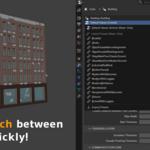
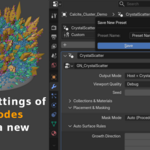
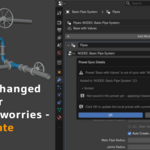
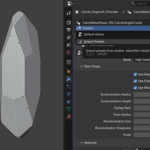
Official Documentation & User Guide
Everything you need to integrate GeoNodes Presets into your Blender workflow, from a 60-second quick start and full video walkthrough to an in-depth reference of every button, input type, and pipeline workflow.
Quick Start & Full Documentation Video
GeoNodes Presets lets you save, switch, organize, and share unlimited modifier input combinations for any Geometry Nodes setup, right inside Blender's Properties > Modifiers tab.
Open Properties > Modifiers on any object with a Geometry Nodes modifier. The preset toolbar appears directly above Add Modifier.
Adjust numbers, menus, booleans, attributes, materials, or objects in the modifier panel until you get a look you want to save.
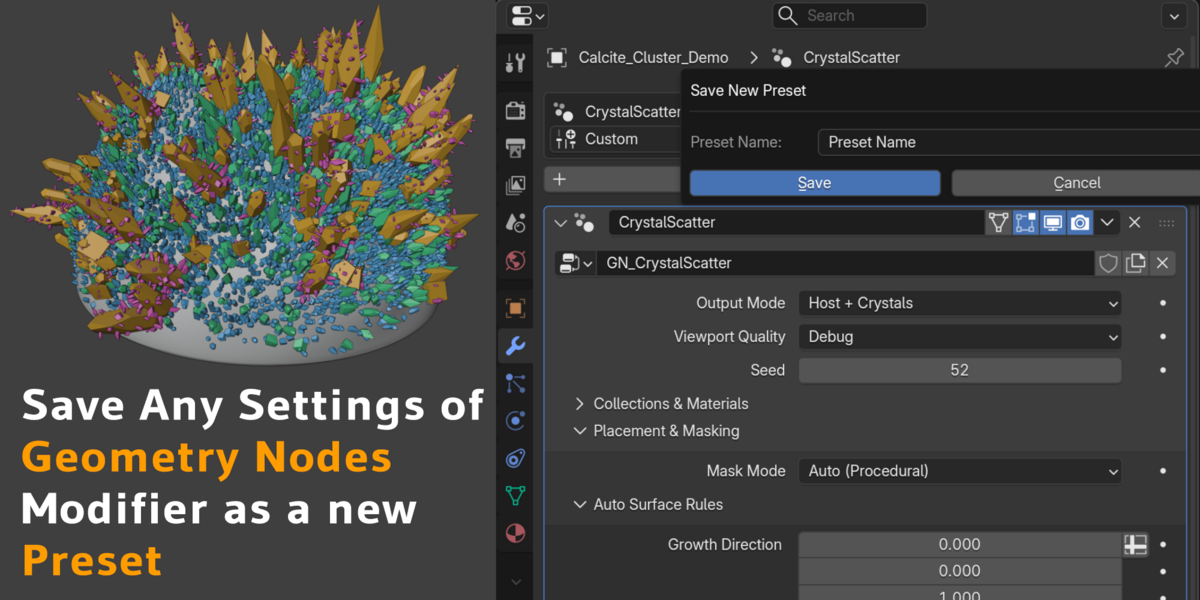
Click the + icon, type a preset name (for example, Pine or Oak), and click Save. It is stored inside your .blend file per NodeTree.
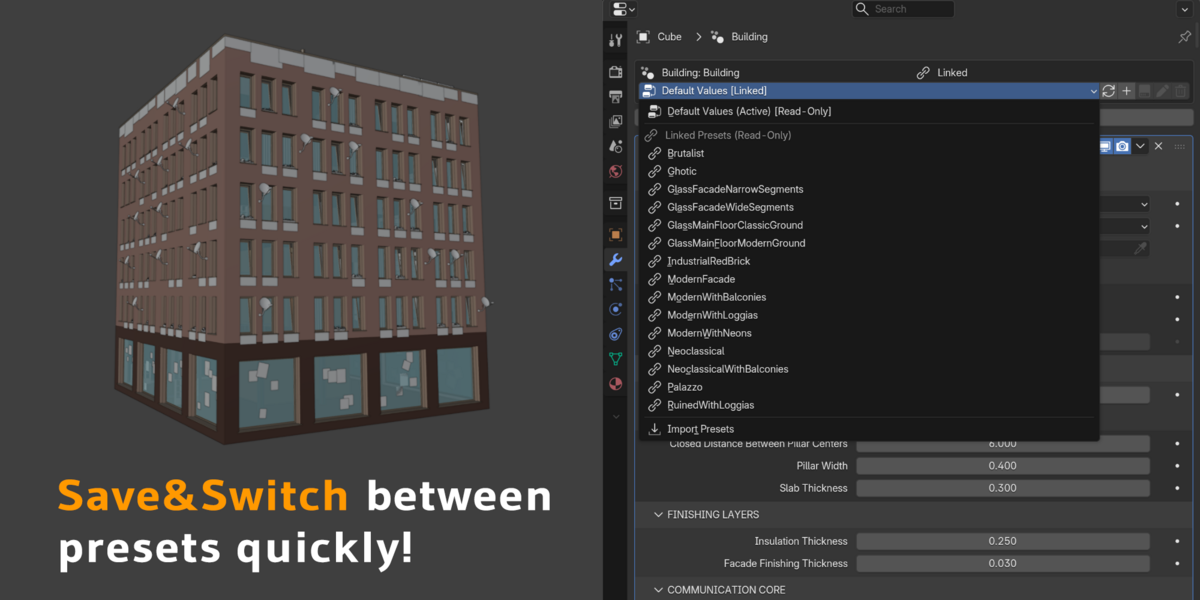
Use the dropdown menu to switch presets on this object or any other object sharing the same NodeTree, or reset to Default Values anytime.
Requirements & Installation
GeoNodes Presets is packaged as a modern Blender Extension with zero external dependencies.
- Blender Version: Built and verified for Blender 5.2+
- Operating Systems: Works on Windows, macOS, and Linux.
- Updating Versions: Installing a newer release never touches your presets because all preset data lives inside your .blend files, not inside the addon folder.
- Sharing .blend Files: Collaborators without the addon installed can open, render, and edit the file normally without losing any saved preset data.
Every Control Explained
GeoNodes Presets lives directly inside Properties > Modifiers above Add Modifier, keeping your 3D Viewport N-panel completely clean.
The top line displays Modifier Name: NodeTree Name (plus a Linked badge if the NodeTree comes from an external library). If the active object has no Geometry Nodes modifier with an assigned NodeTree, the bar stays hidden.
If an object has multiple Geometry Nodes modifiers, clicking any modifier header makes it active and targets the preset bar to it. If a non-GN modifier (such as Subdivision) is active, the bar falls back to the first valid Geometry Nodes modifier on that object.
Matched Preset, Default Values, or Custom
GeoNodes Presets evaluates your modifier inputs live so the bar always reflects what your modifier is actually showing, even if you duplicate objects or dial sliders back manually.
Displays the preset name (plus [Linked] or [Local] when using a linked NodeTree). If you duplicate an object (Shift+D) or manually match every input of a preset, the bar automatically detects and displays it.
Every NodeTree includes a built-in Default Values entry at the top of the menu. Clicking it resets all inputs back to the NodeTree interface defaults (including any socket Default Attribute Name). Saving presets never alters Default Values.
Tweaking any input immediately switches the label to Custom. From here you can click Refresh to undo your tweaks back to the base preset, Overwrite to update an existing preset, or + to save a new variant.
Duplicate Protection & Updating Default Values
- Confirm Overwrite on Save (+): If you type the name of an existing local preset in Save New Preset, a live warning appears and clicking Save opens a second Confirm Overwrite dialog so existing presets are never replaced by mistake.
- Reserved Name: The name Default Values cannot be used for custom presets.
- Updating NodeTree Defaults: To update a local NodeTree's own interface defaults from your current modifier settings, click Overwrite (disk icon) and select Default Values from the target dropdown.
Full Blender Undo (Ctrl+Z)
Every action in GeoNodes Presets registers cleanly with Blender's undo system:
- Applying a preset or resetting to Default Values
- Saving, overwriting, renaming, or deleting presets
- Updating an out-of-sync preset or importing presets
Supported Sockets, Attributes & Datablocks
Presets record the full state of your Geometry Nodes modifier interface, including input modes, datablock references, and conditionally hidden sockets.
Value & Menu Sockets
- Numeric & Vectors: Float (all subtypes such as Distance, Factor, Angle), Integer, Vector, Color, and Rotation.
- Logic & Text: Boolean (including Panel Toggles) and String sockets.
- Menus: Geometry Nodes Menu sockets (Menu Switch) preserve the selected option by name.
Modes & Conditional Inputs
- Input Modes Preserved: Stores whether each socket uses a direct Value or a Named Attribute and switches modes automatically when applying presets.
- Dynamic Socket Visibility: Inputs currently hidden behind menu switches or panel toggles are still captured and restored accurately when switching presets.
Datablock Pointers & Safety
- All 7 Datablock Types: Object, Collection, Material, Image, Font, Texture, and Sound.
- Rename-Safe & Clearable: Stored via live Blender pointers (with name fallback) so renaming an asset keeps links intact, and empty slots clear back to empty cleanly.
- Missing Assets Handled: Deleted datablocks or removed Menu options are reported cleanly and skipped without breaking the rest of the preset.
Storage & Editing Your NodeTree
Presets live inside your .blend file per NodeTree and identify every socket by Blender's internal identifier, keeping your presets working as your generator evolves.
Where Presets Are Stored & Shared
- Saved Inside the .blend File: Local presets are stored directly on the Geometry NodeTree datablock inside your .blend file. Moving, renaming, or transferring files between computers preserves everything automatically.
- Shared Across All Users of a NodeTree: If 10 objects (or multiple modifiers on the same object) use the same NodeTree, they all share the same preset list while tracking their own active preset independently.
- Rename-Proof Tracking: Renaming objects or renaming modifiers never breaks which preset is active on a modifier.
When You Edit Your NodeTree Later
- Reorder, Rename, or Move Panels: Because every input is matched by Blender's internal socket identifier rather than label or list position, renaming labels, moving inputs between panels, or reusing the same name in different panels keeps presets 100% in sync.
- Add or Remove Sockets Safely: Newly added inputs are left untouched when applying an older preset; removed inputs are ignored without errors.
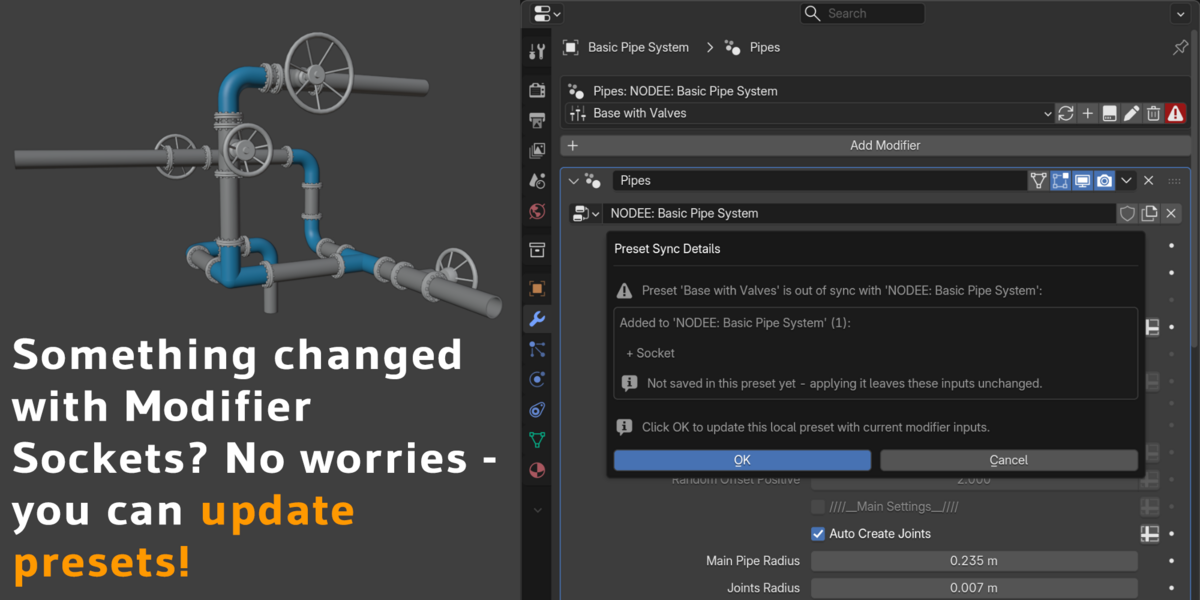
- Red Warning ( ! ) & 1-Click Sync: When sockets are added, removed, or change type, a red alert icon appears. Hover to inspect what changed, or click it to open Preset Sync Details and click OK to update a local preset with current values.
Tested on complex procedural generator NodeTrees with over 1,000 interface items across nested panels. Schema checks are cached and automatically refreshed when you edit the NodeTree, keeping the Modifiers tab responsive.
Asset Browser, Linked Trees & Import Presets
Designed from the ground up to work seamlessly with Blender's Asset Browser, appended assets, read-only linked libraries, and multi-file projects.
- Appending (or Asset Browser Append): Appending an object or Geometry NodeTree brings all saved presets with it automatically. Because the tree is now local in your scene, all presets are immediately editable.
- Linking (or Asset Browser Link): The preset bar displays a Linked badge and splits the menu into Linked Presets (Read-Only) and Local Presets (Current File).
- Zero Risk to Source Libraries: Linked presets and linked Default Values cannot be overwritten, renamed, or deleted from a master scene, so the source library .blend file is never touched.
- Create Local Scene Presets on Linked Assets: Click + anytime to save [Local] presets inside your current master scene on top of a linked NodeTree.
- Moved Library Files: If you move and relocate a linked library .blend file to another folder, local scene presets automatically match by library filename and NodeTree name.
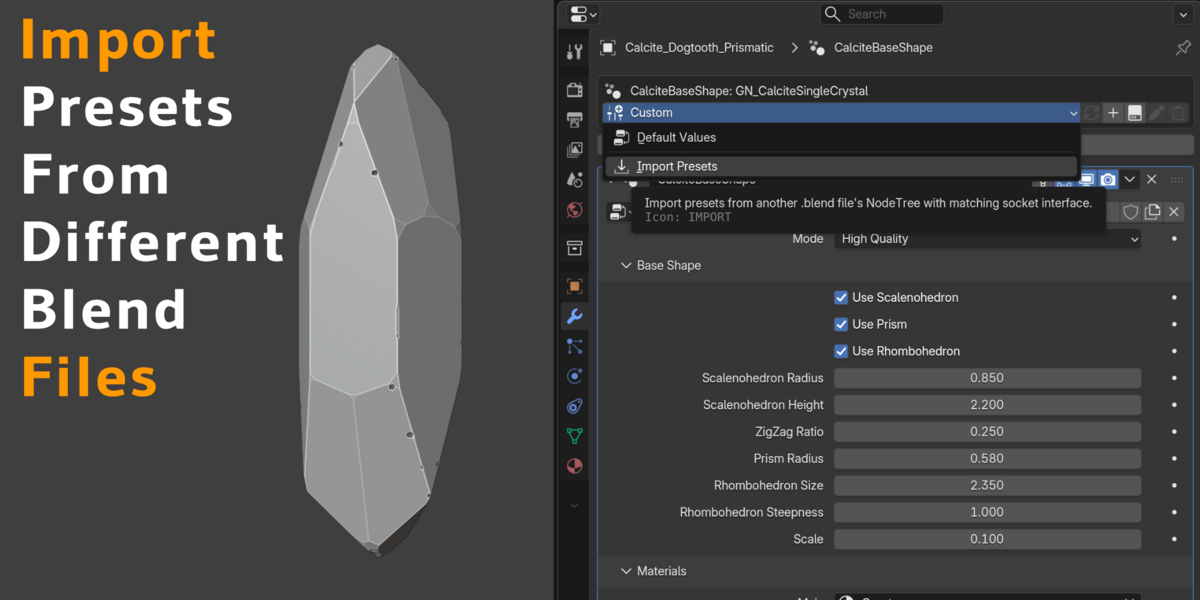
Transfer presets from another .blend file (or from another matching NodeTree in the same saved file) directly into the active NodeTree:
- Interface Validation: Checks that both NodeTrees have matching interfaces (even if their tree names differ, such as Tree vs Tree.001) without leaving temporary libraries in your file.
- Smart Asset Reconnecting: Automatically binds datablocks (Materials, Objects, Collections, Images, Fonts, Textures, Sounds) to matching names already in your active file without importing duplicate external assets.
- Protected Linked Names: Conflicting read-only linked preset names are never overwritten and are imported locally with .001 suffixes.
Frequently Asked Questions
Common pre-purchase and workflow questions answered clearly.
Does it work with any Geometry Nodes asset or generator?
Yes. GeoNodes Presets works automatically with any Geometry Nodes modifier, whether it is your own setup, a third-party procedural generator, or an Asset Library asset. No node tree modifications are required.
Why is the preset bar not visible in Properties > Modifiers?
The bar appears automatically only when the active object has at least one Geometry Nodes modifier with a NodeTree assigned. Make sure an object is selected and its Geometry Nodes modifier is not empty.
Are presets saved per object or per NodeTree?
Presets are saved per NodeTree, so every object or modifier sharing that tree can access the same presets. Each modifier instance tracks its own active preset independently.
Will creating presets overwrite my NodeTree's Default Values?
No. Saving, switching, renaming, or deleting presets never touches your NodeTree's socket defaults. You only update defaults if you explicitly open Overwrite and choose Default Values on a local tree.
Why are Rename, Delete, or Overwrite greyed out?
Rename and Delete require an active, matching local preset, so they are disabled on Custom values, Default Values, or read-only [Linked] presets. Overwrite is disabled on linked NodeTrees until you save at least one local preset first.
Why is the Refresh button disabled in Custom mode?
Refresh reverts tweaks back to the preset or Default Values you started from. If you open a file or duplicate an object that was already saved in an unmatched custom state with no prior base preset in the session, there is no base preset to revert to.
Why did Import Presets show a folder or interface mismatch error?
During Import Presets, make sure you click inside the .blend file, enter the NodeTree folder, and select a specific NodeTree (not the .blend file itself or Object). Also verify both NodeTrees share the exact same socket interface and identifiers.
Can presets be keyframed or animated?
GeoNodes Presets stores complete static snapshots of modifier values, attribute/layer modes, and datablocks for instant switching and organization. Individual modifier sockets remain keyframeable in Blender as usual.
Need Additional Assistance?
Have questions before buying, found an edge case, or need help with a custom Geometry Nodes setup? Contact the creator directly through SuperHive messaging for dedicated assistance.
 Included
Includes 12 months of
- Support from Jakob
- Product updates
Extend this product’s Support Period +12 months: 50% of product price
Have questions before purchasing?
Login to message
| Blender Extension Compatible | Yes |
| Published | about 2 hours ago |
| Blender Version | 5.2 - 5.3 |
| Extension Type | Add-on |
| Render Engine Used | Cycles, Eevee |
| License | GPL |

Discover more products like this
asset managment geometry-nodes-tree organization NodeTree Blender_Geometry_Nodes nodes presets