 Jakob


Presets for Any Geometry Nodes Setup
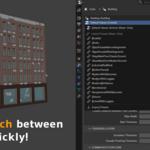
Have you found nice settings for your Geometry Nodes? Save them! Save, switch, and organize unlimited input combinations for any Geometry Nodes modifier - right inside Blender's Modifiers tab.
See It in Action!
Turn any Geometry Nodes modifier into a reusable preset library in seconds. Watch the full showcase and documentation video to see instant preset switching, saving and reverting variations, updating presets when your node tree changes, and importing presets between .blend files.
Right Where You Work
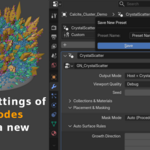
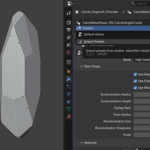
GeoNodes Presets sits neatly inside Properties > Modifiers directly above Add Modifier. It automatically targets your active Geometry Nodes modifier (or the first one on the object), shows the Modifier: NodeTree header, and keeps all preset controls one click away.
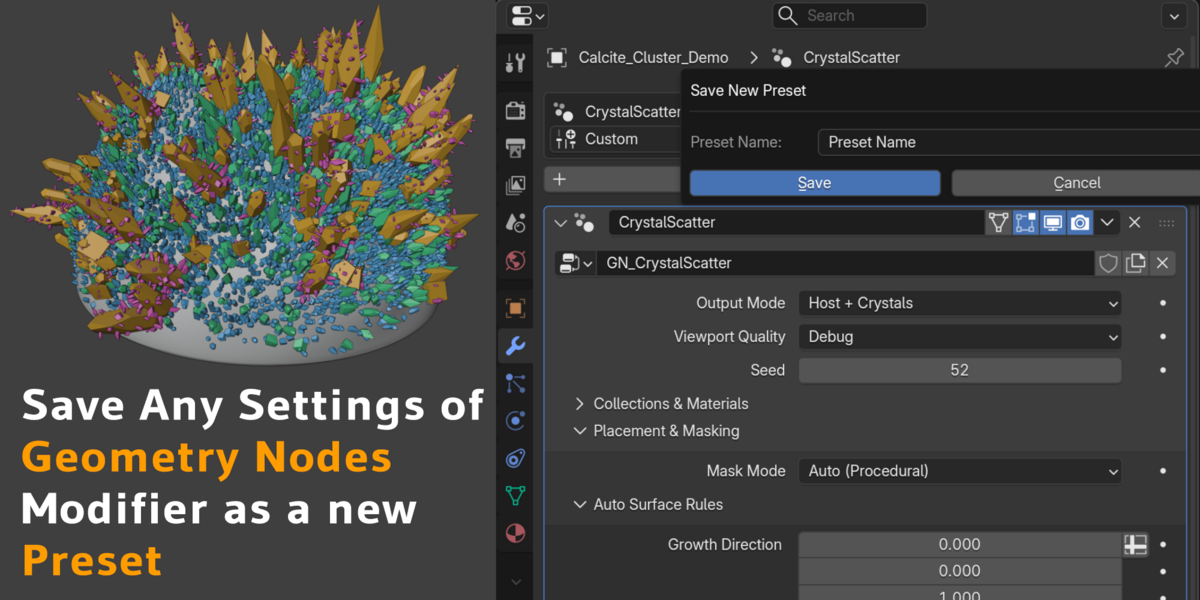
Save your current modifier settings as a named preset in one click, ready to reuse on any object using this node tree.
Update an existing preset anytime with a quick confirmation prompt, or push your favorite settings back into a local NodeTree's Default Values.
Keep your preset list clean and organized. Rename presets across your scene or remove old ones.
Experiment without worry. Switching, saving, updating, renaming, or deleting presets all work with Blender's native Undo.
Preset, Default Values, or Custom?
Always know what your modifier is showing. GeoNodes Presets automatically displays whether your settings match a saved preset, the NodeTree's built-in Default Values, or Custom tweaks.
Edit Your NodeTree Without Losing Presets
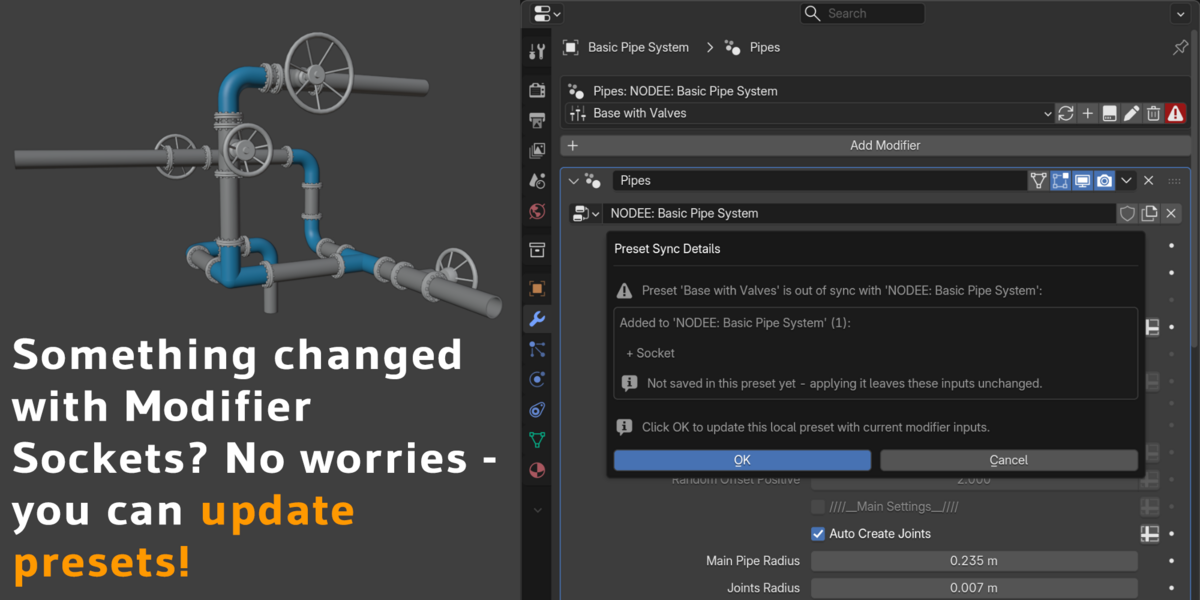
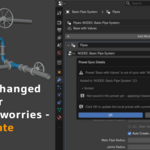
Still working on your Geometry Nodes setup? No problem! Reorder inputs, rename sockets, move panels, or add new controls - your existing presets keep working automatically, and a warning icon lets you know if an old preset needs updating.
Move inputs across panels, change their order, or rename labels (even using the same name in different panels) without breaking saved presets.
New sockets stay untouched until you save them, and removed sockets are safely ignored without errors.
If your node tree changes after saving a preset, an alert icon appears. Click it to review what changed and update in one click.
Built for Linked Assets & Teams
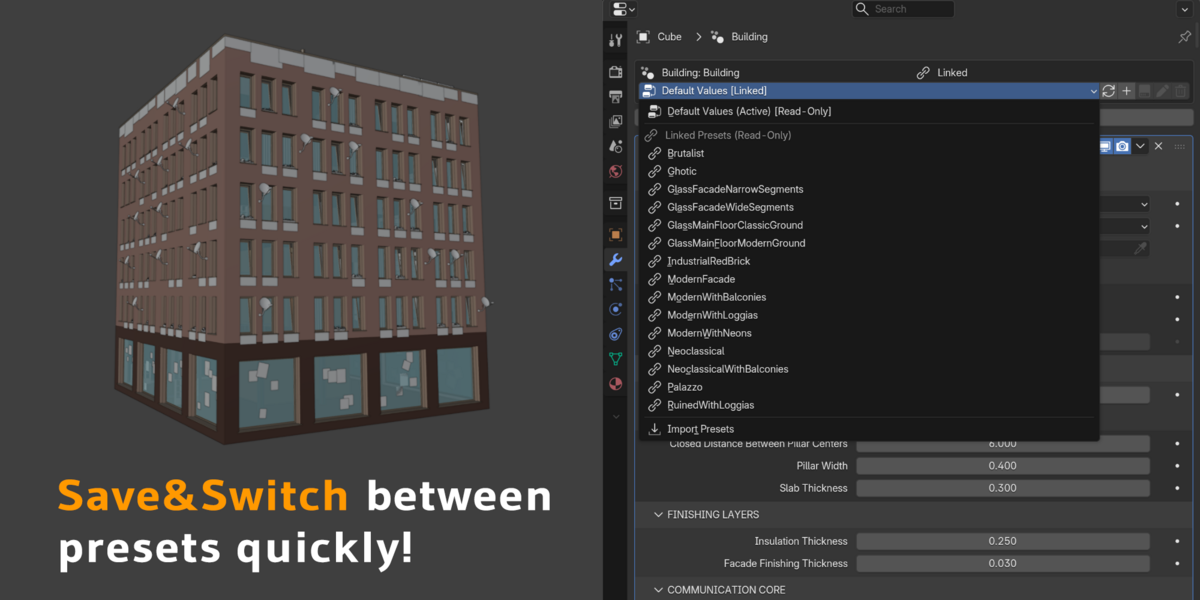
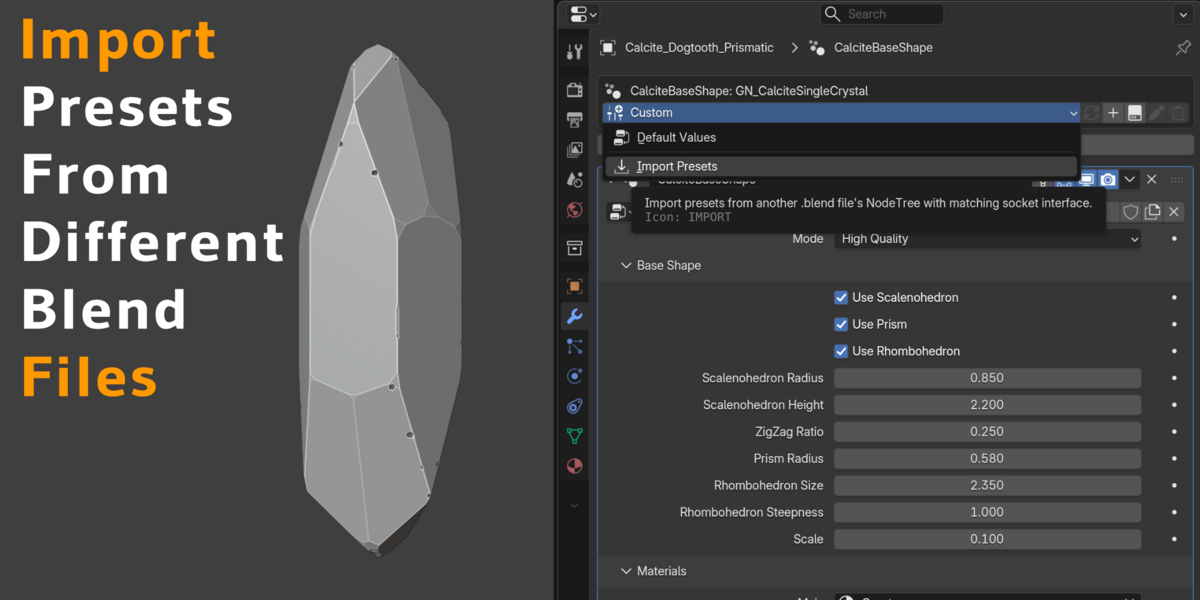
Use Geometry Nodes across Asset Libraries, Linked scenes, Appended objects, and separate project files. Create local presets on top of read-only linked trees, or import presets directly from another .blend file.
Lightweight Even on 1000+ Sockets
Built for huge procedural generators with over 1,000 inputs and nested panels. Switching presets and working in Blender's Modifiers tab stays fast and responsive without slowing down your scene.
Feature List? Everything You Need:
Every capability built into GeoNodes Presets at a glance:
Core Preset Workflow
- Modifiers Tab Header directly above Add Modifier (zero N-panel clutter)
- Built-in Default Values to reset any modifier back to NodeTree defaults
- Live Status Display showing your active Preset, Default Values, or Custom
- 1-Click Revert / Re-apply back to your previous preset after tweaking sliders
- Save, Overwrite, Rename & Delete presets anytime
- Update Default Values of a local NodeTree directly from the modifier bar
Supported Inputs & Safety
- All Socket Types supported across your Geometry Nodes modifier
- All Input Modes preserved for every modifier socket
- All Datablock References supported with rename-safe links
- Dynamic Socket Visibility: Captures and restores hidden conditional inputs
- Non-Breaking Edits: Reorder sockets, move panels, or rename labels without losing presets
- Change Warning & 1-Click Update: Alerts you when sockets change and updates local presets easily
Libraries, Import & Speed
- Saved Inside .blend Files: Shared per NodeTree with no external files to lose
- Linked Tree Protection: Read-only [Linked] presets plus local [Local] scene presets
- Asset Browser & Append Friendly: Presets travel automatically with appended trees and objects
- Cross-File Preset Import with compatibility check, asset reconnecting, and conflict dialog
- Full Blender Undo (Ctrl+Z) on every preset operation
- 1000+ Socket Performance: Stays responsive even on huge procedural generators
Need Help? Everything You Need Is Here
Have questions before or after getting started? Everything is already available right here on this page:
Watch the showcase & documentation video near the top of this page for a complete visual walkthrough in Blender.
Check the Docs tab at the top of this SuperHive page for clear installation steps and usage notes.
Visit the FAQ tab on this product page for quick answers to common questions about workflow and compatibility.
Upgrade Your Geometry Nodes Workflow Today
Get instant access to GeoNodes Presets and turn every procedural modifier into an organized, shareable preset system inside Blender.

